


We just shipped SearchWP 4.5.8, and this one comes with a feature we’ve been genuinely excited to get into your hands: Voice Search.
As of today, your visitors can speak their search queries instead of typing them.
One tap on a mic button, a few spoken words, and they’re looking at results. No keyboard, no typos, no friction.
It’s a small change to the search experience that makes a surprisingly big difference, especially on mobile.
Here’s everything that’s new.
Why Voice Search, Why Now?
Think about how you use your own phone. You ask it for directions. You dictate text messages. You ask questions out loud without thinking twice.
Your site visitors do the same thing, and that habit doesn’t switch off when they land on your website.
They arrive expecting a fast, intuitive experience, and when the search bar only accepts typed input, there’s an invisible gap between how they naturally want to interact and what your site actually offers.
Voice Search closes that gap.
But it goes beyond convenience and enhances accessibility for your WordPress website.
For people living with motor disabilities, arthritis, dyslexia, or other conditions that make typing difficult or painful, a voice-enabled search bar just takes the overall user experience to the next level.
You’re making your site more welcoming to everyone. That’s the kind of upgrade that benefits your visitors quietly but meaningfully, and reflects well on the care you’ve put into your site.
And the best part is that SearchWP makes it easy to get there without any complicated setup.
What’s New with the Voice Search Feature
Here’s exactly what your visitors will experience when you enable this feature:
- A mic button appears next to the search field. Clean, simple, and unobtrusive, it sits right alongside the search input, ready when your visitor needs it.
- They tap, speak, and their words appear. The spoken query is transcribed in real time and written directly into the search field. They can see it happening as they speak, which feels remarkably satisfying.
- The search can trigger automatically. If you enable the automatic form submission option, SearchWP will fire the search as soon as the final transcript comes in. This means the visitor goes from speaking to seeing results without any extra steps.
Get Started with SearchWP Voice Search
You’ll find the Voice Search settings right inside SearchWP. The best part is that it’s super simple to enable the option. No complicated setup required.
Simply head to the Search Form page in SearchWP from your WordPress dashboard. From here, scroll down to the ‘Custom Styling’ section.
Now, click the toggle to enable the Voice Search option.
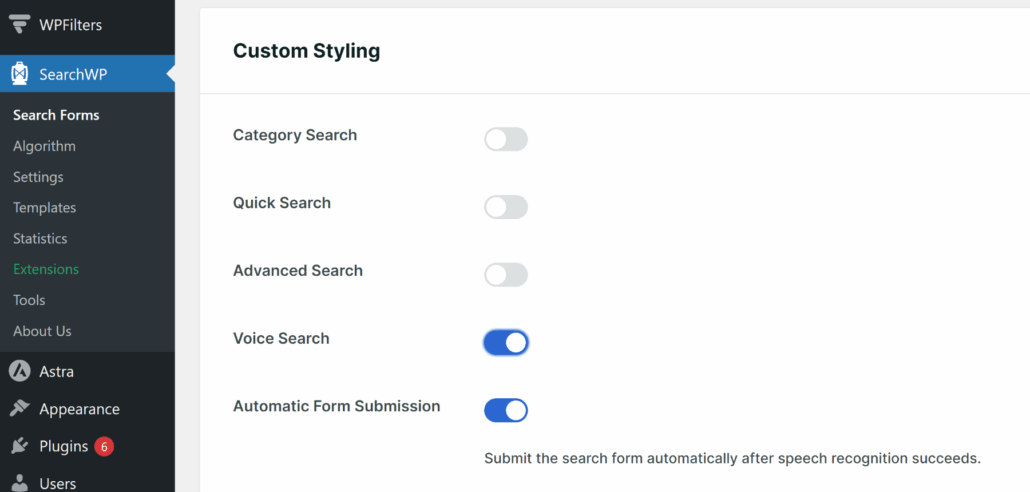
You’ll also find the ‘Automatic Form Submission’ right under Voice Search. This option controls whether the search fires automatically after speaking or waits for the visitor to confirm.
If you enable it, then the search form is automatically submitted after the speech recognition is complete.
Next, you can visit the search form on your website, and you’ll notice the microphone icon in the search bar. Users can simply click the icon and speak the search query.

The voice search feature is now out!
Do note that this new feature works with browsers that support Web Speech API, which includes Google Chrome, Microsoft Edge, and Safari.
So what are you waiting for? Update to the latest SearchWP version. Once you’re on 4.5.8, Voice Search will be waiting for you in the form settings inside SearchWP.
As always, we really appreciate your support in making SearchWP the best search plugin for WordPresss. If you have questions or need support, our team is here to help.