

You want visitors to filter your search results. Pick a category, narrow by tag, focus on one post type. That’s what WordPress faceted search is supposed to do, yet the moment you bolt a filter plugin onto your search page, the carefully ranked results that SearchWP returned go out of order, and the most relevant matches drift below results that happen to match the filter exactly.
SearchWP 4.6.0 closes that gap. Drop WPFilters controls onto any Results Template and they now narrow your search results while keeping SearchWP’s relevance ranking intact. The two plugins finally compose properly, so your visitors get both the relevance they need and the filtering UI they expect.
WordPress Faceted Search That Respects Your Ranking
The new WPFilters integration runs at the same layer SearchWP uses to score results, which means filtering happens before ranking, not after. Selecting “Post Type: Product” or “Category: Tutorials” narrows the result pool, and SearchWP then sorts whatever remains by relevance to the search keyword. The top of the list is still the most relevant match, just within the narrower set the visitor asked for.
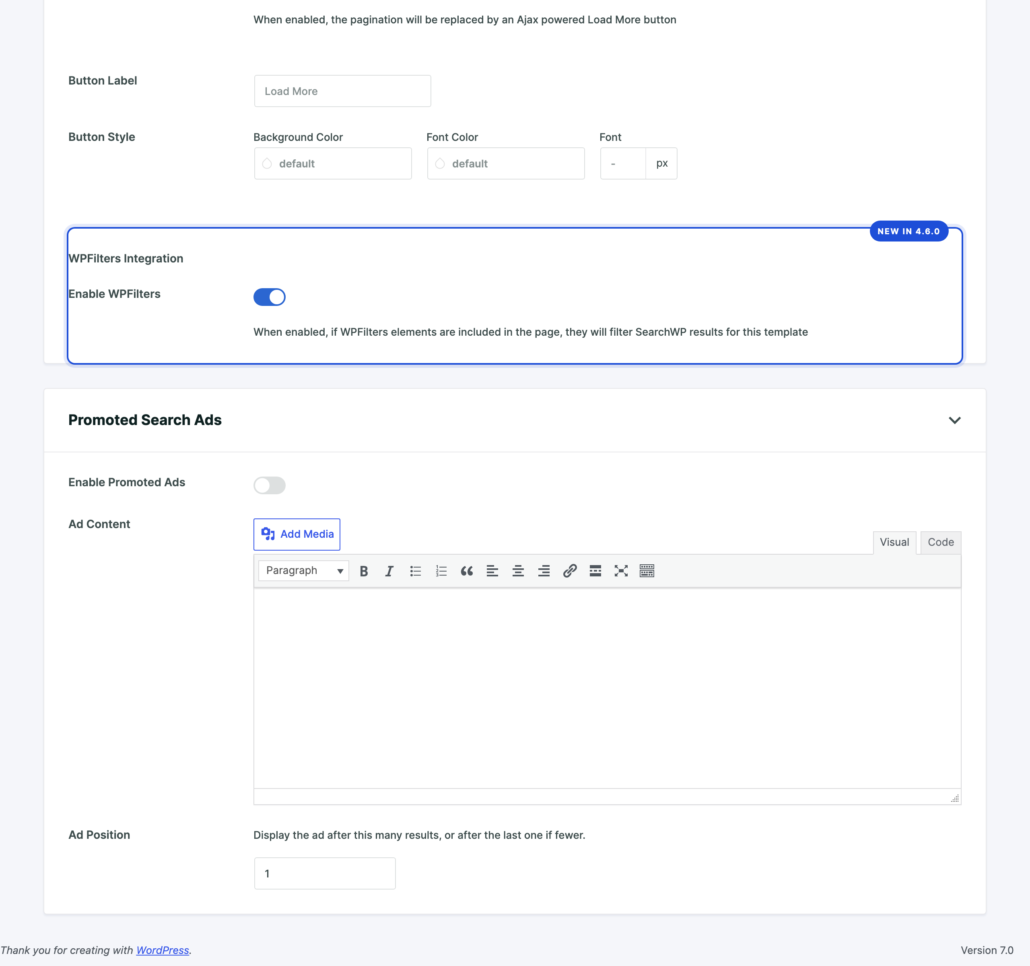
To switch it on, open any Results Template and look for the new WPFilters Integration toggle in the Custom Styling section. Flip it on for that template and any WPFilters elements you place on the page will start narrowing the result list.
Filter changes survive across pagination and Load More, so a visitor who picks a category and scrolls through five pages of results never loses their filter. The Search element from WPFilters also plays nicely with the SearchWP keyword on the same page, so the two search boxes stay in sync instead of fighting each other.
The integration is paired with WPFilters 1.1.0, which ships alongside this SearchWP release. If you have an older WPFilters installed, SearchWP will tell you: the Enable WPFilters toggle stays disabled with a friendly prompt to update, and a matching reminder appears in the SearchWP notifications panel. Update WPFilters and both signals clear on their own. No broken pages, no silent no-ops.
Place Filters Next to Your Results
SearchWP 4.6.0 also registers two new widget areas built for WordPress faceted search: SearchWP Results Left Sidebar and SearchWP Results Right Sidebar. They appear under Appearance → Widgets and they render on the SearchWP-powered search results page only, so they don’t clutter the rest of your site.
Drop a WPFilters element into either sidebar and the search results page automatically switches to a responsive two-column layout. If you fill both sidebars, you get a three-column layout with results in the middle. Use only one sidebar (or none) and SearchWP picks the right variant for you. On phones and narrow viewports the columns collapse to a single column so the page stays readable.
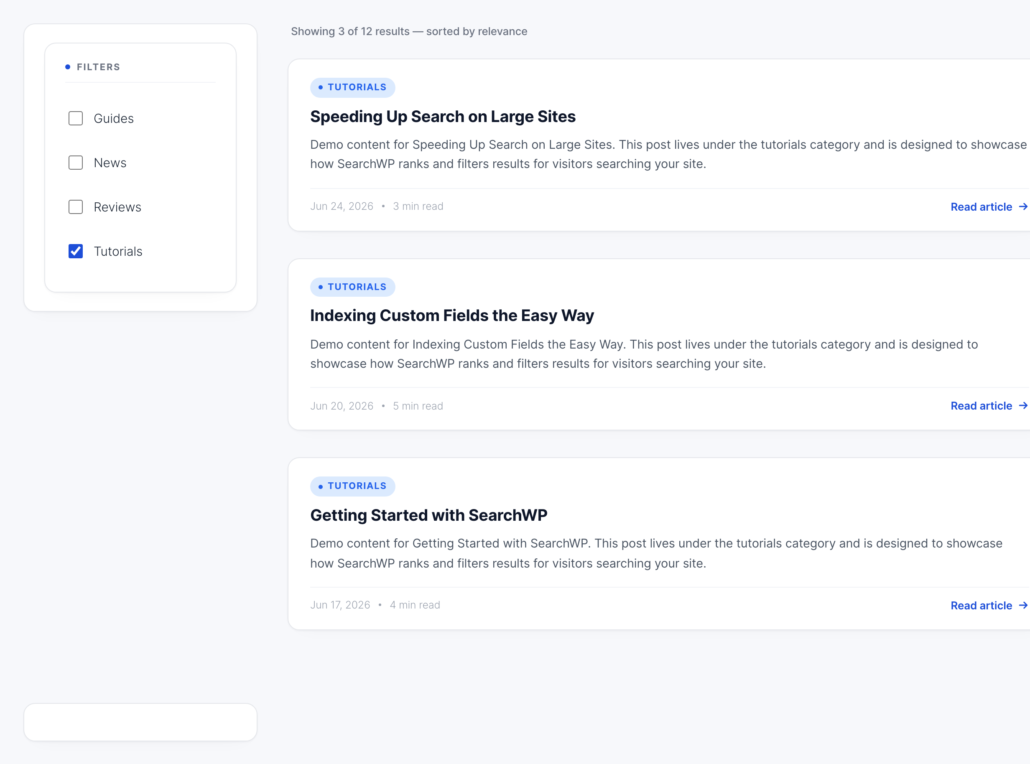
The sidebars only render on the search results route SearchWP serves, which is the place where you previously couldn’t drop widgets at all. On pages you build yourself (a shortcode page, a Gutenberg layout, a Bricks or Elementor page) you already control the layout, so SearchWP gets out of the way and lets you place filter elements wherever you want them.
One WordPress Faceted Search UI for Everything You Index
The integration works for posts, custom post types, taxonomy terms, custom fields, and authors. If you’re running a documentation portal, your readers can filter by section. If you’re running a WooCommerce store, your shoppers can filter products by category, attribute, or any custom meta you index. If you’re running a knowledge base, support can narrow by tag while still surfacing the article most likely to answer the question.
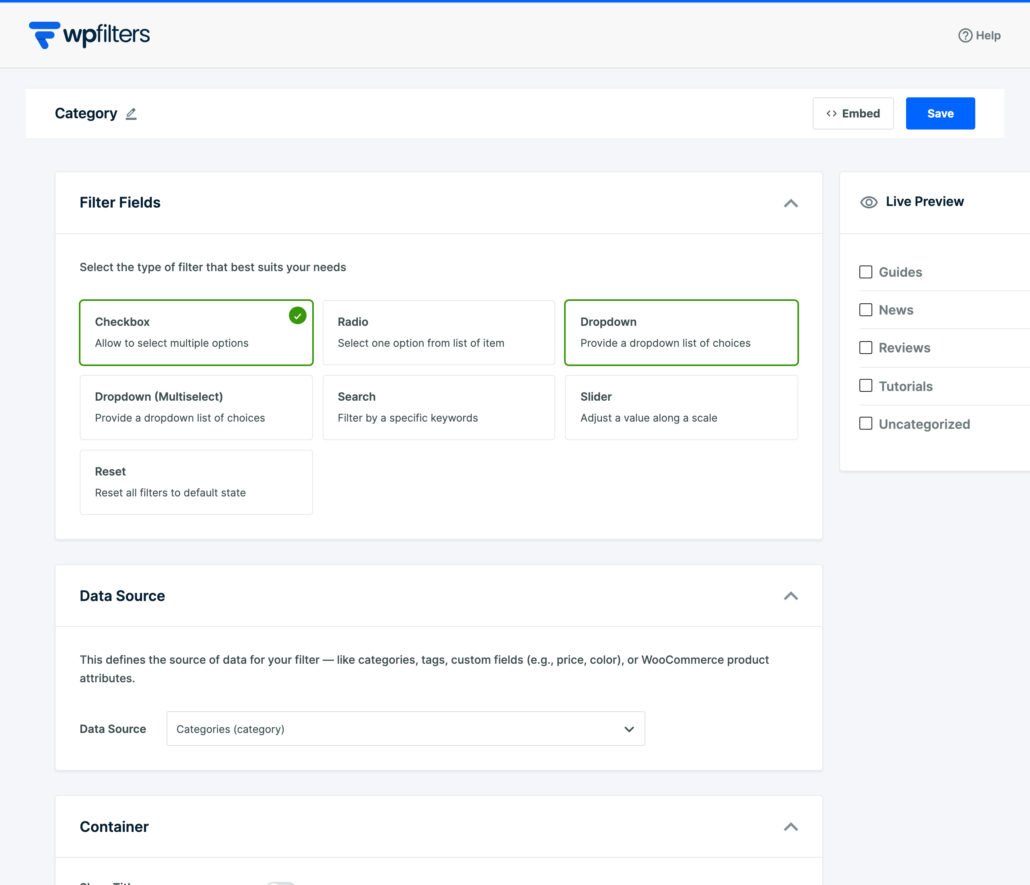
Each filter is its own element configured in WPFilters: pick a filter type (checkbox, dropdown, slider), point it at a data source (a taxonomy, custom field, post type, or author), and a live preview shows the values your visitors will actually see. SearchWP then composes with whatever you build.
Selecting a filter updates the result list in place. No full page reload, no broken back-button history. For a deeper look at how filtering plays with product catalogs, our guides on filtering WooCommerce products and adding a color filter walk through real-world setups you can adapt to use SearchWP-ranked results underneath.
More Improvements in This Release
- Right plugin, right update. If you run both SearchWP and WPFilters, WordPress now shows the correct update notice for each plugin — no more crossed wires between the two on the Plugins screen.
- Filters apply on empty searches. Visitors who land on a Results Template page without a search term see their selected filters apply to the result list right away.
- Clean handling of two search boxes. The integration lets a WPFilters Search element sit alongside your SearchWP search keyword on the same Template page. Reset clears both the filters and the keyword together, in one click.
- Routine security improvements. We’ve strengthened internal data handling as part of our ongoing security review. There’s nothing you need to do beyond updating, but we recommend updating promptly.
For the full list of changes, see the SearchWP changelog.
Upgrade Your Site Search Today
SearchWP 4.6.0 is rolling out now. If automatic updates are on you’ll get it without lifting a finger. Otherwise head to Plugins → SearchWP in your dashboard and click update.
Once you’re on 4.6.0, make sure you’re running WPFilters 1.1.0 or later alongside it, open a Results Template, flip the Enable WPFilters toggle, and drop a filter element into one of the new sidebars. Your visitors will thank you the next time they search.
If you run into anything or want to tell us what to build next, our support team is happy to hear from you. We’re already lining up the next set of improvements, so let us know what would make your search work harder for you.