

If you’re running a membership site, then you have worked hard to gate the right content for the right members. But when a free member types a keyword into the search bar, Premium-only posts appear right in the results with their titles and excerpts on full display.
That gap is exactly the problem many site owners run into when they try to limit WordPress search by user group. WordPress’s native search has no awareness of the access rules a third-party plugin has configured.
SearchWP fixes this as it includes a PrivateContent Integration that makes search results honor every user-group restriction on your site.
In this article, we’ll show you how to set up SearchWP to limit WordPress search for custom user groups, step by step.
What Is Search Access Control?
Search access control means your search results respect the same rules as the rest of your site. If a user can’t browse to a post, they shouldn’t be able to find it by typing a keyword into the search bar either.
Most WordPress access-restriction plugins do a thorough job of hiding content at the page-browsing layer.
But search is a separate system that runs its own database query, and without a specific integration, that query ignores every access rule you’ve configured.
Once search access control is in place, your search bar becomes a trusted navigation tool for every user group.
Members stay inside the content scope their subscription entitles them to, and restricted content stays private, no matter how a user tries to find it.
Why Limiting Search by User Group Matters
Running a site with tiered content access is only as strong as its weakest entry point.
From our experience, search is the most commonly overlooked gap in an otherwise well-configured access setup.
Here’s where the pain shows up:
- Content leaks. Restricted posts appear in search results for members who aren’t authorized to see them. Even when the post itself is locked, the title and excerpt reveal the content before the visitor ever clicks through.
- Broken trust. When a lower-tier member discovers gated content through search, it breaks the trust your membership tiers are built on. It creates confusion, support tickets, and churn from members who feel the site is inconsistently managed.
- Manual workarounds don’t scale. Excluding individual posts from search one by one works for a handful of articles, but it falls apart as your content library grows. New posts slip through, and the maintenance burden compounds.
- Access control is only as strong as its weakest point. Any site that gates content at the browsing layer but leaves search unrestricted has an open gap. Search is a navigation surface and deserves the same care as your page-access rules.
With SearchWP’s PrivateContent Integration, you can close that gap without touching a line of code. Here’s how to set it up.
Limit WordPress Search by User Group with SearchWP
We recommend SearchWP as the easiest way to make search results respect every user-group access rule on your site.

SearchWP is the best WordPress search plugin, trusted by 50,000+ website owners.
It improves WordPress’s default search with a fully configurable engine, and its PrivateContent Integration automatically filters every search query based on who’s logged in.
Here’s what SearchWP has to offer:
- Access-aware search results. The PrivateContent Integration hooks into every search query and filters results in real time, so members only see posts their user category is authorized to access.
- Multiple search engines. Build separate engines for different site sections. The PrivateContent Integration applies access filtering across all of them automatically, with no per-engine configuration needed.
- Real-time filtering. Access checks run on every query, so a user’s results always reflect their current category, even when their membership status changes.
- Zero-code setup. Once the PrivateContent Integration is installed, it runs silently in the background with no template edits, custom PHP, or shortcode changes required.
With that, let’s see how you can use SearchWP to limit search by user group on your site.
Step 1: Install and Activate SearchWP
To get started, visit the SearchWP website and sign up for a new account. The PrivateContent Integration requires SearchWP Pro or higher, so make sure you choose the right plan before downloading.
Then, from your account dashboard, go to the Downloads tab and click Download SearchWP to save the ZIP file to your computer.
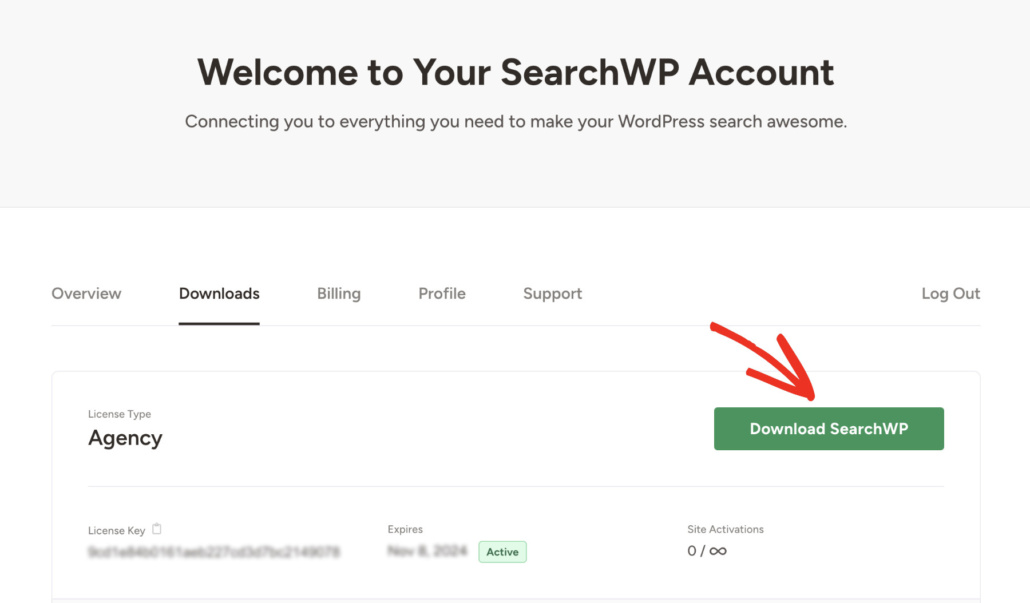
Also, copy your license key from the same screen, as you will need it to activate SearchWP. After that, install SearchWP on your WordPress site like any other plugin. And if you need help, then please see this guide on how to install a WordPress plugin.
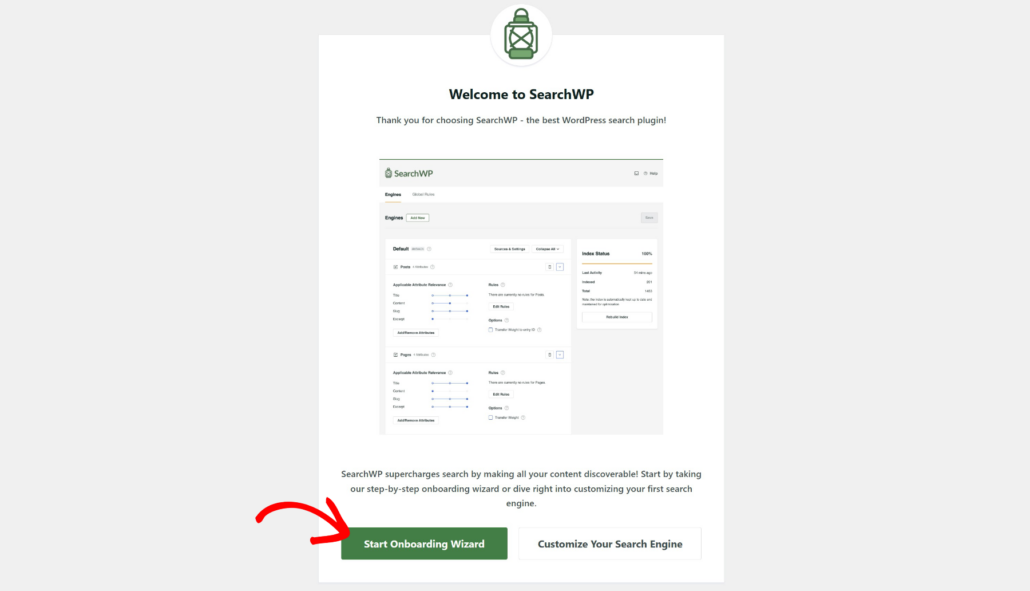
After activation, SearchWP will prompt you to run the setup wizard. Simply click Start Onboarding Wizard and follow the onscreen steps to connect your license key and configure the default search engine.
Step 2: Install PrivateContent and the SearchWP Integration
The SearchWP PrivateContent Integration works alongside the PrivateContent plugin to filter search results by user group.
Note: You’ll need PrivateContent installed and active on your site before the integration can work.
Once PrivateContent is active, navigate to SearchWP » Extensions from your WordPress dashboard. Scroll through the list until you see the PrivateContent Integration card and click Install.
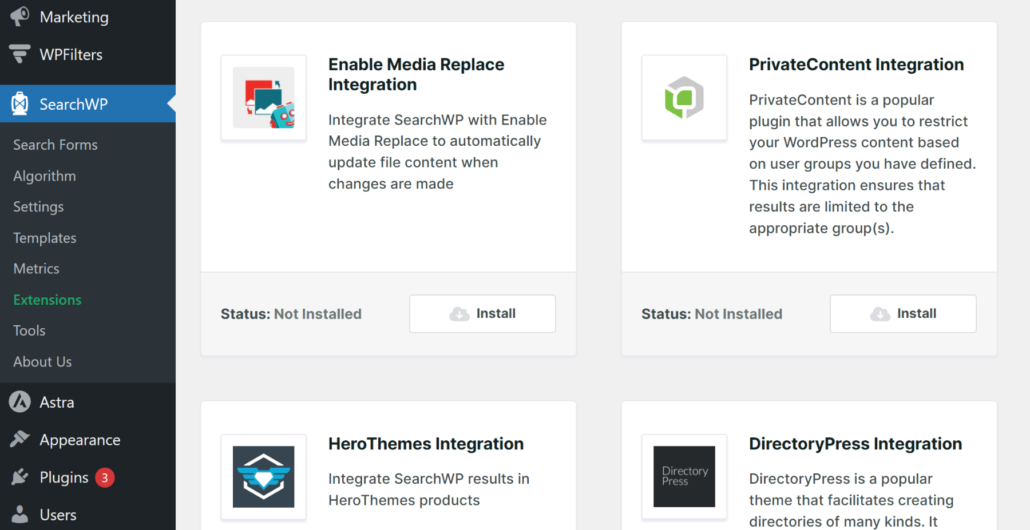
SearchWP will automatically install and activate the PrivateContent Integration.
That’s everything you need to configure inside SearchWP. The PrivateContent Integration automatically filters every search query once it’s active, with no additional settings screen to configure in SearchWP.
Step 3: Create User Categories and Restrict Your Content
With the integration active, the next step is to set up your user groups inside PrivateContent. Navigate to PrivateContent » User Categories from your WordPress dashboard to get started.
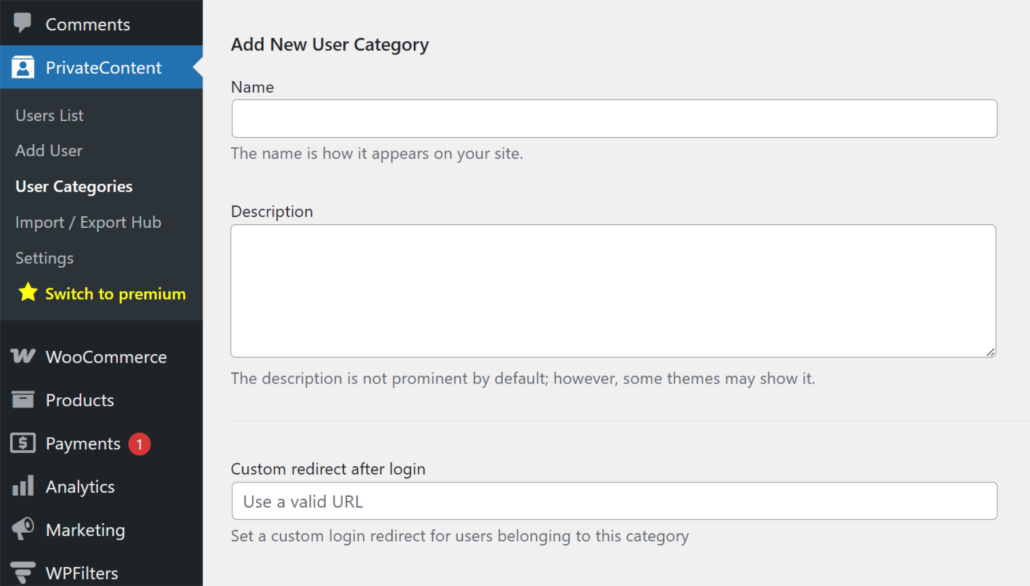
Then, under Add New User Category, give your group a name, such as “Gold Members” (restricted tier) and “Free Members” (standard tier). You can repeat this step for any lower-tier groups and create a second category for users with standard access.
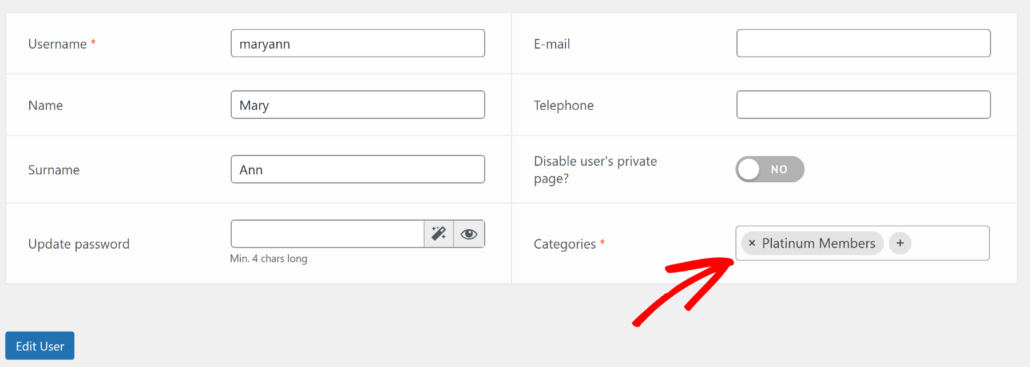
From here, you can navigate to PrivateContent » Users List to assign a test user to each category so you’re ready to verify the restriction in the next step.
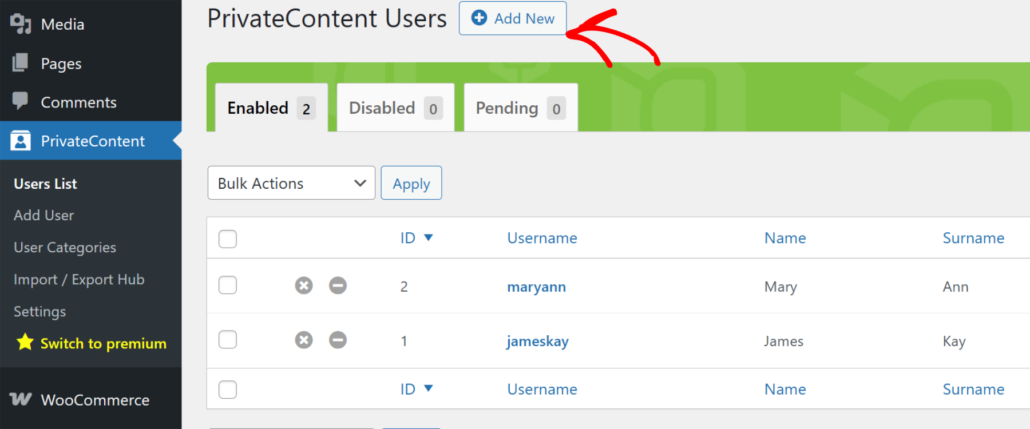
Simply click the Add New button to add a new user or click on an existing user in the list.
When editing the user, make sure to assgin a category you created earlier.
Now, open a post or page you want to restrict and find the PrivateContent – Restrictions Wizard metabox in the post editor sidebar.
Go ahead and head to the Redirect section, then set Who can access this page? to the user category you created.
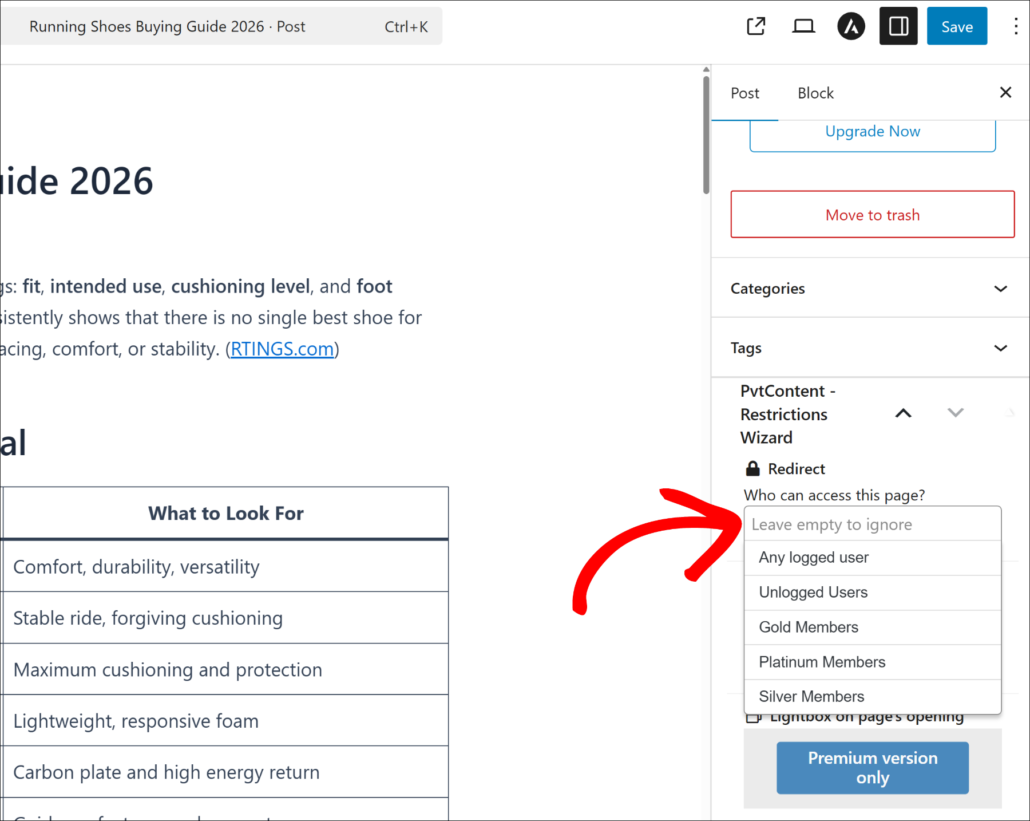
When you are done, save the post. PrivateContent now knows which category can access that content, and SearchWP will automatically honor that rule on every search query going forward.
Step 4: Test Your Access-Restricted Search
With everything configured, it’s time to confirm the restriction is working. Log in as a user who belongs to the group that doesn’t have access to the post you restricted in the previous step (for instance, Gold members).
Now, you can run a search using a keyword that appears in the restricted post’s title or content. The post shouldn’t appear in the results.
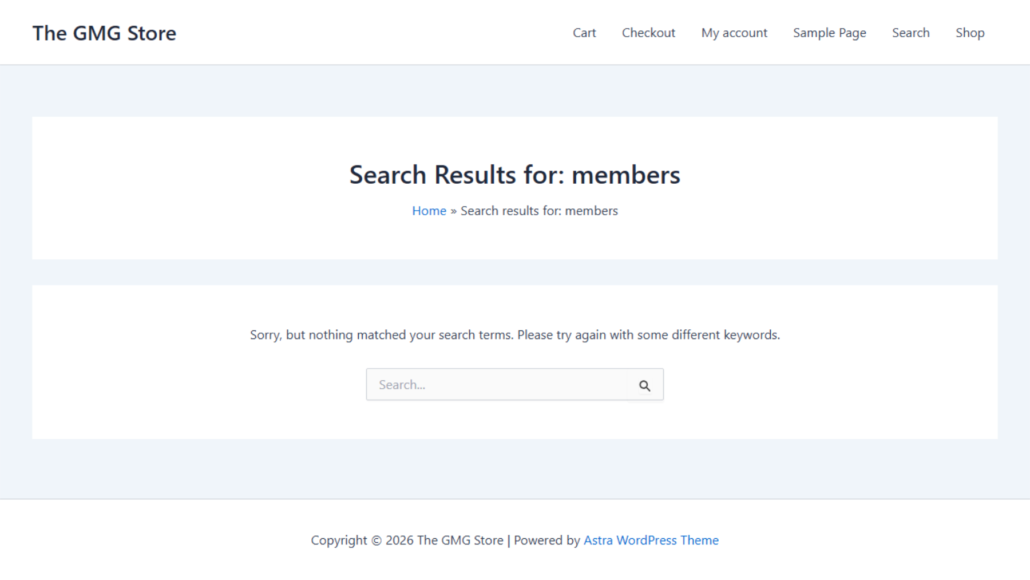
Next, log in as a user who belongs to Gold Members and run the same search. The restricted post should now appear normally, confirming the PrivateContent Integration is working correctly.
Bonus: Index PrivateContent User Reserved Pages in Search
PrivateContent includes a separate feature called User Reserved Pages, which automatically creates a personal page for each registered user on your site.
These pages can store account details, personalized content, or any user-specific information you want to scope to a single individual.
By default, User Reserved Pages are excluded from SearchWP’s index. To make them discoverable, you can navigate to SearchWP » Algorithm and then click the ‘Sources & Settings’ button.
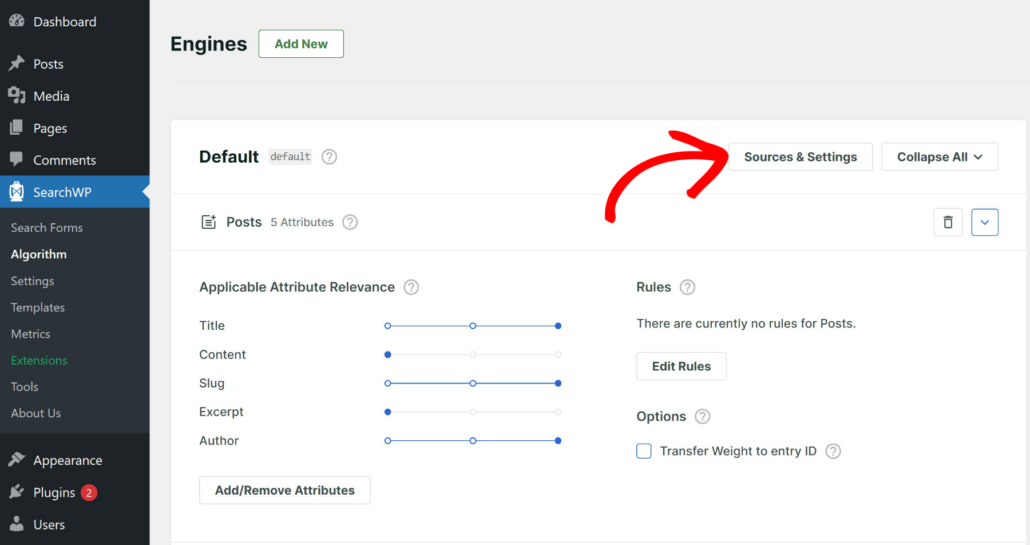
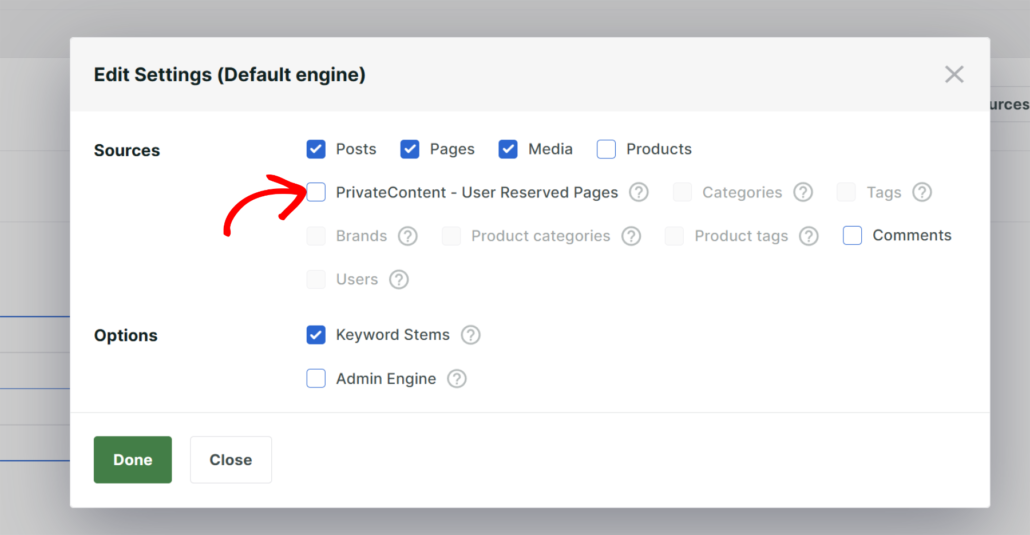
A popup window will now open where you can select the sources for your engine.
You can check the PrivateContent – User Reserved Pages checkbox under the Sources section.
Note: User Reserved Pages have their own access controls inside PrivateContent, separate from the user-category restrictions you set up in the tutorial above. Before enabling this source, confirm your PrivateContent settings are configured to control who can view each user’s personal page.
FAQs About Limiting Search to User Groups
1. Does SearchWP limit search results for logged-out visitors too?
Yes. When no user is logged in, the PrivateContent Integration checks the current user’s access state on every query. A guest has no user categories assigned, so any post restricted to a specific category is automatically excluded from search results for logged-out visitors as well.
2. Does the PrivateContent Integration work with all SearchWP engines?
The PrivateContent Integration hooks into SearchWP at the query level, so it applies to every engine on your site, including the default engine, any supplemental engines, and any engines attached to custom search forms. There’s no per-engine configuration needed inside SearchWP.
3. What happens if a user’s category changes after they’ve already run a search?
Search results are filtered in real time on every query, so the current user’s access state is always applied. If a member upgrades from Free Members to Premium Members, their very next search will reflect the new access level immediately, with no cache to clear.
4. Do I need to rebuild the SearchWP index after setting up PrivateContent restrictions?
No. The PrivateContent Integration filters results at query time, not at indexing time. Your SearchWP index stays unchanged, and the integration simply removes restricted posts from the results returned to the current user. You don’t need to rebuild after adding, updating or removing PrivateContent restrictions.
5. Can I use SearchWP to restrict search without the PrivateContent plugin?
The out-of-the-box PrivateContent Integration specifically requires the PrivateContent plugin. If your site uses a different access-control plugin, SearchWP’s developer API includes the searchwp\query\mods filter, which lets a developer inject custom access rules into any search query, but that approach does require custom PHP code.
What’s Next…
You now have a complete setup for limiting WordPress search results by user group. SearchWP’s PrivateContent Integration quietly filters every query based on who’s logged in, so members stay inside their content scope, and restricted posts stay private no matter how a user tries to find them.
We hope this article helped you learn how to limit WordPress search to user groups. You may also want to see our guides on how to create a custom search form in WordPress and how to customize the WordPress search results page.
Ready to give every user group a search experience tailored to their access level? You can get started with SearchWP here.