


WP Document Revisions helps teams manage contracts, policies, and manuals with a full history of who changed what and when.
Making WP Document Revisions content searchable matters just as much as storing it, since a revision history only helps when someone can find what’s inside each file.
We’ve seen this catch teams off guard. WordPress’s native search only reads a document’s title, excerpt, and content, not the text inside the file WP Document Revisions is tracking.
SearchWP fixes that gap by indexing the actual text inside the latest revision of every document.
In this article, we’ll show you how to make WP Document Revisions content searchable in WordPress.
Why Include WP Document Revisions in WordPress Search?
WP Document Revisions is a document management and version control plugin for WordPress.
It lets teams of any size collaboratively edit files and manage a workflow, storing every file as a document post with a full revision history behind it.
Every document shows up in your dashboard under the Documents menu.
WordPress’s native search reads that post’s title, excerpt, and content, but it doesn’t check the text inside whatever file is attached to the latest revision.
That gap adds up fast on a site with dozens of contracts, policies, or manuals.
A visitor who searches for a clause they know is inside a PDF gets nothing back, even though the right document exists and its latest revision is sitting right there.
That said, let’s look at how you can make WP Document Revisions searchable in WordPress.
How to Make WP Document Revisions Searchable With SearchWP
The easiest way to make WP Document Revisions content searchable is with SearchWP.

SearchWP is the #1 WordPress search plugin, trusted by 50,000+ website owners. It improves the default WordPress search and gives you control over exactly what your site search includes, such as the text inside every file WP Document Revisions manages.
Besides that, you can enhance the search experience by including additional details that are in taxonomies like categories and tags, custom fields, product attributes, and more in the search process.
Here are some key features offered by SearchWP:
- Document content indexing. SearchWP’s WP Document Revisions Integration extension pulls the text out of the latest revision’s attached file, whether that’s a PDF, Word document, or another supported format, and adds it to your search index.
- Custom Fields attributes. SearchWP lets you choose exactly which fields count toward a search match, including the field this integration adds, and weight it however heavily you want.
- Full engine control. You can enable the Documents source on your default engine or build a dedicated one, giving you the same flexibility you already have for posts, pages, and products.
- Background indexing. SearchWP rebuilds your index without slowing down your site, so adding document content to search doesn’t affect frontend performance.
With that, let’s see how you can use SearchWP to make WP Document Revisions content searchable.
Step 1: Install and Activate SearchWP
To get started, you can visit the SearchWP website and sign up for an account.
Once you’re in your account dashboard, go to the Downloads tab, click Download SearchWP, and copy your license key.
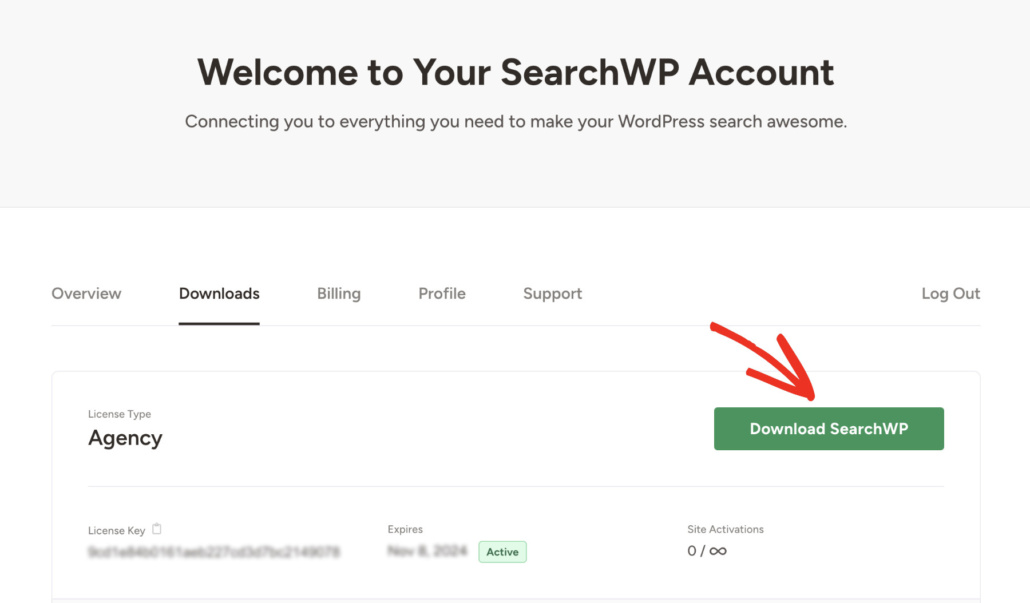
Next, you can upload the plugin files to your WordPress site and install and activate SearchWP.
If you’ve never installed a plugin before, WPBeginner has a step-by-step guide on how to install a WordPress plugin that walks you through it.
After activation, go ahead and click Start Onboarding Wizard and follow the on-screen instructions to connect your license key and finish setup.
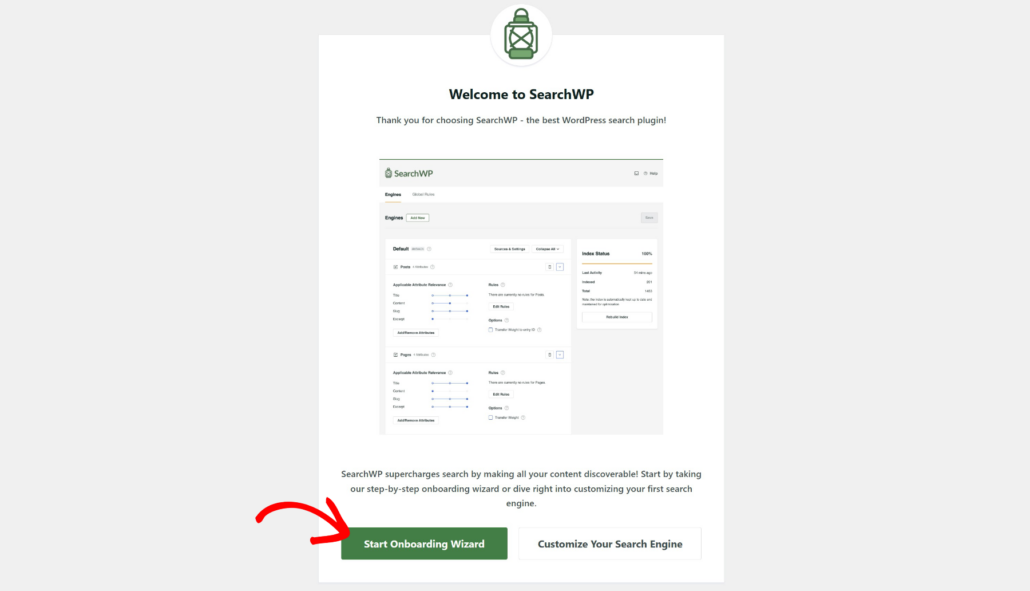
SearchWP is all set. Now let’s install the extension that makes your documents searchable.
Step 2: Install the WP Document Revisions Integration Extension
Next, you can navigate to SearchWP » Extensions from your WordPress dashboard and look for WP Document Revisions Integration in the list.
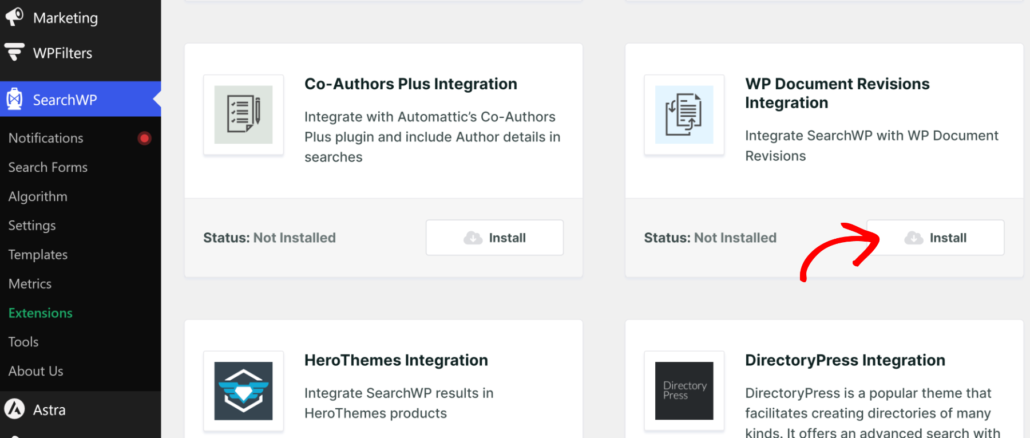
This extension is available on the SearchWP Pro plan and higher, so if your account is on Standard, you’ll need to upgrade your plan.
Go ahead and click Install to add it to your site. Once it’s active, SearchWP can pull the text out of the latest revision’s attached file for every document WP Document Revisions manages.
Now let’s tell SearchWP’s engine to actually use that content.
Step 3: Add the WP Document Revisions Field to Your Engine
From your WordPress dashboard, navigate to SearchWP » Algorithm and open the engine you want to update, whether that’s your default engine or a new one.
Then, you’ll need to click Sources & Settings.
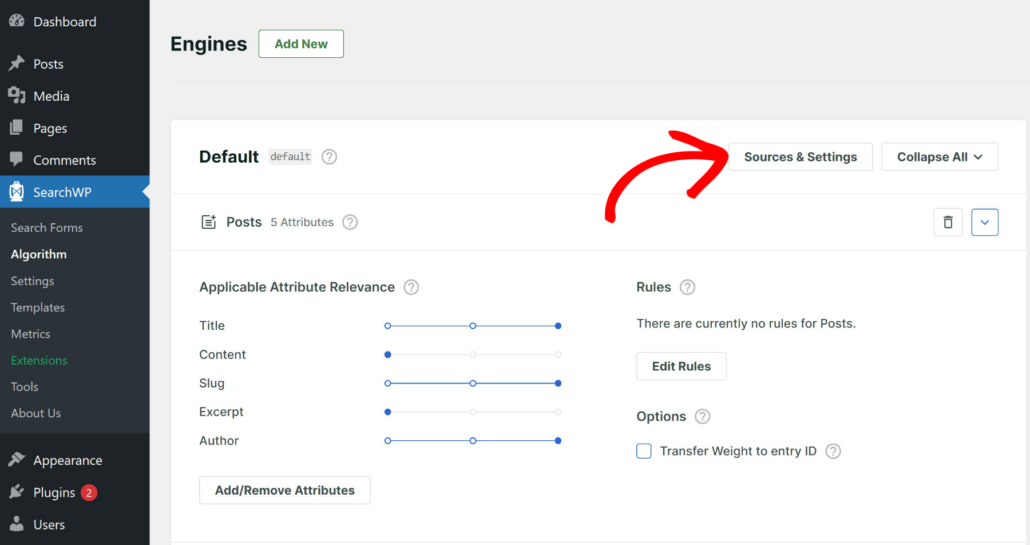
Next, a popup will appear over the page where you can select the sources for your engine.
Make sure Documents is checked, since SearchWP automatically turns the Documents post type WP Document Revisions registers into a selectable source, the same way it does for posts, pages, and products.
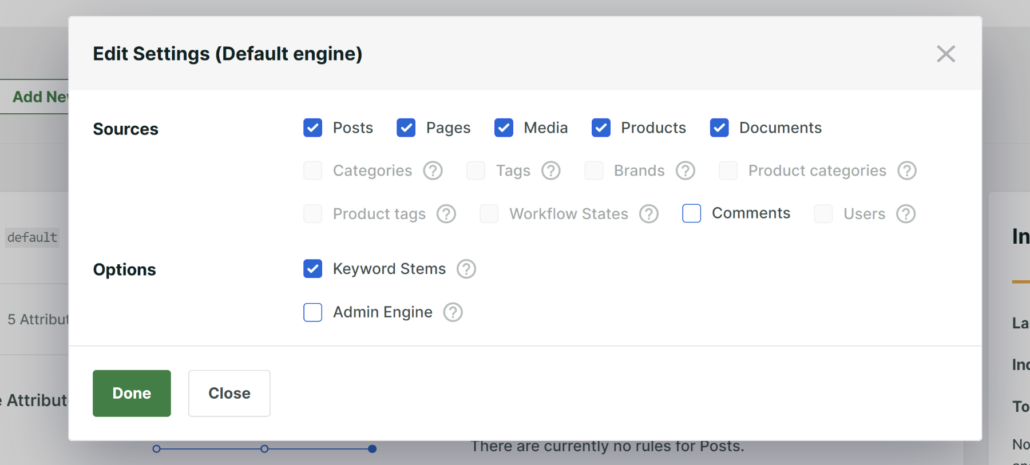
When you are finished, click Done.
From there, you’ll need to click Add/Remove Attributes on the ‘Documents’ source.
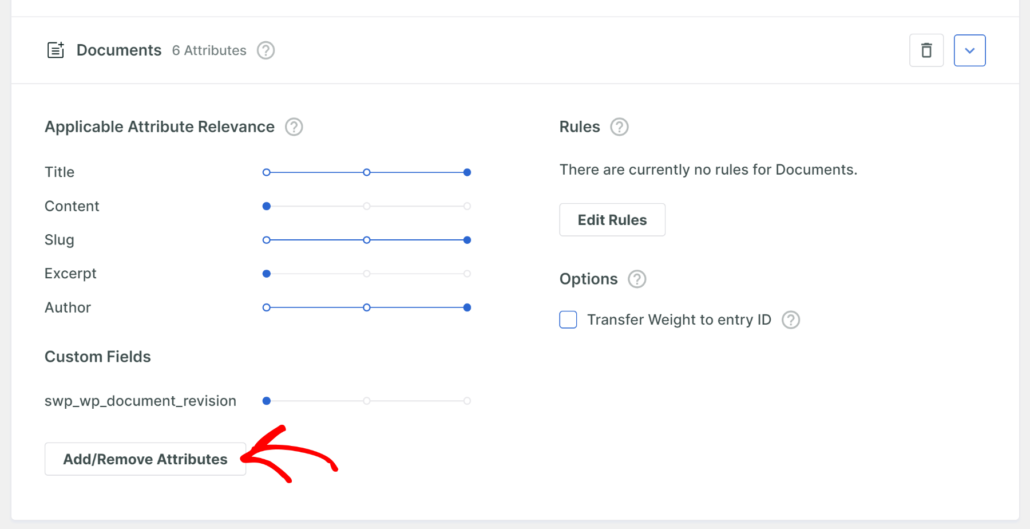
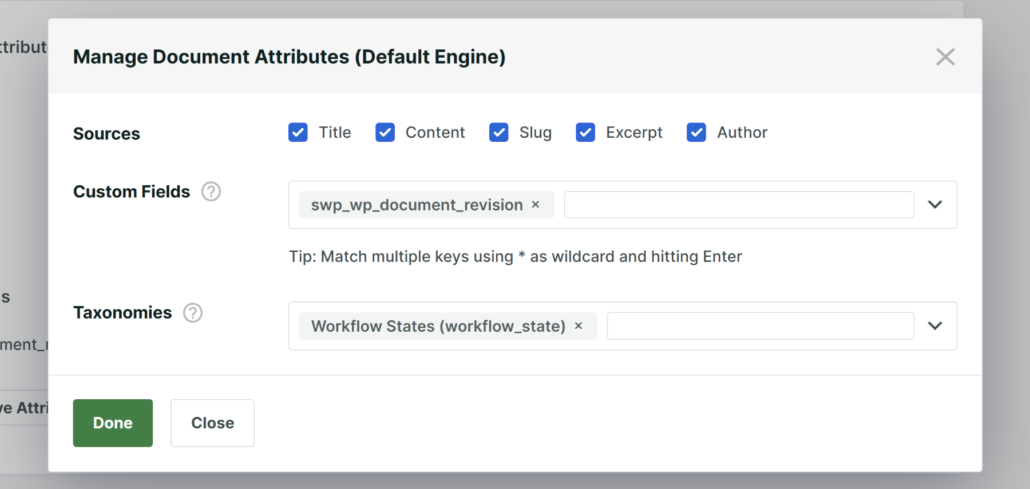
Next, you will see a popup window with all the attributes for the source. By default, the title, content, slug, excerpt, and author will be selected.
Go ahead and search the list for WP Document Revisions under Custom Fields and select it. You can include the Workflow States in the search process under Taxonomies in SearchWP.
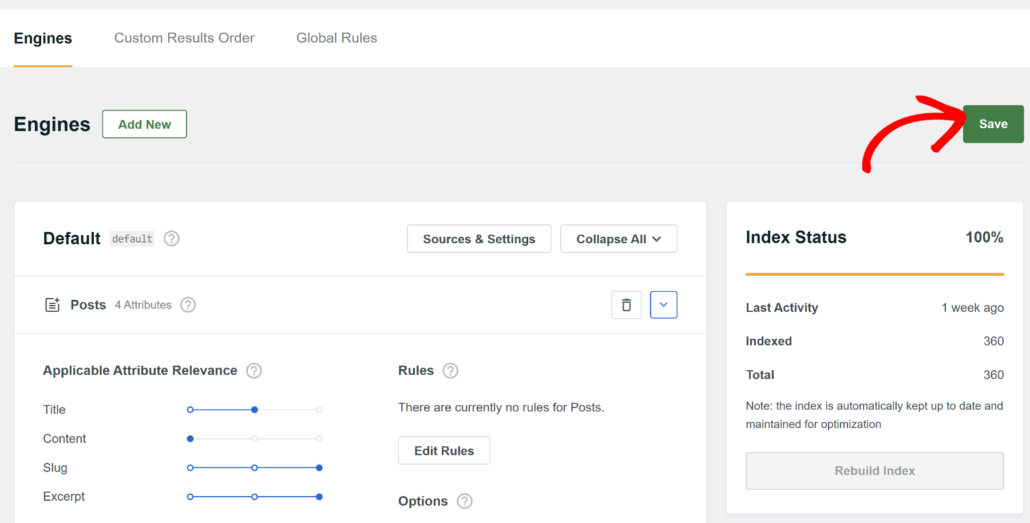
Once you’re happy with the setup, click the Save button at the top.
Then click Rebuild Index so SearchWP processes every existing document’s latest revision. This step is required for documents you already have; new documents will be indexed automatically going forward.
Step 4: Test Your Document Search
Now let’s confirm everything is working by testing the search on your site.
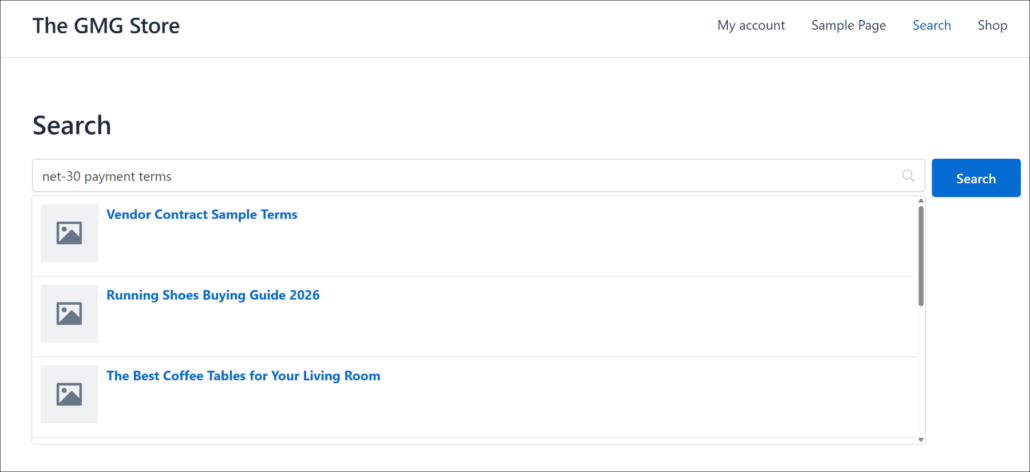
For example, if one of your documents is a vendor contract whose PDF text includes the phrase “net-30 payment terms,” go to your site’s frontend and search for that exact phrase.
If SearchWP is set up correctly, that document should appear in the results even though the phrase never shows up in the post title or description.
Run a second test with a phrase from a different document to confirm the index picked up more than one file.
If both searches return the right document, your WP Document Revisions content is fully searchable.
Frequently Asked Questions
1. Does this work with file formats besides PDF?
Yes. The WP Document Revisions Integration extension pulls text out of the latest revision’s attached file using SearchWP’s built-in parser, which covers PDF, plain text, RTF, Word (.docx), Excel, and PowerPoint files. Older legacy .doc files aren’t supported.
2. Do I need a specific SearchWP plan for this?
Yes. The WP Document Revisions Integration extension (Pro+) isn’t available on a Standard license, so you’ll need to be on the Pro plan or higher to install it. Upgrading your account is the only way to unlock this specific extension.
3. Will documents I already added be indexed automatically?
Not until you run a full reindex. Once you enable the extension and add the WP Document Revisions field to your engine’s Custom Fields attribute, click Rebuild Index from SearchWP » Algorithm to process every existing document’s latest revision.
4. Does SearchWP store the extracted text as a custom field on the document?
No. The extracted text only lives inside SearchWP’s search index, not in the document’s actual custom fields. That means you won’t see it if you look at the document’s postmeta directly, but it’s fully searchable once the index is built.
5. What if a document’s text doesn’t show up in search results?
Check that the document’s latest revision actually has a supported file attached, whether that’s a PDF, Word document, or another supported format, since this integration can only extract text from a file format it recognizes. It’s also worth confirming the Rebuild Index step finished, since a large document library can take a few minutes to fully index.
What’s Next…
That’s everything it takes to make WP Document Revisions content searchable in WordPress. Once SearchWP finishes indexing your documents, visitors can find any contract, policy, or manual by the words inside it, not just its title.
We hope this article helped you learn how to make WP Document Revisions content searchable in WordPress. You may also want to see our guides on how to limit WordPress search to post content and make your knowledge base searchable in WordPress.
Ready to make your documents searchable? You can get started with SearchWP here.