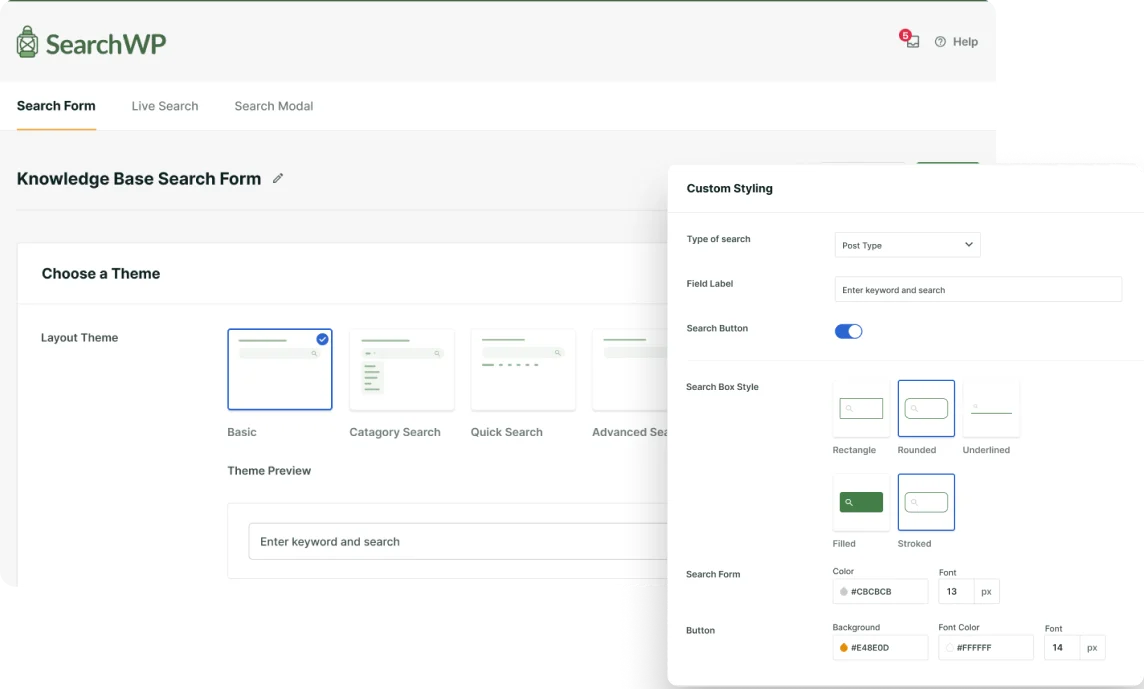


Add a modal form like this to your site with SearchWP’s Modal Search Form Extension!

Offsite PDF Parsing
SearchWP includes a built in PDF parser that reads the text out of your PDF documents so it can be searched, and it works for most documents out of the box. Because PDFs can be formatted in so many different ways, the built in parser occasionally cannot read a particular file. When that happens, the Xpdf integration is usually a good fix, since it uses a more capable tool installed on your server. On some servers, though, installing Xpdf is not possible. That is where the Offsite PDF Parsing extension comes in. Instead of reading the file on your server, it uses SearchWP’s own server to process the document and sends the extracted text back to your site for indexing. This article explains when to use it, how to set it up, how the process works, and how to troubleshoot a PDF that will not index.
When to use Offsite PDF Parsing
SearchWP provides three different ways to handle PDF processing. Here is what to try, in order, depending on your PDF processing requirements:
- Built in parser. Already part of SearchWP and handles most PDFs with no setup.
- Xpdf integration. Reads PDFs locally with a more capable tool. The best next step when the built in parser fails, as long as your host lets you install Xpdf.
- Offsite PDF Parsing. Reads the PDF on SearchWP’s server, so there is no tool for you to install. The right choice when your host cannot run Xpdf.
A couple of things to know up front:
- It requires an active SearchWP Pro license. If the license lapses, the parsing service stops working.
- The PDF must be reachable at a public web address. The SearchWP server downloads each file by its URL, so PDFs on local, staging, password protected, or IP restricted sites cannot be read.
Installing and setting it up
The extension is available to Pro license holders as a direct download from the Downloads page in your SearchWP account. Once it is active, there is almost nothing to configure. It does its work automatically.
- Turn off the Xpdf extension first, if you have it. Go to your site’s Plugins page and deactivate the SearchWP Xpdf extension. If Xpdf stays active, SearchWP keeps reading PDFs locally instead of sending them offsite.
- Install and activate Offsite PDF Parsing like any other plugin.
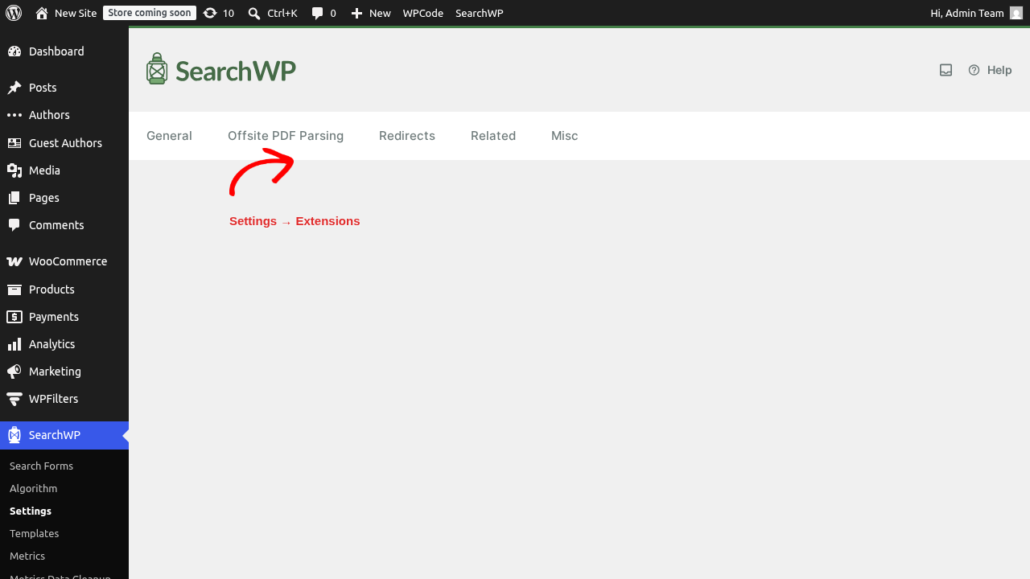
- Confirm it is enabled. Its settings live under SearchWP → Settings → Extensions, on the Offsite PDF Parsing tab.
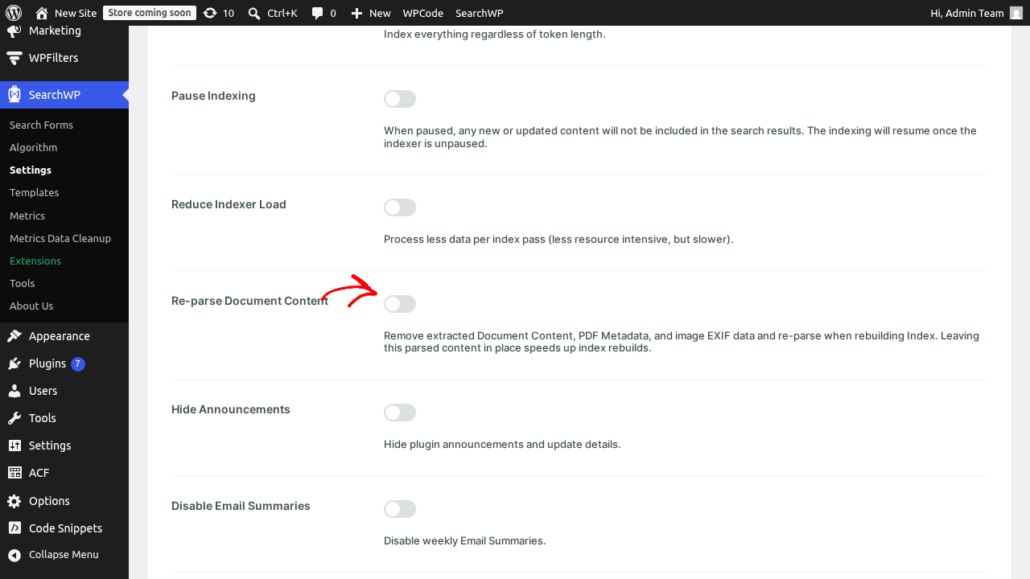
- Turn on Re-parse Document Content. Go to SearchWP → Settings → Misc and enable Re-parse Document Content. This tells SearchWP to clear the text it already stored for your documents and read them again on the next rebuild, so your existing PDFs are sent through the new offsite parser rather than keeping their old content.
- Rebuild the index from SearchWP → Algorithm so your PDFs are re-read and sent off for parsing.
- Turn Re-parse Document Content back off once the indexer has finished. It is only needed for this one rebuild. Leaving it on makes every future rebuild slower, because SearchWP would re-read every document each time instead of reusing the text it already has.
After the index finishes, you can confirm a PDF’s text was captured by following customizing and verifying document content.
How it works
With the extension active, indexing a PDF works like this:
- SearchWP sends the PDF’s public URL to the SearchWP parsing server.
- The server reads the text out of the PDF and sends it back.
- SearchWP stores that text as the document’s content so it can be searched.
Everything happens automatically in the background while your index builds. There is nothing to manage once the extension is active.
Security and privacy
Here are some security points to consider when using the Offsite PDF Parsing extension:
- The file is text only, and temporary. Your PDF is held on the SearchWP server just long enough to read its text. Only the extracted plain text is sent back to your site, and the downloaded PDF is deleted from the SearchWP server right after parsing. It is not stored or retained.
- What gets sent: the public URL of your PDF, your site URL, and your license key (used to confirm the request is allowed).
- Public access is required. Files behind a login or any access restriction cannot be reached, so they will not parse.
- Same domain only. The PDF has to be hosted on the same domain as your registered site. Files served from a different domain or some CDNs are rejected.
- License is checked per site. The server confirms your license is valid for the requesting site before it parses anything, and caches that check for about a week.
The Errors screen and reintroducing PDFs
If a PDF cannot be parsed, the extension records why on its Errors screen, under SearchWP → Settings → Extensions → Offsite PDF Parsing. Each failed document is listed with its ID, title, and the recorded error.
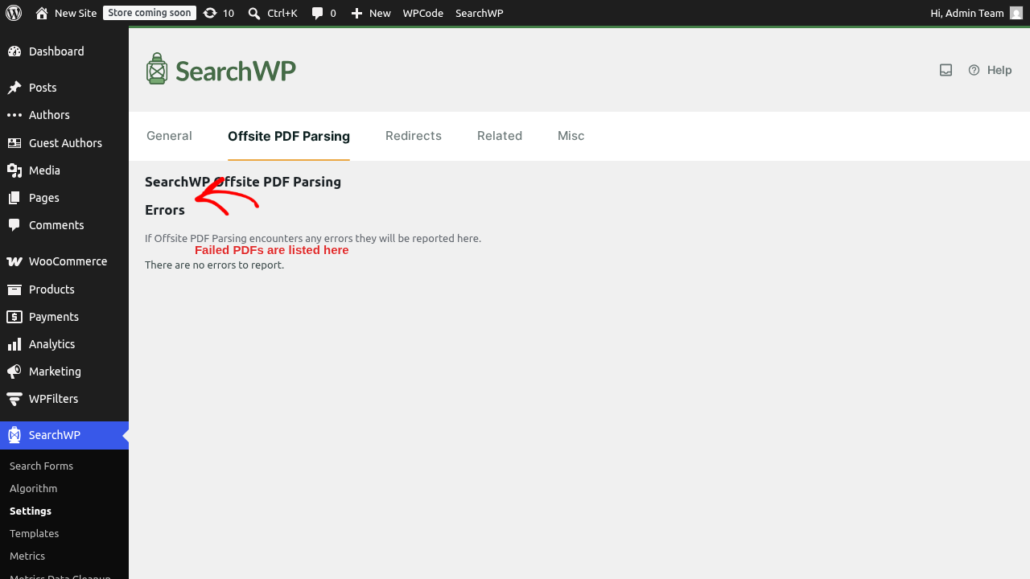
When a PDF errors, the extension deliberately stops retrying it. It records the failure, empties that document’s stored content, and marks the entry to be skipped, so SearchWP does not loop on it or fall back to reading it locally.
Once you have fixed the underlying cause (most often by making the PDF publicly reachable), you can put those documents back in line. Tick the affected entries and click Reintroduce Checked. That clears the error and skip markers and re queues the PDFs for indexing.
Requirements and limitations
- An active SearchWP Pro license for the site.
- Standard PDFs only. The file must end in
.pdfand be a genuine PDF. Password protected PDFs are not supported. - A public, same domain URL for every PDF (see Security and privacy).
- A request time limit. Your site waits up to 100 seconds for a response. A very large or complex PDF can exceed that, in which case it fails and is flagged on the Errors screen.
For developers
If you would like to change the endpoint where the parsing request is sent, for example to point at your own copy of the parsing server, you can use the following custom hook:
// Send Offsite PDF Parsing requests to a custom parser endpoint.
add_filter( 'searchwp_offsite_pdf_parser_url', function () {
    return 'https://your-parser.example.com/';
} );
Add custom code like this through a SearchWP Customizations Plugin or a snippets plugin such as WPCode.
Troubleshooting
- PDFs have no content, or you see code
8. The file (or the whole site) is not publicly reachable. Open the PDF’s URL in a private or incognito browser window. If it does not load there, the SearchWP server cannot load it either. Also confirm the PDF is on the same domain as your site. - It still seems to parse locally. Make sure the Xpdf extension is deactivated. While Xpdf is active, SearchWP reads PDFs on your server instead of sending them offsite.
- A large or complex PDF fails. This is usually the 100 second time limit, or a password protected or non standard file. Check the Errors screen for the recorded code.
- License errors, or code
0. Confirm your Pro license is active for this site. - Confirm what was actually indexed. Use customizing and verifying document content to check the stored text.
- Turn on debugging to watch the extension work. It logs
[Offsite PDF]lines for the request sent, the response received, whether the length and checksum matched, and any error.
Related
Create a Better WordPress Search Experience Today
Never lose visitors to unhelpful search results again. SearchWP makes creating your own smart WordPress search fast and easy.
Get SearchWP Now