
In WordPress, tags help you organize your content and help users find articles faster.
But what if you could show a filter where visitors can simply sort content by selecting a particular topic?
The trouble with setting up filters is that they usually require tinkering with code or hiring a developer.
This is where WPFilters can help you out. It makes it super simple to set up and add all types of filters in WordPress.
In this article, we’ll show you how to filter blog posts by tags in WordPress using a very simple method.
Why Do You Need to Filter Blog Posts by Tags?
Think of your blog without tag filters like a filing cabinet where all the folders are locked inside. You’ve organized everything perfectly, but nobody can actually access that organization.
Your readers arrive with specific interests in mind. Someone might want to read everything you’ve written about WordPress security, while another visitor only cares about your eCommerce tips.
Without tag filters, both of these readers face the same frustrating experience. They scroll through your entire blog archive, manually hunting for relevant posts while skipping past dozens of articles they don’t care about.
Tag filters solve this problem by giving readers a simple way to show only the posts they want. With one click, they can filter your entire blog to display only posts tagged with their topic of interest.
This means they spend more time actually reading your content instead of searching for it. Plus, they’re more likely to discover multiple posts on topics they care about, which keeps them on your site longer.
Now, let’s look at how to set up tag filters on your WordPress blog.
Set Up Tag Filters for Blog Posts in WordPress
The easiest way to add tag filters to your WordPress site is by using WPFilters.

It is the best WordPress filtering plugin that makes adding filters simple, even if you’ve never done anything like this before.
Created by the team behind SearchWP, WPFilters gives you powerful features to create different types of filters for your site.
You can filter blog posts by tags, categories, post type, and more. It also works with eCommerce products, downloads, and other custom content.
The best part is that WPFilters offers multiple customization options too. You can choose from different filter types like checkboxes, radio buttons, dropdowns, search bars, sliders, and more.
Now, let’s walk through the steps to filter blog posts by tags in WordPress.
Step 1: Install and Activate WPFilters
First, you’ll need to visit the SearchWP website and sign up for a WPFilters account.
After creating an account, you can go to your account area and switch to the ‘Downloads’ tab.
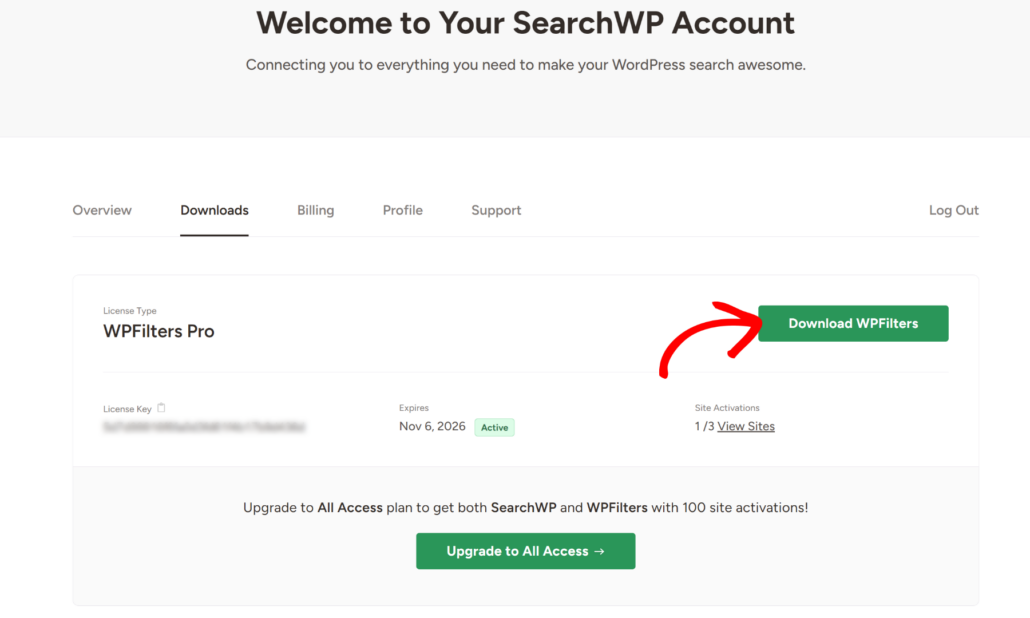
From here, you’ll need to click the Download WPFilters button and save the plugin files on your computer.
It’s also a good idea to copy the License Key, as you’ll need it to set up the plugin.
Next, you can upload the WPFilters plugin files to your WordPress site and install the plugin. If you need help with this, then please see this guide on how to install a WordPress plugin.
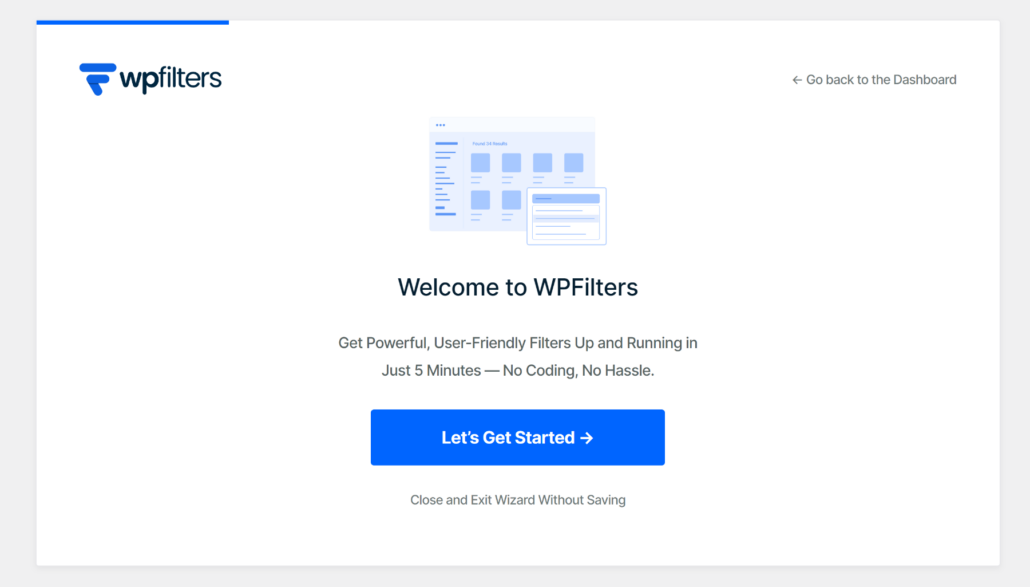
Once the plugin is active, you will see the WPFilters setup wizard. Simply click the Let’s Get Started button and follow the onscreen instructions.
Step 2: Add a New Element in WPFilters for Tags
Now, the next step is to add a new element in WPFilters to filter content by tags.
To start, head to WPFilters » Elements from the WordPress dashboard and simply click the ‘Add New’ button.
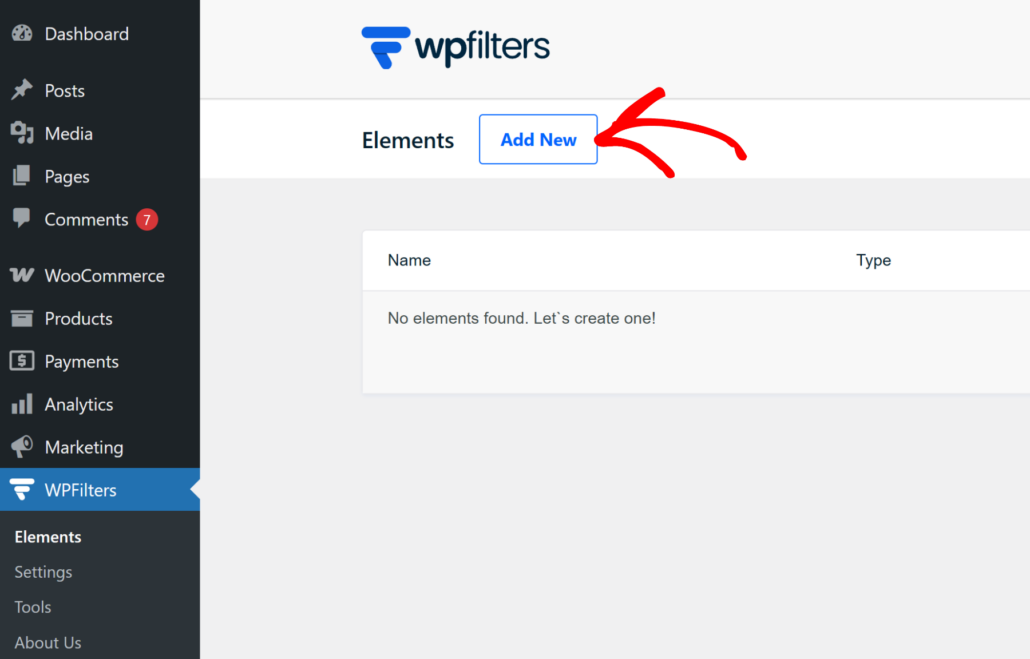
Next, you can set up a new filter for your site.
First, you’ll need to change the name of the element at the top. For example, give it a descriptive name like “Filter by Tag” so you can easily identify it later.
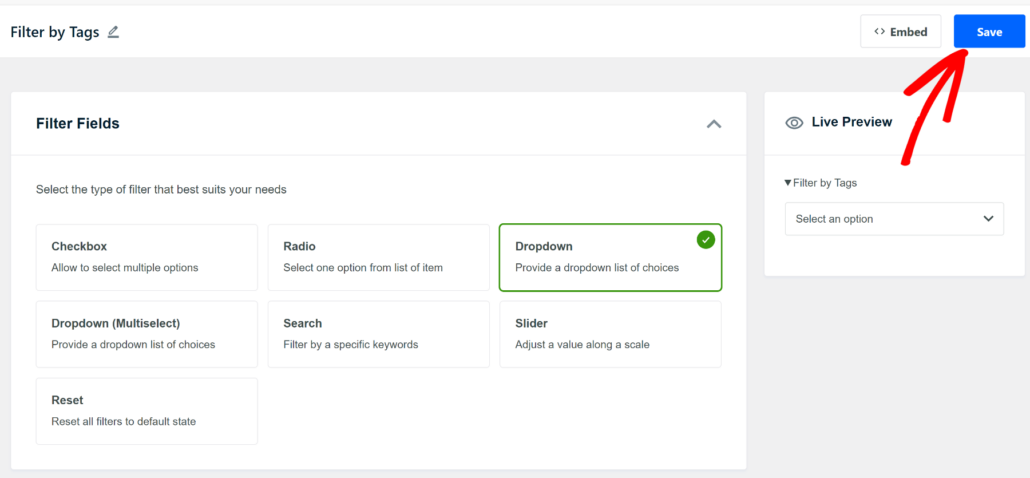
After that, you’ll need to select the type of filter you want to create. WPFilters offers multiple options, such as a checkbox, radio list, dropdown, search by keywords, slider scale, and more.
For this tutorial, we’ll use the ‘Dropdown’ option.
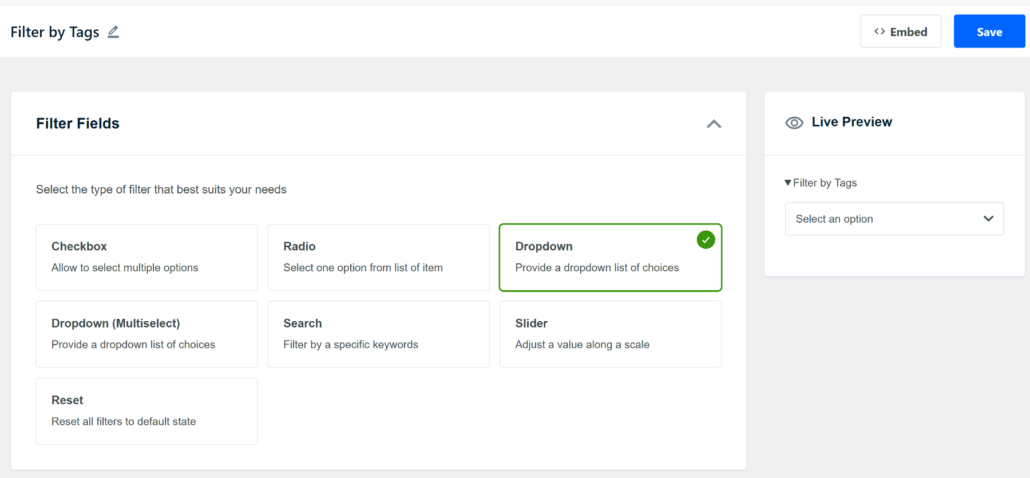
You can also see a preview of the filter type in the right-panel.
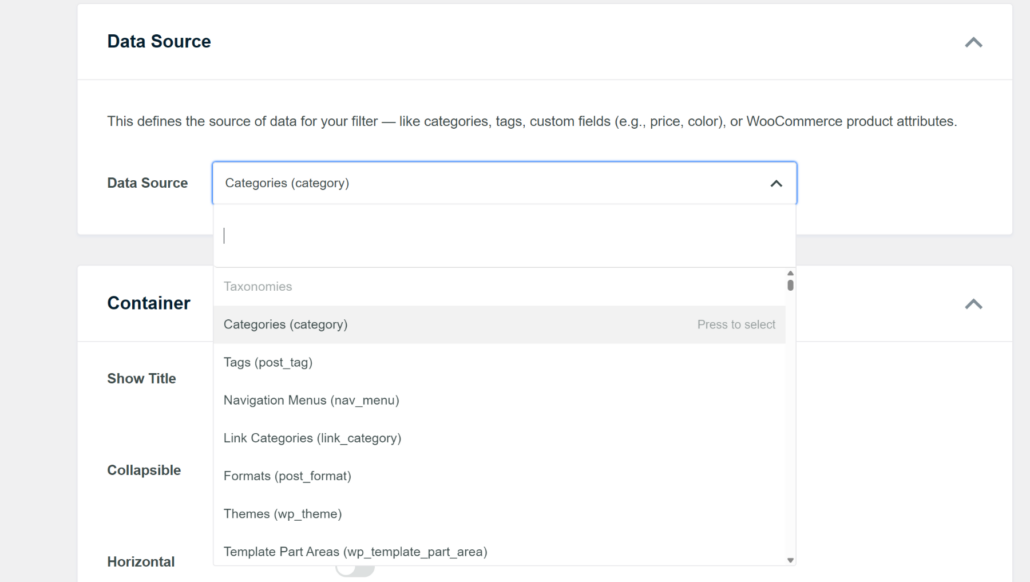
Next, you’ll need to scroll down and select a ‘Data Source’ section.
Since we want to create a tag filter, go ahead and select the Tags (post_tag) option from the dropdown menu.
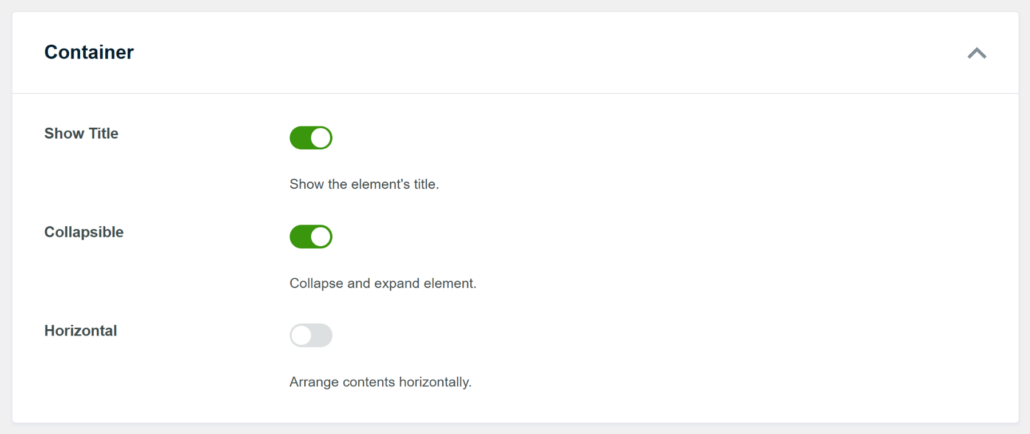
Next, you can further customize your filter by scrolling down to the ‘Container’ section.
Here, you’ll see options to show title, make the element collapsible, and arrange contents horizontally.
For example, we’ll make the filter collapsible and display the title for this tutorial.
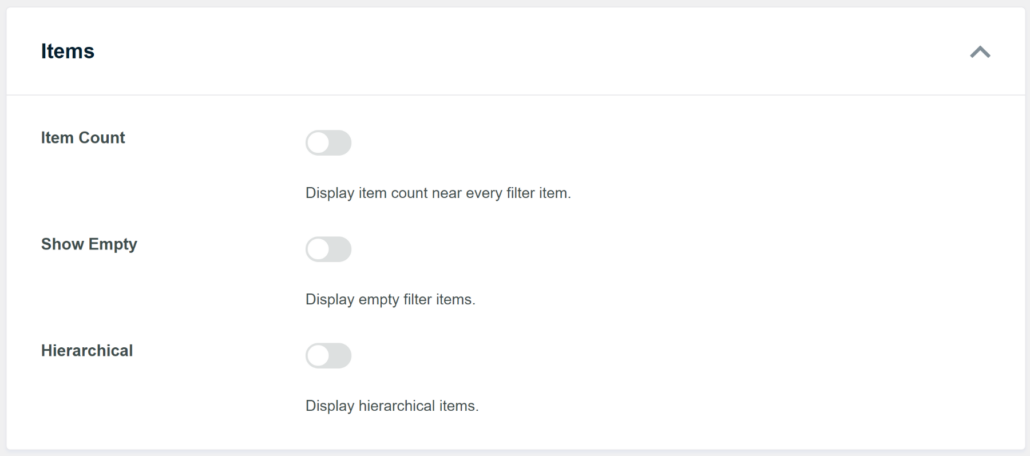
Next, WPFilters also lets you edit the ‘Items’ in the filter.
For example, there are options to show item count, display empty filter items, and display hierarchical items. These settings help you control exactly how your tags appear to visitors.
When you’re finished customizing your tag filter, simply scroll to the top.
From here, go ahead and click the Save button to store your changes.
Step 3: Embed the Tag Filter in WordPress
Now, the next step is to display the filter you just created on your WordPress website.
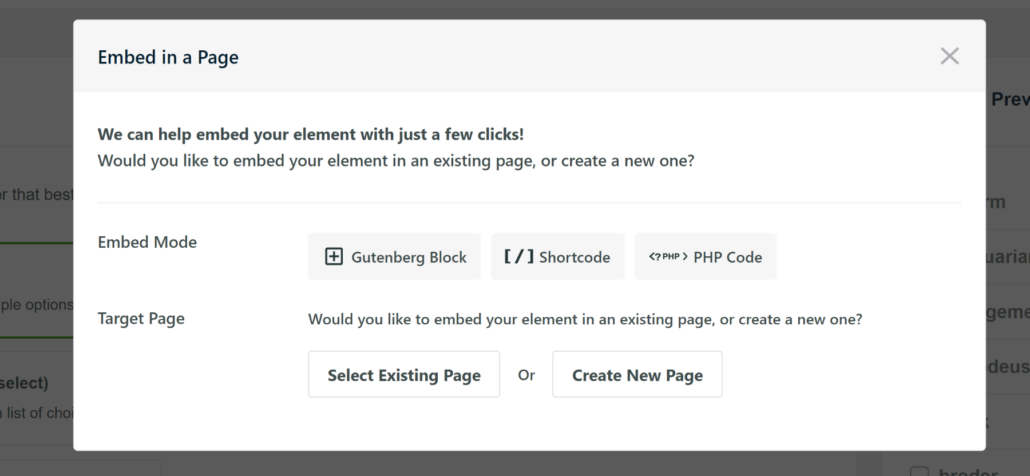
WPFilters comes with built-in embed options for showing your filter. For instance, you can use a Gutenberg block, shortcode, or PHP code.
If you want to embed the filter on a specific page or a new page, then you can click the Embed button in the element editor and choose one of the options.
But for this tutorial, we’ll show you how to add the tag filter to the sidebar of the website.
Note: It’s important to remember that the steps might vary depending on the WordPress theme you’re using. We’ll be using the Astra theme for this tutorial.
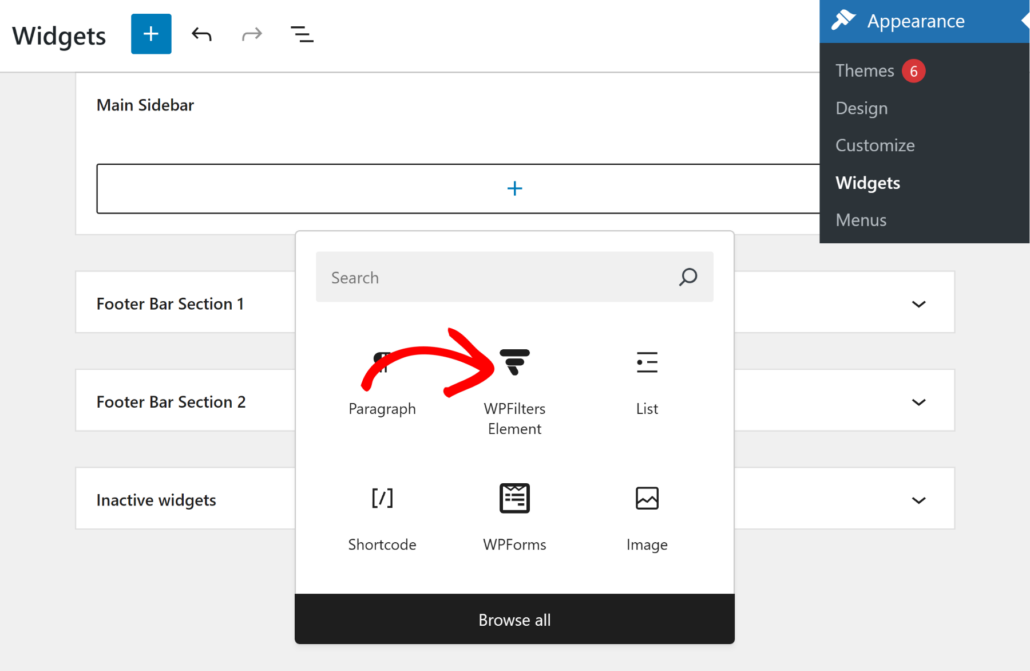
To start, head to Appearance » Widgets from your WordPress dashboard.
After that, click the + button under the Main Sidebar section and add the WPFilters Element block.
From here, you will need to select your filter from the Settings panel on the right.
Simply click the Select Element dropdown menu and choose the filter you created earlier.
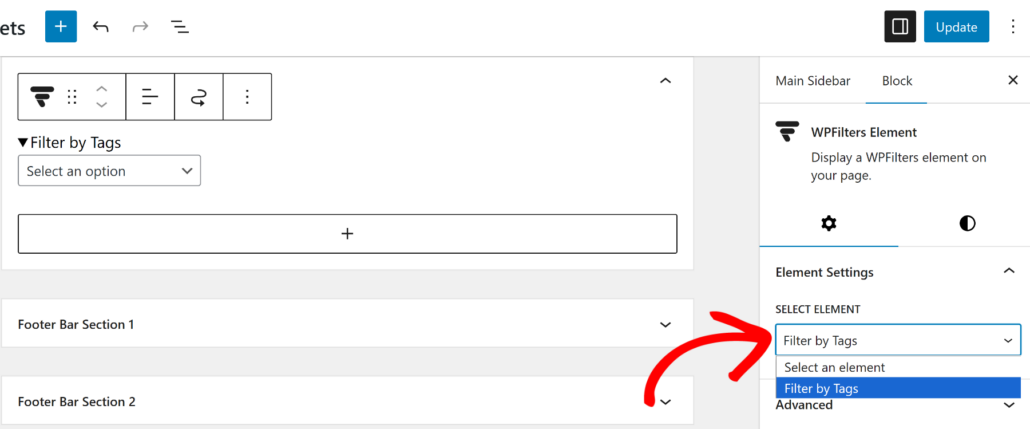
When you’re done, simply click the Update button at the top to save your changes.
Step 4: Test Your Tag Filter in WordPress
Now that you’ve added the filter to the sidebar, go ahead and visit your website.
You should see the newly created filter in the sidebar.
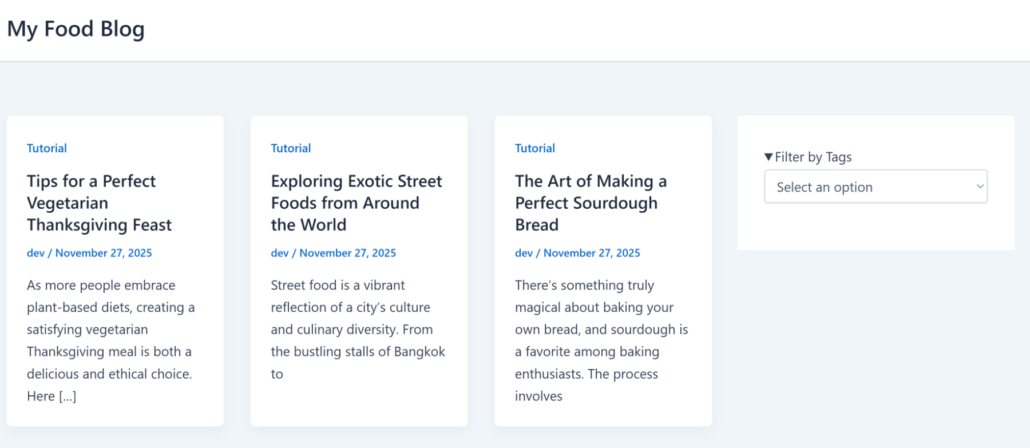
From here, you can try selecting different tags to see if the correct content gets filtered.
For example, here’s how the filter functions on our demo site:
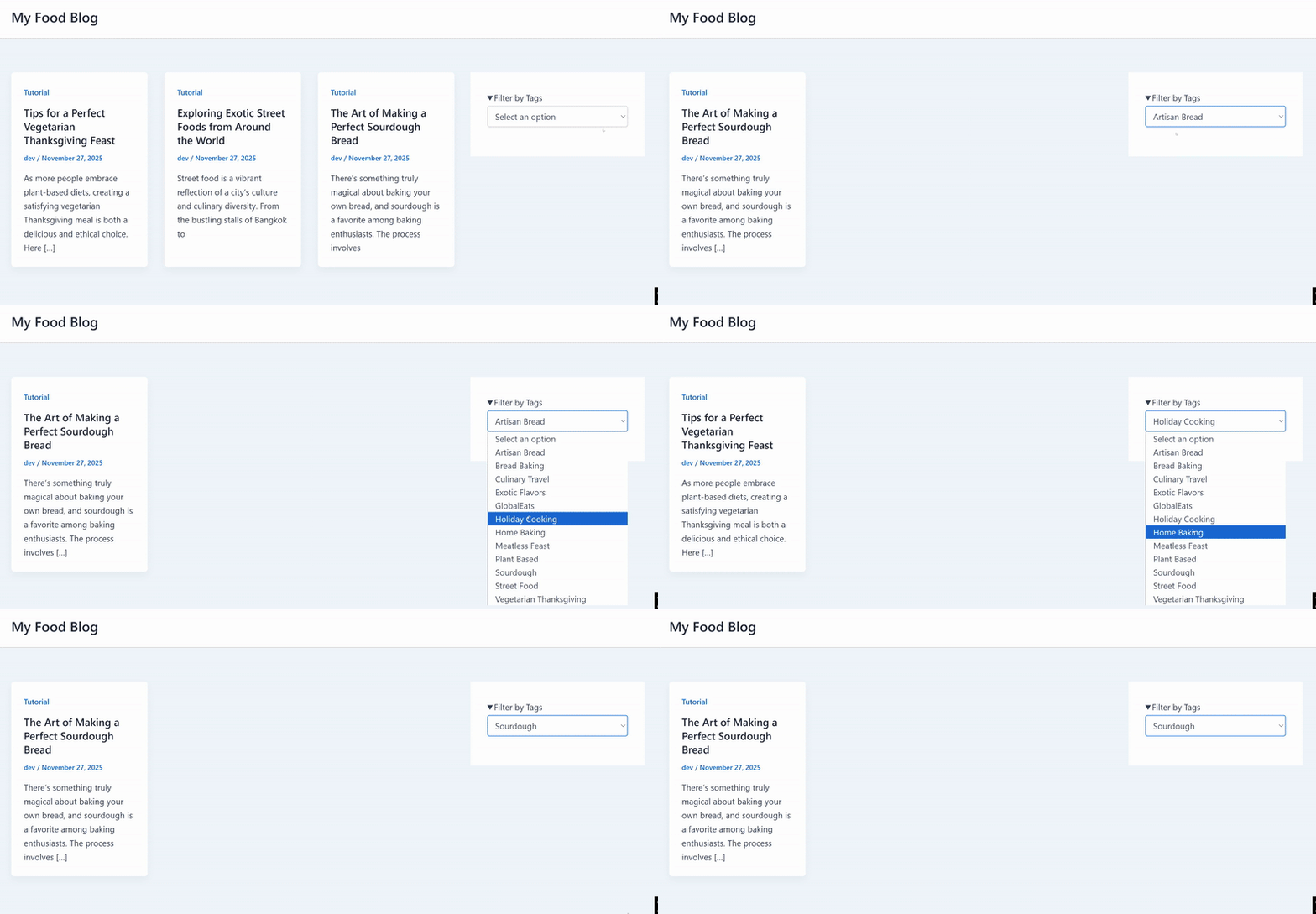
That’s it! You’ve successfully created a filter to sort blog posts by tags in WordPress.
Now, you can take this to the next level by customizing your WordPress search using SearchWP and also allow users to search posts by tags.
We hope this article helped you learn how to filter blog posts by tags in WordPress. You may also want to see our guides on how to add a search box to a WordPress page and how to limit search to only posts in WordPress.
Ready to create a smart filters and add it to your pages? You can get started with WPFilters here.