


Shopping online should feel easy. But when a store has dozens or hundreds of products crammed onto a single page, finding the right item feels more like digging through a pile of clothes at a yard sale than browsing a well-organized shop.
That’s a problem a lot of WooCommerce store owners run into. The products are all there, the store looks great, but customers still can’t find what they need fast enough.
And when that happens, they leave. A dropdown filter fixes this by letting shoppers narrow down products by category, size, color, price, or any other attribute with just a single click.
In this tutorial, we’ll show you how to create a dropdown filter for WooCommerce products.
Why Your WooCommerce Store Needs a Dropdown Filter
Picture walking into a clothing store where nothing is organized. Shirts, pants, shoes, and jackets are all mixed on the same rack. You’re looking for a blue jacket in a medium, but the only way to find it is to go through every single item one by one. Most people would walk right out.
That’s exactly what happens on a WooCommerce store without dropdown filters.
When customers land on your shop page and see a wall of products with no way to sort them, frustration kicks in fast.
They don’t want to click through ten pages of items just to find the one thing they came for. Most of them won’t bother. They’ll close the tab and buy from a competitor whose store is easier to navigate.
We’ve seen this play out in stores that have great products but poor filtering. The traffic is there, but the sales don’t match up. Customers are landing on the shop page and leaving without buying anything. A dropdown filter is often the missing piece.
Here’s what makes dropdown filters such a practical fix. They give shoppers a clean, familiar way to narrow down results.
Instead of scrolling through 200 products, a customer can open a dropdown, pick “Large,” “Red,” or “Under $50,” and instantly see only the products that match. It’s the kind of experience that keeps people on your site longer and moves them closer to checkout.
Without this, you’re leaving a lot of sales on the table. And the good news is that setting one up doesn’t require a developer or any technical know-how. Let’s look at how you can easily add a dropdown filter to your WooCommerce store.
How to Display a Dropdown Filter in WooCommerce
The easiest way to add a dropdown filter to WooCommerce is by using a plugin like WPFilters.

WPFilters is the best filtering plugin for WordPress that lets you add Amazon-style filters to your WooCommerce store without writing a single line of code.
It is built by the same team behind SearchWP, so we know it works reliably and efficiently handles your product data.
With WPFilters, you can create dropdown menus that let customers filter products by category, tag, product attribute, or any custom taxonomy. You can also combine dropdown filters with other filter types like price sliders, checkboxes, or a keyword search box.
Some of the things you can do with WPFilters:
- Create dropdown filters for product categories, tags, attributes, and custom fields
- Display multiple filters together in the sidebar or above the product grid
- Customize labels, placeholder text, and display options without touching code
- Filter results in real time without a page reload
Now, let’s walk through how to set up a dropdown filter on your WooCommerce store.
Step 1: Install and Activate WPFilters
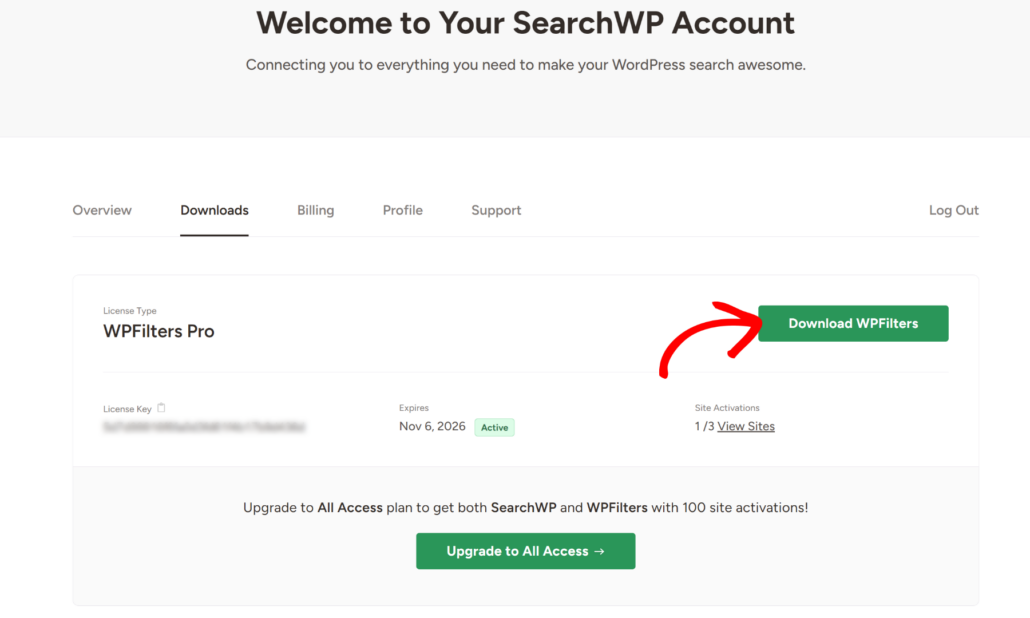
The first thing you’ll need to do is head over to the SearchWP website and sign up for a WPFilters account. Once you’ve created your account, log in and click on the Downloads tab in your account dashboard.
From there, click the Download WPFilters button to save the plugin’s ZIP file to your computer. We also recommend copying your license key from this page, since you’ll need it during setup.
Next, you’ll need to upload and install the plugin on your WordPress site. If you’ve never done this before, you can follow this beginner’s guide on how to install a WordPress plugin.
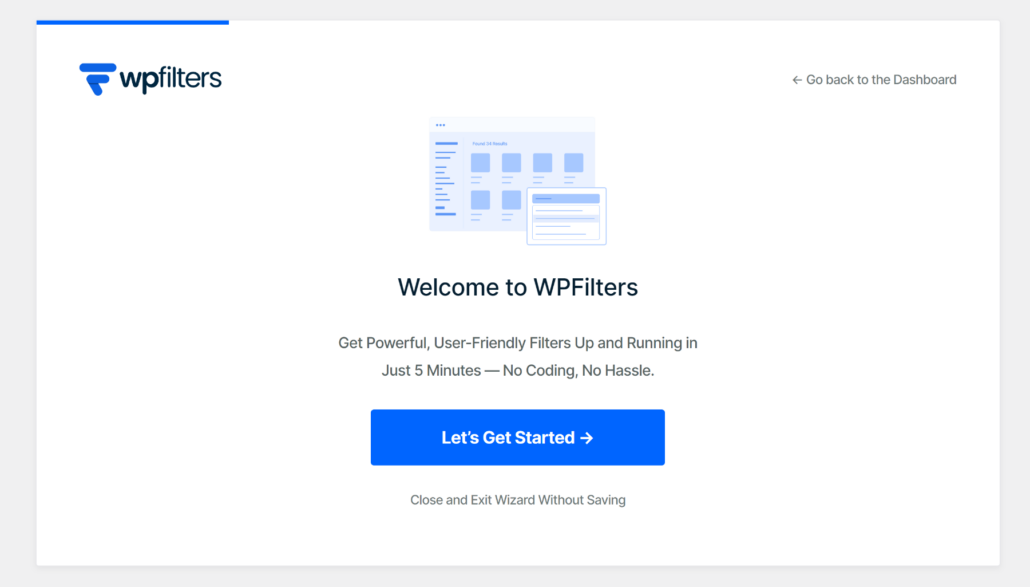
Once the plugin is active, the WPFilters setup wizard will appear on your screen. Go ahead and click the ‘Let’s Get Started’ button.
Now we can move on to building your first dropdown filter.
Step 2: Add a New Filter Element
Now that WPFilters is up and running, it’s time to build your dropdown filter.
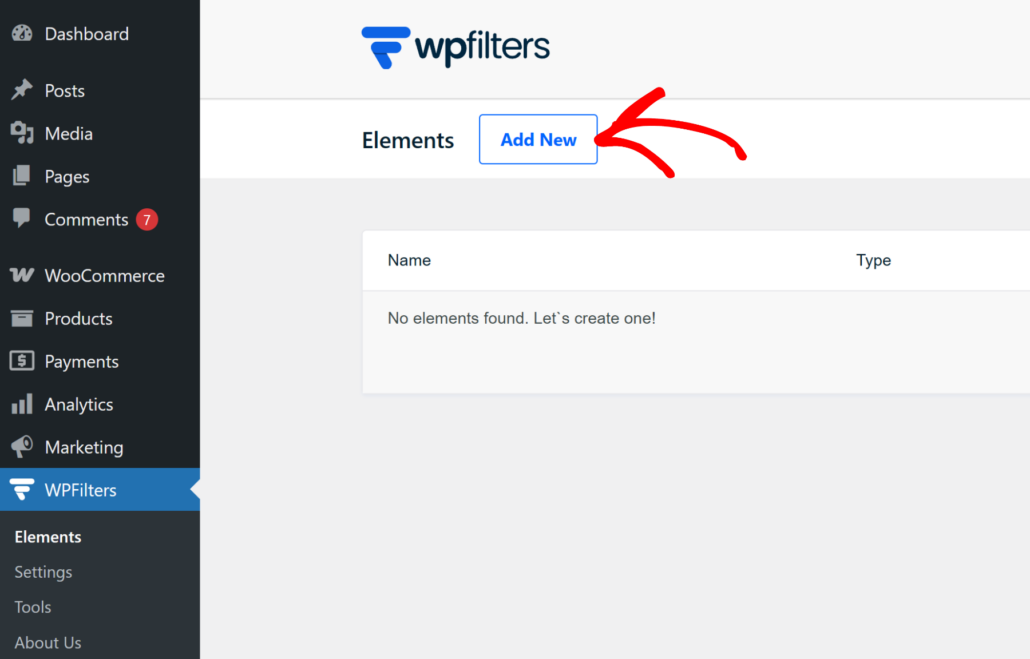
To get started, navigate to WPFilters » Elements from your WordPress dashboard and click the Add New button.
At the top of the screen, you’ll see a field where you can give your filter a name.
It’s a good idea to use something descriptive here, like “Product Categories” or “Filter by Tags,” especially if you plan to add more filters down the road. A clear name makes it much easier to stay organized.
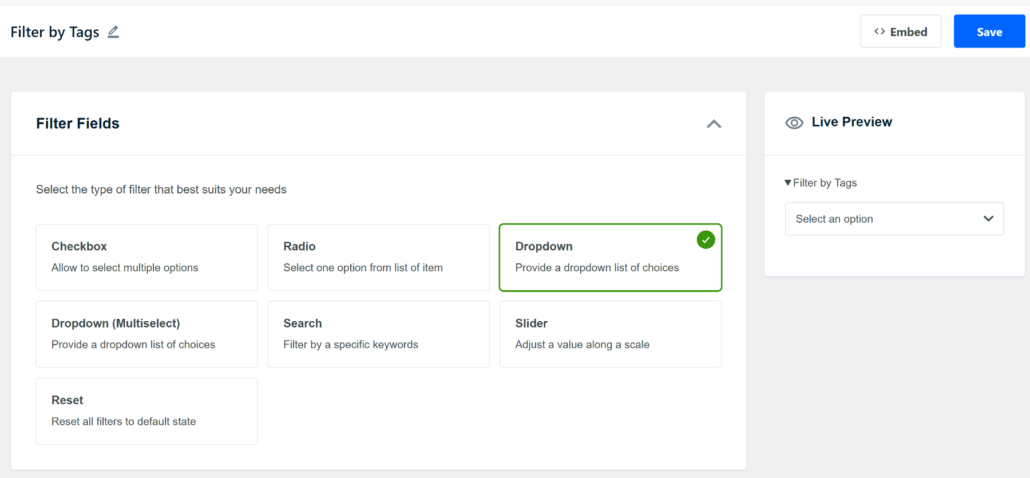
Next, you can look at the Filter Fields section just below the name. This is where you choose how the filter will look and behave on your store.
WPFilters gives you several options here, including checkboxes, radio buttons, sliders, and more.
Since we’re building a dropdown filter, go ahead and select the Dropdown option.
You’ll notice a live preview of the filter appears in the right-hand panel as soon as you save your settings.
Step 3: Connect the Filter to a WooCommerce Data Source
With the dropdown filter type selected, the next step is telling WPFilters where to pull its information from. This is what makes the filter actually useful for your shoppers.
Scroll down to the Data Source section and click the dropdown menu. You’ll see a list of available data sources to choose from. Since we’re working with a WooCommerce store, you’ll want to pick a WooCommerce-specific option from the list.
For example, you can select Product categories if you want customers to filter by category, or Product tags if you’ve tagged your products.
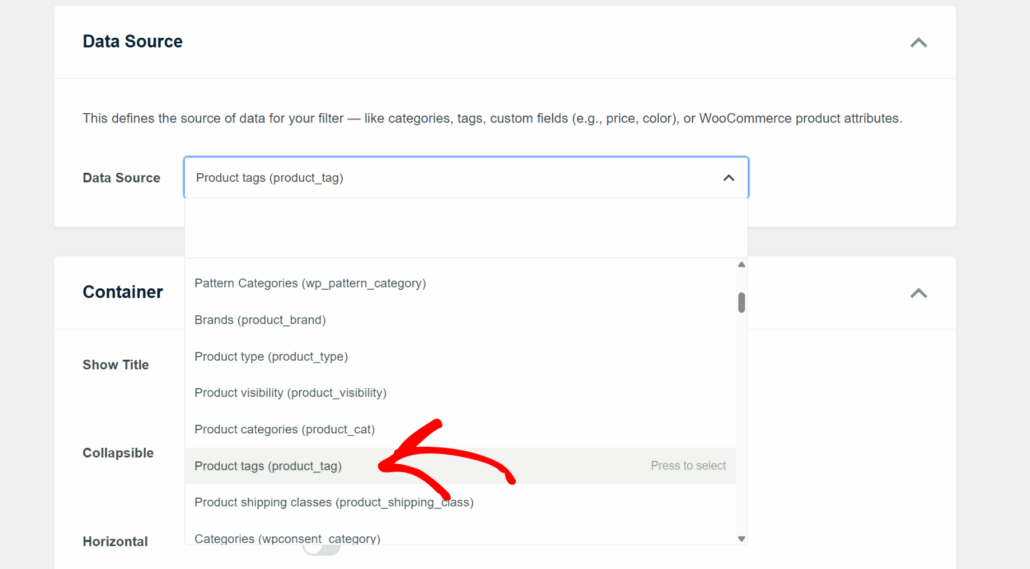
You can also choose specific product attributes like color, size, or material if you’ve set those up in WooCommerce.
Once you’ve done that, WPFilters will automatically pull in the relevant data and connect it to your dropdown filter.
Step 4: Customize the Dropdown Filter Settings
Now that your filter is connected to a data source, it’s time to make it look and feel just right for your store. WPFilters gives you a good set of customization options without overwhelming you with settings.
You can scroll down to the Container section first. This is where you control the overall behavior of the filter.
You can enable the Show Title option so visitors know exactly what the dropdown is for.
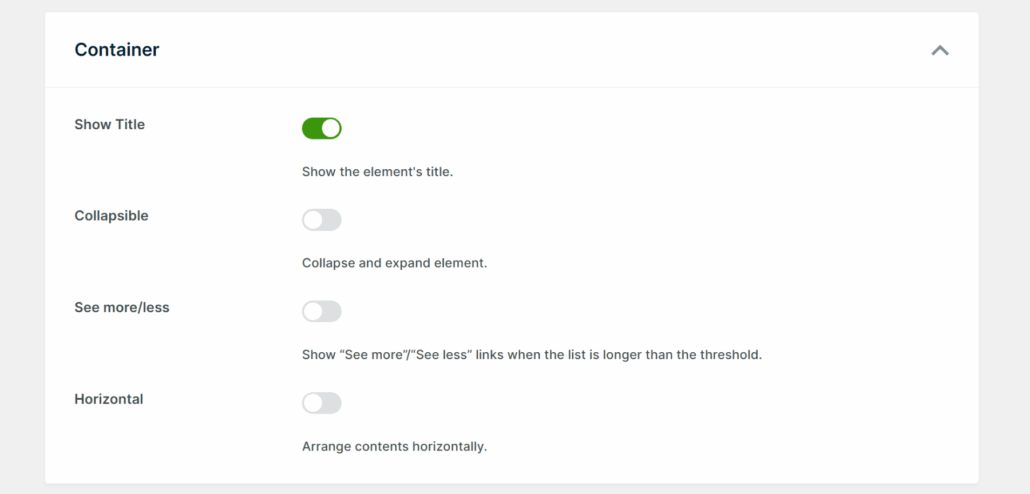
You’ll also see an option to make the filter Collapsible. This is handy if you plan to add multiple filters to your sidebar, as it keeps things tidy and stops the page from feeling too cluttered.
There’s also a Horizontal option if you’d prefer to display the filter choices side by side instead of stacked vertically.
Next, scroll down a little further to the Items section. Here you can enable options like Item Count, which shows shoppers how many products are available for each option in the dropdown.

Once you’re happy with how everything looks in the live preview on the right, scroll back to the top and click the Save button to store your changes.
Step 5: Add the Dropdown Filter to Your WooCommerce Store
With your dropdown filter saved, it’s time to put it somewhere your customers can actually use it. WPFilters gives you a few different ways to do this.
1. Adding the Dropdown Filter to Your Shop Page
The shop page is one of the best places to add a dropdown filter since that’s where most of your customers will be browsing. To get started, click the Embed button in the top right corner of the filter element page.
A popup window will appear with a few embed options. You can choose between a Gutenberg block, a shortcode, or PHP code. For most store owners, the Gutenberg block is the easiest option to work with.
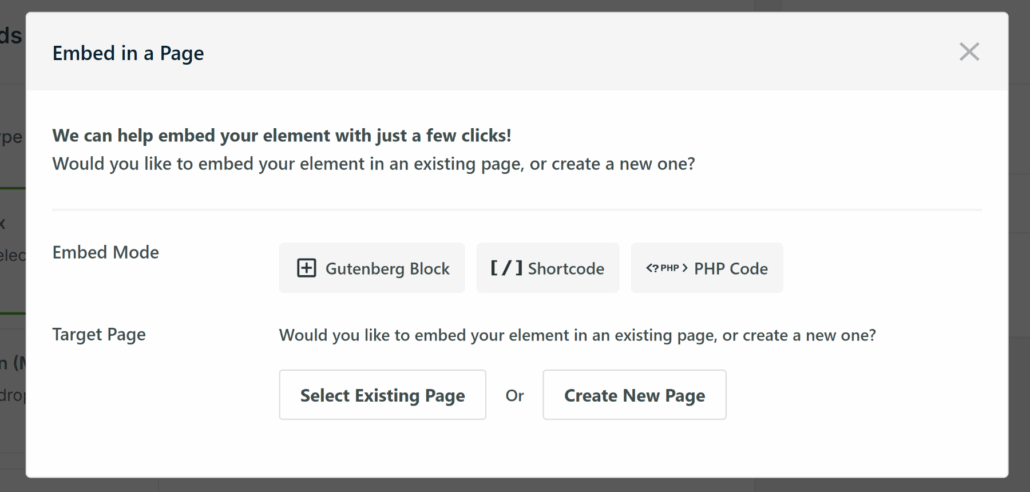
Select the Gutenberg Block option and then click Select Existing Page.
From there, type in the name of your shop page and select it from the dropdown menu. Once you click the Let’s Go button, WPFilters will load your shop page in the WordPress content editor with the filter block already added.
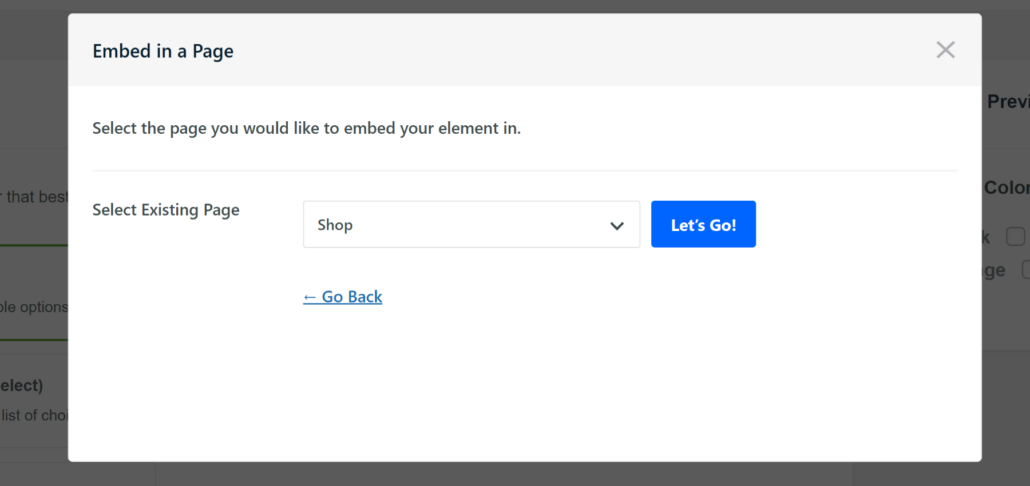
When you’re happy with how it looks, go ahead and click the Update button to save your changes.
2. Adding the Dropdown Filter to Your Sidebar (Recommended)
Adding the filter to your sidebar is another great option, and one we recommend for most WooCommerce store owners. That’s because if you want it to stay visible as customers browse different pages in your store.
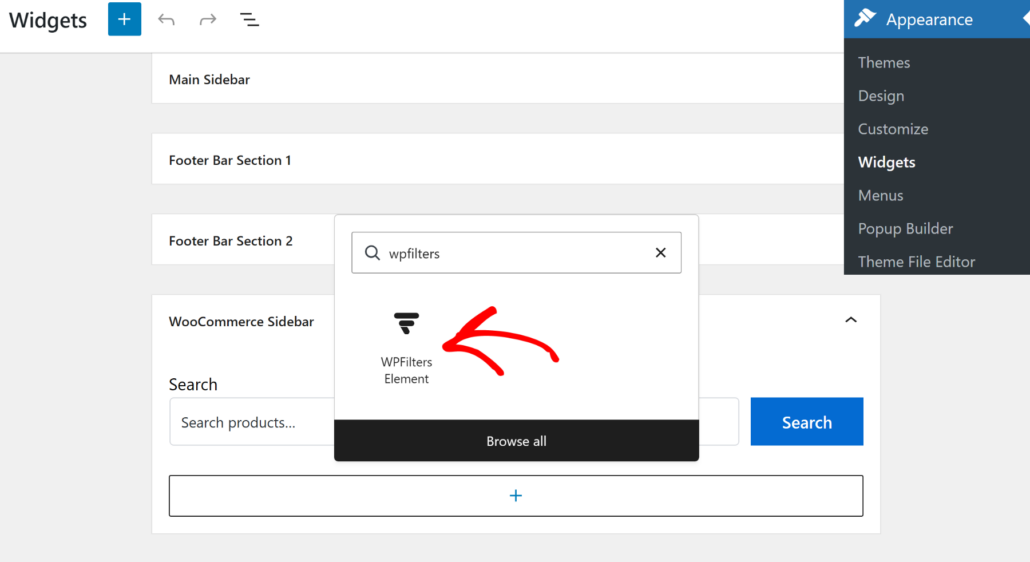
To do this, head to Appearance » Widgets from your WordPress dashboard. Keep in mind that this step may look slightly different depending on the WordPress theme you’re using.
Find the sidebar section for your WooCommerce store and click the + button to add a new block. Search for the WPFilters Element widget block and add it.
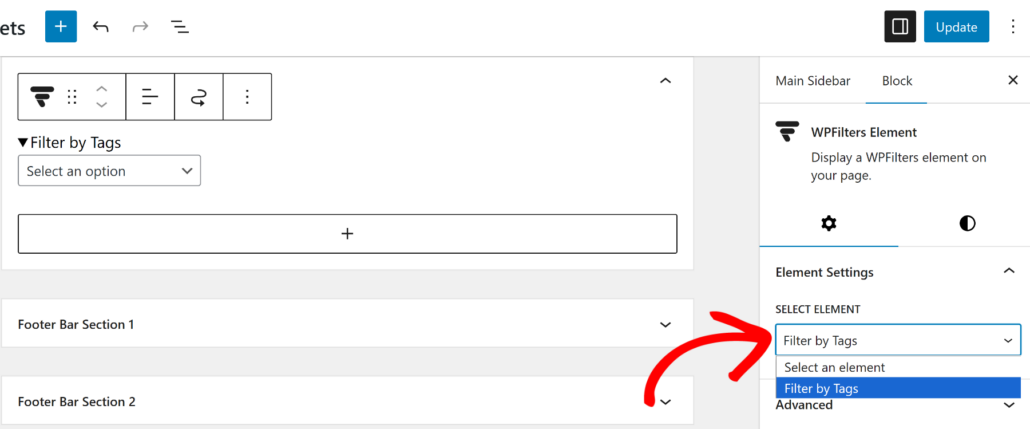
Once the block is added, look at the settings panel on the right.
Simply click the Select Element dropdown menu and choose the dropdown filter you just created. When you’re done, click the Update button to save everything.
Step 6: Test Your Dropdown Filter
Now that the filter is live on your store, it’s important to make sure everything is working the way it should. Testing only takes a minute, but it saves you from having customers run into any issues later.
Go ahead and visit your WooCommerce store on the front end of your site. Head over to the page or sidebar where you added the dropdown filter and take a look at how it appears to your visitors.
From here, you can click on the dropdown and select one of the available options. For example, if you set up the filter to sort by product tags, go ahead and pick a tag from the list.
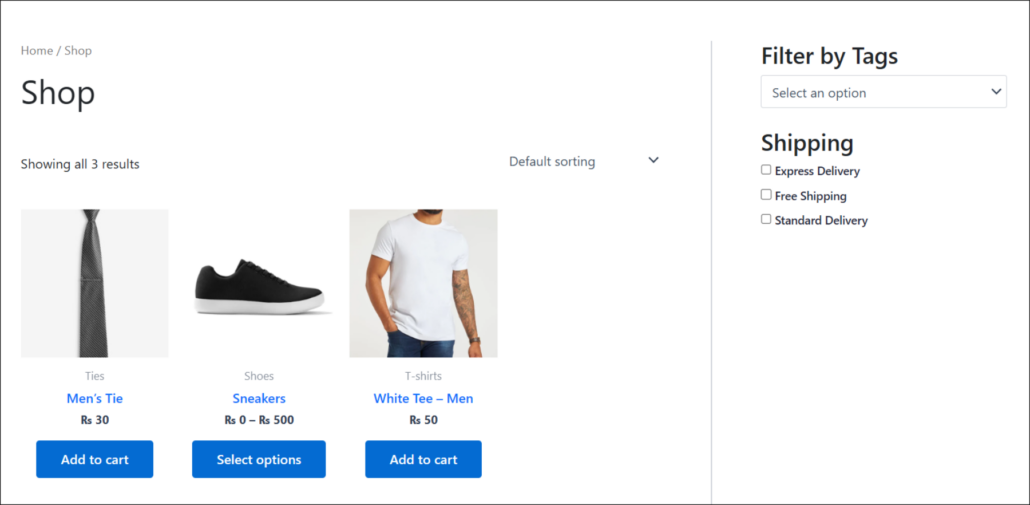
The products on the page should immediately update to show only the items that match your selection.
If the filter is working correctly, you’ll see the product grid narrow down to only the relevant results.
FAQs About Dropdown Filters for WooCommerce
1. Can I add multiple dropdown filters at once?
Yes. You can create as many filter elements as you need and place them together in the same location. For example, you could stack a “Filter by Category” dropdown with a “Filter by Color” dropdown and a price range slider so customers can narrow results from multiple angles at once.
2. Does the dropdown filter work with product variations?
Yes. WPFilters works with all standard WooCommerce product types, including variable products. If you filter by a product attribute like Color or Size, WPFilters will show products that have matching variation options.
3. Does filtering happen instantly or does the page reload?
Filtering happens in real time without a page reload. When a customer selects an option from the dropdown, the product list updates immediately, which keeps the shopping experience fast and smooth.
4. Can I use this with a custom taxonomy I added myself?
Yes. WPFilters supports custom taxonomies in addition to the built-in WooCommerce product categories and attributes. If you have registered a custom taxonomy for your products, it will appear as an option in the Data Source dropdown when configuring the filter.
We hope this article helped you learn how to create a dropdown filter for WooCommerce products. You may also want to check out our guides on how to add a search box filter to a WooCommerce product list and how to create range filters in WordPress.
Ready to give your customers a better way to find products? You can get started with WPFilters here.