

If you’ve visited online stores where you clicked a bunch of options to narrow down products, it feels great until you realize you selected the wrong size or color and can’t figure out how to undo it.
The search results page gets stuck showing nothing, and there is no easy way to clear the selection. This usually forces users to hit the back button or refresh the page, which is very annoying.
The best fix is showing exactly which filters are active and giving users a simple button to reset everything.
In this guide, we will show you how to add a reset filter button in WordPress.
Why Your Visitors Get Stuck Without a Reset Button?
Imagine walking down a grocery aisle and putting items in your cart, but then realizing you can’t take them out.
That is exactly what it feels like for a user when they select a filter like “Red” or “Small” and can’t uncheck it easily.
We have noticed that when users select multiple options on a website, they often forget what they clicked a few moments ago.
They end up staring at a “No results found” message and feel frustrated because they don’t know how to fix it.
This confusion kills sales and makes people leave the sites we manage. By showing active filters, you are basically giving your visitors a map so they know exactly where they are.
Adding a reset button is like hitting a start over switch. It gives control back to the user so they can browse your content freely without the fear of getting stuck in a dead end.
That said, let’s look at a quick and easy way of adding a reset button to WordPress.
Showing a Filter Reset Button in WordPress
The easiest way to let users control their search experience is by using a plugin like WPFilters.

WPFilters is the best filtering plugin for WordPress that makes managing search results effortless.
We love using it because it allows you to add helpful navigation tools without writing any code. Usually, you would need to hire a developer to show active filters or add a clear button.
But WPFilters handles these complex tasks automatically so you can focus on your content. It is built by the same team behind SearchWP, so we trust it to deliver accurate results every time.
Here are some things you can do with WPFilters:
- Show Active Filters: Display a list of selected criteria so users know exactly what they are viewing.
- One-Click Reset: Add a simple button that lets visitors clear all filters instantly.
- Various Filter Types: Choose from checkboxes, dropdowns, range sliders, and radio buttons to suit your design.
- Easy Integration: Place your filters anywhere on your site using the block editor.
With that, let’s see how to set up active filters and a reset button on your website.
Step 1: Install and Activate WPFilters
First, you will need to visit the SearchWP website to get the WPFilters plugin.
When you’re done, simply go to your SearchWP dashboard and click the Downloads tab.
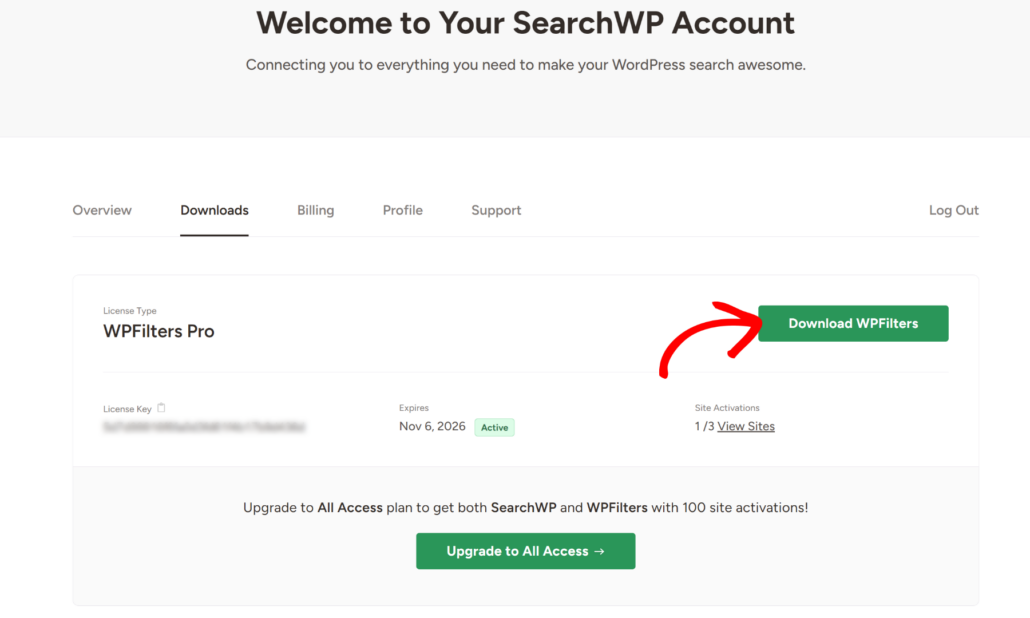
Once you get to the Downloads tab, press the Download WPFilters button and save the plugin’s ZIP file to your computer.
You should also copy your license key at the bottom left, as you will need it later in the setup process.
Next, you will need to install and activate WPFilters on your WordPress website. If you are not sure how to do that, then please see this beginner’s guide on how to install a WordPress plugin.
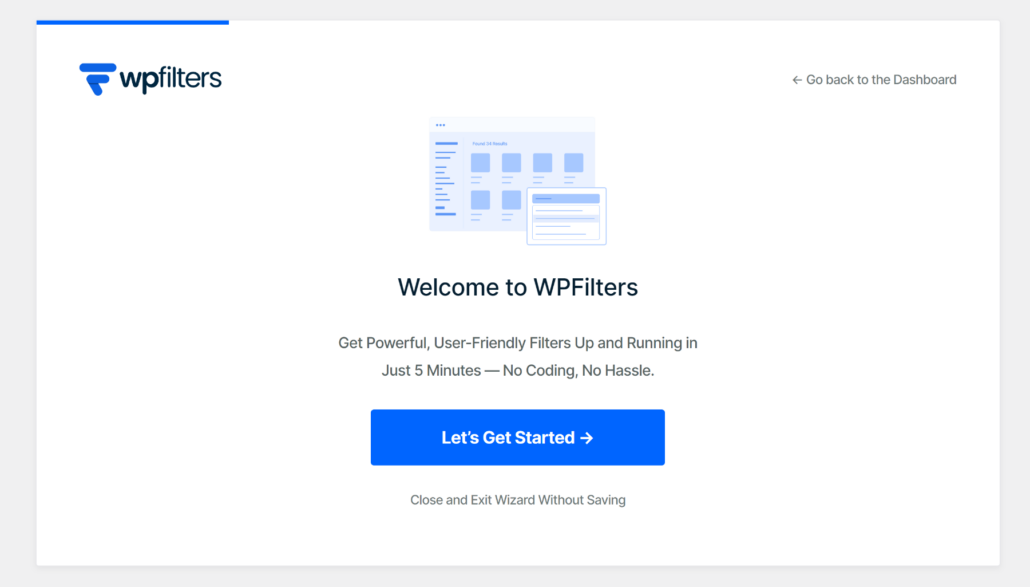
Upon activation, the welcome screen will appear along with the setup wizard. Simply click the ‘Let’s Get Started’ button and follow the onscreen instructions.
Step 2: Create a New Reset Filter Element
To begin, you need to create a new element that will hold all your different filtering options.
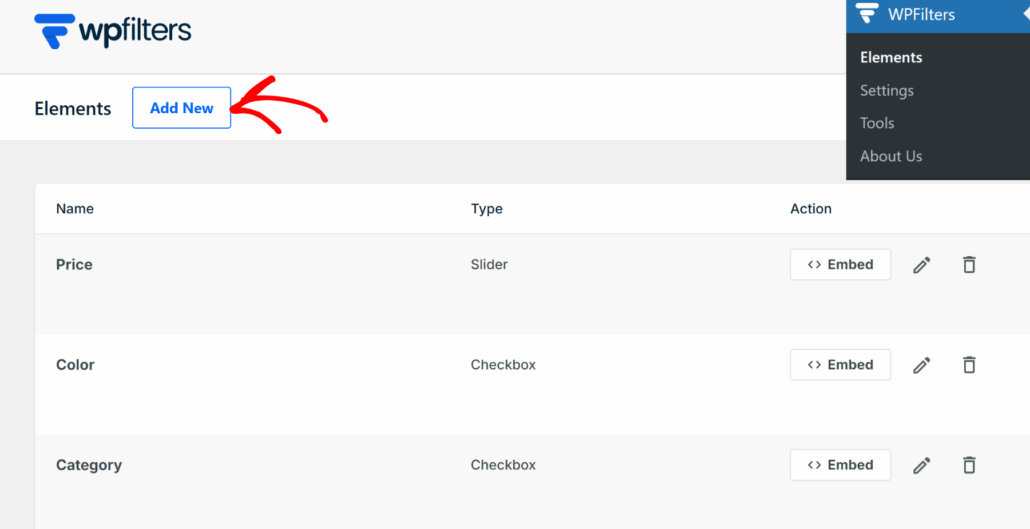
Simply navigate to WPFilters » Elements from your WordPress dashboard and click the Add New button.
Next, you can type in a title for your filter set in the field provided at the top.
From here, you’ll need to choose the specific type of filter you want to display. Go ahead and choose the Reset option under the Filter Type section.
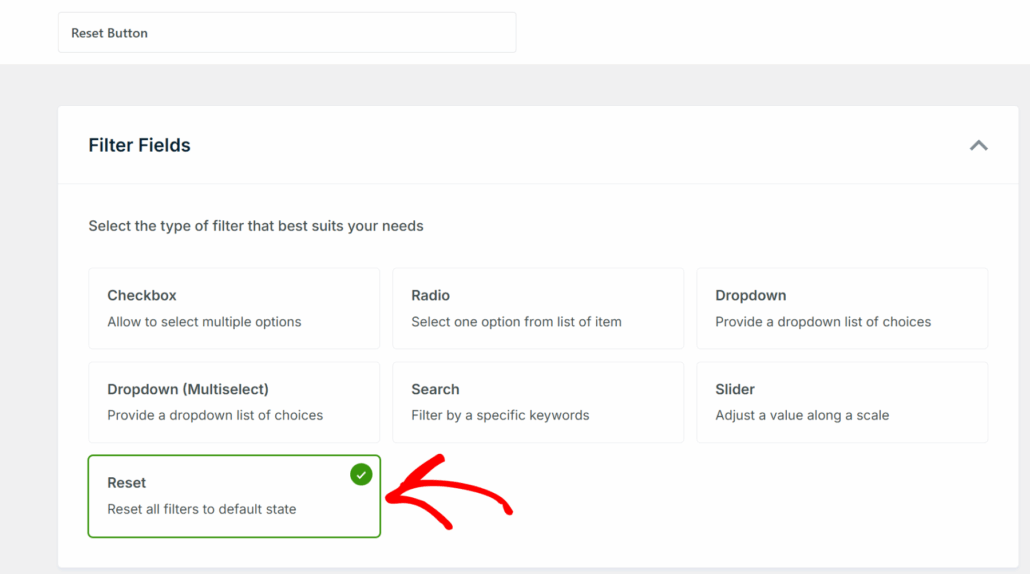
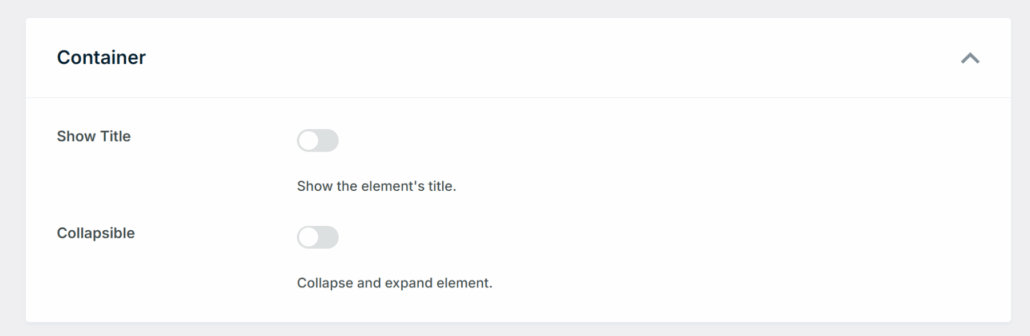
After that, you can scroll down to the Container section.
Here, you’ll see options to show the title of the filter and make it collapsible.
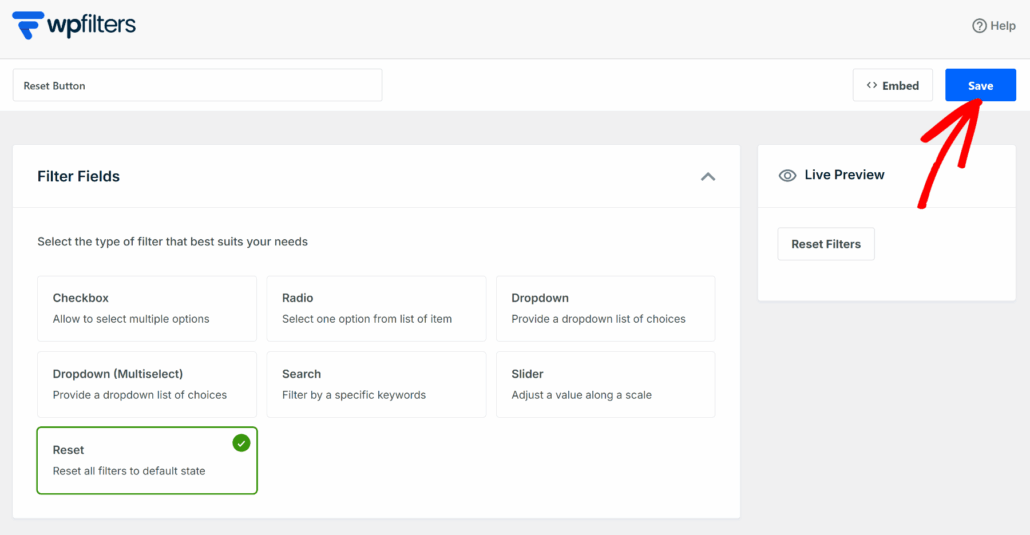
When you’re done, go ahead and scroll to the top.
From here, simply click the Save button to store your changes.
Step 4: Embed the Reset Button in WordPress
Now that you’ve created the reset button, the last step is to add it to your website where you’ve placed other filters.
The best part about using WPFilters is that you can easily embed the reset button anywhere, be it a specific page or the widget area.
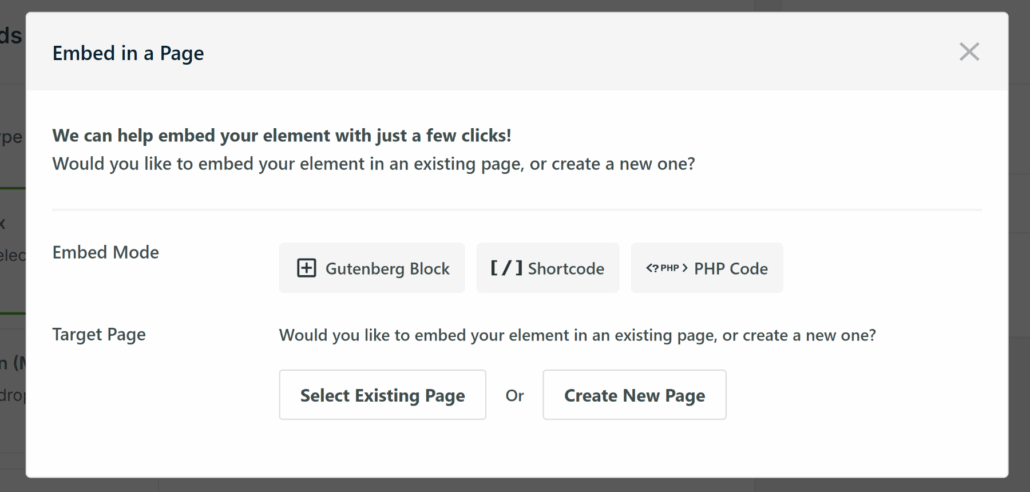
If you want to add the filter reset button to a specific page, simply click the Embed button in the Element editor.
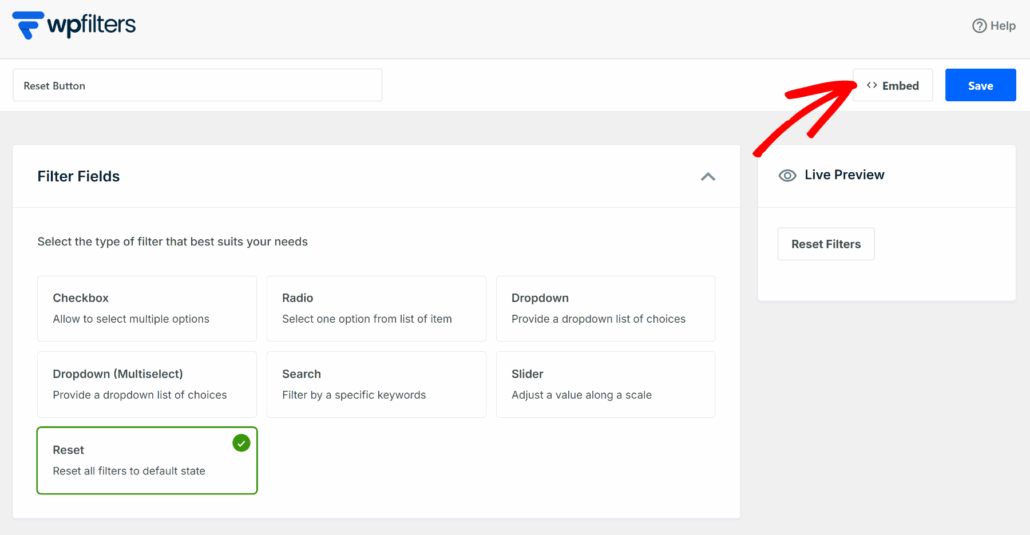
Next, a new popup window will open with different options for adding the filter element.
For instance, you can choose from a Gutenberg block, shortcode, and PHP code. After that, you can place the filter on a new page or an existing page.
Besides that, you can also embed the filter manually to a widget area of your site, like the sidebar.
For this tutorial, we’ll add the reset button to the sidebar of our demo online store where there are other filters as well.
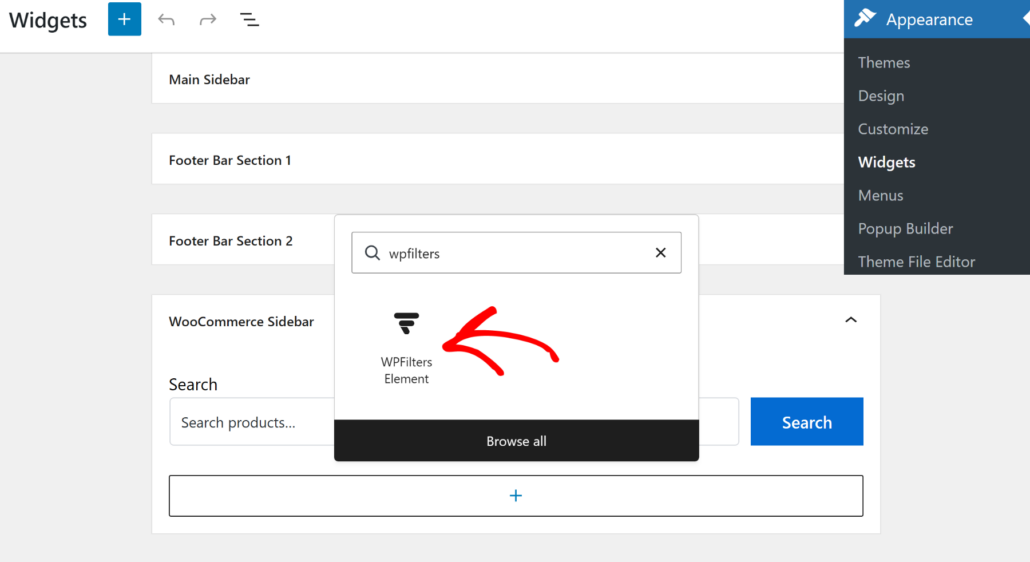
To do that, simply head to Appearance » Widgets from your WordPress dashboard. An important thing to remember is this step might differ depending on the WordPress theme you’re using.
Next, scroll down to the sidebar section and click the ‘+’ sign to add the WPFilters Element widget block.
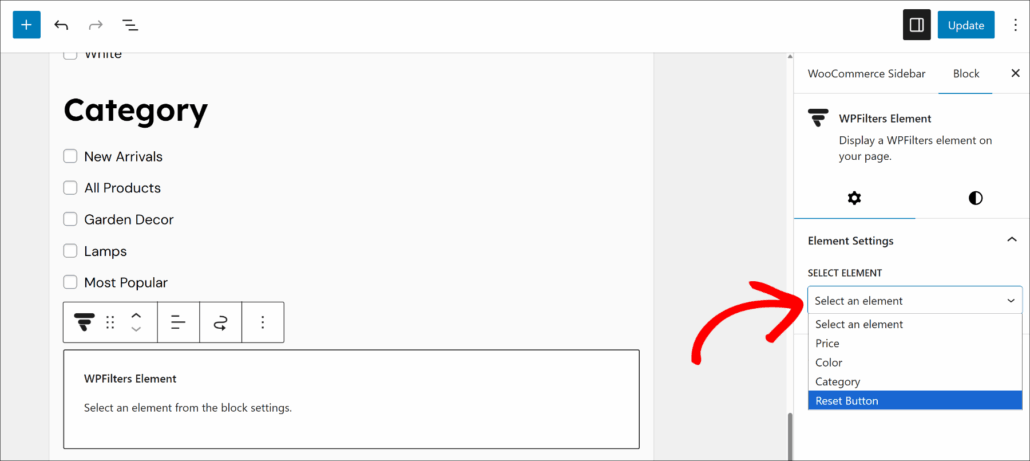
Once that’s done, you’ll need to select the reset filter you created from the settings panel on the right.
Simply click the ‘Select Element’ dropdown menu and pick your filter.
After that, you can click the Update button to save your changes.
The next step is to visit your website and test the reset button filter.
For example, here’s how it works on our demo site:
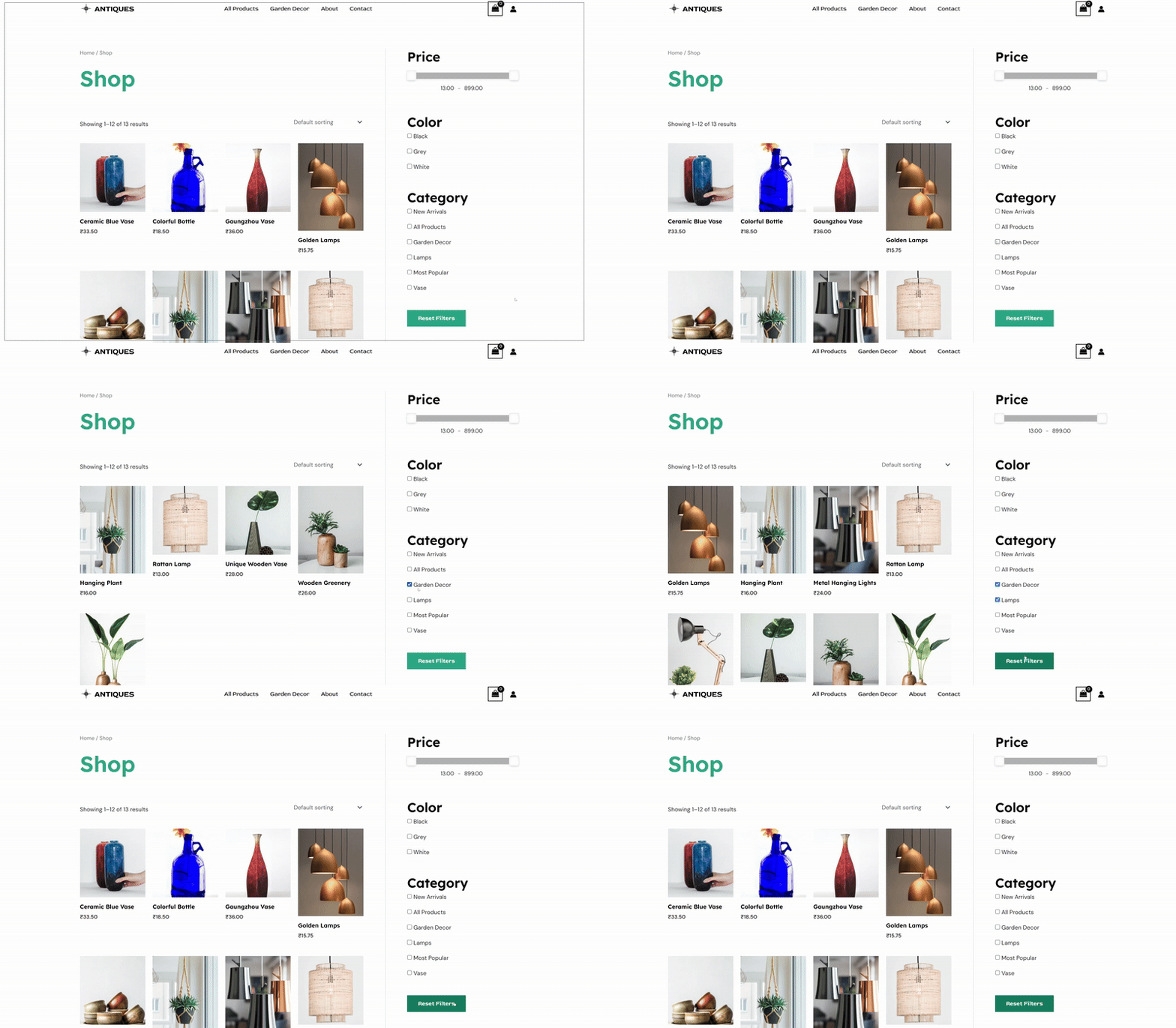
As you can see, hitting the reset filters button removes all the selected filters. This is great way to quickly bring everything back to default with just a single click.
FAQs about Reset Filters in WordPress
Here are some common questions our users ask about managing filters on their WordPress sites.
1. Can I customize the look of the reset button?
Yes, you can change how the button looks to match your brand. WPFilters is designed to work well with your active WordPress theme automatically. If you want specific colors or fonts, you can also use custom CSS.
2. Does this work with WooCommerce products?
Yes, these features work perfectly with WooCommerce. We have used WPFilters on many online stores to help shoppers navigate product categories and tags.
It ensures that customers can easily clear their size or color selections without reloading the page.
3. Do I need to write code to add these features?
No, you do not need to write any code. As we showed in this guide, WPFilters lets you add active filters and reset buttons using a simple block.
This saves you the cost and time of hiring a developer to build these functions for you.
We hope this article helped you learn how to show active filters and add a reset button in WordPress. You may also want to see our guide on how to add a search bar to your navigation menu and how to exclude specific pages from search results.
If you are ready to improve your site navigation, you can get started with WPFilters here.