When you add products to your WooCommerce store, you’re probably not thinking about how they’ll all look mixed together on one page.
You might have simple items, products with multiple sizes or color options, bundle offers, and even downloadable files all mixed together.
We’ve seen how confusing this becomes for shoppers. They land on your shop page and see every product type jumbled together without any way to sort through them.
The solution is adding a filter that lets shoppers sort products by type. It gives them control over what they see and helps them find the right kind of product in seconds.
In this article, we’ll show you how to filter WooCommerce by product type.
Why Filter WooCommerce Products by Type?
Before we walk through the setup process, let’s talk about why product type filtering matters for your store.
Think about a customer who only wants to buy gift cards or downloadable products. Without filters, they’re forced to scroll past physical items they can’t use.
We’ve noticed that mixing product types creates confusion at checkout, too. Customers don’t always understand why some products have shipping costs while others don’t, or why certain items have size options and others are fixed.
Product type filters solve these problems by letting shoppers narrow down to exactly what they’re looking for. Someone searching for variable products can hide all the simple products with one click.
This makes the shopping experience smoother and reduces frustration. When customers can easily find the type of product they need, they’re more likely to complete their purchase.
Now, let’s look at how you can easily filter by product type on your online store.
Filter WooCommerce Products by Product Type
The easiest way to add product type filters to your WooCommerce store is by using WPFilters.
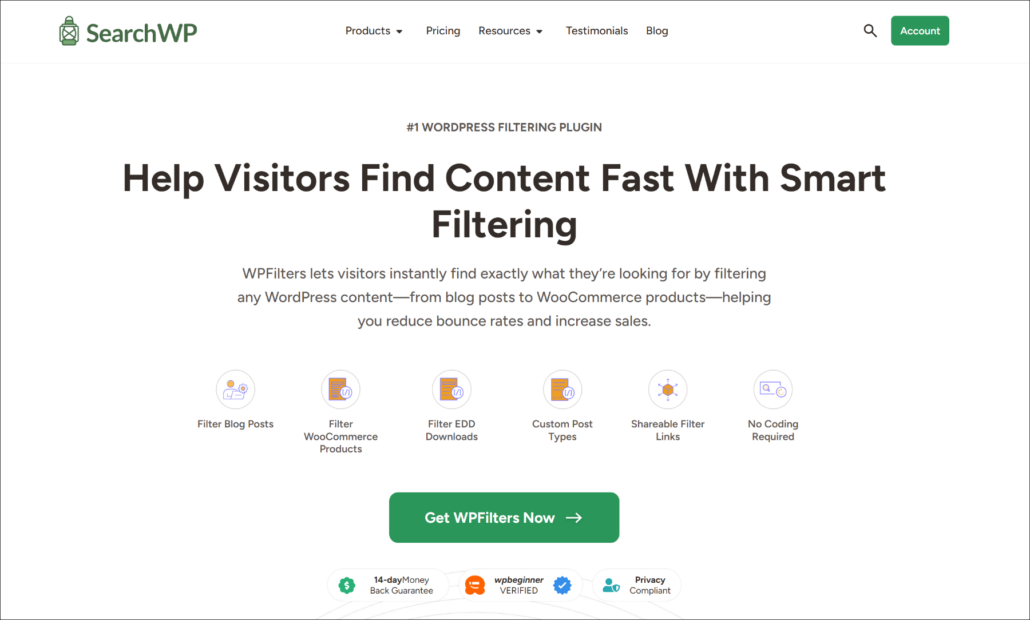
WPFilters is the best WordPress filtering plugin that makes sorting products simple for your customers. It works seamlessly with WooCommerce right out of the box.
Created by the team behind SearchWP, this plugin gives you powerful filtering options without requiring any coding knowledge. You can set up professional Amazon-style filters in minutes.
The plugin lets you create filters for product types, categories, tags, attributes, and custom fields. Your customers get the control they need to find products faster.
Here are some features WPFilters offers:
- Multiple Filter Types: Choose from checkboxes, radio buttons, dropdowns, and more to match your store’s design.
- Shareable Filter URLs: Every filtered search creates a unique link that customers can bookmark or share with friends.
- Easy Placement: Add filters anywhere on your site using Gutenberg blocks or simple shortcodes.
- Full WooCommerce Support: Built specifically to work with WooCommerce product data, including all product types.
- Mobile Responsive: Filters look great and work perfectly on phones and tablets.
With that, let’s see how you can set up product type filtering on your store.
Step 1: Install and Activate WPFilters
First, you’ll need to visit the SearchWP website and sign up for a WPFilters account.
Once you’ve created your account, head to your account area and click on the Downloads tab.
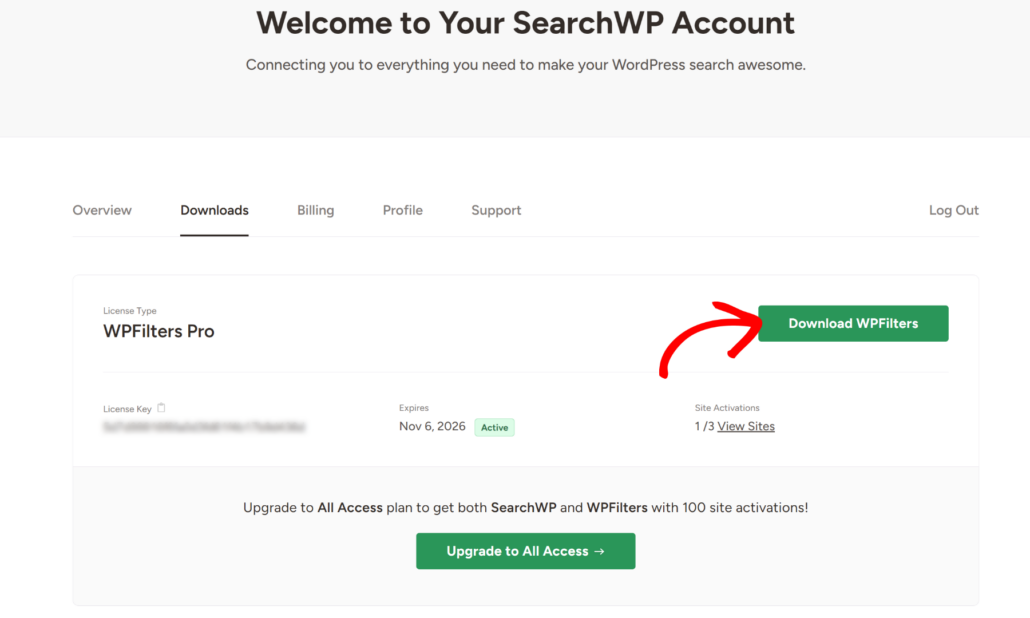
From here, click the Download WPFilters button and save the plugin files to your computer. We also recommend copying your license key now since you’ll need it during setup.
Next, you need to upload the WPFilters plugin files to your WordPress site and install the plugin. If you need help with this step, please see this guide on how to install a WordPress plugin.
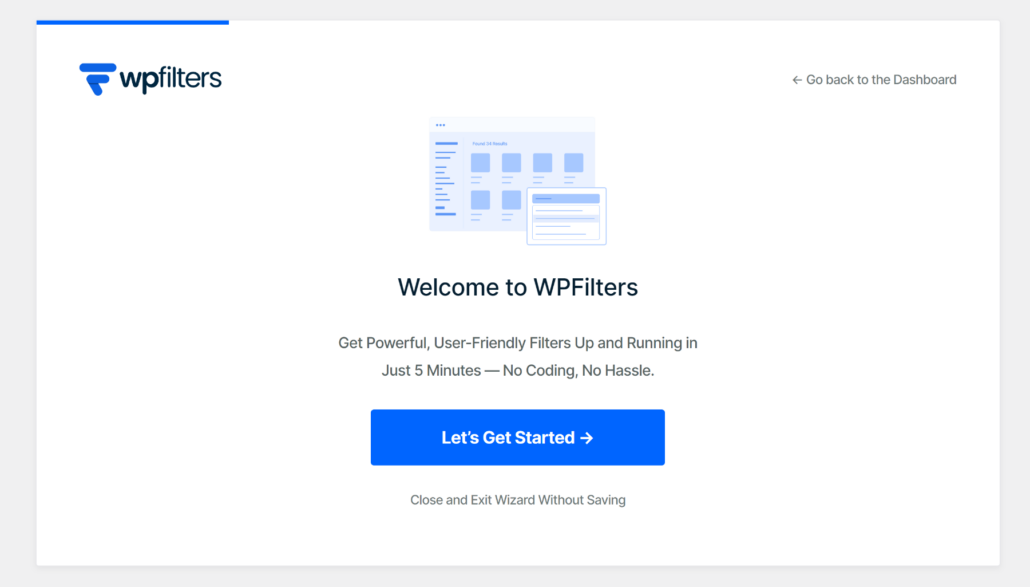
After activating the plugin, the WPFilters setup wizard will appear on your screen. Go ahead and click the ‘Let’s Get Started’ button and follow the onscreen instructions to complete the setup.
Step 2: Create a Product Type Filter Element
Now you need to create the filter that your customers will use to sort products by type.
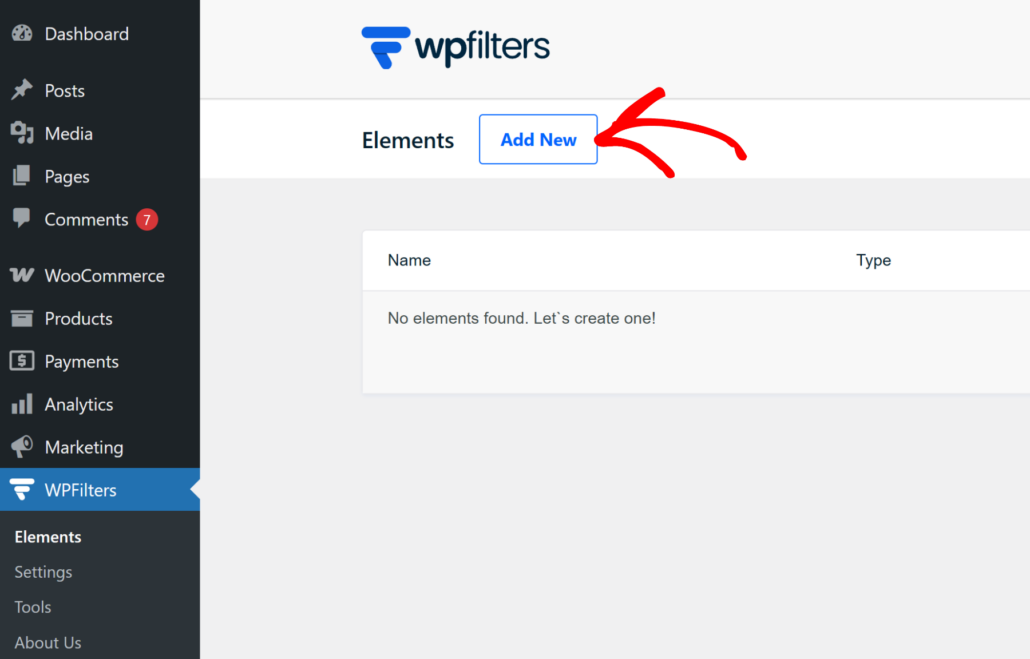
To start, head to WPFilters » Elements from your WordPress dashboard and click the ‘Add New’ button.
On the next screen, you’ll start setting up your filter. First, enter a name for your filter at the top, like “Product Type Filter” or something similar that helps you stay organized.
Next, you need to choose what type of filter you want to create. WPFilters offers multiple checkboxes, radio buttons, dropdowns, and search bars.
For product type filtering, we recommend using the Checkbox option. This lets customers select multiple product types at once if they want to see both simple and variable products together.
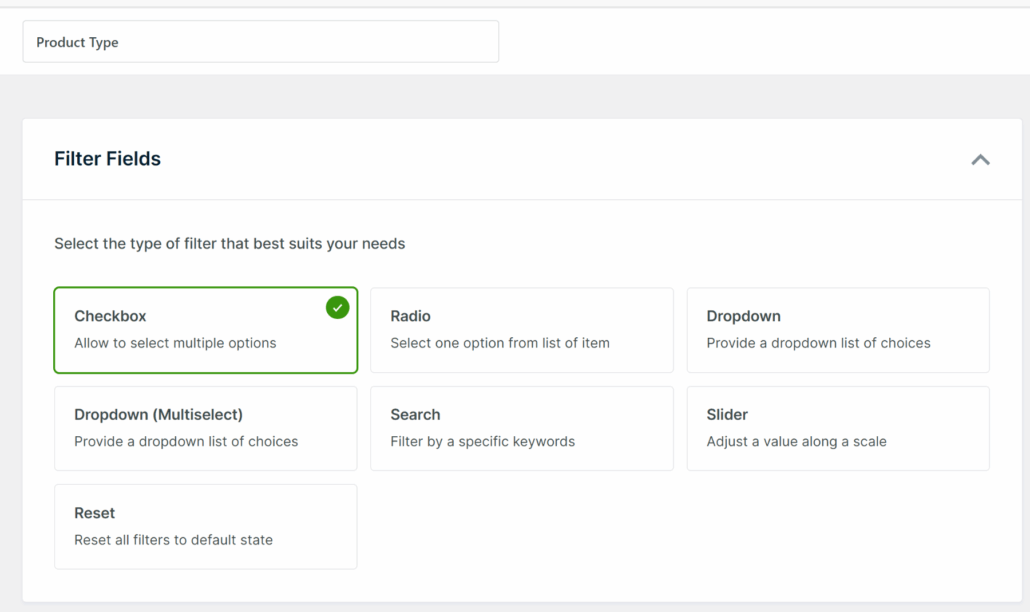
You’ll see a live preview of your filter in the panel on the right side of the screen. This updates once you save your changes, so you can see exactly how it will look.
Now scroll down to the Data Source section. This is where you tell WPFilters what information to use for the filter.
Simply click the dropdown menu and look for the Product Type option. Go ahead and select it as your data source.
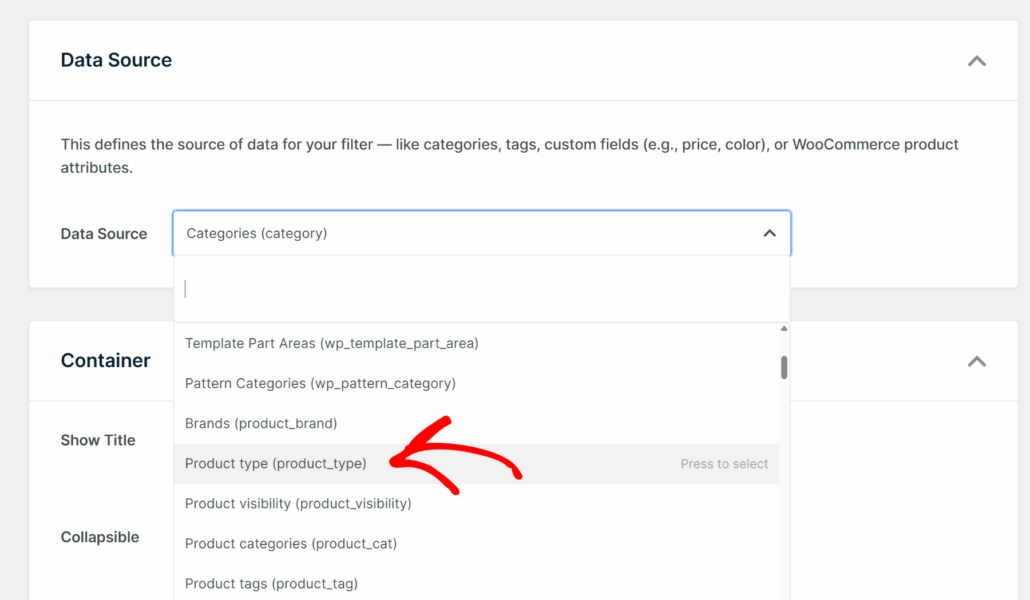
WPFilters will automatically detect all the product types you’re using in your store. These typically include simple products, variable products, grouped products, and external products.
Step 3: Customize Your Product Type Filter
After selecting your data source, you can customize how the filter looks and behaves for your customers.
Simply scroll down to the Container section to adjust the display settings. Here you can control how the filter appears on your store.
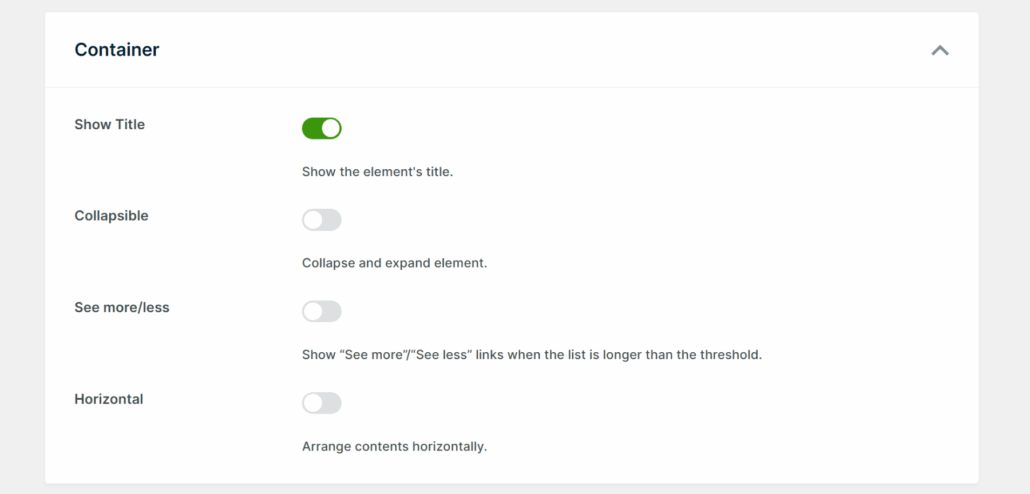
For instance, enable the ‘Show Title’ option if you want customers to see a label like “Product Type” above the filter. This helps them understand what they’re sorting by.
You can also turn on the ‘Collapsible’ option to let users hide the filter when they don’t need it. This keeps your sidebar tidy and gives customers control over the interface.
The ‘Horizontal’ option arranges the filter choices side-by-side instead of in a vertical list.
Next, look at the Items section below the Container settings. This controls how individual filter options appear to your customers.
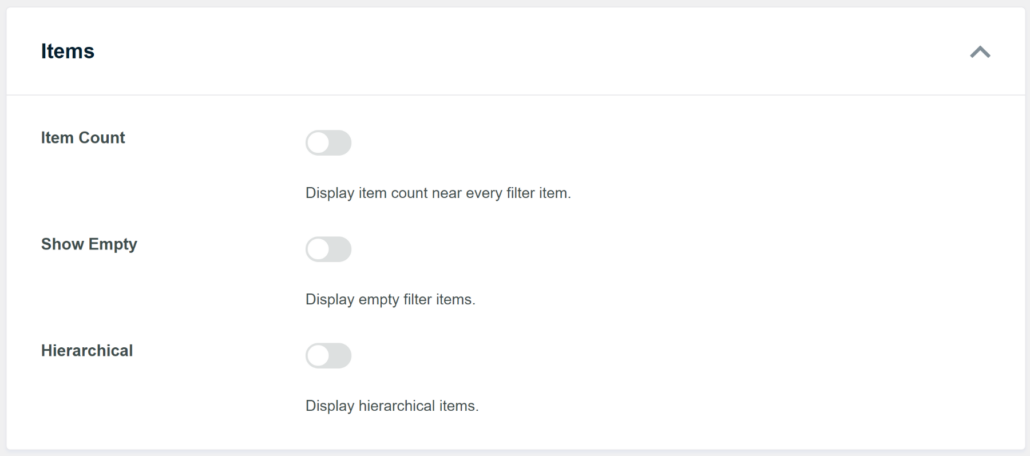
Enable ‘Item Count’ to show how many products exist for each type. For example, it might display “Simple Products (24)” or “Variable Products (18),” so customers know what to expect.
When you’re satisfied with how everything looks, scroll to the top of the page and click the Save button to store your changes.
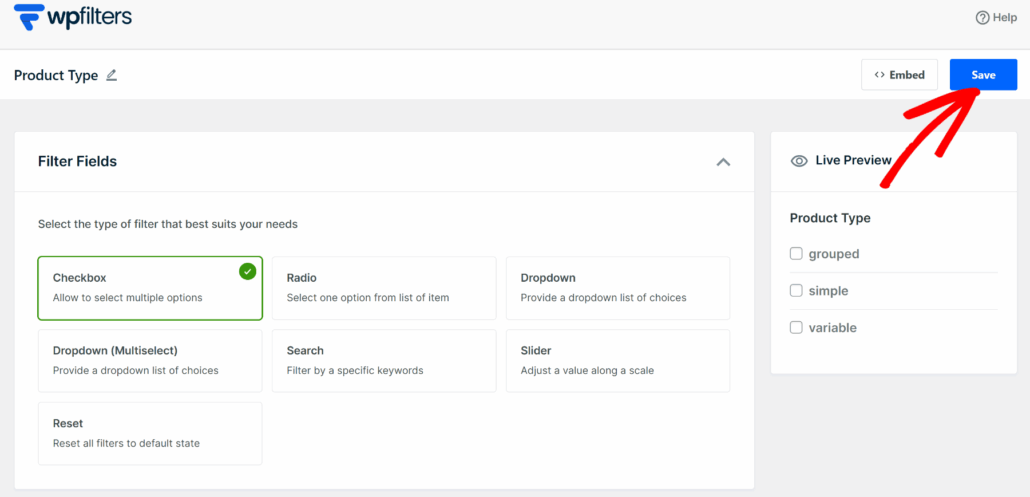
You’ll see a preview of your completed filter in the right panel, showing exactly how it will appear to customers.
Step 4: Add the Filter to Your Store
Now that your filter is ready, you need to place it on your WooCommerce store where customers can actually use it.
WPFilters makes this easy by offering multiple ways to embed your filter. You can use a Gutenberg block, a shortcode, or PHP code if you’re comfortable with development.
To get started, click the ‘Embed’ button at the top of the Elements page.
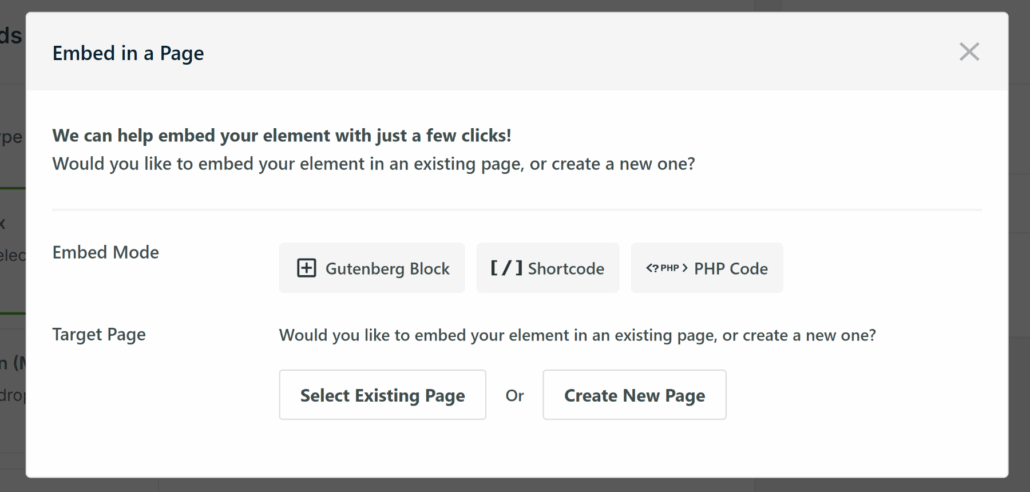
A popup window will appear showing you the different embed options. You can add the filter to an existing page or create a new one.
For this tutorial, we’ll show you how to add the product type filter to your WooCommerce shop page sidebar. This is where most customers expect to find filtering options.
Simply head to Appearance » Widgets from your WordPress dashboard. Do note that these steps might vary slightly depending on which WordPress theme you’re using for your store.
From here, scroll down to find your WooCommerce sidebar or Shop sidebar section. Then, you can click the + button to add the WPFilters Element widget block.
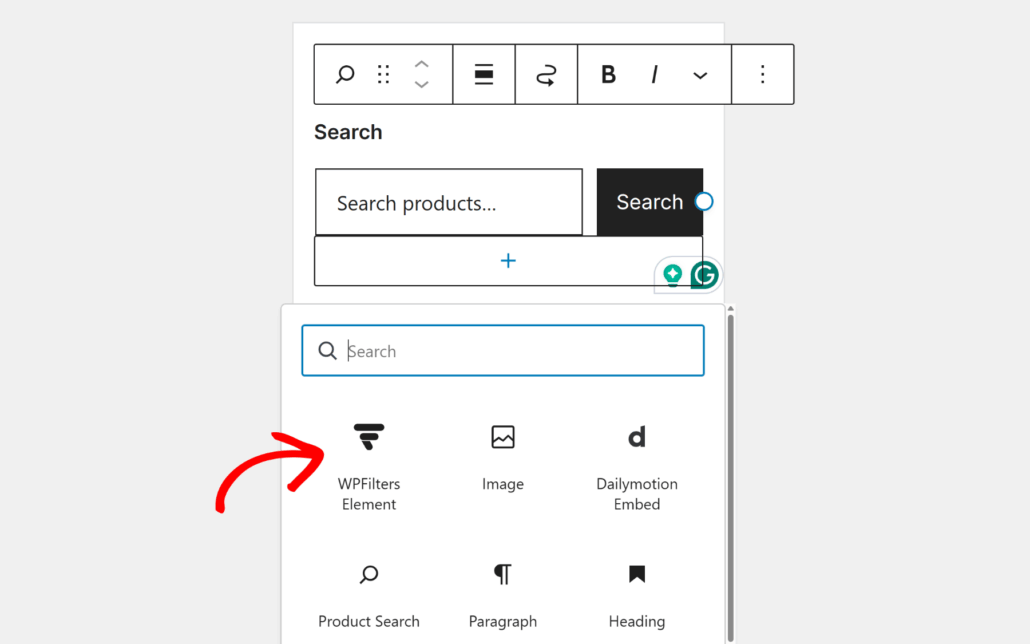
Once you’ve added the WPFilters Element block, you need to tell it which filter to display. Look at the ‘Settings’ panel on the right side of your screen.
And then click the ‘Select Element’ dropdown menu and choose the product type filter you created in the previous steps.
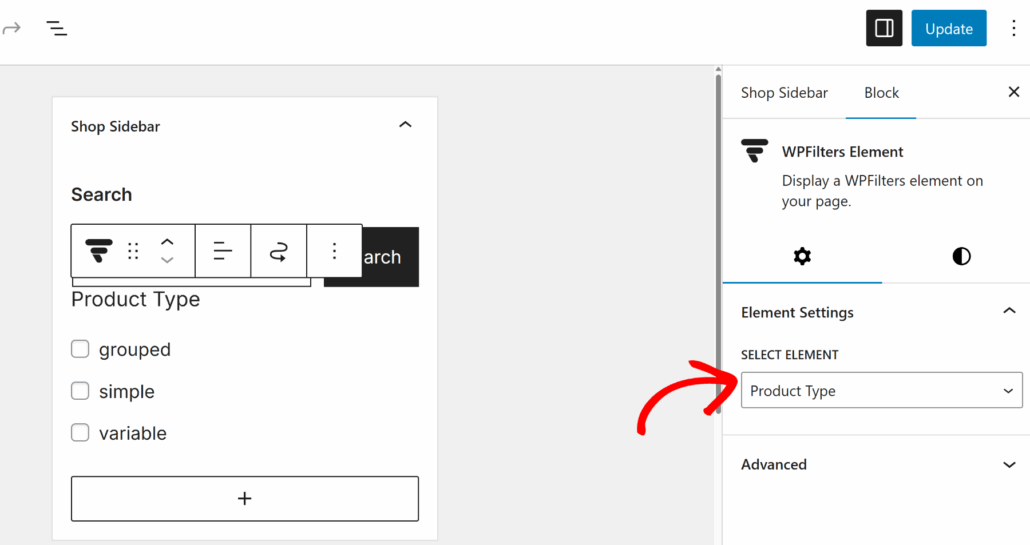
When you’re done, click the Update button at the top to save your changes. Your filter is now live on your store.
Step 5: Test Your Product Type Filter
After adding the filter to your store, the final step is to test it and make sure everything works correctly.
Visit your WooCommerce shop page to see the product type filter in action. You should see it displayed in your sidebar with all the product types from your store.
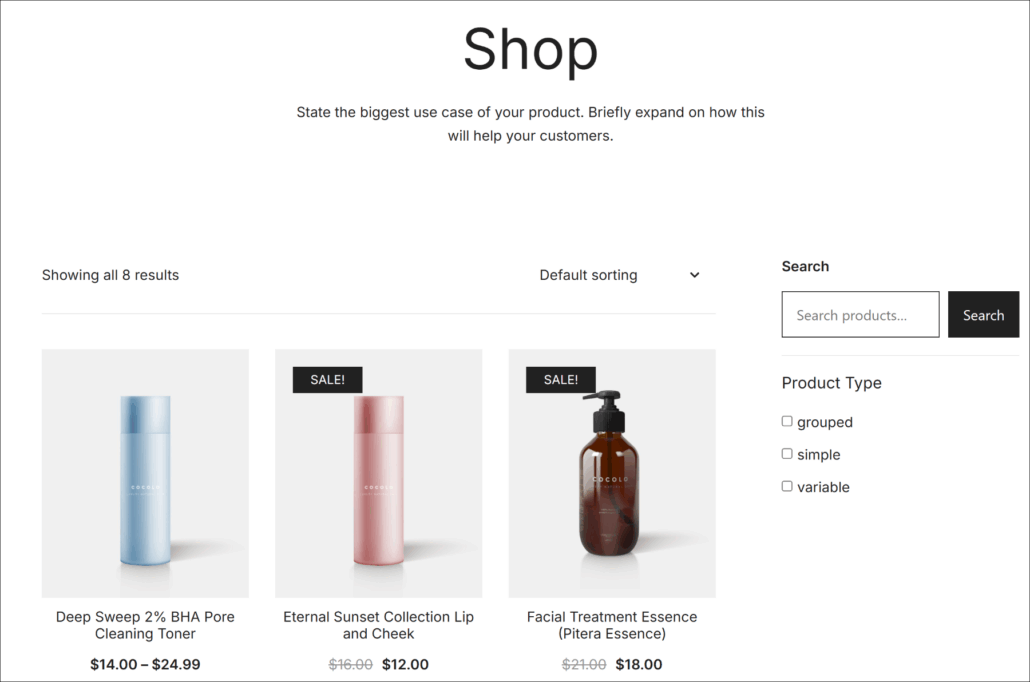
The filter should show checkboxes for each product type you have, like simple product, variable product, and grouped product.
Now let’s test if the filtering actually works. Go ahead and click on one of the product types in the filter.
For example, if you select “Variable Product” from the checkbox list, your shop page should refresh and show only products that have multiple variations, like size or color options.
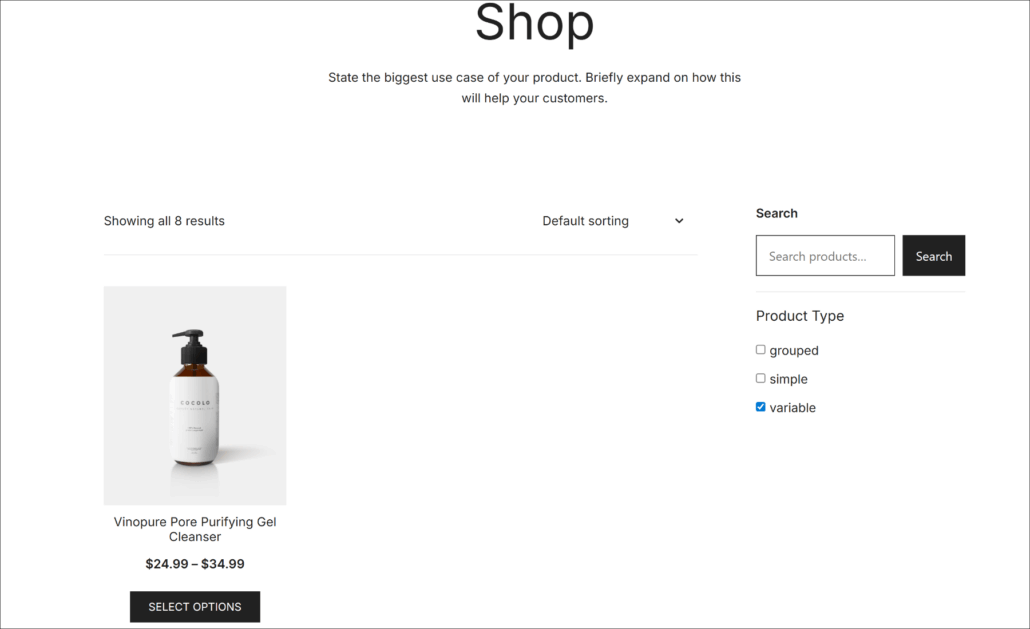
All your simple products, grouped products, and other types should disappear from view. Only the variable products remain visible.
Try selecting multiple product types at once by checking more than one box. The shop page should now display products from both types you selected.
This gives your customers the flexibility to compare different product types or narrow down to exactly what they need.
FAQs About WooCommerce Product Type Filters
1. Can I add multiple filters to my WooCommerce store?
Yes, you can create as many filters as you need. For instance, you can stack multiple filters in the sidebar so customers can sort by product type, category, price, and attributes all at once. Each filter works independently, giving shoppers precise control over what they see.
2. Will this work with my current WooCommerce theme?
WPFilters works with almost every WooCommerce theme. We’ve tested it on popular themes like Astra, Storefront, and OceanWP without any issues. The filters integrate seamlessly with your existing sidebar and shop page layout.
3. Do customers need to reload the page to see filtered results?
By default, the page will refresh when customers select a filter option. However, WPFilters supports Ajax filtering, which updates results instantly without reloading the entire page. This creates a smoother shopping experience for your customers.
Adding product type filters to your WooCommerce store helps customers find exactly what they’re looking for without scrolling through irrelevant products.
We’ve shown you how to set up these filters using WPFilters in just a few simple steps. Your customers can now sort through simple products, variable products, grouped products, and more with a single click.
This small change makes a big difference in how shoppers experience your store. They spend less time searching and more time buying, which leads to better sales for your business.
We hope this article helped you learn how to filter WooCommerce by product type. You may also want to see our guides on how to filter WooCommerce products by tags and how to add a smart WooCommerce product search.
Ready to give your customers better control over your product catalog? You can get started with WPFilters here.