


Running a WooCommerce store often means dealing with a growing inventory that can quickly become overwhelming for visitors.
From our experience, we notice that customers struggle to find specific items when there are too many options on a single page.
If shoppers can’t sort through your products easily, they might leave before buying anything.
Adding product tags helps organize your inventory, but you need a way for customers to actually use them to narrow down results.
In this article, we will show you how to filter WooCommerce products by tags using WPFilters.
Why Filter WooCommerce Products by Tags?
Before we jump into the tutorial, let’s talk about why adding a product filter for tags is a game-changer for your shop.
Think of your WooCommerce store like a giant clothing warehouse. If a shopper specifically wants a “summer” or “vintage” item, they shouldn’t have to look through every single piece of clothing you own.
Without filters, you are forcing them to do exactly that, which leads to frustration and abandoned carts.
We have seen time and again that adding simple filters makes the shopping experience much smoother. It helps your visitors feel in control of their browsing experience.
When they can click a tag and see only relevant items, they are much more likely to complete a purchase.
That said, let’s look at an easy way of setting up WooCommerce product tags filters.
Set Up WooCommerce Product Tags Filter
The best way to filter products by tags in WooCommerce is by using WPFilters.
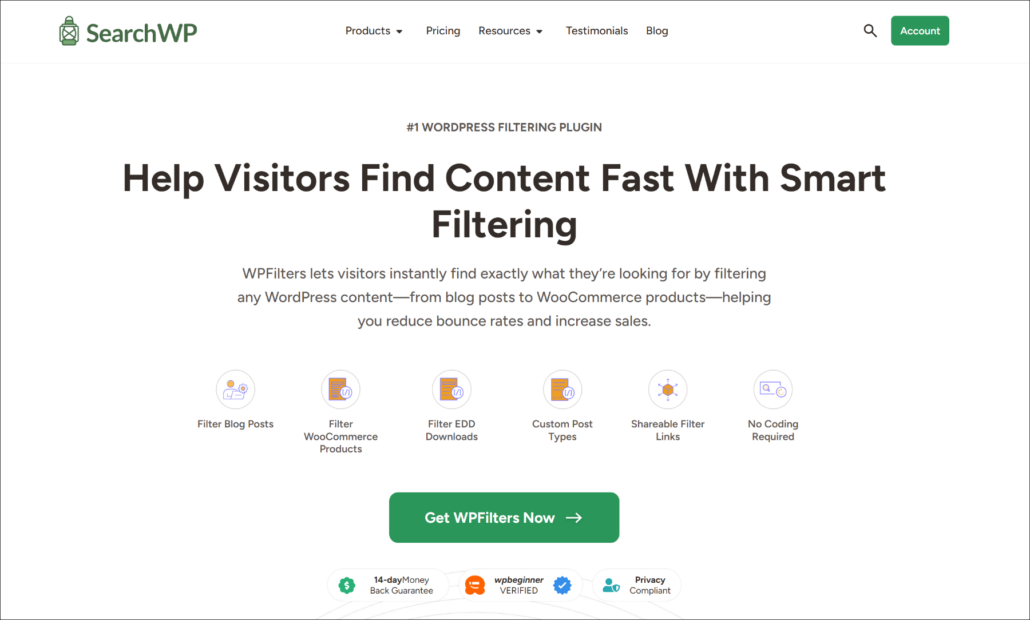
WPFilters is the top filtering plugin for WordPress that makes sorting content incredibly easy.
We love using it because it handles complex filtering tasks without asking us to write any code.
Usually, building a custom filter for WooCommerce requires hiring a developer or editing template files.
WPFilters removes that headache and lets you build filters using a simple visual builder.
It is built by the same team behind SearchWP, so you can trust it to handle data accurately and efficiently.
Using WPFilters, you can:
- Pre-built Elements: Choose from pre-built filters like checkbox, radio, dropdown, and more.
- Filter any Content: Set up filters for blog posts, products, downloads, and custom content.
- Choose Advanced Data Sources: Easily filter posts and products by tags, categories, attributes, brands, shipping classes, etc.
- Shareable Filter URLs: Turn every filtered search into a unique URL visitors can bookmark and share.
- Gutenberg Integration: Add filters using WPFilters block to any page, post, or sidebar.
With that, let’s look at how we can set this up on your site.
Step 1: Install and Activate WPFilters
To get started, you need to visit the SearchWP website and log in to our account.
Once we are there, we’ll click on the Downloads tab to find the plugin files.
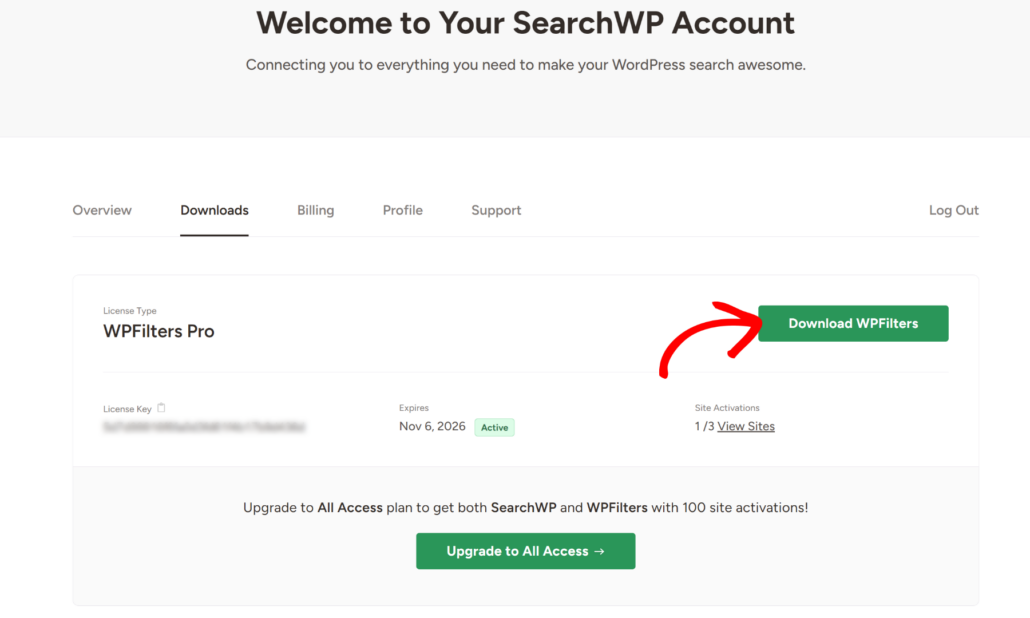
Go ahead and click the Download WPFilters button to save the ZIP file to your computer.
While on this page, we also recommend copying the license key, since you will need it shortly.
Next, you need to upload the plugin to our WordPress dashboard and install it. If you aren’t sure how to do this, check out this guide on how to install a WordPress plugin.
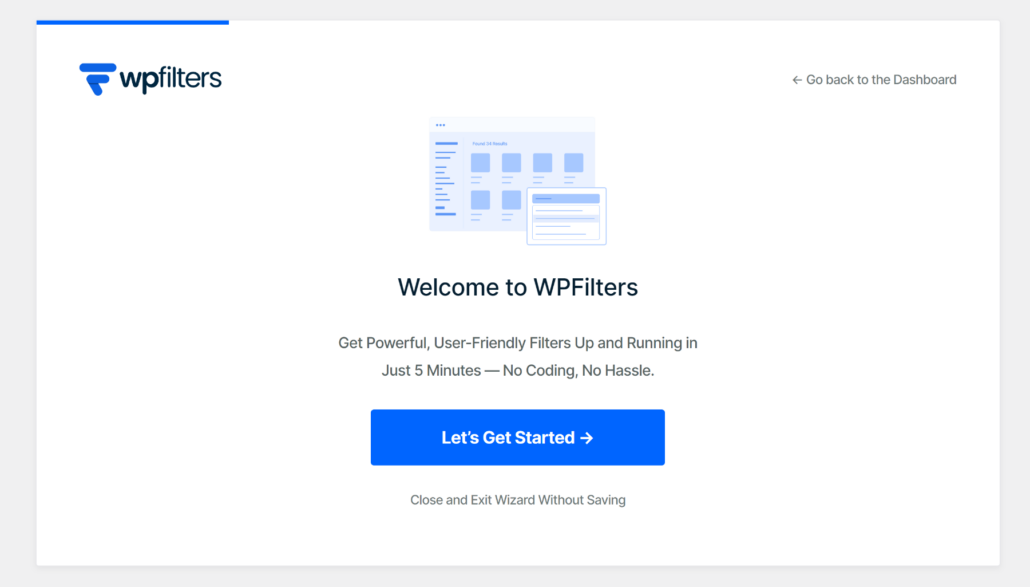
After activating the plugin, the setup wizard will appear on the screen. Simply click the ‘Let’s Get Started’ button and follow the quick instructions to get everything ready.
Step 2: Create a WooCommerce Tags Filter Element
Next, you need to create the WooCommerce product tags filter element that your visitors will use.
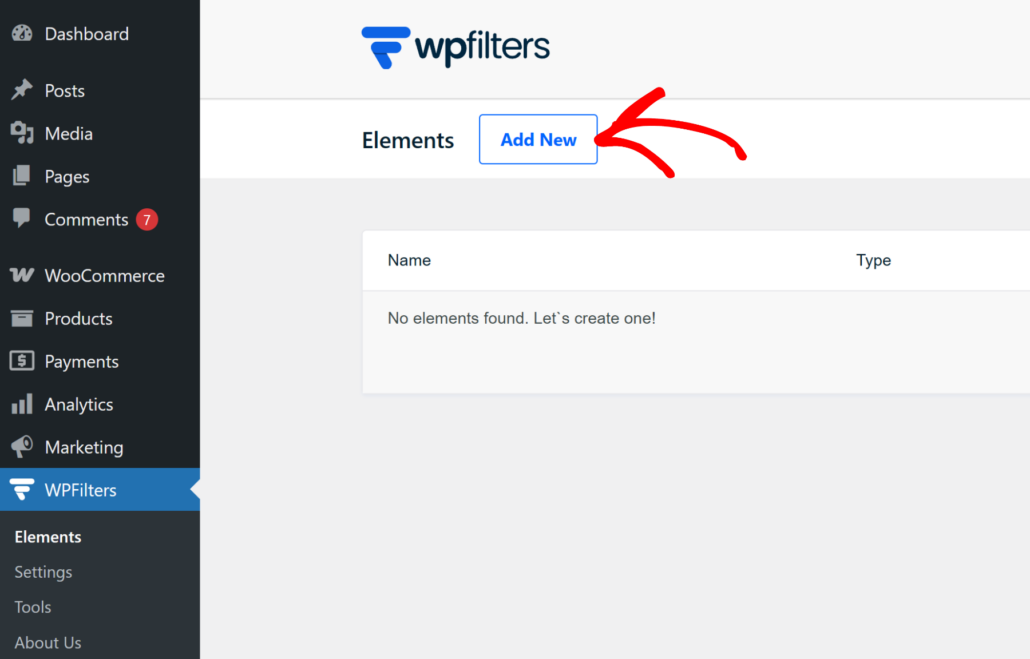
To get started, simply head to WPFilters » Elements from your WordPress dashboard and click the Add New button.
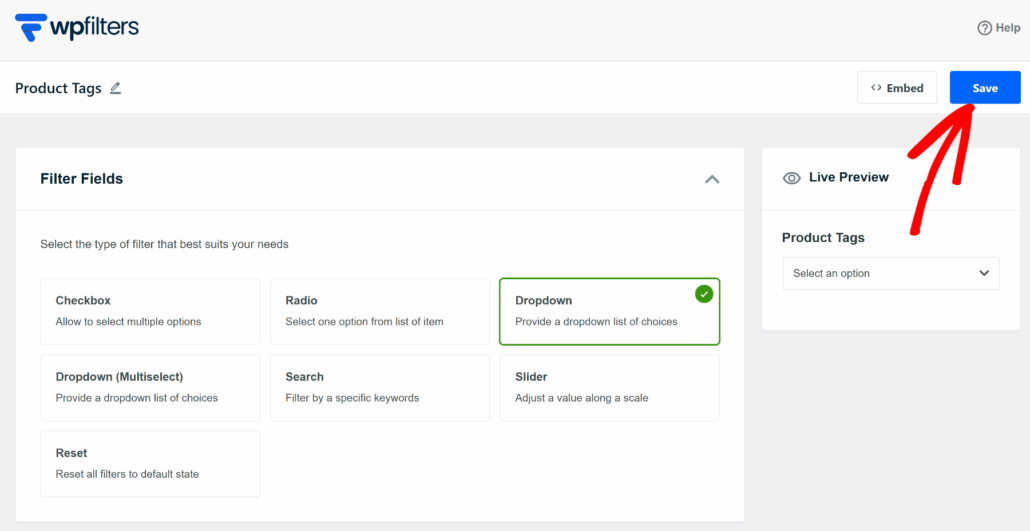
On the next screen, you should type in a name for your filter at the top. This helps you stay organized if you decide to add more filters later on.
After that, go ahead and select the Filter Type you want to use.
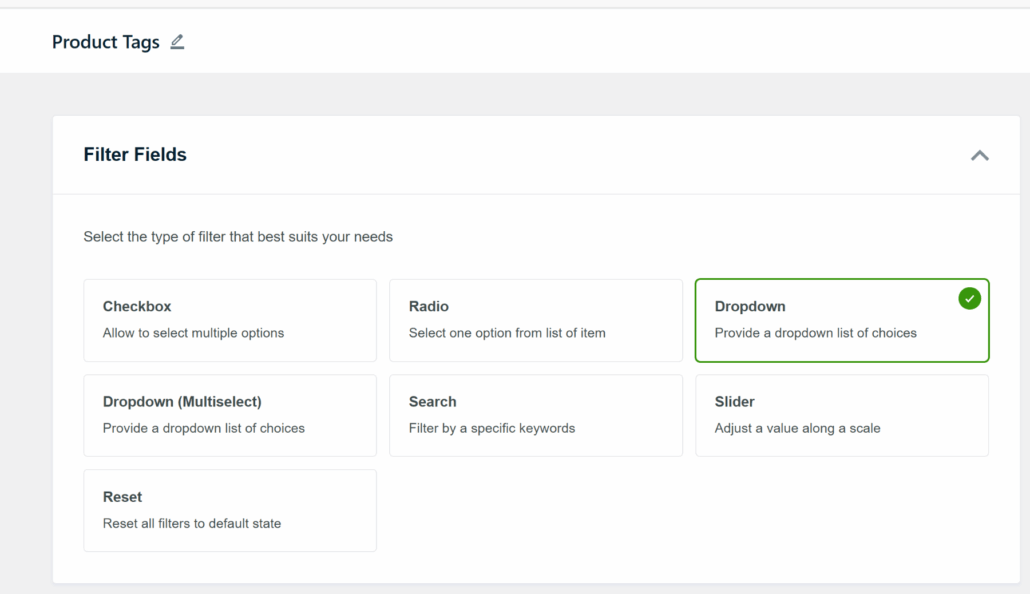
For this tutorial, we will use the Dropdown for tags because it lets customers select their preferred tag while keeping your user experience clean and clutter-free.
That said, you can choose any pre-built Filter Field for your WooCommerce store, such as a Radio List or Checkbox.
Once you have made your choice, scroll down to the Data Source section. Here, you just need to click the dropdown menu and select Product tags.
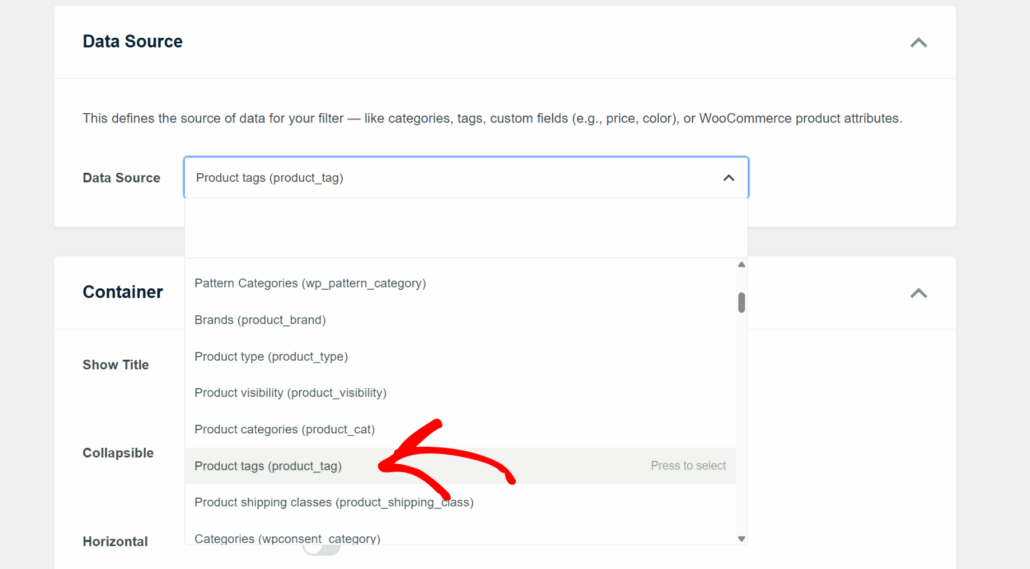
Step 3: Customize Your WooCommerce Tag Filter
After selecting the data source, you can tweak how the filter looks to match your site’s style.
Simply scroll down to the Container section to see your options.
Here, you can enable the ‘Show Title’ option, so your visitors know exactly what it does.
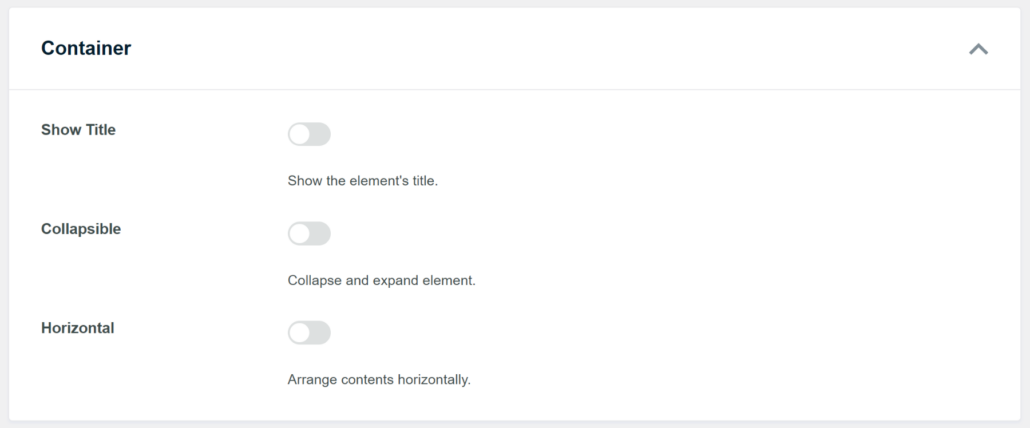
You also have the option to make the filter collapsible.
We find this feature really useful for keeping sidebars tidy, especially for customers shopping on their phones.
Next, you will need to look at the Items section.
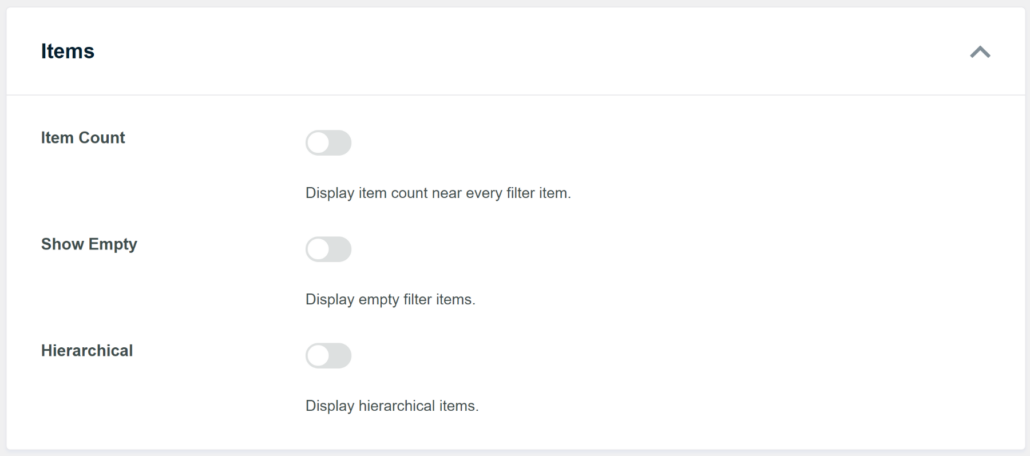
Here, you can enable the option to show item counts. This lets your visitors see how many products are available for a specific tag before they click it.
You can also choose to hide empty terms here. This prevents customers from clicking a tag only to find zero products, which can be annoying.
When you are finished with these settings, just click the Save button at the top of the page.
Step 4: Display the Tags Filter on Your Store
Now that your filter is fully set up, you need to add it to your website, so customers can use it.
WPFilters makes the embed process very easy by offering a Gutenberg block, shortcode, or PHP code.
Note: An important thing to remember is that the steps for embedding the tags filter may vary depending on the WordPress theme you’re using.
To start, simply go to the page where you want to display the filter, such as your Shop page or a sidebar widget area.
For example, we will add the tags filter to our WooCommerce shop page for this tutorial. Simply click the + sign and add the WPFilters Element block.
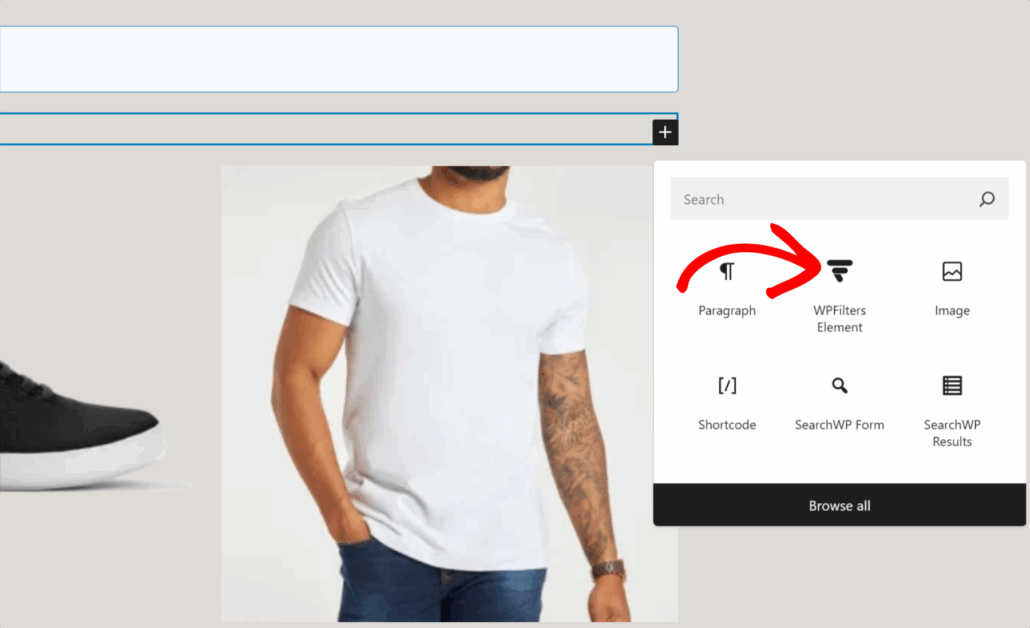
After adding the block, you will need to select the tags filter you created earlier.
Go ahead and click the ‘Select Element’ dropdown menu from the settings panel on the right. From here, select your WooCommerce product tag filter.
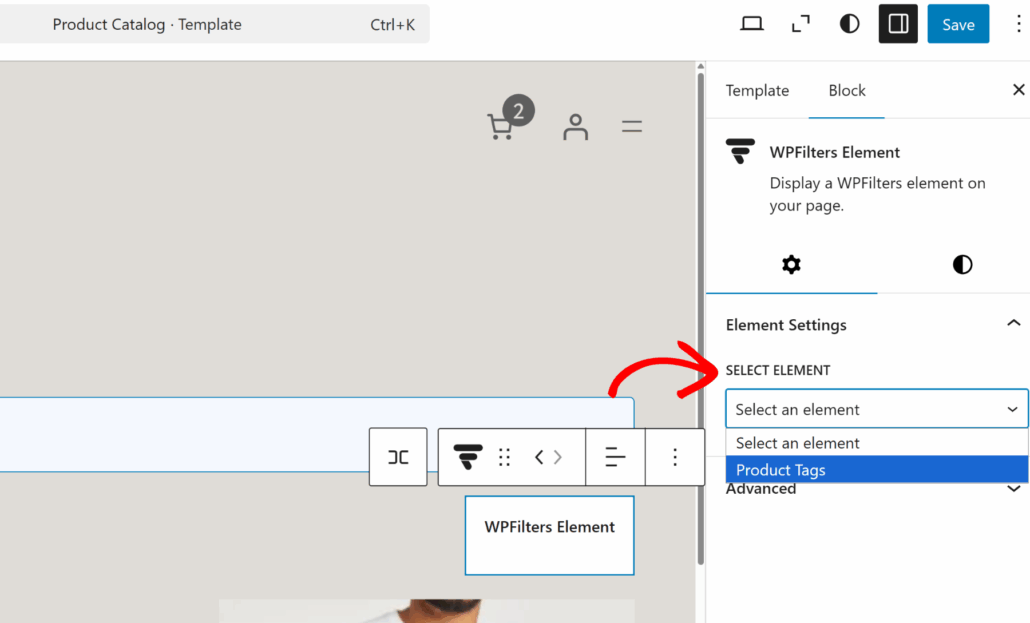
When you’re done, simply click the ‘Save’ button at the top.
That’s all there is to it. You can now visit your live site to test out the filter and see how it helps sort your products.
For example, we’ll filter the products using the ‘black sneakers’ tag on our demo store.
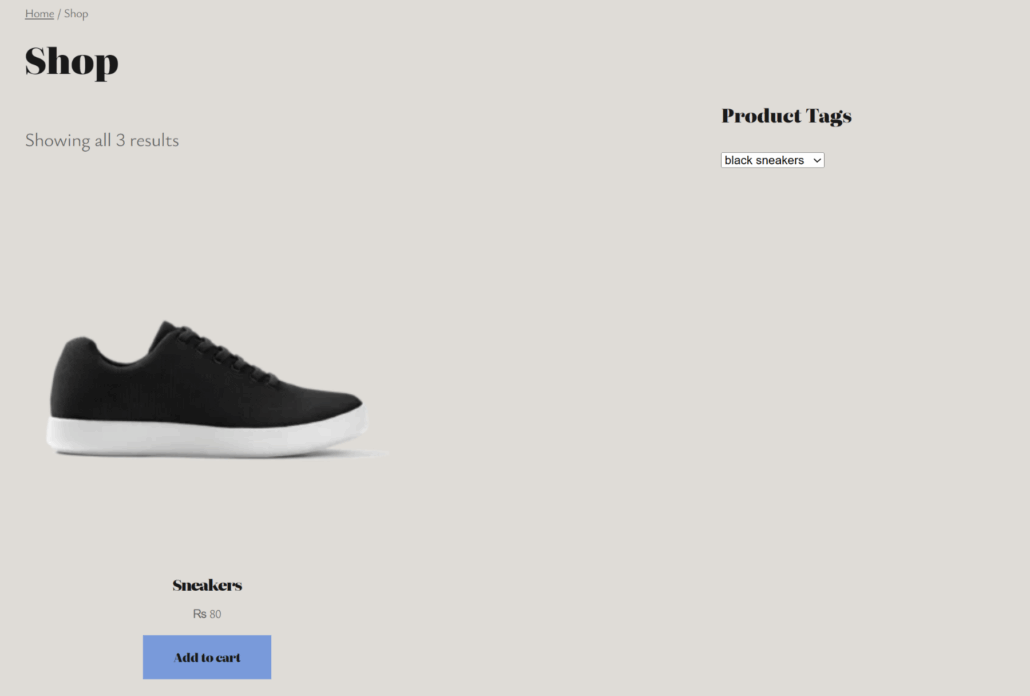
As you can see, the correct product appears on the shop page.
With product tags filter, you allow your customers to easily narrow down the products they’re looking for. As a result, you’ll see a boast in conversions and sales.
We hope this article helped you learn how to filter WooCommerce products by tags. You may also want to see our guide on how to filter WooCommerce products by attributes and how to filter blog posts by tags in WordPress.
If you are ready to make product discovery easier for your customers, then you can get started with WPFilters here.