

If you want visitors to narrow down your products or posts and you don’t have a developer on call, WPFilters gets you there faster. FacetWP is the deeper tool, and it’s the one to reach for if you need distance filtering or you’re running a catalog in the tens of thousands.
That’s the whole WPFilters vs FacetWP comparison in two sentences.
The gap between the two is wider than their feature lists suggest, though, and it isn’t really about features at all. We installed both plugins to test them and see which is the best.
In this guide, we’ll show you what each plugin really costs over time, which filter types you get from each one, and which of the two suits the kind of site you’re running.
WPFilters vs FacetWP at a Glance
Here’s how the two compare on the things that actually change your decision.
| WPFilters | FacetWP | |
|---|---|---|
| Pricing | $49/yr | $99/yr |
| Sites on the entry plan | 1 | 1 to 3 |
| Free version | None | Limited free trial for testing (only 2 facets) |
| Refund policy | 14-day money-back guarantee | No refunds |
| Filter types in core | 7 | 15 |
| Custom database table | None | facetwp_index |
| Separate listing template required | No | Yes |
| Gutenberg block | Included | Requires an add-on |
| Best for | Site owners who want filters working today | Developers building large or map-based sites |
How We Compared These Two Plugins
Comparison posts go stale quickly, so we didn’t carry a single figure forward from a vendor page without checking it.
We installed WPFilters and FacetWP on the same WordPress site, built the same filters in both, and then analyzed each plugin’s behavior.
From there we judged them on seven things, and each one gets its own section further down:
- How each one works under the hood. What the plugin sets up on your site before a single filter appears, and what you’re left maintaining afterward.
- Filter types. How many kinds of filters you get in the core plugin, which ones need a paid add-on, and which ones neither plugin offers.
- Ease of use. How many concepts you have to learn before a filter shows up on a page, and whether you can get there without touching a template file.
- Search integration. What happens when your visitors want to search and filter in the same breath, and how much setup each plugin asks for to make that work.
- Performance and scale. How big a catalog each design is built for, and where the cheaper approach starts to cost you.
- Support and guarantees. What you get on the day something breaks, and whether you can get your money back if the plugin turns out to be wrong for you.
- Pricing. First-year cost, renewal cost, and how many sites each tier actually covers.
That said, let’s look at how WPFilters vs FacetWP compare with each other.
How Each Plugin Works Under the Hood
This is the part most comparisons skip, and it’s the one that explains everything that follows.
The two plugins solve the same problem in genuinely different ways.
WPFilters: Filters that Hook into the Query You Already Have
WPFilters skips both of those pieces. There’s no custom table and no listing concept, so you’ve got nothing to index and nothing to rebuild.

It hooks into the query your page is already running and narrows the results by post ID.
Your existing blog archive, shop page, or Query Loop block stays exactly as it is. What we really liked here is how little you need to understand before something works.
There’s no “build the index, then define the listing, then add the facet” sequence to get through first.
The trade-off is real, and it’s worth saying plainly. A purpose-built index table is genuinely the better design once a catalog gets very large, which we’ll come back to further down.
FacetWP: An Index Table Plus a Listing Template
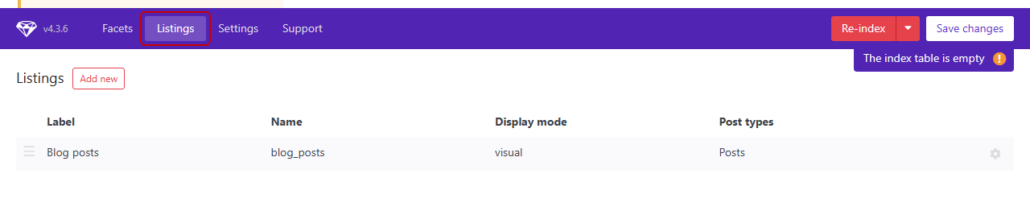
FacetWP builds its own database table called facetwp_index. Every filterable value gets written into it, so filtering reads from one fast, purpose-built place.

Someone has to build that index, and that’s what the Re-index button does.
FacetWP’s own indexing documentation notes that indexing “can take a long time” on sites with a lot of content.
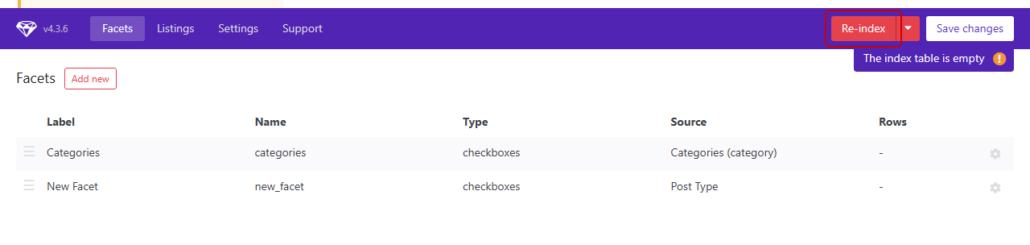
You’ll also need to re-index more than once. FacetWP documents it as required after you add facets, change facet settings, import content programmatically, change a term’s hierarchy, or register new post types.
Then there’s the second piece. FacetWP needs to know which list of posts it’s filtering, and you configure that separately under the Listings tab.
Your facets won’t do anything until a listing is attached to the page. When we tested this, the facets themselves went quickly, and it was the listing step that took the reading.
Filter Types Compared
Filter types are where FacetWP’s longer track record shows most clearly.
FacetWP Filter Types
FacetWP ships 15 filter types in the version we tested.
Those are Checkboxes, Dropdown, Radio, fSelect, Hierarchy, Slider, Search, Autocomplete, Date Range, Number Range, Star Rating, Proximity, Pager, Sort, and Reset.
Another six arrive as official add-ons, including A-Z Listing, Color, and Time Since. Every add-on is included with all license tiers, so you won’t be asked for more money later.
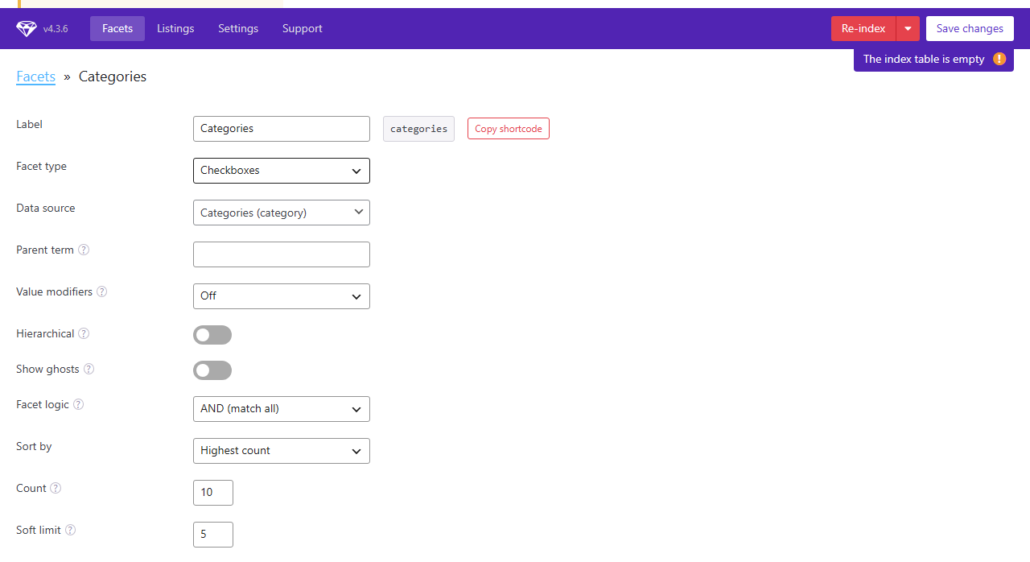
Proximity is worth calling out, because it’s something we didn’t find in WPFilters while testing.
If your visitors need to filter by distance from an address or ZIP code, FacetWP is the plugin that does it, and the comparison ends there.
WPFilters Filter Types
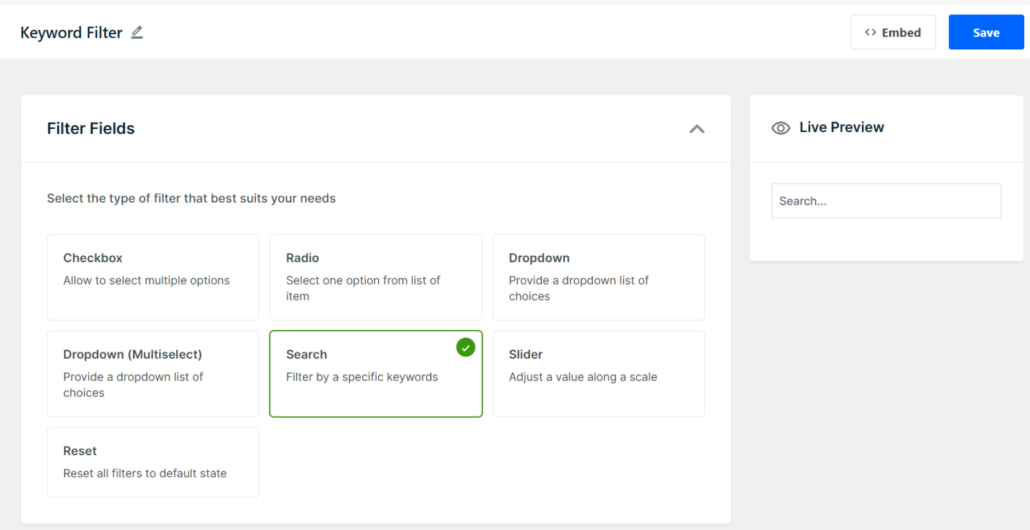
WPFilters gives you seven types of filters, which include: Checkbox, Radio, Dropdown, Dropdown (Multiselect), Slider, Search, and Reset.
The five list-style filters draw from three sources, which are Taxonomies, Custom Fields, and Posts.
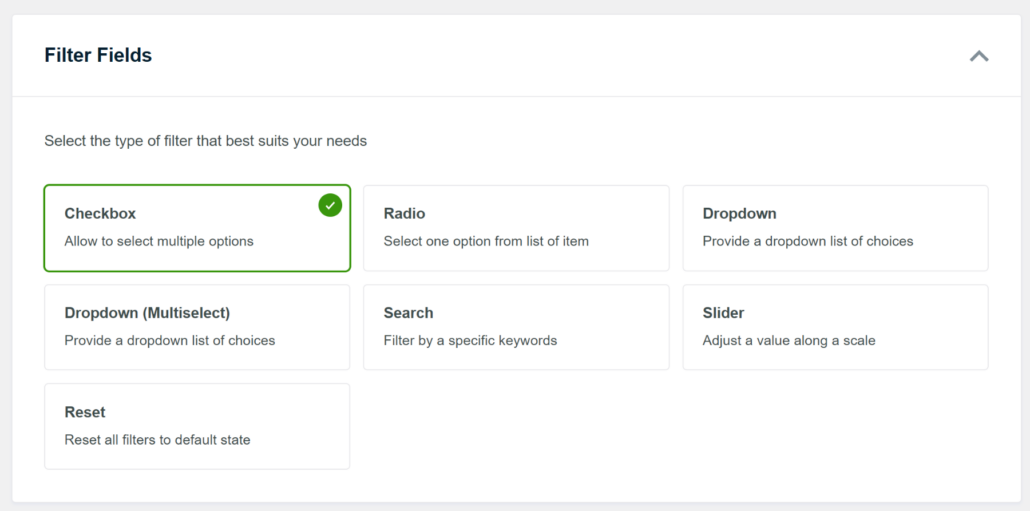
Building one takes two moves. You pick the filter type under Filter Fields, then you choose what it pulls from under Data Source.
That second step is where WPFilters reads your site rather than asking you to describe it.
The Data Source picker is grouped into Taxonomies, Custom Fields, Posts, and more. Each group is filled in from what your site already has.
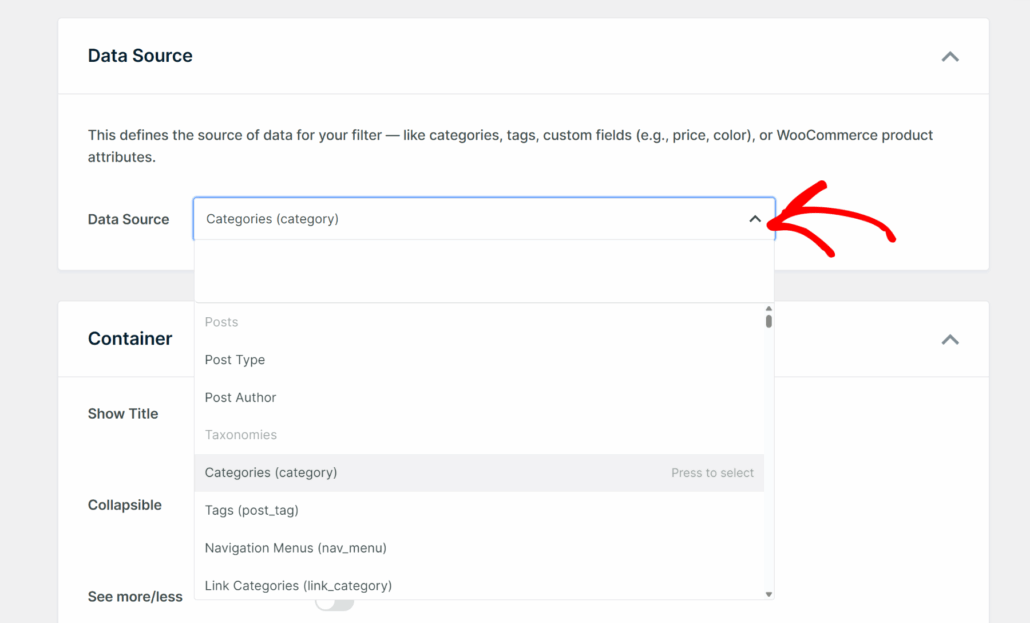
Our taxonomies arrived with their slugs attached, so choosing Categories (category) left no doubt about which one we were getting.
The Custom Fields group reads the meta keys directly from your database, so anything your site already stores appears in the list instead of something you have to type from memory.
What we didn’t expect was the Live Preview panel sitting beside the form.
It filled in with the real category names from our test site the moment we chose a source, so we saw the finished filter before saving anything or opening the front end.
That saves you the save, reload, and go back again loop on every small change.
Winner: FacetWP – Fifteen filter types beat seven, and distance filtering is something WPFilters doesn’t offer at all.
Ease of Use: What Setup Really Feels Like
Ease of use decides whether a plugin ever makes it onto your site at all.
A filter you never finish configuring does nothing for your visitors, no matter how many filter types the plugin supports.
So what we looked at here is how many concepts sit between installing the plugin and seeing a working filter on a real page.
We also checked whether you can get that far without opening a template file, since that’s the line most site owners can’t cross without hiring someone.
Setting Up WPFilters
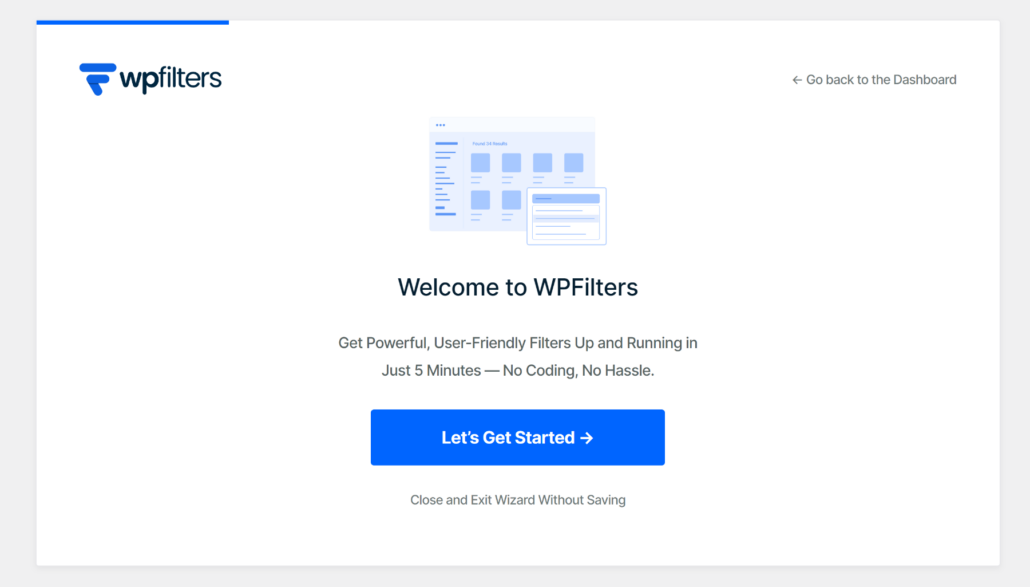
Right off the bat, when you install WPFilters, it welcomes you with a setup wizard. You can simply follow the instructions and get started without any technical knowledge.
WPFilters also gets its own top-level menu, so you’ll find your filters at WPFilters » Elements rather than buried in a settings screen.
You name a filter, pick its type, pick its source, and watch it render in the preview panel beside the form. Your display options sit in two groups on the same screen.
Container holds toggles like Show Title, Collapsible, and Horizontal, while Items holds Item Count, Show Empty, and Hierarchical.
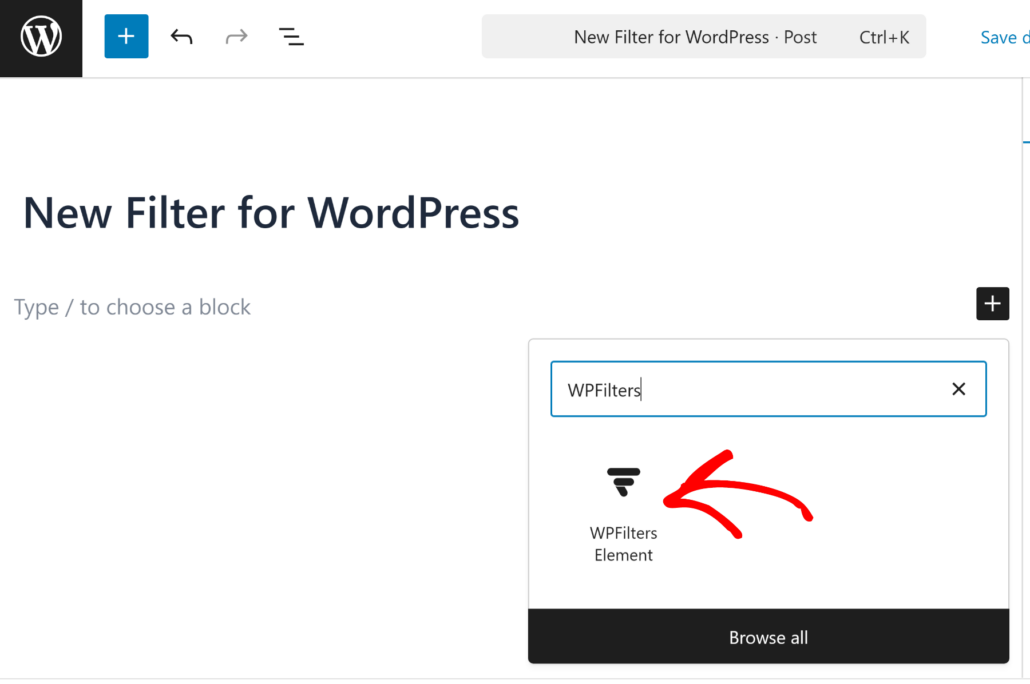
Getting it onto a page is one step.
The WPFilters block ships in the core plugin, so you insert it in the editor and pick your filter from a dropdown.
If your theme or page builder doesn’t use blocks, you can use the shortcode instead.
Either route works without you touching a template file. Once it’s on the page, your visitors get the narrowing they were missing.
Setting Up FacetWP
Creating facets in FacetWP is straightforward, and the Facets tab is clear about what each type does.
The friction shows up one step later. Before a facet does anything, you’ll need a listing for it to filter.
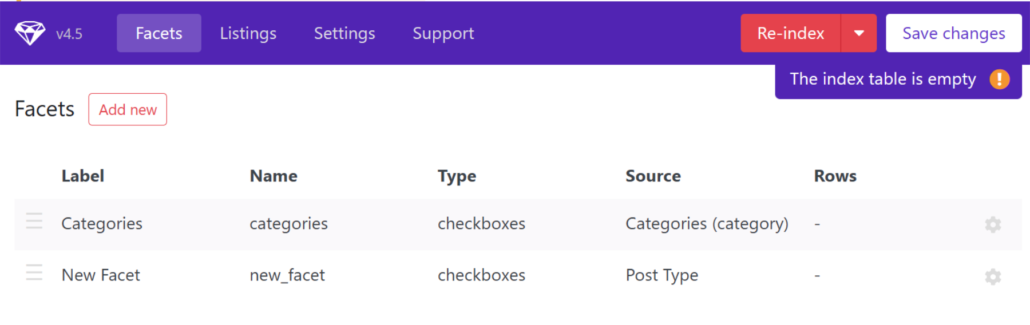
FacetWP gives you several routes, including a WordPress archive page, a custom WP_Query, its visual Listing Builder, or blocks and page builders through the matching add-ons.
To be fair to FacetWP, that Listing Builder is a visual tool and coding is optional rather than required.
It’s still a second concept to learn before anything shows up on your page.
Our testing lined up with what reviewers report. More than one notes that FacetWP only clicked for them once they understood how facets and listings work together, and that’s a curve WPFilters doesn’t ask you to climb.
Blocks are the other gap. FacetWP’s block support comes from an add-on rather than the core plugin, whereas WPFilters includes its block by default.
Winner: WPFilters. No index to build, no listing to define, and the block ships in the box. Plus, the setup wizard makes it effortless to get started.
Search Integration
Filtering and searching solve different halves of the same problem, so it’s worth knowing how each plugin handles keywords.
Both work with SearchWP, and we want to be straightforward about that.
FacetWP bundles a SearchWP integration right in its core plugin, alongside integrations for Advanced Custom Fields, WooCommerce, and Easy Digital Downloads.
The difference is what each one asks of you.
In FacetWP, you create a Search facet, choose a SearchWP engine, then attach a listing template to the page before it works.
WPFilters is built by the same team behind SearchWP, so that handoff happens for you.

With both plugins active, a Search filter routes your visitors’ keywords through SearchWP’s engine, and if SearchWP isn’t installed, it falls back to standard WordPress keyword matching.
This matters if people search and filter in the same breath on your site.
Adding a filter sidebar to your search results page is the usual version of this, and with WPFilters it needs no template work.
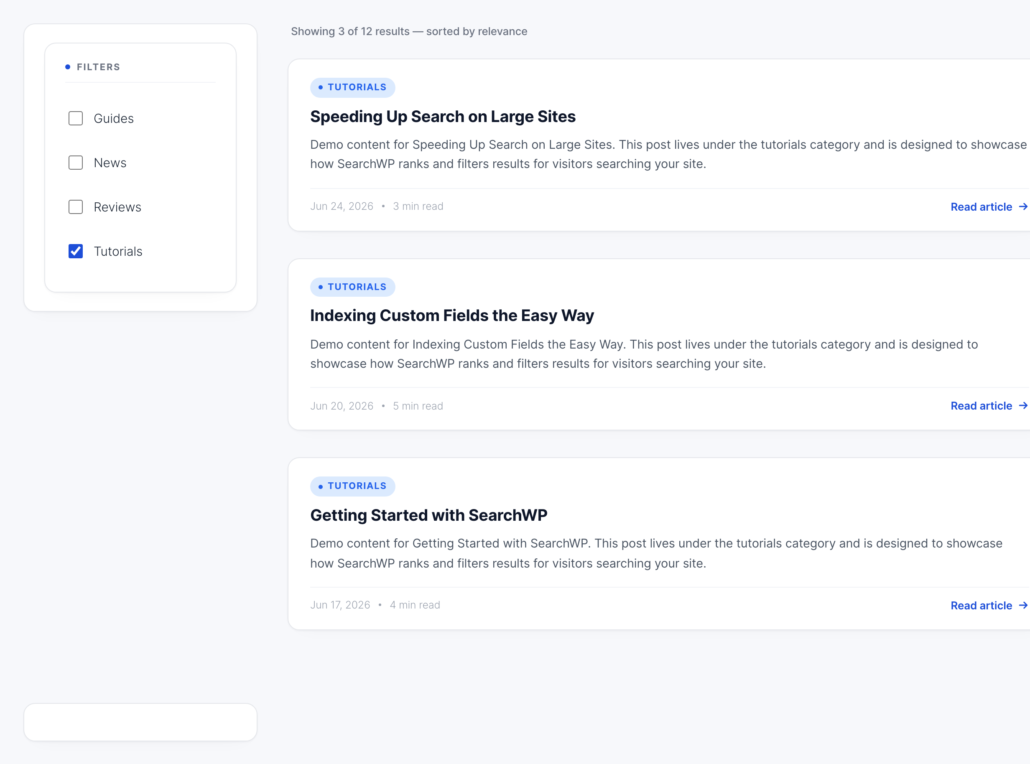
Winner: WPFilters. Both plugins get you there, but only one does it without a listing template standing in the way.
Performance and Scale
Catalog size is the fairest way to split these two, and it’s where FacetWP’s design pays off.
FacetWP’s index table exists precisely so filtering doesn’t have to work things out on every request.
If you’re running tens of thousands of items, reading pre-computed values from one table is the better approach, and this is where FacetWP came out on top in our testing.
WPFilters resolves matching post IDs per request instead, then caches the result. It uses request-scoped caching plus the object cache, and it clears itself automatically when your posts, terms, or custom fields change.
For a few thousand products or posts, your visitors won’t notice the difference. On the test site we used, filters in that range came back without a noticeable wait.
There’s one scaling caveat you should know about WPFilters. It stores your filter definitions in a single WordPress option, so it’s built for dozens of filters rather than hundreds.
Winner: FacetWP. It slightly outperforms WPFilters because of a dedicated index table. But besides that, both are fast enough that your setup time matters more than milliseconds.
Support and Guarantees
Support rarely makes comparison tables, and it should. It’s the thing you’ll care about most on the day something breaks.
FacetWP includes one year of support and updates with every license. After that, the plugin keeps working, but you’ll stop getting updates and support until you renew.
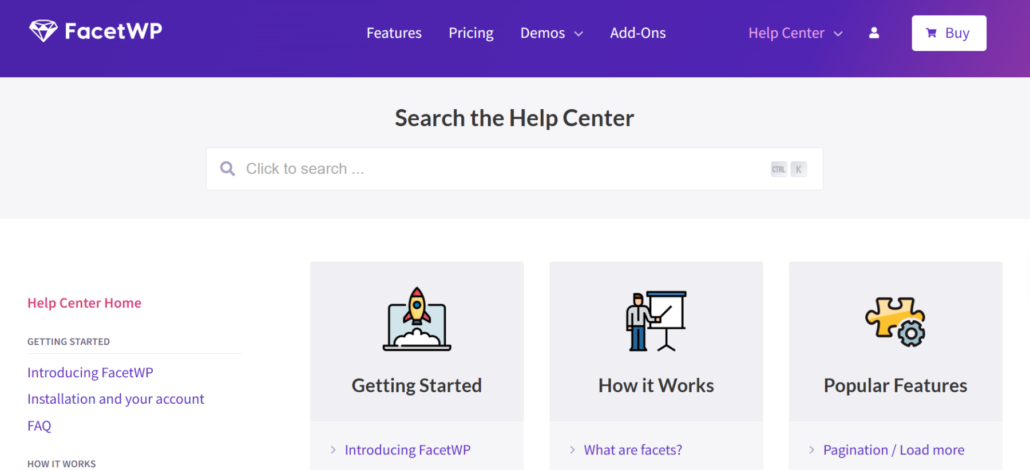
You also get a help center with a detailed knowledge base, FAQ section, and an option to reach out to the support staff.
The sticking point is the refund policy.
FacetWP’s pricing page says plainly that it does not offer refunds, and points you to the free trial instead.
But our testing showed that the trial is narrow and very limited. It renders only two facets per page, comes with no support, and rules out production sites.
You can only use the free trial for staging websites and not for your live website, which is a major downside.
WPFilters compares far better in terms of support and guarantee. You get a detailed documentation section and a blog section to help you resolve any issue.
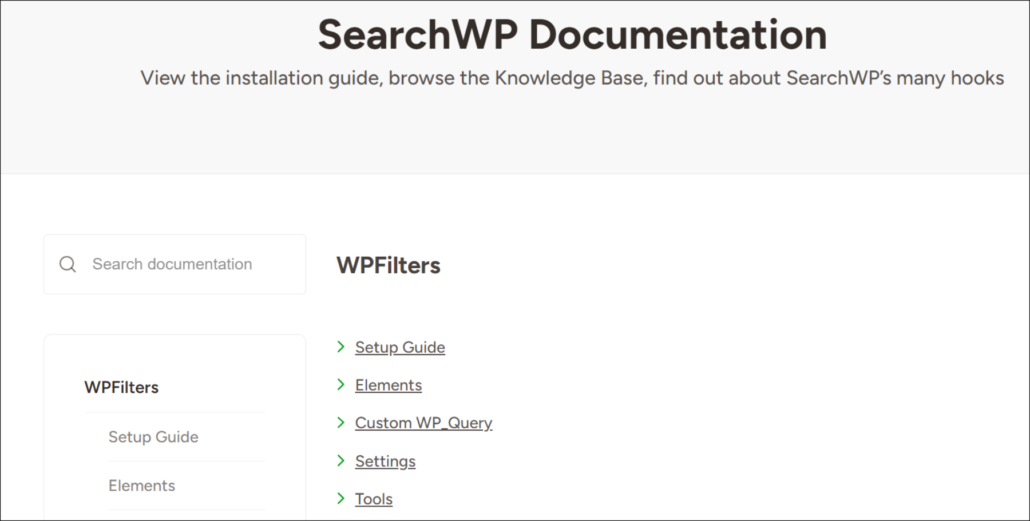
Besides that, WPFilters takes the opposite position when it comes to a free trial, as it offers a 14-day money-back guarantee.
You can install it on the live site it’s meant for, build the filters you actually need, and get your money back if it isn’t right.
Winner: WPFilters. It offers far better support and a money-back guarantee compared to a two-filter trial by FacetWP. Plus, it rules out production sites, which is a big downside along with a no-refund policy.
Pricing Compared
Pricing is the criterion most people check first and then think about least.
Both of these plugins are a recurring cost rather than a one-time purchase, so the number that decides things is what you pay in year three, not year one.
Site count is the other half of it, because a tier covering one site gets expensive quickly once you want the same filters running on four.
Plus, your filters are configurations you build by hand, so switching to the other plugin later means rebuilding every one of them, which makes this harder to reverse than a typical plugin purchase.
Read the two-tier tables side by side, because the first-year price and the renewal price tell different stories.
WPFilters
The first-year numbers favor WPFilters. You’ll pay $49 for Standard, and it isn’t a stripped-back tier either.
Standard gives you unlimited filter queries and unlimited filter elements, so there’s no cap on how many filters you build on that one site.
You also get the Gutenberg block, shareable filter URLs, hierarchical taxonomies, shortcode output, and the Advanced Custom Fields, WooCommerce, and Easy Digital Downloads integrations.
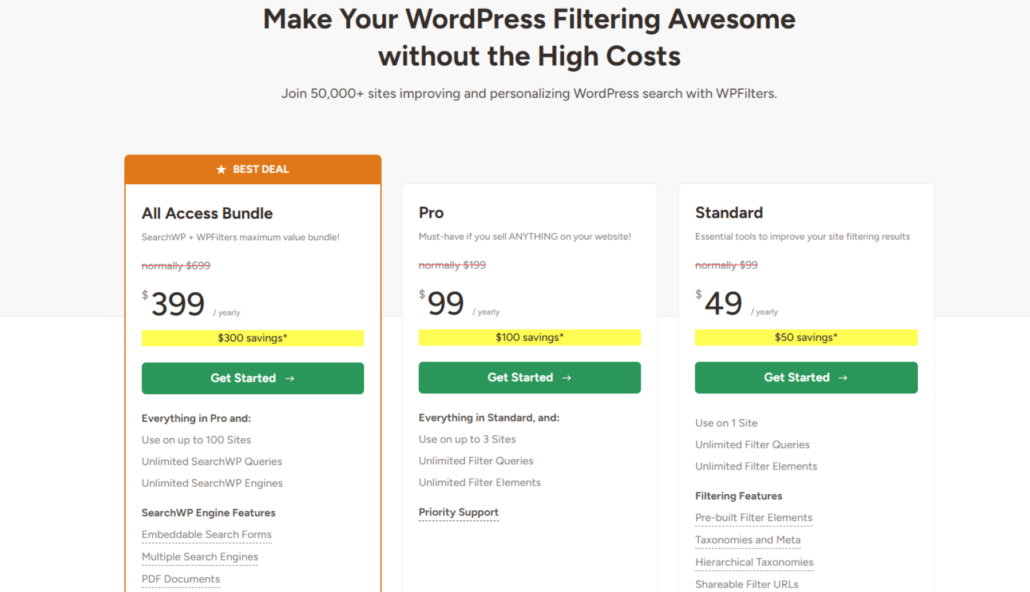
Aside from the standard plan, you can upgrade to the Pro plan for $99 per year or the All Access Bundle (which includes SearchWP) for $399 per year.
And all plans come with a 14-day money-back guarantee, so you can ask for a refund if the plugin doesn’t suit your website.
FacetWP
FacetWP offers 2 pricing plans, starting from $99 per year for 1- 3 websites.
It also goes the other way with an automatic 20% renewal discount, which brings Basic to roughly $79.
From year two onward, FacetWP Basic is the cheaper option, and it covers up to three sites rather than one.
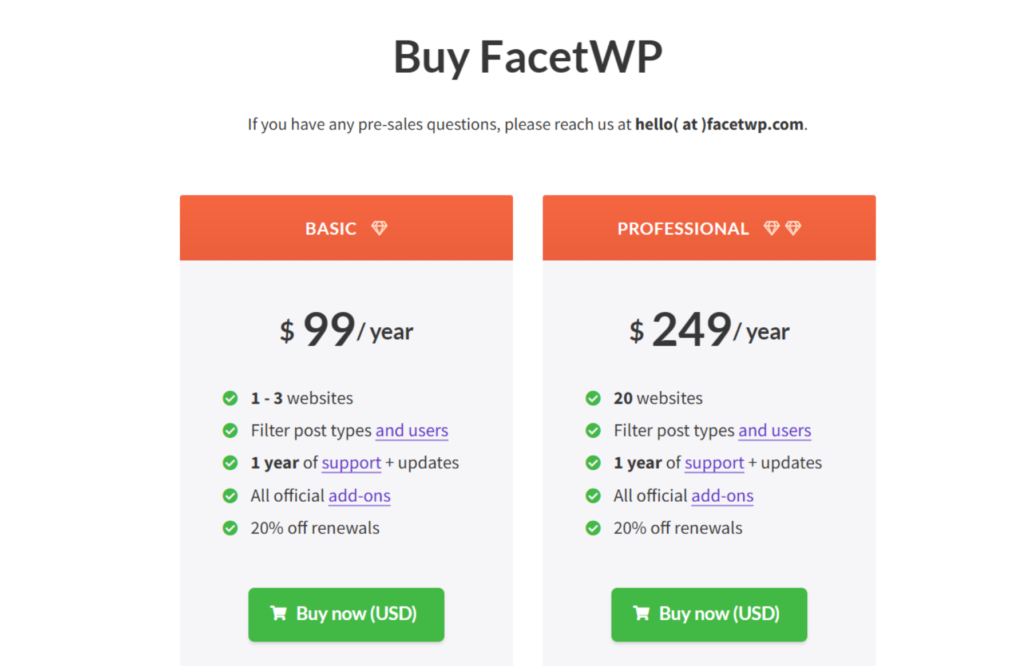
FacetWP also includes every official add-on at every tier, which is genuinely customer-friendly.
There’s no upsell path once you’ve bought, and that’s a real advantage over any tiered feature set.
However, it doesn’t offer any refunds. Which means once you pay for a plan and it doesn’t work out, then you’ll be stuck with the plugin.
Winner: WPFilters. It wins your first year on price, and it’s the only one of the two with a refund window, which is what most first-time buyers are weighing.
Which Filtering Plugin Should You Choose
For most WordPress sites, WPFilters is the one we’d pick. It wins on the two things that decide whether filters ever actually ship, which are how quickly you can build one and how little you risk finding out.
You install it, choose a filter type, choose a data source, and drop the block on the page. There’s no index to build, no listing template to define, and nothing to rebuild the next time you import a batch of products.
At $49 for your first year, it’s half FacetWP’s entry price, and the 14-day money-back guarantee means you can test it on the site it’s actually meant for instead of a staging copy.
If you already run SearchWP, the call gets easier again, because a Search filter routes through your existing engine with no add-on and no template work.
For the shops, blogs, and knowledge bases most people are building, that’s the whole decision.
Frequently Asked Questions
1. Is WPFilters a good FacetWP alternative?
For most site owners, yes. WPFilters covers the filter types that sites actually use, and it skips the index and listing template steps FacetWP requires. The exception is distance and map filtering, which WPFilters doesn’t offer, so FacetWP stays the better pick for real estate and directory sites.
2. Does FacetWP have a free version?
No. FacetWP is premium only and isn’t listed on WordPress.org. There’s a free trial, but it renders only two facets per page, is restricted to local, development, and staging sites, and comes with no support. WPFilters is also premium-only, though its 14-day money-back guarantee lets you test on a live site.
3. Do you need to re-index after adding a filter?
With FacetWP, yes. Its documentation lists re-indexing as required after you add facets, change facet settings, import content programmatically, change term hierarchy, or register new post types. WPFilters has no index table at all, so there’s nothing for you to rebuild.
4. Can you use WPFilters with WooCommerce?
Yes. WPFilters reads product categories, tags, attributes, and custom fields, so you can filter your shop page without extra setup. We’ve covered the process in our guide on how to filter WooCommerce products.
5. Which filter plugin is easier for beginners?
WPFilters. Your filters live at WPFilters » Elements with a live preview beside the builder, and the block ships in the core plugin. FacetWP puts filters under Settings » FacetWP and asks you to build an index and define a listing before anything shows on your page.
Final Thoughts
FacetWP is the deeper plugin, with more filter types and an index built for very large catalogs. WPFilters gets a working filter onto your page faster, costs less to start, and gives you a refund window if it turns out not to fit.
If your catalog is in the hundreds or low thousands and you’re doing the setup yourself, we’d start with WPFilters. If you need distance filtering or you’re past ten thousand items, FacetWP earns its price.
We hope this comparison helped you learn about WPFilters vs FacetWP. You may also want to see our guides on how to set up filters in WordPress and how to filter by multiple taxonomies.
Ready to give your visitors a faster way to find what they came for? You can get started with WPFilters today.