
Shoppers love a shortcut to the good stuff, and a WooCommerce star rating filter gives them one. With a single drag, they can skip past everything below 4 stars and browse only the products your customers already rave about.
The good part is that your store already has what this filter needs. Each time you approve a review, WooCommerce works out the product’s average rating and saves it, so WPFilters can turn those ratings into a simple slider without any code.
We set this up on our own demo WooCommerce store and had a working rating slider in the shop sidebar within a few minutes.
In this article, we’ll show you how to add a WooCommerce star rating filter, from turning on ratings to testing the slider on your shop page.
What Does a WooCommerce Star Rating Filter Do?
A star rating filter lets shoppers hide every product below the rating they care about. It’s the “4 stars and up” option you’ve probably used on big shopping sites.
The number behind it comes from your customers. Each time you approve a review with a star rating, WooCommerce works out the product’s new average and stores it with the product.
That average lives in a custom field, which is an extra piece of information WordPress saves alongside a post or product.
Products that haven’t been reviewed yet count as 0. Sorting and filtering do different jobs.
Sorting changes the order of your products, while a filter removes the ones that don’t match, so shoppers only see what’s left.
Why Shoppers Want to Filter Products by Rating
From our experience, shoppers lean on reviews the most when they’re comparing several similar products.
- Shoppers trust other buyers. A product with a 4.5-star average from real customers feels like a safer bet than one with no track record.
- Sorting still shows everything. Even with Sort by average rating turned on, shoppers have to scroll past lower-rated products to know where the good ones end.
- Big catalogs bury your best sellers. When a category runs across several pages, your top-rated products can end up on page three, where few shoppers ever look.
- Built-in options are limited. WooCommerce’s own rating filters are built for block-based shop pages or show rows of star links, and many other tools only work inside Elementor, Divi, or a specific theme.
Think of it like a shoe store where the staff picks are mixed in with every other pair on the wall.
The good shoes are there, but shoppers have to try on everything to find them.
Next, let’s look at the easiest way to add a rating filter to your store.
How to Add a WooCommerce Star Rating Filter With WPFilters
We recommend WPFilters as the easiest way to add a WooCommerce star rating filter.

WPFilters is the best filtering plugin for WordPress, built by the same team behind SearchWP.
It lets you build filters from the categories, tags, attributes, and custom fields your store already has, without writing code.
Here are some of the features that make WPFilters a good fit for a rating filter:
- Custom field filters. WPFilters can turn any custom field into a custom field filter, including the
_wc_average_ratingfield WooCommerce fills in for you. - Range slider. The Slider element turns a number like a rating into a draggable range, so shoppers can pick “4 to 5 stars” in one move.
- No page reloads. When a shopper moves the slider, WPFilters uses AJAX to update the products on the same page.
- Shareable filter URLs. Each selection is saved in the page URL, so shoppers can bookmark or share a page of top-rated products.
With that, let’s see how you can use WPFilters to add a star rating filter to your WooCommerce store.
Step 1: Install and Activate WPFilters
To start, you can sign up for a WPFilters plan on the SearchWP website.
Once you’re signed up, you can head to the Downloads tab in your account dashboard. From there, go ahead and download the WPFilters plugin ZIP file.
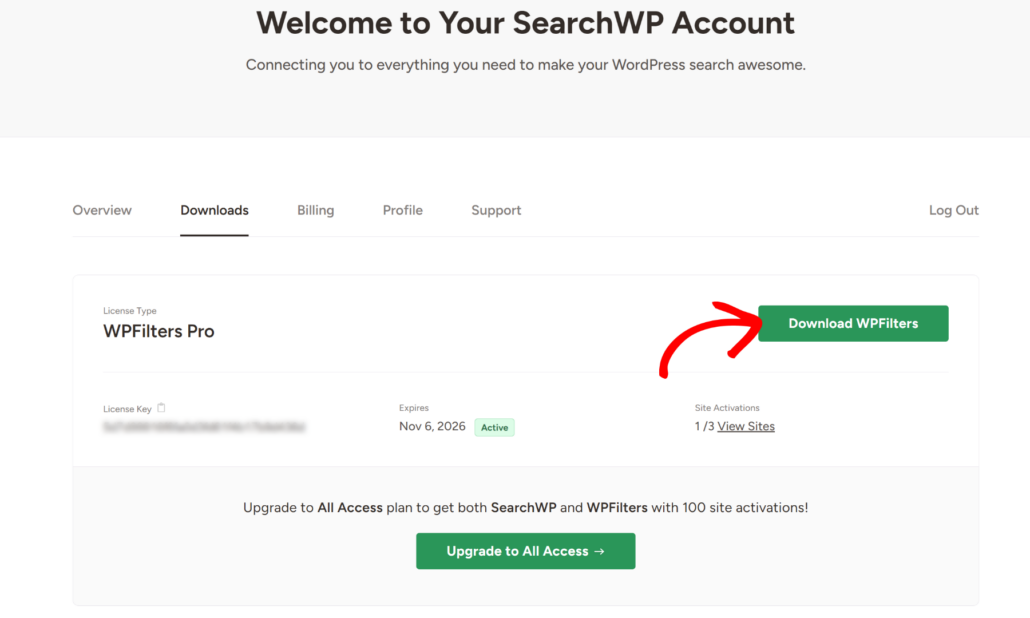
While you’re there, copy your license key too, since you’ll need it in a moment.
Next, you can upload and install the plugin on your WordPress site. If you need help, you can follow WPBeginner’s guide on how to install a WordPress plugin.
After you activate it, the WPFilters setup wizard opens. You can click Let’s Get Started and follow the onscreen prompts.
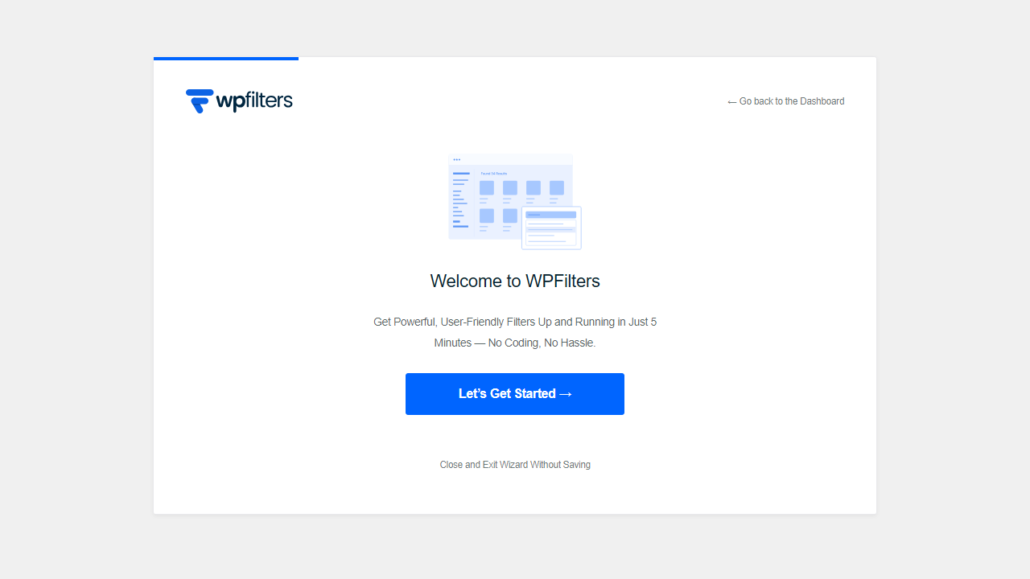
Note: WPFilters needs an active license to show filters on your site, so make sure your key is verified before you move on.
With your license active, WPFilters is ready for your rating filter.
Step 2: Turn On Product Ratings in WooCommerce
Before you build the filter, your products need star ratings to filter by. To check, head over to WooCommerce » Settings and click the Products tab.
Next, scroll down to the Reviews section. From there, make sure Enable product reviews and Enable star rating on reviews are both checked.
Both are on by default, but they may have been turned off when your store was set up.
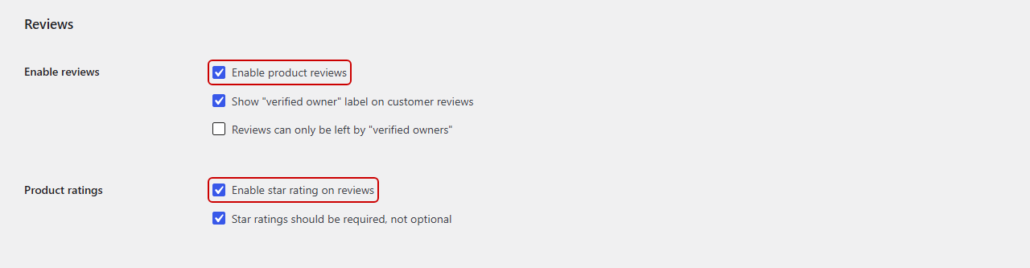
Once that’s done, click ‘Save changes’ at the bottom of the page.
Pro Tip: Leave Star ratings should be required, not optional checked, which is the default. That way, every review a customer leaves comes with a star rating that counts toward the average.
Keep in mind that only approved reviews count toward a product’s rating. If you hold new reviews for moderation, you’ll need to approve them before they change the filter.
Step 3: Create a Rating Slider Filter
Now you can build the filter itself.
To do that, head to WPFilters » Elements from your WordPress dashboard. Next, click the Add New button.
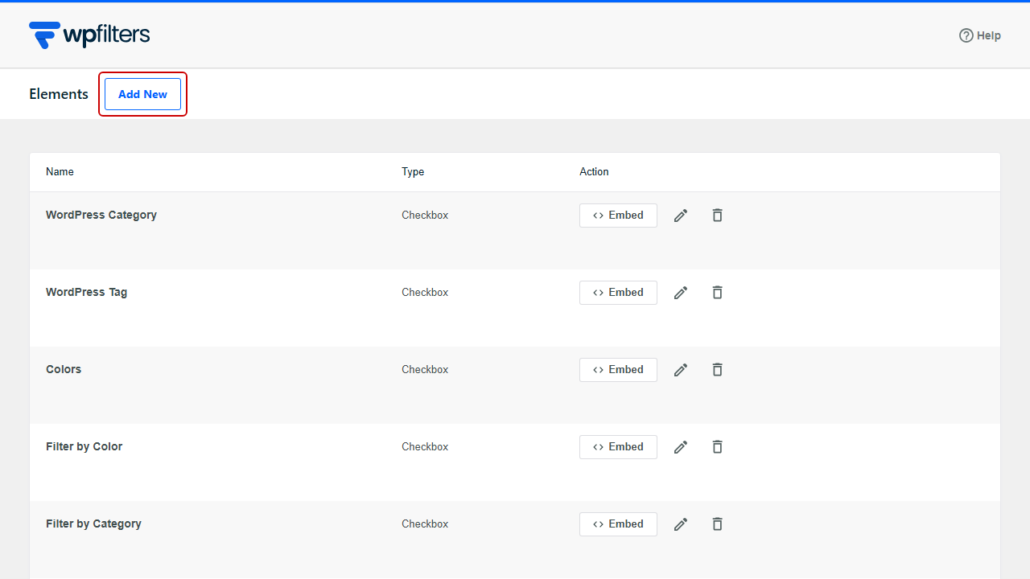
At the top of the builder, click the pencil icon next to the element’s name and call it something shoppers will understand, like “Customer Rating.”
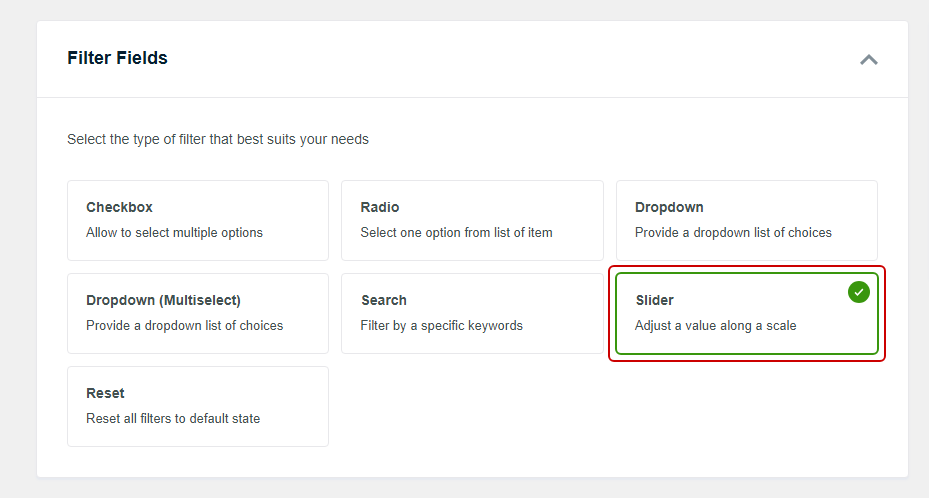
After that, look for the Filter Fields section and select Slider.
We like the Slider for ratings because it works with averages like 4.5, which a list of checkboxes would show as a long row of decimal values.
From there, scroll down to the Data Source section and open the dropdown.
The list is grouped into Posts, Taxonomies, and Custom Fields.
Go ahead and select _wc_average_rating, which sits inside the Custom Fields group.
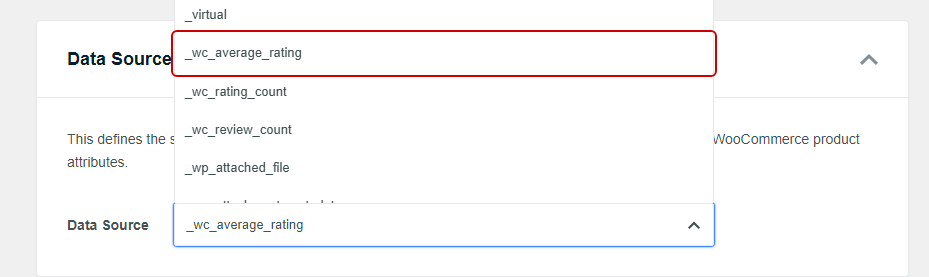
Note: You’ll also see _wc_rating_count and _wc_review_count right below it. Those fields track how many ratings and reviews a product has, not its average, so make sure you pick _wc_average_rating.
WPFilters now reads the lowest and highest ratings among the products your shop page lists, across all its pages, and uses them as the two ends of the slider.
If every product has the same rating, like a new store where nothing has been reviewed yet, WPFilters hides the slider until at least two products have different ratings.
Next, you can choose how the filter looks.
Under Container, turn on Show Title so the “Customer Rating” name appears above the slider.
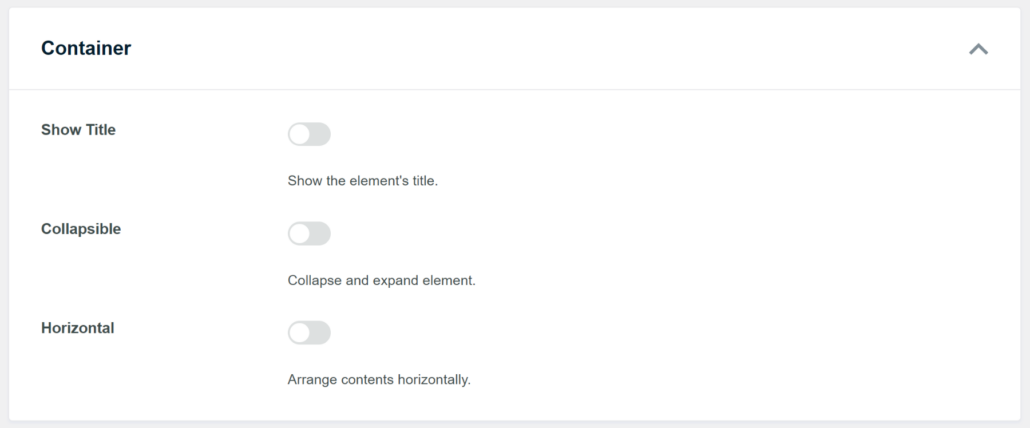
You can also turn on Collapsible if you’d like shoppers to be able to fold the filter away.
Once it looks right, click Save.
WPFilters also uses the name to build the filter’s URL, so “Customer Rating” shows up as customer-rating in the shop page’s address.
Step 4: Add the Rating Filter to Your Shop Page
Next, you can place the filter beside your products.
Since WPFilters works with the product list your shop page already shows, there’s no extra setting to connect the two.
To add it to your shop sidebar, head over to Appearance » Widgets. From there, open the widget area your theme uses on shop pages.
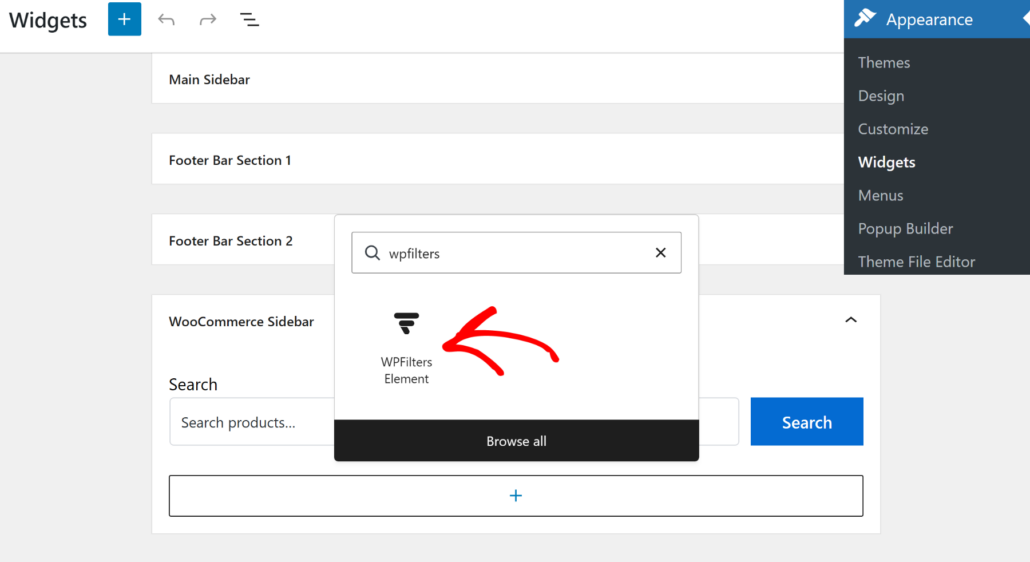
On our demo store, which runs the Astra theme, that’s the WooCommerce Sidebar. After that, click the + icon, search for “WPFilters,” and add the WPFilters Element block.
Then, choose your “Customer Rating” filter from the Select Element dropdown in the block settings.
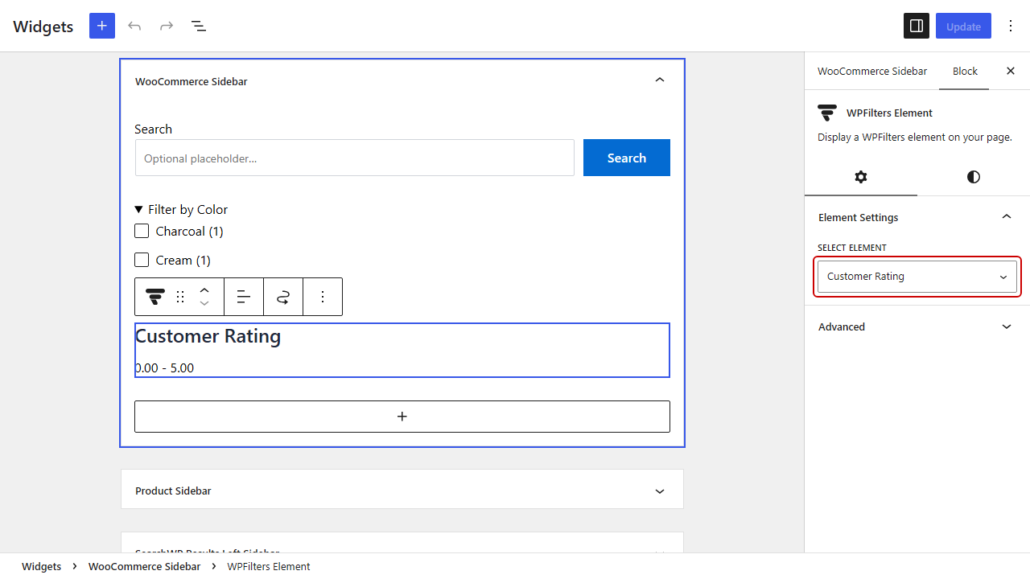
Once that’s done, click Update to save your widgets.
Do note that this step might differ depending on the WordPress theme you’re using.
If your theme doesn’t have a shop sidebar, the Embed button in the filter builder gives you a shortcode, like , that you can paste where you’d like the filter to appear.
Step 5: Test Your Star Rating Filter
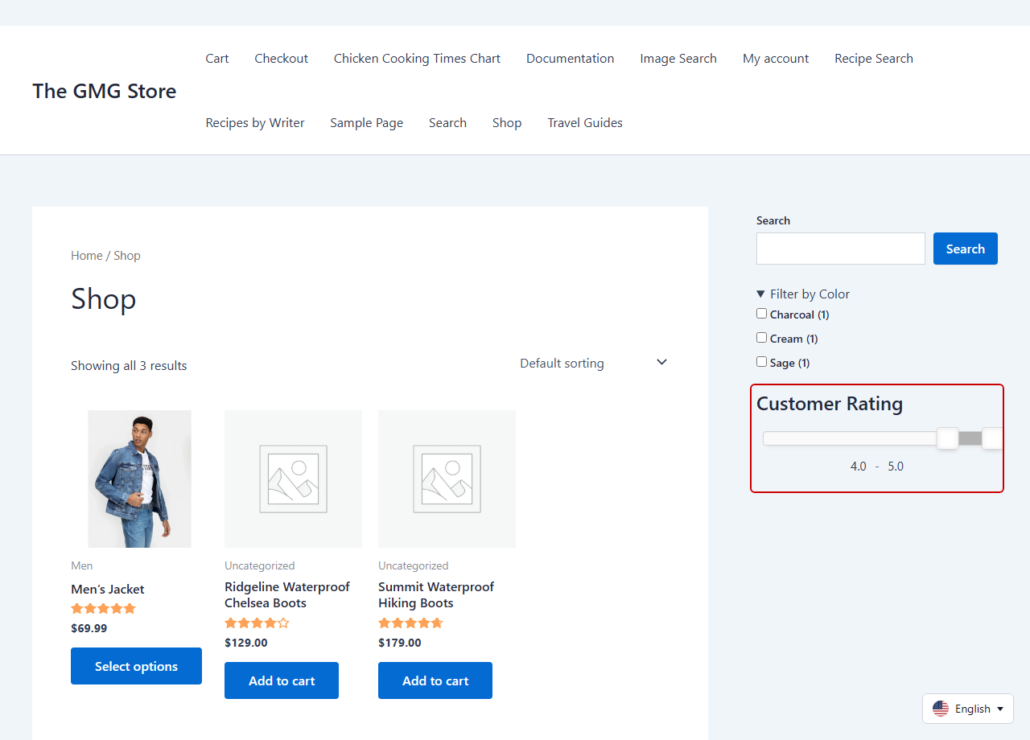
With the filter in place, you can visit your shop page in a new browser tab. You’ll see the “Customer Rating” slider with a handle at each end and the current range shown underneath.
For the first test, drag the left handle up to 4. The numbers under the slider should now run from 4.0 to 5.0, and the products should update in a moment without a page reload.
On our demo store, that keeps the Summit Waterproof Hiking Boots (4.5 stars), the Ridgeline Waterproof Chelsea Boots (4 stars), and the Men’s Jacket (5 stars).
The Puddle Jumper Waterproof Rain Boots (3 stars) and any products without reviews drop out of the list.
For the second test, look at the page URL after you move the slider.
You’ll notice it now includes customer-rating, followed by the range you picked.
You can copy that URL and open it in a private window to check that the same top-rated products still show up.
Bonus: Combine Ratings With Category Filters
Once your rating filter works, you can let shoppers narrow things down even further.
To do that, create a second element in WPFilters » Elements, and pick your product categories from the Taxonomies group in the Data Source dropdown.
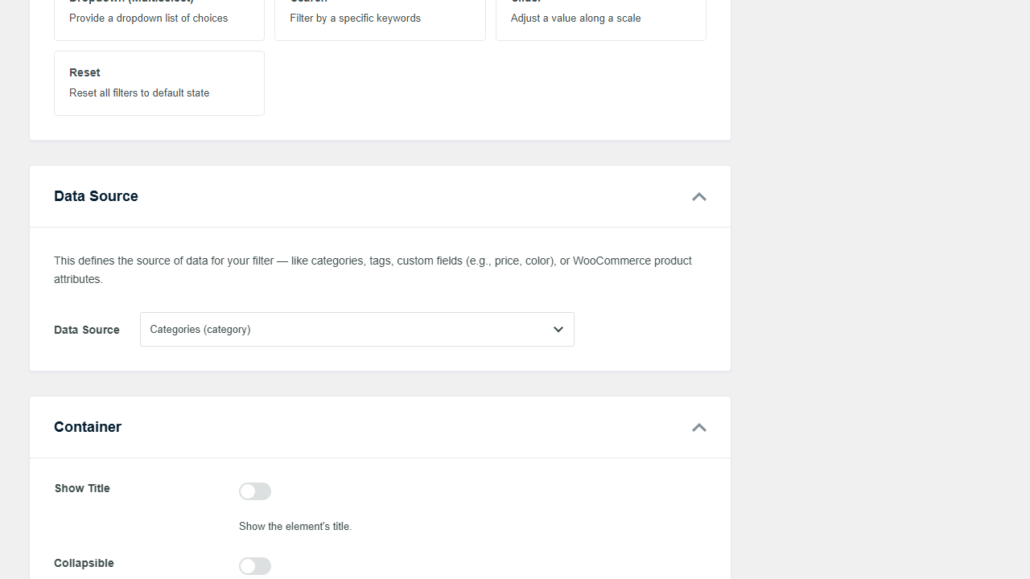
After you add both filters to the same sidebar, they work together.
A shopper can choose a category like “Boots” and drag the rating slider to 4, and see only boots rated 4 stars or higher.
Our guide on how to filter WooCommerce products by category walks through that filter in detail.
You can also give shoppers a one-click way to clear every selection with a Reset element, which we cover in our guide on how to add a reset filter button in WordPress.
Frequently Asked Questions
1. Does WooCommerce have a built-in star rating filter?
WooCommerce includes a Rating Filter block, but it’s built to sit inside the Product Filters block on a block-based shop page.
Its older Filter Products by Rating widget only shows rows of star links, so if you want a draggable range in a classic shop sidebar, a plugin like WPFilters can filter by the _wc_average_rating field instead.
2. Why isn’t my WooCommerce rating filter showing up?
The filter can only use ratings WooCommerce has saved, so first check that Enable product reviews and Enable star rating on reviews are turned on.
Only approved reviews count, and products without any reviews have a rating of 0. If every product has the same rating, WPFilters hides the slider until at least two products have different ratings.
3. Can I combine a star rating filter with category or price filters?
Yes, you can add a category filter, a price filter, and a rating filter to the same page.
WPFilters combines them, so shoppers only see products that match every filter they’ve set.
4. Can the rating filter show star icons instead of a slider?
WPFilters shows the rating as a slider with a number range underneath, rather than rows of star icons.
If clickable star rows matter more to you than setup time, FacetWP has a dedicated Star Rating facet, though it needs its own index built first.
Conclusion
Your shop now has a rating slider built from the reviews your customers leave.
We hope this article helped you learn how to add a WooCommerce star rating filter to your store.
You may also want to see our guides on how to create range filters in WordPress and how to filter WooCommerce products in WordPress.
Ready to help shoppers find your best-rated products? You can get started with WPFilters here, with a 14-day money-back guarantee.