

Most advice for a slow WordPress search treats it like a slow website, which is why it rarely helps. The delay usually sits in the database query that runs every time a visitor presses search.
By default, WordPress turns each search word into a pattern like %word% and checks it against the title, excerpt, and content of your posts and pages. Compressing images or adding a CDN speeds up how pages load, but neither one shortens that lookup.
The way to speed up WordPress search is to stop that scan from happening on every query. A search index does the work ahead of time, so WordPress can look up matching words instead of reading through each post.
In this article, we’ll show you 7 fixes that target the search query itself, in order of impact, plus how to tell which ones your site needs.
Why Is WordPress Search So Slow?
WordPress’s built-in search runs a fresh database query each time someone searches.
That query takes every word the visitor typed and compares it against the title, excerpt, and content of the posts in your searchable post types.
The % wildcard at the start of each pattern is what makes it slow. According to the MySQL documentation on indexes, a regular index can’t be used for a match that begins with a wildcard, so the database has to read through the text instead.
Think of a librarian who reads every book on the shelf each time someone asks about a topic, instead of checking the card catalog. On a small blog, nobody notices the wait.
As your site grows into hundreds or thousands of posts, pages, and products, each search has more text to read.
Longer searches cost more too, because WordPress adds another set of matches for every extra word and requires all of them to match.
Now, let’s look at the seven fixes below to speed up the search query itself.
7 Ways to Speed Up WordPress Search
These fixes are ordered by impact, starting with the one that tells you where to focus. Here’s a quick glance at all 7 ways.
1. Find What’s Slowing Your Search First
Before you change anything, it helps to see where the time goes.
There are free WordPress plugins that list the database queries on each page and flag slow ones. It also shows which plugin, theme, or part of WordPress core is responsible for each query.
After installing it, run a search on your site and open the Query Monitor menu in the admin toolbar.
If the search query is the slowest one on the page, fixes 2 to 5 will help the most. If the server itself is the holdup, skip ahead to fix 7.
If another plugin’s query is the slowest, check that plugin’s settings or ask its developer first.
And if search returns nothing at all, rather than slow results, our guide on fixing WordPress search not working covers that problem.
2. Replace the Database Scan With a Search Index
The biggest speed gain comes from not scanning posts at search time at all.
A search plugin with its own index reads your content once, in advance, and stores each word in a lookup table.
When someone searches, the plugin looks up those words instead of reading through every post. We recommend SearchWP for this.

SearchWP is the best WordPress search plugin, trusted by 50,000+ website owners. It builds a search index inside your own WordPress database and takes over your site’s default search, with no theme changes needed.
Here are some key features offered by SearchWP that help with search speed:
- Its own search index. SearchWP stores content from the sources you choose in dedicated index tables, so a search looks up words instead of scanning posts.
- Background indexing. New and updated content gets indexed automatically after you save it, in short background passes.
- Control over what’s indexed. You decide which content types and fields each search engine includes, which keeps the index lean.
- Live Ajax Search. Results appear in a dropdown as visitors type, so they see matches before they press Enter.
To get started, sign up on the SearchWP website and go to the Downloads tab in your account. From there, download the plugin ZIP file and copy your license key.
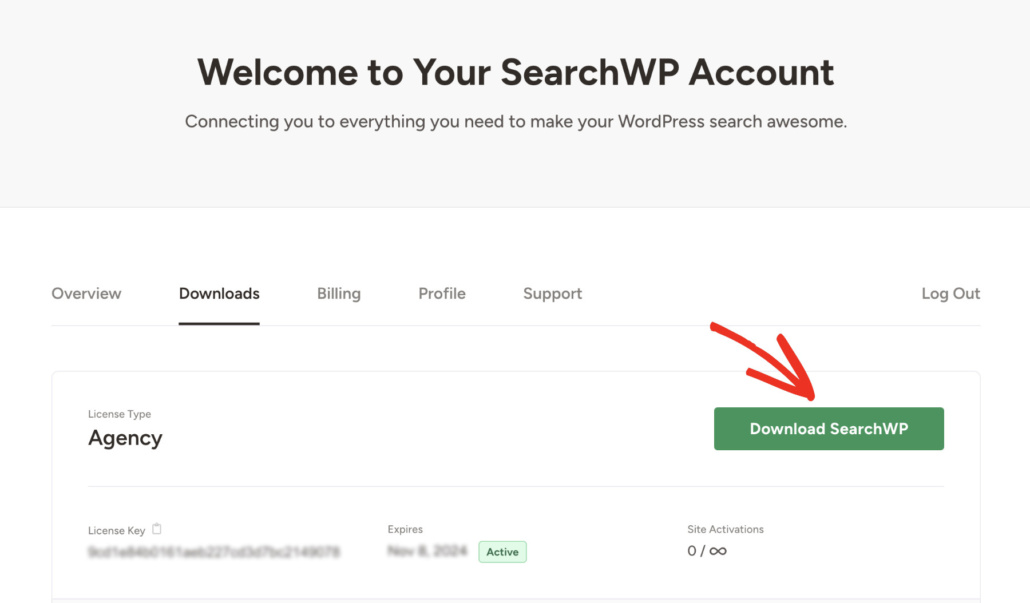
Next, you’ll want to install and activate the plugin on your WordPress site.
After activation, click Start Onboarding Wizard and follow the onscreen prompts. Once setup is done, SearchWP builds its index in the background.
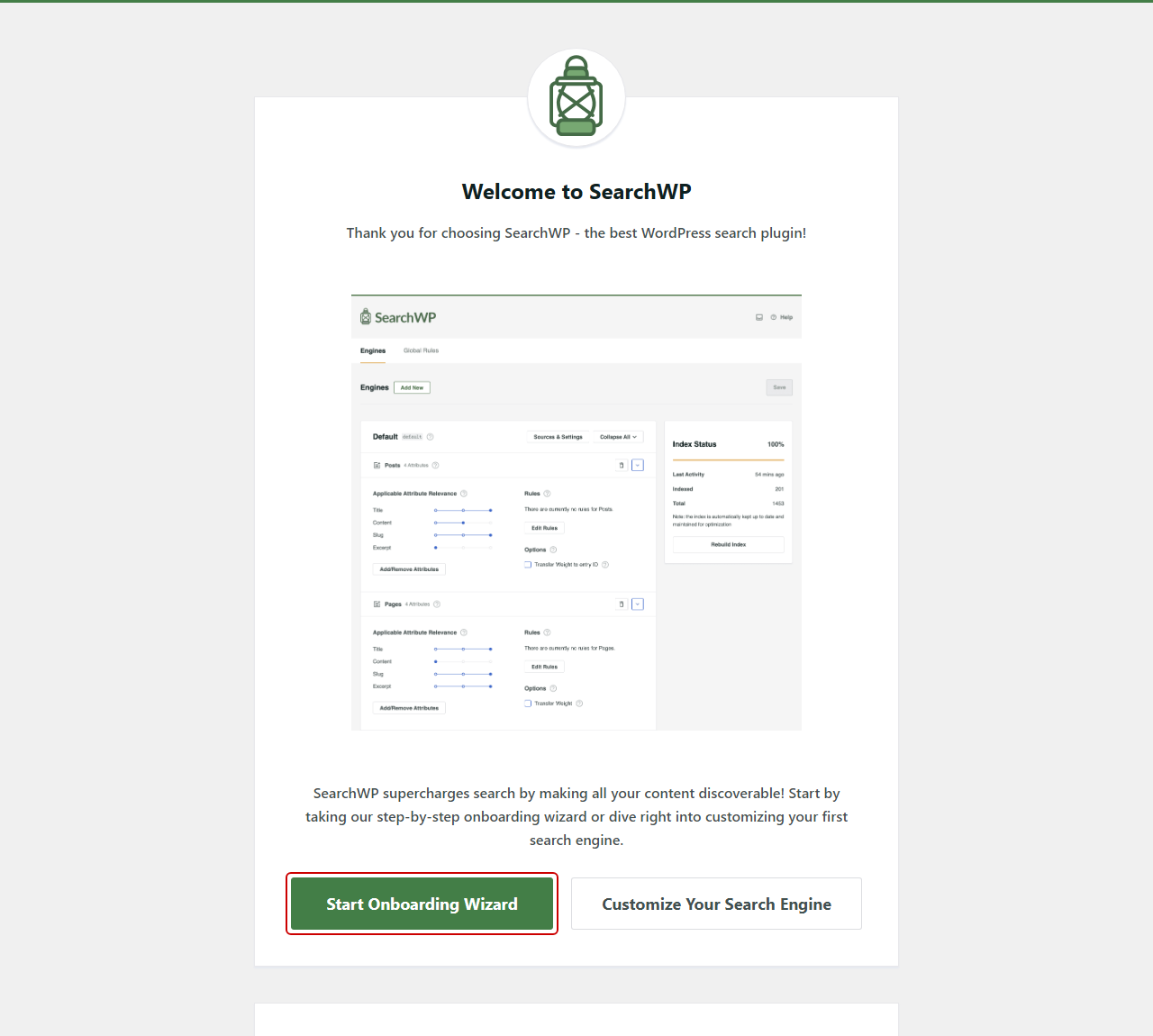
From then on, searches through your site’s standard search form run through SearchWP’s index instead of the default scan.
3. Search Only the Content Visitors Need
A smaller index has fewer entries to check on every search.
SearchWP only indexes the sources you enable on each engine, so it’s worth trimming anything visitors never search for.
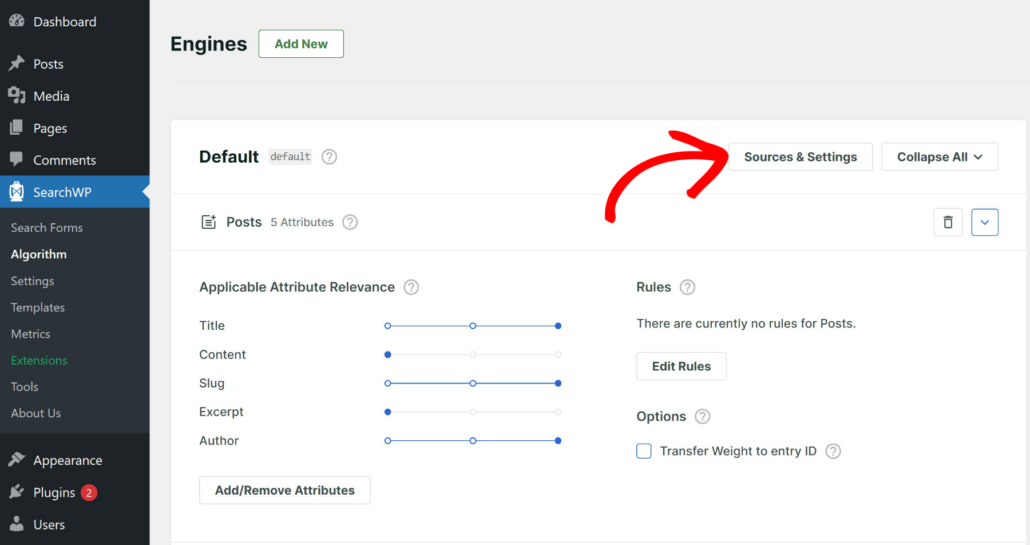
To do that, go to SearchWP » Algorithm and click Sources & Settings.
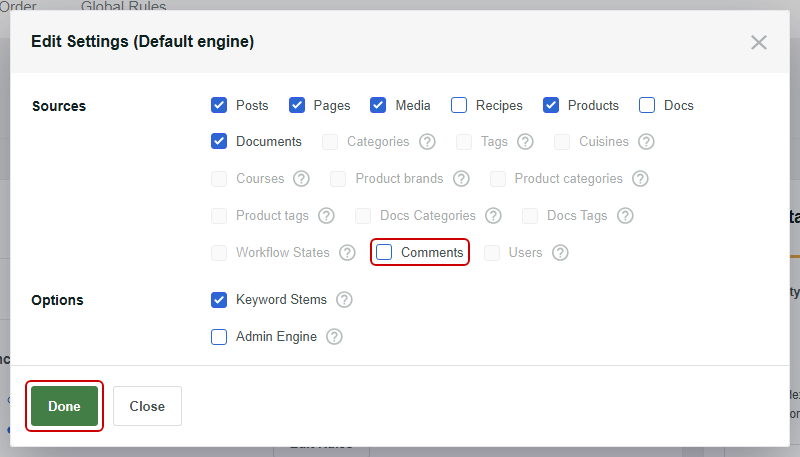
From there, uncheck any sources your visitors don’t need, such as Comments if it’s enabled, and click Done.
Next, click Add/Remove Attributes on a source to choose which fields get indexed. When you’re finished, click Done to keep your changes.
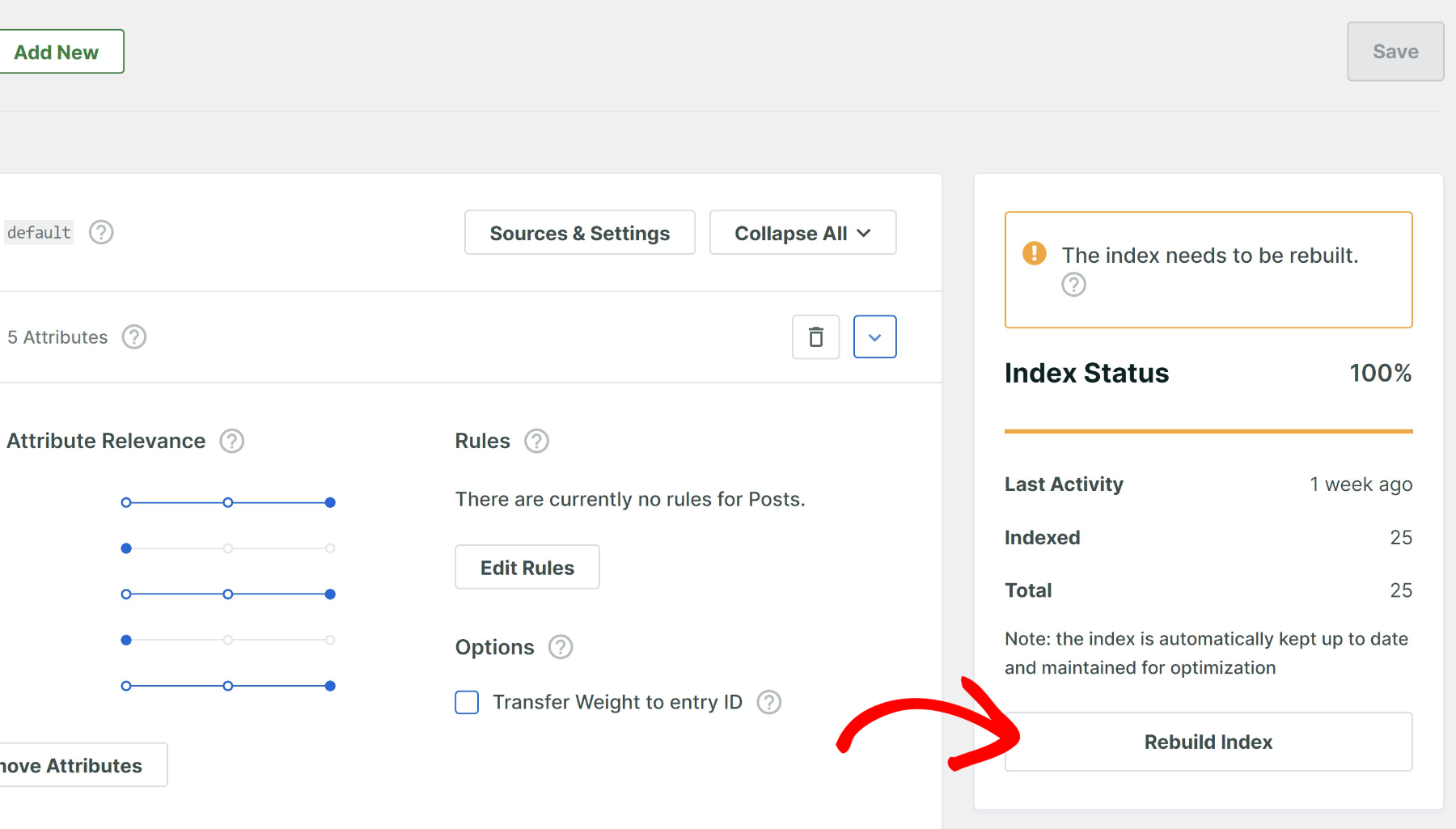
After that, click Save, then click Rebuild Index and confirm the prompt so SearchWP rebuilds the index with your new settings.
For a full walkthrough, see our guide on limiting search to specific post types.
4. Add a Persistent Object Cache
An object cache stores database query results in memory, so WordPress can reuse them instead of asking the database again.
WordPress already caches the results of its own post queries, including searches. Without a persistent object cache, though, that cache is thrown away as soon as the page finishes loading.
A persistent cache like Redis or Memcached keeps those results between visits, so a repeated default WordPress search can skip the database. Many hosts offer one of them, so it’s worth asking yours.
WordPress resets its cached query results whenever a post is added or updated, so the biggest gains show up on sites where content doesn’t change often.
If SearchWP runs your search, its index lookup still runs each time. The object cache can still speed up the other queries on the page.
5. Keep Indexing From Competing With Visitors
A search index has to be built and kept up to date, and that work runs on the same server your visitors use.
SearchWP indexes in the background, in passes that stop after 60 seconds and then pick up where they left off. On shared hosting, you can make each of those passes lighter.
To do that, go to SearchWP » Settings and click the Misc tab. Then, turn on Reduce Indexer Load, which processes less data per index pass.
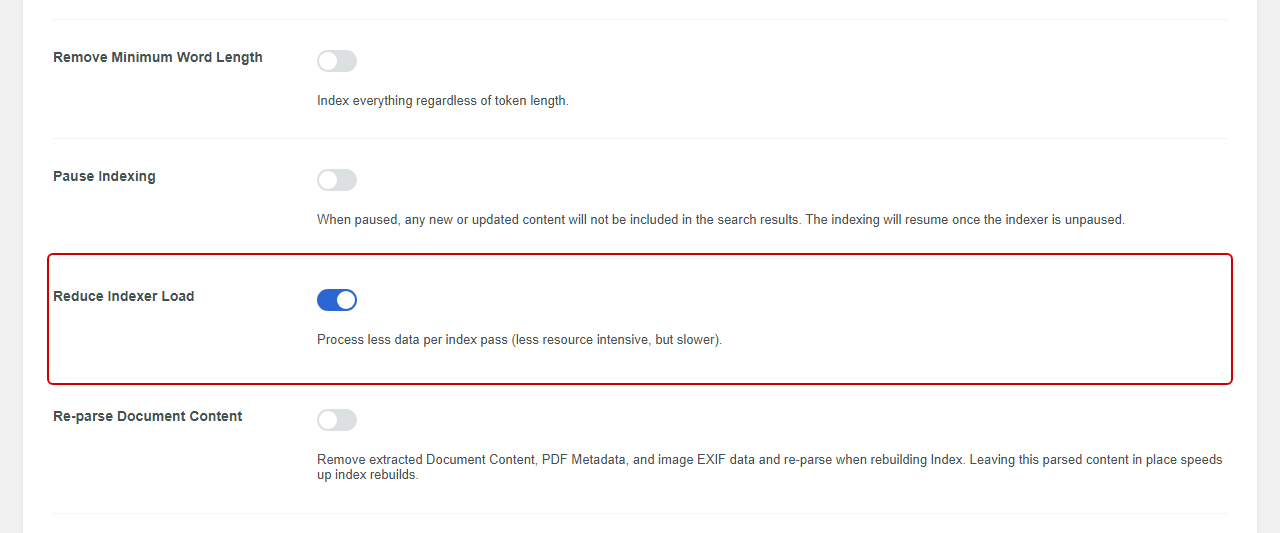
Indexing takes longer with this on, but it puts less strain on your server while visitors are browsing.
While you’re on that tab, leave Re-parse Document Content off. Keeping already-extracted PDF and document text in place speeds up index rebuilds.
You’ll also want to leave Remove Minimum Word Length off. When it’s on, SearchWP also indexes words shorter than 3 characters, which makes the index larger.
On the General tab, Partial Matches only looks for partial words when a search word has no exact match in the index. So leaving it on adds little work to searches where every word already matches.
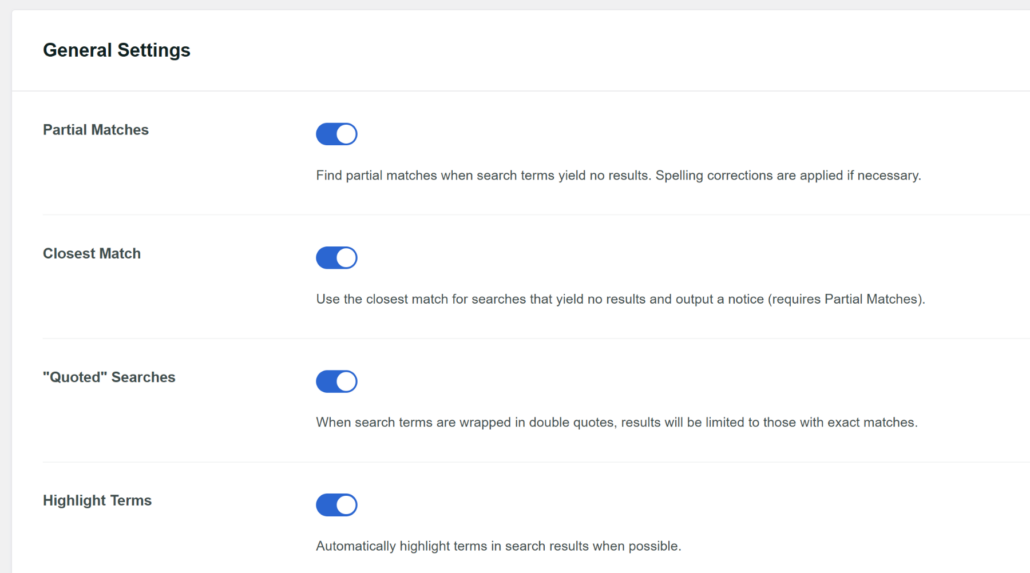
You can read about every option on these tabs in the SearchWP settings documentation.
If your site has a large PDF library, document parsing can be the heaviest part of indexing. The SearchWP Xpdf Integration extension swaps in the Xpdf pdftotext tool, which is faster and more accurate than SearchWP’s built-in PDF parser on hard-to-parse files, as long as your host can run it.
Our Xpdf Integration documentation explains the setup. For hosts where local PDF parsing struggles, the Offsite PDF Parsing extension (Pro and up) sends text extraction to a remote server instead.
6. Make Search Feel Instant With Live Search
Live search won’t make the database query shorter, but it changes how fast search feels.
The SearchWP Live Ajax Search extension shows results in a dropdown as visitors type, so they see matches before they ever press Enter.

By default, it also waits until a visitor pauses typing for 300 milliseconds and has entered at least 3 characters. That keeps your server from running a new search on every keystroke.
SearchWP Live Ajax Search is included with every SearchWP plan. Our guide on adding live autocomplete search covers the setup and lists every option.
7. Update PHP and Your Database, Then Consider Hosting
Outdated PHP and database versions can slow down your whole site, including search.
WordPress recommends PHP 8.3 or greater and MySQL 8.0 or MariaDB 10.11 or greater. Your host can tell you which versions your site runs, and many let you switch PHP versions from the hosting dashboard.
Upgrading your hosting plan comes last. If Query Monitor still shows slow queries after the fixes above, your server may not have enough resources for your traffic.
Frequently Asked Questions
1. Why is my WordPress search so slow?
WordPress search is usually slow because it reads through your content on every search. Default search compares each search word against the title, excerpt, and content of your posts, so it does more work as your site grows.
A search index fixes this by doing that work ahead of time.
2. Does a caching plugin speed up WordPress search?
A caching plugin helps less than you’d expect, because every search creates a different URL. WP Rocket, for example, doesn’t cache search results by default.
A persistent object cache such as Redis can help repeated default WordPress searches, though WordPress resets those cached results whenever a post changes.
3. Do I need Elasticsearch or Algolia for fast WordPress search?
Most WordPress sites don’t need an external search service. A search plugin with its own index, like SearchWP, speeds up search inside your own database without API keys or usage-based pricing.
Hosted services make the most sense for very large catalogs with a developer to maintain them.
4. Will a search plugin slow down my WordPress site?
SearchWP builds its index in the background, in short passes, so visitors can keep browsing while it works. On shared hosting, you can go to SearchWP » Settings, click the Misc tab, and turn on Reduce Indexer Load to make each pass lighter.
5. Does cleaning my database make WordPress search faster?
Cleaning your database helps general site speed, but it does little for search. WordPress’s search query reads the posts table, not the transients or comments that cleanup tools usually remove.
Replacing the search scan with an index makes a much bigger difference.
Give Your Visitors Faster Search Results
A slow WordPress search usually comes down to the query, so the fixes that help most are the ones that change how search finds its results.
We hope this article helped you learn how to speed up WordPress search. You may also want to see our guides on ways to improve WordPress search and fixing WordPress search indexing issues.
Ready to stop making visitors wait for results? You can get started with SearchWP here. Every plan comes with a 14-day money-back guarantee.