

WooCommerce gives you one built-in way to handle sold-out products on a classic shop page, and it’s all or nothing. The hide out of stock items from the catalog setting removes them for every shopper, including the ones who’d happily wait for a restock.
A better option is to let shoppers decide for themselves. When you add an in-stock filter to WooCommerce, anyone who only wants items that are ready to ship can tick a box, and everyone else still sees your full catalog.
You don’t need custom code for this, because WooCommerce already saves each product’s stock status in a custom field called _stock_status. WPFilters can turn that field into a filter and let users sort products that are in stock.
In this article, we’ll show you how to add an in-stock filter to WooCommerce using both methods, so you can pick the one that fits your store.
Why Add an In-Stock Filter to Your WooCommerce Store?
An in-stock filter lets shoppers hide every product they can’t buy right now.
Every WooCommerce product has one of three stock statuses: In stock, Out of stock, or On backorder.
You set it on each product’s Inventory tab, or WooCommerce updates it for you when you track stock quantities. The WooCommerce Product Editor settings documentation explains what each status means.
Hiding out-of-stock items removes them for everyone, while a filter leaves your catalog alone until a shopper chooses to narrow it down.
From our experience, store owners feel this the most when popular products sell out between restocks.
- Sold-out products waste clicks. Shoppers open a product page, find out it’s unavailable, and head back to start over.
- Hiding them has a cost. Once sold-out products disappear, shoppers who’d back-order or come back next week can’t find them at all.
- Backorders are hard to spot. Without a filter, shoppers can’t tell which products ship now and which ship later until they open each one.
- Built-in options are limited. WooCommerce’s Availability Filter block only works inside the Product Filters block on a block-based shop page, so classic shop sidebars miss out.
Think of it like a grocery store that pulls the shelf tags along with the empty boxes. Shoppers who wanted that item never learn it’s coming back.
Next, let’s look at the easiest way to give shoppers that choice.
Adding an In-Stock Filter to WooCommerce With WPFilters
We recommend WPFilters as the easiest way to add an in-stock filter to WooCommerce.

WPFilters is the best filtering plugin for WordPress, built by the same team behind SearchWP.
It lets you build filters from the custom fields, categories, and attributes your store already has, without writing code.
Here are some of the features that make WPFilters a good fit for a stock filter:
- Custom field filters. WPFilters can turn any custom field into a custom field filter, including the
_stock_statusfield WooCommerce fills in for you. - Taxonomy and attribute filters. You can also build filters from product attributes, so your own availability labels can become checkboxes too.
- No page reloads. When a shopper ticks a box, WPFilters uses AJAX to update the products on the same page.
- Shareable filter URLs. Each selection is saved in the page URL, so shoppers can bookmark or share a page of in-stock products.
With that, let’s see how you can use WPFilters to add an in-stock filter to your store.
To start, you can sign up for a WPFilters plan on the SearchWP website.
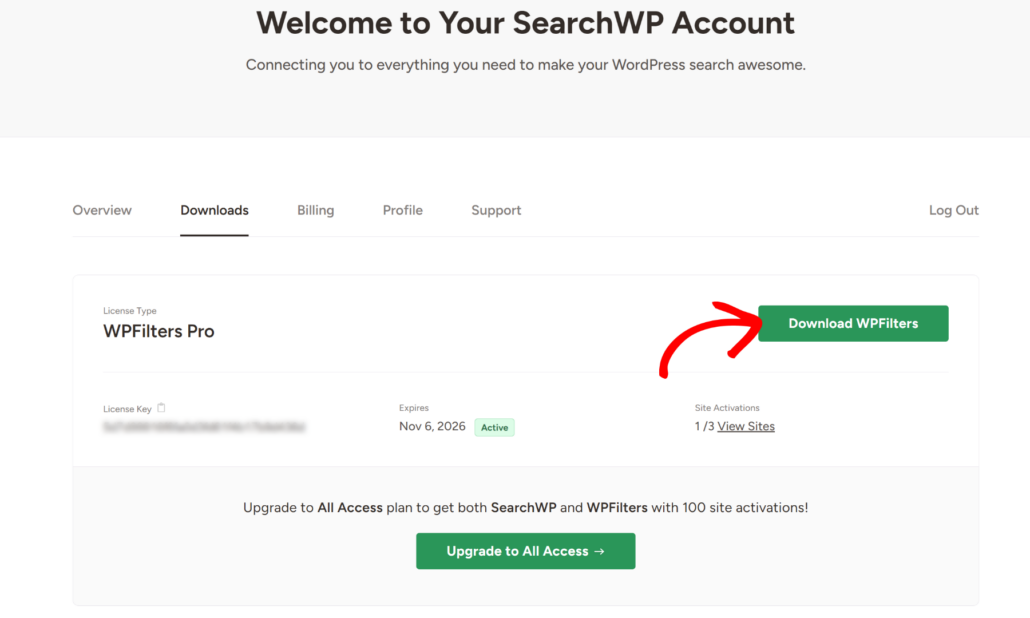
Once you’re signed up, you can head to the Downloads tab in your account dashboard.
From there, go ahead and download the WPFilters plugin ZIP file.
While you’re there, copy your license key too, since you’ll need it in a moment.
Next, you can upload and install the plugin on your WordPress site.
If you need help, you can follow WPBeginner’s guide on how to install a WordPress plugin.
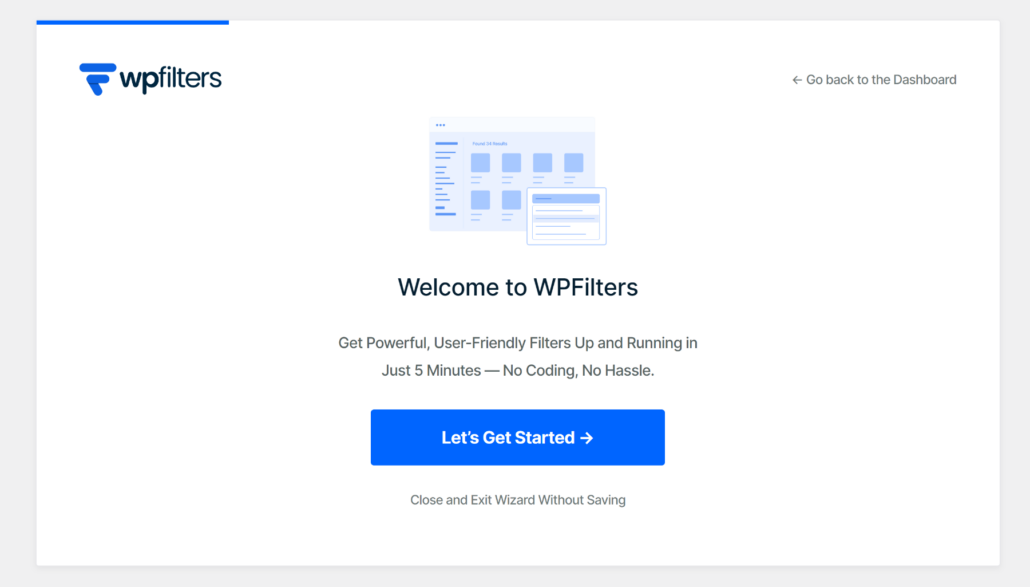
After you activate it, the WPFilters setup wizard opens. You can click Let’s Get Started and follow the on-screen instructions.
Note: WPFilters needs an active license to show filters on your site, so make sure your key is verified before you move on.
WPFilters is all set! Now you can pick the method that suits your store.
Method 1: Filter by WooCommerce Stock Status (Automatic)
This method works best if you already track stock in WooCommerce.
The filter reads the status WooCommerce saves on each product, so it stays up to date as products sell out and come back.
Step 1: Create a Stock Status Filter
To get started, head to WPFilters » Elements from your WordPress dashboard.
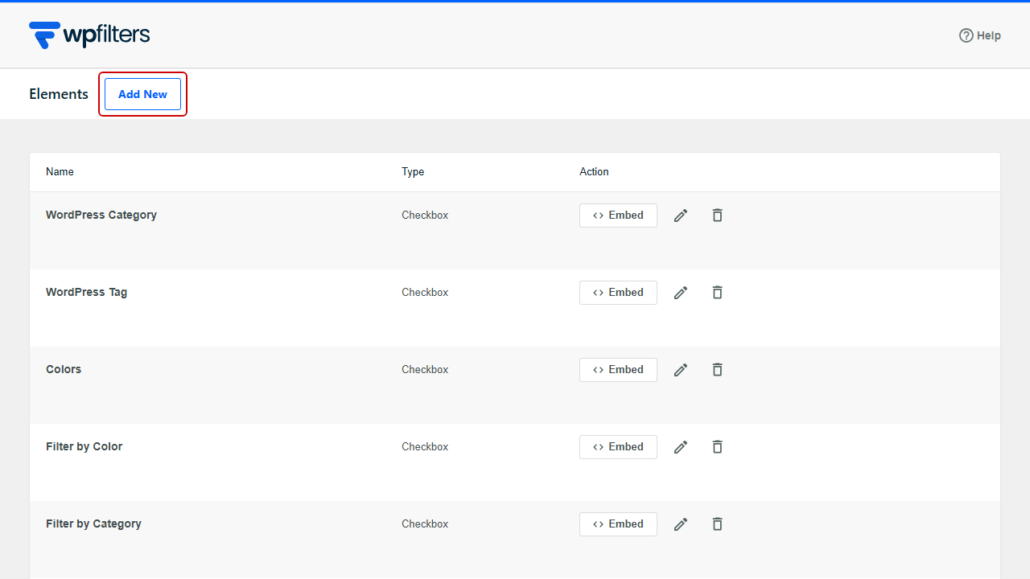
Next, click the Add New button.
At the top of the builder, click the pencil icon next to the element’s name and call it something shoppers will understand, like “Stock Status.”
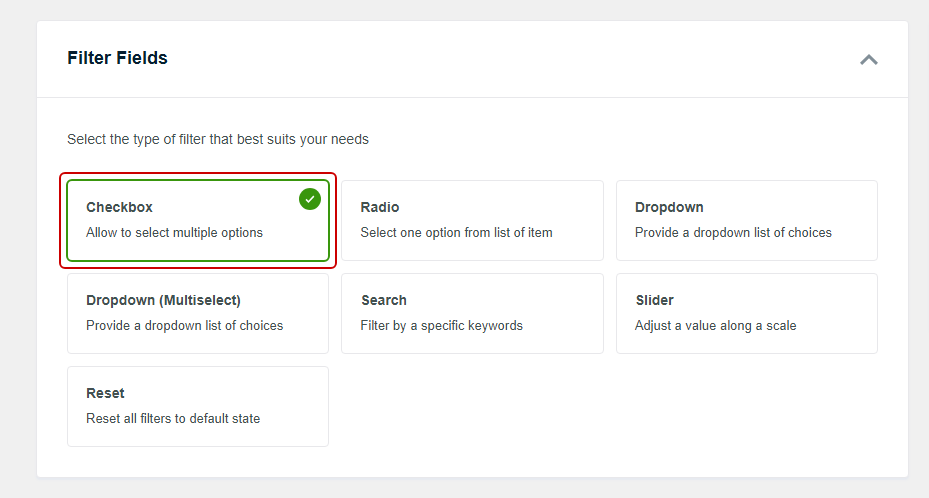
After that, look for the Filter Fields section and select Checkbox.
We like checkboxes here because shoppers can tick more than one status, such as instock and onbackorder together.
From there, scroll down to the Data Source section and open the dropdown.
Go ahead and select _stock_status, which sits inside the Custom Fields group.
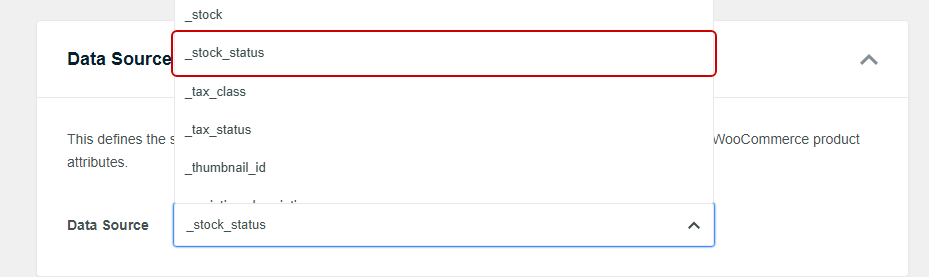
Note: You’ll also see _stock and _manage_stock nearby. Those fields store a product’s stock quantity and whether you track it, not its status, so make sure you pick _stock_status.
WPFilters shows the options exactly as WooCommerce saves them, so shoppers will see instock, outofstock, and onbackorder.
If you’d rather show labels like “Ships Today,” Method 2 below lets you name each option yourself.
Next, you can choose how the filter looks.
Under Container, turn on Show Title so the “Stock Status” name appears above the checkboxes.
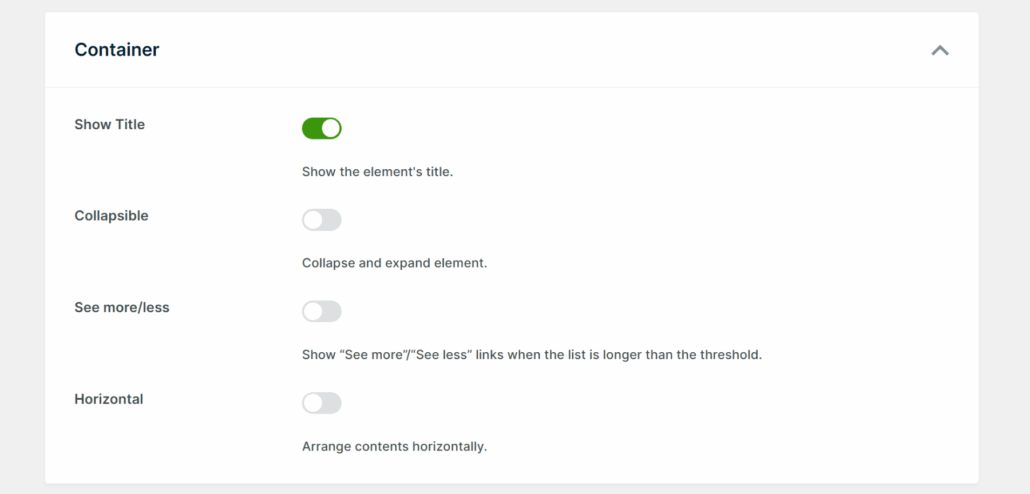
Once it looks right, click Save.
WPFilters also uses the name to build the filter’s URL, so “Stock Status” shows up as stock-status in the shop page’s address.
Pro Tip: If you’ve turned on Hide out of stock items from the catalog under WooCommerce » Settings » Products » Inventory, sold-out products aren’t listed on your shop page. In that case, the filter only offers instock and onbackorder, which works well if you want shoppers to separate ready-to-ship products from backorders.
Step 2: Add the Filter to Your Shop Page
Next, you can place the filter beside your products.
Since WPFilters works with the product list your shop page already shows, there’s no extra setting to connect the two.
To add it to your shop sidebar, head over to Appearance » Widgets.
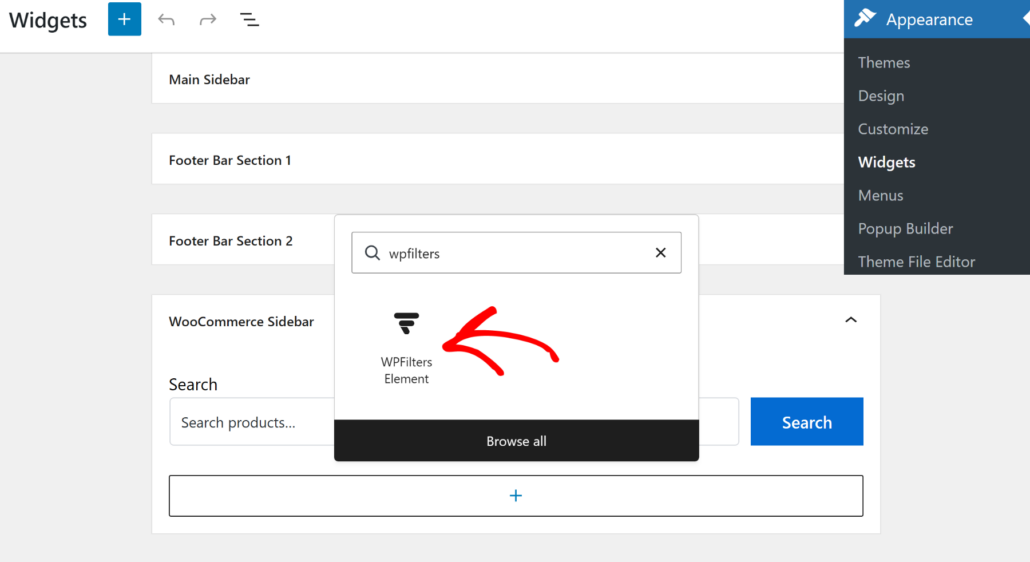
From there, open the widget area your theme uses on shop pages. On our demo store, which runs the Astra theme, that’s the WooCommerce Sidebar.
After that, click the + icon, search for “WPFilters,” and add the WPFilters Element block.
Then, choose your “Stock Status” filter from the Select Element dropdown in the block settings.
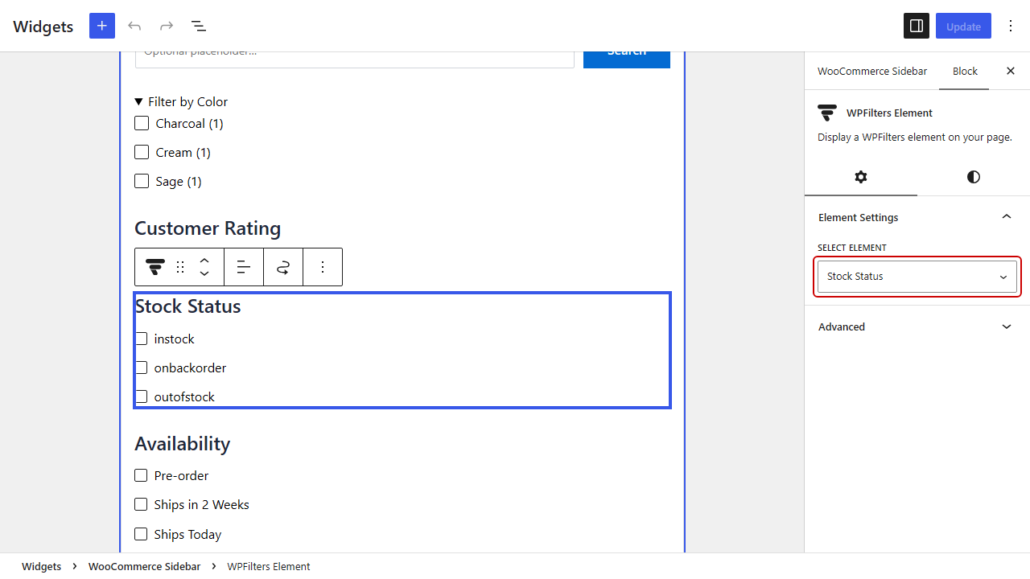
Once that’s done, click Update to save your widgets. Do note that this step might differ depending on the WordPress theme you’re using.
If your theme doesn’t have a shop sidebar, the Embed button in the filter builder gives you a shortcode, like , that you can paste where you’d like the filter to appear.
Step 3: Test Your In-Stock Filter
With the filter in place, you can visit your shop page in a new browser tab. You’ll see the “Stock Status” title with a checkbox for each status your products use.
For the first test, tick instock. On our demo store, we marked the in-stock filter option, and the Puddle Jumper Waterproof Rain Boots dropped out of the list in a moment without a page reload, as it was out of stock.
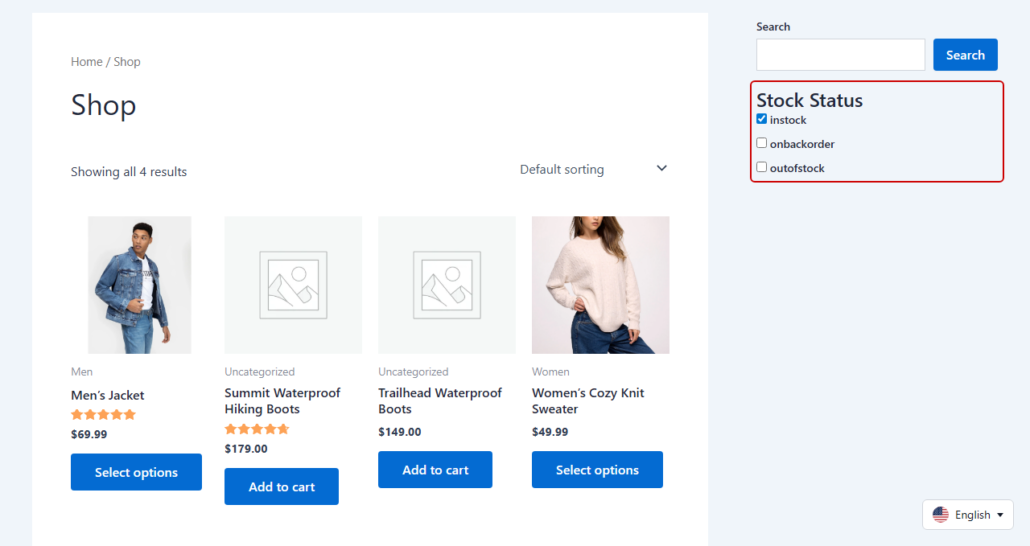
For the second test, look at the page URL after you tick the box.
You’ll notice it now includes stock-status, followed by the status you picked.
You can copy that URL and open it in a private window to check that the same in-stock products still show up.
Method 2: Filter by a Custom Availability Attribute (Taxonomy)
This method works best if you want friendly labels, or delivery times WooCommerce doesn’t track, like “Ships Today” or “Pre-order.”
The trade-off is that you update it yourself, since WooCommerce won’t change an attribute when a product sells out.
Note: You might spot a Product visibility taxonomy in the Data Source list, but it won’t work as an in-stock filter. WooCommerce only adds an outofstock tag there for sold-out products and has no matching in-stock tag, and a WPFilters taxonomy filter can only show products that have the tag a shopper picks, so in-stock products would never appear.
Step 1: Create an Availability Attribute
First, you’ll need an attribute to hold your availability labels.
To create one, go to Products » Attributes in your WordPress dashboard. Under Add new attribute, type “Availability” in the Name field.
WooCommerce fills in the Slug for you, so you can click Add attribute.
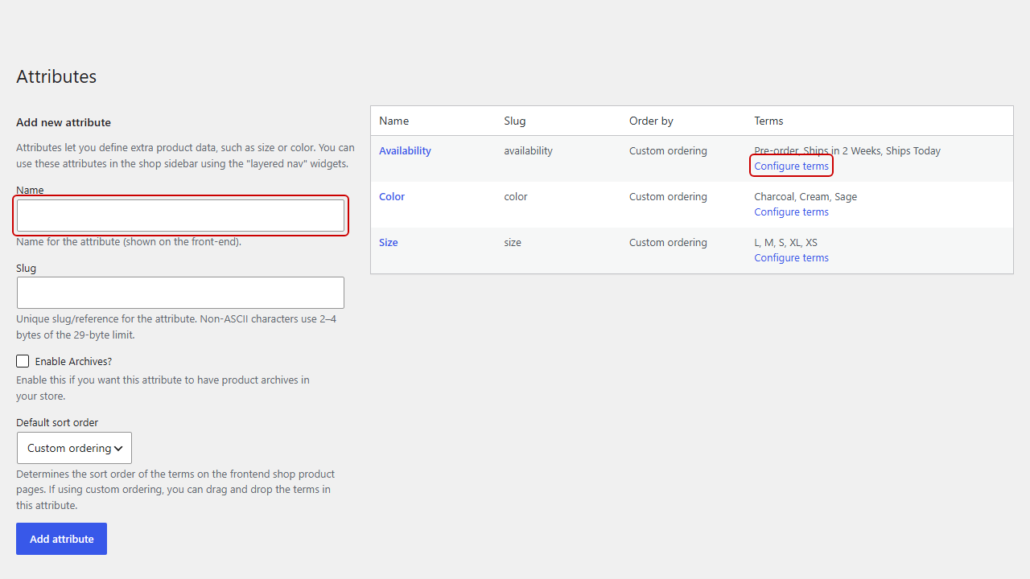
Next, find “Availability” in the attributes table and click Configure terms below it.
This opens a screen where you can add each label shoppers will see. Go ahead and type “Ships Today” in the Name field and click Add new Availability.
Then, repeat this for “Ships in 2 Weeks” and “Pre-order.”
Step 2: Assign Availability to Your Products
Now you can tell WooCommerce which label fits each product.
To do that, open a product in the editor and scroll down to the Product data box.
From there, click the Attributes tab and choose “Availability” from the Add global dropdown.
After that, pick a label like “Ships Today” in the Value(s) field.
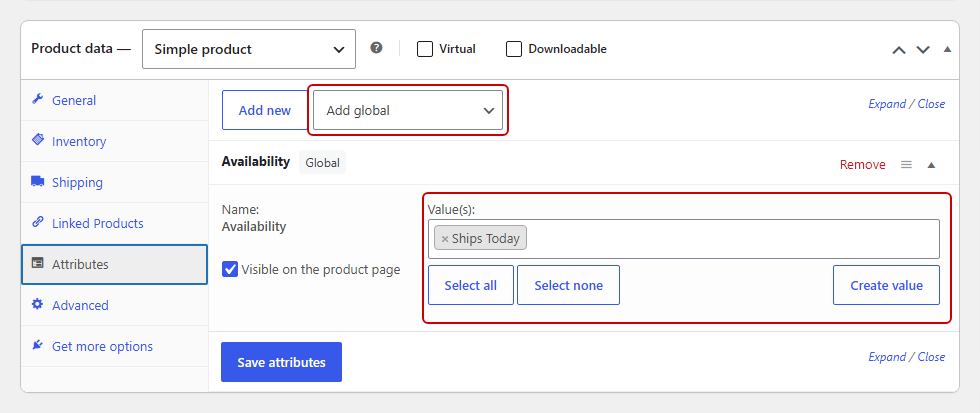
If you’d rather not list availability under the product’s Additional information tab, uncheck Visible on the product page.
Once that’s done, click Save attributes and then Update to save the product.
Step 3: Create the Filter and Add It to Your Shop
Next, head back to WPFilters » Elements and click Add New.
Name the element “Availability,” then select Checkbox under Filter Fields.
In the Data Source dropdown, select Product Availability (pa_availability) from the Taxonomies group.
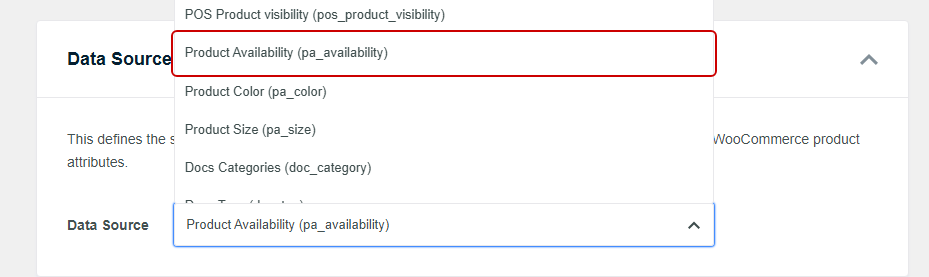
This time, your checkboxes show “Ships Today,” “Ships in 2 Weeks,” and “Pre-order” exactly as you typed them.
Turn on Show Title under Container, then click Save.
After that, add the filter to your shop sidebar with the WPFilters Element block, the same way you did in Method 1, Step 2.
Step 4: Test the Availability Filter
To test it, open your shop page in a new tab and tick “Ships Today.”
Only products you labeled “Ships Today” should stay on the page.
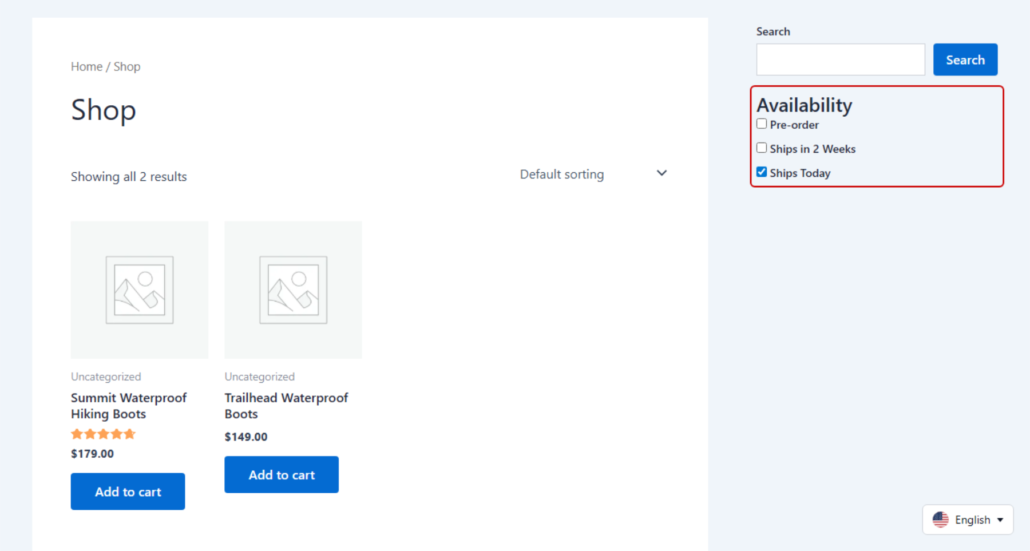
Next, tick “Pre-order” as well.
Products with either label now show up, since ticking more than one box in the same filter shows products that match any of them.
Which In-Stock Filter Method Should You Use?
Both methods give shoppers an in-stock filter, but they suit different stores.
| Method 1: Stock Status | Method 2: Availability Attribute | |
|---|---|---|
| Updates when stock changes | Automatically, when you track stock quantities | You update it by hand |
| Option labels | instock, outofstock, onbackorder | Any label you type |
| Custom statuses like “Pre-order” | No | Yes |
| Setup time | A few minutes | Longer, since you label each product |
We’d start with Method 1 for most stores, since it stays in sync with your inventory.
Method 2 is the better pick when shoppers care about delivery times more than a plain yes or no, and you can run both filters in the same sidebar.
If you’d like to add more filters next to them, our guide on how to filter WooCommerce products in WordPress covers categories, tags, and more.
Frequently Asked Questions
1. Does WooCommerce have a built-in in-stock filter?
WooCommerce includes an Availability Filter block, but it only works inside the Product Filters block on a block-based shop page.
For a classic shop sidebar, the WPFilters plugin can filter products by WooCommerce’s _stock_status custom field, so shoppers can tick a box to see only in-stock products.
2. How do I hide out-of-stock products in WooCommerce?
To hide out-of-stock products for every shopper, check Hide out of stock items from the catalog under WooCommerce » Settings » Products » Inventory.
An in-stock filter is the gentler option, because sold-out products stay visible until a shopper chooses to hide them.
3. Can shoppers filter by backorder status too?
Shoppers can filter by backorder status with a WPFilters filter built on WooCommerce’s _stock_status field, since onbackorder appears as its own checkbox whenever a product on the shop page uses that status.
Ticking instock and onbackorder together shows every product a shopper can order today.
4. Why does my stock filter show “instock” instead of “In stock”?
WPFilters shows custom field options exactly as WooCommerce saves them, and WooCommerce stores stock status as instock, outofstock, or onbackorder.
For friendlier labels, create a global product attribute such as “Availability” with terms like “Ships Today,” then build the WPFilters filter from that attribute instead.
5. Does the stock filter update when inventory changes?
A WPFilters filter built on WooCommerce’s _stock_status field updates on its own when WooCommerce tracks stock quantities, because WooCommerce changes the status whenever a product sells out or is restocked.
A filter built on a custom availability attribute only changes when you edit each product.
Conclusion
Your shop now has an in-stock filter, so shoppers who only want ready-to-ship products can find them in one click.
We hope this article helped you learn how to add an in-stock filter to WooCommerce.
You may also want to see our guides on how to filter WooCommerce products by attributes and how to add a reset filter button in WordPress.
Ready to help shoppers find products they can buy today? You can get started with WPFilters here, with a 14-day money-back guarantee.