


Many WordPress site owners launch their websites feeling proud of all the content they’ve added.
Then they watch users spend five minutes scrolling through pages, trying to find one specific item. Those visitors eventually give up and leave the site.
Whether you’re running an online store, a directory site, or a blog with hundreds of posts, your visitors need an easy way to narrow down their options.
The solution is adding filters to your WordPress site. But here’s the thing, most filtering solutions require coding knowledge or expensive developer help.
In this article, we’ll show you how to set up filters on your WordPress site, even if you’ve never touched a line of code.
Why Add Filters to Your WordPress Site?
Before we jump into the setup process, let’s talk about why filters matter so much for your website.
We’ve seen firsthand how adding filters can transform a frustrating user experience into a smooth one.
Think of filters like the aisles in a grocery store. Without them, every product would be in one giant pile, and you’d spend hours looking for milk.
Filters organize your content the same way, letting visitors quickly find exactly what they’re looking for.
When visitors land on your site and see hundreds of posts, products, or listings, they need a way to narrow things down. Maybe they only want to see products from a certain category, or how-to articles, or listings in their city.
Without filters, they’re forced to scroll endlessly or use your search bar and hope for the best.
We’ve also noticed that sites with good filtering systems keep visitors around longer. This means lower bounce rates and more engaged visitors.
That said, let’s look at the steps you can follow to add filters to your site.
Setting Up Filters in WordPress
The easiest way to add filters to your WordPress site and sort content is by using WPFilters.

WPFilters is the best WordPress filtering plugin in the market and is super easy to use.
Usually, you would need to edit code or hire a developer if you want to add a filtering system for your website.
But with WPFilters, that’s not the case. You get to create all types of filters and control how they operate without touching a single line of code.
It is created by the same team behind SearchWP, which shows that we know a thing or two about creating an amazing search experience.
Here are some of the features you get with WPFilters:
- Pre-built Filter Elements: Instantly add checkboxes, radio buttons, dropdowns, and price sliders to your search results.
- Taxonomies and Meta: Go beyond basic categories and filter content by tags, custom fields, authors, dates, and more.
- Hierarchical Taxonomies: Keep complex data organized by allowing users to drill down through parent and child categories effortlessly.
- Shareable Filter URLs: Turn every filtered search into a unique URL visitors can bookmark and share.
- Gutenberg Block: Add filters to any page or sidebar directly inside the WordPress block editor.
- Full SearchWP Integration: The only filtering tool built specifically to leverage the power and accuracy of your SearchWP engine.
Now, let’s look at the steps you can follow to create filters in WordPress.
Step 1: Install and Activate WPFilters
To start, you’ll need to visit the SearchWP website and sign up for a WPFilters account.
Once you’ve done that, simply head to your SearchWP account area and go to the ‘Downloads’ tab.
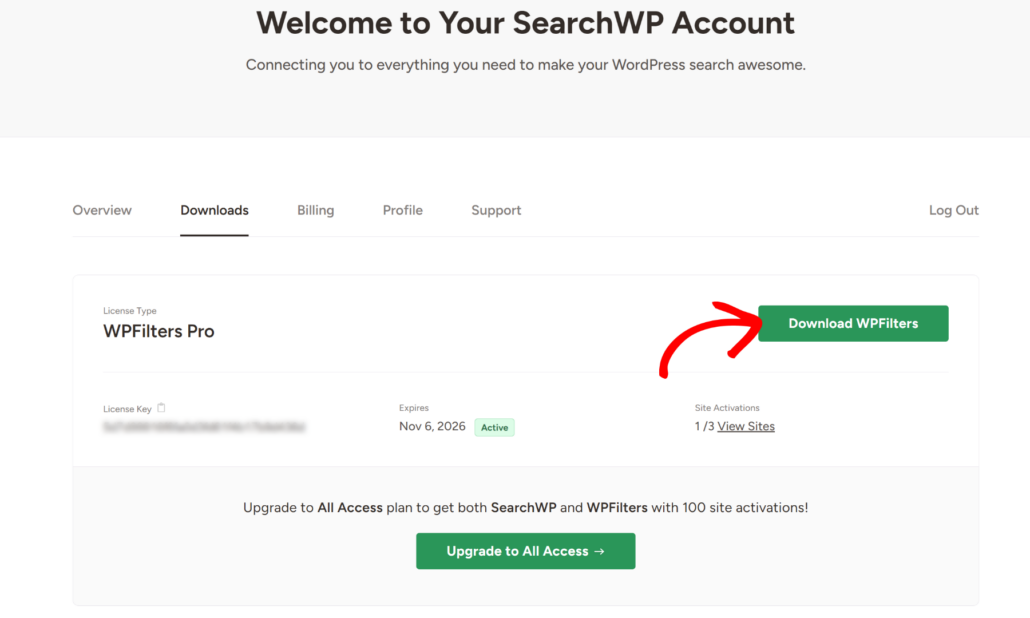
Next, you can click the Download WPFilters button and save the plugin files on your computer.
While you’re on the downloads page, we also recommend copying the License Key, as you’ll need it to set up the plugin.
Now, the next step is to upload the WPFilters plugin files to your WordPress site and install the plugin. If you need help with this, then please see this guide on how to install a WordPress plugin.
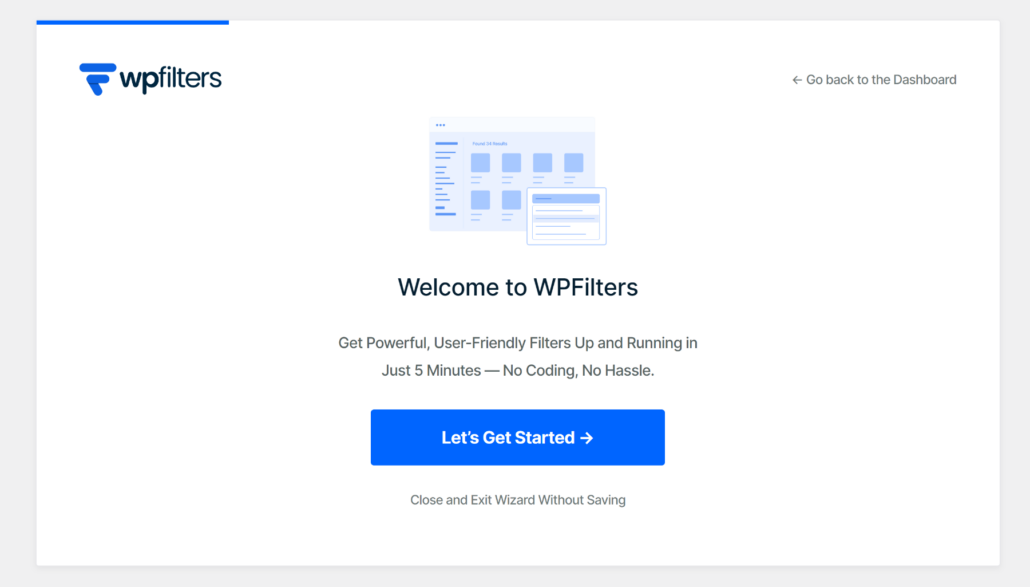
After activating the plugin, you will see the WPFilters setup wizard. Go ahead and click the ‘Let’s Get Started’ button and follow the onscreen instructions.
Step 2: Add a New Element for Your Filter
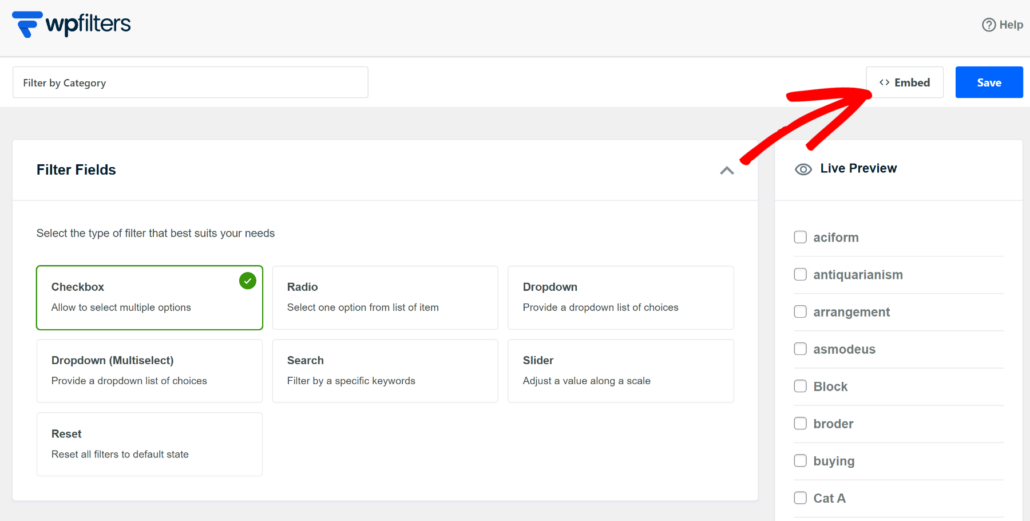
Next, you will need to add a new element in WPFilters and select the type of filter you want to create for your site.
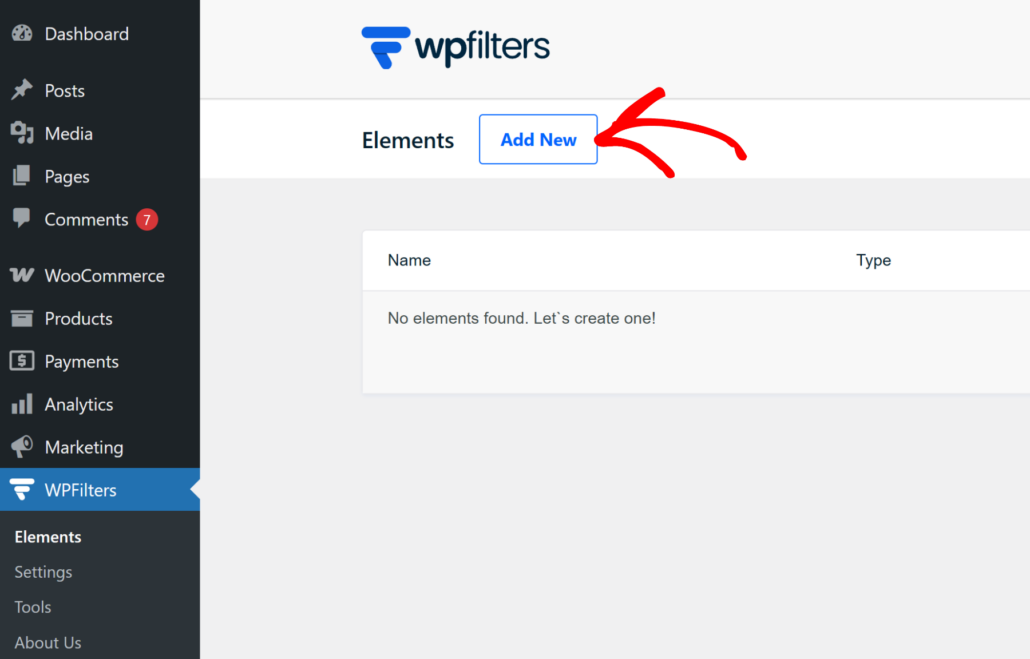
To start, head to WPFilters » Elements from the WordPress dashboard and simply click the ‘Add New’ button.
After that, you can start by entering the name for your filter at the top. This will help organize multiple filters on your site.
Next, go ahead and select the type of filter you can to add.
For example, WPFilters lets you chose from multiple options, such as a checkbox, radio list, dropdown, search by keywords, slider scale, and more.
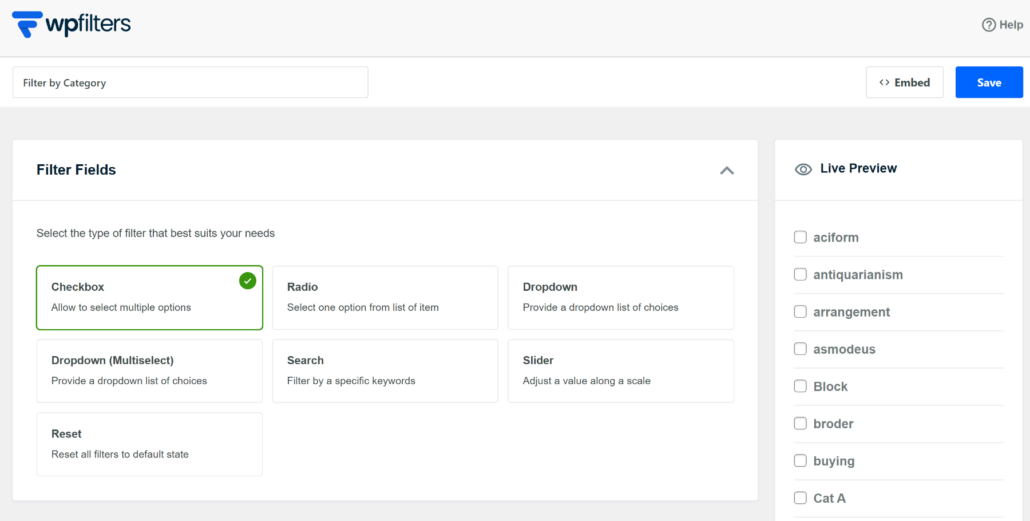
The best part is that you also get to see a preview of your filter in the right-hand panel.
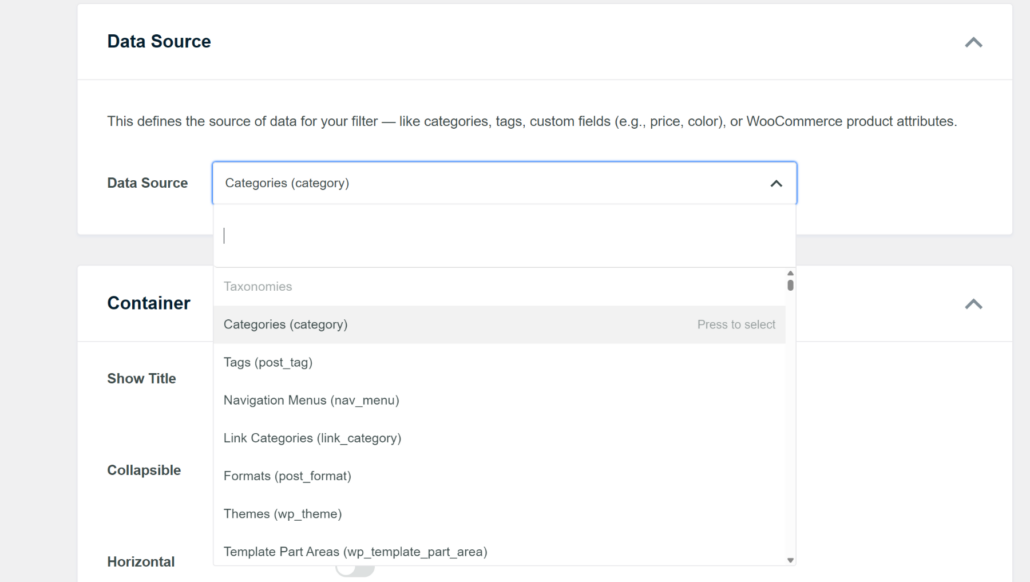
Once that’s done, you can scroll down to the Data Source section and click the dropdown menu.
Here, you can set up filters for any type of data source. If you have a WooCommerce store, then you can set up filters for product categories.
Similarly, you can add filters for post type, author, title, tags, and more.
Step 3: Customize Your Filter Element
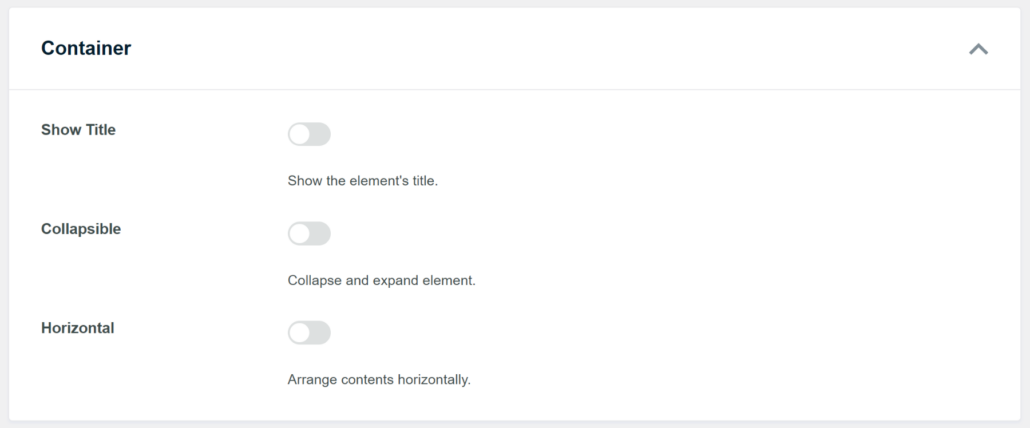
After selecting a data source, you can further customize your filter by scrolling down to the ‘Container’ section.
For instance, you’ll see options to show title, make the element collapsible, and arrange contents horizontally.
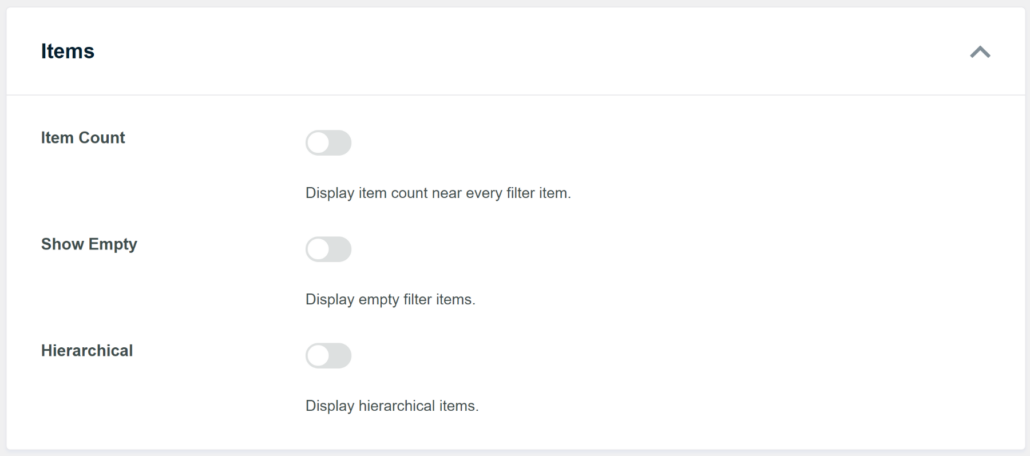
Next, you can scroll down to the ‘Items’ section.
Here, WPFilters gives you the option to show item count, display empty filter items, and display hierarchical items.
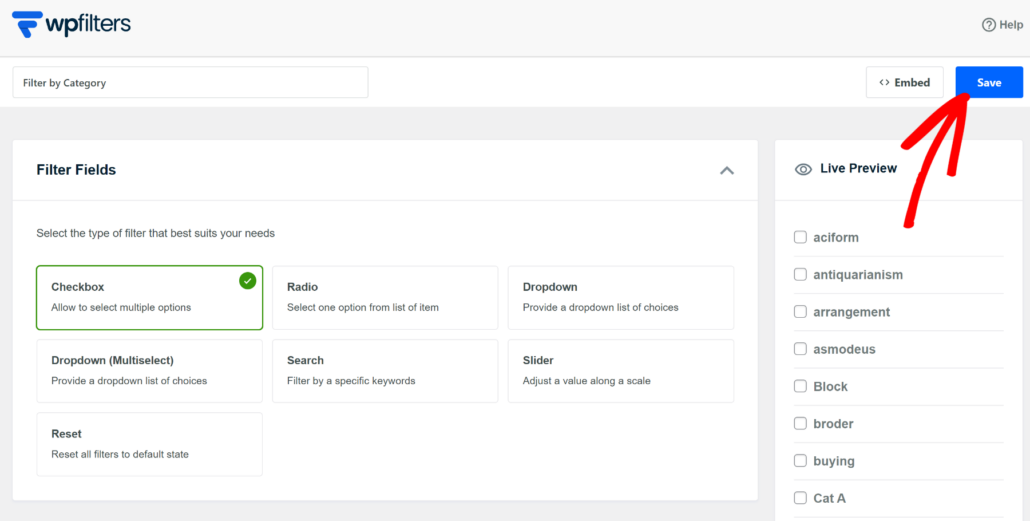
After you’ve completed customizing your filter, simply scroll to the top.
Then, click the Save button to store your changes.
Now, you can repeat this step to create different types of filters for your website.
Step 4: Embed Your Filters in WordPress
The best part about using WPFilters is that you can embed your filters anywhere on your site with ease.
If you’re a beginner, then you can use the Gutenberg block or shortcodes to add the filter.
On the other hand, if you have coding knowledge, then you can also use the PHP code.
To get start, simply click the ‘Embed’ button on the Element page.
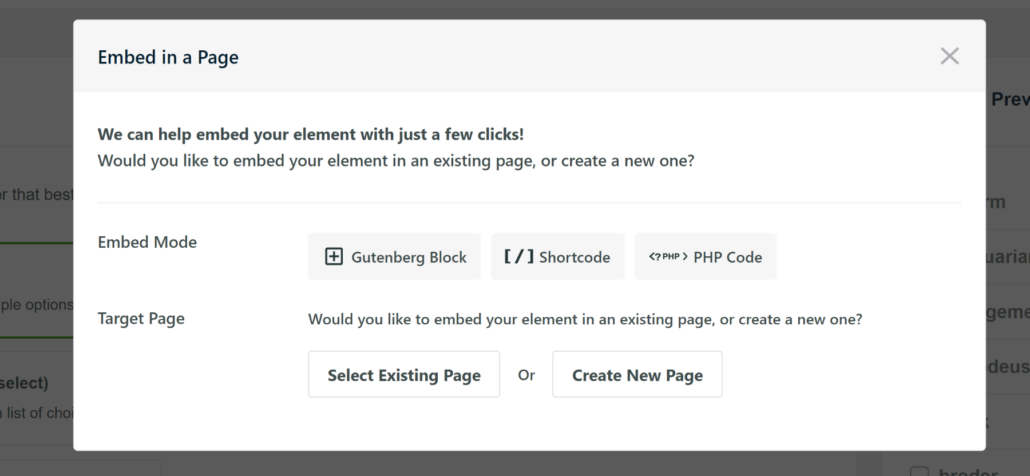
Next, you will see a new window popup with different embed options.
These will include the Gutenberg block, shortcode, or PHP code.
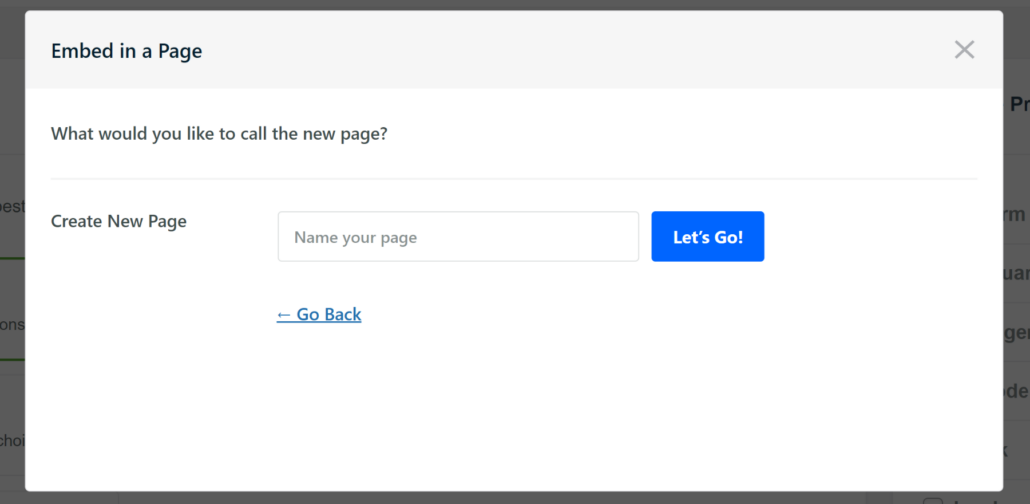
After that, you will also need to choose whether you’d like to add it to an existing page or create a new page.
For instance, if you click the ‘Create New Page’ option, then you will need to enter a name for your page and click the ‘Let’s Go’ button.
This will automatically load the filter in the WordPress content editor.
You can also add the WPFilters block to any blog post or page to show the filter.
Simply click the + sign and then add the WPFilters Element block.
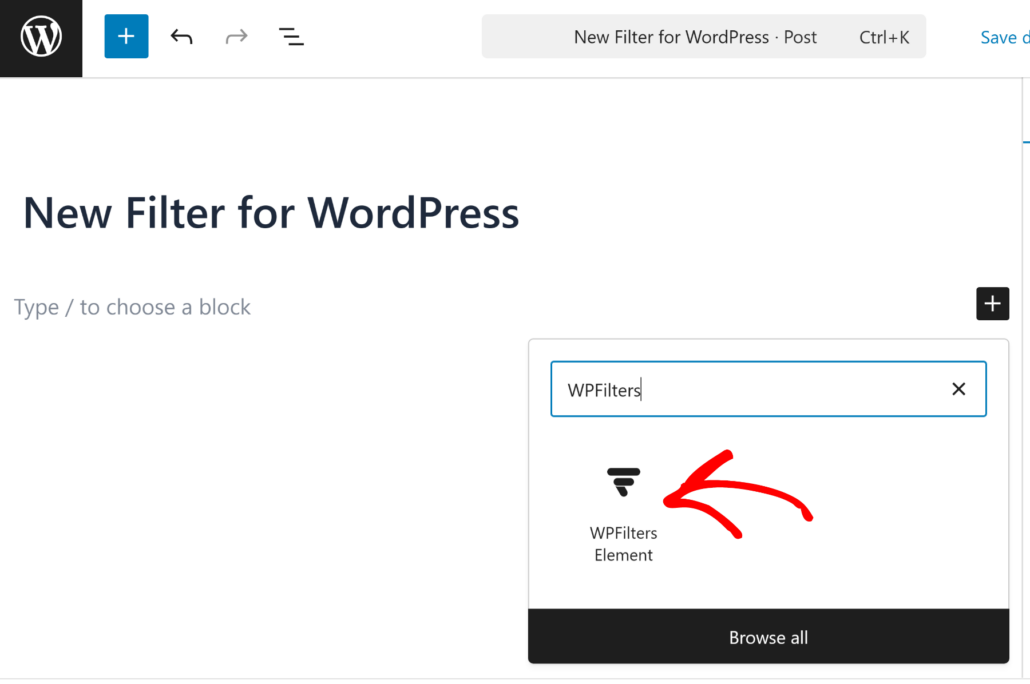
Next, you will see the WPFilters Element block in the editor.
Go ahead and select your filter from the dropdown menu in the settings panel on the right.
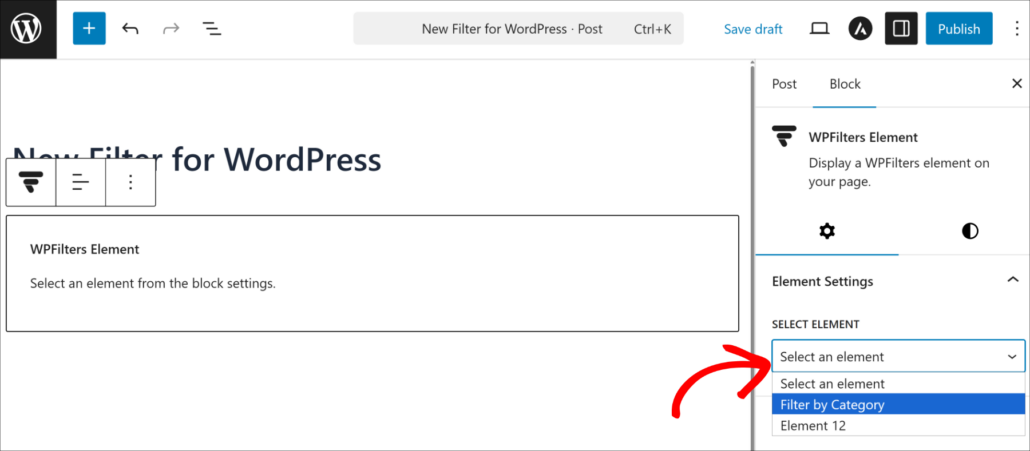
From here, you can see a preview of the filter you just selected.
After that, go ahead and click the ‘Publish’ button.
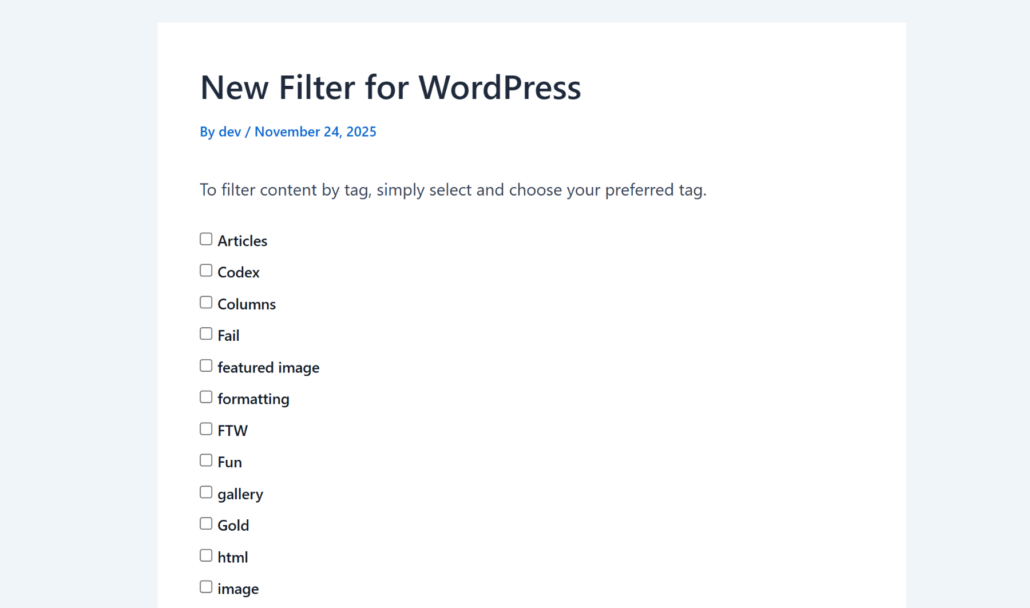
Next, you can simply visit your site to see the filter in action.
We hope this article helped you learn how to set up filters in WordPress without coding. You may also want to see our guide on how you can add live search to your site without a plugin and how to create a custom search on your site without a plugin.
Ready to customize search on your site in a few clicks? You can get started with WPFilters here.