
Shoppers on WooCommerce stores often make buying decisions based on more than just price and product features.
But how a product ships matters too, especially when one item offers free delivery, and another requires a paid express option.
The problem is that WooCommerce doesn’t give visitors a way to filter products by shipping class out of the box. That means a shopper who only wants free shipping items has to open each product individually to check.
We’ve worked with many store owners who didn’t realize how much this friction was costing them. Once they added a shipping class filter, customers spent more time browsing and completed more purchases.
In this article, we’ll show you how to set up product shipping class filters in WooCommerce.
Why Add Shipping Class Filters to Your WooCommerce Store?
Shipping costs are one of the top reasons customers abandon their carts. In our experience, we’ve seen this firsthand with stores that carry a mix of free shipping and paid shipping products.
When visitors can’t filter by shipping class, they waste time clicking into products only to find the shipping option doesn’t work for them.
That experience feels broken, and most visitors won’t stick around long enough to find what they need.
Adding a shipping class filter to your WooCommerce store gives shoppers immediate control. A visitor who only wants free shipping items can filter the catalog in one click rather than scrolling through dozens of products.
This also benefits stores that offer different fulfillment options, like standard shipping, express shipment, or local pickup. Letting customers self-select by shipping type reduces support inquiries and makes the buying process smoother.
Now let’s look at how you can add shipping class filters to your WooCommerce store without any coding.
Set Up Shipping Class Filters in WooCommerce
The easiest way to add shipping class filters to WooCommerce is by using a plugin like WPFilters.
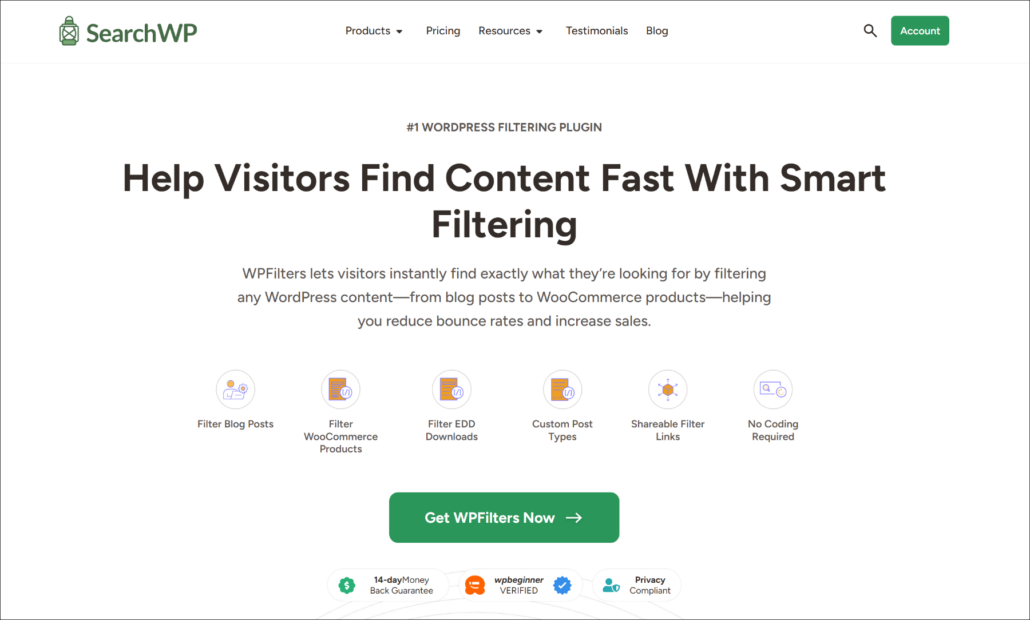
WPFilters is the best filtering plugin for WordPress, built by the same team behind SearchWP.
It lets you add Amazon-style filters to any WooCommerce store without writing a single line of code.
Here are some things you can do with WPFilters:
- Shipping Class Filtering: Let customers narrow products by their shipping class, like free shipping, express, or standard delivery.
- Multiple Filter Types: Display shipping classes as checkboxes or a dropdown. There is also an option to display filters as a range slider or a radio list, depending on your store’s design.
- Item Count Display: Show visitors exactly how many products belong to each shipping class before they filter.
- Flexible Placement: Embed filters on any page, in the sidebar, or a dedicated widgets area on your WooCommerce shop page.
With that, let’s see how you can use WPFilters to add shipping class filters to your store.
Step 1: Install and Activate WPFilters
First, you’ll need to visit the SearchWP website and sign up for a WPFilters account.
Once you’re signed in, head to the Downloads tab in your account dashboard.
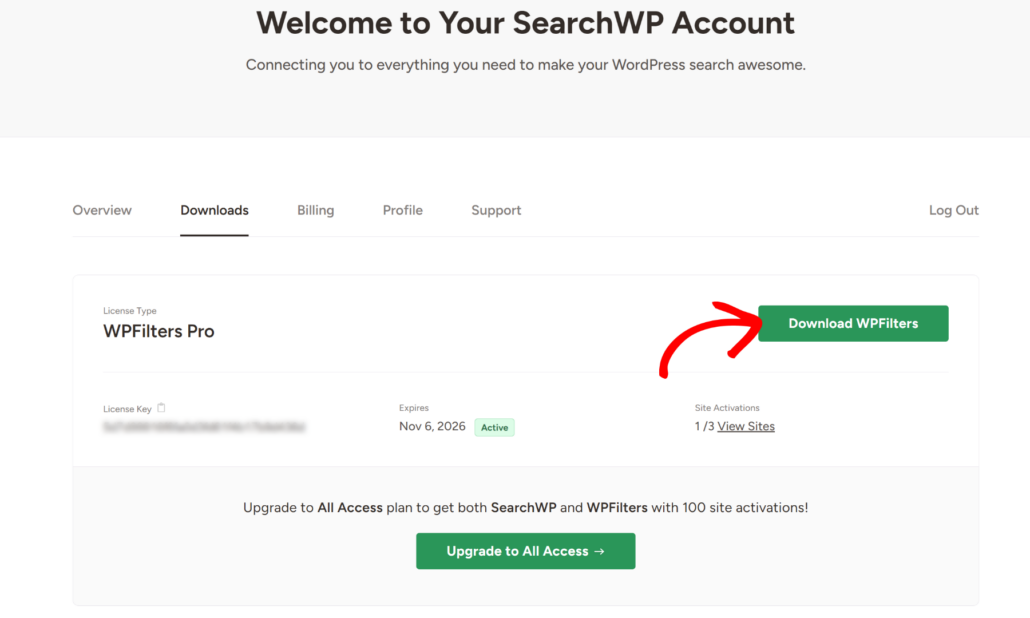
Next, you can click Download WPFilters and save the ZIP file to your computer. We also recommend copying the license key now so you have it handy for later.
After that, you’ll need to upload and install the plugin on your WordPress site. If you’re new to this process, see this guide on how to install a WordPress plugin.
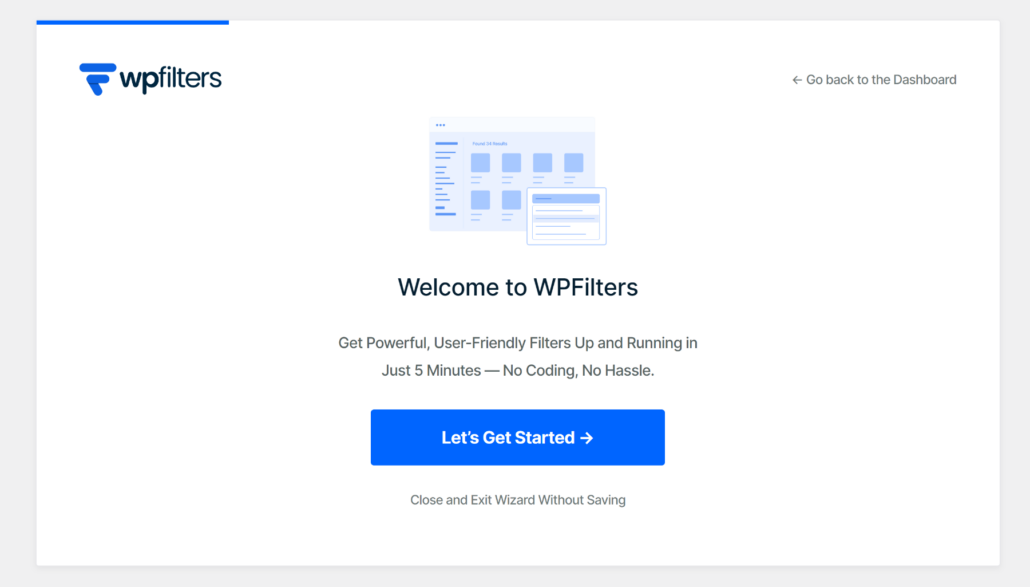
Upon activation, the setup wizard will appear on your screen. Go ahead and click Let’s Get Started and follow the onscreen instructions.
Step 2: Create a New Filter Element
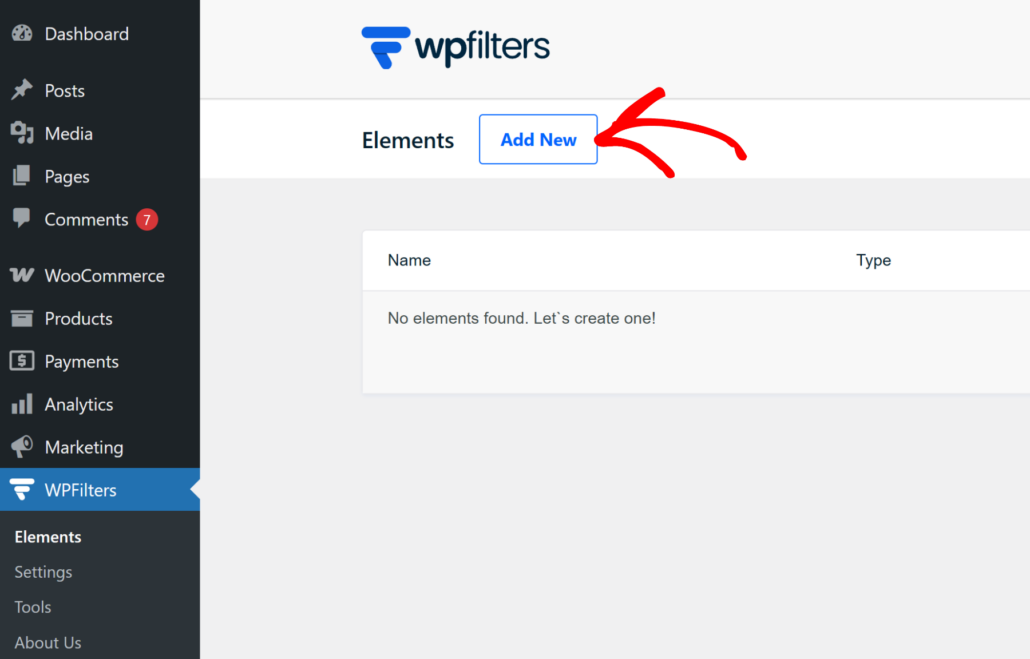
To build your shipping class filter, you will need to navigate to WPFilters » Elements from your WordPress dashboard.
From here, simply click the Add New button to open the filter builder.
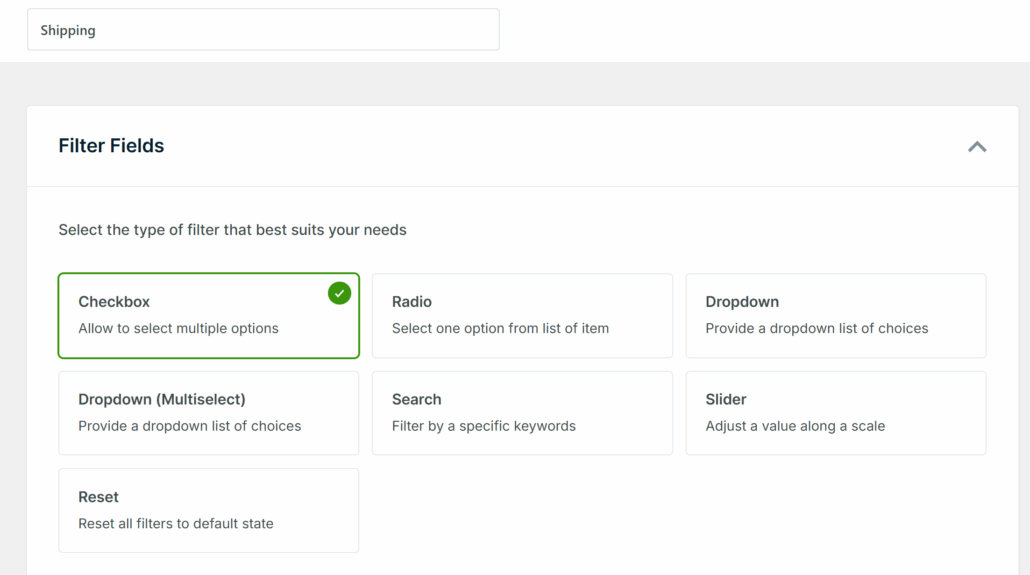
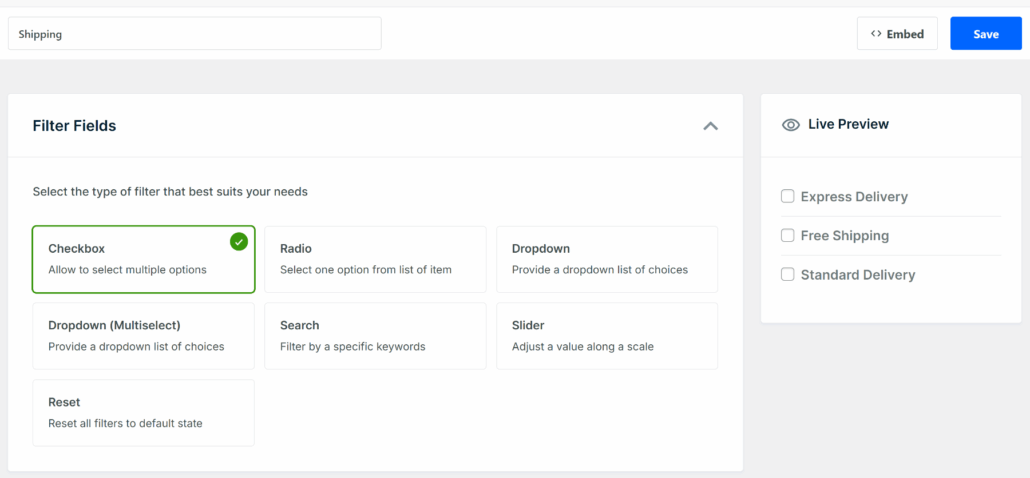
On the next screen, give your filter a clear name at the top, like “Filter by Shipping Class” or “Shipping Class.”
Next, look at the Filter Fields section and choose a field type. We recommend Checkbox for shipping class filters because it lets shoppers select multiple shipping options at once.
On the other hand, if you’d prefer visitors to choose just one shipping type, Radio List works well too. But for this tutorial, we will use the Checkbox option.
Step 3: Connect to the Shipping Class Data Source
Next, you can scroll down to the Data Source section.
Then, click the dropdown and look for Product Shipping Class under the WooCommerce taxonomy options.
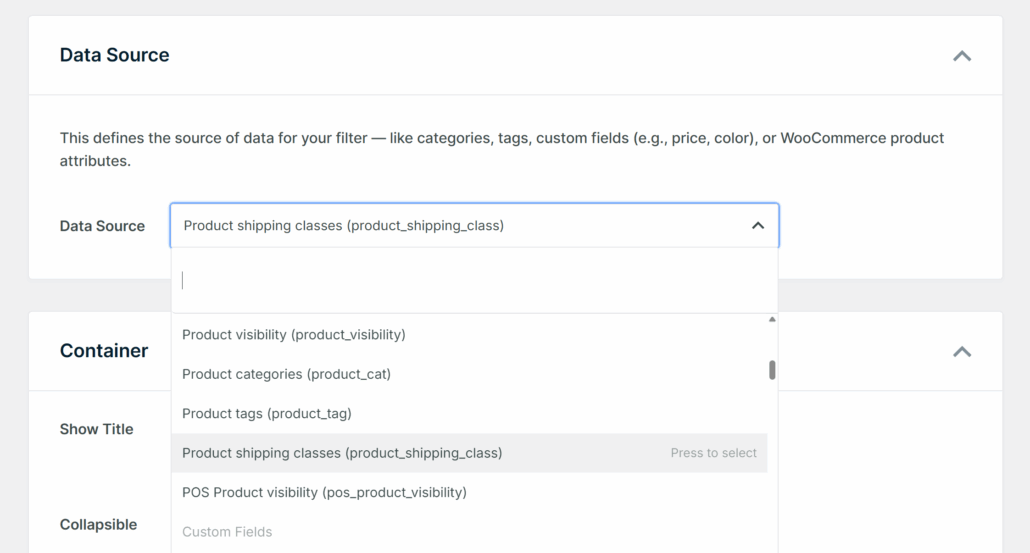
Selecting this connects your filter directly to the shipping classes you’ve set up in WooCommerce. Any shipping class you’ve created in your store will appear as a filter option automatically.
Note: If you don’t see Product Shipping Class in the list, make sure WooCommerce is active and that you’ve created at least one shipping class under WooCommerce Settings.
Step 4: Customize the Filter Settings
After connecting the data source, it’s time to adjust how the filter looks and behaves on your site.
Scroll to the Container section. You can turn on Show Title so visitors see a label like “Shipping Class” above the filter choices.
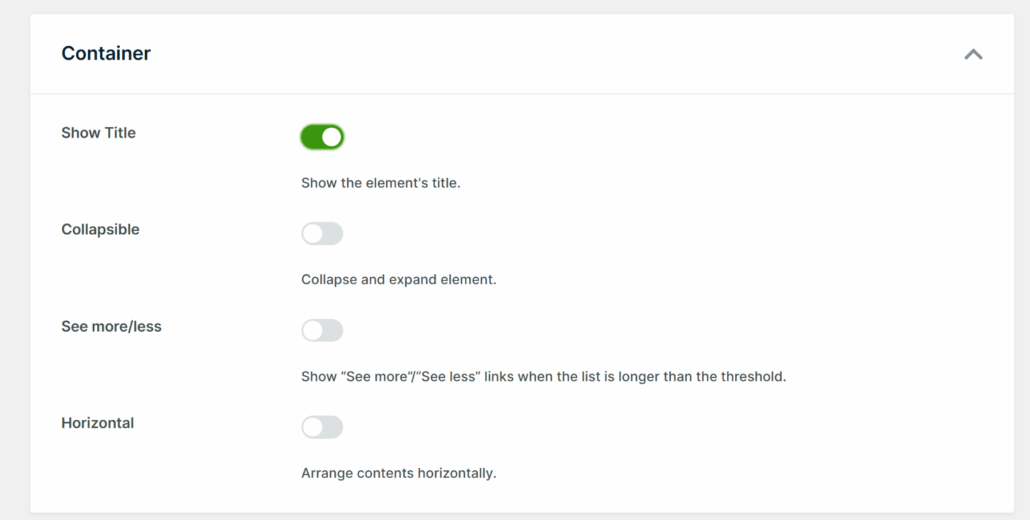
You can also enable Collapsible to let shoppers collapse the filter if they want to save screen space.
The Horizontal layout option works well if you’re placing the filter at the top of a product grid rather than in a sidebar.
Now, scroll down to the Items section. Here, you can enable Item Count so shoppers can see how many products each shipping class contains before clicking.

Once you’re happy with everything, scroll to the top and click Save in the upper-right corner.
You’ll also see a live preview of the filter in the right-hand panel.
Step 5: Display the Filter on Your WooCommerce Shop Page
Now that your filter is built, it’s time to put it where shoppers will see it.
You can click the Embed button at the top right of the filter editor. A popup will appear with three options: a Gutenberg block, a shortcode, or PHP code for developers.
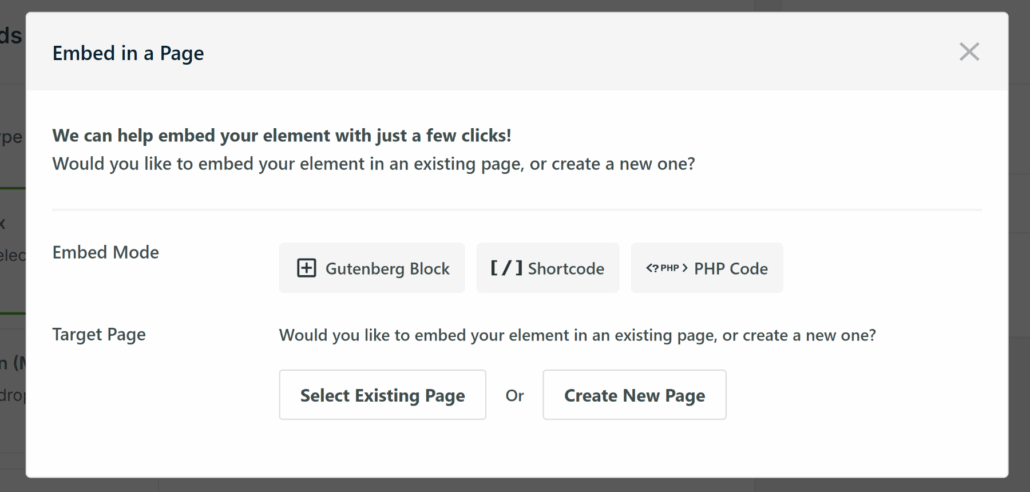
For most store owners, we recommend placing the filter in the sidebar of your WooCommerce shop page.
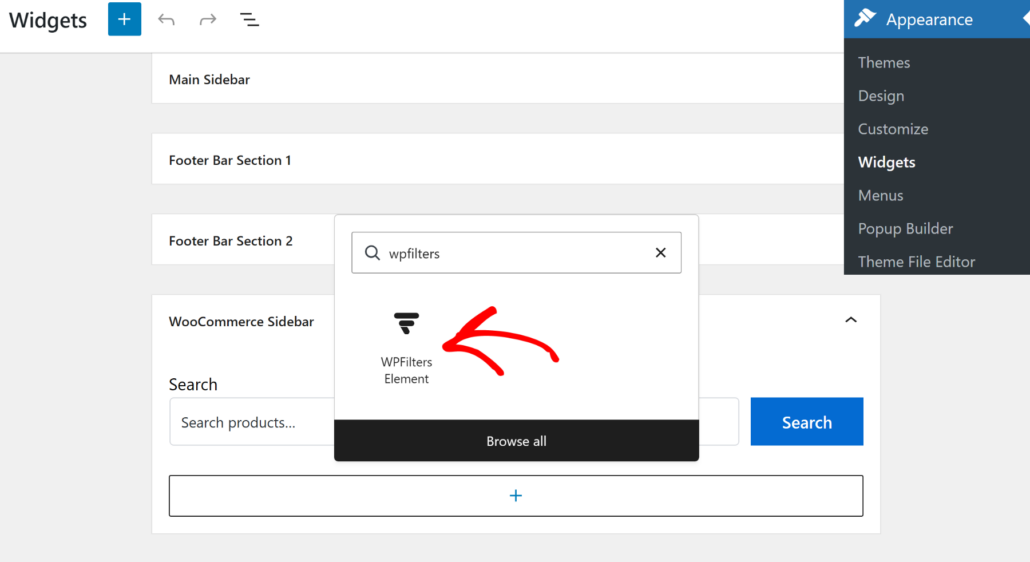
To do that, go to Appearance » Widgets from your WordPress dashboard.
Note: This step might differ depending on the WordPress theme you’re using.
Next, you can scroll to the sidebar section and click the + icon to add a new block. From here, search for WPFilters Element and add it to the sidebar.
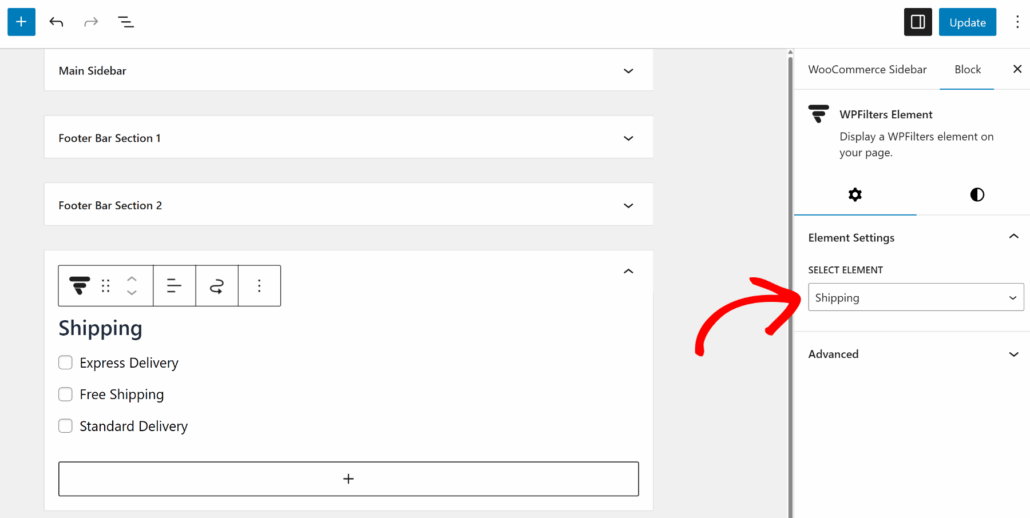
From the settings panel on the right, click the Select Element dropdown and choose the shipping class filter you just created.
When you’re done, go ahead and click Update.
Step 6: Test Your Shipping Class Filter
The last step is to visit your WooCommerce shop page and test the filter in action.
You should see your shipping class options listed in the sidebar. Click one of the options and verify that only products belonging to that shipping class appear in the results.
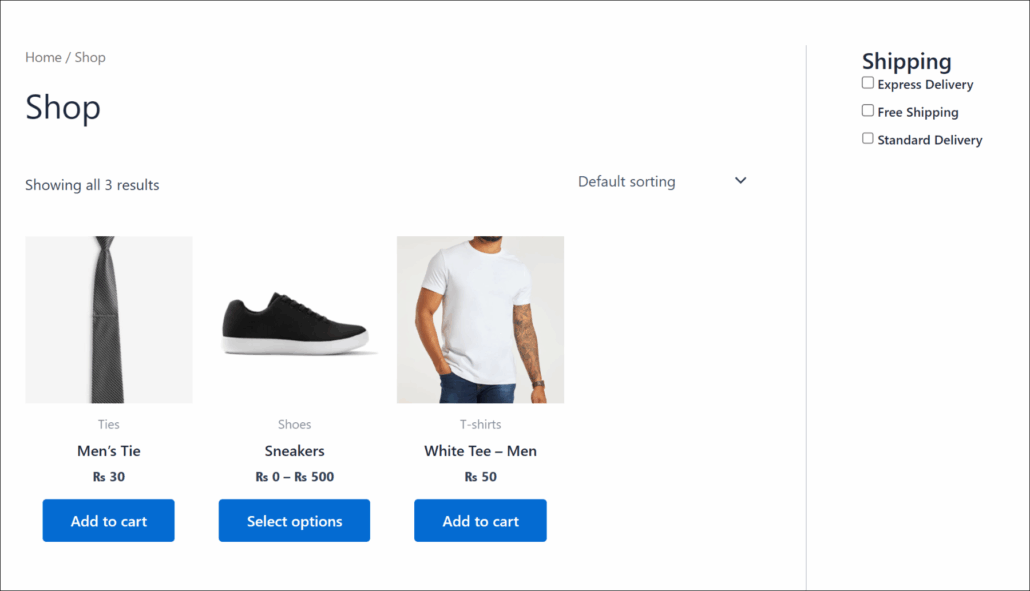
On our demo store, selecting “Free Shipping” immediately reduced the product grid to only items that qualify for free delivery.
That’s exactly the kind of experience that keeps shoppers on your site longer.
FAQs about Shipping Class Filters in WooCommerce
1. Can I create shipping class filters if I have multiple shipping zones?
Yes, you can. Shipping zones and shipping classes are separate settings in WooCommerce. The filter connects to shipping classes specifically, not zones, so it will work correctly regardless of how many zones you’ve set up.
2. Can I show the shipping class filter on individual category pages too?
Yes. From the Embed options, you can add the WPFilters Element block to any page using the Gutenberg editor.
3. Does this work with shipping classes I add to WooCommerce later?
Yes. WPFilters pulls shipping class data dynamically from WooCommerce. Any new shipping class you create in WooCommerce » Settings » Shipping » Shipping Classes will appear in the filter automatically without any changes to the filter settings.
We hope this tutorial helped you learn how to set up product shipping class filters in WooCommerce. You may also want to see our guides on how to filter by multiple taxonomies in WordPress and how to filter WooCommerce by product type.
Ready to give your customers a smarter way to shop by shipping preference? You can get started with WPFilters here.