


Running a WooCommerce store with a lot of products can make it hard for customers to find exactly what they need.
For instance, imagine your visitors land on the shop page, scroll through dozens of products, and leave without buying anything simply because they could not find the right item fast enough.
The best fix for this is adding a search box filter directly to your shop page. This lets shoppers type a keyword and instantly filter the product list right on the shop page, without being taken to a separate results page.
In this article, we will show you how to add a search box filter to a WooCommerce product list.
Why Add a Search Box Filter to Your WooCommerce Store?
By default, WooCommerce does not include a way for customers to search and filter products directly on the shop page.
The built-in WordPress search sends visitors to a separate search results page. This breaks the shopping experience and pulls customers away from your store.
A search box filter solves this by letting customers type a keyword and have the product list narrow down in real time, right where they are. There is no page reload and no redirect.
Think about a clothing store with 300 products. Without a filter, a customer looking for a “black hoodie” has to scroll through every item to find it. With a search box filter, they type the keyword and see only relevant products in seconds.
This keeps shoppers focused, reduces frustration, and makes it easier to find and buy products. For store owners, that usually means higher conversion rates and fewer abandoned sessions.
That said, let’s look at how you can add this to your store without any coding.
How to Show a Search Box Filter to WooCommerce
The easiest way to add a search box filter to your WooCommerce product list is by using a plugin like WPFilters.

WPFilters is the best filtering plugin for WordPress that lets you add Amazon-style filters to your WooCommerce store without writing a single line of code.
It is built by the same team behind SearchWP, so we know it works reliably and handles your product data efficiently.
With WPFilters, you can create a dedicated search box that filters your product list in real time. You can also pair it with other filters like price sliders, category checkboxes, or tag filters to give customers full control over their shopping experience.
Some of the things you can do with WPFilters:
- Add a keyword search box that filters products instantly as customers type
- Create price range sliders, category checkboxes, and tag filters
- Display filters using the Gutenberg block, shortcode, or PHP code
- Customize appearance settings like displaying a title or making it collapsible
Now, let’s see how you can use WPFilters to add a search box filter to your WooCommerce store.
Step 1: Install and Activate WPFilters
First, you will need to visit the SearchWP website and sign up for a WPFilters account.
Once you have an account, head over to the Downloads tab in your dashboard.
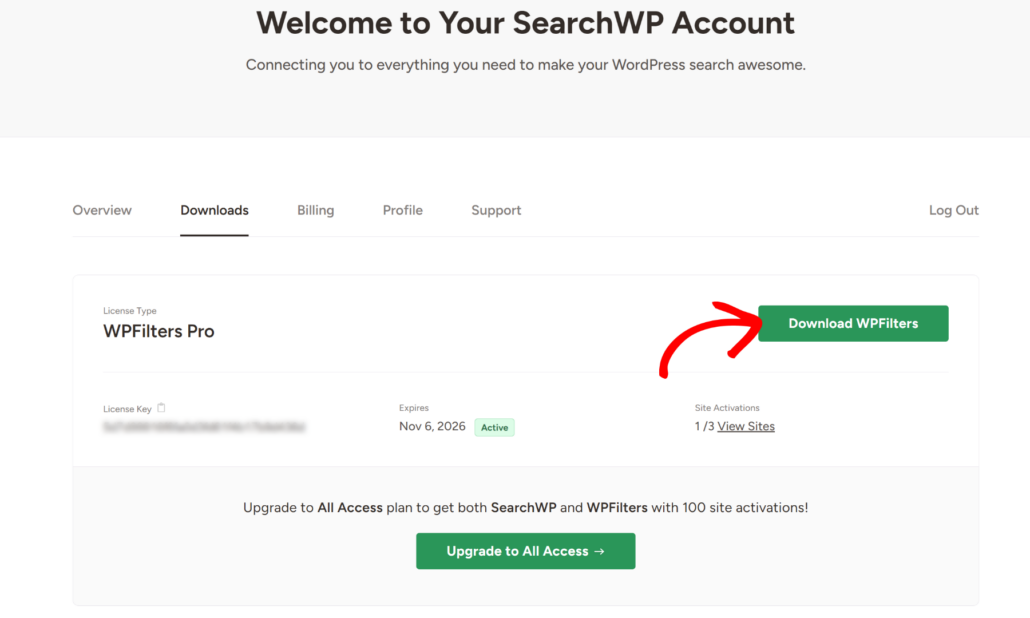
Here, click the Download WPFilters button to save the plugin’s ZIP file to your computer. We also recommend copying your license key from this page, as you will need it shortly.
Next, you need to upload the plugin file to your WordPress site and install it. If you are not sure how to do that, please see this guide on how to install a WordPress plugin.
After you activate the plugin, the setup wizard will appear. Go ahead and click the ‘Let’s Get Started’ button and follow the onscreen instructions to finish the setup.

Step 2: Create a New Search Filter Element
Now that the plugin is active, it is time to build your search box filter.
To start, simply navigate to WPFilters » Elements from your WordPress dashboard.
Then, click the Add New button to create a blank filter element.
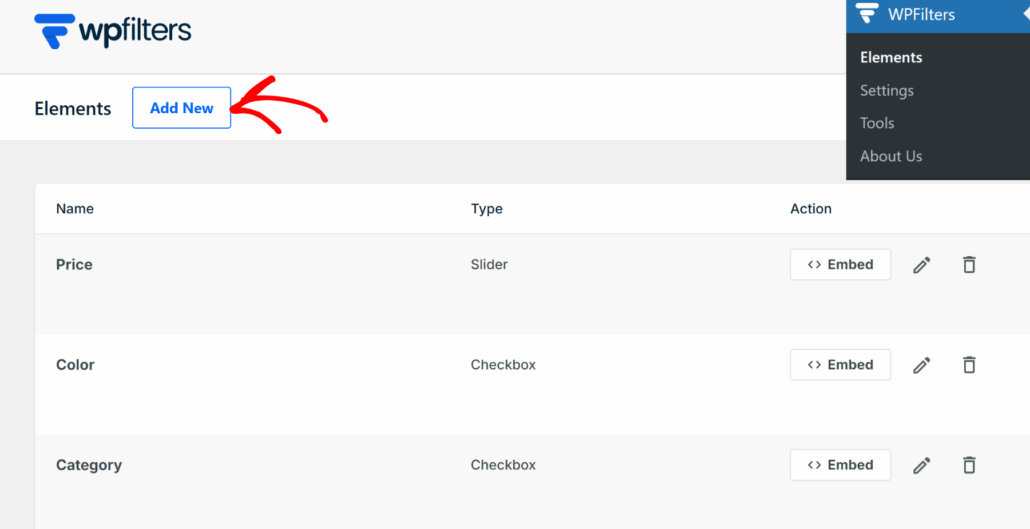
Go ahead and give your filter a name at the top of the page. Something like “Product Search or Keyword Search Filter” works well.
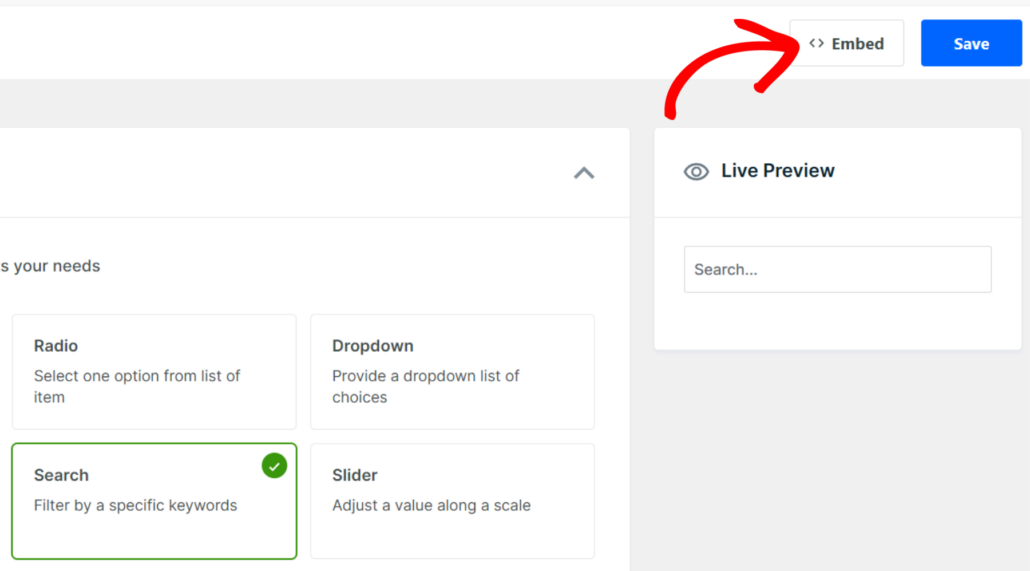
Next, look at the Field Type section and select the Search option.
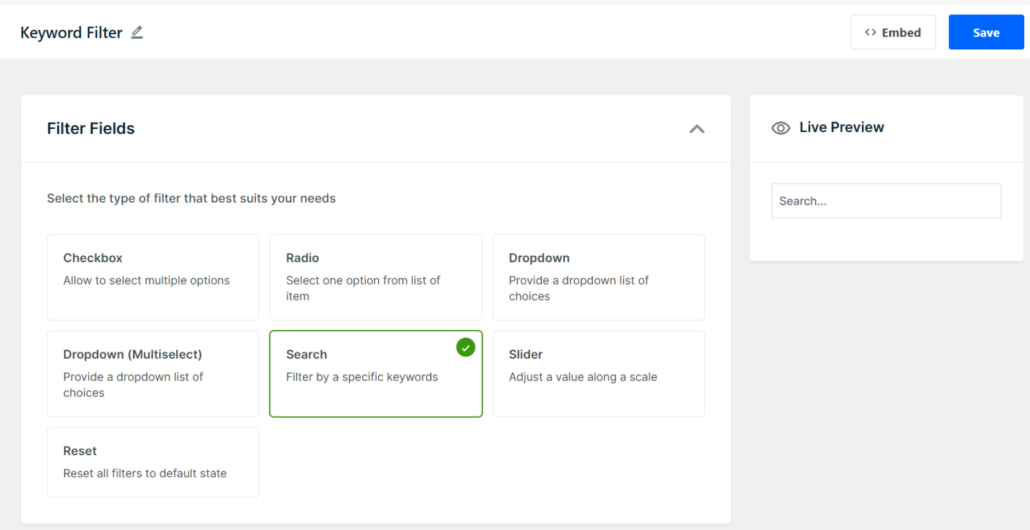
This creates a live text input box that customers can type into to filter the product list. Go ahead and click the Save button at the top right corner.
You will now see a preview of the search box appear in the panel on the right.
Step 3: Customize the Search Box Settings
Next, you can customize how the search box looks and behaves for your visitors.
Scroll down to the Container section. Here, you can toggle on the Show Title option to display a label above the search box.
You can also enable the Collapsible option if you want visitors to be able to hide the filter.
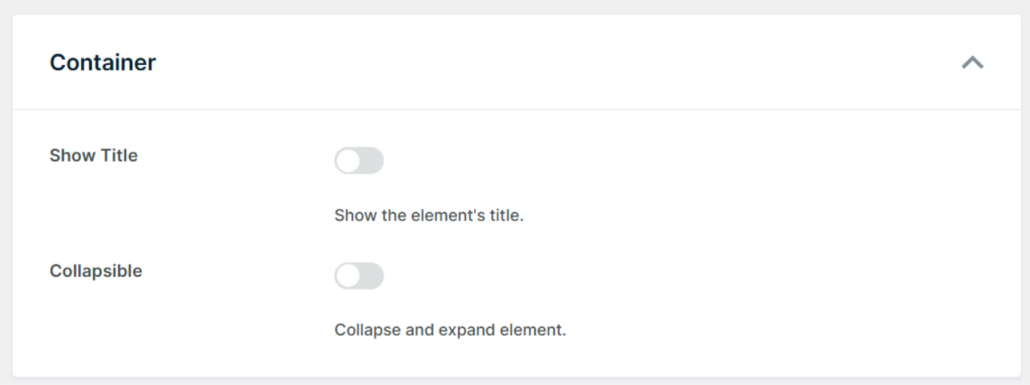
Once you are happy with the settings, scroll to the top and click the Save button.
Step 4: Add the Search Filter to Your WooCommerce Store
With your search filter ready, the last step is to place it where customers can find and use it.
WPFilters gives you a few different ways to do this.
To get started, click the Embed button in the top right corner of the element page.
A popup window will appear with several embed options.
These include a Gutenberg block, a shortcode, or a PHP snippet for developers.
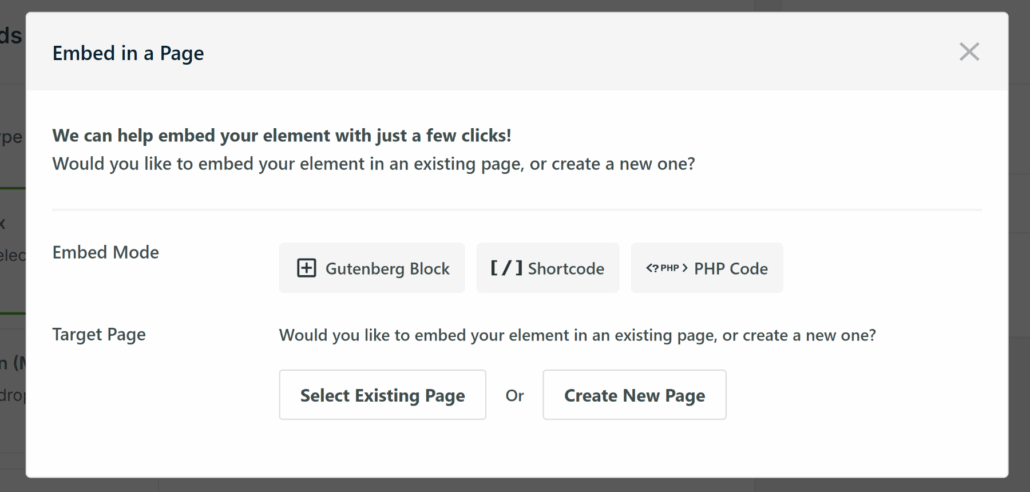
Plus, you can also choose whether to select an existing page or create a new page.
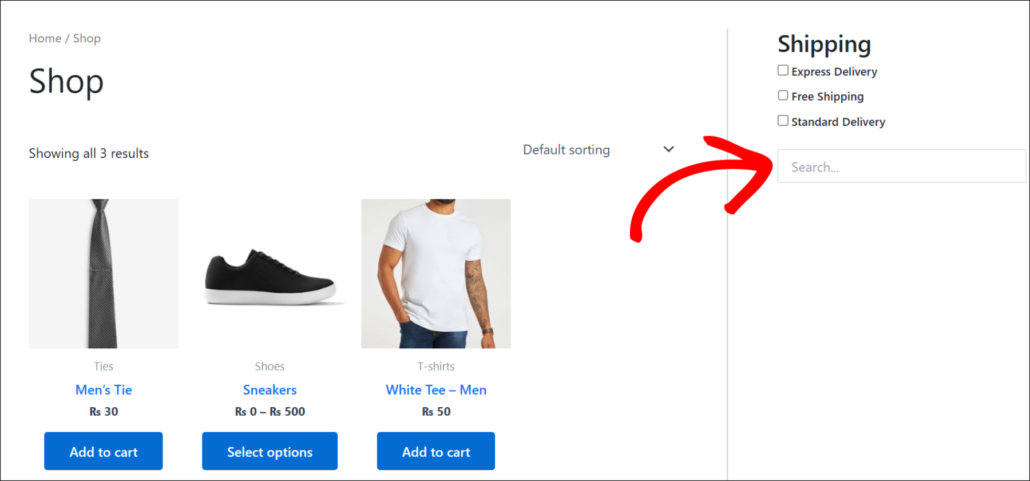
Another popular option is placing the search box in the sidebar of your shop page. This keeps the filter visible at all times as customers scroll through products.
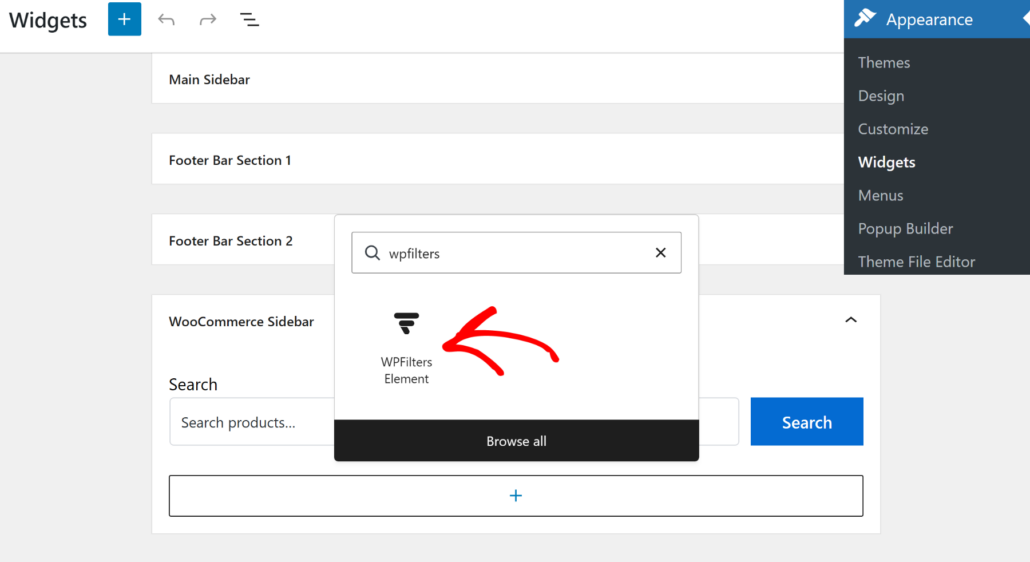
To do this, head to Appearance » Widgets from your WordPress dashboard. Note that this step may look different depending on your WordPress theme.
Find the sidebar area used by your shop page and click the + button to add a new block. Search for the WPFilters Element widget.
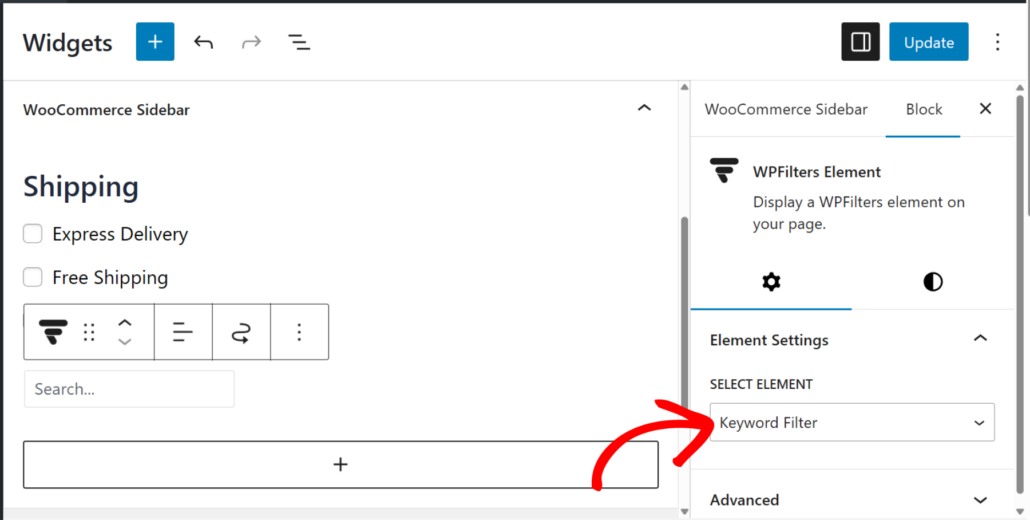
Once you add it, select your keyword search filter from the WPFilters Element Settings dropdown in the Settings panel.
Click the Update button when you are done.
Now, visit your WooCommerce shop page to see the search box filter in action.
When a customer types a keyword into the box, the product list will filter in real time to show only matching items.
FAQs About Adding a Search Box Filter to WooCommerce
1. Does this work with variable products?
Yes, it does. WPFilters works with all standard WooCommerce product types, including simple, variable, and grouped products. The search box will match against the product title and description regardless of the product type.
2. Can I combine this with other filters like price or category?
Absolutely. You can create multiple filter elements and place them together in the sidebar or above the product grid. For example, you can stack the search box with a category checkbox filter and a price range slider so customers can narrow down results from multiple angles at once.
3. Do I need SearchWP installed to use WPFilters?
No, WPFilters works as a standalone plugin. SearchWP and WPFilters are separate products built by the same team, so they integrate well together, but neither one requires the other to function.
We hope this article helped you learn how to add a search box filter to your WooCommerce product list. You may also want to see our guides on how to filter by multiple taxonomies in WordPress and how to add live autocomplete search to WordPress.
Ready to give your customers a faster way to find products? You can get started with WPFilters here.