


Custom fields are a powerful way to display additional information on a WordPress site.
For instance, you can use them to store details like product SKU, color, recipe ingredients, or real estate pricing.
However, showing this data to visitors in a way they can interact with is often a challenge.
This is where creating a filter for your custom fields helps users to narrow down results and find exactly what they need. Fortunately, there is a simple way to let users sort content based on this custom data.
In this article, we will show you how to create custom field filters in WordPress.
Why Are Custom Field Filters Important for Your Site?
We know from experience that custom fields are great for storing extra data. But that data is useless if visitors cannot use it to sort content.
Imagine trying to buy a shirt online but having to click on every single product just to see if it comes in your size. That is exactly what happens when you don’t have filters connected to your custom fields.
Let’s look at a real estate website as an example. You might use custom fields to store the number of bedrooms or the total square footage of a house.
Without a filter for those fields, a family looking for a three-bedroom home has to scroll through every single studio apartment listing.
The same applies to a food blog. We often see custom fields used for specific details like calorie counts or preparation time.
If a visitor wants a quick 30-minute meal, they shouldn’t have to read through long slow-cooker recipes to find one.
Visitors want to find things quickly. If they cannot filter by price, location, or specific ingredients, they will likely leave your site.
Adding these specific filters bridges the gap between the additional data and the user experience. It turns a cluttered list into an organized catalog.
Now, let’s see how you can easily set up a custom fields filter in WordPress.
Create Custom Field Filters in WordPress
The easiest method to add custom field filters is by using a plugin like WPFilters.

WPFilters is the most capable filtering plugin that is beginner-friendly to use and allows you to add Amazon-style filters to your WordPress site.
It lets you build custom filter sets based on categories, tags, or custom data and place them anywhere on your site.
This allows your visitors to drill down through your content to find exactly what they need in seconds.
WPFilters is built by the same team behind SearchWP. This gives us confidence that it will work perfectly with our search results.
With WPFilters, you can turn a simple text field into a checkbox, dropdown, range sliders, radio button, and more filters. This puts the power of your custom data right in the hands of your visitors.
Now, let’s see how you can use it to create custom field filters on your site.
Step 1: Install and Activate WPFilters
First, you will need to head over to the SearchWP website to get your copy of WPFilters.
Once you sign up, log in to your account area and click on the Downloads tab.
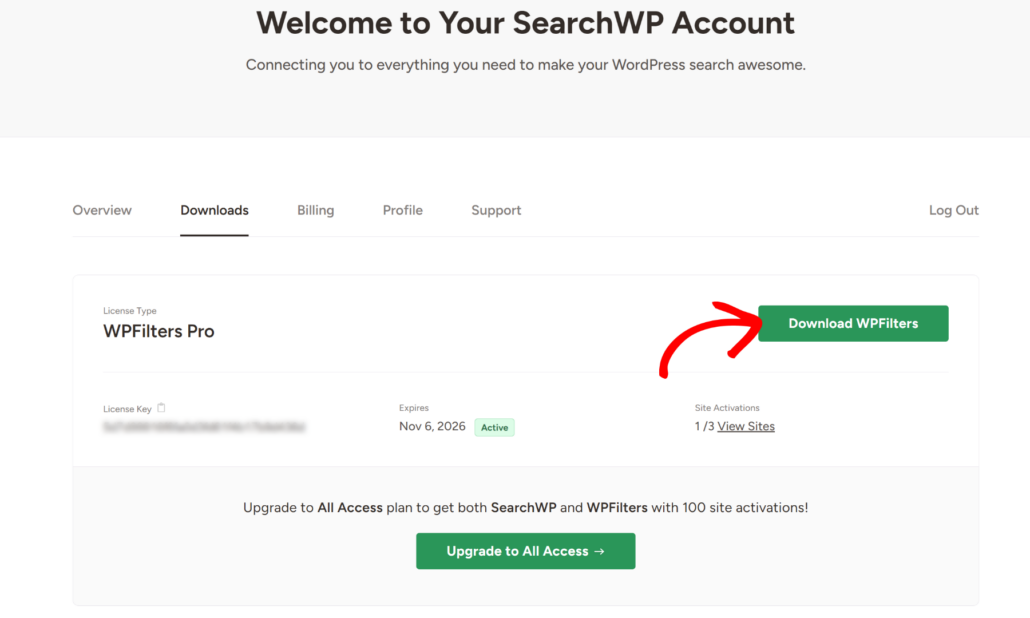
Here, click the Download WPFilters button to save the file to your computer. We also recommend copying your license key now so you have it ready for later.
Next, you need to upload and install the plugin on your site. If you are new to this, please refer to this guide on how to install a WordPress plugin.
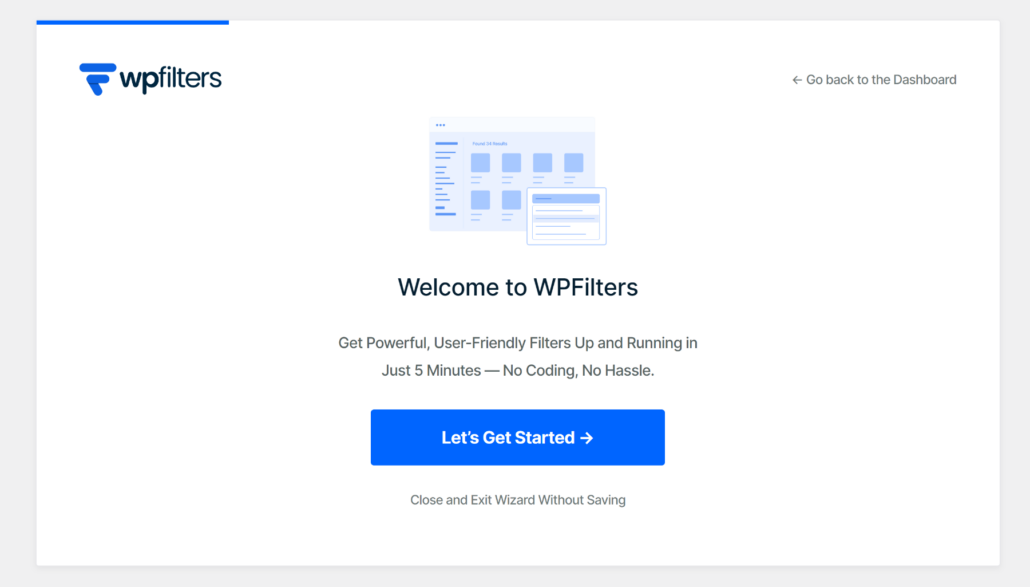
Upon activation, the setup wizard will appear. Go ahead and click the ‘Let’s Get Started’ button to complete the initial setup.
Step 2: Create a New Filter Element
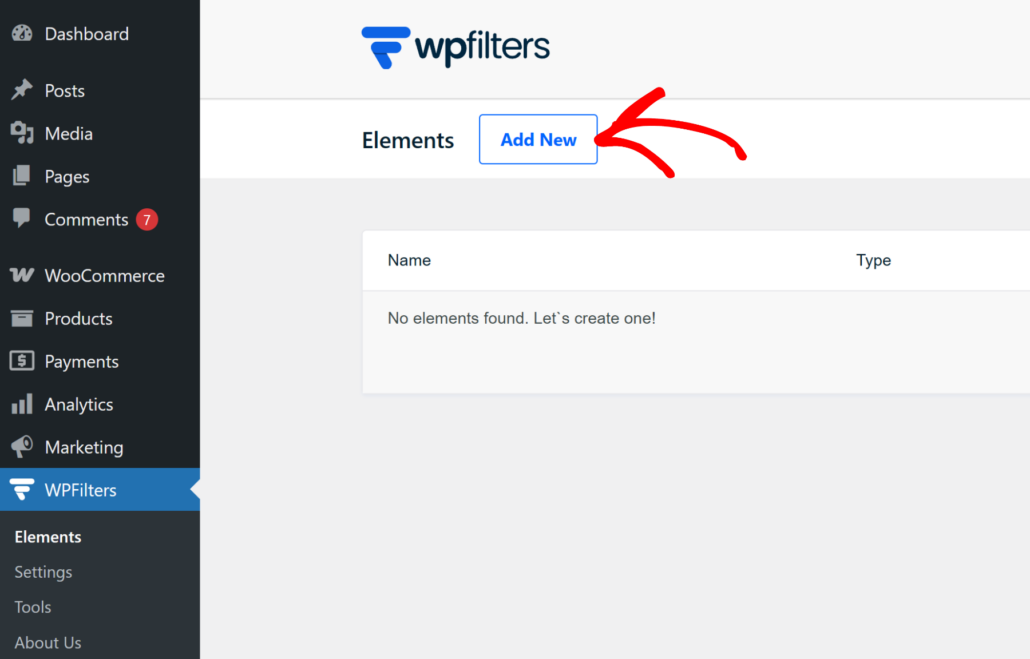
To get started, simply navigate to WPFilters » Elements from your WordPress dashboard.
Then, click the Add New button to start building your filter.
From here, you should give your filter a clear name at the top. This helps you keep track of things if you plan to make multiple filters later.
Next, look at the Field Type section. You can choose how you want the filter to look, such as checkboxes, a dropdown menu, a slider, or radio buttons.
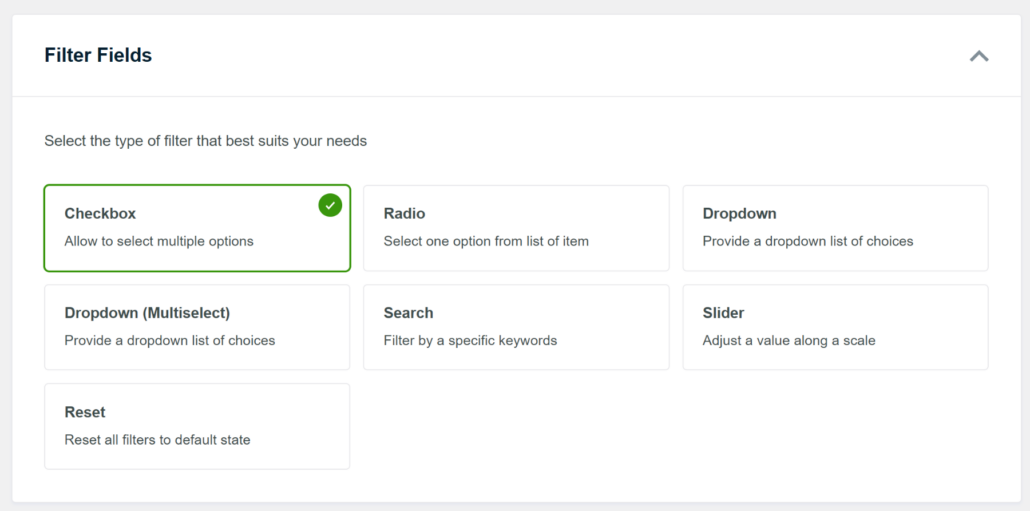
For example, a slider will work best if you want visitors to filter by price, a checkbox is great for sorting items using multiple options, or a dropdown for selecting a brand.
You can also allow users to filter by specific keywords using the search filter field.
Step 3: Connect the Filter to a Custom Field
Now, you need to tell the filter where to get its information. To do that, simply scroll down to the Data Source section.
Then, click the dropdown menu and scroll to the Custom Field section. From here, you can choose which custom field you’d like to use to create a filter.
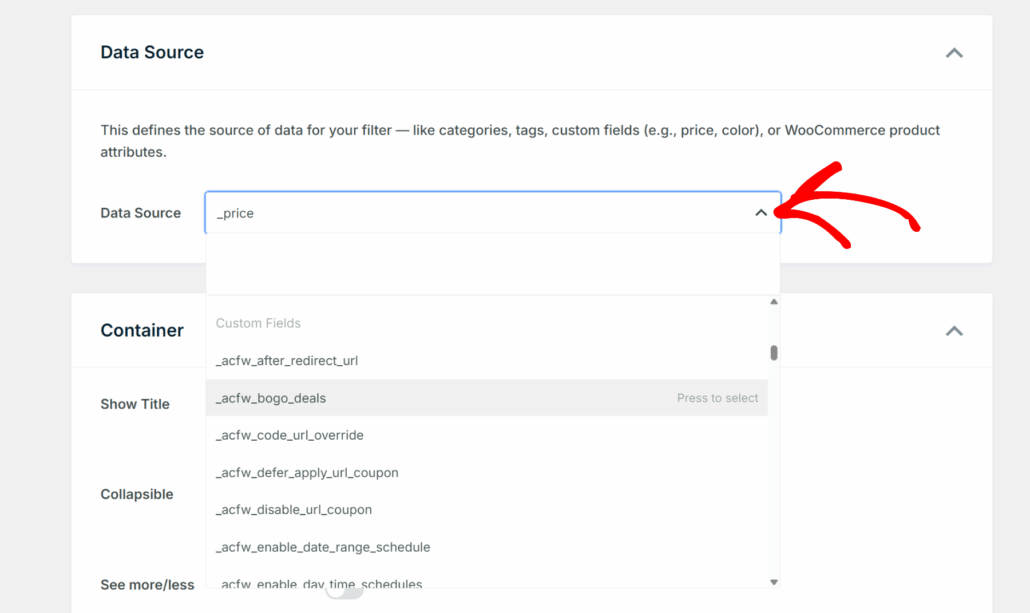
For example, you can pick price, color, brands, weight, length, and other product attributes.
WPFilters also works seamlessly with custom field plugins like Advanced Custom Fields (ACF). You can easily create a filter for any of ACF on your site.
Step 4: Customize the Filter Settings
After connecting the data source, you need to make the filter look good for visitors by customizing it.
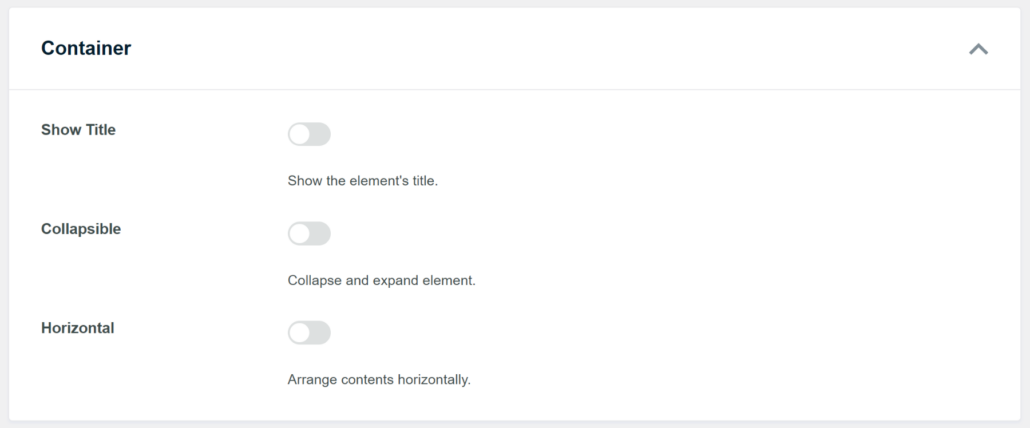
You can start by scrolling down to the Container section to change how the filter box behaves.
For instance, enabling the ‘Show Title’ option allows users to know what they are filtering, like “Price Range” or “Ingredients”.
Or you can turn on the ‘Collapsible’ option to let users hide the filter to save space. We also like using the ‘Horizontal’ option to place the choices side-by-side instead of in a long vertical list.
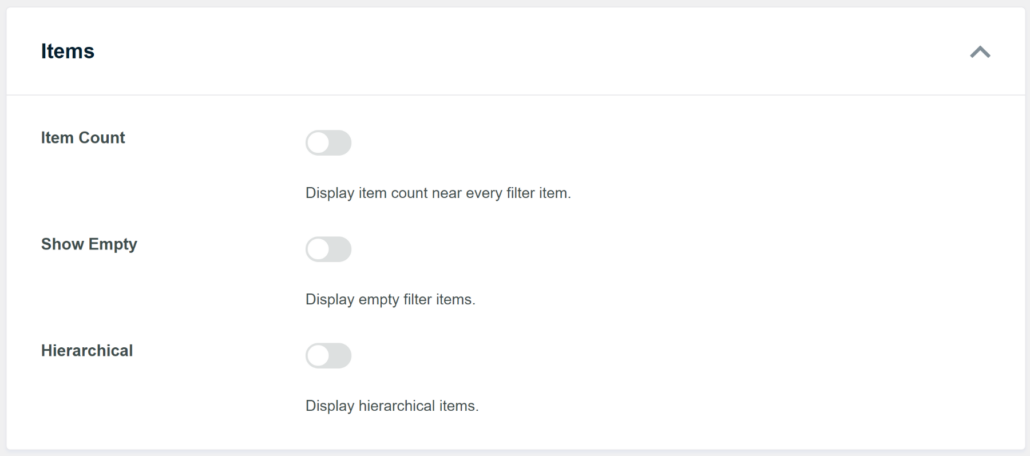
Next, look at the Items section below it to control the specific choices in the list.
Here, you can enable ‘Item Count’ to show exactly how many results exist for each option, which helps set user expectations. We usually suggest keeping Show Empty turned off so your visitors don’t waste time clicking on options that lead to zero results.
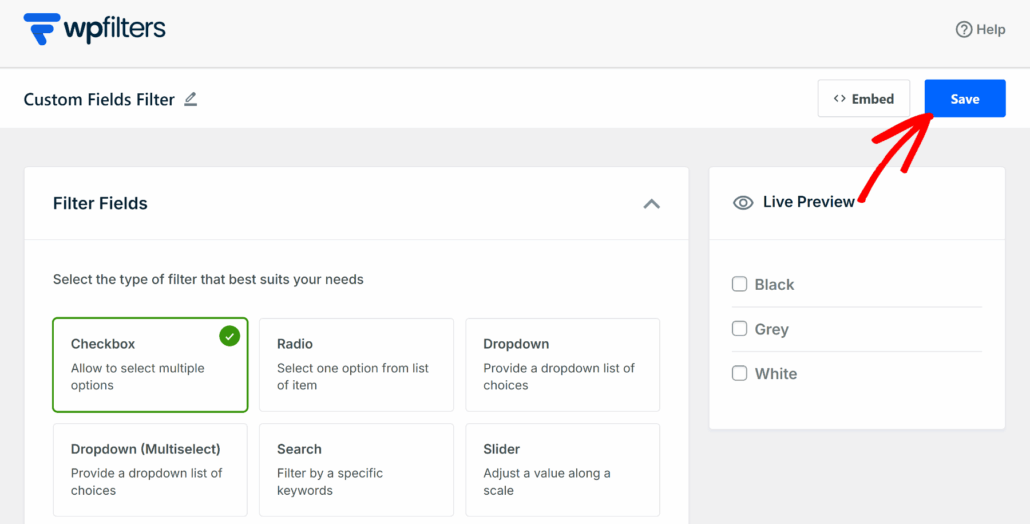
Once you are happy with how everything looks, simply scroll to the top and click the Save button at the top right.
You will also see a preview of the custom fields filter in the panel on the left.
Step 5: Display Custom Fields Filter on Your Site
The best thing about WPFilters is that you can put your new filter anywhere on your website.
Let’s look at how you can add the filter to a page and the sidebar of your site.
1. Adding Custom Fields Filter to a Page
The plugin offers a built-in embed option when creating the filter. Simply click the ‘Embed’ button in the top right corner.
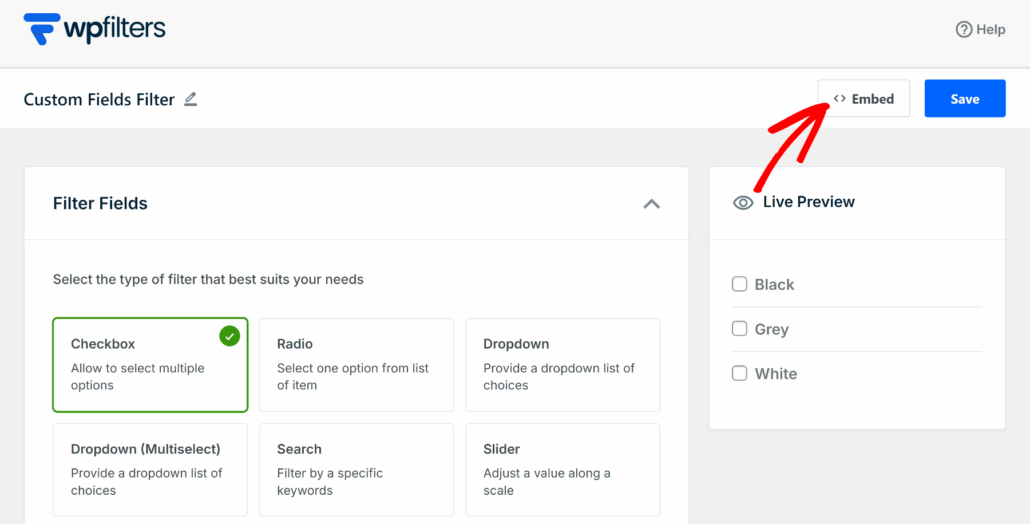
Next, a popup window will open where you can choose from different embed options.
You can choose between the Gutenberg block, a shortcode, or PHP code if you are a developer.
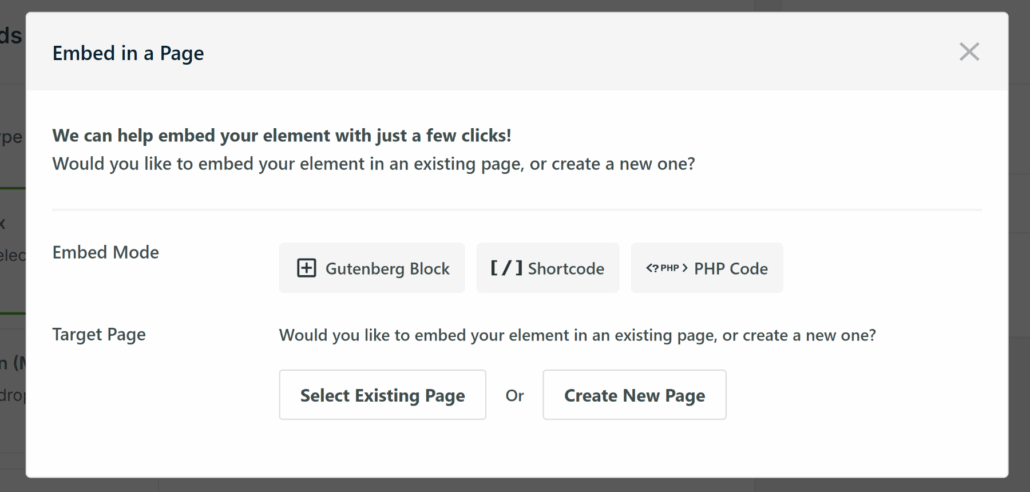
There is also an option to add the filter to an existing page or create a new one.
For example, let’s say you want to use the ‘Gutenberg Block’ and add it to a new page.
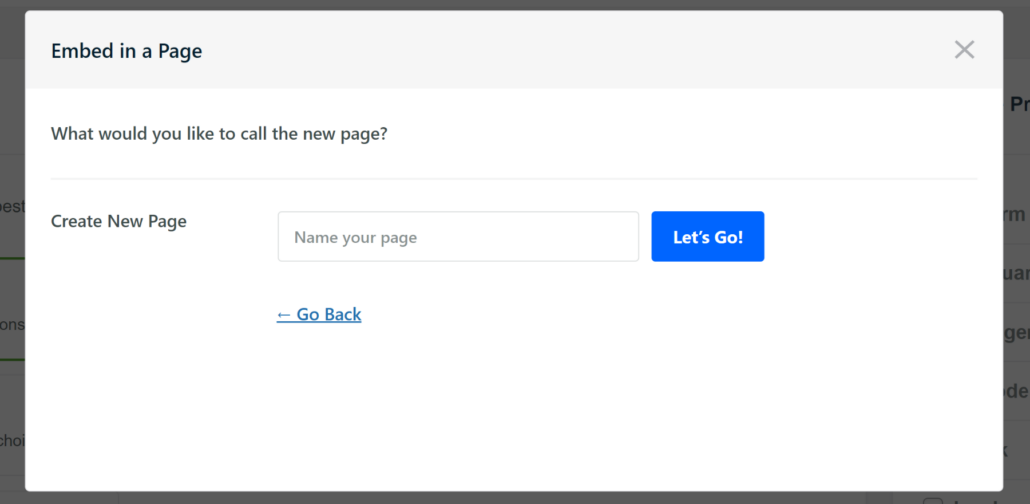
Next, you will need to enter the name of the new page and then click the ‘Let’s Go’ button.
Your custom fields filter will then be preloaded onto the new page, and you can view it in the WordPress content editor.
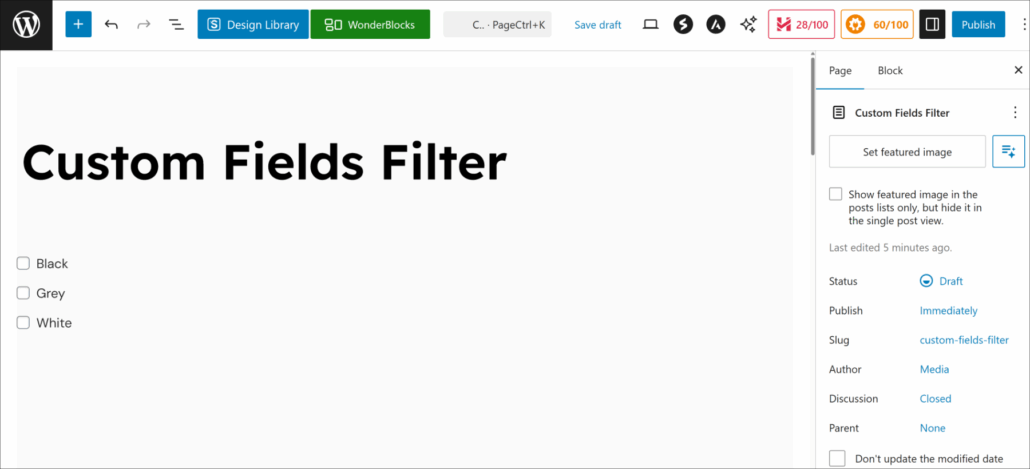
Next, you can click the ‘Publish’ button in the top right corner.
On the other hand, you can also place the WPFilters block manually on any page or post.
To start, simply open the page or post where you want the filter to appear, click the plus (+) button to add a new block, and search for the WPFilters Element.
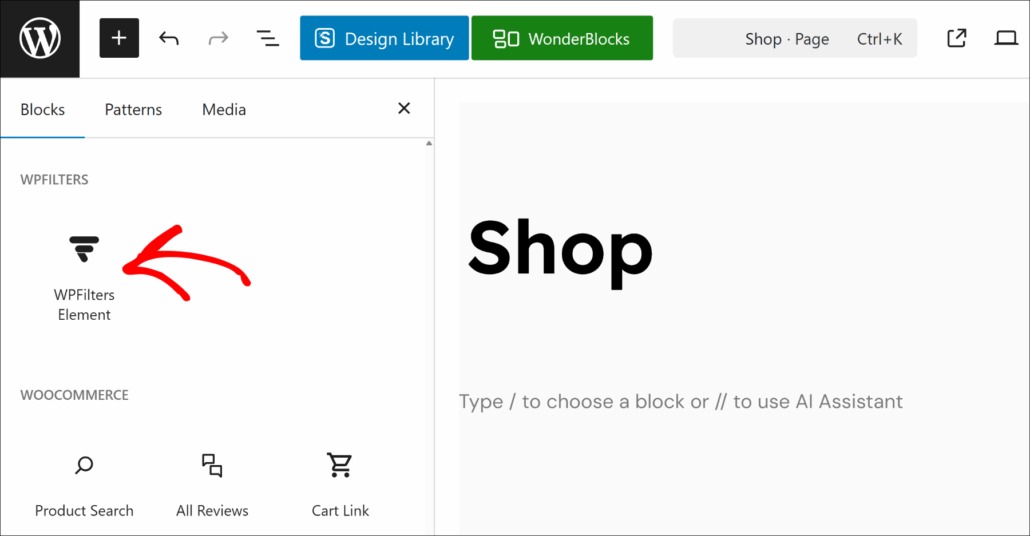
Next, you will need to select the filter you just created from the Settings panel.
Simply click the dropdown menu under the ‘Select Element’ option and pick your filter.
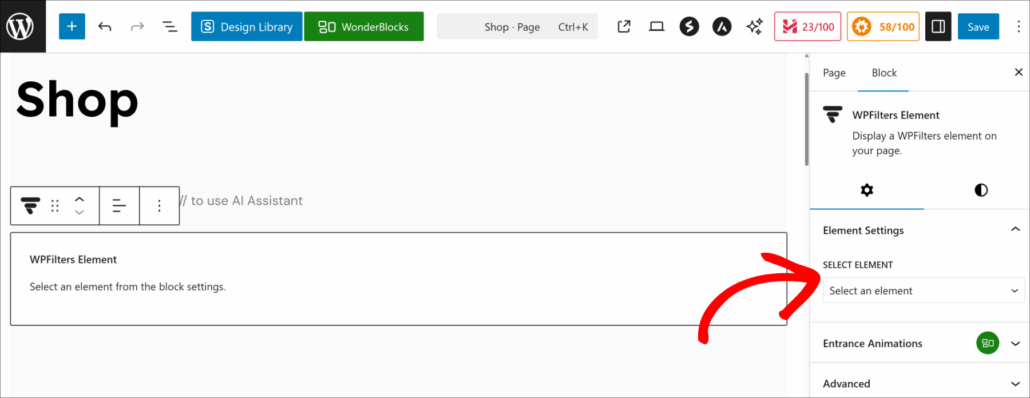
When you’re done, click the ‘Save’ button.
2. Adding Custom Fields Filter to the Sidebar
You can also add the filter to the sidebar of your website. This is a great way of keeping filters visible to users so they can quickly sort and find the right product or content.
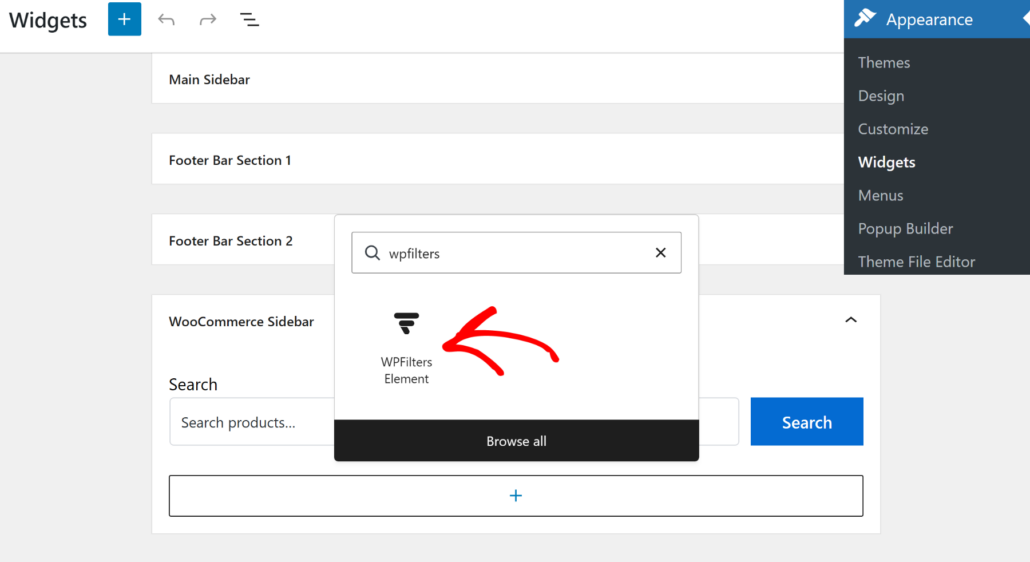
To start, you can head to Appearance » Widgets from your WordPress dashboard. Do note that this step might differ depending on the WordPress theme you’re using.
Next, scroll down to the sidebar section and click the ‘+’ sign to add the WPFilters Element widget block.
From here, you can select the custom fields filter you created from the settings panel on the right.
Simply click the ‘Select Element’ dropdown menu and pick your filter.
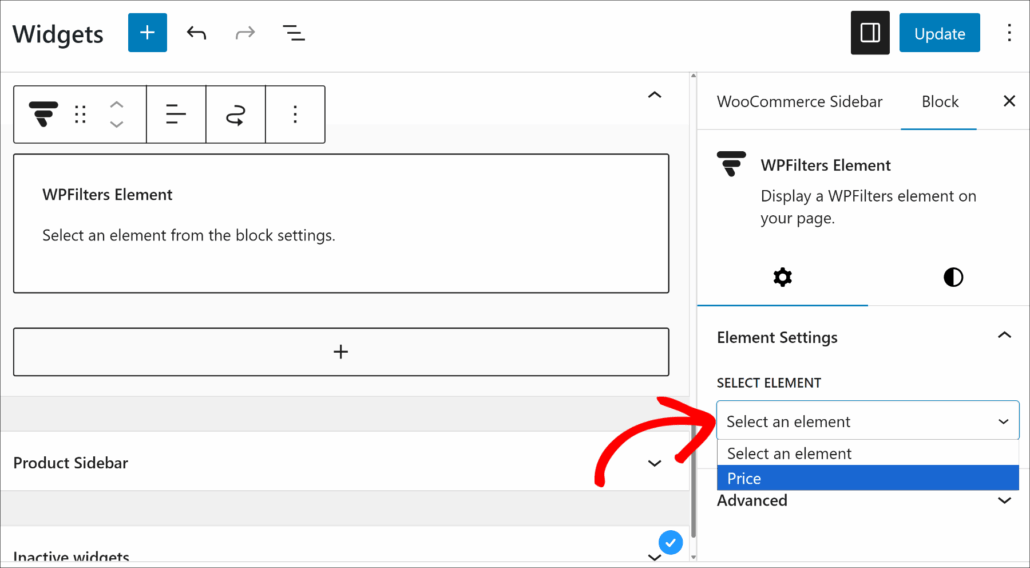
When you’re done, go ahead and click the Update button.
Now, visit the page to see the custom fields filter in action.
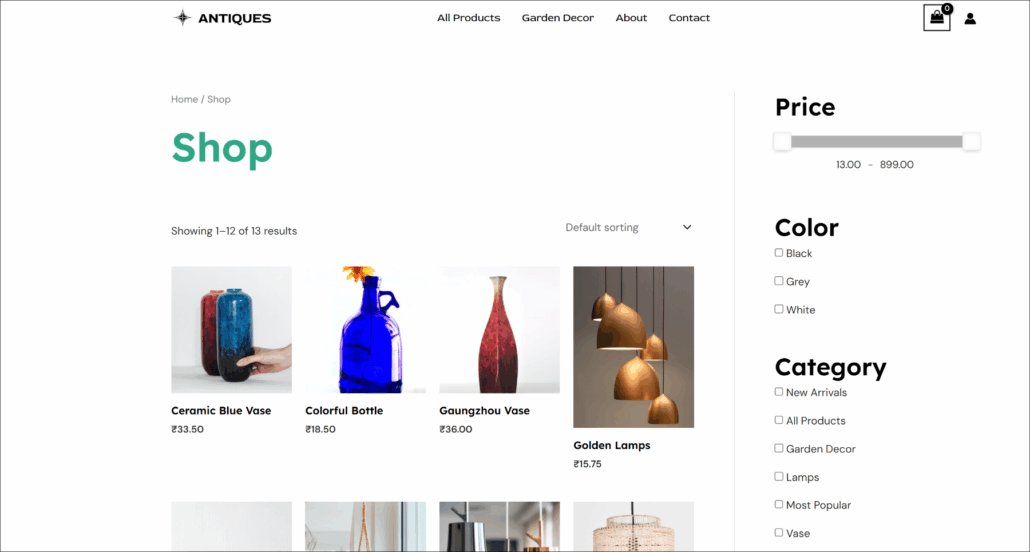
For example, here’s how different custom field filters look on our demo online store.
FAQs about Custom Field Filters
1. Can I use filters for Advanced Custom Fields (ACF) data?
Yes, you definitely can. We use ACF on many of our sites, and WPFilters works perfectly with it.
2. Can I add more than one custom field filter to a page?
Absolutely. You can create separate filter elements for different fields, like one for “Color” and another for “Size.” To make them more visible, you can stack them in your sidebar so users can narrow down results step-by-step.
3. Do I need to know coding to set this up?
Not at all. The main benefit of using WPFilters is that it handles the technical work for you. It helps you set up advanced filters just by clicking through the menus, without touching a single PHP file.
Custom field filters change how visitors interact with your data.
We hope this tutorial helped you learn how to create them in WordPress without any coding. You may also want to see our guides on how to add live search to your site and how to search by category in WooCommerce.
Ready to give your visitors a better way to sort content? You can get started with WPFilters here.