


Managing a WordPress site with hundreds of posts or products can feel overwhelming for your visitors. They land on your page and see a massive list of content organized by categories, tags, and other filtering options.
But here’s the problem. Most sites only let users filter by one thing at a time.
It’s like walking into a bookstore where you can browse by genre or by author, but not both together. Your WordPress visitors face this same frustration every day.
They want to narrow down results using multiple criteria simultaneously, but the default WordPress search doesn’t allow this. That’s where filtering by multiple taxonomies comes in.
In this article, we’ll show you exactly how to filter by multiple taxonomies in WordPress.
Why Filter by Multiple Taxonomies Matters
Before we jump into the tutorial, let’s talk about why multiple taxonomy filtering is so important for your site.
1. Improved User Experience
We’ve seen countless sites where visitors give up because they can’t narrow down results effectively.
Imagine running a recipe blog where someone wants vegetarian dinner recipes. With single filters, they either see all vegetarian recipes (including breakfasts and desserts) or all dinner recipes (including meat dishes).
Neither option gives them what they actually want.
Multiple taxonomy filters solve this by letting users combine criteria. They can select “vegetarian” AND “dinner” to see exactly what they need.
2. Better Content Discovery
When visitors can filter by multiple taxonomies at once, they discover content they might have otherwise missed.
A user searching your WooCommerce store might want products that are both “on sale” AND in the “electronics” category.
Without combined filtering, they’d never easily find those specific items. This means more of your content actually gets seen and used.
3. Reduced Bounce Rates
Nothing drives visitors away faster than forcing them to dig through irrelevant results. We’ve watched analytics on sites before and after adding multiple filters, and the difference is dramatic.
Users stay on pages longer because they quickly find what they’re looking for instead of clicking away in frustration.
4. Professional Appearance
Sites with advanced filtering capabilities simply look more professional and trustworthy.
When visitors see that they can refine searches using multiple criteria, it signals that you’ve thought about their needs.
It shows you’re running a well-organized site that respects their time.
Now, let’s look at how you can create filters in WordPress.
Setting Up Multiple Taxonomy Filters in WordPress
The easiest way to add multiple taxonomy filters to your WordPress site is by using WPFilters.

It is the best WordPress filtering plugin that makes creating advanced filters simple, even if you’ve never done this before.
Created by the team behind SearchWP, WPFilters gives you the power to add professional filtering without writing a single line of code.
The plugin works seamlessly with all WordPress taxonomies, including categories, tags, and any custom taxonomies you’ve added to your site.
You can also filter blog posts, WooCommerce products, custom post types, and more.
Here’s what you can do with WPFilters:
- Stack Multiple Filters: Add as many taxonomy filters as you need, and they all work together automatically.
- Choose Filter Styles: Pick from checkboxes, dropdowns, radio buttons, range sliders, or search fields for each taxonomy.
- Custom Taxonomies Support: Works with any taxonomy, whether it’s built into WordPress or created by a plugin.
- Responsive Design: All filters look great and function perfectly on mobile devices.
- Shareable URLs: Each filtered combination creates a unique URL visitors can bookmark or share.
With that, let’s see how you can set up multiple taxonomy filters on your site.
Step 1: Install and Activate WPFilters
First, you’ll need to visit the SearchWP website and sign up for a WPFilters account.
Once you’ve created an account, simply head to your account area and go to the ‘Downloads’ tab.
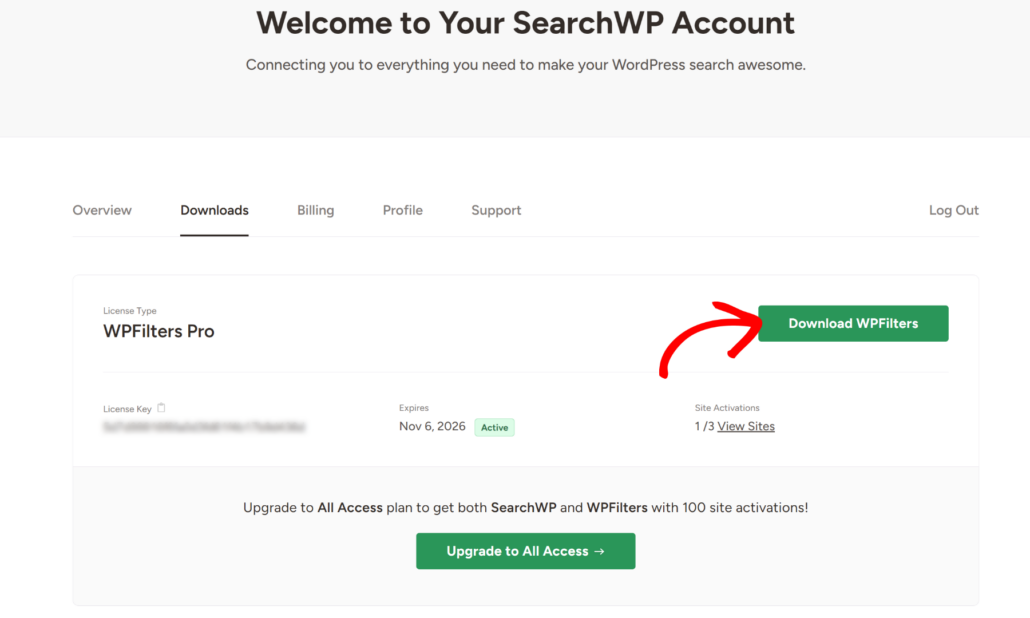
From here, you’ll need to click the Download WPFilters button and save the plugin files on your computer.
We also recommend copying the License Key while you’re on this page, as you’ll need it during setup.
Next, you can upload the WPFilters plugin files to your WordPress site and install the plugin. If you need help with this, then please see this guide on how to install a WordPress plugin.
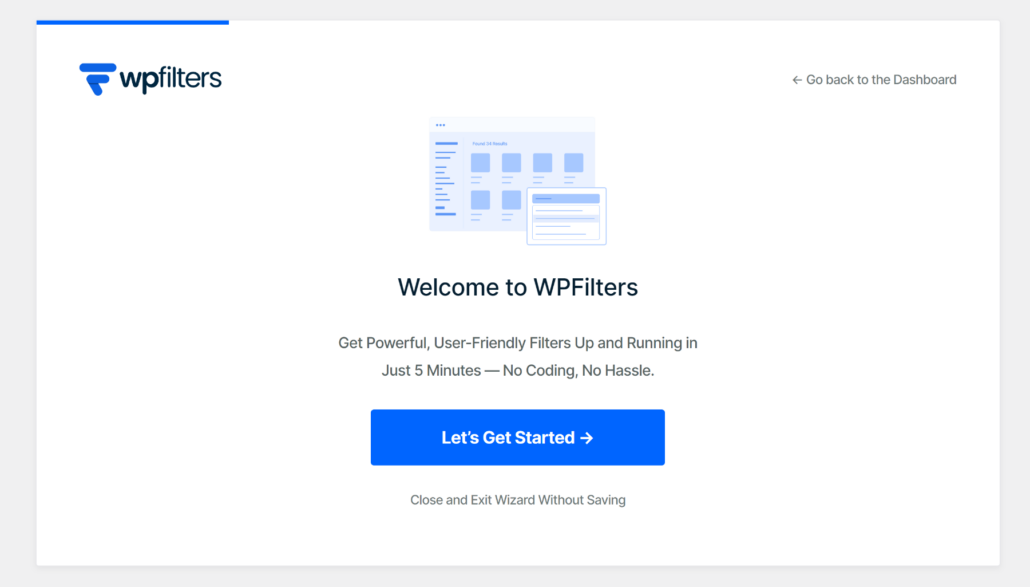
After activating the plugin, you will see the WPFilters setup wizard. Go ahead and click the ‘Let’s Get Started’ button and follow the onscreen instructions.
Step 2: Create Your First Taxonomy Filter
Now that WPFilters is installed, you can start building your first taxonomy filter.
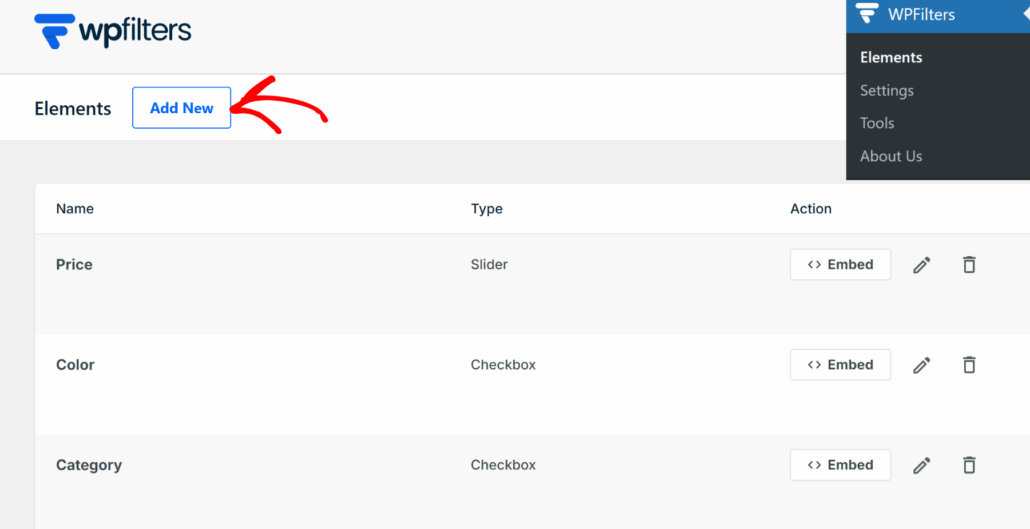
To get started, head to WPFilters » Elements from the WordPress dashboard and click the ‘Add New’ button.
On the next screen, you’ll need to give your filter a clear name at the top. For example, if you’re creating a category filter, you might call it “Filter by Category.”
This name is just for your reference, so pick something that helps you stay organized when you add more filters later.
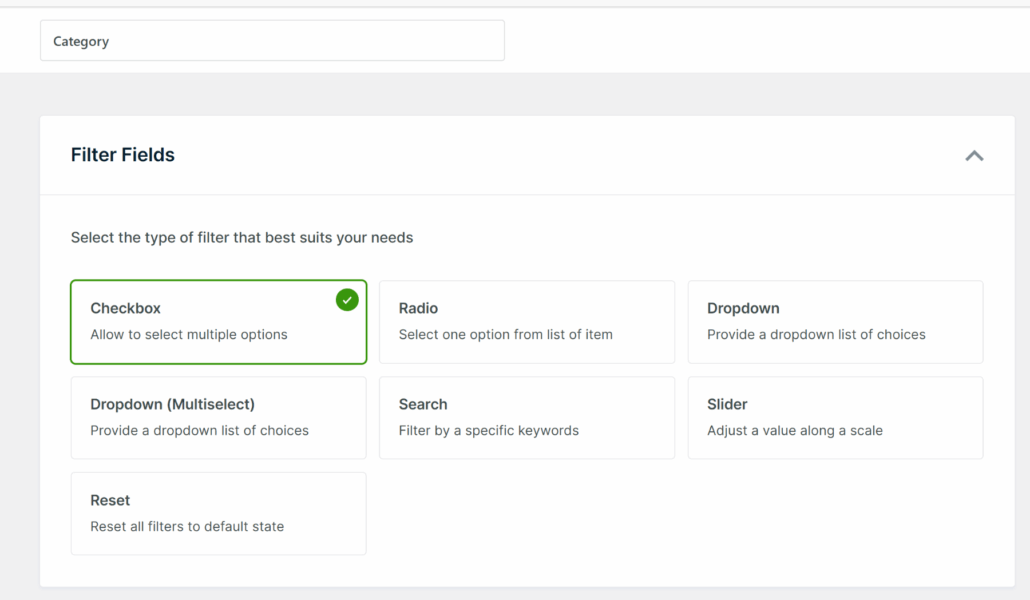
Next, scroll down to the Filter Fields section and select the filter field you want to use.
For this tutorial, we’ll use the ‘Checkbox’ option because it lets visitors select multiple options at once.
Now, scroll down to the Data Source section and click the dropdown menu. Here’s where you tell WPFilters which taxonomy to use for this filter.
For example, if you want to filter by categories, select ‘Categories’ from the list.
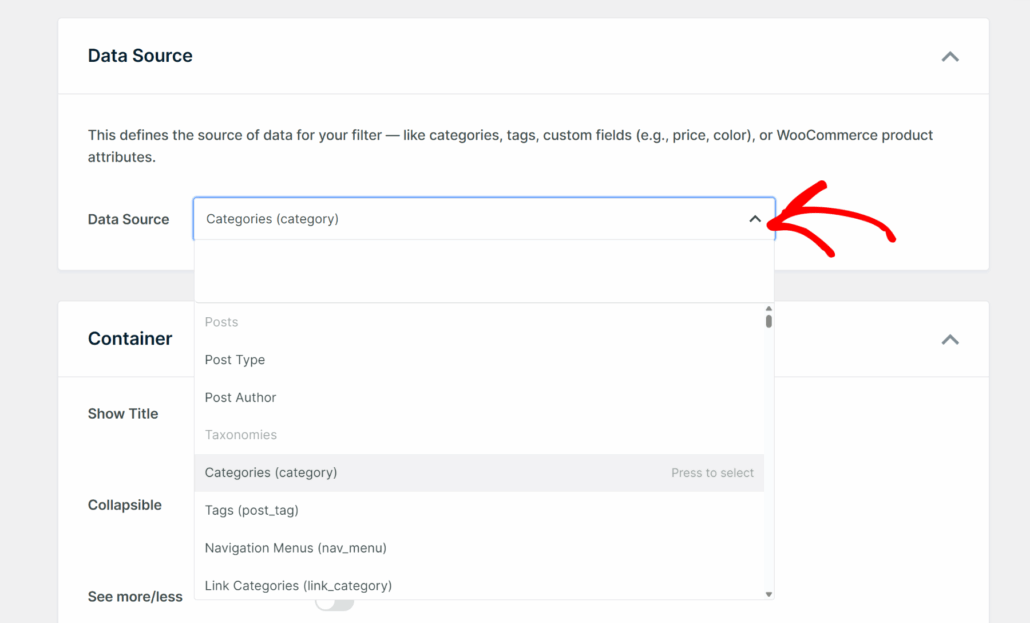
After selecting your data source, you can customize how the filter looks by scrolling to the Container section.
Here, you can enable the ‘Show Title’ option so visitors know what they’re filtering by. You can also make the filter collapsible to save space on your page.
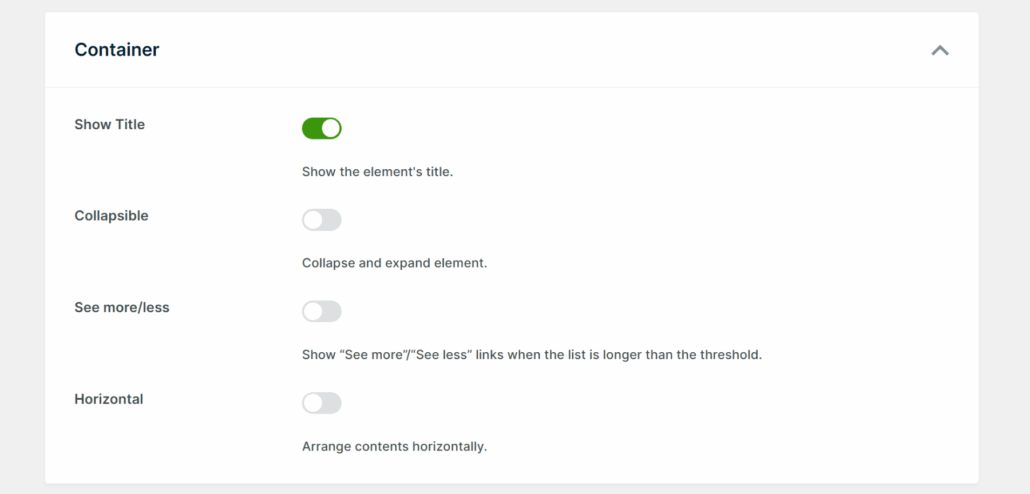
Next, scroll down to the Items section where you can fine-tune how individual filter options appear.
We recommend enabling ‘Item Count’ so users can see how many posts match each option.
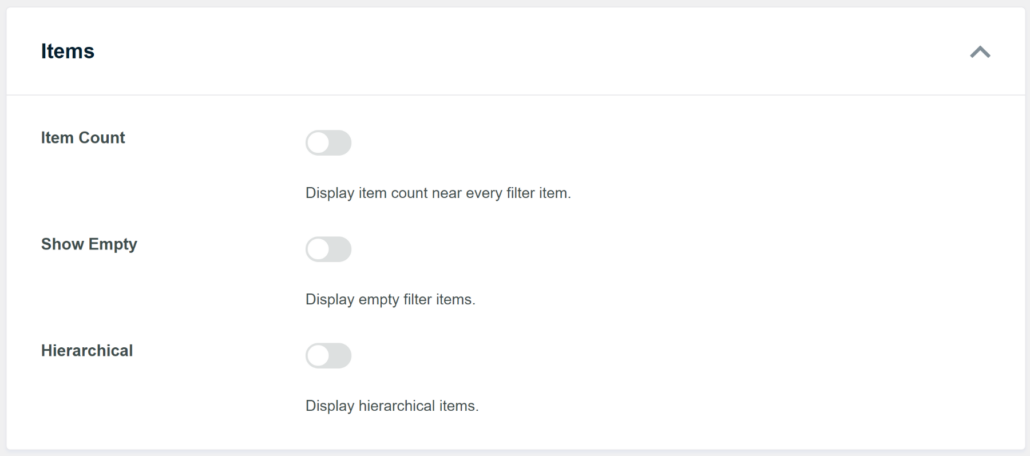
When you’re satisfied with your settings, scroll to the top and click the Save button.
Step 3: Create Additional Taxonomy Filters
Now that you’ve created your first filter, it’s time to add more taxonomy filters that will work together with it.
The great thing about WPFilters is that multiple filters automatically work in combination.
When a visitor selects an option from one filter and then selects from another, the results narrow down to match both criteria.
For example, you can create a tags filter, so users can go through multiple tags and use them in combination with the categories filter.
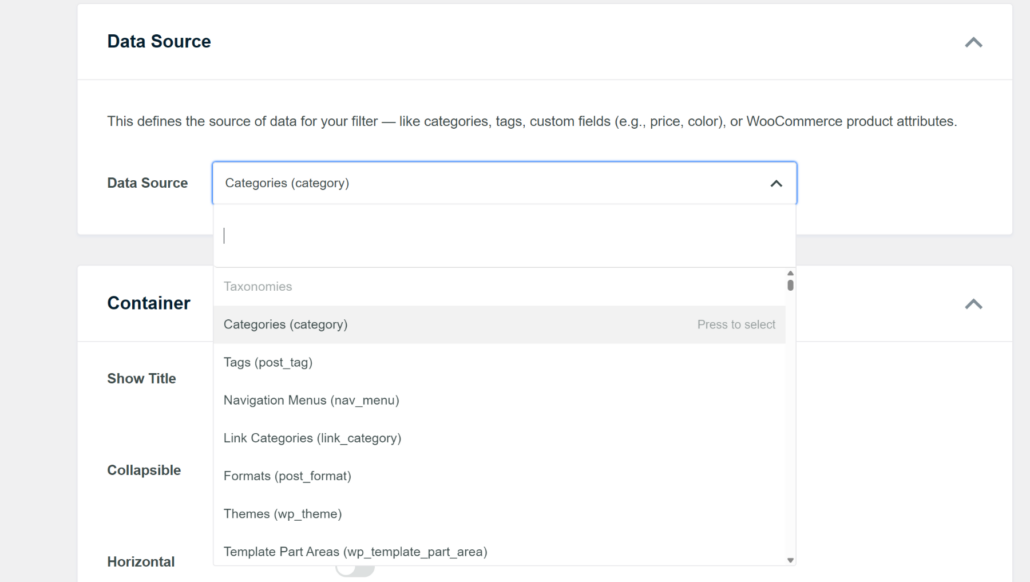
To learn more, please see our guides on how to filter WooCommerce products by tags.
Step 4: Display Multiple Filters on Your Site
Now that you’ve created multiple taxonomy filters, it’s time to add them to your WordPress site so visitors can actually use them.
The best part about WPFilters is that you can place all your filters anywhere on your site using simple embed options.
Or you can use the Gutenberg block or shortcode to display the filters on a page or in the sidebar.
For this tutorial, we’ll add the filters to the sidebar where they’re always visible and easy to access. This is a great way to keep filters available to users as they browse through your content.
To start, head to Appearance » Widgets from your WordPress dashboard.
Note: The steps might vary slightly depending on the WordPress theme you’re using. We’re using the Astra theme for this tutorial.
Once you’re on the Widgets page, scroll down to your sidebar section (in our case, shop sidebar) and click the ‘+’ button to add a new block.
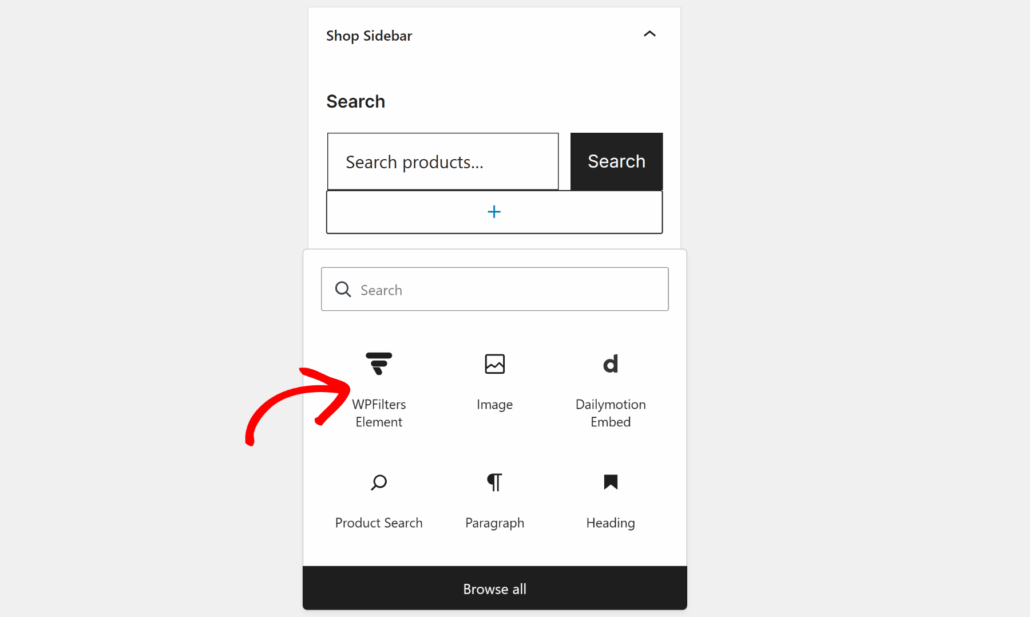
Next, you can search for the ‘WPFilters Element’ widget block and add it to your sidebar.
From the settings panel on the right, you will need to click the ‘Select Element’ dropdown menu and choose your first taxonomy filter.
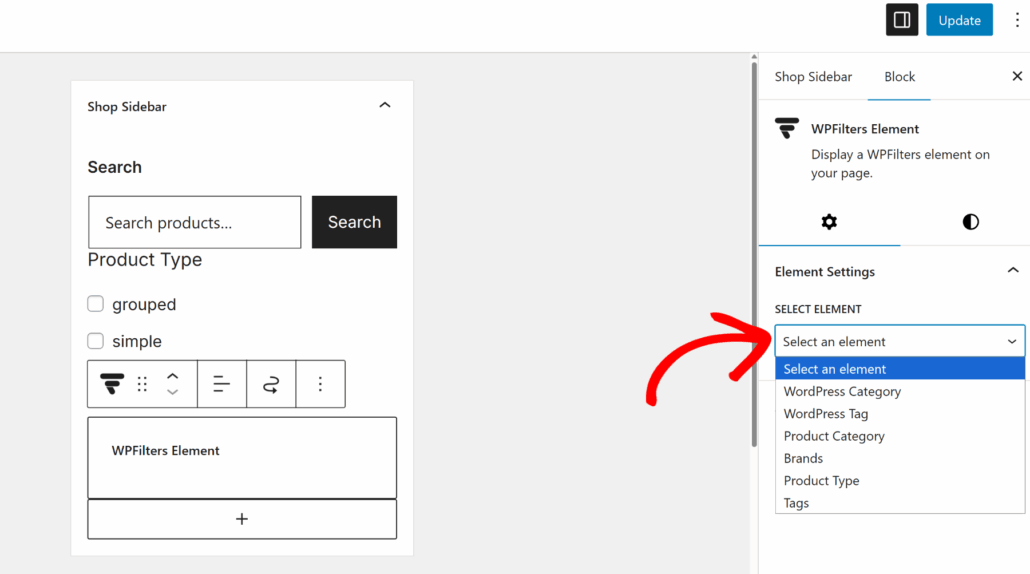
Now, you will need to repeat these steps and click the ‘+’ button again to add another WPFilters Element block right below the first one.
This time, select your second taxonomy filter from the dropdown menu in the settings panel.
You can continue adding as many WPFilters Element blocks as you have taxonomy filters. Stack them in your sidebar, and they’ll all work together automatically.
When a visitor selects an option from one filter and then selects from another, WPFilters combines both criteria to show only matching results.
When you’re done adding all your filters, click the Update button at the top to save your changes.
Step 5: Test Your Multiple Taxonomy Filters
After adding the filters to your sidebar, it’s time to test them and make sure they’re working correctly together.
Go ahead and visit your website where you added the filters. You should see all your taxonomy filters stacked in the sidebar.
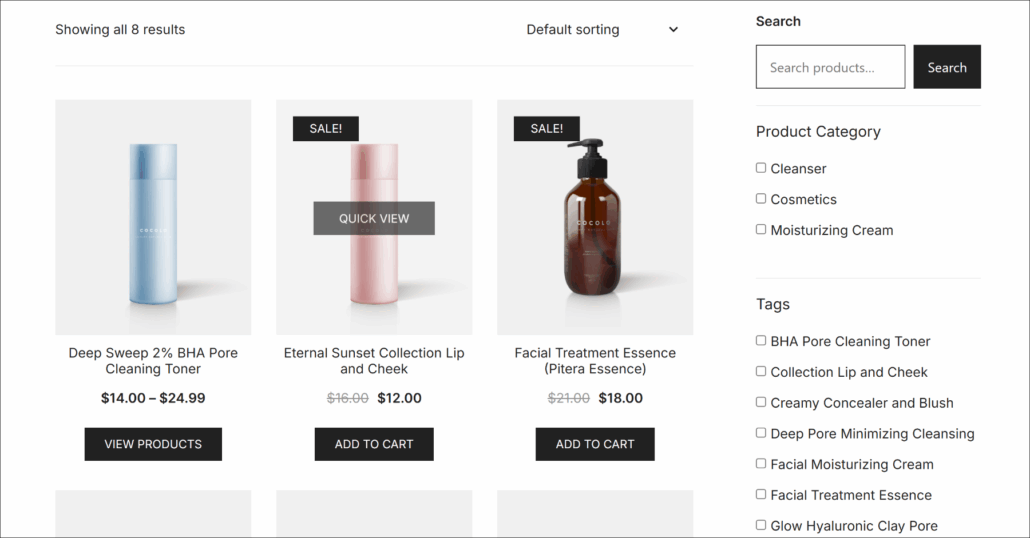
Now, let’s test how the filters work together by selecting options from multiple filters.
For example, start by selecting a category from your first filter. You’ll see the content on your page automatically update to show only posts from that category.
Next, select an option from your second filter, like a specific tag. The results will narrow down even further to show only content that matches both the category AND the tag you selected.
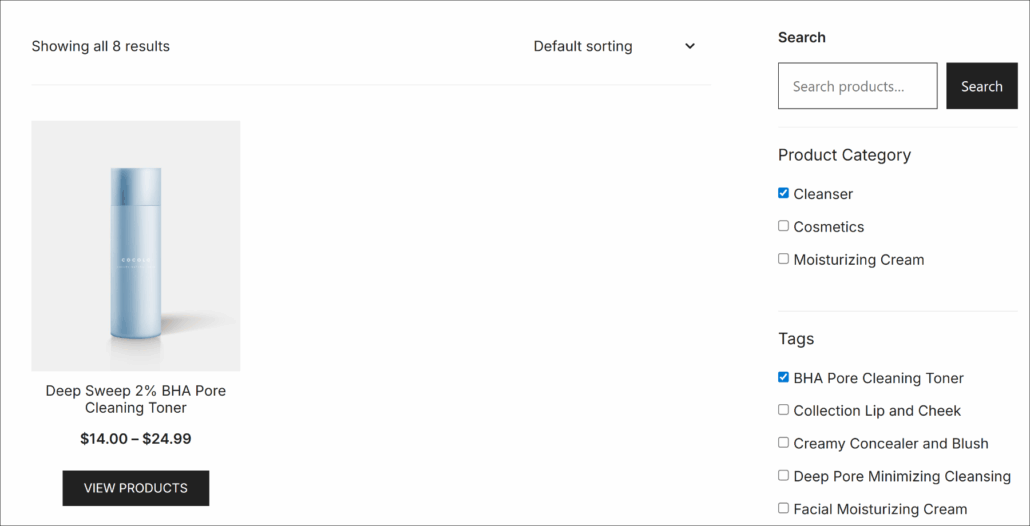
As you can see, both filters are working together perfectly. The content updates in real-time without requiring a page refresh, and only posts that match all your selected criteria appear.
You can continue selecting options from additional filters if you added more than two. Each selection further refines the results, giving your visitors precise control over what they see.
To reset the filters and see all content again, simply deselect the options or refresh the page. Or you can add a reset filter button to your website.
That’s it! You’ve successfully set up multiple taxonomy filters on your WordPress site. Your visitors can now combine different criteria to find exactly what they’re looking for without any coding required.
FAQs About Filtering by Multiple Taxonomies
Here are some common questions we get about setting up multiple taxonomy filters in WordPress.
1. Can I add more than two taxonomy filters?
Absolutely. You can add as many taxonomy filters as you need on your site. We’ve seen sites with five or six different filters all working together perfectly.
Just keep in mind that too many filters can overwhelm visitors, so add only the ones that truly help people find content faster.
2. Do the filters work with custom taxonomies?
Yes, they do. WPFilters works with any taxonomy in WordPress, whether it’s built-in like categories and tags or custom taxonomies created by plugins like Advanced Custom Fields or Custom Post Type UI.
Simply select your custom taxonomy from the Data Source dropdown when creating a filter element.
3. Will this slow down my site?
Not at all. WPFilters is built by the same team behind SearchWP, so it’s optimized for performance. The filters use efficient queries that don’t bog down your database.
We’ve tested it on sites with thousands of posts, and the filtering remains fast and responsive.
4. Can I use different filter types for each taxonomy?
Yes, you can mix and match filter types. For example, you might use checkboxes for categories, a dropdown for tags, and a search field for authors.
This flexibility lets you design the filtering experience that works best for your specific content and audience.
Adding multiple taxonomy filters transforms how visitors navigate your WordPress site. Instead of forcing them to scroll through endless pages or settle for broad search results, you give them precise control over what they see.
We’ve shown you how WPFilters makes this process simple, even if you’ve never set up filtering before. By stacking multiple filters in your sidebar, you create a professional browsing experience that keeps visitors engaged and helps them find exactly what they need.
The best part is that all your filters work together automatically. No complex configuration or coding required.
We hope this article helped you learn how to filter by multiple taxonomies in WordPress. You may also want to see our guides on how to filter WooCommerce products by category and how to optimize the WordPress search results.
Ready to give your visitors powerful filtering options? You can get started with WPFilters here.