

If you sell products with different sizes or colors, you know how hard it is for customers to find exactly what they want. They often have to click through dozens of pages just to see if their specific size is actually in stock.
This frustration usually leads to them leaving your site without buying anything. We have seen many store owners lose potential sales simply because the shopping experience was too cluttered to navigate.
The solution is to let visitors filter products by specific attributes like fabric, size, or brand. It is like having a helpful shop assistant who instantly points them to the right shelf.
In this article, we will show you how to filter WooCommerce products by attributes without hiring a developer.
Why Add Attribute Filters to WooCommerce Shop?
We have all been there as shoppers. You visit an online store, find a category you like, but can’t filter by the one thing that matters, like size or color.
We’ve visited countless eCommerce sites where we had to click into twenty different products just to see if they came in black. It is frustrating and usually makes us leave the site to buy elsewhere.
If your store lacks attribute filters, your customers are likely feeling this same annoyance. Categories are great for broad groups, but they fail when a user has specific requirements.
Forcing users to click back and forth between the catalog and product pages creates friction. It turns a fun shopping spree into a chore.
Think of attribute filters as a knowledgeable employee standing in the aisle. Instead of letting the customer search aimlessly, the filters immediately narrow down the options to exactly what fits their needs.
We have found that fixing this specific pain point keeps people on the site longer. It smooths out the journey from just browsing to checkout.
That said, let’s look at the steps you can follow to add these filters to your site.
Filter WooCommerce Products by Attributes
The easiest way to filter your products by specific attributes is to use a plugin like WPFilters.

WPFilters is the best filtering plugin for WordPress because it is built to work with WooCommerce right out of the box.
Usually, setting up filters involves complicated settings or even code edits.
WPFilters solves this with a zero-code setup that lets you build functional filters in minutes.
It allows you to turn your existing product attributes into user-friendly checkboxes, radio buttons, or dropdowns. You won’t have to hire a developer to make your shop look professional.
Here are some other features you get with WPFilters:
- Shareable Filter URLs: Every search creates a unique link, so customers can bookmark or share their specific filtered results with friends.
- Place Filters Anywhere: You can easily add filters to any page or sidebar using the Gutenberg block or simple shortcodes.
- Total Customization: You can control exactly how your filters look and behave without touching a single line of CSS.
- Advanced Data Support: It lets you go beyond basic categories and filter content by custom fields, tags, and more.
- Universal Compatibility: The plugin works perfectly with posts, pages, and custom post types, so you can use it across your entire site.
With that, let’s look at how you can set up attribute filtering on your site.
Step 1: Install and Activate WPFilters
To get started, you will need to visit the SearchWP website and sign up for a WPFilters account.
Once you are done, simply go to your account dashboard and click on the Downloads tab.
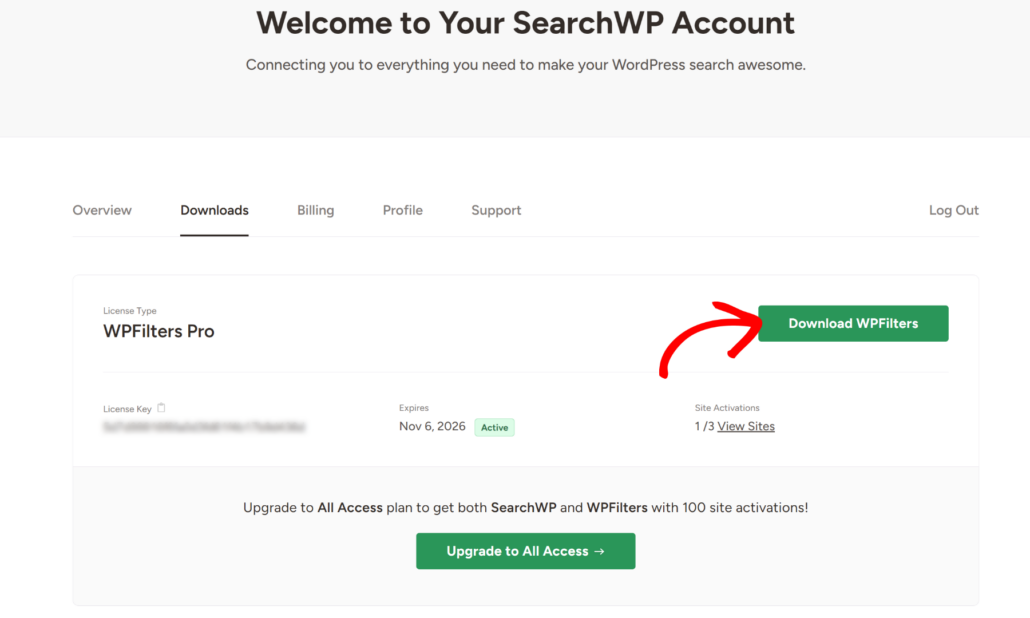
Next, press the Download WPFilters button and save the ZIP file to your computer. We also recommend copying your license key right now, as you will need it to verify the plugin in a moment.
Now, you need to upload the file to your site and install it. If you need a refresher, check out this step-by-step guide on how to install a WordPress plugin.
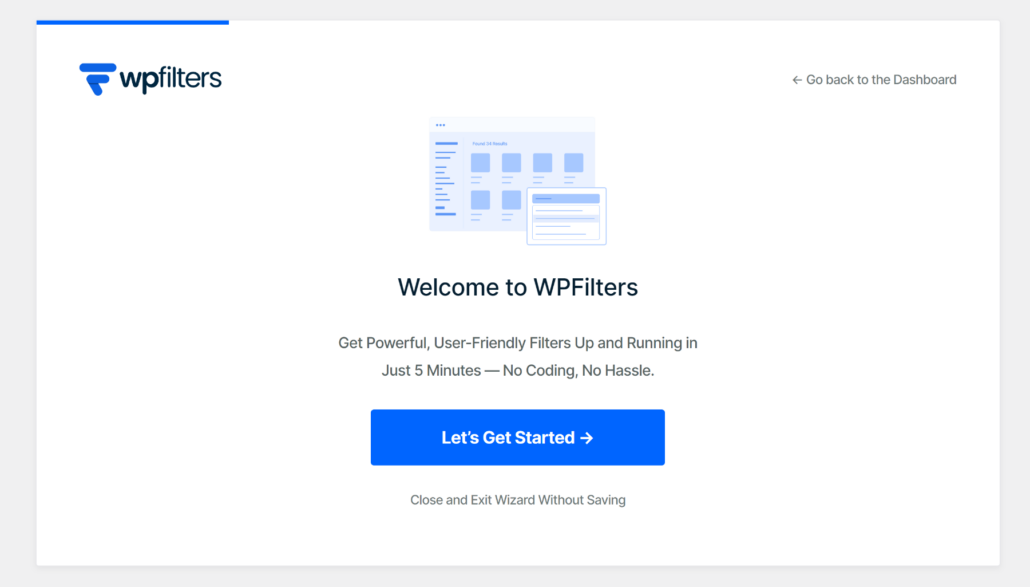
Upon activation, the setup wizard will appear on your screen. Go ahead and click the Let’s Get Started button and follow the onscreen instructions to finish the setup.
Step 2: Add a New Filter Element for Product Attribute
Next, you will need to create a new filter element that your customers will interact with.
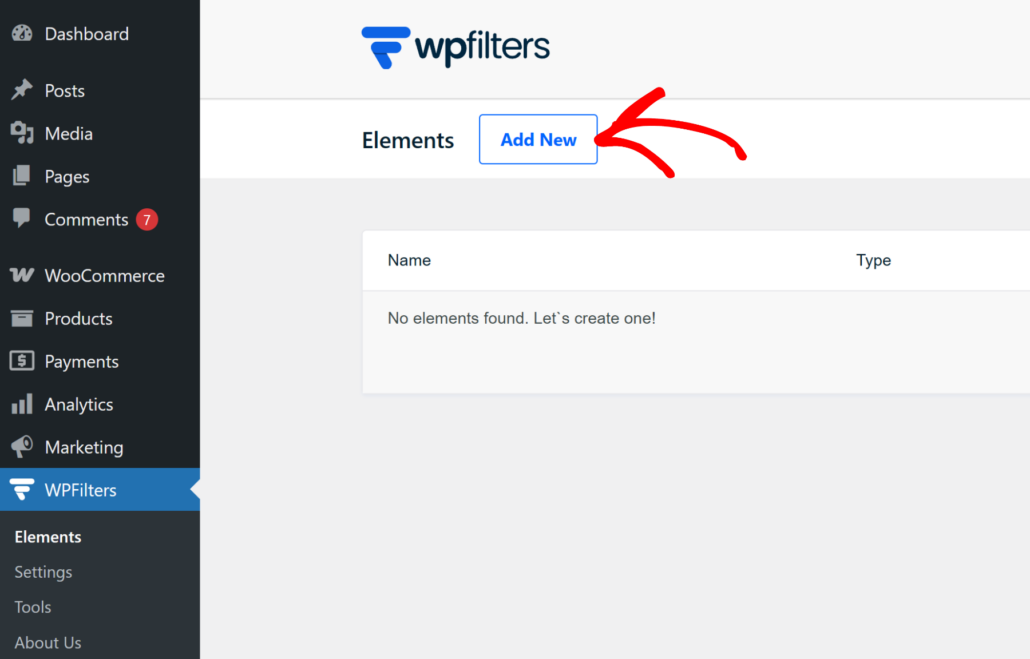
To do this, simply head to WPFilters » Elements from your WordPress dashboard and click the Add New button.
After that, you can enter a name for your filter at the top, such as “Product Color” or “Size”. This internal name helps you keep things organized if you plan to add multiple filters later on to your WooCommerce store.
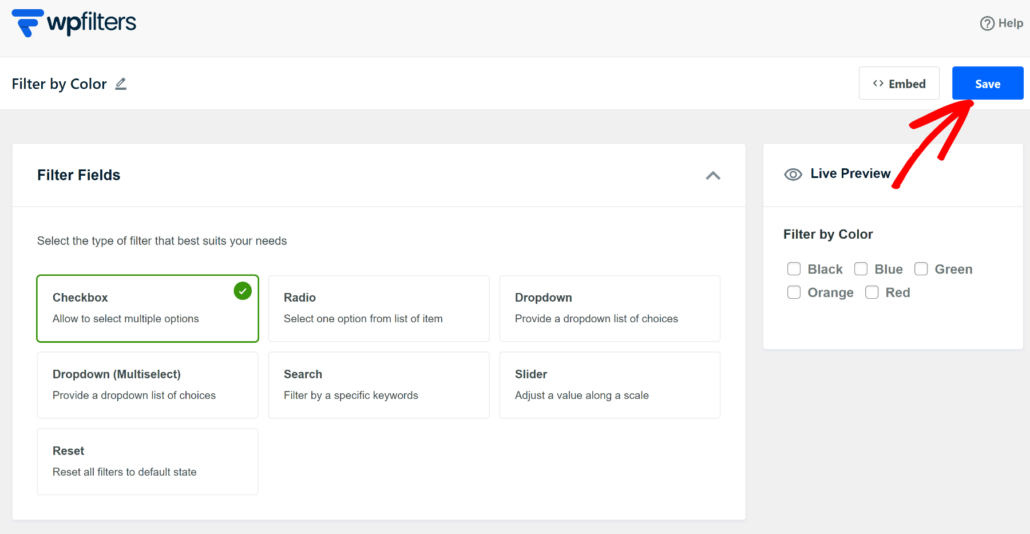
Then, go ahead and select the Filter Fields from the available options.
For product attribute filters, we’ll use the Checkbox option because it allows users to select multiple options at once. However, you can also choose a dropdown menu or radio buttons, depending on your store’s design.
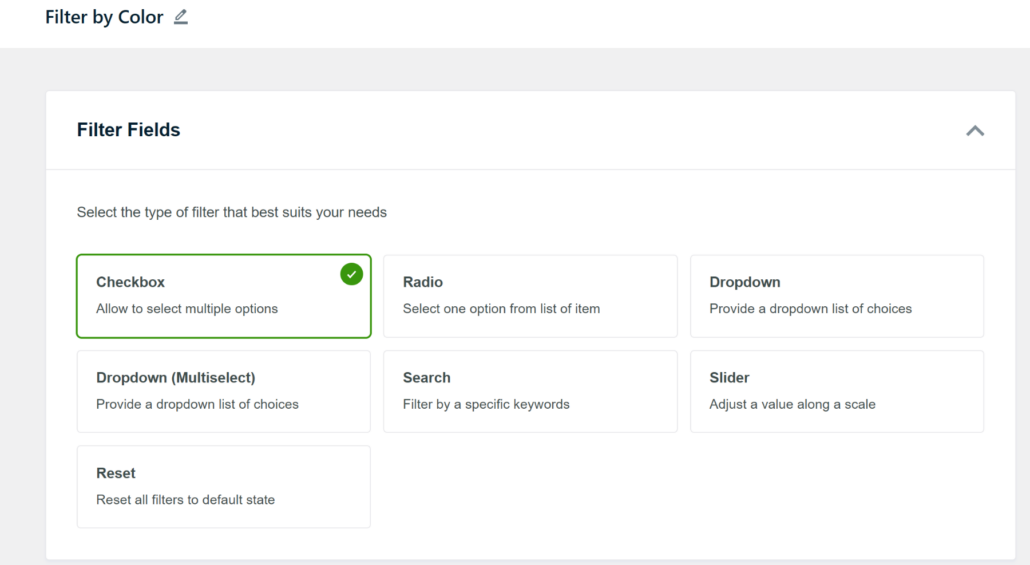
Once you have picked a layout, scroll down to the Data Source section to connect your product data. This is where you tell WPFilters specifically what information to look for inside your store.
Go ahead and click the dropdown menu to select the product attribute you want to set up a filter for.
For example, we’ll pick ‘Product Color’ as the specific attribute for this tutorial.
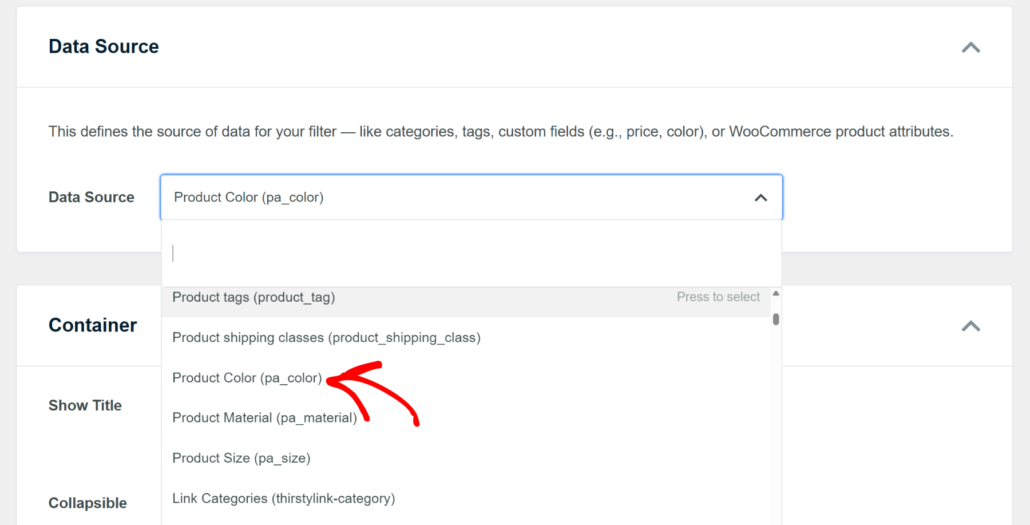
If you don’t have a product attribute added, then please see this guide on how to add product tags, attributes, and categories to WooCommerce.
Step 3: Customize Your Filter Settings
After selecting your source, you can fine-tune and customize your product attribute filter by scrolling to the Container section.
Here, you can enable the ‘Show Title’ option, make it collapsible, and arrange the content items horizontally.
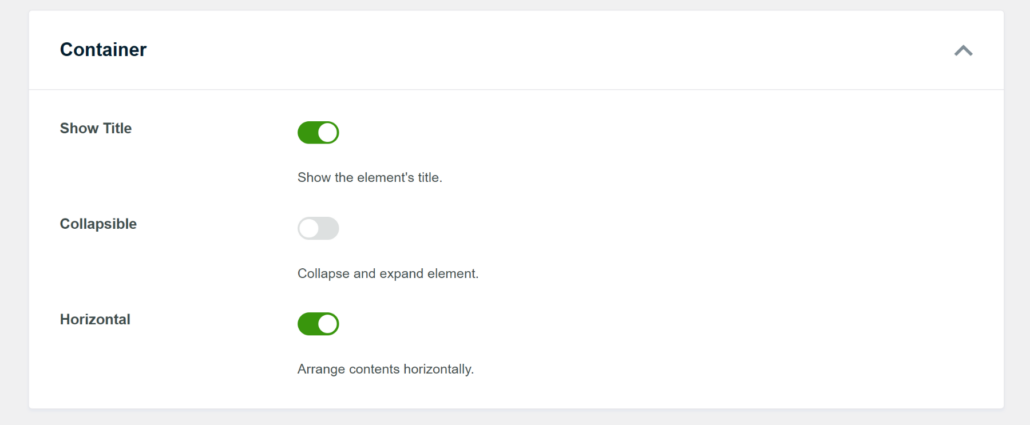
Next, simply scroll down to the Items section to further customize your filter.
For instance, you can enable the Item Count and let visitors see how many products are available before they click.
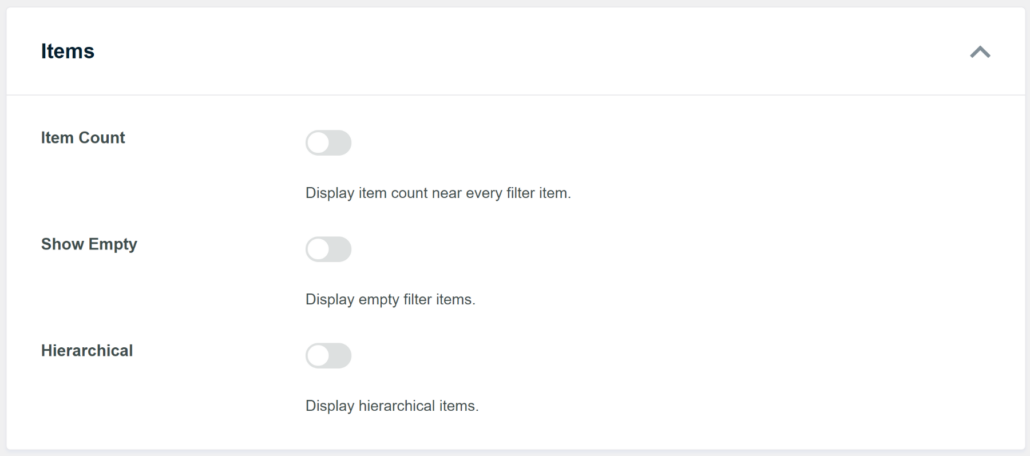
When you are happy with the settings, simply scroll to the top and click the Save button to store your changes.
You will notice a handy preview on the right side of the screen that updates in real-time as you make changes.
Step 4: Display the Filter on Your WooCommerce Store
Now that your filter is ready, the final step is to put it on your website, so customers can actually use it.
We love using WPFilters because it allows you to place these filters anywhere using the WordPress block editor.
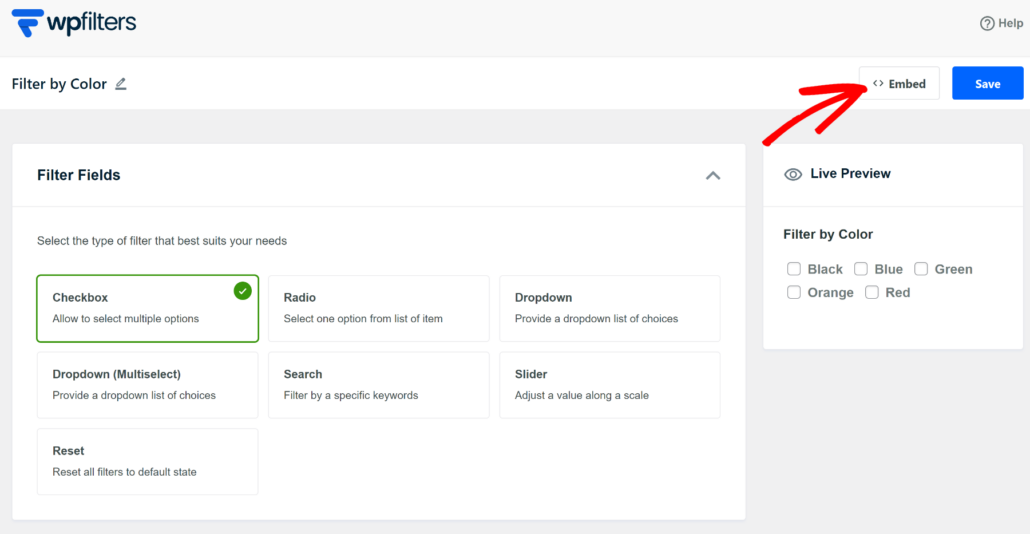
It also comes with a built-in option to directly embed the filter on your preferred page. Simply click the Embed option in the element editor.
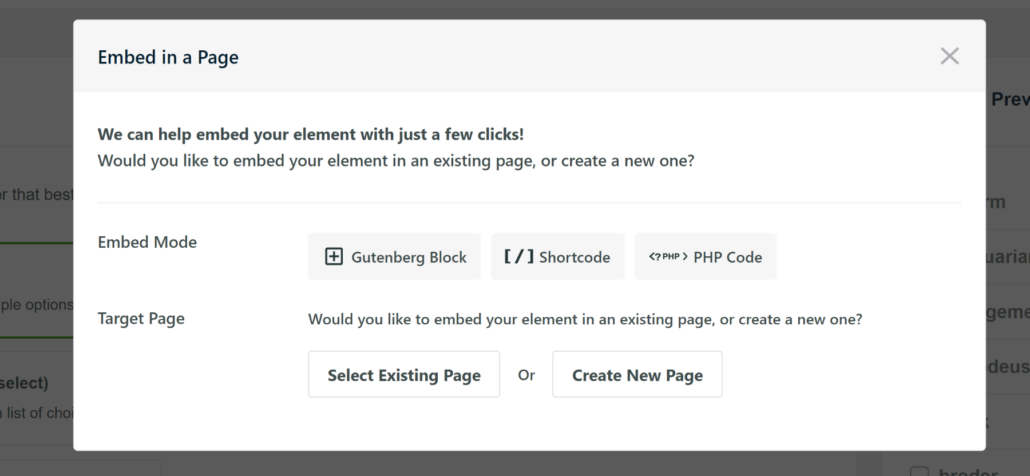
Next, a popup window will open, where you can select the embed mode and target page.
WPFilters offers 3 embed modes, which include a Gutenberg block, shortcode, or PHP code.
For this tutorial, we’ll show you how to add the product attributes filter to the WooCommerce shop page and the sidebar of your online store.
1. Display Product Attribute Filter on WooCommerce Shop Page
First, you can simply select the Gutenberg Block option and then click the ‘Select Existing Page’ button.
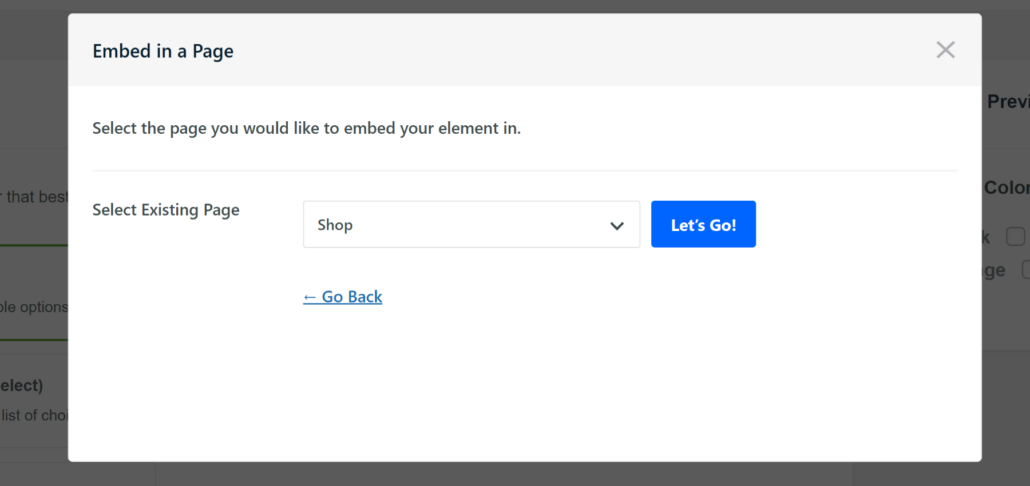
After that, you’ll need to enter the name of the page and select it from the dropdown menu.
Once that’s done, simply click the Let’s Go button.
On the next screen, you will see your product filter already added to the WordPress editor.
Alternatively, you can also add the WPFilters Element block on your WooCommerce Shop page and select the filter you just created from the settings panel on the right.
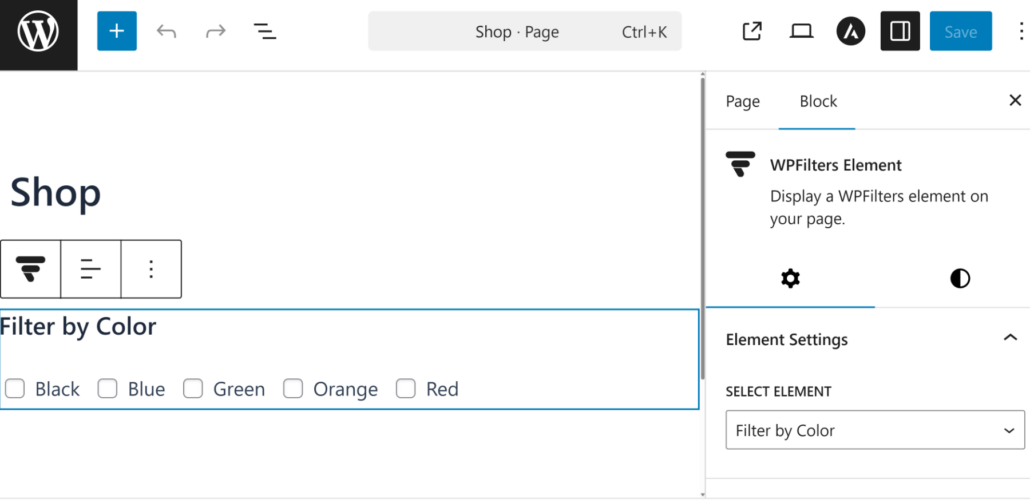
Finally, you can click the Save or Publish button.
You can now visit your live store to test the filter and ensure it sorts your products correctly.
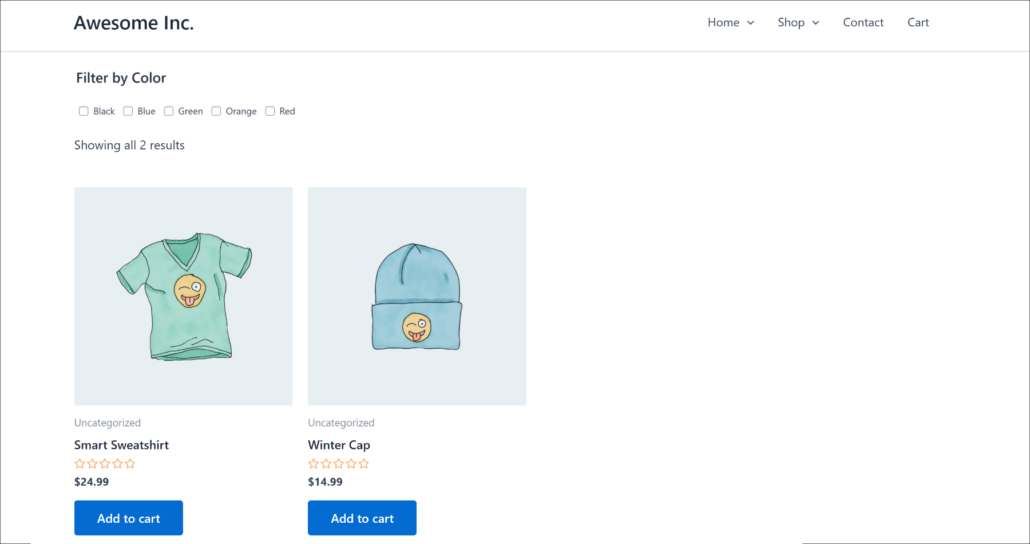
2. Display Product Attribute Filter in the Sidebar
To add the WooCommerce product attributes filter to your store’s sidebar, you can head to Appearance » Widgets from your WordPress dashboard.
Note: We’re using the Astra WordPress theme for this tutorial. The steps for adding the widget may differ depending on the theme you’re using for your site.
Next, you will need to add the WPFilters Element widget block under the WooCommerce Sidebar section.
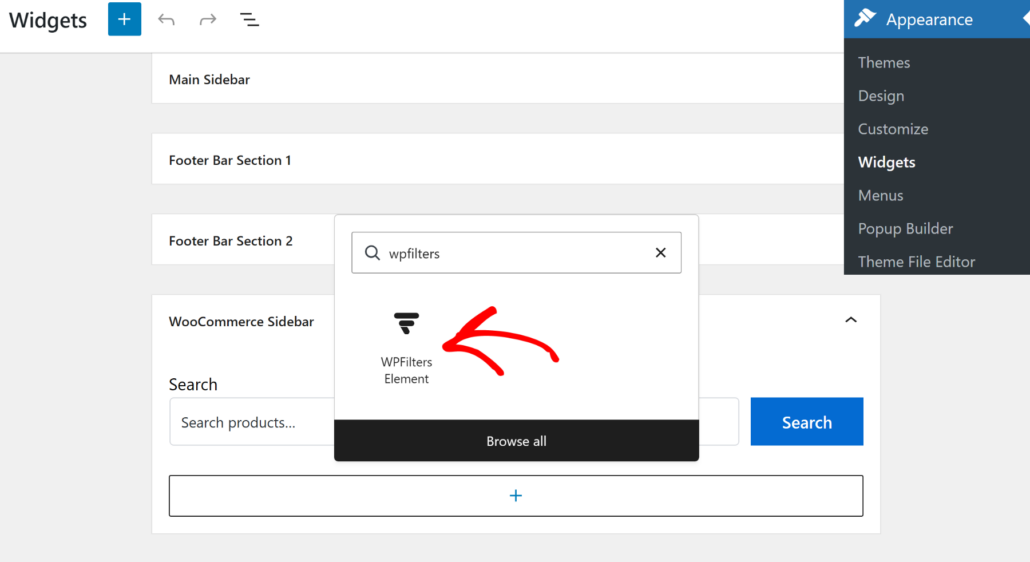
To start, simply click the + button and add the block.
After that, you will need to select the product attribute filter from the Element Settings in the panel on the right.
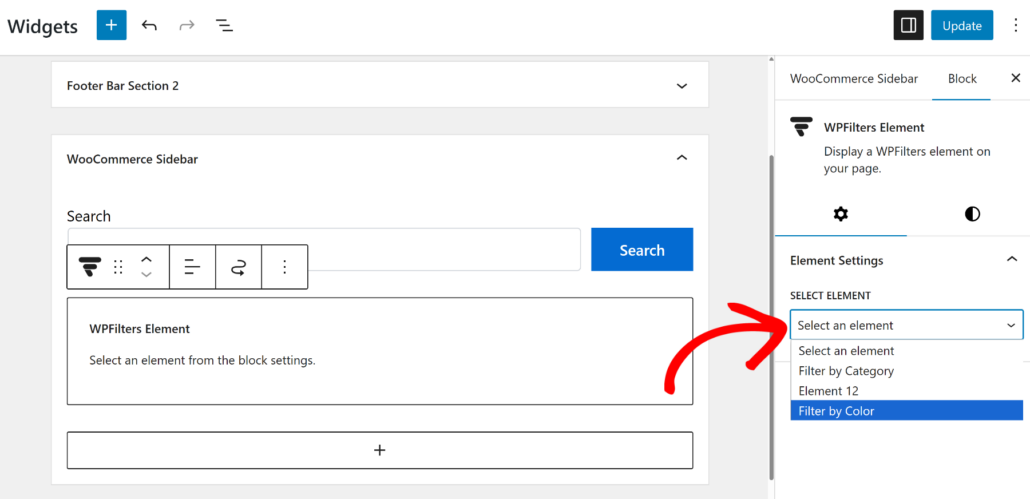
When you’re done, simply click the ‘Update’ button.
Now, you can visit your WooCommerce store and see the filters in the sidebar.
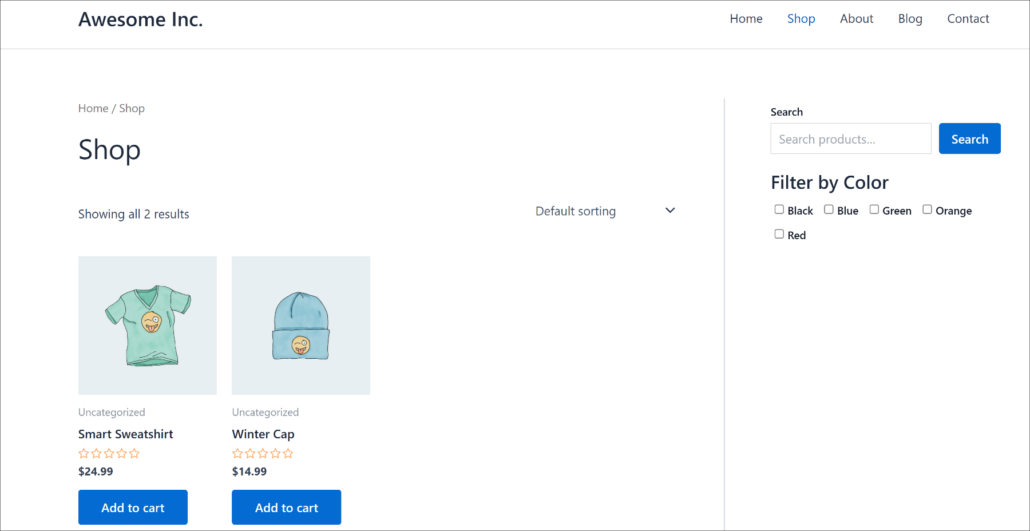
Step 5: Test Your Product Attribute Filter
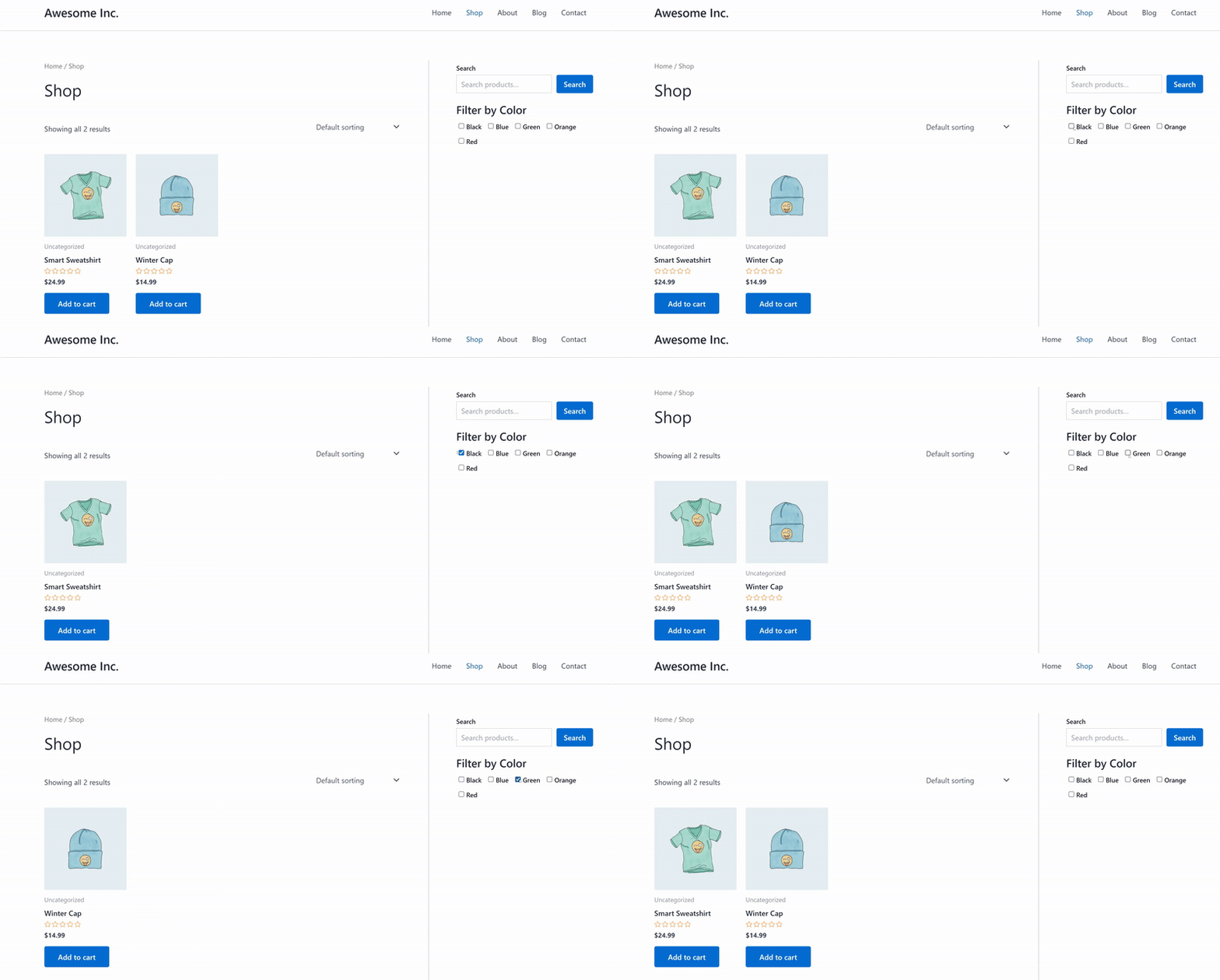
After embedding the filter on your WooCommerce store, the next step is to test it and see if it’s working correctly.
For this tutorial, we created a filter where visitors can sort products based on color.
When we selected a particular color in the filter, the product automatically sorted and displayed the right item.
Now, you can add more product attribute filters for your store. For example, perhaps you can show brands, size, material, and other attributes in the filter.
FAQs about WooCommerce Product Attribute Filter
1. What is the easiest way to filter WooCommerce products by attributes?
The easiest way to filter WooCommerce products by attributes is to use a plugin like WPFilters, which offers a no-code setup to create user-friendly filter options in minutes.
2. Can I add filters to specific pages or only to the sidebar?
Yes, WPFilters allows you to embed filters anywhere on your site, including specific pages like the WooCommerce shop page or in the sidebar, using Gutenberg blocks, shortcodes, or PHP code.
3. Why is it important to add attribute filters to a WooCommerce shop?
Adding attribute filters enhances the shopping experience by allowing customers to quickly find products that match specific criteria like size, color, or material, thereby reducing frustration and increasing the likelihood of purchase.
We hope this article helped you learn how to filter WooCommerce products by attributes. You may also want to see our guide on how to add a smart WooCommerce product search and how to search by product SKU in WooCommerce.
Ready to make your online store easier to navigate? You can get started with WPFilters here.