
We know how exciting it is to launch a new WooCommerce store with tons of great products. But as your inventory grows, it gets harder for customers to find exactly what they want.
Visitors often have to scroll through page after page of random items just to find a single shirt or accessory. This frustration usually leads them to leave your site without buying anything.
The best way to fix this is by letting shoppers filter your products by specific categories. It acts like a map that guides them straight to the section of the store they are interested in.
In this guide, we will show you how to filter WooCommerce products by category.
Why Set Up Filtering by Category in WooCommerce?
When you have hundreds of items, customers often get lost trying to find specific products.
Adding category filters fixes this by letting shoppers narrow down their WooCommerce product choices instantly. It helps them find exactly what they need without getting frustrated.
This simple change leads to happier customers and more sales for your business. It turns a messy WooCommerce shop into an easy shopping experience.
However, in the past, adding filters to WooCommerce was a huge headache for many site owners we talked to.
You usually had to hire a developer or buy expensive software just to get simple sorting options.
Even worse, trying to code it yourself meant you risked breaking your checkout, shop pages, or the entire website. One wrong move could take your whole business offline, which is scary.
That said, let’s look at a simple way of adding product category filters to your store.
Filter WooCommerce Products by Category
The easiest way to add category filters to your store is by using WPFilters.
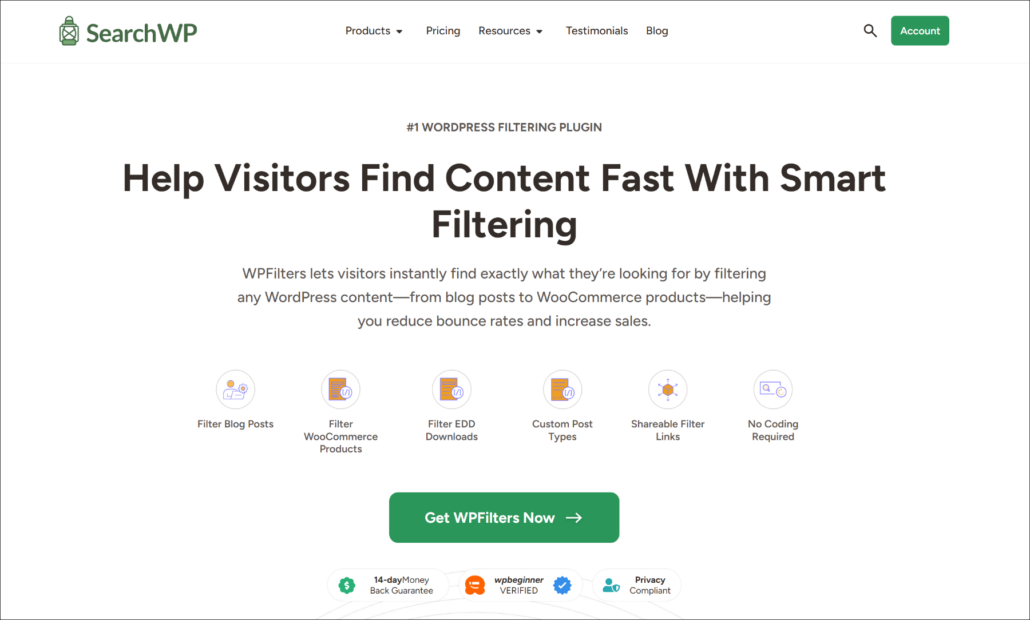
WPFilters is the best filtering plugin for WordPress because it is incredibly easy to use. The best part is that you can create professional filters without writing a single line of code.
It is built by the team behind SearchWP, so we know it handles data efficiently. This means your site stays fast even with complex filtering options.
Using this tool, you can help customers sort through products by category, tags, or custom fields like price, size, material, and other attributes in seconds.
It integrates perfectly with WooCommerce to make your shop much easier to navigate. Plus, you get customization options, multiple filter options, shareable URLs, and more.
Now, let’s look at the steps to get this working on your WooCommerce site.
Step 1: Install and Activate WPFilters
To start, you will need to visit the SearchWP website and sign up for a WPFilters account.
Once you have an account, head over to the Downloads tab in your dashboard.
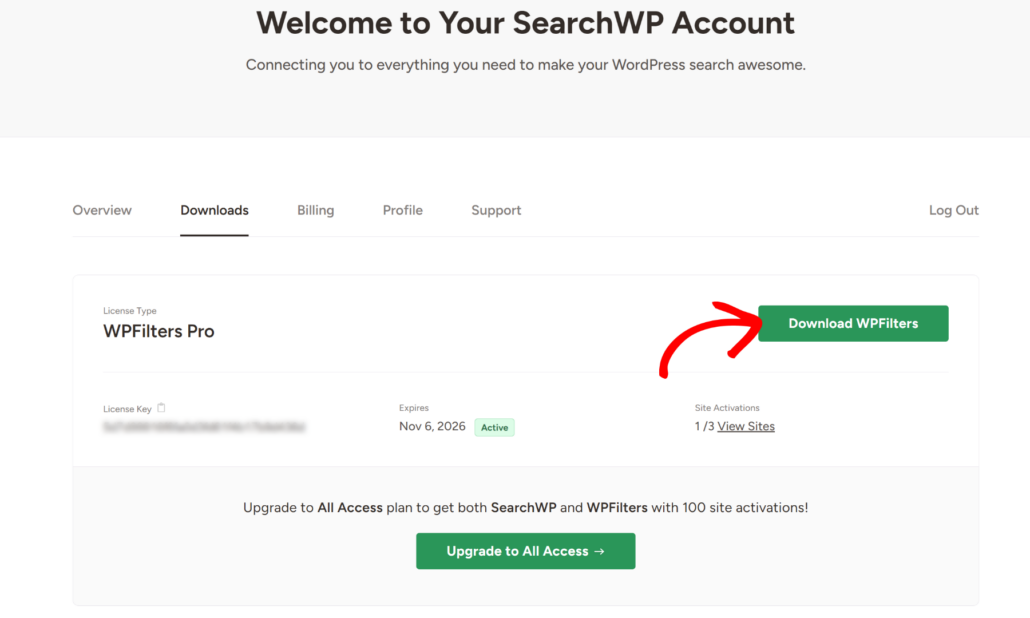
Next, click the Download WPFilters button and save the plugin’s ZIP file to your computer.
We also recommend that you copy your license key from this page, as you will need it shortly.
Now, you need to upload the plugin file to your site and install it. If you are not sure how to do this, see this guide on how to install a WordPress plugin.
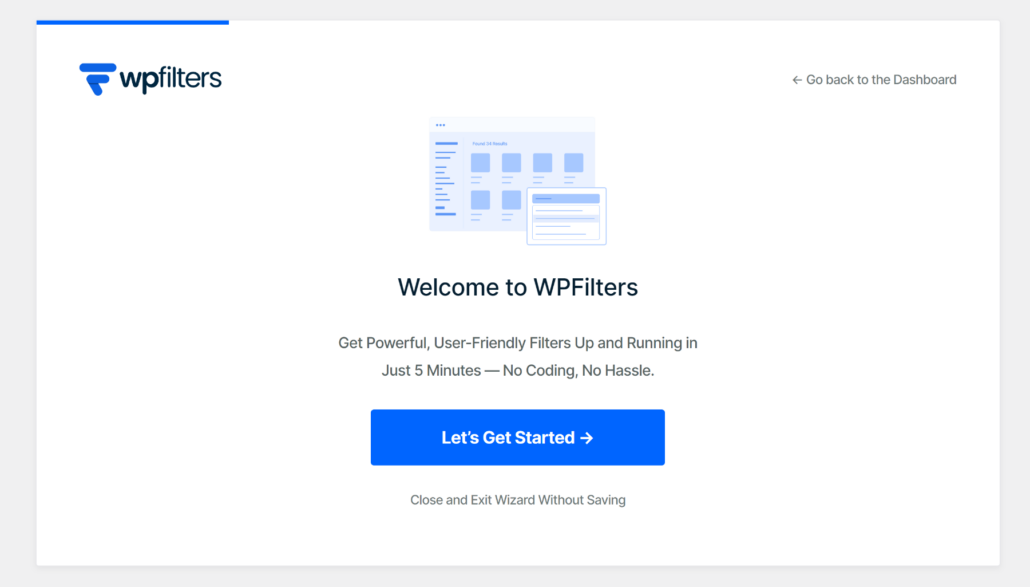
After you activate the plugin, the setup wizard will appear. Go ahead and click the ‘Let’s Get Started’ button and follow the instructions to finish the setup.
Step 2: Add a New WooCommerce Category Filter Element
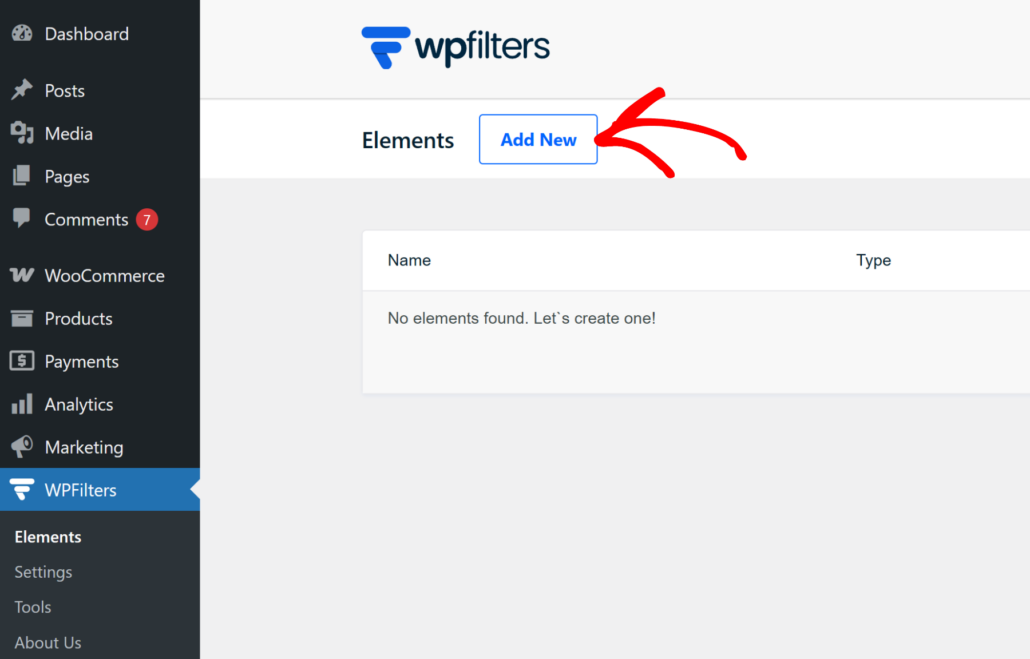
First, you will need to navigate to WPFilters » Elements from your WordPress dashboard.
Once you are there, simply click the Add New button to create a blank filter.
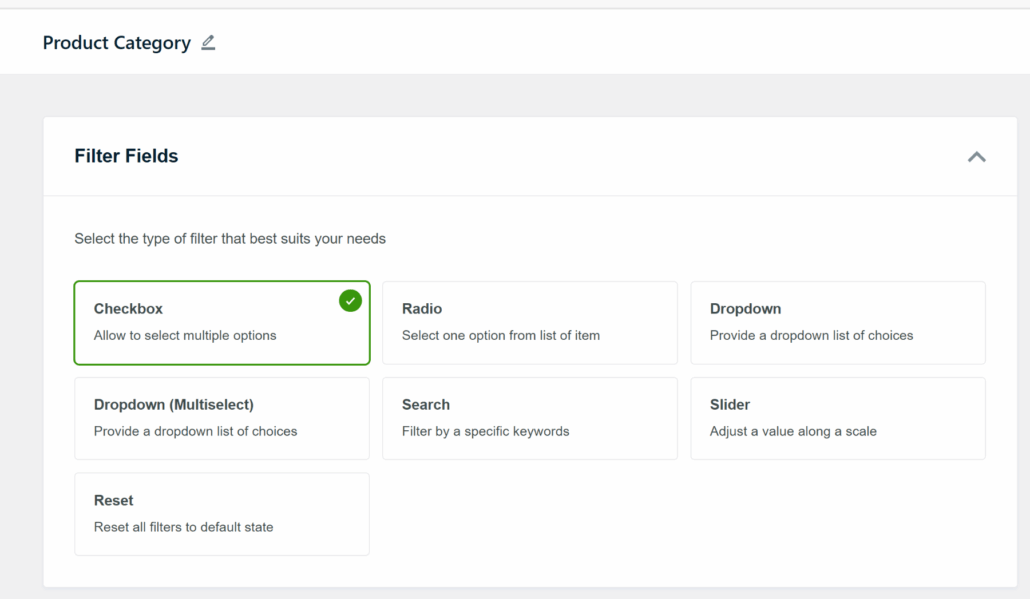
Start by giving your filter a title at the top so you can easily find it later. For example, you can call it “Product Categories” or something similar to organize your filters.
Next, you need to choose what type of filter you want to use. For instance, you can use checkboxes for categories and let customers select multiple options at once.
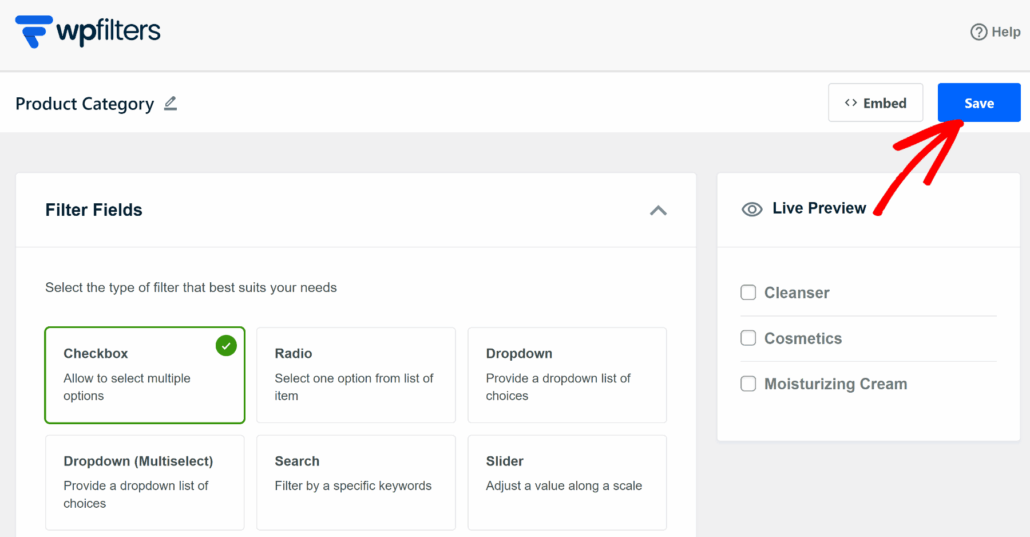
Go ahead and click on the Checkbox option in the list. You will see a live preview appear on the right side of the screen.
Now, you need to tell the filter exactly what information to display.
Simply scroll down to the Data Source section and click on the dropdown menu.
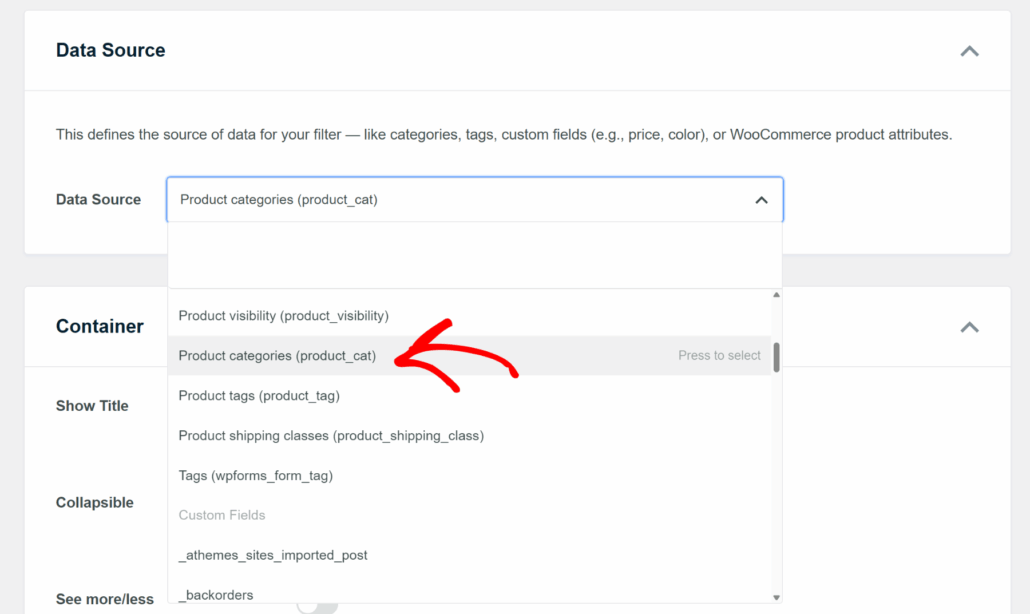
Since you are allowing visitors to sort products based on categories, you need to select Product categories from the list of options.
This ensures that WPFilters pulls the correct taxonomy from your WooCommerce products.
Step 3: Customize Your WooCommerce Category Filter
After connecting the data, you can make the filter look exactly how you want.
To do that, you can scroll down to the Container section.
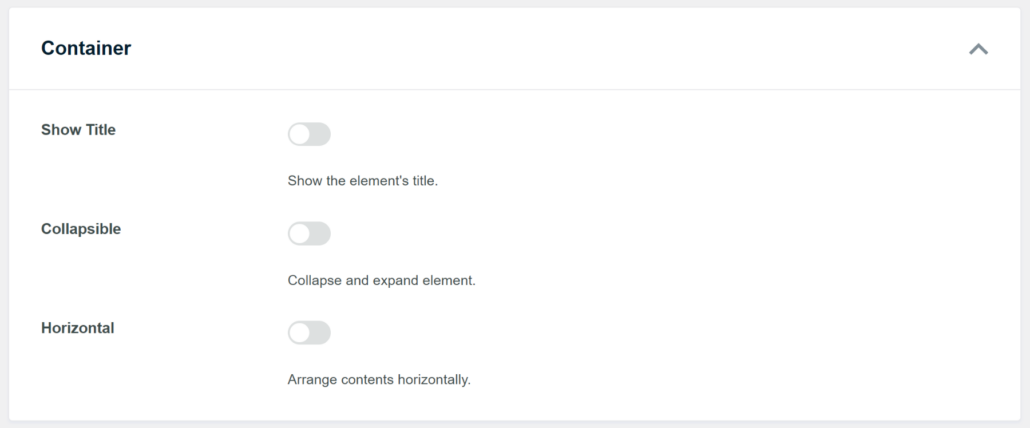
Here, you can enable the option to Show Title and display the filter label on your WooCommerce store. You can also choose if the filter should be collapsible or horizontal.
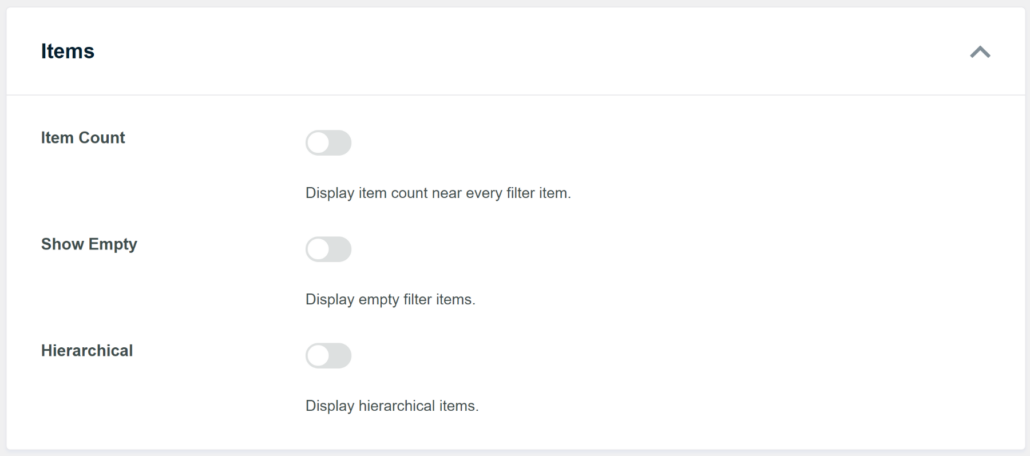
Next, look at the Items section below that.
Here, you can pick to show the number of products next to each category name. This is helpful for customers who want to see how many items are available before they click.
When you are happy with how it looks, simply click the Save button at the top of the page.
You will also see a live preview of the filter on the right side of the screen.
Step 4: Embed Category Filter to Your WooCommerce Shop Page
Now that your filter is ready, you need to place it where customers can see and use it.
We have found that the sidebar is the most convenient place for these filters on a WooCommerce site, and that’s what we’ll demonstrate in this tutorial.
However, WPFilters offers multiple embed options and allows you to display filters on any page or post on your website.
To start, you can head to Appearance » Widgets in your WordPress dashboard. Then, look for the specific sidebar area that your theme uses for the shop page.
Next, you can click the + button to add a new widgets block and search for WPFilters Element.
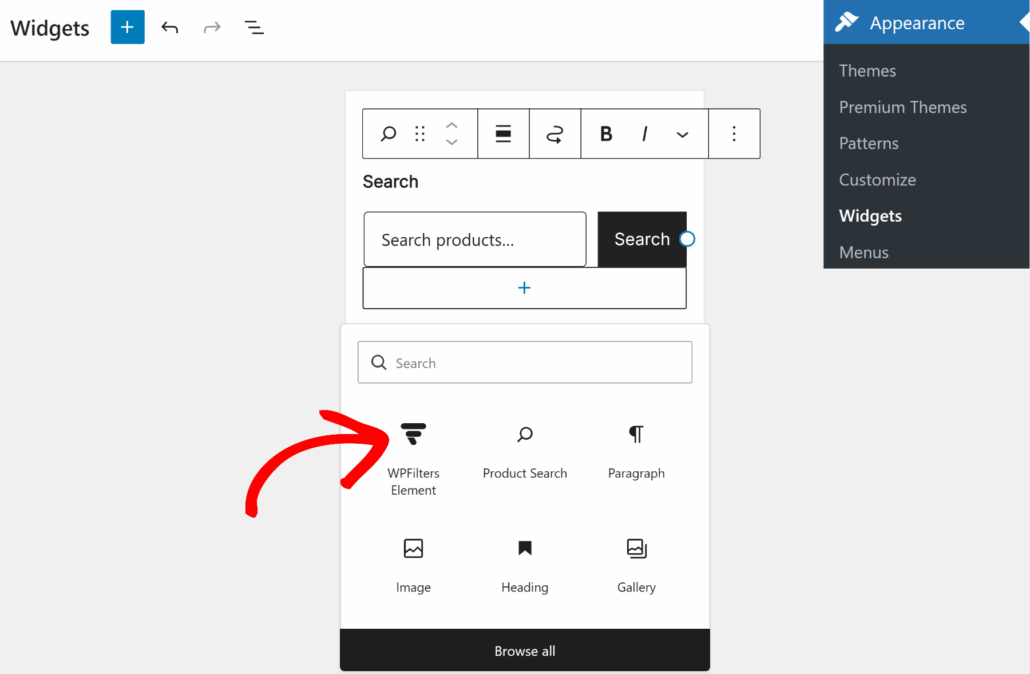
Do note that this may vary depending on the WooCommerce theme you’re using.
Once you add the block, simply select the “Product Categories” filter you created earlier from the Element Settings dropdown menu in the Settings panel.
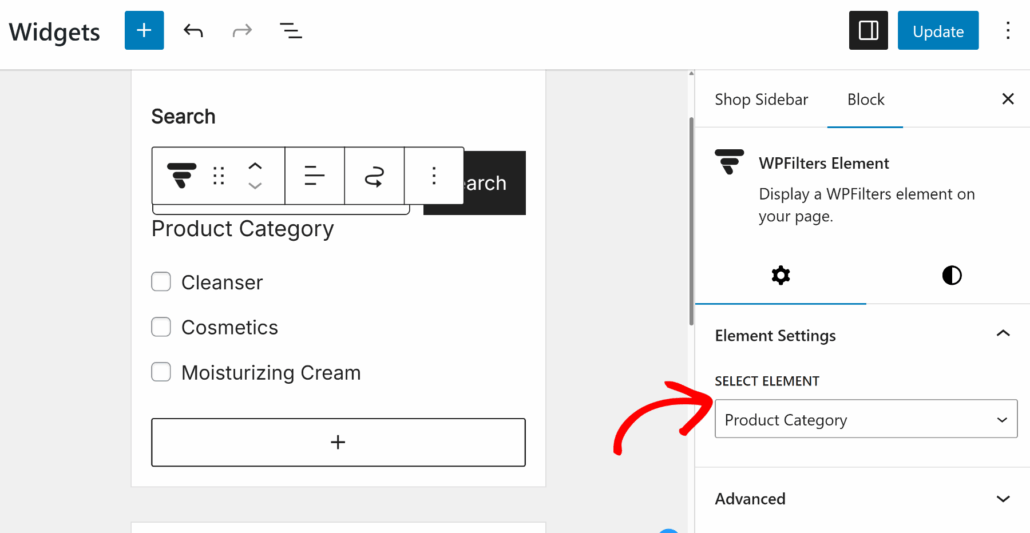
Finally, click the Update button to save your changes.
Step 5: Test Your Product Category Filter
Once you’ve added the product category filter to your WooCommerce shop, the next step is to test it.
To start, you can now visit your store to see your new category filter working perfectly in the sidebar.
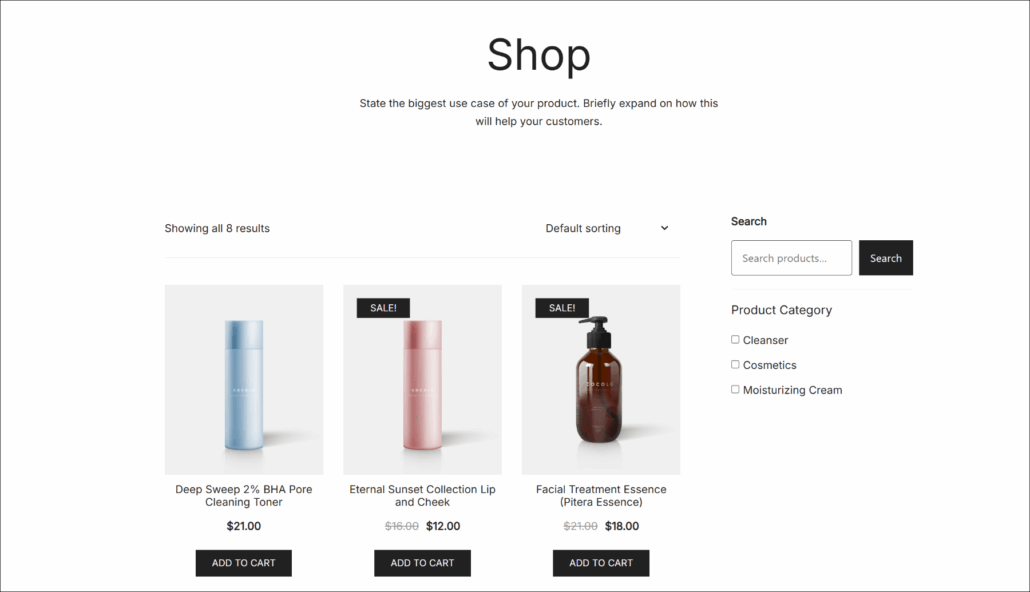
From here, you can simply select a product category and see if the correct items appear in your store.
For example, we will filter products by ‘Cosmetics’ on your demo store and see if it filters the right items.
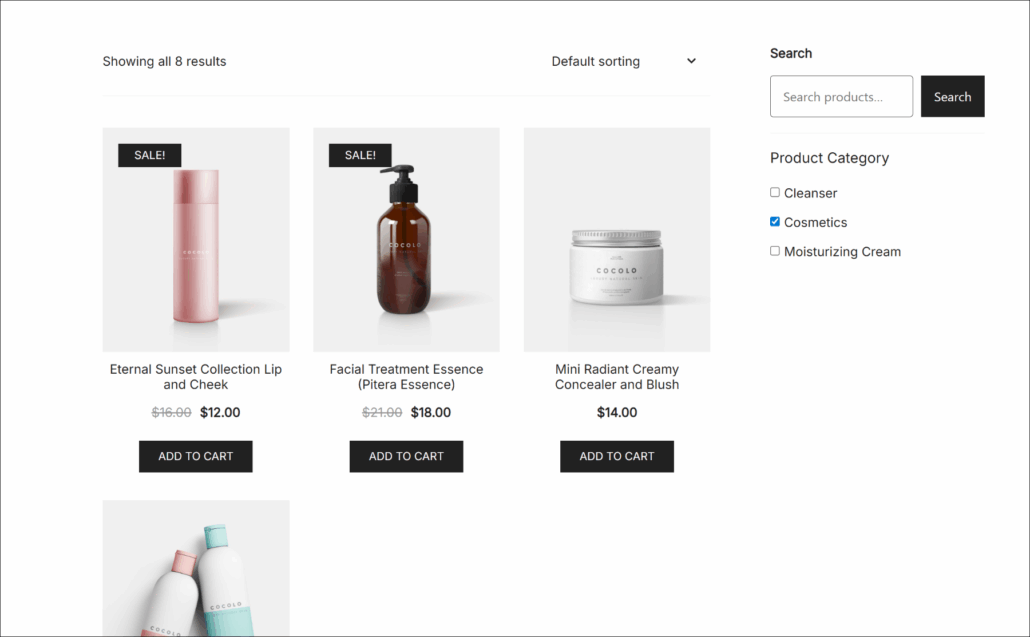
As you can see, the products are sorted, and only the ones in the ‘Cosmetics’ category appear. This means that the filter is working correctly.
FAQs About WooCommerce Product Category Filters
1. Do I need to know how to code to add these filters?
Not at all. We specifically chose WPFilters for this guide because it handles all the technical work for you. You can set up complex filters just by clicking a few buttons in the dashboard.
2. Can I let customers filter by tags or price as well?
Yes, you can. You just need to create a new filter element and select “Product Tags” or “Price” as the data source. It works the same way as the category filter we built in this tutorial.
3. Will this work with my current WordPress theme?
In our experience, WPFilters works well with almost every correctly coded WordPress theme. We have tested it on many site setups, and it integrates smoothly with the widget areas.
We hope this article helped you learn how to filter WooCommerce products by category. You may also want to see our guides on how to fix WooCommerce shop page not showing products and how to add Ajax search to WooCommerce.
Ready to add powerful filters to your online store? You can get started with WPFilters here.