


Running a website with lots of data, like an online store or a real estate directory, often leads to cluttered search results.
We have noticed that visitors struggle to find specific items that fit within their budget or timeframe when there are too many options.
Without a way to narrow down these results, potential customers often get frustrated and leave the site. It is like trying to find a specific book in a library that isn’t organized by genre or author.
Adding range filters solves this problem by allowing users to slide between a minimum and maximum value, such as price or dates. However, we found that most default WordPress setups do not offer this feature, and adding it usually requires complex coding.
In this article, we will show you how to create range filters in WordPress.
Why Offer Range Filters to Your Visitors?
Before we get to the tutorial, let’s talk about how range filters improve the user experience on your site.
We have seen that visitors who cannot filter by price or date often abandon their search quickly.
Imagine walking into a shoe store and having to look at every single pair, regardless of your size or budget. That is exactly how your visitors feel when they have to scroll through irrelevant products on your website.
Range filters act like a helpful shop assistant that immediately shows items fitting specific criteria.
We found that this small addition keeps visitors engaged for much longer because they see exactly what they can afford or need.
Whether it is filtering a WooCommerce price range or selecting dates for a booking, this feature saves time.
It clears the clutter and helps your customers make decisions faster, which often leads to more sales for you.
That said, let’s look at how you can easily add a range filter to your WordPress website.
Adding a Range Filter in WordPress
The easiest way to add range filters to your WordPress site is by using a plugin like WPFilters.

WPFilters is the best filtering plugin for WordPress that makes it simple to sort content. You can use it to give visitors precise control over what they see without writing any code.
It works perfectly with popular eCommerce plugins like WooCommerce and Easy Digital Downloads.
Using the plugin, you can create all types of filters for tags, categories, custom fields, and other data types. The best part is that WPFilters offers multiple data fields for adding filters to your site.
Which means that you can easily set up price sliders, date ranges, and numerical filters that look great on any device.
Here are some things you can do with WPFilters:
- Filter by price: Let customers set a minimum and maximum budget for their shopping.
- Filter by custom fields: Use numerical data from your posts to create specific range sliders.
- Improve search results: Help users find exactly what they need by narrowing options significantly.
- Customize the look: Display the filter title, make it collapsible, and arrange it horizontally.
With that, let’s see how you can use WPFilters to create a range filter on your site.
Step 1: Install and Activate WPFilters
First, you will need to visit the SearchWP website and sign up for a WPFilters account.
Once you have done that, simply head to your SearchWP account area and go to the ‘Downloads’ tab.
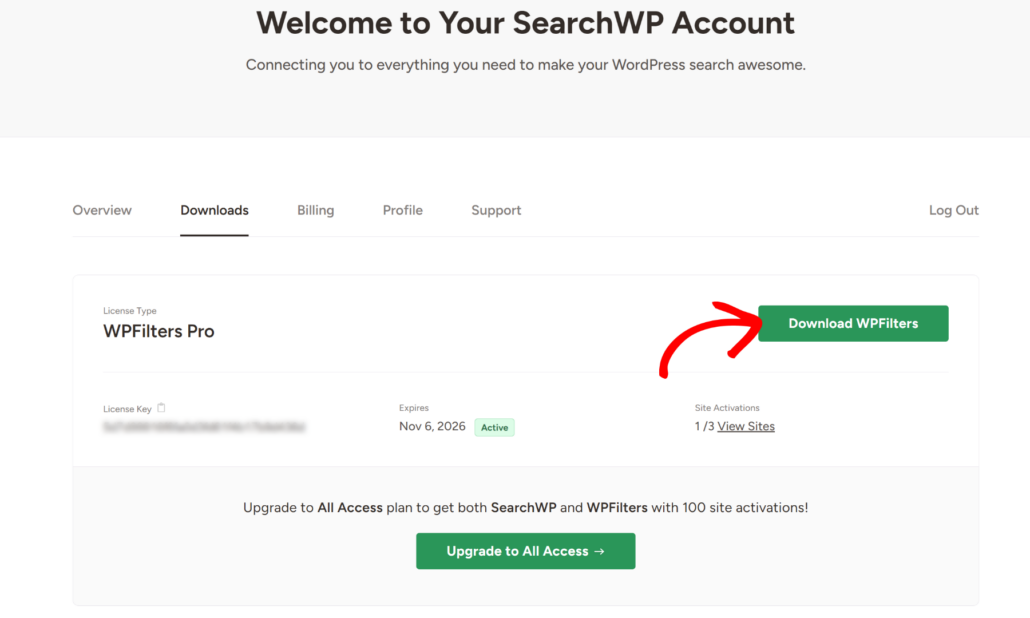
Next, you can click the Download WPFilters button and save the plugin files on your computer.
While you are on the downloads page, we also recommend copying the license key, as you will need it to set up the plugin.
Now, the next step is to upload the WPFilters plugin files to your WordPress site and install the plugin. If you need help with this, then please see this guide on how to install a WordPress plugin.
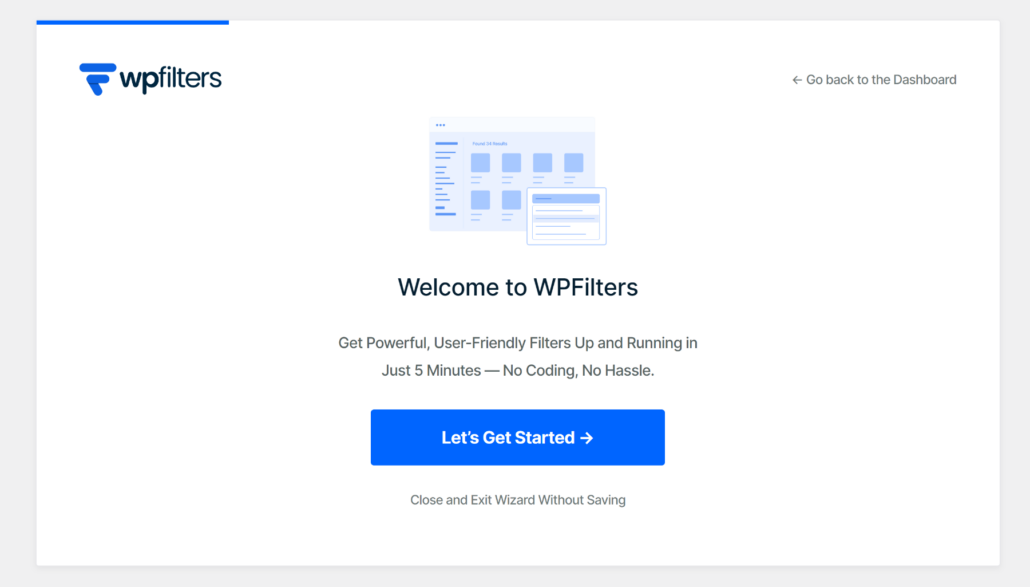
After activating the plugin, you will see the WPFilters setup wizard. Go ahead and click the ‘Let’s Get Started’ button and follow the onscreen instructions.
Step 2: Add a Range Filter Element
Now that the plugin is active, it is time to build your first range filter for WordPress.
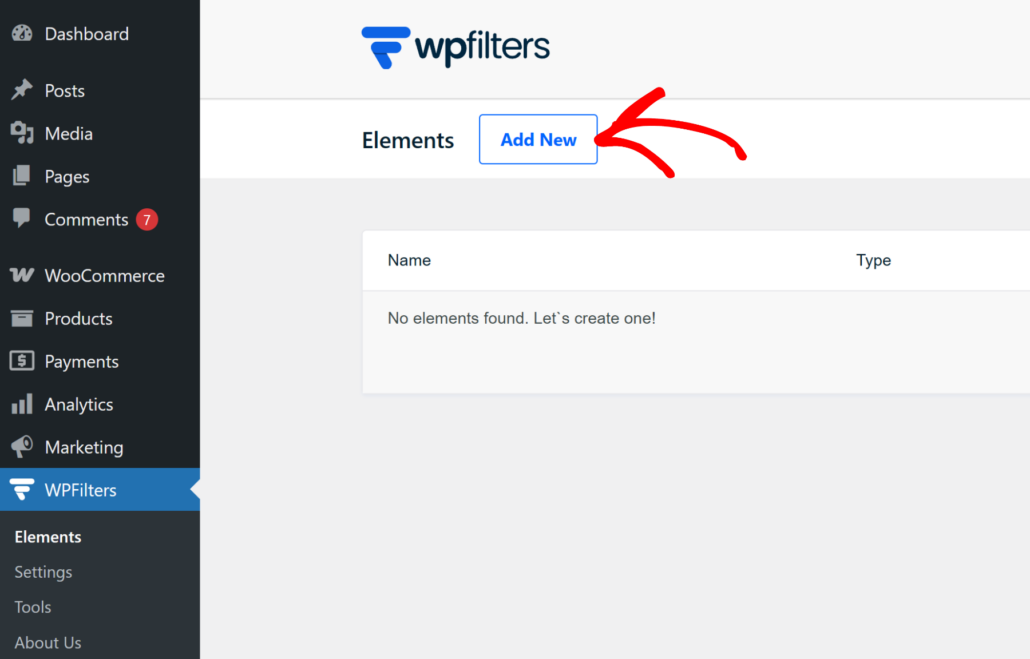
To start, head to WPFilters » Elements from the WordPress dashboard and simply click the ‘Add New’ button.
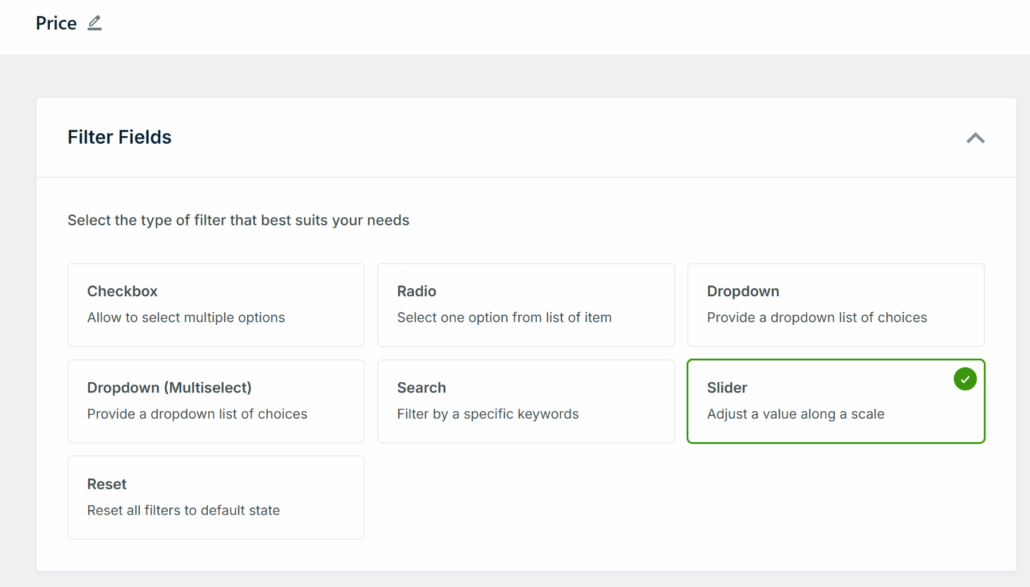
After that, you can start by entering a name for your filter at the top. You can use a specific name that helps you stay organized when there are multiple filters on a site.
Next, go ahead and select the Slider option under the Filter Fields section. This specific element creates the sliding bar that your visitors will use to select their minimum and maximum values.
Once you have selected the filter type, scroll down to the Data Source section. Here, you can choose exactly what data determines the range values.
For example, if you are running a store, then you can select Product Price or total in-stock items as a source.
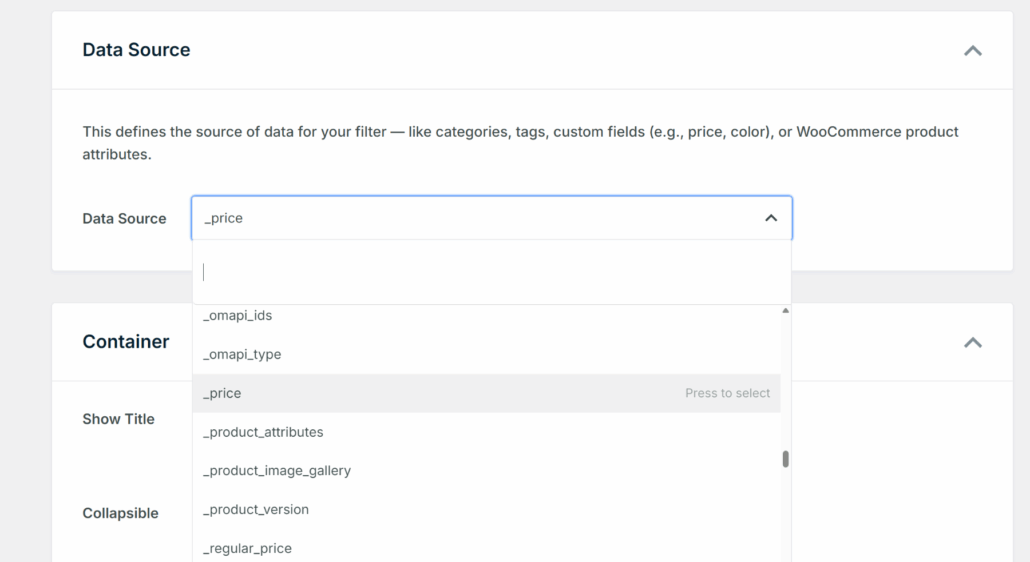
After selecting your data, you can customize how the slider looks to match your site design.
Simply scroll down to the ‘Container’ section to adjust the display settings. For instance, you can show a label title to the filter.
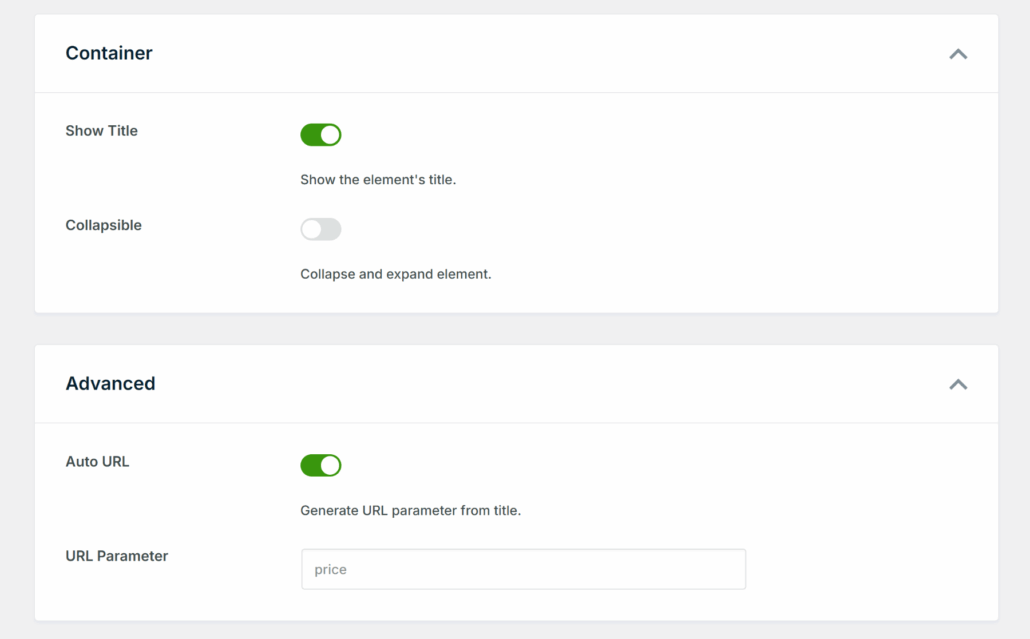
When you are satisfied with the appearance, scroll to the top of the page.
Then, click the Save button to store your changes.
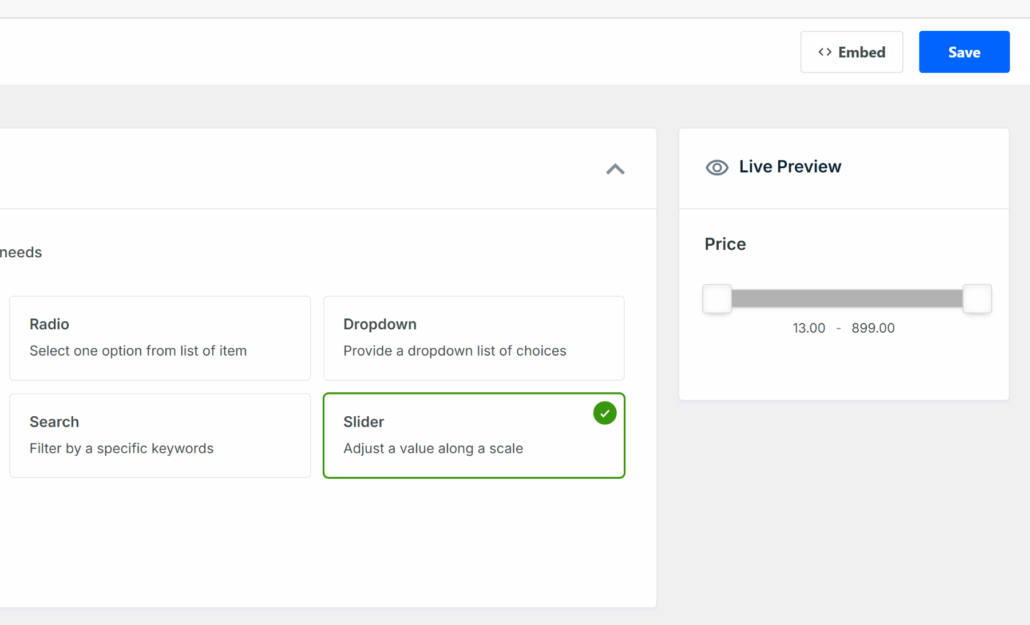
Step 3: Add the Range Filter to Your Site
The best part about using WPFilters is that you can embed your filters anywhere on your site with ease.
To get started, simply click the ‘Embed’ button on the Element page.
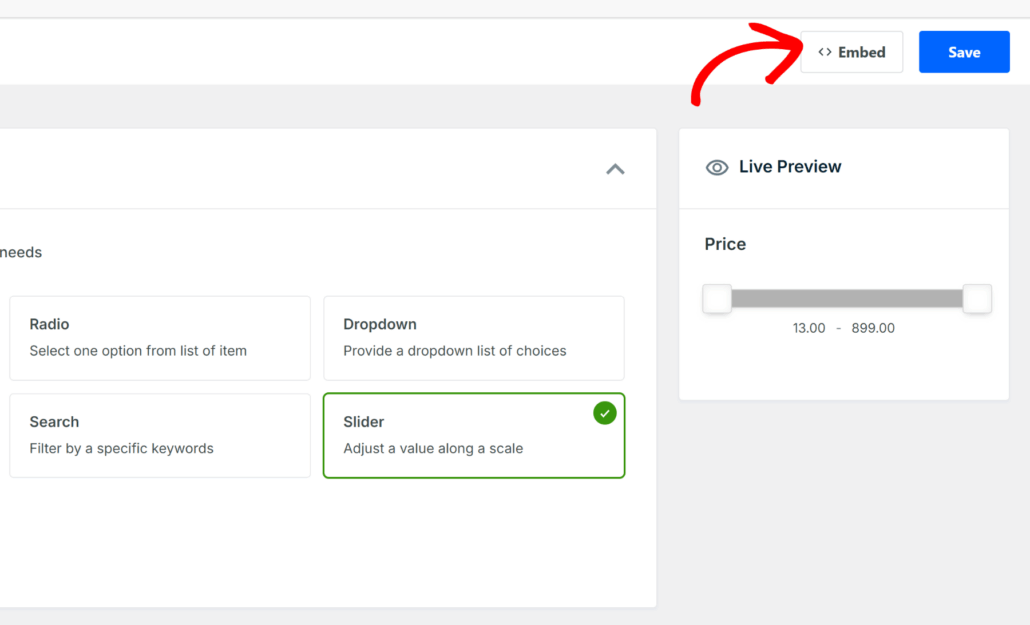
Next, you will see a popup window with different options.
You can choose between the Gutenberg block, a shortcode, or PHP code if you are a developer.
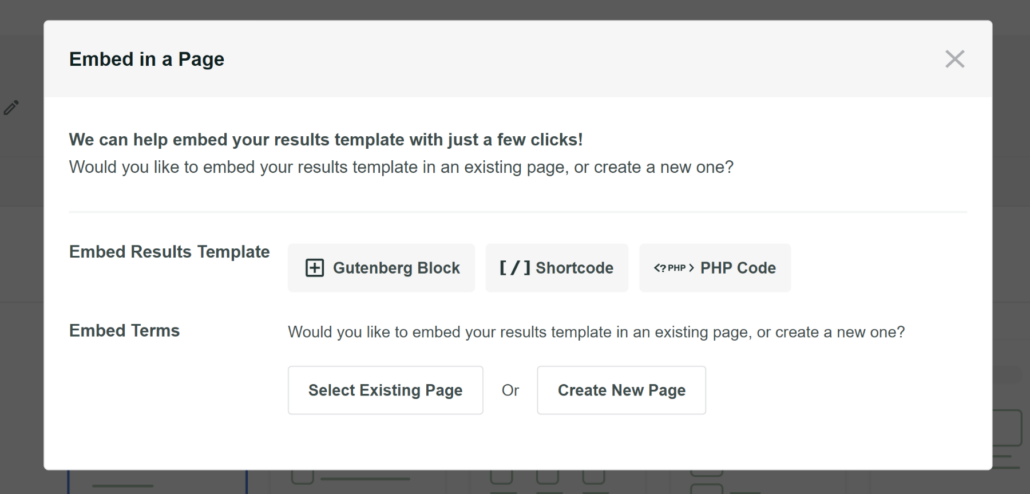
Besides that, you can also manually add the WPFilters Gutenberg block to the sidebar and other areas on your website.
For this tutorial, we will add the range filter to the sidebar of your demo WooCommerce site.
To do that, simply head to Appearance » Widgets from your WordPress dashboard. Do note that this step might differ depending on the WordPress theme you’re using.
Next, scroll down to the sidebar section and click the ‘+’ sign to add the WPFilters Element widget block.
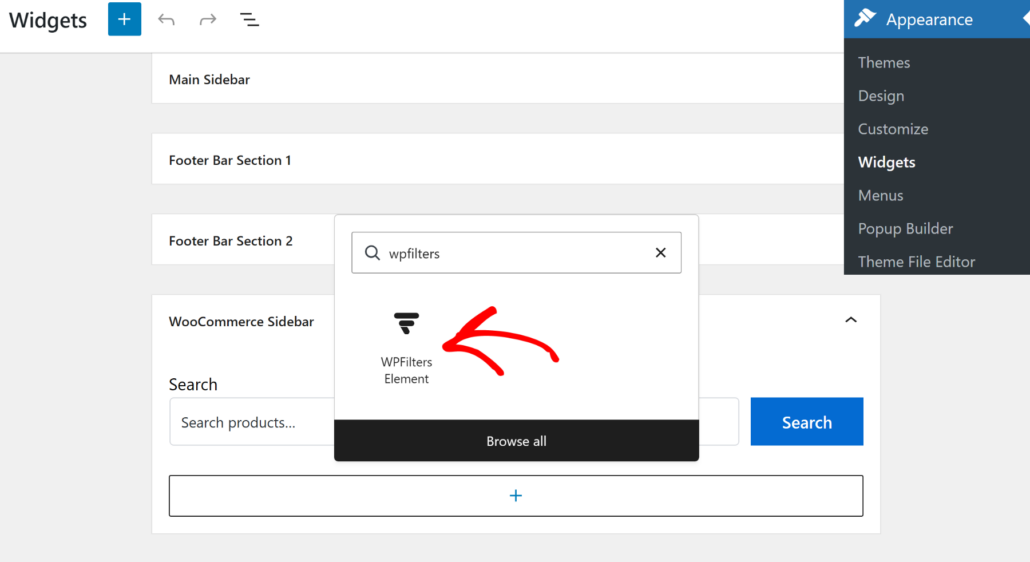
Now, you’ll need to select the range filter you created from the settings panel on the right.
Simply click the ‘Select Element’ dropdown menu and pick your filter.
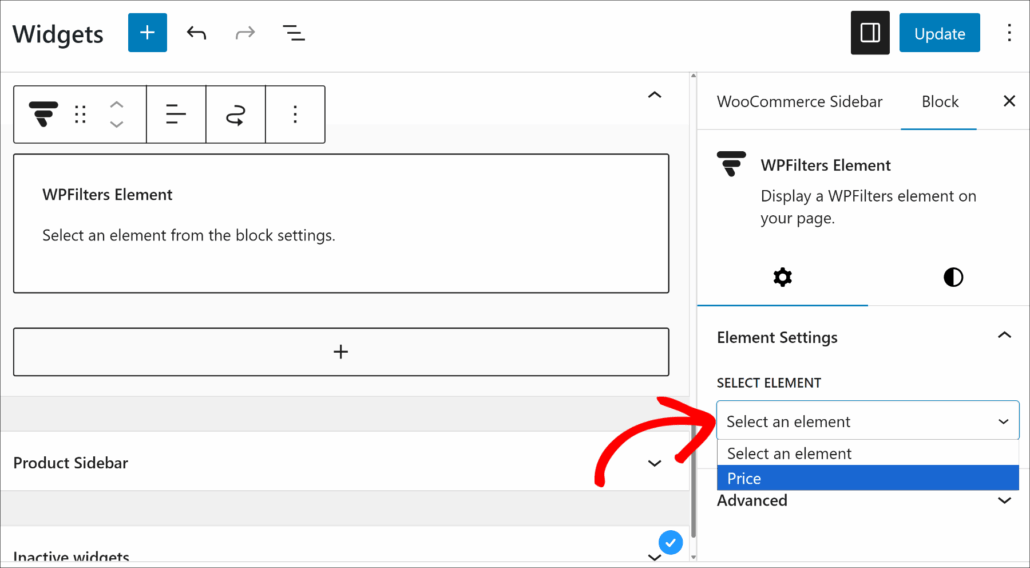
When you’re done, go ahead and click the Update button at the top.
From here, you can visit your website to see the range filter in action.
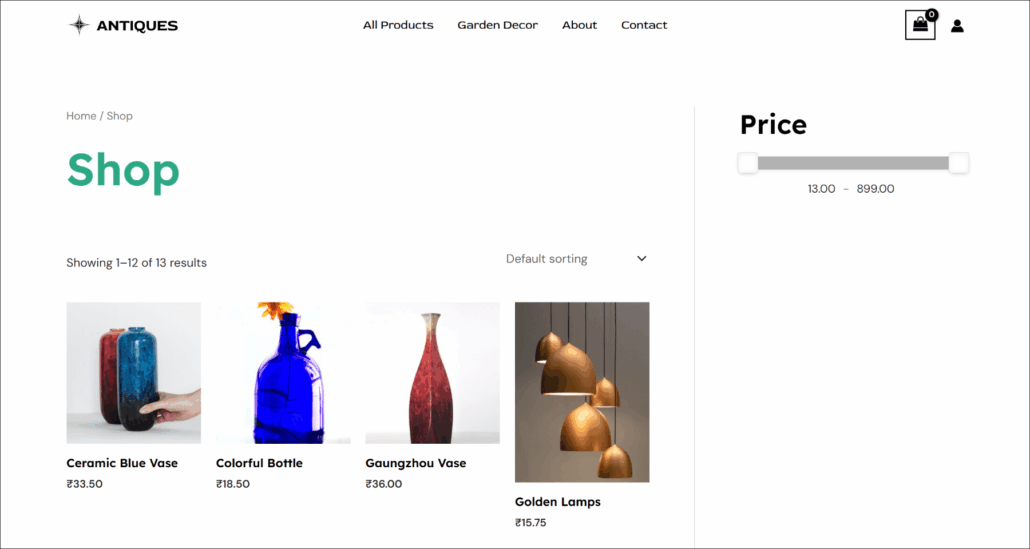
By sliding the slider, your visitors can filter products based on prices.
FAQs about Creating Range Filters in WordPress
Here are some common questions we get about setting up range filters in WordPress.
1. What types of data can I filter with a range slider?
You can filter almost any numerical data. We often use range sliders for product prices, booking dates, or measurements like weight and size on directory sites.
2. Does this work with WooCommerce products?
Yes, it integrates perfectly with WooCommerce. We found that adding a price range slider helps customers find affordable products much faster, which can increase conversion rates.
3. Can I add multiple range filters to one page?
Absolutely. You can stack filters to let users sort by price and user rating simultaneously. This creates a very precise search experience for your visitors.
We hope this article helped you learn how to create range filters in WordPress. You may also want to see our guides on how to filter WooCommerce products by tags and how to filter WooCommerce products by category.
Ready to add powerful filters to your online store? You can get started with WPFilters here.