

Shoppers who want to filter WooCommerce products by color run into the same wall on most stores. They land on the shop page, see a mixed grid of every color available, and have no way to narrow it down without clicking into every single product.
WooCommerce does not include a color filter for the shop page out of the box. Without one, your product grid shows everything at once, and a customer looking for a specific color has to scroll through every listing to find it.
A color filter solves this by letting shoppers click a color and instantly see only the products that match. We have seen this single addition keep customers on the page longer and reduce the frustration that sends them to a competitor.
In this article, we will show you how to add a color filter to your WooCommerce store without writing any code.
Why Add a Color Filter to Your WooCommerce Store?
From our experience, stores that sell products in multiple colors lose the most sales to this exact problem. A shopper with a specific color in mind gives up when the grid forces them to hunt for it.
Think of it like a clothing store where every shirt, regardless of color, hangs on the same rack with no way to sort. Nobody wants to flip through a hundred mixed options to find the one red shirt they came in for.
This matters most for stores selling clothing, home decor, accessories, or any product where color is a deciding factor. When customers can’t find their color quickly, they leave, and that sale goes somewhere else.
Adding a color filter puts the right products in front of the right customers in seconds. With that in mind, let’s look at how to add one to your store.
Adding a Color Filter to WooCommerce
The easiest way to add a color filter to WooCommerce is by using a plugin like WPFilters.

WPFilters is the best filtering plugin for WordPress, built by the same team behind SearchWP. It lets you add Amazon-style filters to any WooCommerce store without writing a single line of code.
WPFilters pulls your color values directly from your WooCommerce product attributes and turns them into clickable filter options on the shop page. You can also combine the color filter with other filter types like a price range slider, category checkboxes or a keyword search box for an even more precise shopping experience.
Here are some things you can do with WPFilters:
- Filter by any product attribute: Pull color values directly from your WooCommerce Color attribute and display them as checkboxes that customers can select.
- Multiple display formats: Show color options as checkboxes, a dropdown, or a radio list to match your store’s design.
- Combine with other filters: Stack the color filter alongside a size, brand or price filter so customers can narrow results from multiple angles at once.
- Instant AJAX refresh: The product grid updates the moment a customer selects a color, with no page reload required.
Now, let’s walk through how to set up a color filter on your WooCommerce store.
Step 1: Install and Activate WPFilters
First, you will need to visit the SearchWP website and sign up for a WPFilters account.
Once you have an account, log in to your account area and go to the Downloads tab.
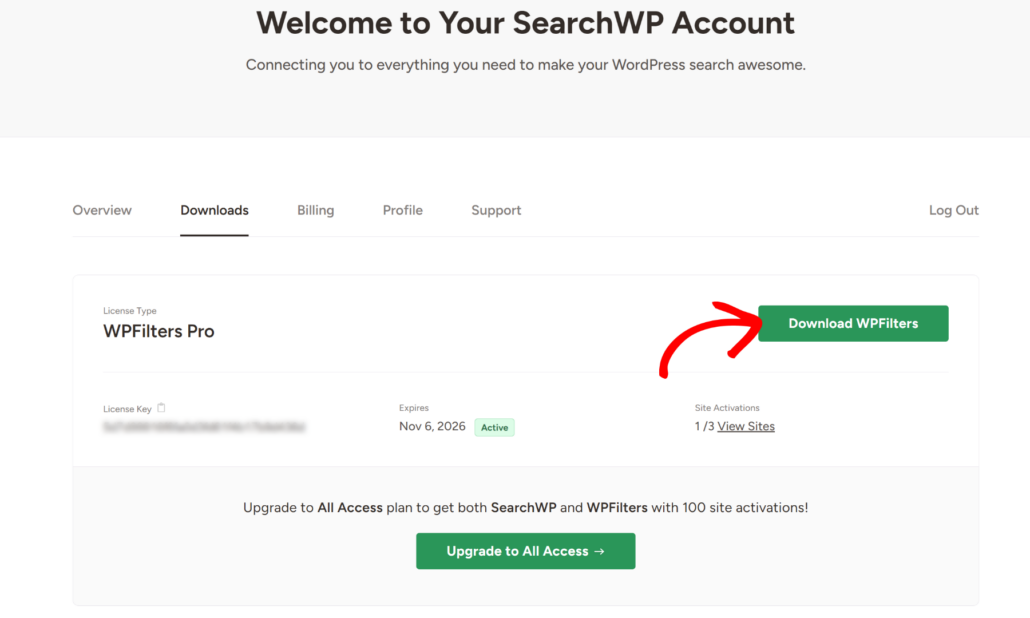
Then, click the Download WPFilters button to save the plugin’s ZIP file to your computer. We also recommend copying your license key from this page, as you will need it during setup.
Next, upload and install the plugin on your WordPress site. If you have not done this before, see this guide on how to install a WordPress plugin.
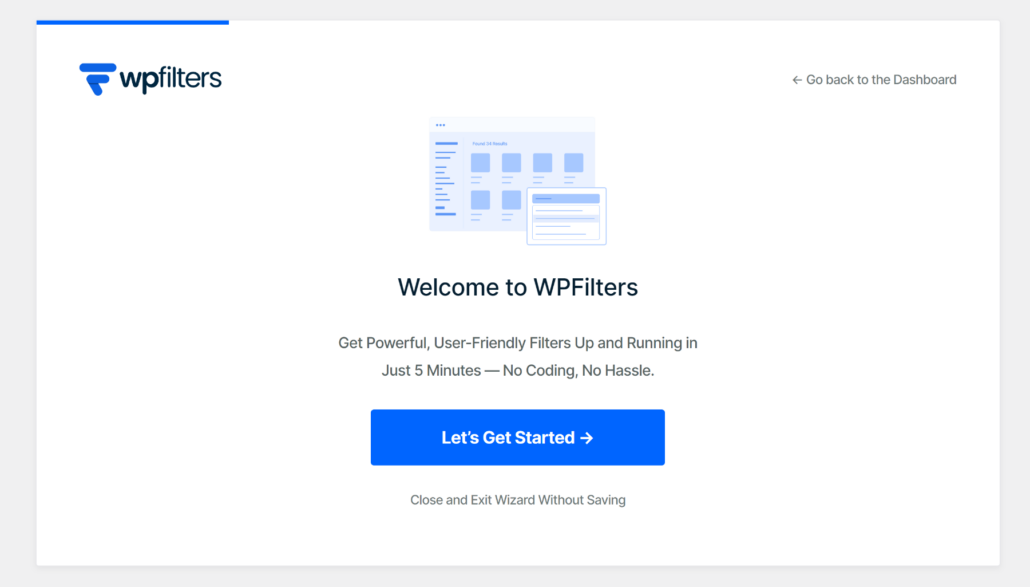
After activating the plugin, the setup wizard will appear. Simply click the Let’s Get Started button and follow the onscreen instructions to finish the setup.
WPFilters is all set! Now let’s prepare your WooCommerce product data.
Step 2: Set Up a Color Attribute in WooCommerce
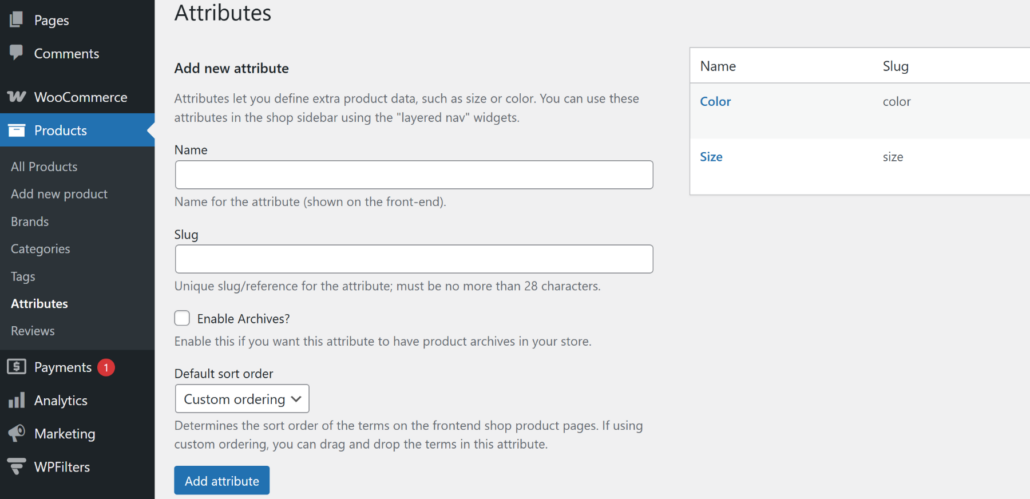
Before you can build the filter, you need a Color product attribute set up in WooCommerce. WPFilters pulls its values directly from your product attributes, so this is a required step if you have not done it already.
Note: If you already have a Color attribute with terms assigned to your products, you can skip ahead to Step 3.
To start, first go to Products » Attributes from your WordPress dashboard and then add your attributes.
For step-by-step instructions, you can see this guide on how to properly set up product tags, attributes, and categories in WooCommerce.
Step 3: Create a Color Filter Element in WPFilters
Now navigate to WPFilters » Elements from your WordPress dashboard and click the Add New button.
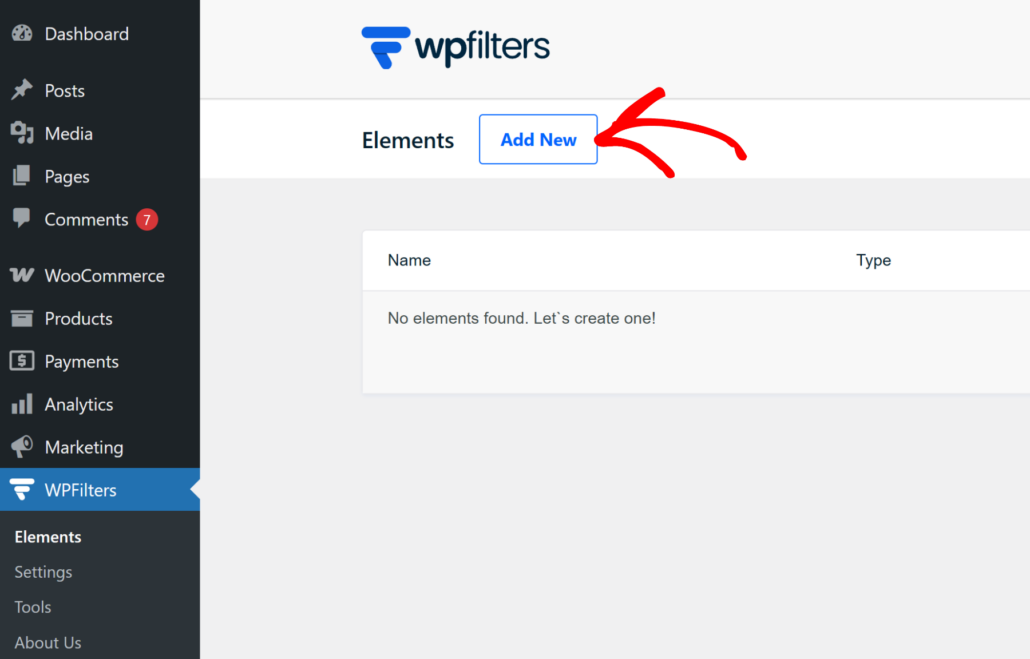
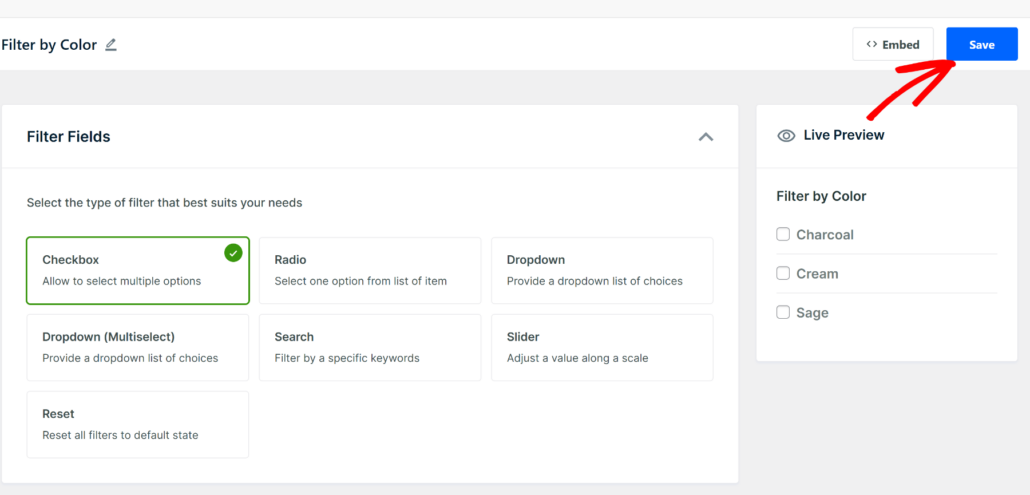
Next, you can give your filter a name at the top of the editor, such as Filter by Color.
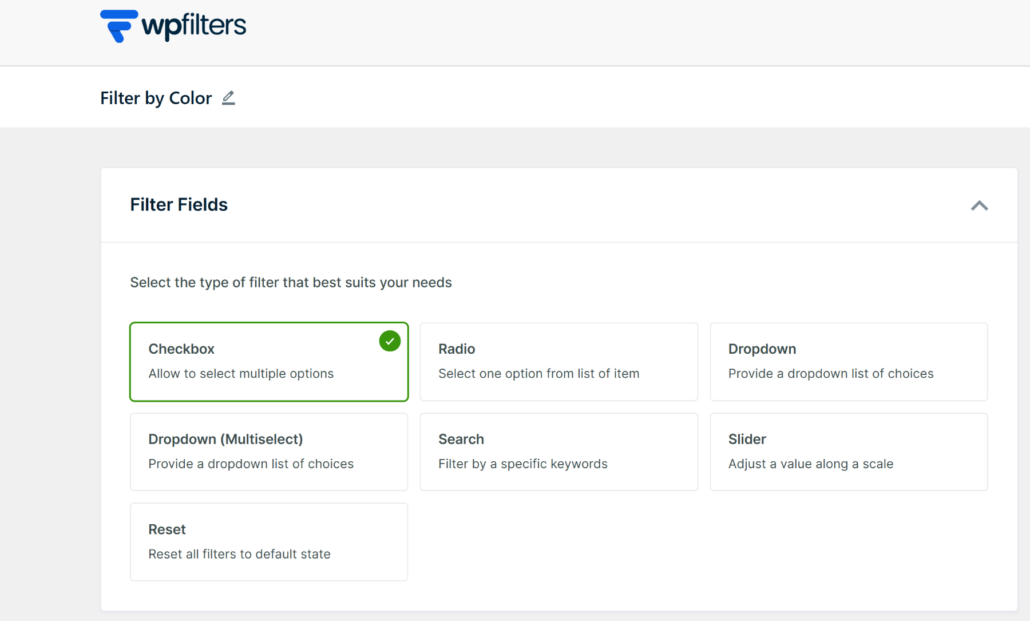
After that, you will need to head to the Filter Fields section and select the Checkbox option. This creates a list of checkboxes for each color that customers can select to narrow the product grid.
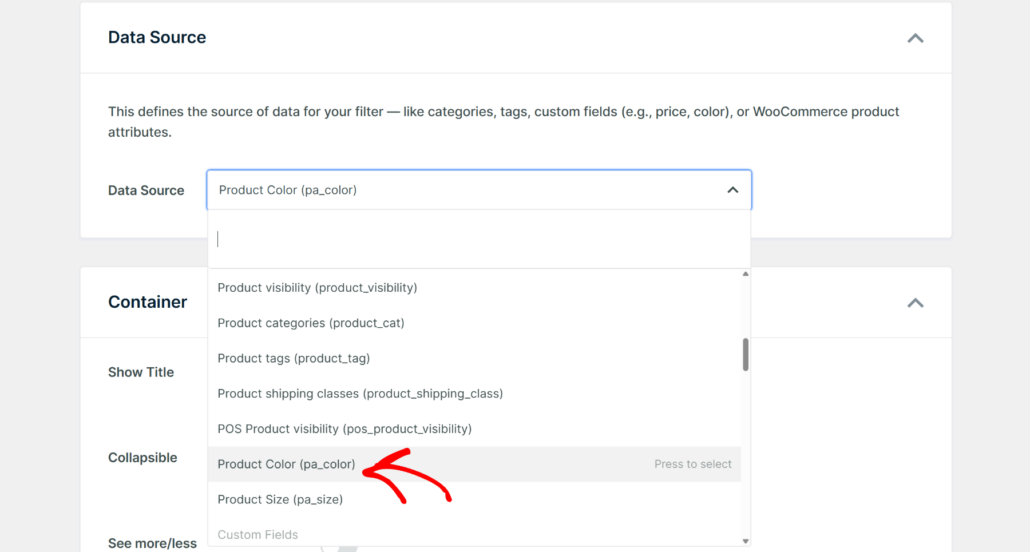
From here, you can scroll down to the Data Source section and click the dropdown menu.
Under the WooCommerce section, select the Product Color (pa_color) attribute you created in the previous step. WPFilters will automatically pull all of your color terms and add them to the filter.
Step 4: Customize the Color Filter Settings
With the data source connected, you can fine-tune how the filter looks and behaves for your shoppers.
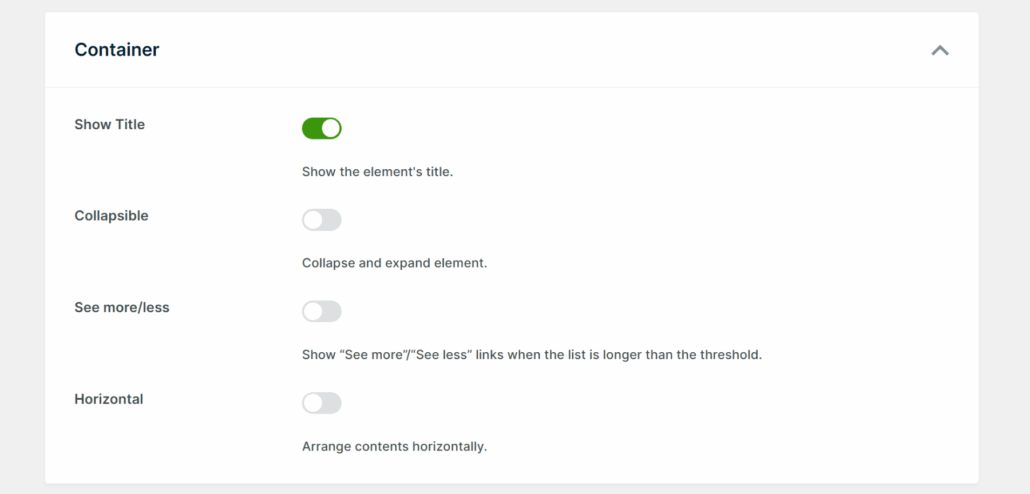
Scroll to the Container section and enable the Show Title toggle to display a label above the checkboxes, and turn on Collapsible if you want visitors to be able to hide the filter widget to save space on mobile.
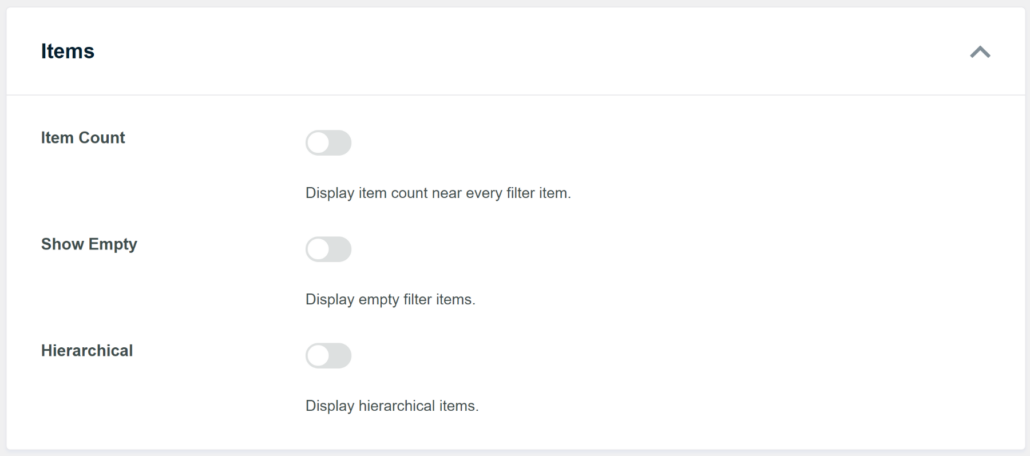
Next, scroll to the Items section.
Here, enabling the Item Count option shows customers how many products are available for each color so they can make faster decisions.
When you are done, scroll to the top and click the Save button.
You will see a live preview of the filter in the panel on the left.
Step 5: Add the Color Filter to Your WooCommerce Store
With your filter saved, the final step is to place it on your store. We recommend adding it to the sidebar widget area on your shop page, where it stays visible as customers scroll and fits the standard WooCommerce layout.
To start, go to Appearance » Widgets from your WordPress dashboard. Note that this step may look different depending on the theme you are using.
From here, you will need to find the sidebar area your shop page uses (usually WooCommerce Sidebar) and click the + button to add a new block. Then search for WPFilters Element and add the widget.
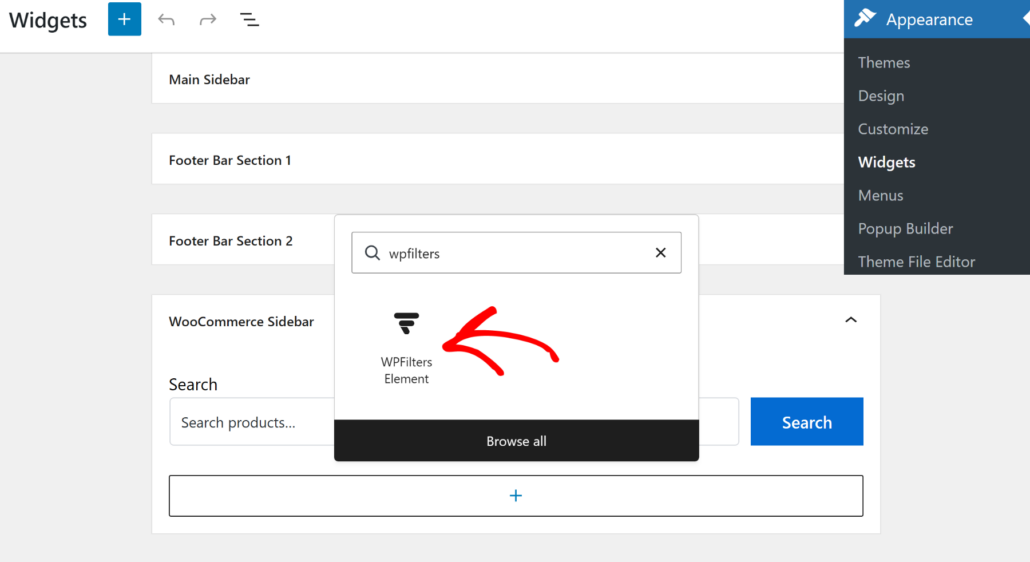
Once you add the WPFilters Element widget block, you can select your color filters.
In the Element Settings panel on the right, open the Select Element dropdown and choose the ‘Filter by Color’ filter.
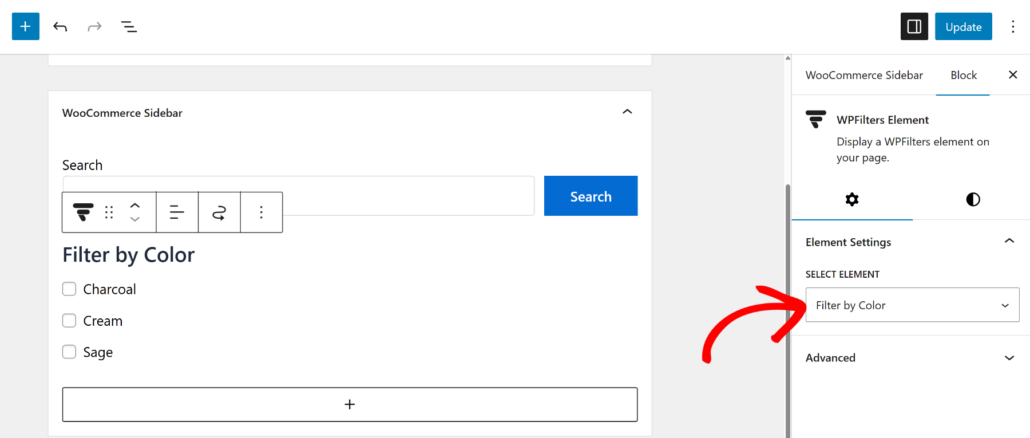
When you are done, click Update.
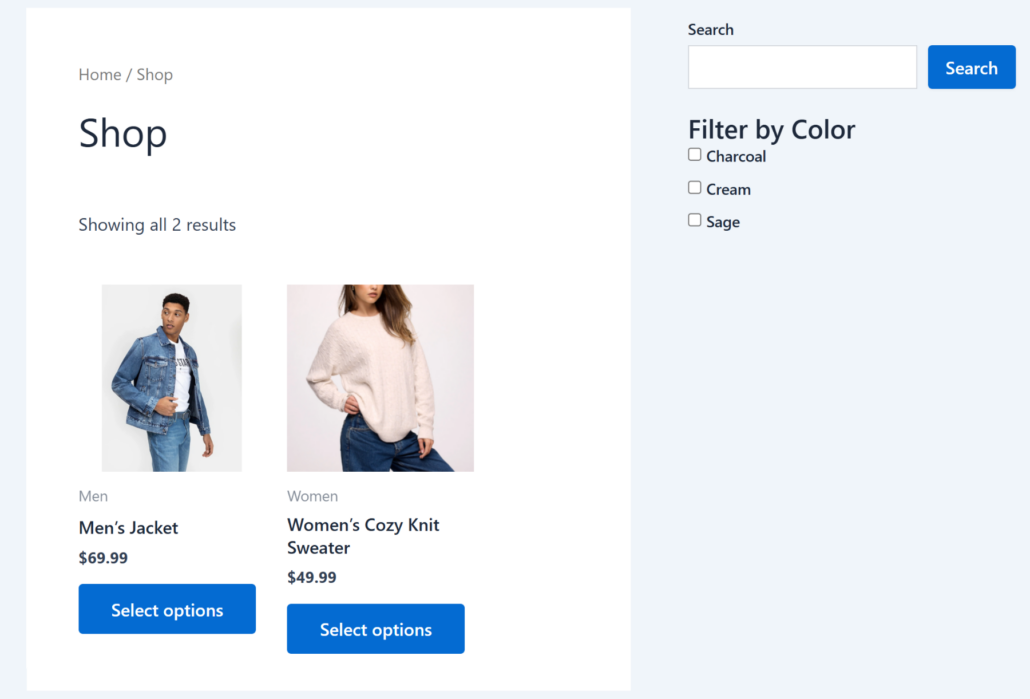
Now visit your shop page and test the filter. Select the Charcoal color and confirm only products appear in the grid that have the assigned color.
FAQs about Adding Color Filters
1. Does WPFilters automatically pull my color values from WooCommerce?
Yes. Once you connect the filter to your WooCommerce Color product attribute, WPFilters pulls all of your color terms automatically and displays each one as a checkbox option. You do not need to enter the colors manually inside the plugin.
2. Can I combine the color filter with a price or category filter?
Yes. You can create separate filter elements for price, category, size, or any other attribute in WPFilters and add them all to the same sidebar. Customers can then narrow results from multiple angles at once, such as filtering by both Red and a price range under $50.
3. Will the color filter work with variable WooCommerce products?
Yes. WPFilters works with all standard WooCommerce product types, including variable products. When a customer filters by a color, WPFilters surfaces any product that has a variation matching that color, even if other variations are available in different colors.
4. Can customers select more than one color at a time?
Yes. The Checkbox field type allows customers to select multiple colors simultaneously. If a customer checks both Blue and Black, WPFilters shows all products available in either color. Switch to the Radio field type if you want to limit customers to one selection at a time.
We hope this article helped you learn how to filter WooCommerce products by color. You may also want to see our guides on how to filter WooCommerce products by attributes and how to filter WooCommerce products by tags.
Ready to give your customers a faster way to find products by color? You can get started with WPFilters here.