


When you hide out-of-stock products from WooCommerce search, every result a shopper clicks is something they can buy today. Sold-out items stop taking up the top spots while you wait on a restock.
WooCommerce already has an option for hiding sold-out items, and SearchWP can follow it without any code. As a friendly heads-up, that option only covers your shop pages and product searches, so a search bar that looks across your whole site can still show sold-out products.
We set this up on our own demo store and marked a pair of boots as out of stock. They dropped out of the live search results on the very next search, with no index rebuild, while the product list in the WordPress dashboard still showed them.
In this article, we’ll show you how to hide out-of-stock products from WooCommerce search, from turning on the right setting to testing it in your live search results.
How WooCommerce Hides Out-of-Stock Products
WooCommerce keeps track of each product’s stock status behind the scenes. When a product sells out, it gets marked as out of stock.
Its option to hide out-of-stock items uses that mark on your shop page, your product category and tag pages, and searches limited to products. On a regular site-wide search, WooCommerce only leaves out products you’ve set to be hidden from search, so sold-out items can still appear.
Search plugins and live search tools add another layer, because they run their own search instead of WooCommerce’s. SearchWP doesn’t check stock status by itself, which is where its WooCommerce Integration comes in.
Once it’s active, SearchWP follows WooCommerce’s out-of-stock option on every search it runs for your visitors. That includes the instant results dropdown from live search.
Why Hide Out-of-Stock Products from WooCommerce Search?
Shoppers who search usually know what they want. When the results are full of products they can’t buy, that intent goes to waste.
A sold-out result near the top can send a shopper straight back to the search bar. Here are the problems sold-out items cause in search:
- Dead-end clicks. A shopper clicks the top result and lands on a product page that says it’s out of stock. From there, they either go back to the results or leave your store.
- In-stock alternatives get pushed down. A sold-out product can rank above a similar one you have on the shelf. The item the shopper could buy ends up further down the page.
- Live search shows them first. A live search dropdown puts results in front of shoppers before they even press Enter. Sold-out products are the first thing people see.
- Search and shop don’t match. A product you’ve hidden from your shop page can still turn up in search. Shoppers notice when the two don’t agree, and it makes the store feel out of date.
You can fix all four with one WooCommerce setting and a quick SearchWP setup.
How to Hide Out of Stock Products from WooCommerce Search With SearchWP
The easiest way to hide out-of-stock products from WooCommerce search is with SearchWP.

SearchWP is the best WordPress search plugin, trusted by 50,000+ website owners. It lets you control which content your store’s search looks at and which products it leaves out.
Here are some key features offered by SearchWP:
- WooCommerce Integration. This extension connects SearchWP to WooCommerce’s product search, so your search results follow WooCommerce’s settings for hidden and out-of-stock products.
- Live Ajax Search. SearchWP Live Ajax Search shows instant results in a dropdown as shoppers type. With the WooCommerce Integration active, those results leave out sold-out products too.
- Engine Rules. Rules let you exclude products from search based on their categories, tags, and other product details, without touching your shop pages.
- Product details search. SearchWP can search custom fields, categories, and other product details that WordPress doesn’t search by default.
With that, let’s see how you can use SearchWP to hide out-of-stock products from your WooCommerce search.
Step 1: Install and Activate SearchWP
To start, you can visit the SearchWP website and sign up for an account. The WooCommerce Integration extension comes with a Pro license or higher, so you’ll want to pick one of those plans.
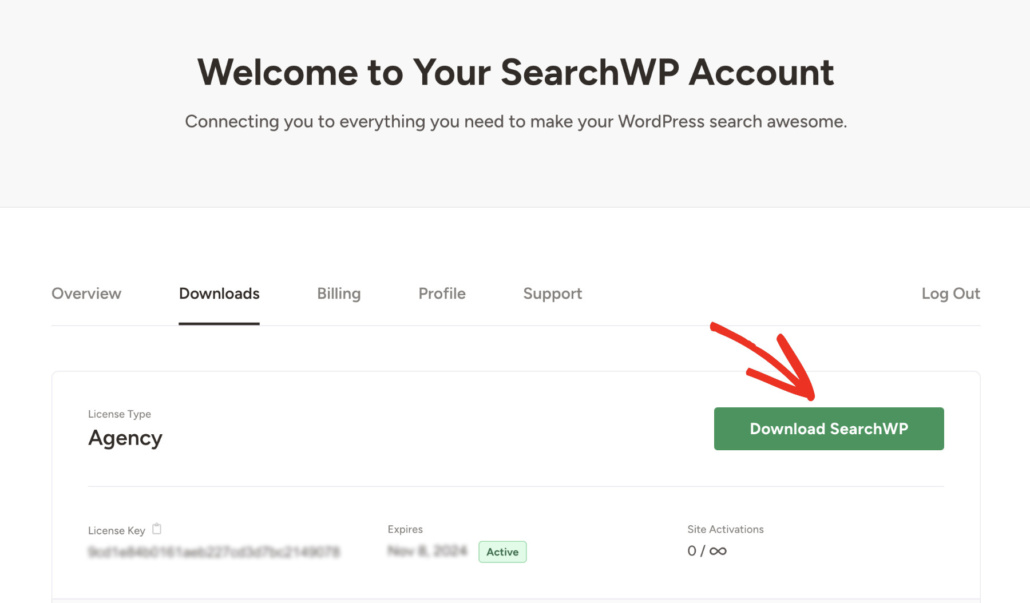
Once you’re logged in, head over to the Downloads tab in your account dashboard.
From there, click Download SearchWP to save the plugin’s ZIP file to your computer. While you’re on that page, go ahead and copy your license key, since you’ll need it in a moment.
Next, you can upload and activate the ZIP file on your WordPress site. If you need help with this, see this guide on how to install a WordPress plugin.
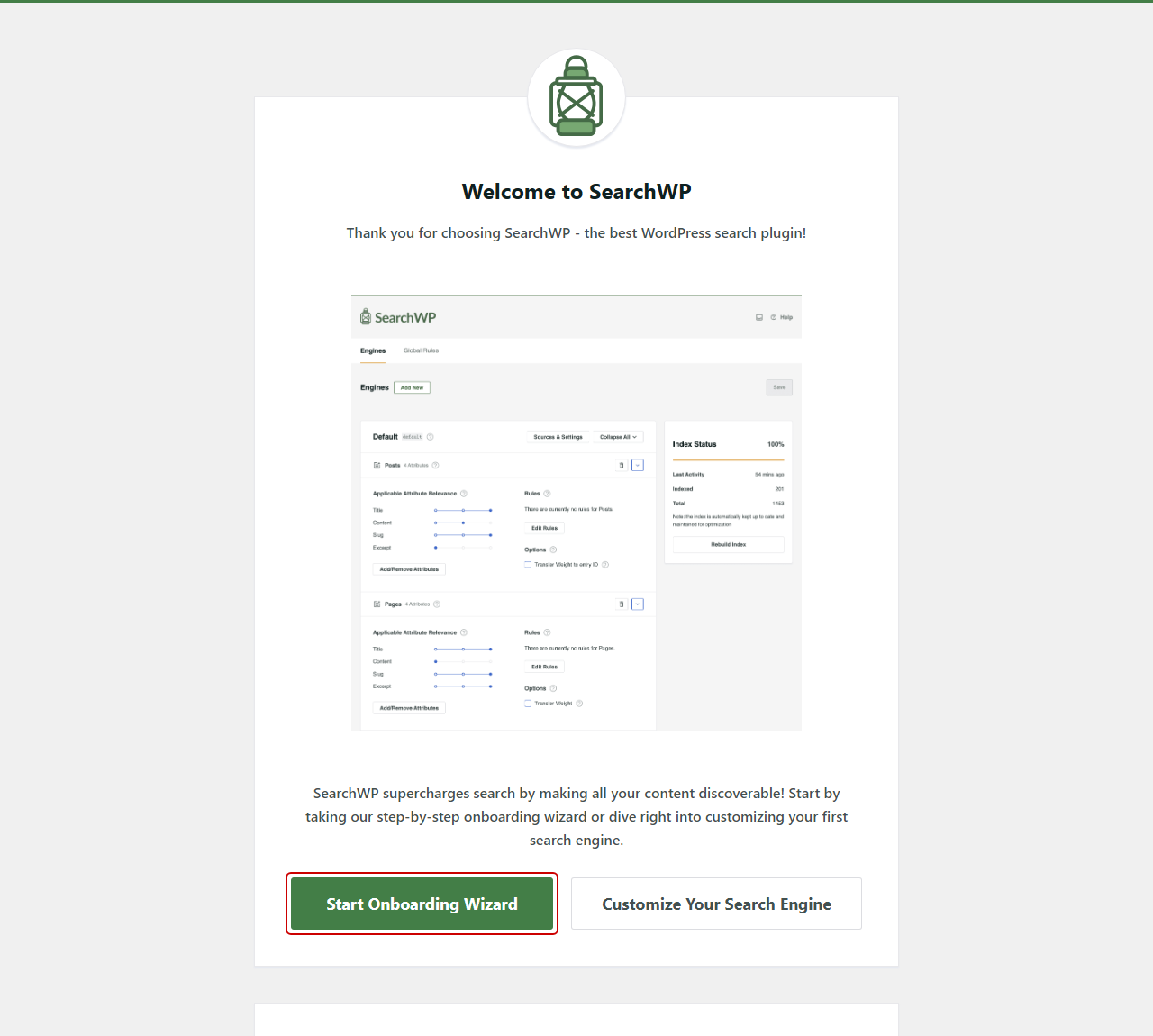
After activation, you’ll see the SearchWP welcome screen after activation. From there, you can click Start Onboarding Wizard and follow the on-screen instructions.
SearchWP is all set, so you’re ready to connect it to WooCommerce.
Step 2: Install the WooCommerce Integration Extension
To do that, go to SearchWP » Extensions from your WordPress dashboard. You’ll see a list of SearchWP’s extensions.
Next, find WooCommerce Integration in the list and click Install. SearchWP installs the extension and activates it for you, so its status changes to Active.
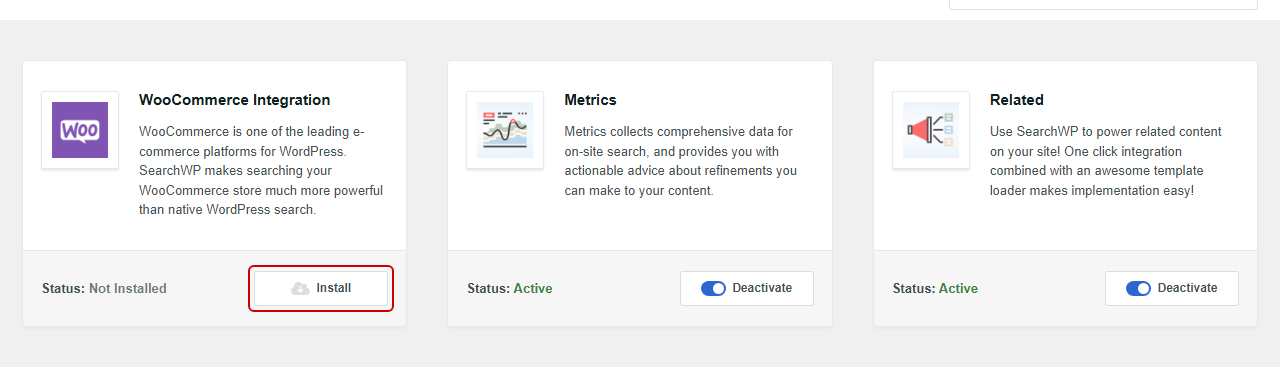
This extension is what lets SearchWP power your store’s product search. It also makes SearchWP follow WooCommerce’s settings for which products shoppers should see.
You can read more about it in the WooCommerce Integration documentation.
Step 3: Add Products to Your Search Engine
Now, SearchWP needs to know that your search engine should include products. To check, go to SearchWP » Algorithm from your WordPress dashboard.
If you don’t see Products listed in your engine, click Sources & Settings. A popup will open with every type of content your engine can search.
From there, check the box next to Products. Then, click Done to close the popup.
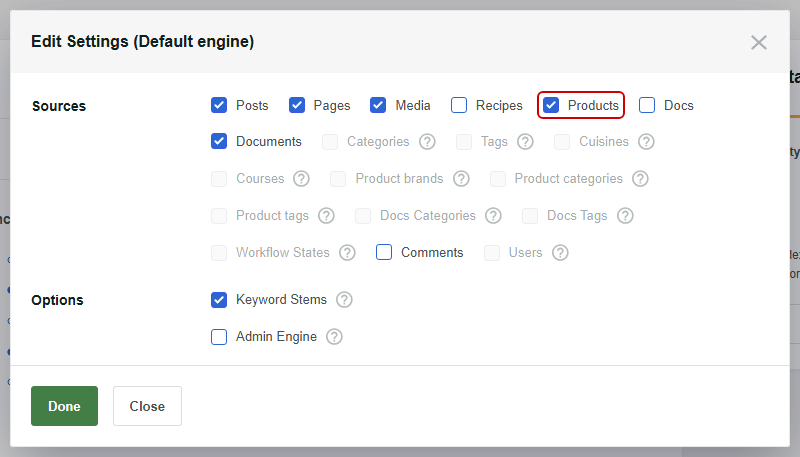
After that, click Save in the top right corner. Then, click Rebuild Index and confirm the prompt, so SearchWP adds your products to its index.
If you’d like to fine-tune which product details your search looks at, our guide on making a smart WooCommerce product search walks you through it.
Step 4: Turn On “Hide Out of Stock Items from the Catalog”
With your products in the index, you can turn on WooCommerce’s out-of-stock option. To do that, head over to WooCommerce » Settings and click the Products tab.
Next, click the Inventory link near the top of the page. You’ll see your store’s stock settings.
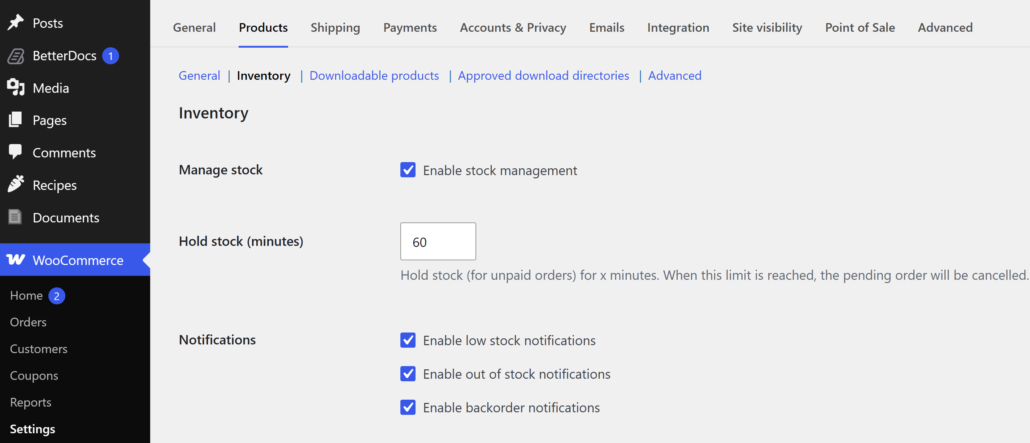
From there, find Out of stock visibility and check the box next to Hide out of stock items from the catalog.
Then, click Save changes at the bottom of the page.
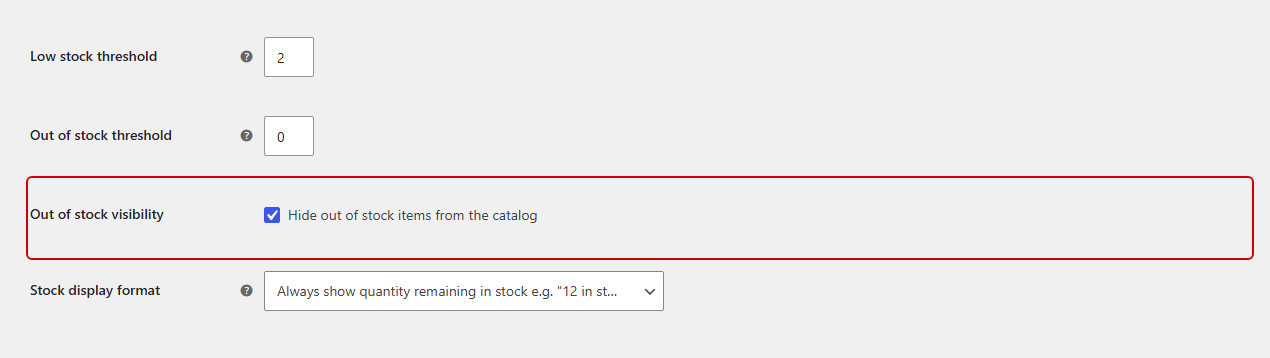
That’s the only switch you need. SearchWP’s WooCommerce Integration reads this setting and leaves sold-out products out of every search SearchWP runs for your visitors, including live search results.
Note: This option also hides sold-out products from your shop page and product category pages. If you’d rather keep them in your catalog and only hide them from search, use the method in the Bonus section below instead.
Step 5: Test Your Out-of-Stock Search Results
Now you can make sure everything works. To start, edit a simple product you’re happy to test with and open the Inventory tab in the Product data box.
Next, set Stock status to Out of stock. If the product tracks its stock quantity, you’ll see a Quantity field instead, so set that to 0. Then, click Update.
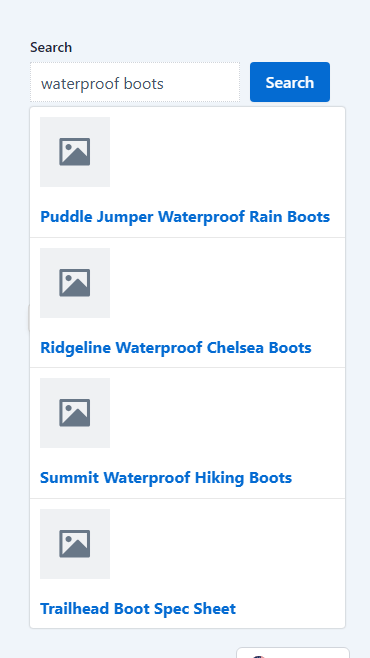
On our demo store, we marked Trailhead Waterproof Boots as out of stock. Then, we visited the store and typed “waterproof boots” into the search bar.
The live search dropdown showed Summit Waterproof Hiking Boots, but Trailhead Waterproof Boots was gone.
Pressing Enter gave the same result on the full search results page.
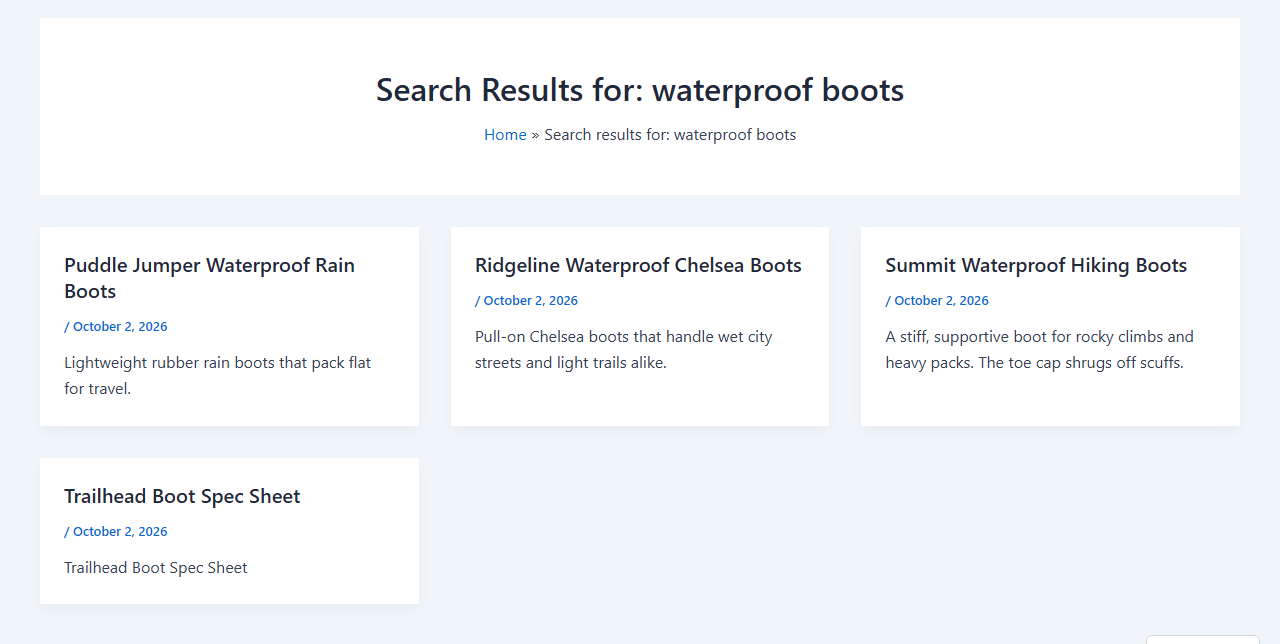
Next, we set Trailhead Waterproof Boots back to In stock and ran the same search again. The boots came straight back into the results, and we didn’t need to rebuild the index.
Note: When you search under Products in your WordPress dashboard, you’ll still see out-of-stock items. SearchWP does this on purpose, so you can always find and restock every product.
That’s it! Sold-out products now stay out of your store’s search results until they’re back in stock.
Bonus: Hide Out-of-Stock Products from Search Only
Some stores like to keep sold-out products on their shop pages, so shoppers know they’ll be back. In that case, you can leave WooCommerce’s out-of-stock option unchecked and hide those products from search with a SearchWP rule instead.
To do that, go to SearchWP » Algorithm and find the Products source in your engine.
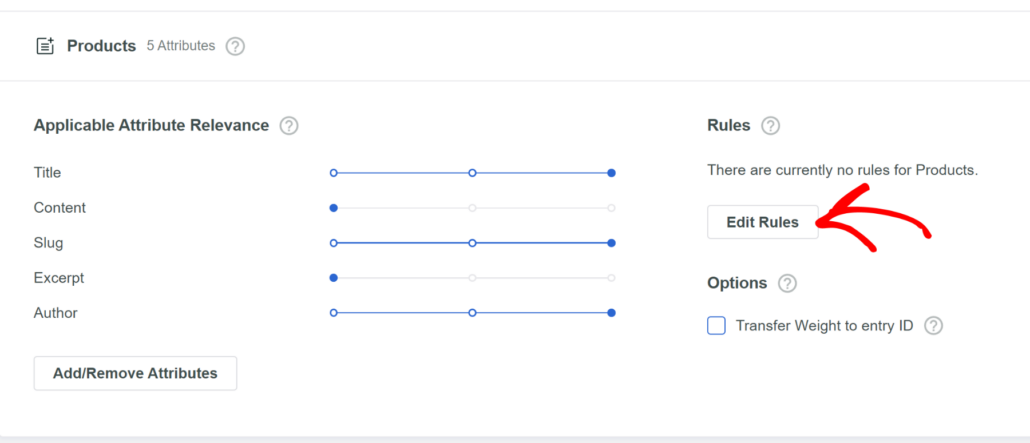
Then, click Edit Rules.
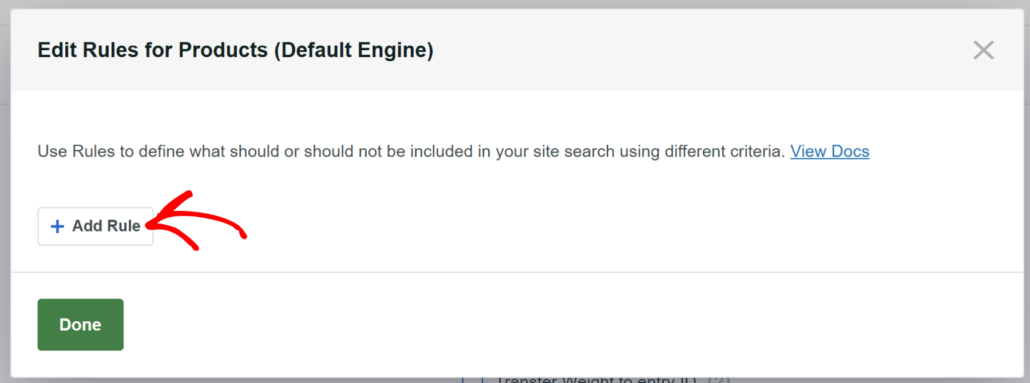
A popup will open. Go ahead and click Add Rule.
At the top of the new rule, you’ll see a dropdown set to Only show entries if: Change it to Exclude entries if:
Next, keep Taxonomy selected in the first dropdown. In the second dropdown, choose Product visibility (product_visibility).
After that, leave the condition set to IN. Then, type “outofstock” in the last field and select outofstock from the list.
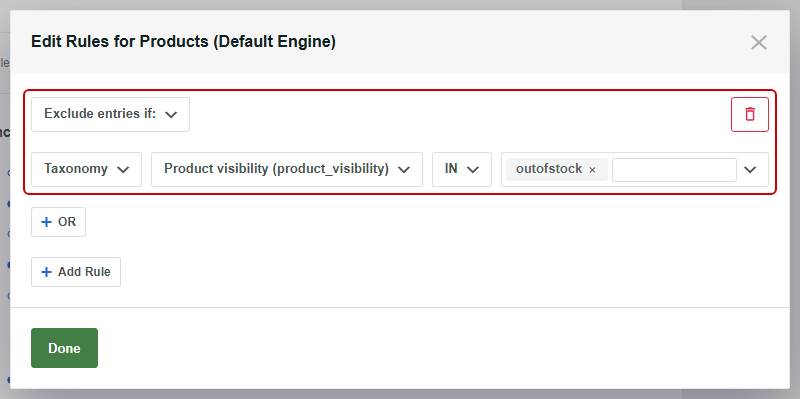
When you’re finished, click Done, then click Save in the top right corner. SearchWP checks rules each time someone searches, so a product that sells out drops from your results without an index rebuild.
This rule is part of SearchWP itself, so it works with any SearchWP license. To hide individual products from search instead, see our guide on how to exclude a product from search in WooCommerce.
If you’d rather let shoppers decide whether to see sold-out items, our guide on adding an in-stock filter to WooCommerce shows how to give them a checkbox for it.
Frequently Asked Questions
1. Why are out-of-stock products still showing in my WooCommerce search?
WooCommerce’s out-of-stock option applies to your shop page, product category and tag pages, and product-only searches. A search bar that searches your whole site, or a search plugin that runs its own search, can still show sold-out items.
SearchWP’s WooCommerce Integration applies the option to every SearchWP search, including live search results. If products are missing from search for other reasons, our guide on fixing WooCommerce product search not working can help.
2. Does hiding out-of-stock products delete them from WooCommerce?
Hiding out-of-stock products doesn’t delete anything. The products stay in your WordPress dashboard with all their details, and they return to search once they’re back in stock.
3. Can I hide out-of-stock products from search but keep them on my shop page?
You can keep sold-out products on your shop page with a SearchWP rule. Leave WooCommerce’s out-of-stock option unchecked, then add a rule to your engine’s Products source that says Exclude entries if: Product visibility (product_visibility) is IN outofstock.
This rule works with any SearchWP license.
4. Do I need stock management turned on to hide out-of-stock products?
The Out of stock visibility option works even when stock management is turned off, as WooCommerce’s inventory settings documentation confirms. Each product only needs its Stock status set to Out of stock.
5. Will products show up in search again when they’re back in stock?
Restocked products return to your search results on the next search. On our demo store, a product we switched back to In stock reappeared right away, without rebuilding the SearchWP index.
What’s Next…
Now your WooCommerce search only shows products shoppers can buy, from the live search dropdown to the full results page.
We hope this article helped you learn how to hide out-of-stock products from WooCommerce search. You may also want to see our guides on how to hide WooCommerce products from search results and how to add Ajax search to WooCommerce.
Ready to keep sold-out products out of your store’s search? You can get started with SearchWP here. Every plan comes with a 14-day money-back guarantee.