

Running a job board is one of the most rewarding projects you might have ever managed on WordPress.
We remember launching our first career portal using the WP Job Manager plugin and feeling excited about connecting people with their dream jobs.
But we quickly realized that having great job listings doesn’t matter if candidates can’t actually find them. The default search in the plugin is very basic and has a lot of limitations.
This is where integrating SearchWP with WP Job Manager enhanced the overall search experience.
In this guide, we will show you how to improve the job search experience in WP Job Manager and help visitors find the right opportunities without getting frustrated.
Why Improve the Default WP Job Manager Search?
Before we get to the tutorial, let’s talk about why the standard search in WP Job Manager might be hurting your job board.
The WP Job Manager plugin is fantastic for creating job listings and managing applications. It lets you list open positions and organize them by category.
However, the native search isn’t designed to look through specific job data, like “Remote” tags, job type, salary ranges, or details in applications and resumes.
For example, a candidate might search for “Marketing Manager New York,” but if those words aren’t in the main title, it might say no results found or show irrelevant results.
This creates a lot of friction for your users. If they can’t find a job they qualify for, they will assume your board doesn’t have it and leave.
We have found that fixing this search logic is the single best way to keep candidates on your site longer.
With that in mind, let’s look at how you can use SearchWP to make sure every job listing gets found.
Enhance Search Experience in WP Job Manager
The easiest way to fix the search limitations on your WP Job Manager job board is to use SearchWP.
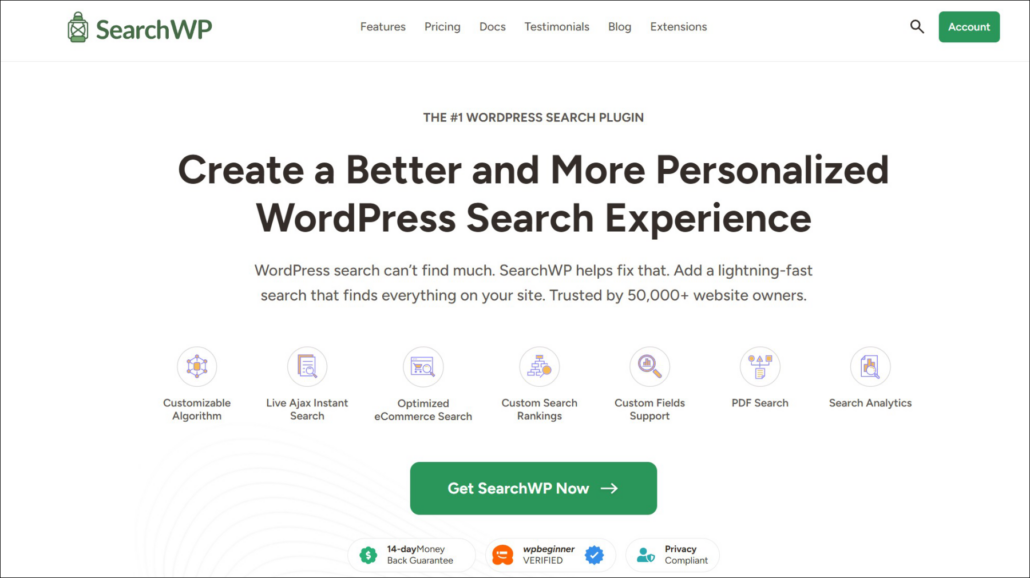
SearchWP is the best search plugin for WordPress that is beginner-friendly to use. It enhances the default WordPress search with a much more powerful engine.
One of its standout features is that it works perfectly with WP Job Manager right out of the box.
Over 50,000 website owners use SearchWP to help their visitors find exactly what they need.
Using this plugin, you can make sure that job attributes, like location, salary, or job type, are actually searchable.
This means if someone searches for “Chicago,” they will actually find jobs located in Chicago, even if the city name isn’t in the job title.
Here are some other features that make us great for job boards:
- Fuzzy Search: Job seekers often make typos when typing fast. SearchWP can find matches even if the spelling is slightly off.
- Search Tracking: You can see exactly what people are typing into your search bar. This helps you understand what kind of jobs your audience really wants.
- Exclude Content: You can keep your search results clean by removing outdated pages or unrelated blog posts from the job search results.
- Custom Results Order: If you have featured job listings, you can make sure they appear at the very top of the list by changing the results order.
With that, let’s see how you can set up SearchWP to improve your job board.
Note: If you want to learn how to use WP Job Manager, then please see this guide on how to create a job board in WordPress.
Step 1: Install and Activate SearchWP
The first thing we need to do is get the SearchWP plugin up and running. You will need to visit the SearchWP website and sign up for an account.
Once you have your account ready, go to the Downloads tab in your dashboard.
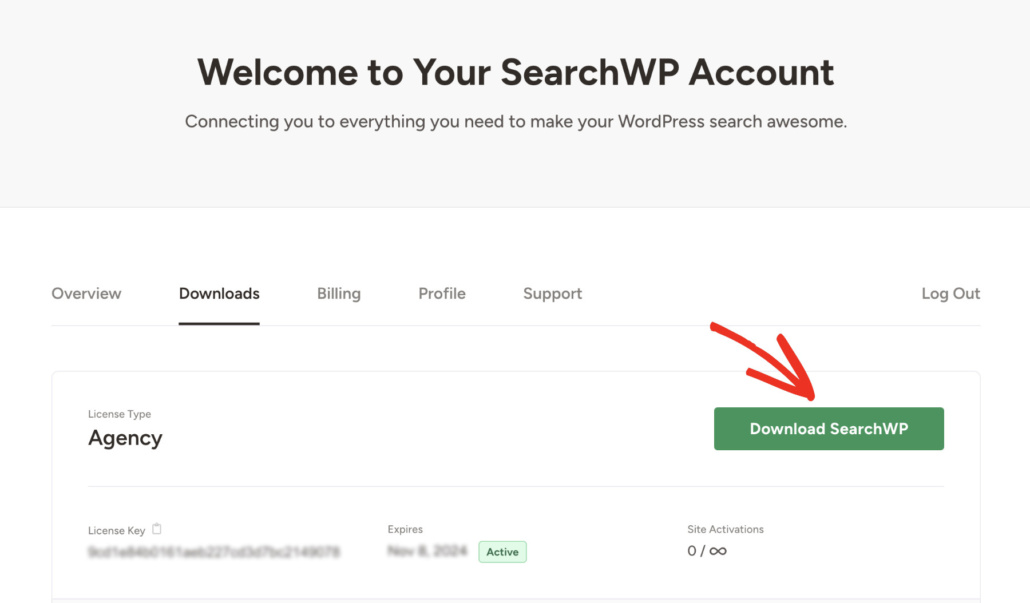
Go ahead and click the Download SearchWP button to save the ZIP file to your computer.
We also suggest copying your license key from this page right now, as you will need it while setting up the plugin.
Next, you need to upload and install the plugin on your WordPress site. If you need help with this, then please see this guide on how to install a WordPress plugin.
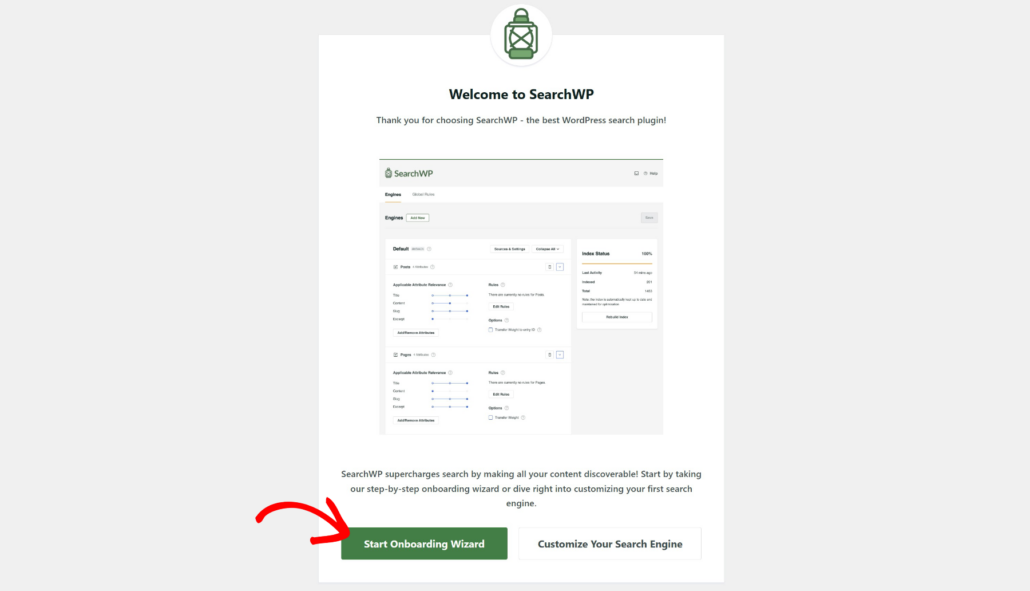
After you activate the plugin, you will see a welcome screen with a setup wizard. You can simply click the Start Onboarding Wizard button to get everything initialized.
Step 2: Install the WP Job Manager Integration Extension
Now that SearchWP is active, the next step is to integrate it with WP Job Manager.
WP Job Manager comes with a feature-rich search, but if you’d like to enhance it further with keyword implementation, you can integrate SearchWP with it directly.
To start, you will need to go to SearchWP » Extensions from your WordPress dashboard.
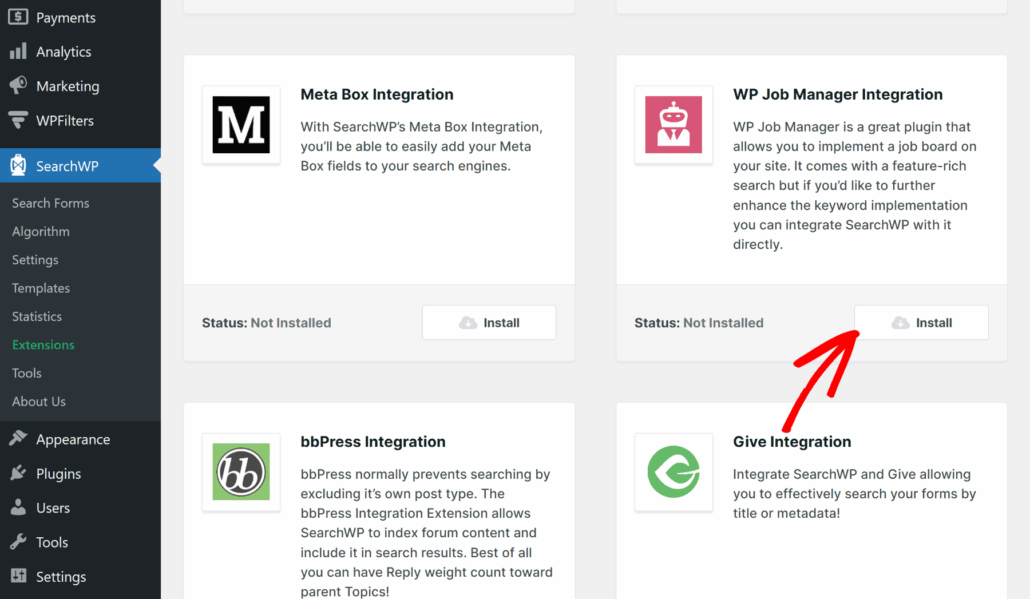
Once you are there, scroll down until you see the WP Job Manager Integration extension.
Go ahead and click the Install button to add it to your site.
Step 3: Customize Your Job Search Engine
Now you need to adjust the search engine settings in SearchWP and include jobs as a source.
The best part about using SearchWP is that you can create as many search engines as you want or customize the default engine.
This gives you complete control over what to include in the search process, such as custom fields and taxonomies.
To do this, first navigate to SearchWP » Algorithm in your dashboard.
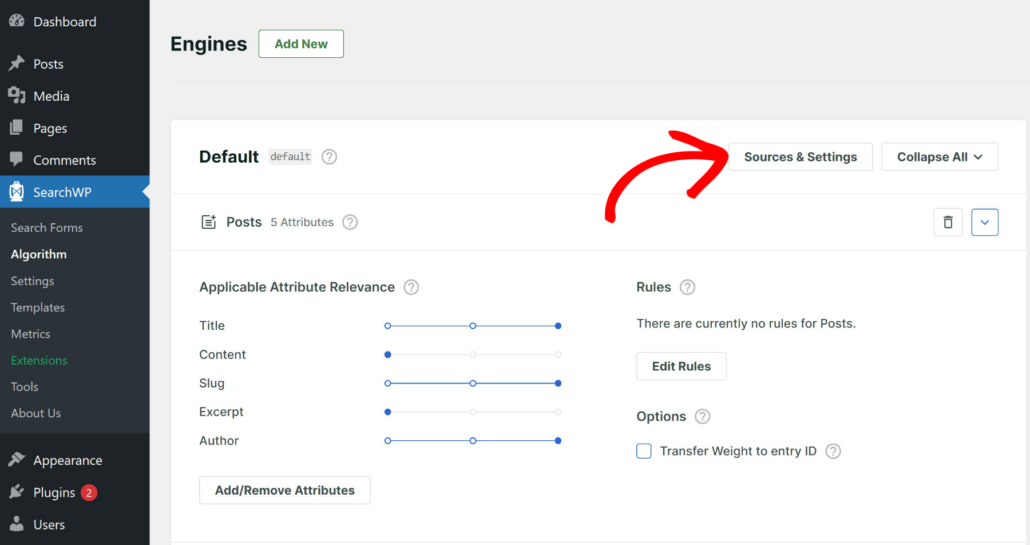
From here, you will see the default search engine setup. Go ahead and click the Sources & Settings button.
A popup window will appear showing different sources for your engine. By default, it will include Posts, Pages, and Media.
Make sure you check the box next to Jobs as the source.
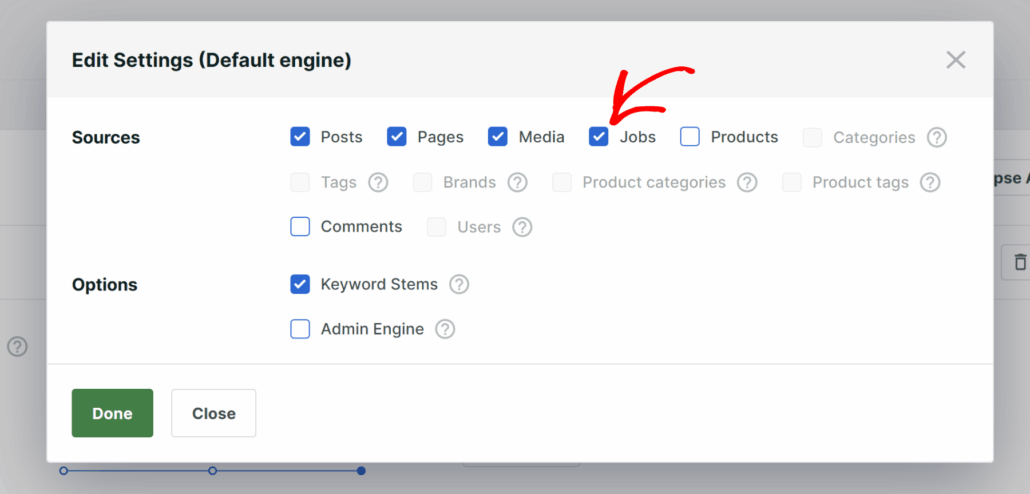
When you are done selecting sources, simply click the Done button.
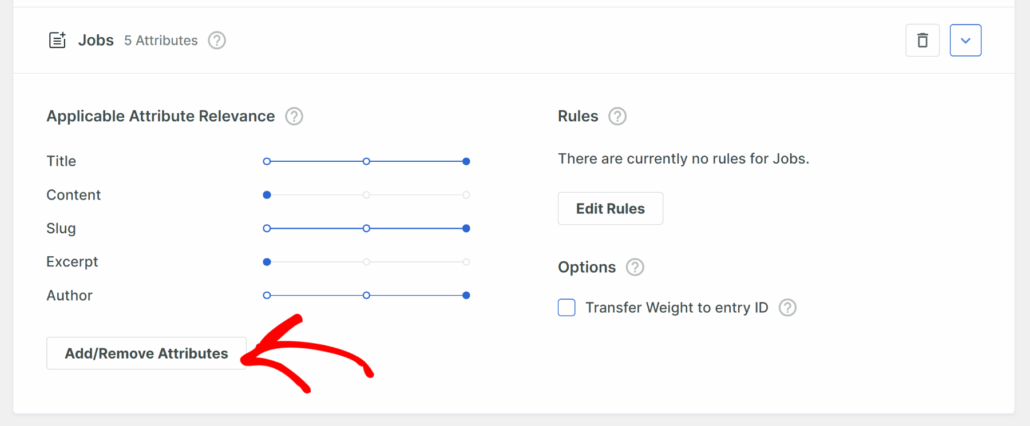
Next, you’ll need to scroll down to the Jobs section and include additional information stored in custom fields, categories, and tags in the search process.
To do that, click the Add/Remove Attributes button.
A new window will pop up where you can select specific data to include.
Here, you can add custom fields such as job location, company name, job expiration date, company website, and other information in the search process.
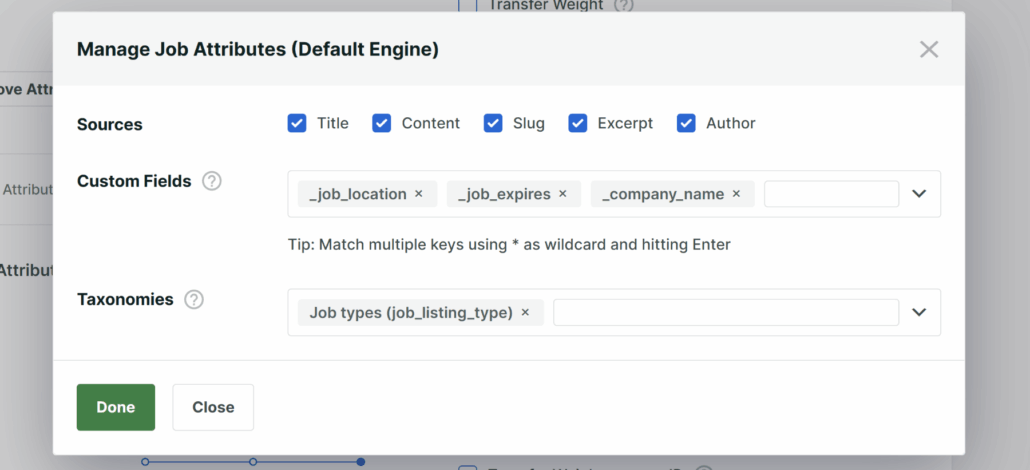
Similarly, you can also include taxonomies like job types to improve the search experience in WP Job Manager.
When you are finished, click the Done button.
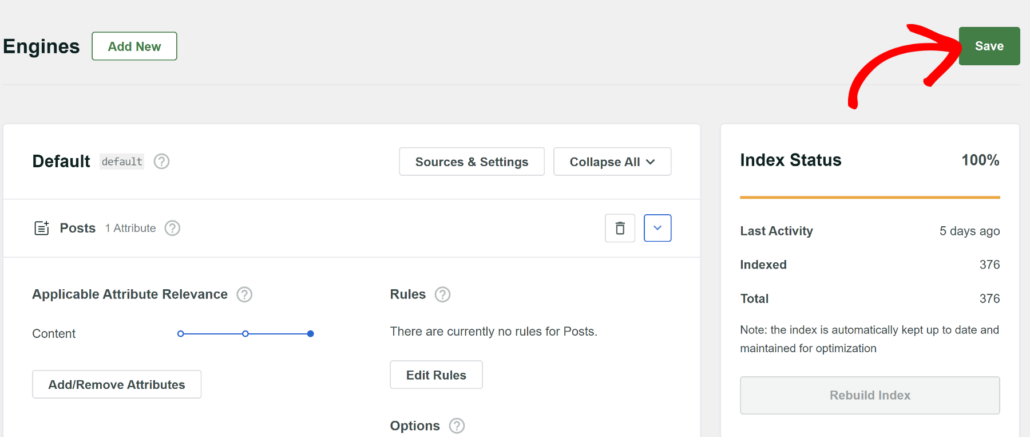
Finally, don’t forget to press the Save button at the top of the page to apply these changes to your search engine.
Step 4: Test Your New Job Search in WP Job Manager
Now that you have set everything up, it is time to see if it works.
We always recommend testing the search bar immediately to make sure the new attributes are being picked up.
To test your search settings, head over to your website and open your job board.
From here, try searching for something specific, like a job location or a company name.
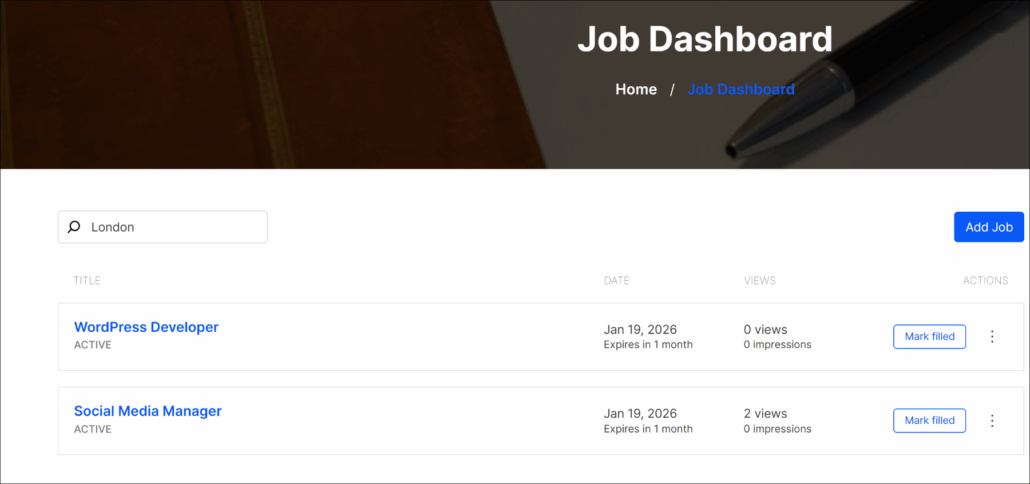
For example, we typed in “London” to see if it pulls up jobs listed in that city.
As you can see, the search results now include jobs based on the location, even if “London” isn’t in the job title.
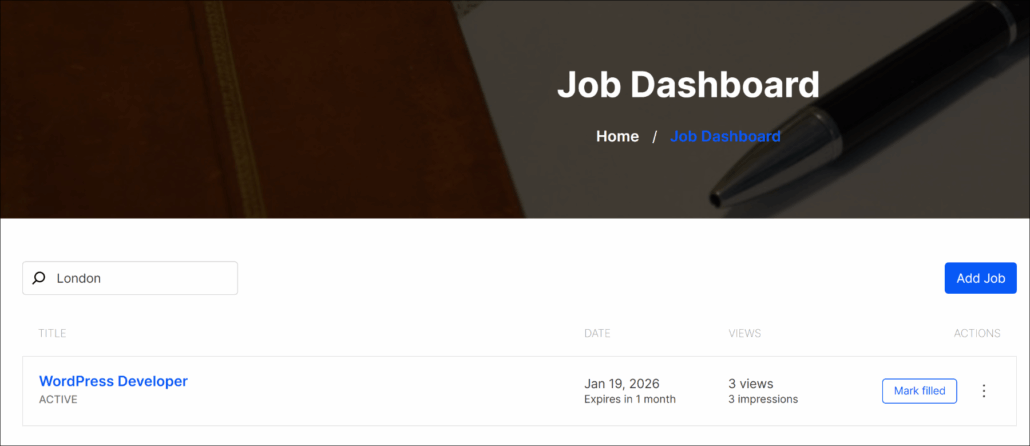
This means your candidates can now find opportunities much faster.
FAQs about WP Job Manager Search
You can also check out some of the common questions users have about improving search on their job boards.
1. Can you allow candidates to search by salary range?
Yes, you can. If your job listings have a salary field, SearchWP can index it. You just need to add the salary custom field (often labeled as _job_salary) to the attributes list. This helps users find jobs that meet their financial expectations.
2. Do I need to change my WordPress theme for this to work?
No, you don’t. SearchWP integrates automatically with your existing theme’s search template. We have tested it with many popular job board themes, and it works seamlessly without breaking your site’s design.
3. Can I search for jobs using partial words?
Absolutely. If you enable the “Partial Matches” setting in SearchWP, candidates can find the right job even if they make a small typo, like searching for “enginier” instead of “engineer.”
Creating a smooth job search experience is the best way to help your visitors find their next career move.
We hope this article helped you learn how to improve the job search experience in WP Job Manager. You may also want to see our guide on how to search by custom fields in WordPress and how to restrict search to specific post types.
If you are ready to upgrade your job board search, you can get started with SearchWP here.