
A visitor who lands on the no results found page in WordPress can still find a next step, whether that’s a popular post, a product category, or a quick way to contact you.
That page usually comes from your theme, which is why most guides send you into template files. You can change what visitors see without touching your theme, and even stop many searches from coming up empty in the first place.
We tested this on our demo store, where a misspelled search for “waterprof boots” returned the right products with a “Showing results for” notice instead of an empty page.
In this article, we’ll show you how to customize the no results found page in WordPress, from fixing typos automatically to adding helpful links for visitors whose search comes up empty.
Why Customize the No Results Found Page in WordPress?
The no results found page is what WordPress shows when a search doesn’t match any of your content.
Your theme decides what goes on it, based on the WordPress template hierarchy. Many themes show a short “Nothing Found” message and a search box, and that’s where the visit often ends.
Here’s what a plain no results page can cost you:
- Visitors leave at a dead end. A one-line message gives people nowhere to go next, so they’re likely to head back to Google and pick another site.
- Typos count as failed searches. One missing letter can send a shopper to an empty page, even when you sell exactly what they wanted.
- Store searches turn into lost sales. When a product search finds nothing, that shopper is likely to buy somewhere else.
- You can’t see which searches fail. WordPress doesn’t keep a record of what visitors search for by default, so the gaps in your content stay hidden.
You can fix all four without writing code, and it takes a few settings in SearchWP.
Customize the No Results Found Page With SearchWP
The easiest way to customize the no results found page in WordPress is with SearchWP.
SearchWP is the best WordPress search plugin, trusted by 50,000+ website owners. It lets you control how your site search finds content and what visitors see on the results page.
Here are some key features offered by SearchWP:
- Closest Match. When a search yields no results, SearchWP uses the closest match and shows visitors a notice about what it searched for instead.
- Results Templates. You can design your search results page from the WordPress dashboard, without editing your theme files.
- Promoted Search Ads. You can add your own content block to search results pages, including searches that come back empty.
- Search Statistics. SearchWP shows you which searches returned no results, so you know what to fix next.
With that, let’s see how you can use SearchWP to customize the no results found page in WordPress.
Step 1: Install and Activate SearchWP
To start, you can visit the SearchWP website and sign up for an account.
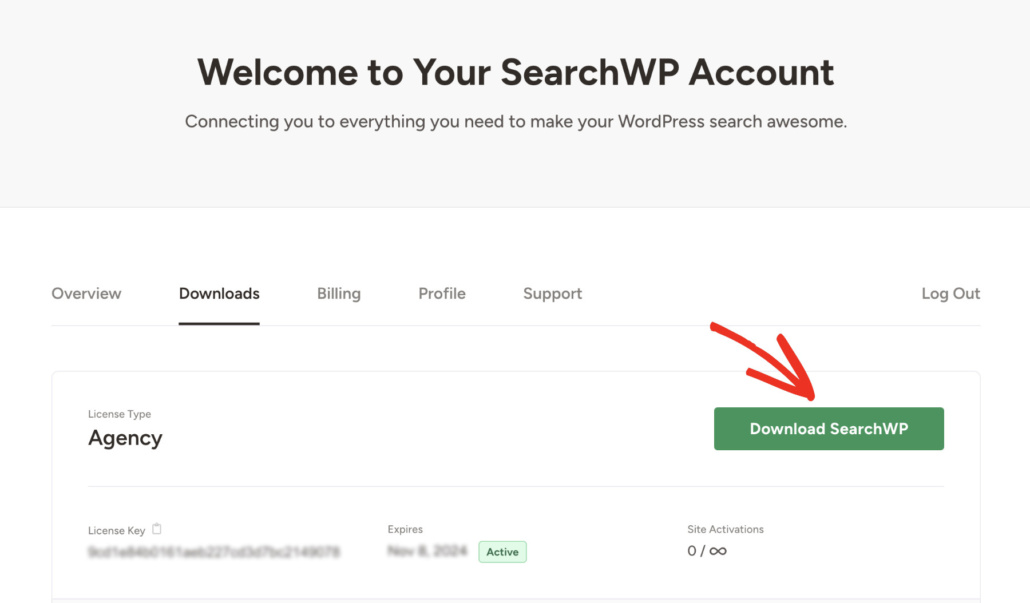
Once you’re logged in, head over to the Downloads tab in your account dashboard.
From there, click Download SearchWP to save the plugin’s ZIP file to your computer. While you’re on that page, go ahead and copy your license key, since you’ll need it in a moment.
Next, you can upload and activate the ZIP file on your WordPress site.
If you need help with this, see this guide on how to install a WordPress plugin.
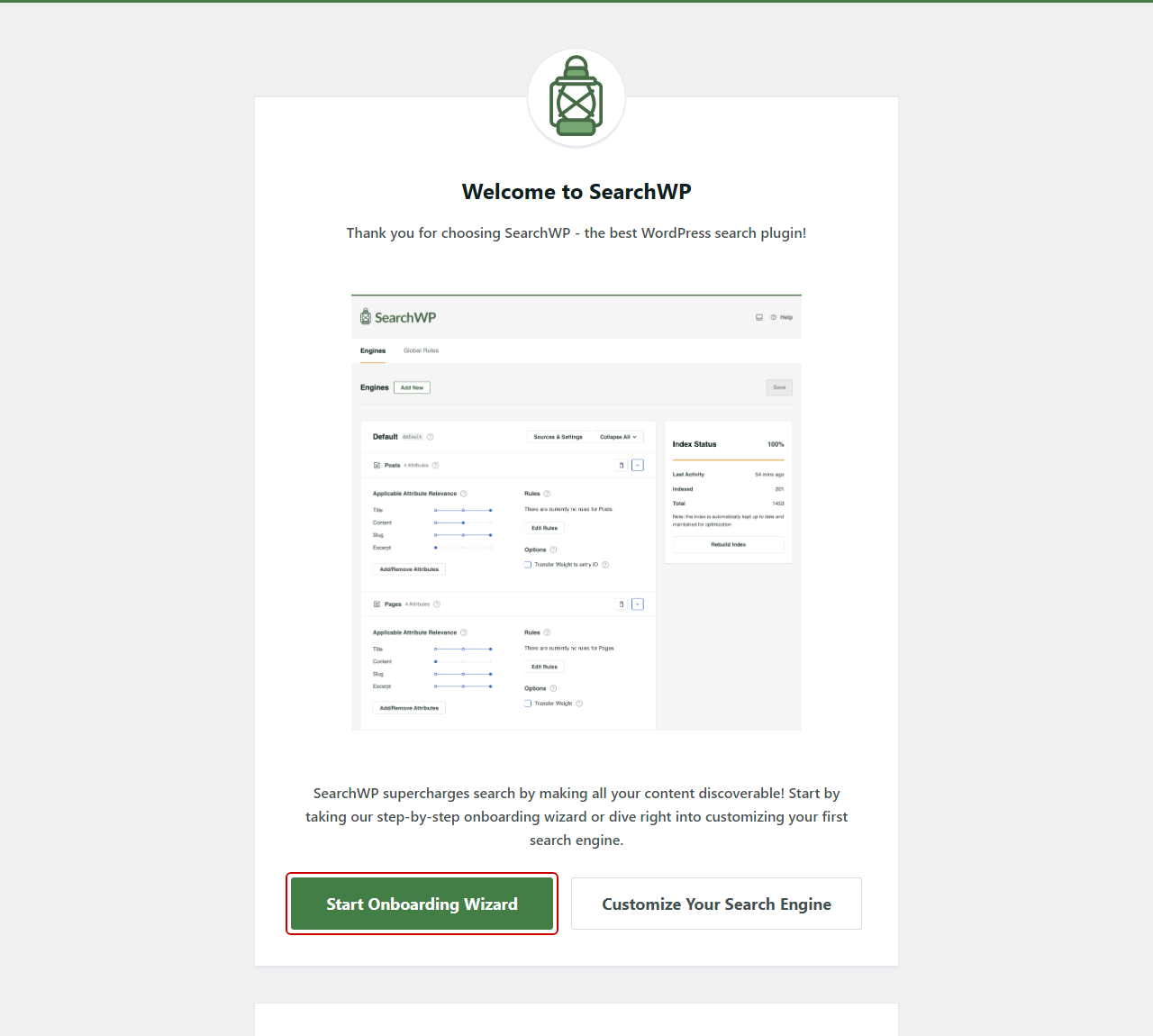
You’ll see the SearchWP welcome screen after activation. From there, you can click Start Onboarding Wizard and follow the on-screen instructions.
SearchWP is all set, so you’re ready to make your no results page show up less often.
Step 2: Turn On Partial Matches and Closest Match
The first fix is catching typos, so fewer visitors reach the no results page at all.
To do that, go to SearchWP » Settings and stay on the General tab. Then, scroll down to the General Settings section.
From there, turn on the Partial Matches toggle. This tells SearchWP to look for partial matches when a search yields no results, and it applies spelling corrections when needed.
Next, turn on the Closest Match toggle right below it. When a search still comes back empty, SearchWP runs the closest match instead and shows a “Showing results for” notice, so visitors know what happened.
Closest Match only works when Partial Matches is on, so keep both toggles enabled.
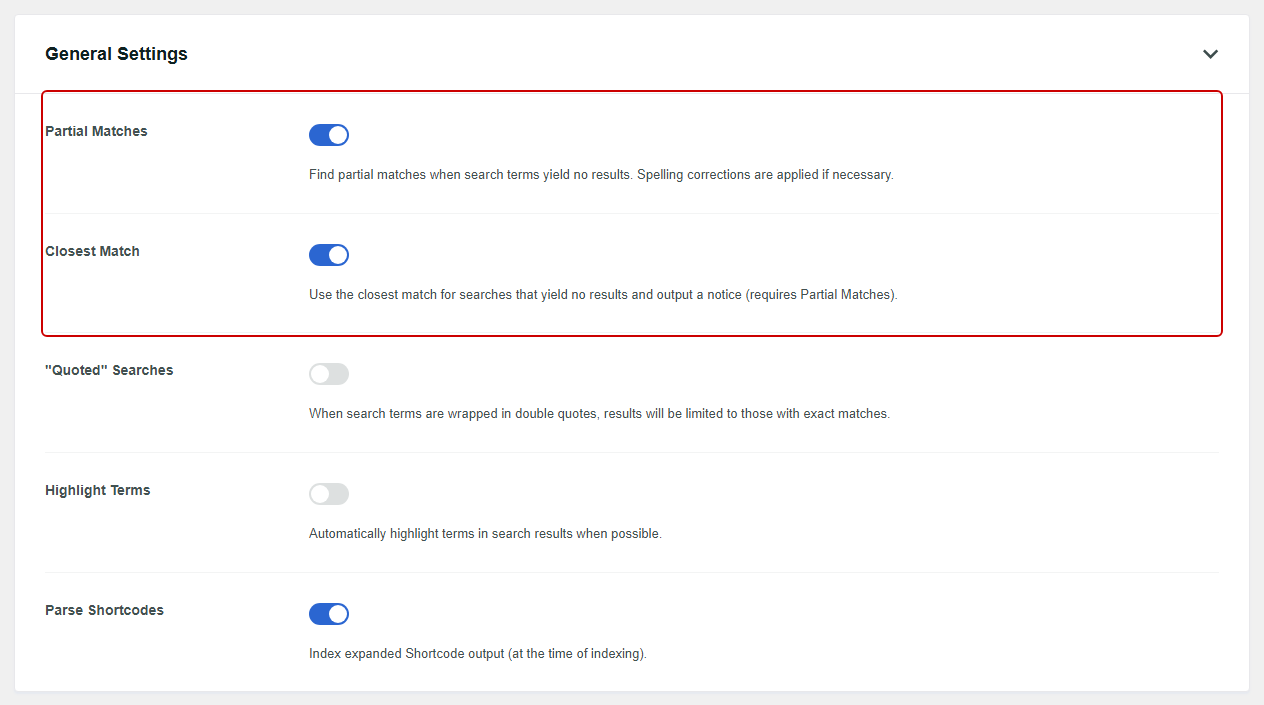
Both settings save automatically, so there’s no button to click and no index to rebuild. You can learn more about how this works in our guide on adding fuzzy search to WordPress.
Step 3: Add a Helpful Content Block to Your No Results Page
Some searches will still come up empty, like a product you don’t carry or a topic you haven’t written about yet. For those, you can give visitors something useful to click.
SearchWP’s Results Templates control how your search results page looks. When a search finds nothing, the template shows a short “No results found, please search again.” message, plus any promoted content you add.
To set this up, go to SearchWP » Templates. You can open the template you already use, or click Add New to start a fresh one.
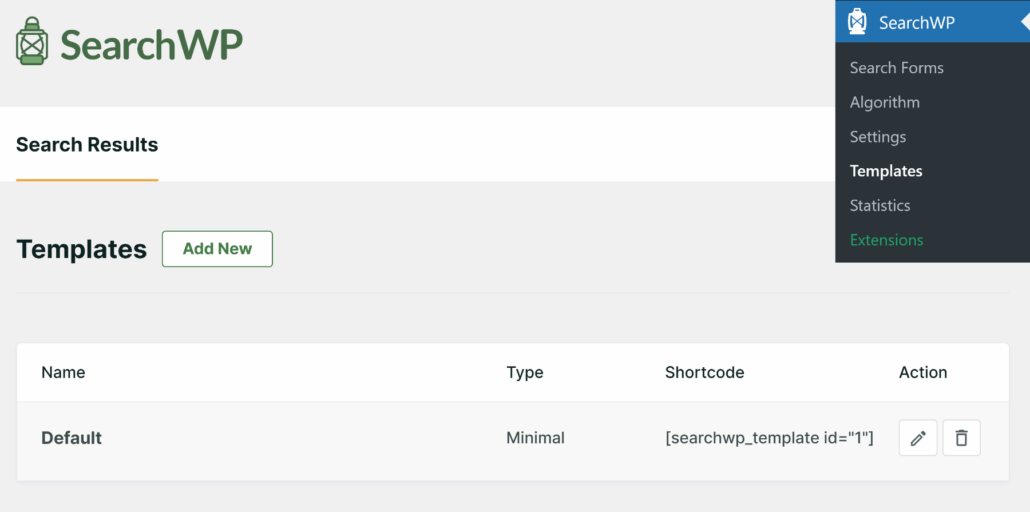
Next, scroll down to the Promoted Search Ads section. Then, turn on the Enable Promoted Ads toggle.
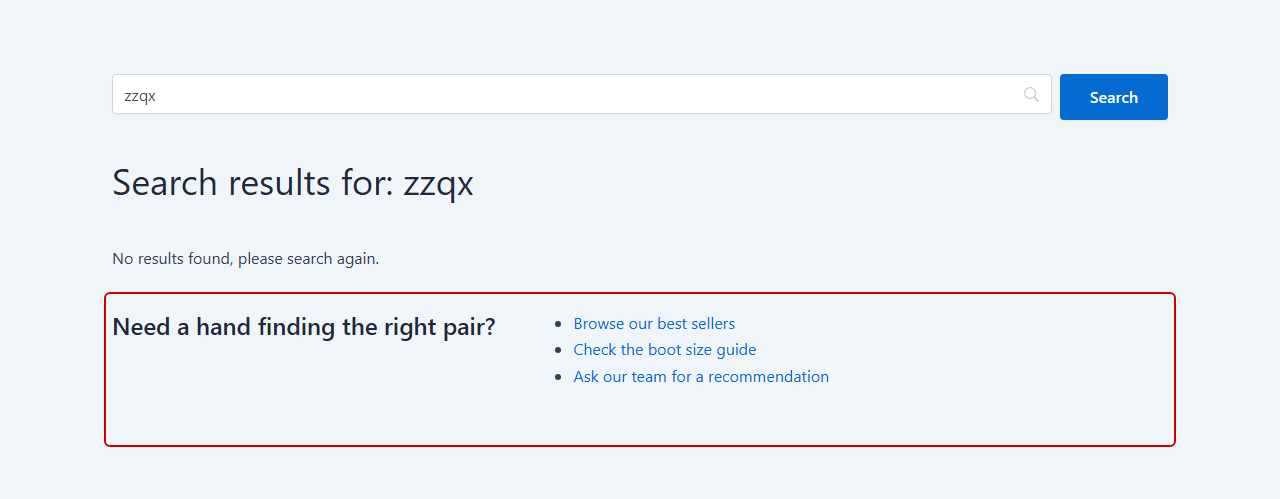
In the Ad Content box, you can add the links and offers you want visitors to see. On our demo store, we added links to our best sellers, a size guide, and our contact page.
The Ad Content box works like the classic WordPress editor, so you can add images, links, and even shortcodes.
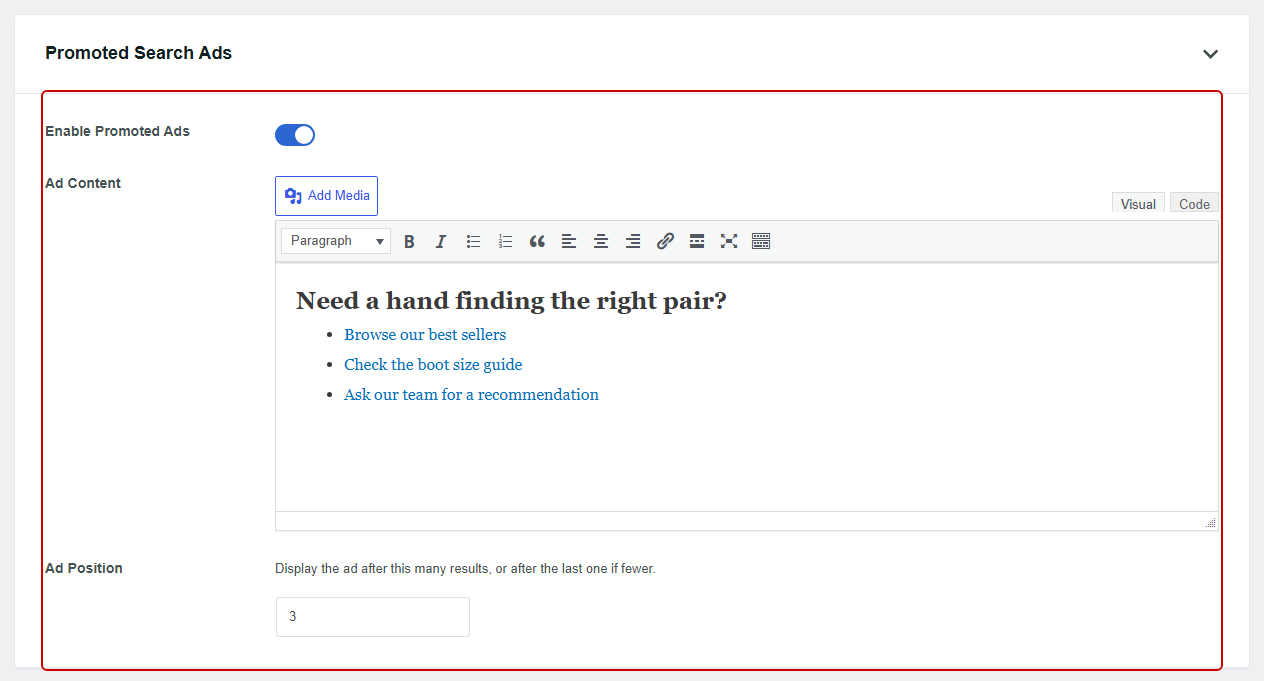
Note: Your promoted content also appears in regular search results, after the number of results you set in Ad Position. Write it as a helpful next step that makes sense on any results page, rather than an apology for finding nothing.
When you’re happy with it, click Save. For more ideas, see our guide on how to display promoted ads on your search results page.
Step 4: Connect the Template to Your Search Form
SearchWP’s Results Templates take over the results page for searches made through a SearchWP search form. Your theme’s own search box still shows the theme’s page, so this step makes sure visitors see your new one.
To do that, go to SearchWP » Search Forms. You can open an existing form, or click Add New to create one.
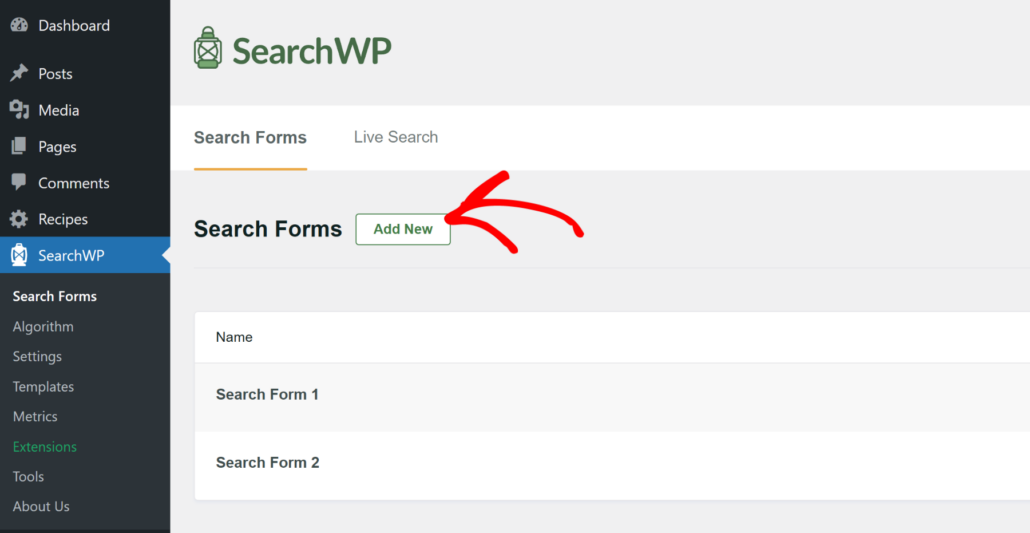
From there, find the Results Page dropdown and choose SearchWP. This tells the form to use SearchWP’s results page instead of your theme’s.
Next, leave Target Page set to SearchWP Default. Then, pick the template you edited in the last step from the Template dropdown.
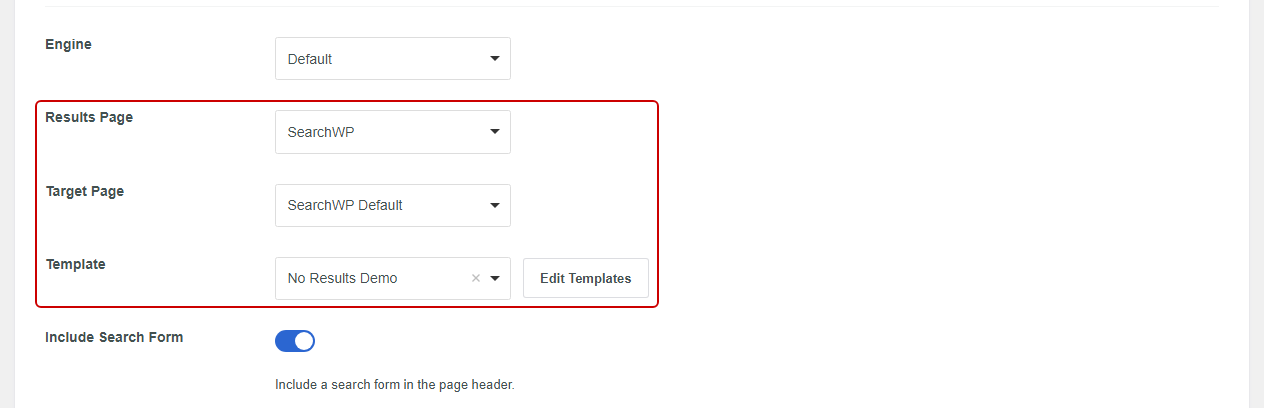
After that, click Save. Now you can add the form anywhere on your site, like your header, sidebar, or a dedicated search page.
If you need help placing it, see our guide on how to create a custom search form in WordPress.
Step 5: Test Your No Results Page
Now it’s time to see both fixes in action.
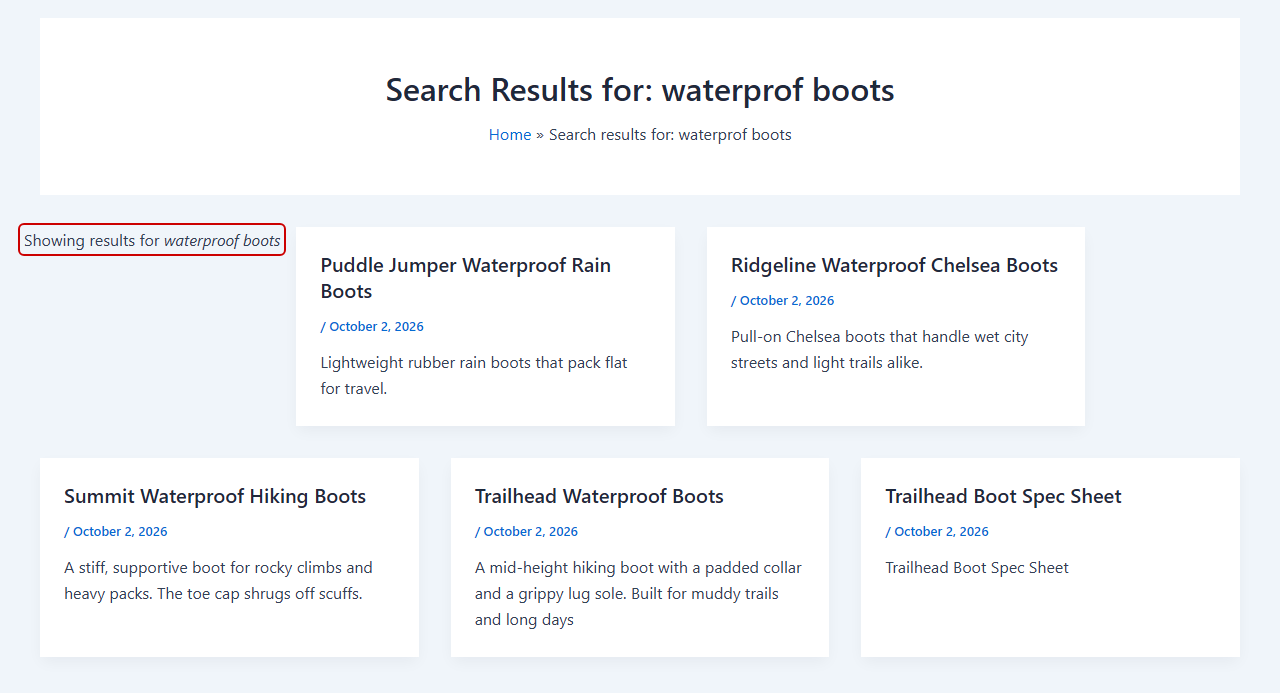
First, use your site’s regular search box to search for a misspelled term. On our demo store, we searched for “waterprof boots.”
Instead of an empty page, the results showed our waterproof boots with a “Showing results for waterproof boots” notice.
That’s Closest Match doing its job.
Next, use your SearchWP search form to search for something your site doesn’t have, like “zzqx.”
This time, you should see the “No results found, please search again.” message with your promoted content right below it. Visitors now have links to follow instead of a dead end.
Bonus: Fix the Searches That Keep Failing
The searches that land on your no results page show you what visitors want and can’t find yet.
To see them, go to SearchWP » Statistics. For each search engine, you’ll find a No Results Searches list showing what visitors searched for in the last 30 days without finding anything.
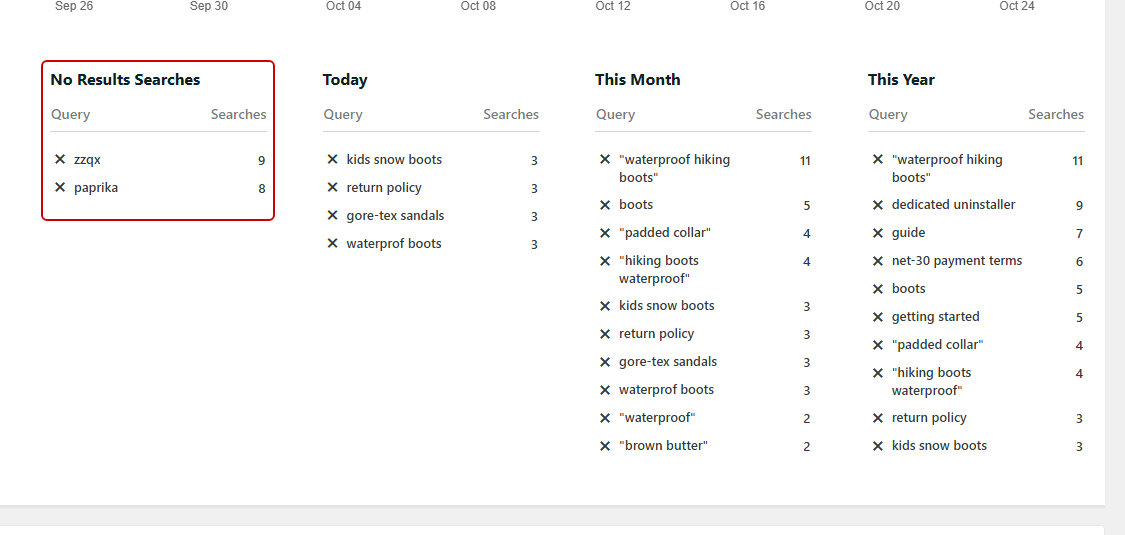
Note: If you’ve installed the Metrics extension (Pro and up), it replaces the Statistics screen by default. You’ll find your failed searches under SearchWP » Metrics instead.
From there, you can decide how to handle each one.
If visitors use a different word for something you already have, you can set up synonym rules for WordPress search. If they’re asking for something you haven’t covered, that’s a ready-made idea for your next post or product.
For searches that should always go to one page, like “returns” or “shipping,” the Redirects extension (Pro and up) can send visitors straight there. Here’s our guide on how to redirect search results in WordPress.
If you also use Live Ajax Search for instant results as visitors type, it has its own empty message.
For more on this, see our guide on how to track searches on your WordPress site.
Frequently Asked Questions
1. How do I change the “Nothing Found” text in WordPress without a plugin?
The “Nothing Found” text comes from your theme, so you change it there. In a block theme, you can edit the search results template in the site editor.
In a classic theme, the text usually lives in a template file such as search.php. Copy that file into a child theme before editing, so a theme update doesn’t wipe out your changes.
2. Can I change the “No results found, please search again.” text in SearchWP?
That message is built into SearchWP’s Results Templates, and there’s no setting to change it. You can replace it with a translation plugin like Loco Translate, using the searchwp text domain.
In most cases, it’s easier to leave the message as is and add helpful links with Promoted Search Ads.
3. What should I put on a no results found page?
A good empty search results page gives visitors a next step. We recommend links to your most popular posts or best-selling products, your main categories, and a way to contact you.
With SearchWP, you can add all of these in the Ad Content box under Promoted Search Ads.
4. How do I see which searches return no results in WordPress?
WordPress doesn’t keep a record of searches by default, so you need a plugin for this. SearchWP shows a No Results Searches list in SearchWP » Statistics.
For deeper reports with click tracking, the Metrics extension (Pro and up) adds a full search analytics dashboard under SearchWP » Metrics.
What’s Next…
You’ve now set up SearchWP to correct misspelled searches and give visitors helpful links when a search comes up empty.
We hope this article helped you learn how to customize the no results found page in WordPress. You may also want to see our guides on how to customize the WordPress search results page and how to add fuzzy search to WordPress.
Ready to turn dead-end searches into clicks? You can get started with SearchWP here.
Every plan comes with a 14-day money-back guarantee.