



Settings
The WPFilters Settings page provides essential configuration options for managing your plugin license, enabling debugging features, and controlling what happens to your data when the plugin is uninstalled.
License Key
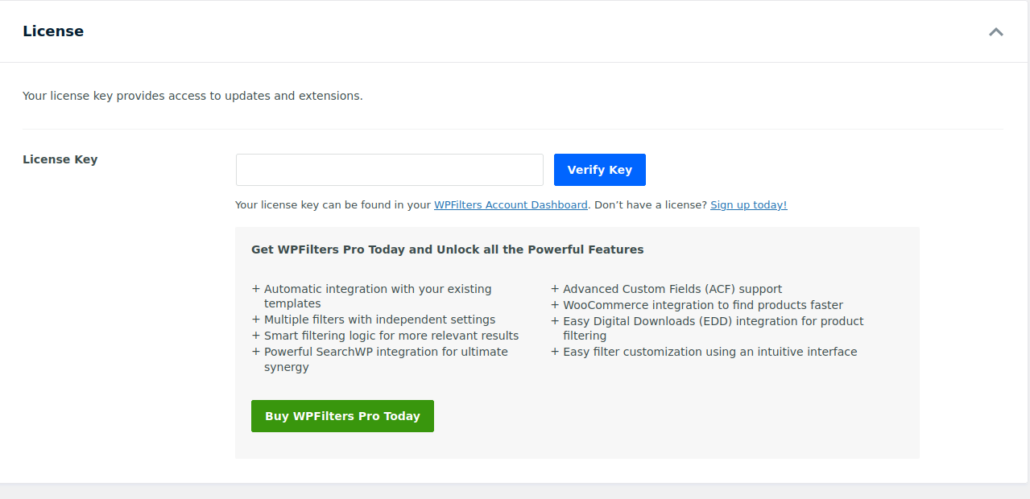
At the top of the Settings page, you will find the field to enter your License Key. An active license is required to receive product updates, access premium features, and request support from the WPFilters team.
You can locate your license key by logging into your WP Filters account and navigating to the Downloads tab. Once you enter your key on your site, WPFilters will attempt to validate it. Please note that your server must have an open outbound connection to searchwp.com in order for license activation to work correctly.
After successful activation, the license panel will display your subscription details, including your plan type and next renewal date. This confirmation helps ensure that your installation remains active and eligible for updates.
Enable Debugging
The Settings page also includes a toggle to enable Debug Mode. When enabled, WPFilters will display an additional Debug section on each Filter Element’s edit screen.

This debug output shows the exact code structure generated based on your selected Data Source and configuration options. It is highly useful for troubleshooting customizations, validating output, or sharing relevant information when requesting support.
Uninstall WPFilters
This option controls what happens to your WPFilters data when you deactivate and delete the plugin from your WordPress installation. When enabled, this setting will completely remove all traces of WPFilters from your database, including all plugin settings and any filter elements you’ve created in the backend. This ensures a clean uninstallation if you decide to stop using WPFilters on your site.
