


Voice search is no longer something only big tech companies need to think about. More people are using it every day, whether they’re asking their phone a question while cooking or telling a smart speaker to look something up.
In fact, the way people search with their voice is very different from the way they type. Instead of short, choppy keywords, they use full sentences and natural phrases.
But wouldn’t it be amazing if you could also add a voice search feature to your WordPress website?
The good news is that with SearchWP, it is now possible. You can enhance your search experience and allow users to simply speak their queries.
In this guide, we’ll walk you through how to add voice search to your WordPress website, with no coding needed.
Why Add Voice Search to Your WordPress Site?
Most people don’t think twice about talking to their devices anymore. They ask their phone for the nearest coffee shop, dictate a quick text while driving, and check the weather without touching a screen.
That same behavior follows them everywhere, including your website.
When they land on your site and see a search bar, their instinct might be to speak rather than type. If your site can’t support that, you’ve already lost them.
Adding voice search closes that gap. It connects the way your visitors naturally want to interact with what your site can actually do.
There’s also an accessibility angle that’s easy to overlook. For visitors who deal with conditions like arthritis, dyslexia, or motor disabilities, typing can be slow, frustrating, or even painful.
A mic button next to your search field doesn’t sound like much, but for those visitors, it can make your site genuinely easier to use. That’s the kind of thoughtful detail that makes a real difference.
That said, let’s look at a simple way of adding a voice search feature to WordPress.
Adding Voice Search Feature to WordPress
Usually, adding a voice search feature to WordPress would mean editing code or hiring a developer.
But the easiest way to go about it is by using SearchWP.

It is the best WordPress search plugin on the market, and over 50,000 website owners already use it to give their visitors more relevant search results.
Out of the box, WordPress search is pretty limited. It only looks through post titles, content, and excerpts.
That’s fine for a basic blog, but it falls short the moment your site grows or your visitors start searching in more natural, conversational ways.
SearchWP fixes that. It offers advanced features, helps improve search on your site by including additional details, and delivers accurate search results.
Here are some of the things you can do with SearchWP:
- Voice Search: Add a mic button to your search form and let visitors speak their queries directly into the search field.
- Live Search: Display search results in real time as your visitors type or speak, without needing to hit a search button.
- Fuzzy Search: Let visitors find the right content even if they misspell a word or phrase it differently than expected.
- Custom Fields Search: Make additional content stored in custom fields searchable, so nothing on your site gets missed.
- Search Analytics: See exactly what your visitors are searching for directly inside your WordPress dashboard.
- WooCommerce Integration: Make product SKUs, attributes, categories, and tags searchable in your store.
- PDF and Document Indexing: Include the content inside uploaded documents and PDFs in your search results.
With that, let’s look at how you can use SearchWP to add voice search to your WordPress site.
Step 1: Install and Activate SearchWP
To get started, you’ll need to visit the SearchWP website and sign up for a new account.
Once you’re in, head to your SearchWP account dashboard and click the Downloads tab.

Go ahead and click the Download SearchWP button and save the plugin’s ZIP file to your computer.
While you’re on that page, copy your license key too, as you’ll need it shortly during setup.
Next, you’ll need to install and activate SearchWP on your WordPress website. If you’ve never installed a plugin before, check out this beginner’s guide on how to install a WordPress plugin.
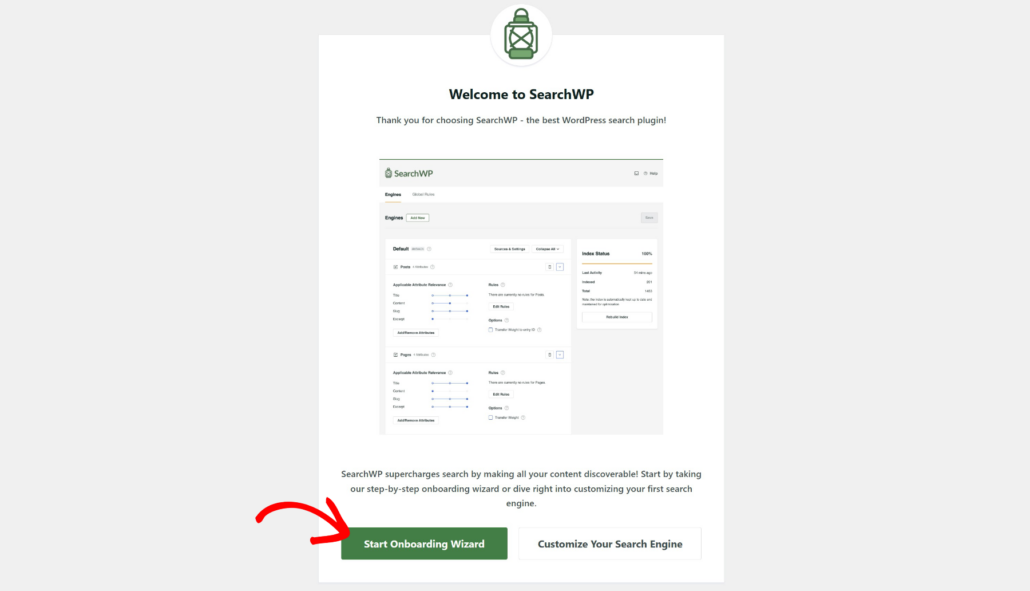
After activation, you’ll see the SearchWP welcome screen along with the setup wizard. Simply click the ‘Start Onboarding Wizard’ button and follow the onscreen instructions to complete the setup.
Once SearchWP is ready, you can move on to the next step and create your search form with voice search enabled.
Step 2: Create a Search Form in SearchWP
Now that SearchWP is installed, the next step is to create a search form.
This is the form your visitors will use to search your site, and it’s where you can enable the voice search feature.
To get started, head to SearchWP » Search Forms from your WordPress dashboard.

From here, you can edit an existing form or click the Add New button to create a fresh search form.
After that, you’ll see a form editor where you can name your form and start customizing how it looks and behaves.
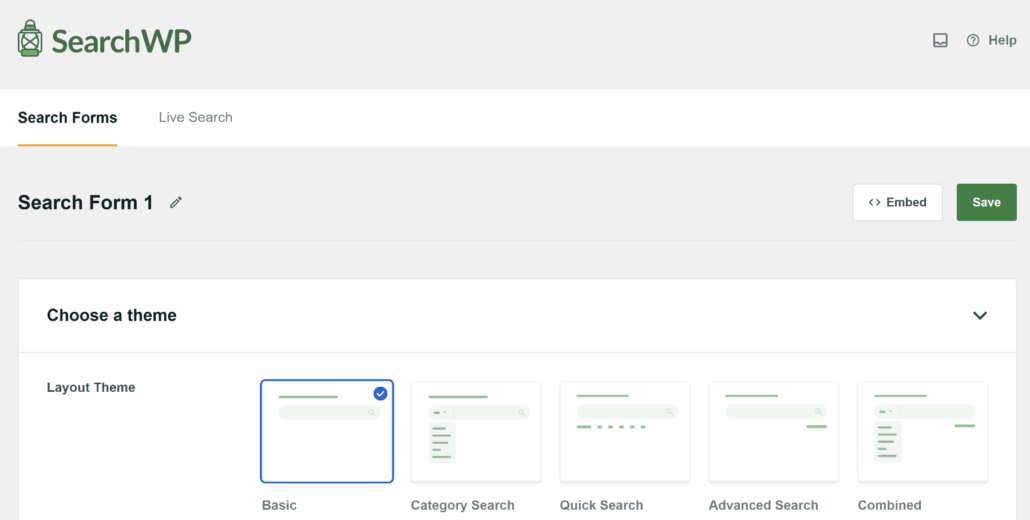
Go ahead and give your form a clear name at the top so you can easily identify it later.
This is especially helpful if you plan to create multiple search forms for different parts of your site.
Next, you can select a layout for your form. SearchWP offers pre-built templates to choose from, which makes it easy to get started.
Once that is done, you’re ready to move on and enable the voice search feature inside the form settings.
Simply scroll down to the ‘Custom Styling’ section in your form settings.
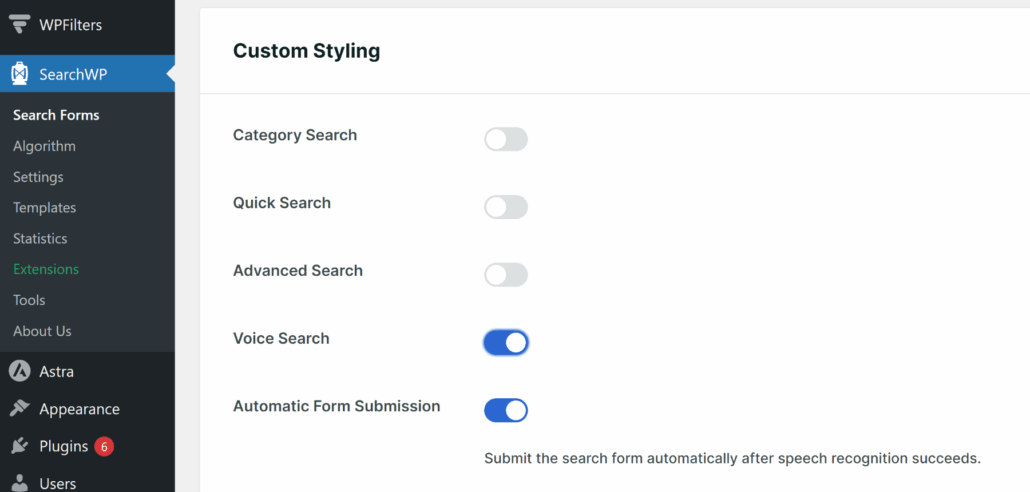
Go ahead and click the toggle for Voice Search. Once you do, a mic button will automatically appear next to the search field on your site. No extra configuration needed.
You’ll also notice an option called Automatically Form Submission. With this enabled, SearchWP will automatically trigger the search as soon as it picks up your visitor’s spoken query.
Your visitor speaks, the words appear in the search field, and the results show up, all without any extra clicks.
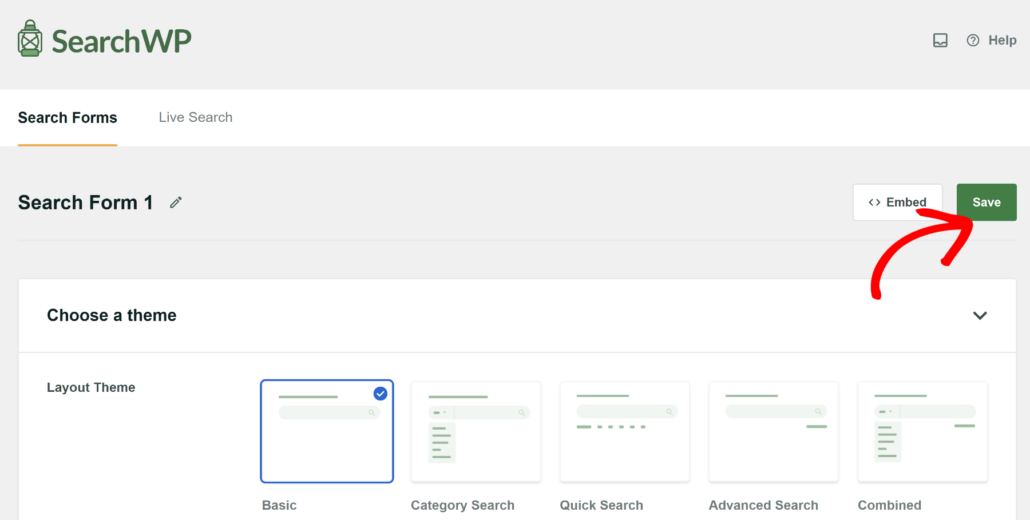
When you’re happy with your settings, scroll up and click the Save button to store your changes.
If you want to learn more about customizing your form, then please see our guide on how to create an advanced WordPress search form.
That’s it. Your search form now has voice search. The next step is to add this form to your site so your visitors can actually use it.
Step 3: Add the Voice Search Form to Your Site
Now that your search form is ready, it’s time to place it somewhere on your site where visitors can find it.
SearchWP gives you three ways to embed your search form. You can use a Gutenberg block, a shortcode, or PHP code.
Simply click the Embed button at the top of the Search Form page, and you’ll see these 3 options.
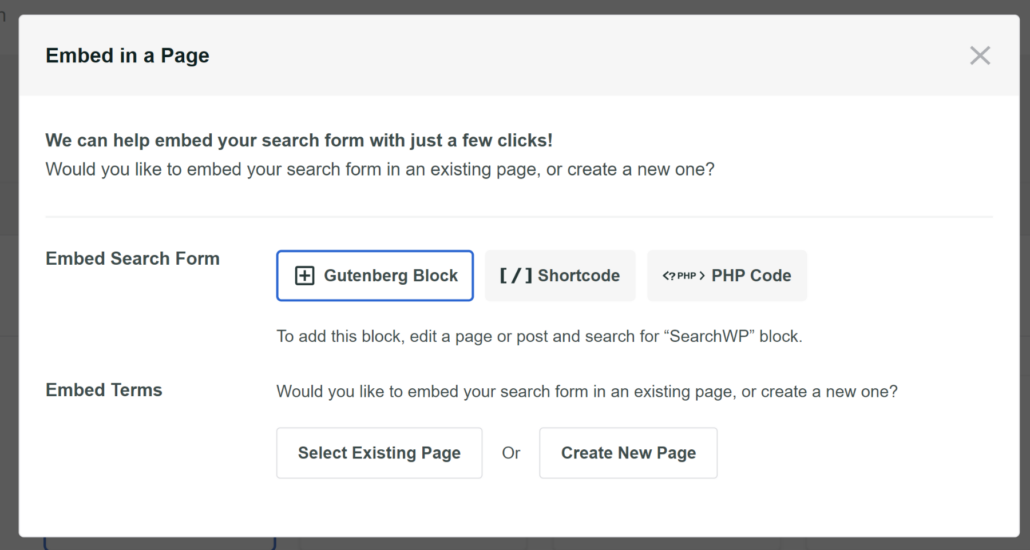
Besides that, there is also an option to manually insert the search form on any page using the SearchWP block.
For example, you can edit the page and head to the content editor. From here, click the + button and add the SearchWP Form block.
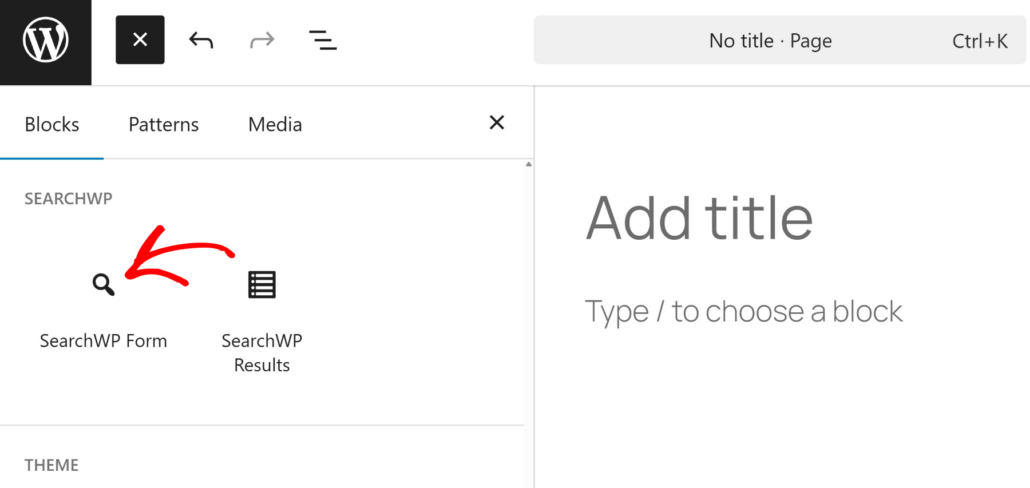
After that, you will see the SearchWP Forms block on your page.
Go ahead and click the dropdown menu to select the search form you just created with voice search.
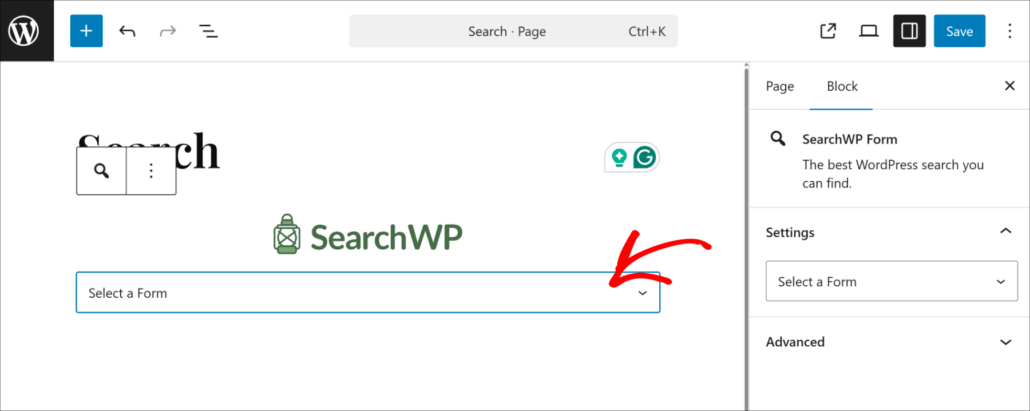
When you’re done, simply save your page.
Next, you can visit your website to see the search form in action.

You should now see the microphone button next to the search field.
Go ahead and click the mic button. Your browser might ask for permission to access your microphone, so make sure to click Allow, as this is required for voice search to work.
Once permission is granted, speak a search query out loud. Watch as your words are transcribed in real time directly into the search field.
If you turned on the ‘Automatic Form Submission’ option, the search will fire on its own as soon as you finish speaking, and your results will appear without any extra clicks.
If the results look right, you’re all set. Voice search is now live and working on your WordPress site.
Bonus: Optimize Your Content for Voice Search Queries
Adding the voice search feature to your site is a great first step. But getting the most out of it means making sure your content is actually ready to match the way people speak.
Typed searches are short and sharp. Voice searches are longer and more conversational.
For example, someone might type “chocolate cake recipe” but say, “how do I make a chocolate cake from scratch at home.”
Here are a few things we’ve found helpful when optimizing content for voice search:
- Use conversational headings: Write headings the way people actually speak. Instead of “Chocolate Cake Recipe,” try “How to Make a Chocolate Cake from Scratch.” This matches the natural phrasing of voice queries much more closely.
- Answer questions directly: Voice search users are often looking for quick, clear answers. Structure your content so that questions are followed immediately by a direct answer in plain language.
- Use long-tail phrases in your content: Think about the full sentences your visitors might speak and work those naturally into your writing.
- Make the most of SearchWP’s indexing: SearchWP can index custom fields, taxonomies, PDFs, and documents. The more of your content you make searchable, the better your chances of surfacing the right result for a voice query.
- Enable fuzzy search in SearchWP: This helps catch spoken queries that get slightly mistranscribed due to accents or background noise.
Small changes like these can make a big difference in how well your site responds to voice-based searches.
FAQs about Voice Search in WordPress
We know that adding a new feature to your site can bring up a few questions. Here are some of the most common ones we get about voice search in WordPress.
1. Does voice search work on all browsers?
Voice search relies on the Web Speech API, which is supported by most modern browsers, including Google Chrome, Microsoft Edge, and Safari. It may not work on older browsers or browsers that don’t support the Web Speech API.
2. Does my site need HTTPS for voice search to work?
Yes, it does. Browsers require a secure connection before they allow microphone access. If your site is still running on HTTP, you’ll need to install an SSL certificate first. Most hosting providers offer this for free through Let’s Encrypt.
3. Will voice search work on mobile devices?
Absolutely. In fact, mobile is where most voice searches happen. The mic button works on smartphones and tablets just as well as it does on desktops, as long as the browser supports the Web Speech API.
4. What happens if a visitor denies microphone permission?
If a visitor declines microphone access, the voice search feature simply won’t activate. They can still use the search field by typing as normal. Nothing breaks, and the experience stays intact.
5. Can I use voice search with WooCommerce?
When you combine SearchWP’s voice search feature with the WooCommerce Integration extension, your visitors can speak product names, SKUs, or attributes and get accurate results from your store.
Voice search is one of those features that may seem small but makes a real difference for the people using your site every day.
With SearchWP, adding it to your WordPress site takes just a few steps and no coding at all.
You get a clean mic button on your search form, real-time transcription, and the option to automatically deliver results the moment your visitor finishes speaking.
We hope this article helped you learn how to add voice search to your WordPress website. You may also want to see our guides on how to add live search to WordPress and how to find the most searched product on your website.
Ready to add voice search to your site? You can get started with SearchWP here.