


Building a thriving online community takes real effort. You spend time moderating discussions, encouraging participation, and cultivating valuable conversations in your bbPress forums.
But there’s a hidden problem that quietly undermines all that hard work.
When visitors search your site, they don’t see any of those forum discussions. Years of helpful answers, detailed troubleshooting threads, and expert advice remain invisible to your search function.
We’ve watched site owners struggle with this exact issue since the default WordPress search has many limitations.
In this article, we’ll show you how to include bbPress forum topics and replies in WordPress search.
Why Doesn’t bbPress Forum Content Appear in WordPress Search?
The default WordPress search function has a major blind spot when it comes to forum content.
When someone searches your site, WordPress looks through standard posts and pages by default.
It skips right over your forum discussions, even when they contain the exact information your visitor needs.
This creates a frustrating experience for everyone involved. Your community members have already answered common questions dozens of times in forum threads.
But new visitors keep asking the same things because they can’t find those existing discussions.
The problem gets worse as your forum grows. More valuable content gets buried deeper, making your community less helpful to newcomers than it should be.
Fixing this issue will help your visitors find the information they need faster. It will reduce duplicate forum posts and make your entire community more valuable to everyone who uses it.
That said, let’s look at a quick and easy way of making your forum topics and replies searchable in WordPress.
Make bbPress Forum Topics and Replies Searchable
The easiest way to make your bbPress forum content searchable is by using SearchWP.

SearchWP is the best WordPress search plugin that gives you complete control over what appears in your search results. It works seamlessly with bbPress to index both forum topics and replies.
Over 50,000 WordPress site owners use SearchWP to improve their site search and help visitors find the content they need.
Beyond making forum content searchable, SearchWP offers powerful features that enhance your entire search experience:
- Live Search Results: Display search results instantly as visitors type, making it faster to find forum discussions.
- Custom Search Forms: Create dedicated search forms just for your forums with specific settings.
- Search Statistics: Track what people search for on your site to understand which forum topics interest your community most.
- Fuzzy Search: Let visitors find forum posts even when they misspell search terms or use slightly different keywords.
- PDF Indexing: Make downloadable files and PDF documents from your forums searchable alongside topics and replies.
- Seamless Integrations: SearchWP works seamlessly with popular plugins like WooCommerce and page builders.
With SearchWP, you can transform your forum from a hidden archive into a searchable knowledge base that serves your community better.
Now, let’s walk through the steps to make your bbPress content fully searchable.
Step 1: Install and Activate SearchWP
First, you’ll need to visit the SearchWP website and sign up for a new account.
Once you’ve created your account, log in and navigate to the Downloads tab in your dashboard.
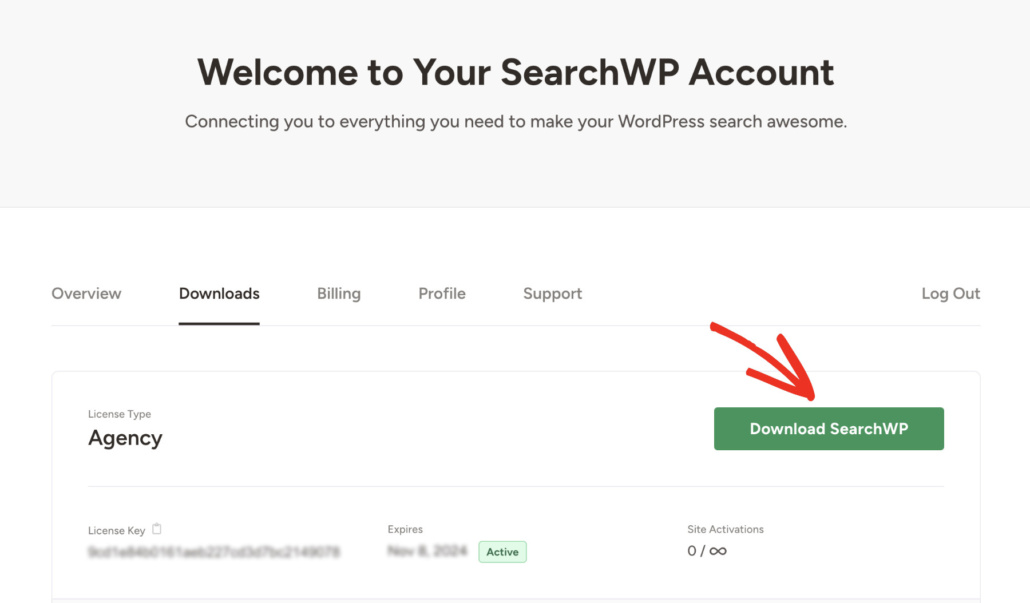
On this page, you can click the Download SearchWP button to save the plugin’s ZIP file to your computer. While you’re here, copy your license key from the bottom left corner since you’ll need it during setup.
Next, you’ll need to install SearchWP on your WordPress site by uploading the ZIP file. If you need help with this step, check out this guide on how to install a WordPress plugin.
After activating the plugin, you’ll see the SearchWP welcome screen with the setup wizard. Click the ‘Start Onboarding Wizard’ button and follow the simple onscreen instructions to complete the initial configuration.
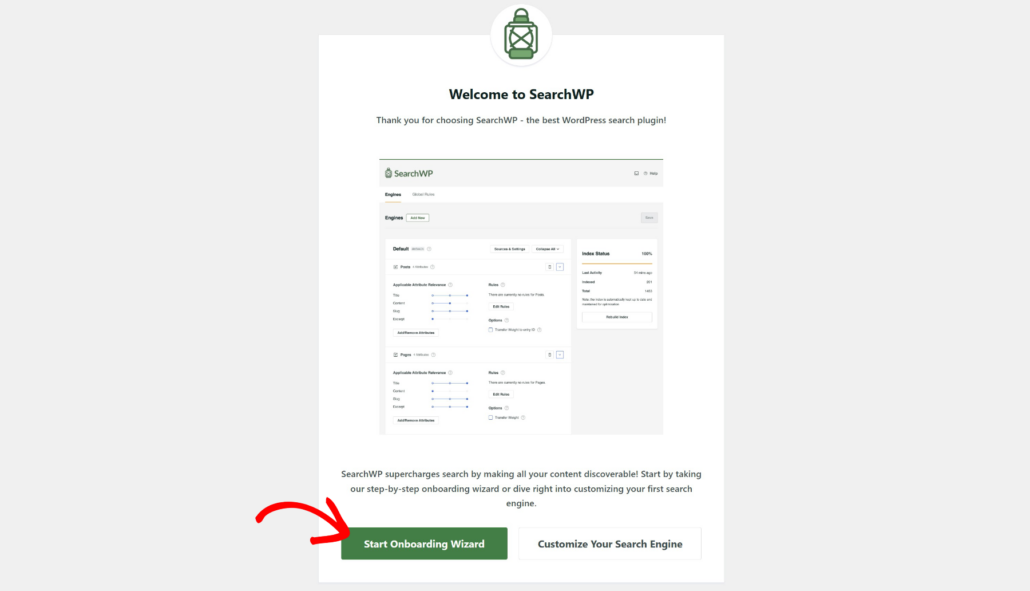
Once you finish the setup wizard, you’re ready to install the bbPress integration.
Step 2: Install the bbPress Integration Extension
The bbPress Integration extension allows SearchWP to index forum content and include it in search results.
To install this extension, navigate to SearchWP » Extensions from your WordPress dashboard.
From here, you can scroll down until you find the bbPress Integration extension in the list and then click the ‘Install’ button.
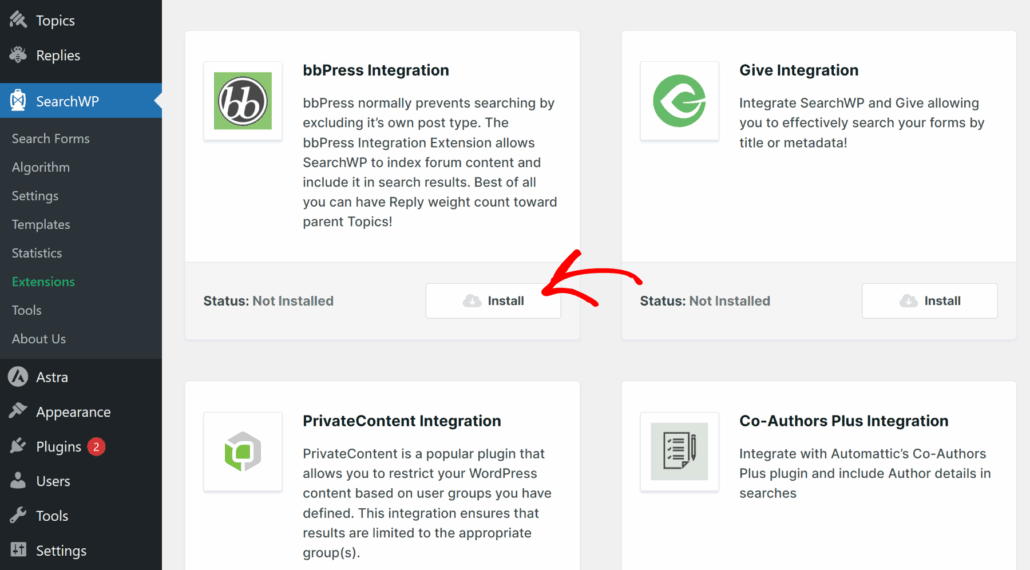
The extension activates automatically after installation.
Now you’re ready to configure SearchWP to include your forums, topics, and replies in search results.
Step 3: Customize Your Search Engine
Next, you can customize the search engine in SearchWP and include content from bbPress in the search results.
This can include the forums created on your site, the forum topics, forum replies, topic tags, and more.
First, you will need to head to SearchWP » Algorithm from your WordPress dashboard.
You’ll see your default search engine with its current sources listed. Go ahead and click the Sources & Settings button to modify what SearchWP includes when performing searches.
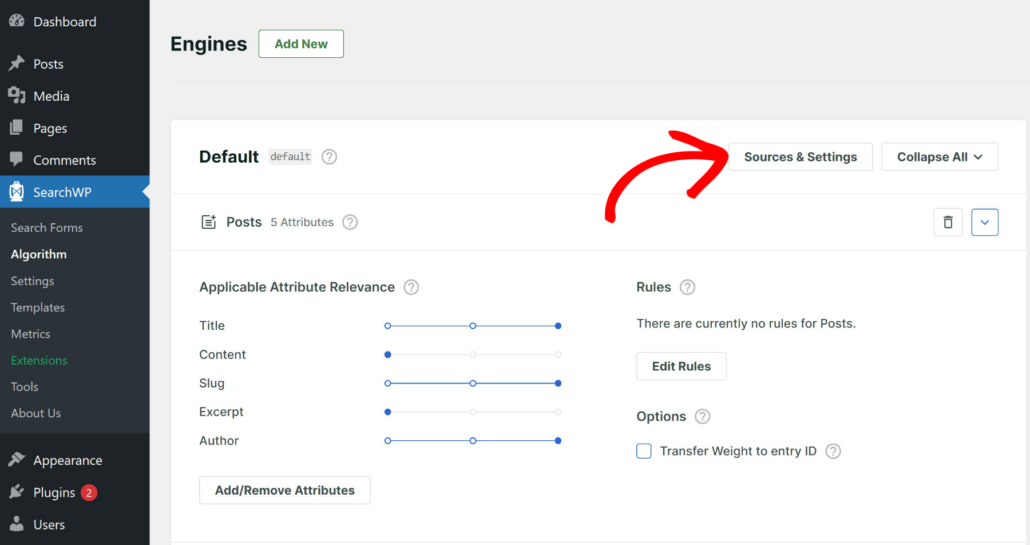
A popup window will appear showing all available sources on your site. By default, it will already include posts, pages, and media as sources.
Next, you can select Forums, Topics, and Replies as sources for your engine.
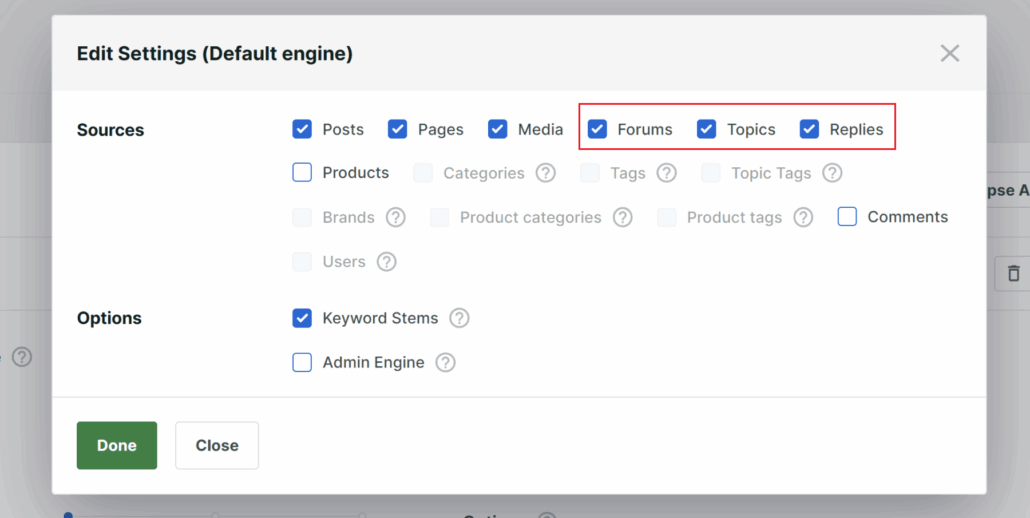
When you’re finished, click the Done button to save this change.
Now SearchWP will search through different forums, forum topics, and replies when visitors use your site search. This gives them access to the complete forum conversation, not just the original questions.
Step 4: Customize Forum Search Attributes
Adding forums, topics, and replies as sources tells SearchWP where to look. But you also need to specify which attributes within those sources should be searchable.
These can include any custom fields or taxonomies, like tags or categories, in the search process.
For instance, you can scroll down on the ‘Algorithm’ page to view the Forum until you see the ‘Topics’ section.
Simply click the Add/Remove Attributes button to configure which parts of forum topics SearchWP should index.
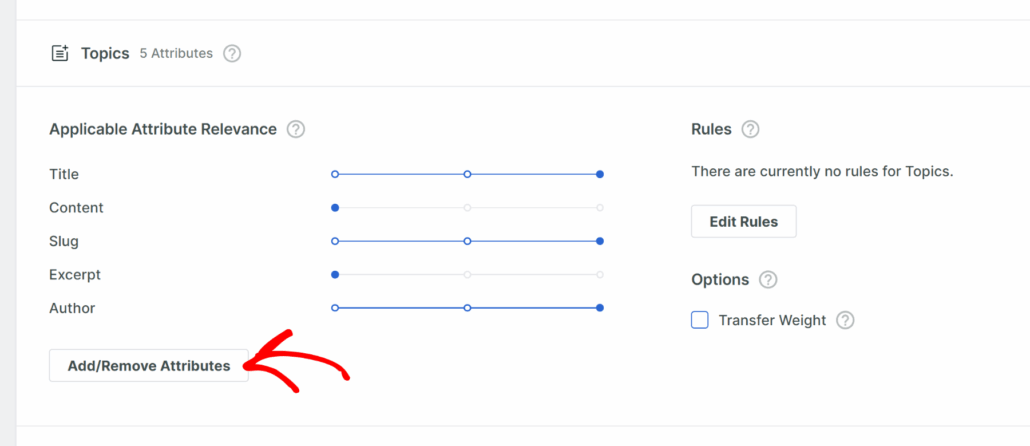
A popup window will open showing available attributes. By default, SearchWP includes basic attributes like title, content, slug, excerpt, and author.
You can also add custom fields and taxonomies, such as ‘Topic Tags (topic-tags)’, to improve the overall search experience.
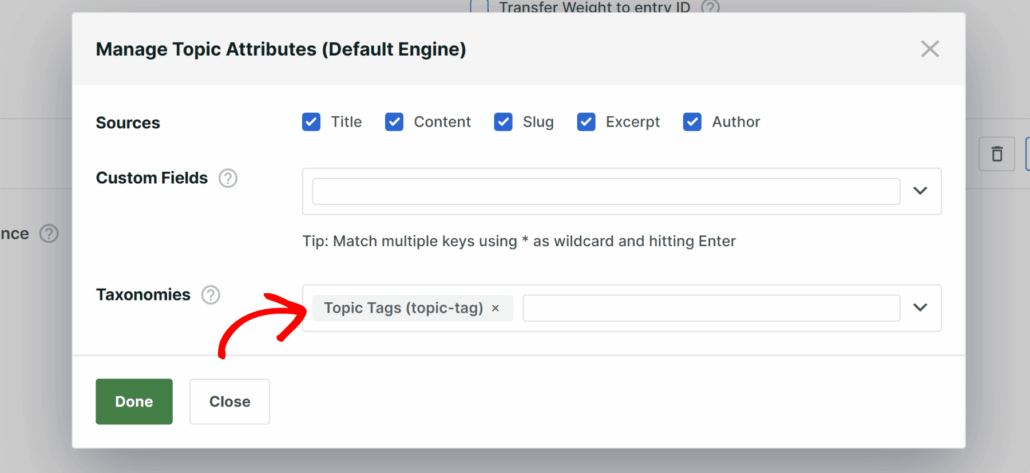
Click Done when you’re satisfied with the topic attributes.
Now, you can scroll down to the Forums and Replies section and click the Add/Remove Attributes button to edit their attributes.
Simply configure their attributes the same way. The content attribute is especially important here since it contains all the actual reply text where answers and discussions happen.
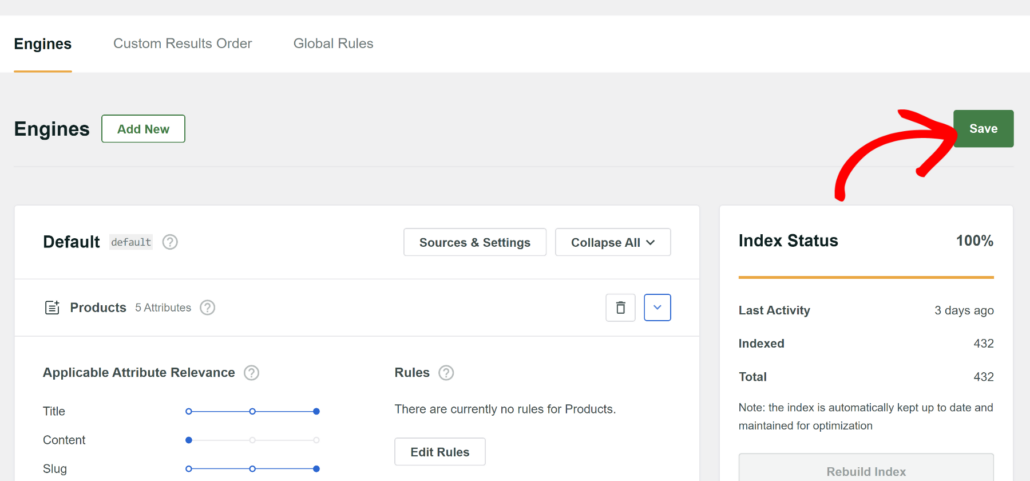
The final step is to save all your changes. You can do that by scrolling to the top of the page and clicking the Save button in the upper-right corner.
Step 5: Test Your Forum Search
Now that you’ve configured SearchWP to include forum content, it’s time to make sure everything works correctly.
Visit your site’s front end and navigate to the search bar. Think of a specific topic or reply you know exists in your forums.
For this test, choose something distinctive that appears in your forum discussions but not in your regular posts or pages. This way, you can clearly see that SearchWP is finding forum content.
Type your search term into the search bar and press Enter or click the search button.
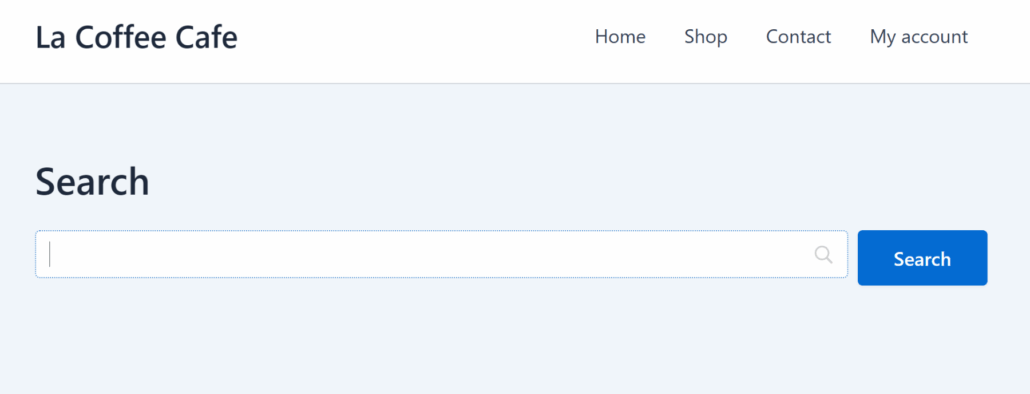
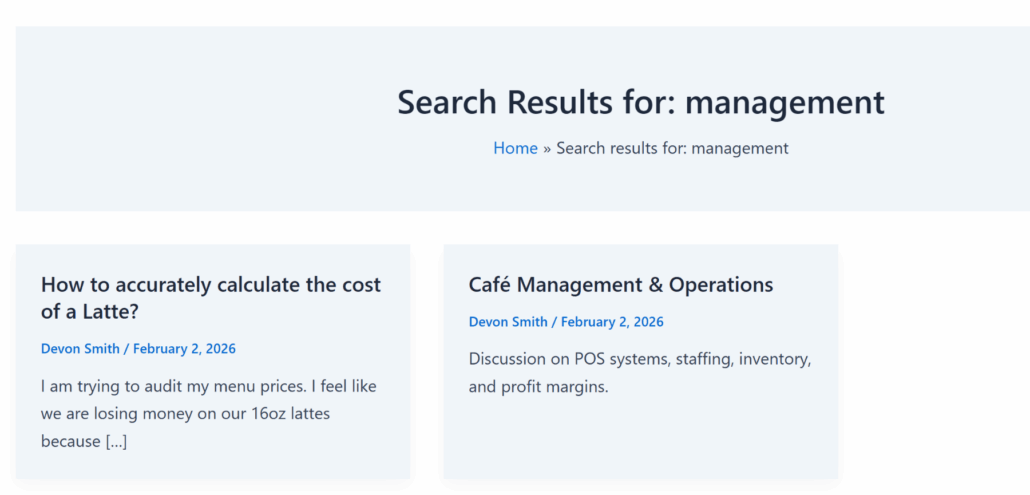
You should now see forum topics and replies appear in your search results alongside your regular content. The results will show the topic title or reply content that matches your search query.
For example, on our test site about a coffee cafe, we searched for “management,” which appears in a forum discussion. The search results now include both the original forum and its topics.
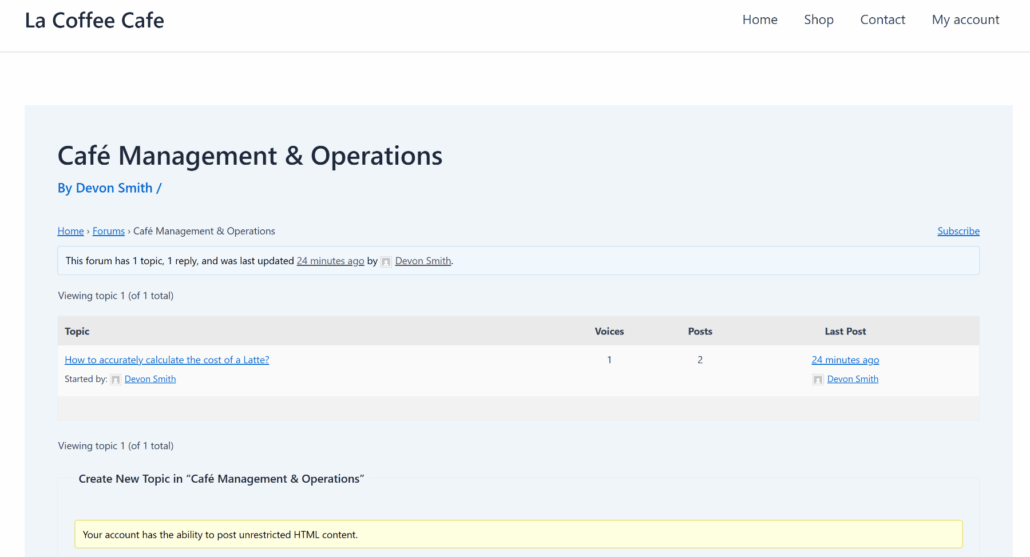
If we click any of the results, it will take us to the forum where the discussion is happening.
This shows that the search is working correctly and the forums created using bbPress are now searchable in WordPress.
FAQs about Including bbPress Search
Here are some common questions we get about making bbPress forums searchable in WordPress.
1. Will this slow down my site?
No, SearchWP is designed to be efficient and won’t impact your site speed. It builds a search index in the background, so searches happen quickly without putting extra load on your database during each query.
2. Can I search by forum author?
Yes, you can make forum authors searchable. When you configure the attributes for Topics and Replies, you’ll see an Author option available. Simply include it in your searchable attributes, and visitors can find posts by specific community members.
3. Does this work with other forum plugins?
SearchWP is specifically designed to work with bbPress through its dedicated integration extension. You can check the SearchWP Features page to see all available integrations for different forum solutions.
4. What happens to new forum posts?
SearchWP automatically indexes new forum topics and replies as soon as they’re published. You don’t need to manually rebuild the index every time someone posts in your forums. The plugin monitors your site for new content and updates the search index in real-time.
Making your bbPress forum content searchable transforms your community from a collection of isolated discussions into a valuable knowledge base.
Visitors can now find answers that community members already provided months or years ago. This reduces duplicate questions, helps newcomers get up to speed faster, and makes your entire forum more useful to everyone.
We hope this article helped you learn how to include bbPress forum topics and replies in WordPress search. You may also want to see our guides on how to search posts by tags in WordPress and how to track searches on your WordPress site.
Ready to make your forum content searchable and build a stronger community? You can get started with SearchWP here.