


Do you want to make WordPress search image files on your website?
The default WordPress search is primarily designed to look for text content within posts and pages. It does not include the image metadata in the search process.
As a result, when a user searches using keywords within an image’s alt text, caption, or description, the default search cannot show relevant results.
In this article, we’ll show you how to make WordPress search image files using SearchWP.
What is Image Metadata in WordPress?
Every image you upload to WordPress stores four key pieces of information alongside the file itself: the title, caption, description, and alt text.
These are the fields WordPress gives you when you open any image in the Media Library.
Each field serves a different purpose. Alt text helps screen readers describe the image, captions appear below images in posts, and descriptions add context for editors and visitors.
When SearchWP indexes all four fields, a visitor searching “beachfront property” can find an image whose alt text reads “beachfront property at sunset,” even if that phrase never appears in a post or page.
Why You Need To Make WordPress Search Image Files?
Whether you’re a photographer showcasing your portfolio, an eCommerce site showcasing your products, or a blogger enriching your posts with infographics, images are crucial to decorating websites.
It’s not just about aesthetics, but it plays a critical role in persuading visitors to take action. So, making images findable can enhance user experience and engagement.
From our experience, site owners are often surprised to discover how much the default search is skipping. Here’s what’s missing when a visitor searches for an image on a standard WordPress site:
- Media attachments aren’t included in search results by default. Visitors who search for keywords that only appear in your image library walk away empty-handed, even when the images are there.
- Alt text isn’t searched by default. Alt text is stored as post meta, which WordPress’s native search doesn’t query, so even a perfectly tagged image stays hidden.
- Captions and descriptions are ignored. The text written in the caption and description fields for each image doesn’t factor into WordPress’s default search for attachments.
- No image-only filtering. Any workaround that surfaces attachments in search results would return PDFs, audio files, and video files alongside images, with no built-in way to filter by file type.
SearchWP fixes all four of these gaps in one place, without any custom code. So, let’s learn how to make WordPress search image files on your website.
How To Make WordPress Search Image Files Using SearchWP
The easiest way to enable advanced image file indexing and search on your WordPress site is by using SearchWP.

It’s the most powerful tool that extends beyond basic search functions, allowing for a deep search into the image metadata and other crucial attributes.
SearchWP ensures that your images are searchable by their titles and metadata, such as alt text, caption, or description. On top of that, you can also make the EXIF data searchable with SearchWP.
Additionally, SearchWP supports other file types and offers features such as:
- Index any image metadata: SearchWP reads the title, caption, description, and EXIF data on every image in your Media Library. It also indexes alt text when you add custom fields and enter
_wp_attachment_image_altas the field name. - Create a dedicated image search engine: SearchWP lets you build a search engine that returns only images, keeping image results separate from your posts and pages. This is the approach we’ll use in this tutorial.
- PDF and Office Documents Indexing: Makes document content searchable by parsing PDFs, Office documents, and plain (and rich) text documents.
- Keyword Stemming: Expands search flexibility by finding similar keywords, improving the comprehensiveness of search results.
- Multiple Search Engines: Allows the creation of custom search engines tailored for different content types, such as one specifically for images.
Now, let’s get started with setting up SearchWP to make your image files searchable.
Step 1: Setting Up SearchWP on Your Site
To get started, visit the SearchWP website and sign up for an account.
Once you’re in your account dashboard, go to the Downloads tab, click Download SearchWP, and copy your license key.

From there, install and activate SearchWP on your WordPress site. If you’ve never installed a plugin before, then please follow this step-by-step guide on how to install a WordPress plugin.
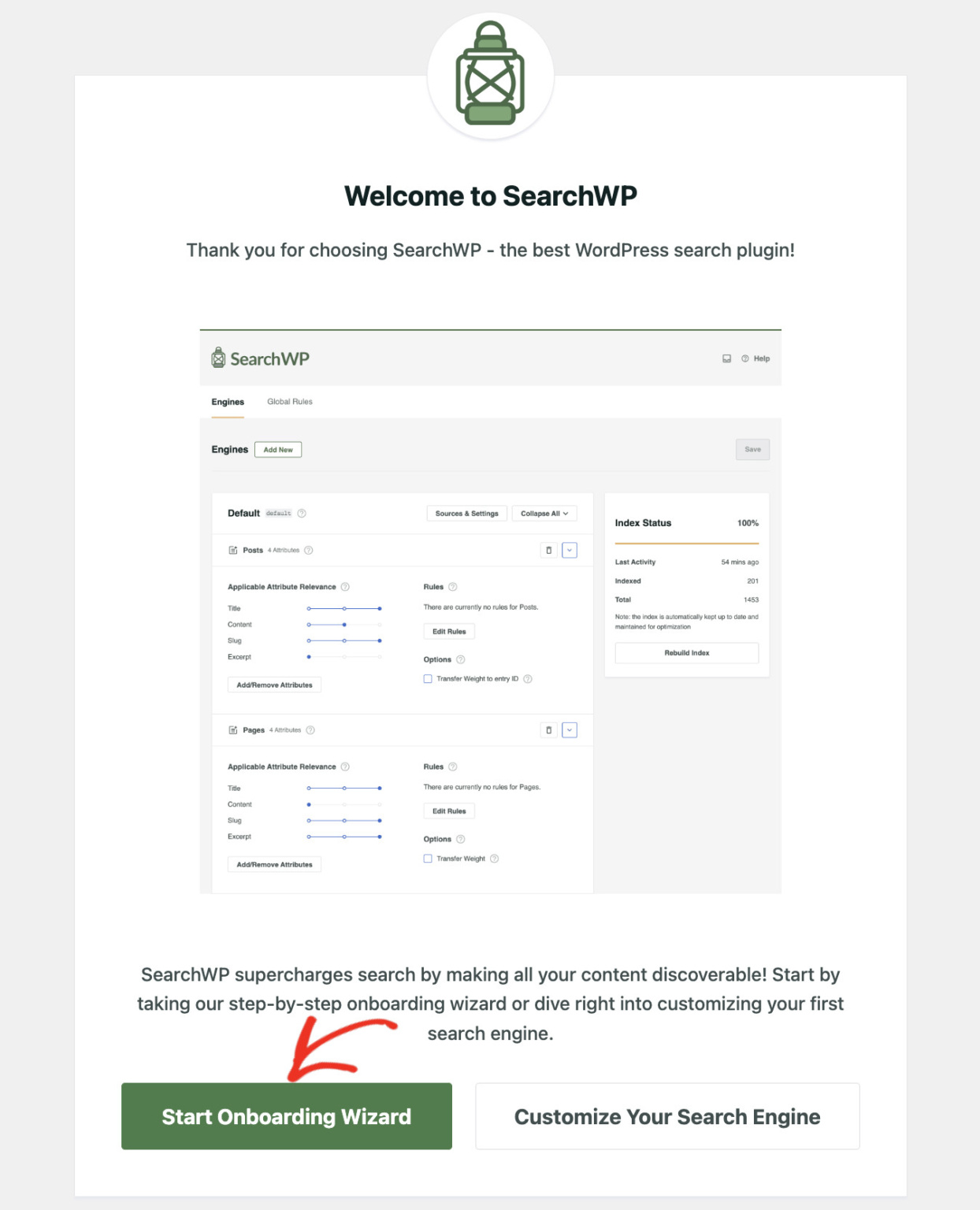
After activation, go ahead and click Start Onboarding Wizard and follow the on-screen instructions to connect your license key and finish setup.
SearchWP is all set. Now let’s configure it to search your image files.
Step 2: Configure the Image Search Engine
SearchWP improves the default WordPress search on your website once it is installed. Next, to make images on your website searchable, you just need to configure the search engine.
Now, you have the option to modify the default Engine or create a new one specifically for searching image files.
Let’s create a new Engine for this tutorial. From your WordPress dashboard, navigate to SearchWP » Algorithm. You’ll see the engine list, starting with the default search engine used for your main site search.
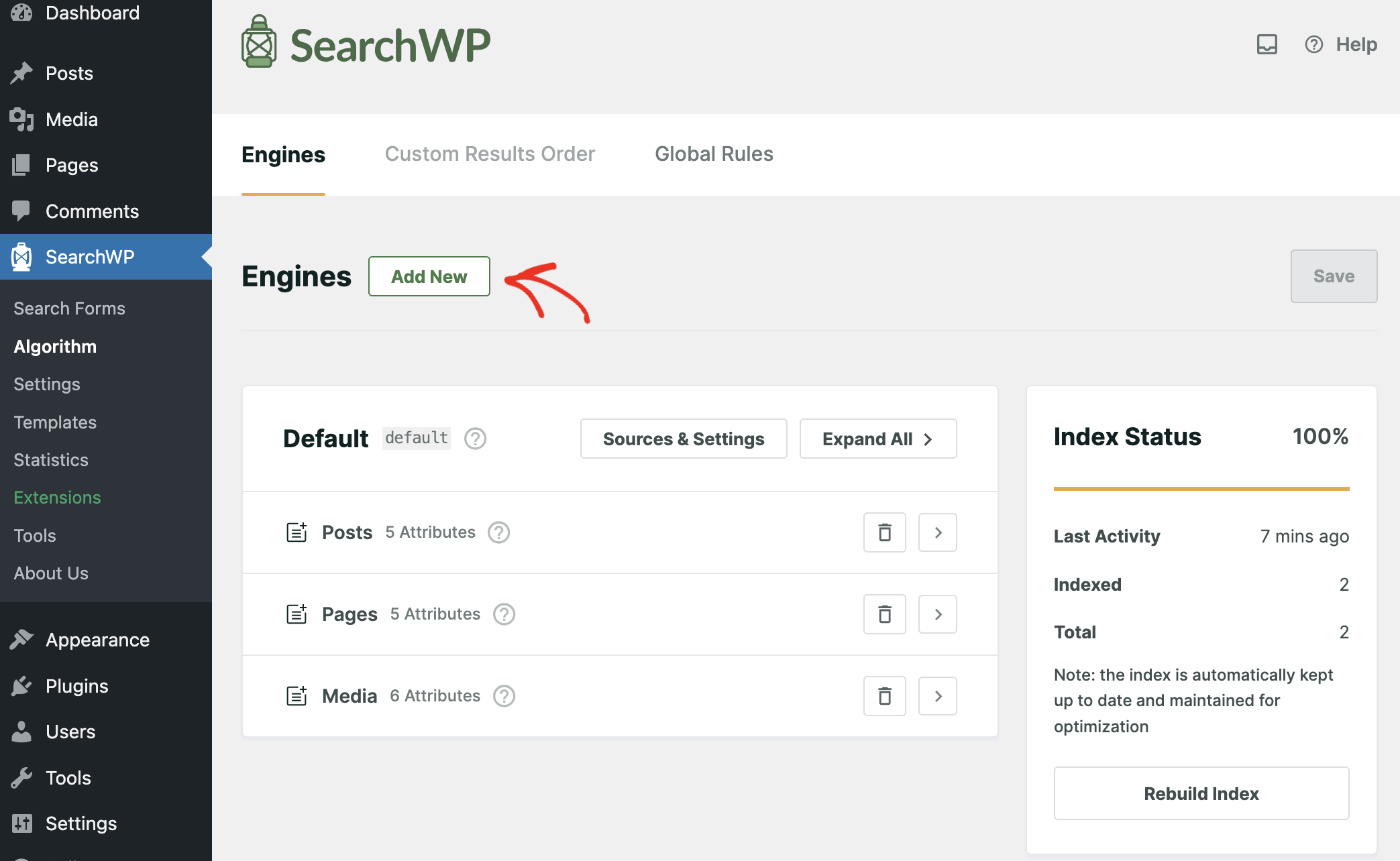
To keep image search separate from your main content search, click Add New.
Next, in the Engine Label field, replace the default “Supplemental” name with something like “Image Search.”
Once inside the new engine, check the Media source. This tells SearchWP to draw search results from your WordPress image library for this engine.

After that, click ‘Done’ to save these settings.
Now, you can click the Add/Remove Attributes button on the Media tab to specify which sources to index.
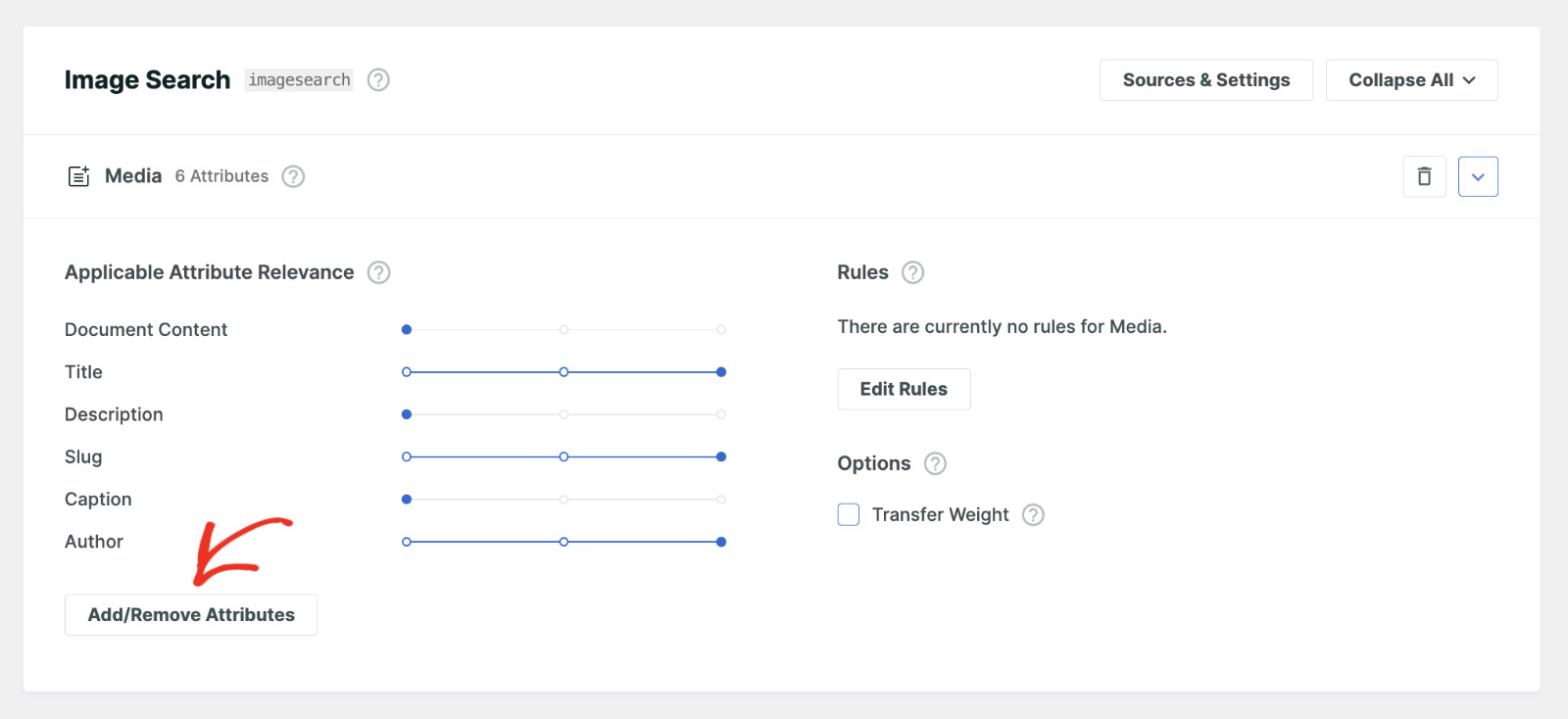
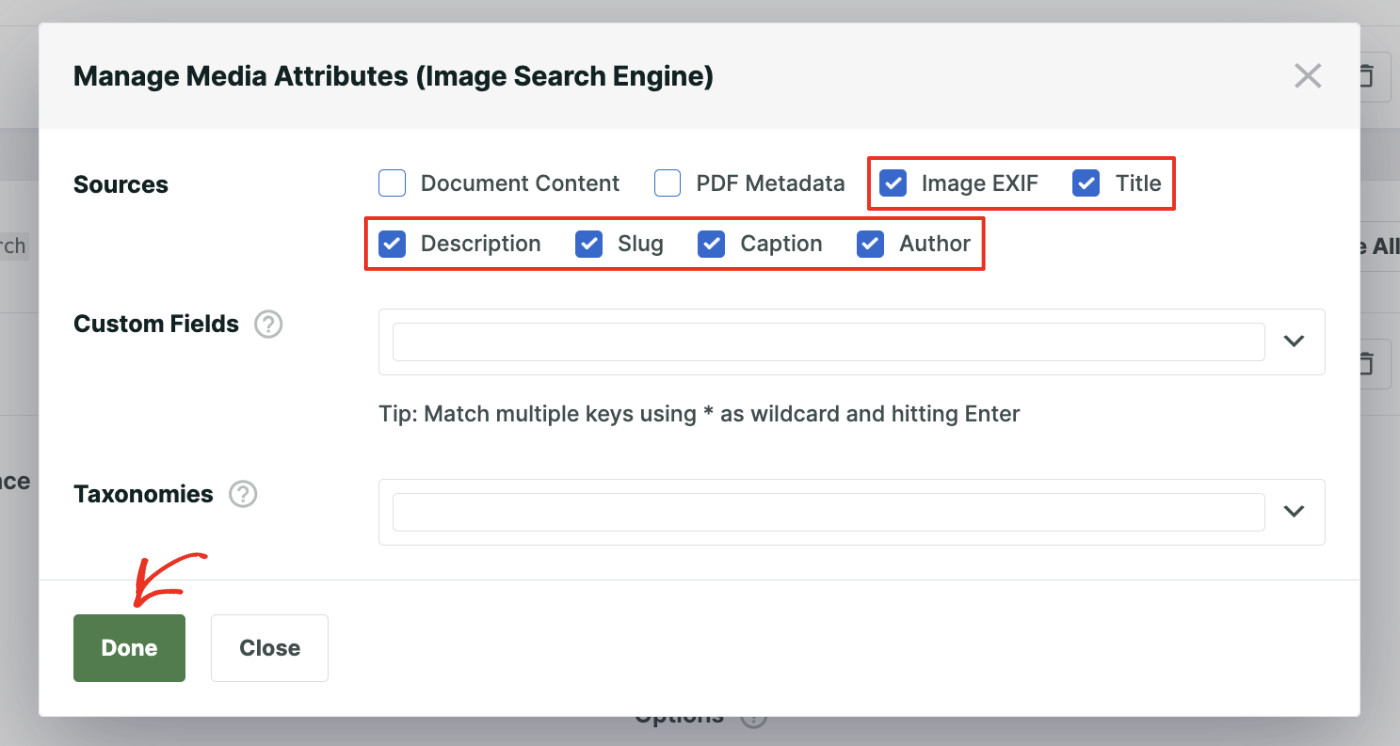
A new popup window will open where you can edit the attributes for your source.
Choose the sources you want to include in the search process, such as the Title, Caption, Description, and Image EXIF attributes. To also index alt text, enable Custom Fields and type _wp_attachment_image_alt as the field name.
Then click ‘Done’ to save your changes.
Lastly, you can confine this search engine to only returning image files in the search result. You can totally skip this step. If you do, the default behavior is that the search will return all types of media files, such as images, videos, audio, documents, etc.
To do create a new rule, you can click the Edit Rules button.
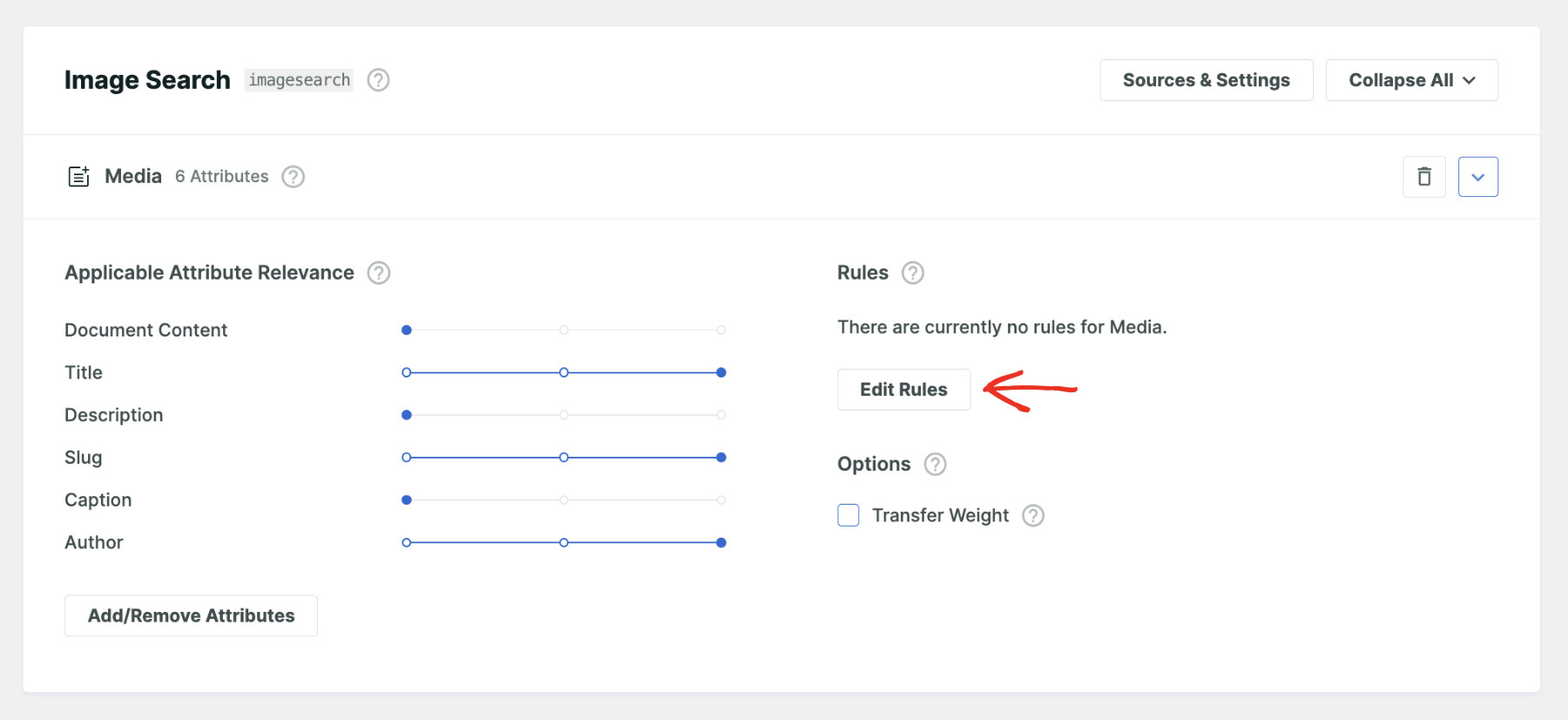
You can manipulate how and which results will be displayed using this Engine from this popup. Play around to come up with new ideas.
To keep the search results to images only, you need to create a new rule. So click on Add Rule. From there, set the rule to Only show entries if: File Type: is In: Images.
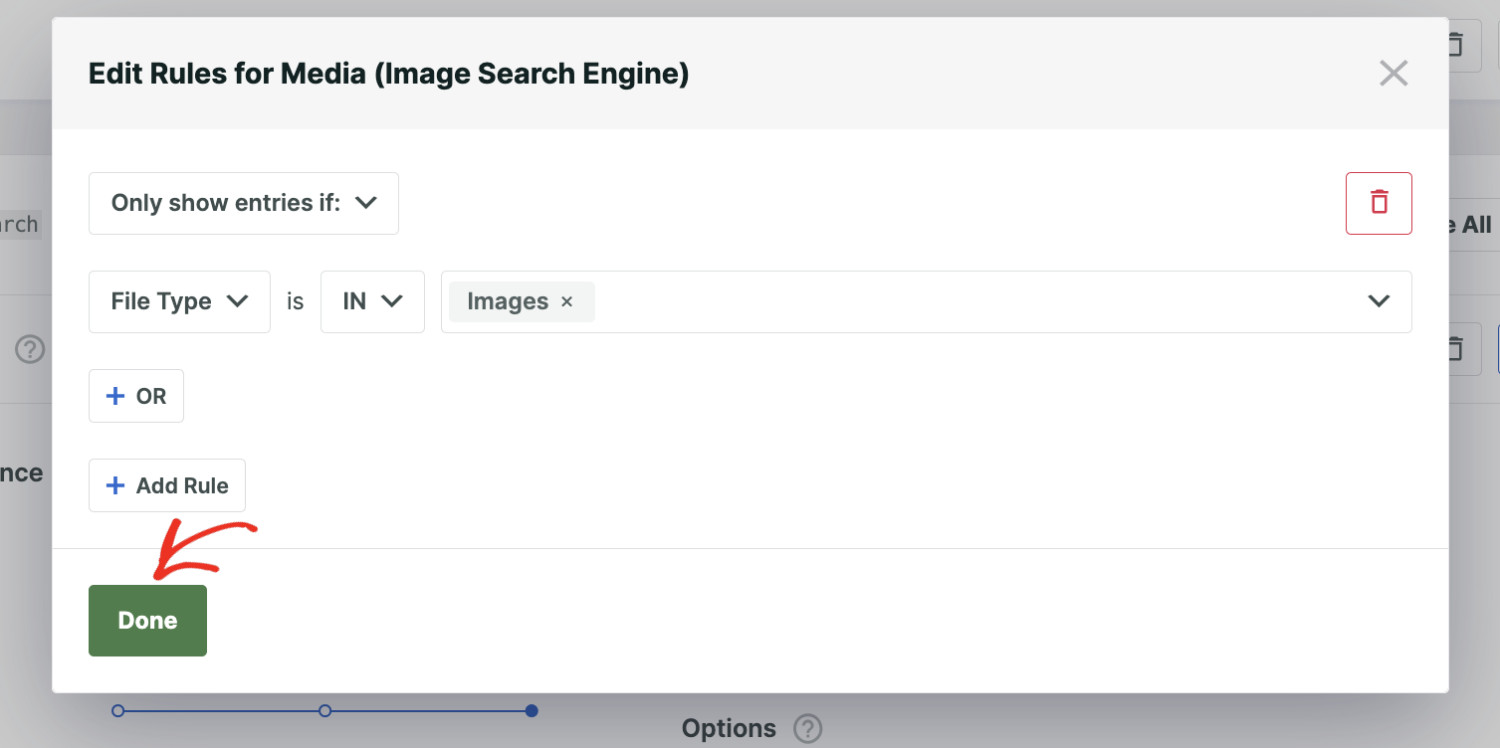
After that, you can click Done.
Finally, click Save to store the new settings.
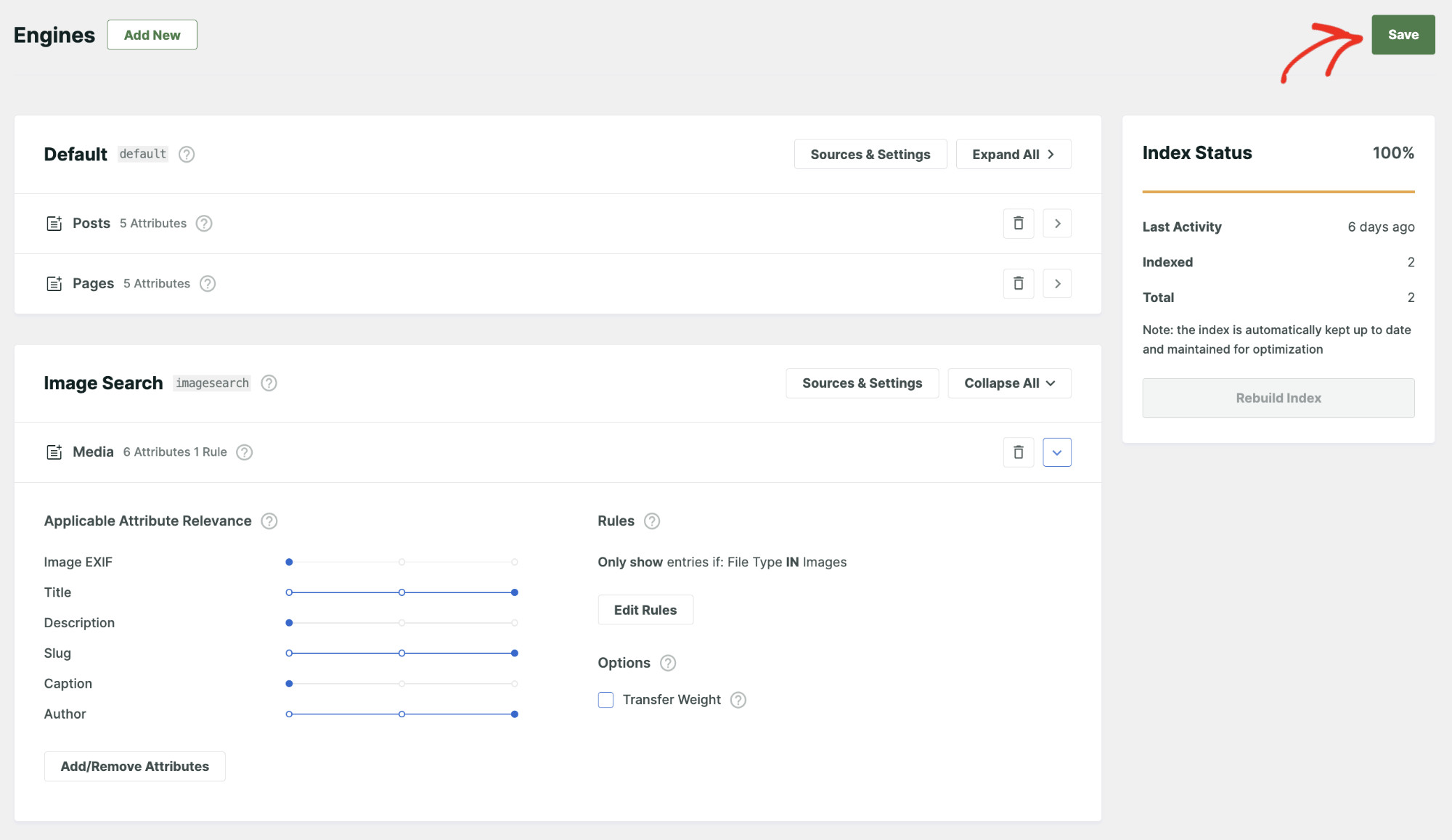
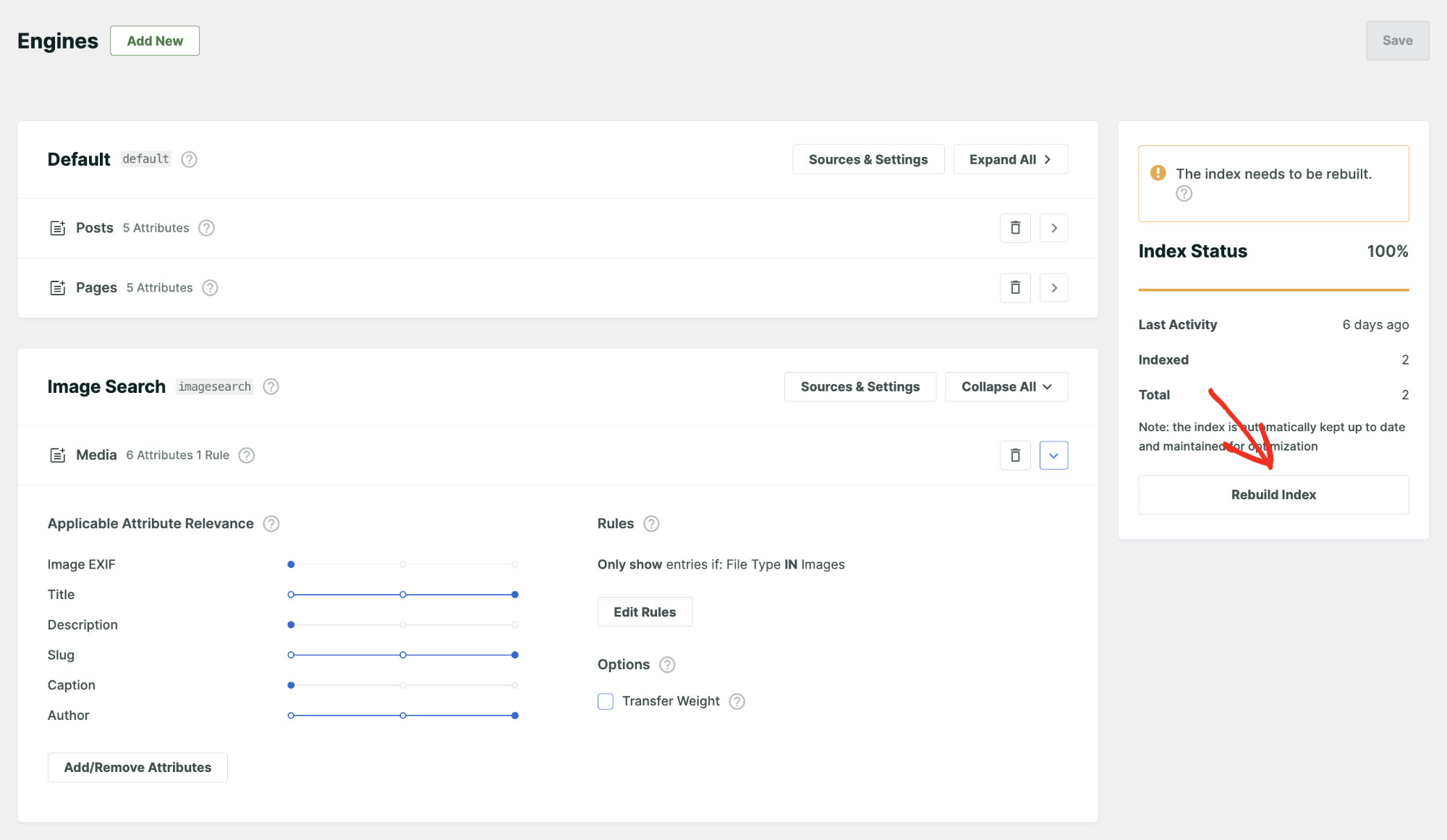
Now, you may be asked to rebuild the index so that the new settings can be applied.
You can also click Rebuild Index so SearchWP scans your media library and indexes the image metadata.
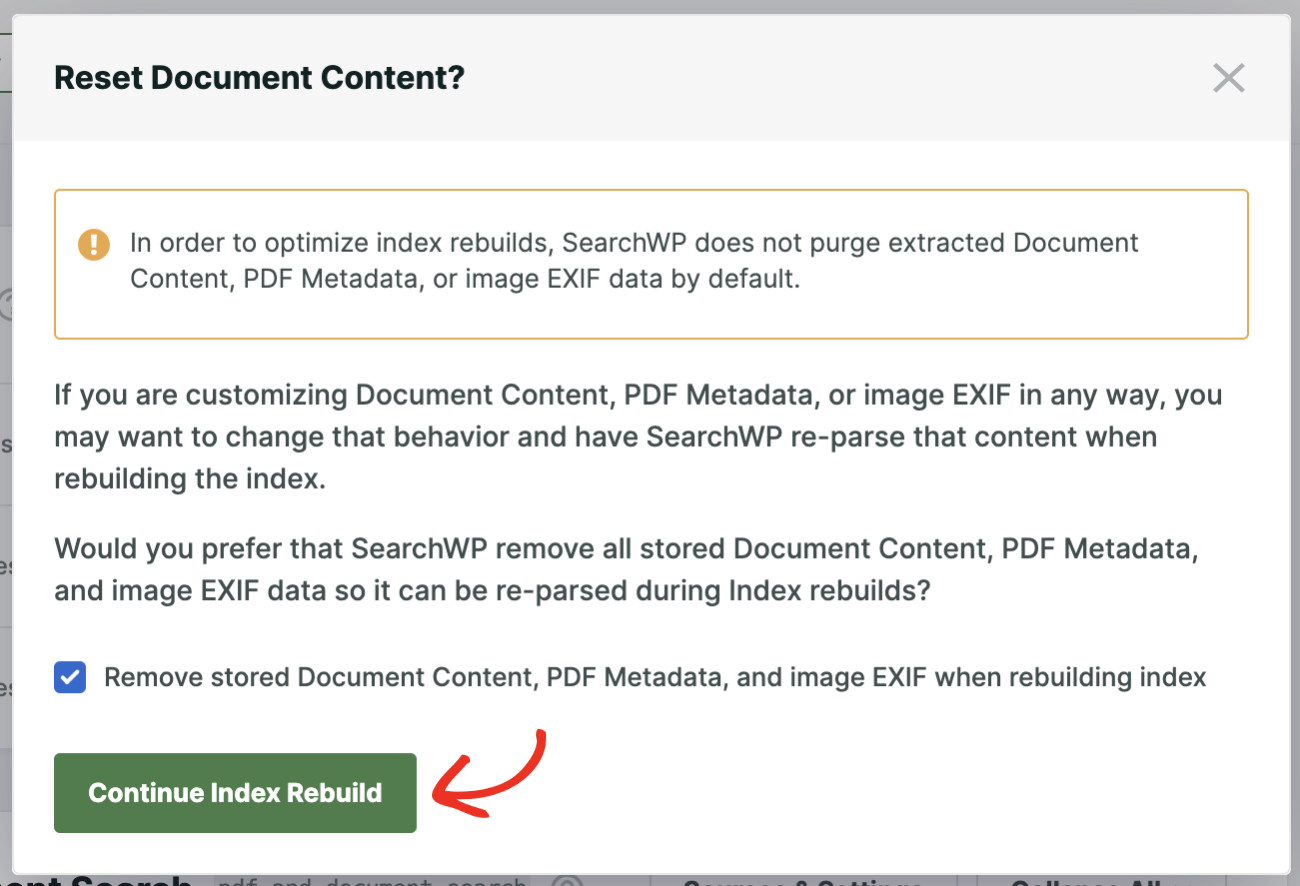
Depending on the state of your website, the following popup may appear. When an image or document file is indexed in SearchWP, it extracts all indexable data and stores it in its database.
If you want SearchWP to re-parse every file from scratch, check Remove stored Document Content, PDF Metadata, and image EXIF when rebuilding index before continuing.
Congratulations! You have successfully made WordPress search image files on our website. You can repeat this process to make other media files such as audio, video, PDFs, and office documents searchable in WordPress.
Step 3: Create an Image Search Form
With the image engine ready, navigate to SearchWP » Search Forms from your WordPress dashboard. From there, click Add New to start building your image search form.
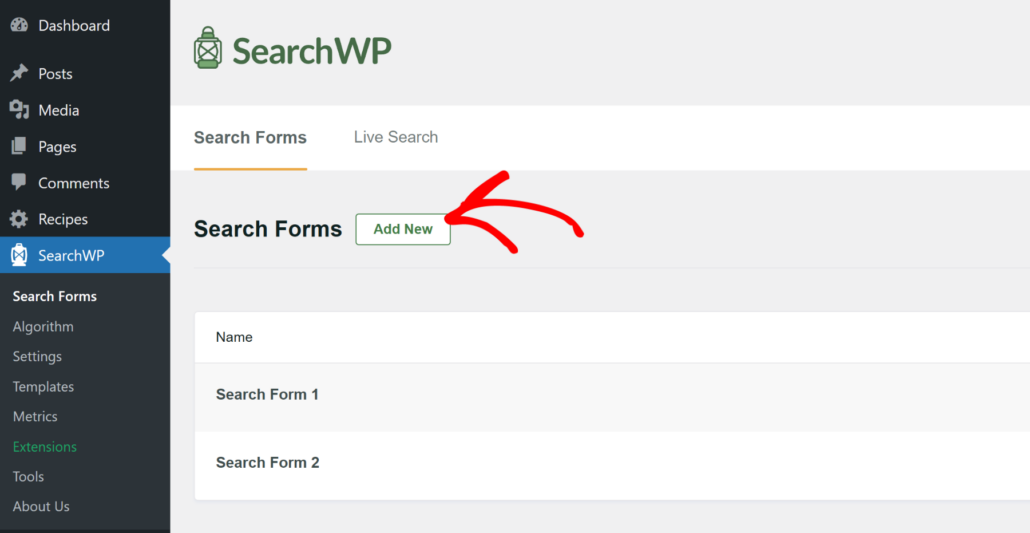
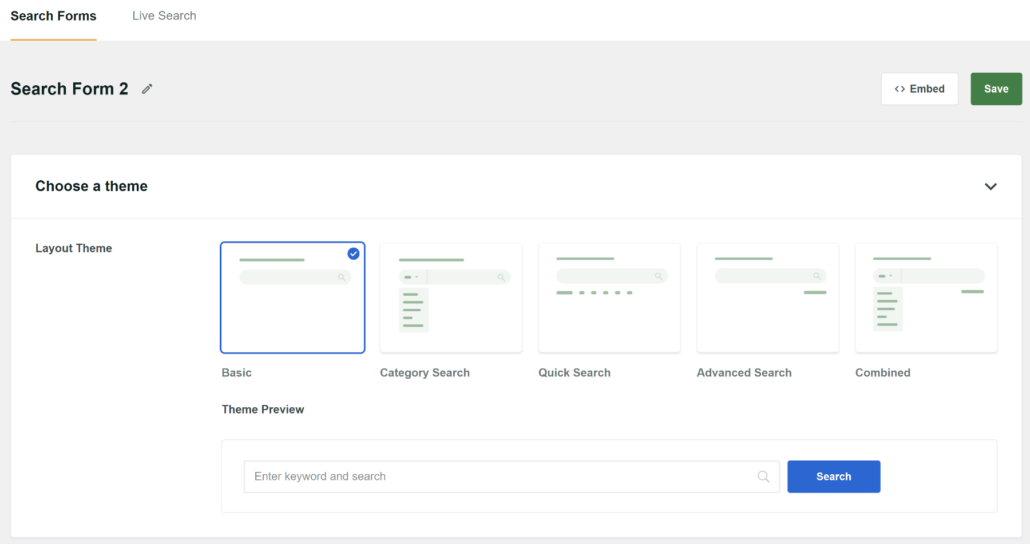
Next, give your form a name, and then choose a Layout theme for the search form.
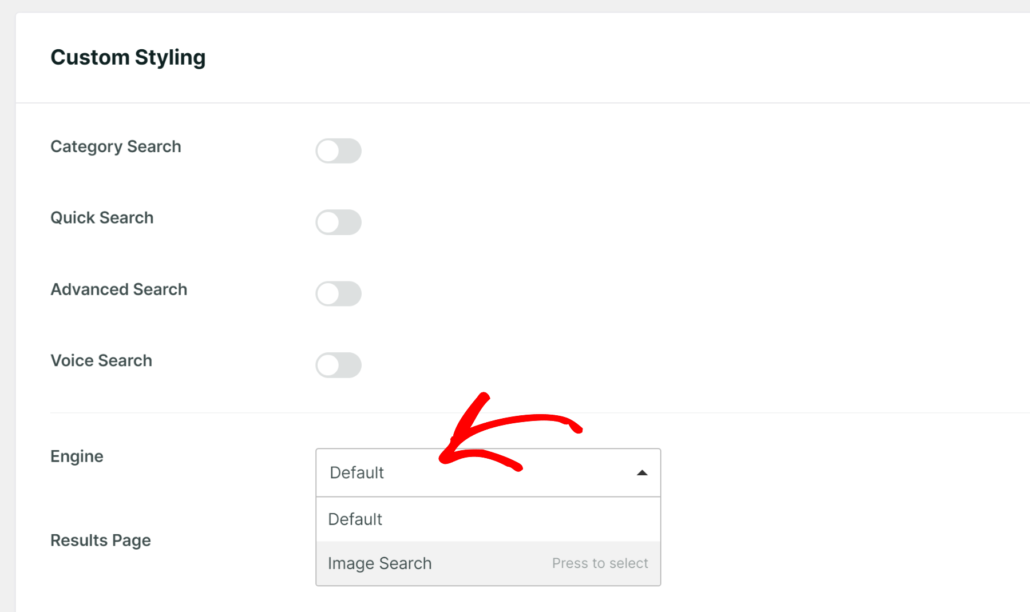
You can tweak the search form as needed. Most importantly, you need to assign an Engine to this form.
To do that, find the Engine and select the newly created Image Search from the dropdown.
Once you’ve made other modifications to your liking, you can click “Save” to store your settings.
Now, visitors can only see images in their search results when they use this form.
Next, there are multiple ways to embed this search form into your website. Simply click the Embed button next to Save, and you’ll see the instructions.
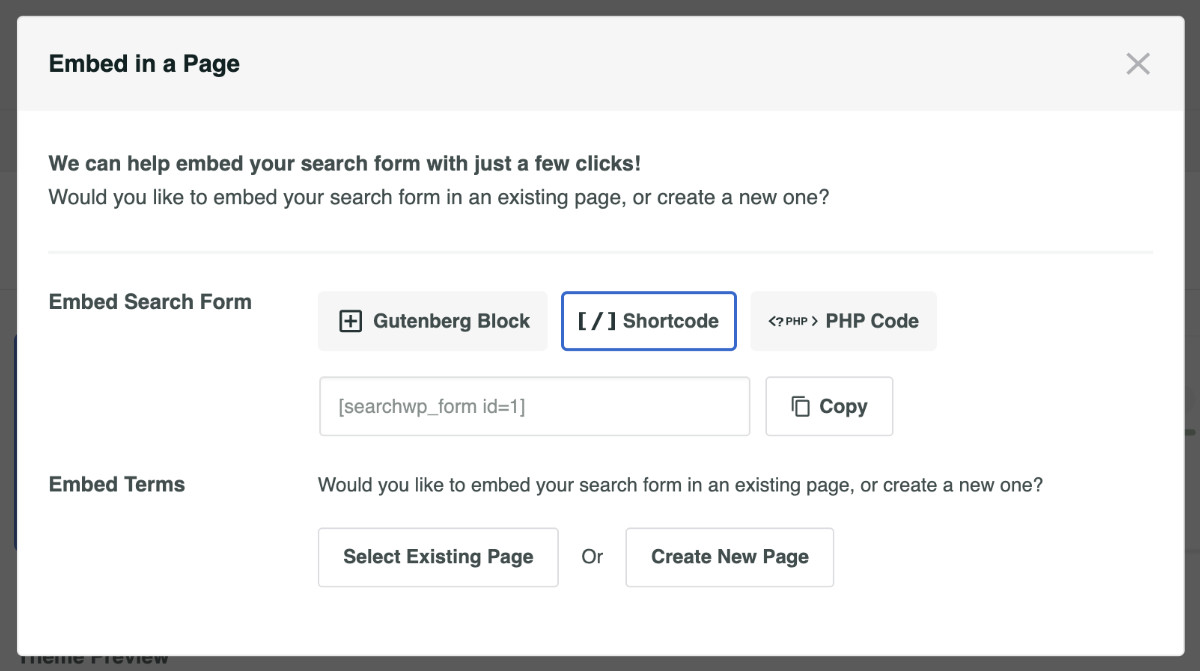
Go ahead and pick the embed method that suits you best. For more details, please see our guide on creating an advanced WordPress search form.
Step 4: Test Image Search on Your Site
With your form on the page, run a test search using a term that appears in one of your image alt text or caption fields.
If you tagged an image with the alt text “mountain landscape at dusk,” searching for “mountain landscape” should return that image in the results.
Run a second test with a term that only exists in an image description. If the image appears, SearchWP is indexing all of your configured metadata fields correctly.

Pro Tip: If your results come back empty, return to SearchWP » Algorithm and confirm that the Rebuild Index finished. Large media libraries can take a few minutes to complete indexing.
Bonus: Add Live Search to Your Image Form
Once your image search is working, you can add live search results that appear as visitors type.
The SearchWP Live Ajax Search extension (available in Standard or higher plans) comes bundled with all SearchWP paid plans and turns any search form into a real-time dropdown.
It shows a live preview of the search results in the dropdown as you type.

For more details, you may want to see our guide on how to add live search to WordPress for free for the full setup.
FAQs about Making WordPress Search Images
1. Can WordPress search image alt text by default?
WordPress’s native search doesn’t query alt text by default because it’s stored as post meta, which the native search engine doesn’t access. The native search queries post titles, excerpts, and content, but media attachments aren’t included in standard frontend search results. A plugin like SearchWP is needed to index and search image metadata.
2. What image metadata can SearchWP search?
SearchWP can index the title, caption, description, and EXIF data for images in your Media Library. Alt text is also available by enabling Custom Fields and entering _wp_attachment_image_alt as the field name. You control which attributes are active from the Add/Remove Attributes panel in the engine editor.
3. Do I need a separate search engine for image search?
You have two options with SearchWP. You can add the Media source to your default engine so images appear alongside posts and pages in standard search results, or you can create a dedicated image engine that returns only images. We recommend a dedicated engine when you want a standalone image-search experience separate from your main content.
4. How do I add the image search form to my site?
After creating your form in SearchWP » Search Forms, add it to any page using the SearchWP Form block in the Gutenberg editor. You can also copy the shortcode from the Shortcode column in the forms list and paste it into any post or page, or add it to a widget area from Appearance » Widgets.
5. Can SearchWP search EXIF data in images?
Yes. The SearchWP Media source includes Image EXIF as an indexable attribute, meaning visitors can find images by searching any term embedded in the image’s EXIF metadata. Enable the Image EXIF attribute from Add/Remove Attributes in SearchWP » Algorithm to include it in your index.
What’s Next…
SearchWP turns your WordPress Media Library into a fully searchable image archive by indexing the metadata the default search engine ignores. Visitors can now find images by alt text, captions, descriptions, and EXIF data the same way they search for posts and pages.
We hope this article helped you learn how to make WordPress search image files. You may also want to see our guides on how to make WordPress search PDF files and customize the WordPress search results page.
Ready to make your image library searchable? You can get started with SearchWP here.