
Many store owners struggle to filter WooCommerce products in WordPress without calling a developer.
But we’ve watched customers land on a WooCommerce shop page, scroll through a few rows of products, and click away without buying, not because the right product wasn’t there, but because they had no way to find it.
WooCommerce doesn’t give shoppers a built-in way to narrow results by what actually matters to them. Without a filter for size, color, price range, or category, every visitor faces the same wall of products and has to scroll through all of it to find what they need.
In this article, we’ll show you how to filter WooCommerce products in WordPress using WPFilters.
We’ve covered every filter type below, from category and tags to shipping class and custom fields, so you can build exactly the shopping experience your customers need. Just click the links below to jump ahead to any section.
- What is WooCommerce Product Filtering?
- Why WooCommerce Product Filters Matter?
- How to Set Up Filters in WooCommerce
- Filter WooCommerce Products by Category
- Filter WooCommerce Products by Tags
- Filter WooCommerce Products by Attributes
- Add a Color Filter to Your WooCommerce Store
- Filter WooCommerce Products by Brand
- Add a Price Range Filter to WooCommerce
- Filter WooCommerce Products by Product Type
- Filter WooCommerce Products by Shipping Class
- Add a Search Box Filter to WooCommerce
- Filter WooCommerce Products by Custom Fields
- Combine Multiple Filters on Your WooCommerce Store
- Add a Reset Button to WooCommerce
- FAQs about WooCommerce Filters
What is WooCommerce Product Filtering?
WooCommerce product filtering lets shoppers narrow the product catalog to only items that match their specific needs. That might mean a category like “Running Shoes,” a price range of $20 to $60, a color like “Navy,” or a combination of all three working together.
WooCommerce ships with basic widgets that cover filtering by category, attribute, and price. They only work inside sidebar widget areas, they’re limited to WooCommerce’s built-in attribute types, and every filter selection triggers a full page reload.
But a WordPress filtering plugin works differently. It supports multiple filter field types, such as Checkbox, Radio, Dropdown, Dropdown (Multiselect), Slider, and Search. And it connects to any data on your WooCommerce store.
The best part is that filter results update instantly via AJAX without reloading the page, and every filter element can be placed anywhere using the Gutenberg block, a shortcode, or a sidebar widget.
We’ve found that stores with well-placed product filters keep shoppers engaged longer and convert at a higher rate.
Shoppers who can narrow results quickly are far more likely to find something worth buying. You can also learn about different filter display options in our guide on how to create a dropdown filter for WooCommerce products.
Why WooCommerce Product Filters Matter?
We know from experience that the biggest obstacle between a shopper and a purchase is rarely the product. It’s the friction of finding it.
Here’s what that friction looks like in practice:
1. Shoppers leave when they can’t find what they need. A store with 200+ products and no filters forces every visitor to scroll through the full catalog manually. Most won’t make it to the item they’re actually looking for.
2. WooCommerce’s default experience doesn’t guide buyers. Without a size, color, or price filter, shoppers have no clear path from “browsing” to “buying.” They’re left guessing which product might match their needs.
3. The built-in Layered Navigation has real limits. WooCommerce’s widgets only work in sidebar areas, cannot be placed inside the shop page layout, and reload the full page on every selection.
4. Every extra click costs conversions. We’ve noticed that the more steps it takes to get from the shop page to the right product, the less likely that session ends in a purchase.
The good news is that adding any of the filters below takes minutes, not days, and no developer is required. Let’s look at a simple way of adding filters to your WooCommerce store.
How to Set Up Filters in WooCommerce
The easiest way to filter WooCommerce products in WordPress is with a plugin like WPFilters.
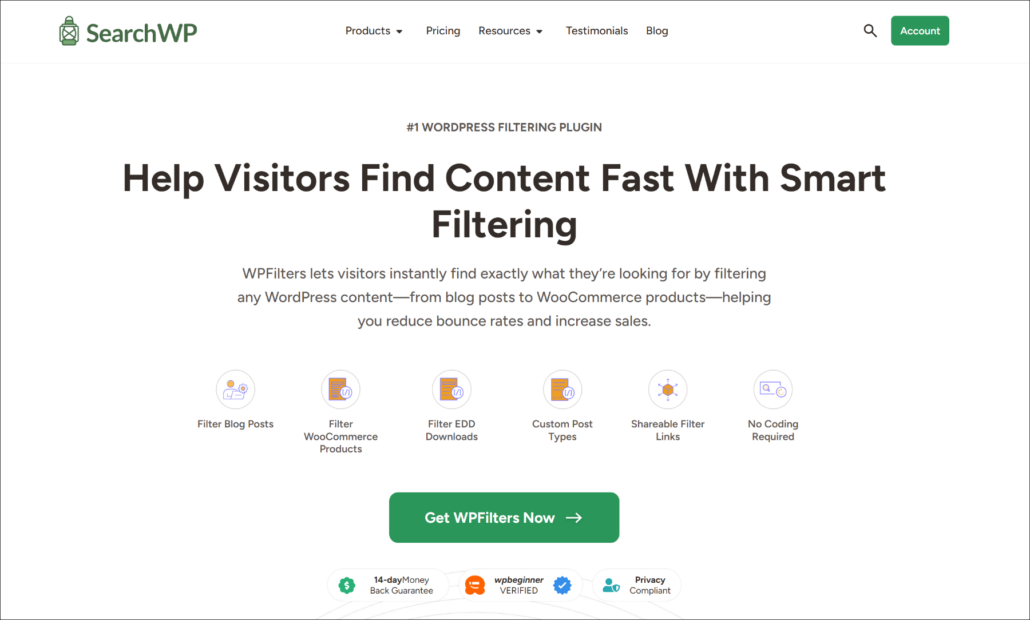
WPFilters is the best filtering plugin for WordPress. It’s built by the same team behind SearchWP and gives store owners a visual builder for creating any type of product filter without writing a single line of code.
From our experience, WPFilters is the fastest way to add an Amazon-style filtering experience to a WooCommerce store. You can create filters, customize how they look, and place them anywhere on the site in minutes.
Here are some of the features you get with WPFilters:
- All WooCommerce filter types in one plugin: Checkbox, dropdown, radio, price slider, and keyword search elements are all built in and ready to use without any extra add-ons.
- Filter any WooCommerce data: Connect filters to product categories, tags, attributes like color and size, custom fields, price, product type, shipping class, and more.
- AJAX-powered instant refresh: Filter results update immediately without reloading the page, so shoppers stay in the flow and never lose their place in the catalog.
- Place filters anywhere: Add filter widgets to the WooCommerce shop sidebar, directly inside the shop page layout using the widget block or shortcode.
With that, let’s look at every type of WooCommerce product filter you can add to your store.
How to Install WPFilters
Before you start, make sure WooCommerce is installed and active on your site. Then, you can visit the SearchWP website and sign up for a WPFilters account.
Once you’re logged in, head to the Downloads tab in your account dashboard.
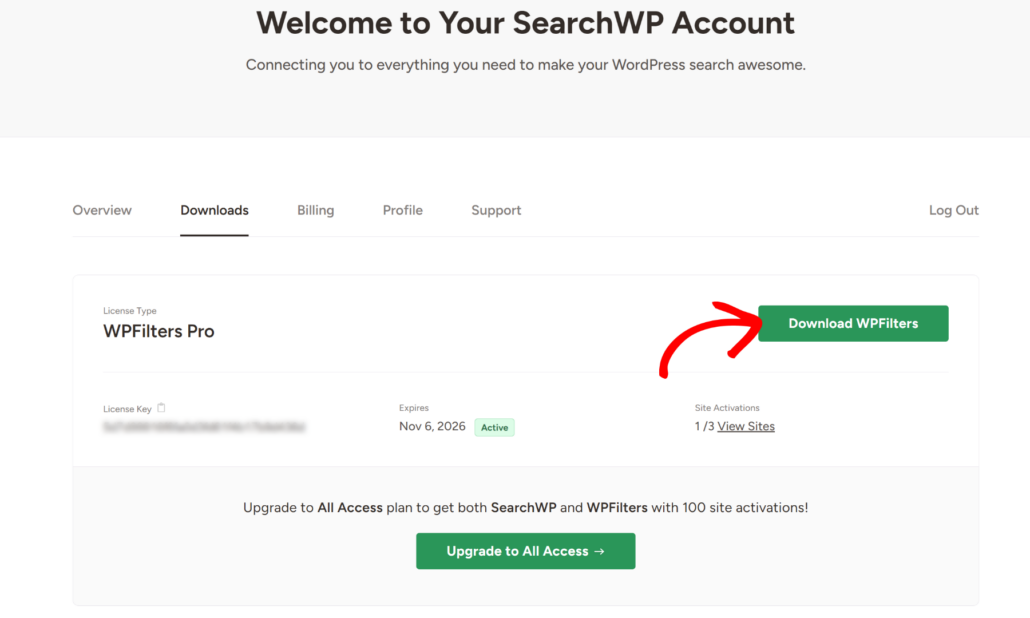
From here, you will need to click the Download WPFilters button and save the plugin ZIP file to your computer. We also recommend copying your license key from this page now, as you’ll need it shortly.
Next, upload and install the plugin on your WordPress site. If you haven’t done this before, see this guide on how to install a WordPress plugin.
After activating the plugin, the setup wizard will appear on your screen. Go ahead and click the Let’s Get Started button and follow the onscreen instructions to finish the setup.
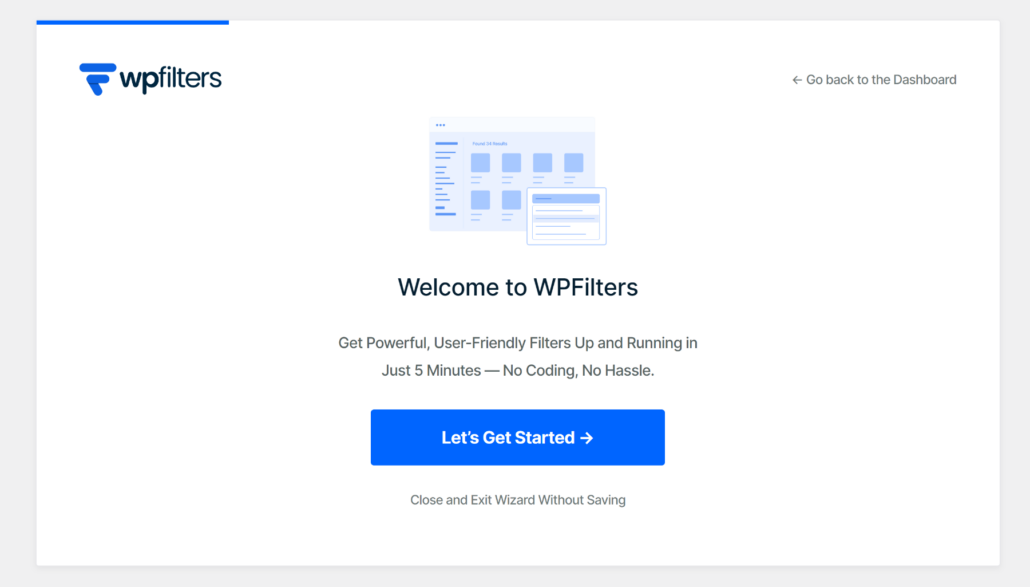
Once the setup is complete, you’ll see the WPFilters menu in your WordPress dashboard. From here, you can start building filter elements for your store.
Filter WooCommerce Products by Category
A category filter lets shoppers narrow the product catalog to one or more WooCommerce product categories, like Clothing, Electronics, or Home & Garden, with a single click.
We’ve found that category filters are the most-used filter type on general WooCommerce stores, since shoppers almost always start by picking a broad category before narrowing by price or attribute.
Without a category filter, every shopper lands on the same wall of products regardless of what they’re looking for. Giving visitors a way to pick a category first means they spend less time scrolling and more time finding products worth buying.
With WPFilters, you can select the Data Source as Product categories from the dropdown.
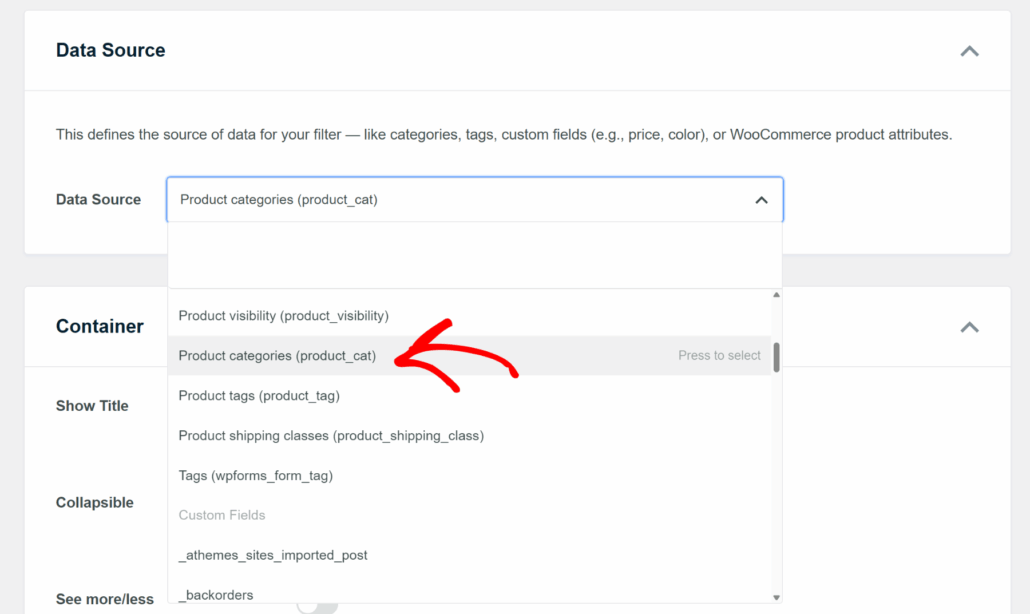
From here, simply save the element and embed it on your shop page or sidebar using the Gutenberg block.
Now, your visitors can easily sort products by filtering through their desired category.
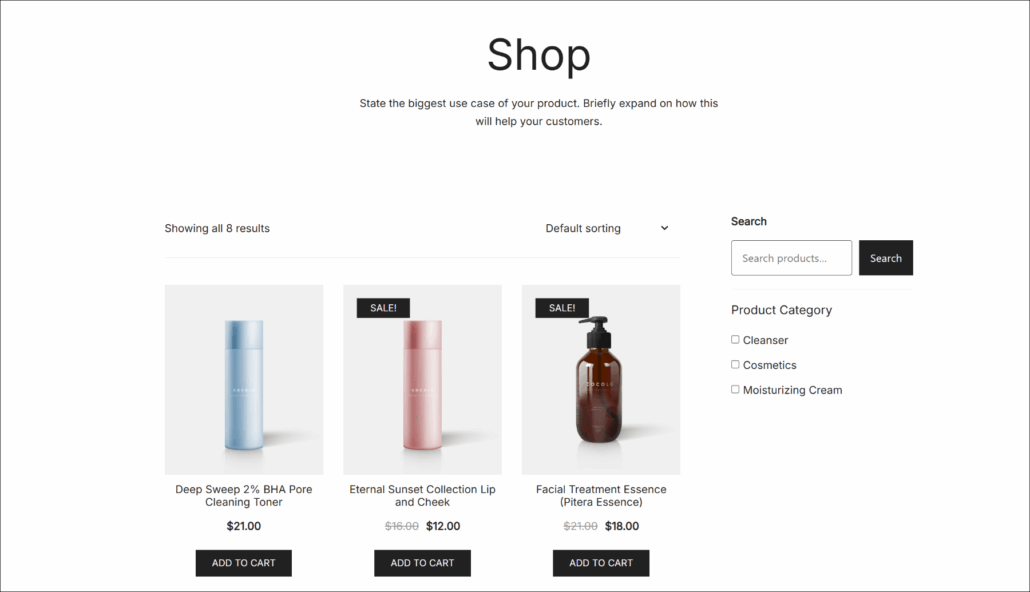
For a complete step-by-step tutorial, you may want to see our guide on how to filter WooCommerce products by category.
Filter WooCommerce Products by Tags
A tag filter lets shoppers find products that share a specific keyword label, like “sale,” “new arrival,” “handmade,” or “seasonal.”
Tags work well for stores that use them to group products across multiple categories. A shopper looking for “handmade” items shouldn’t have to browse each category separately.
If you use tags to group products across categories, like “sale,” “handmade,” or “new arrival,” a tag filter turns those labels into live browsing options. Shoppers looking for seasonal picks or limited-edition items don’t need to hunt by category first.
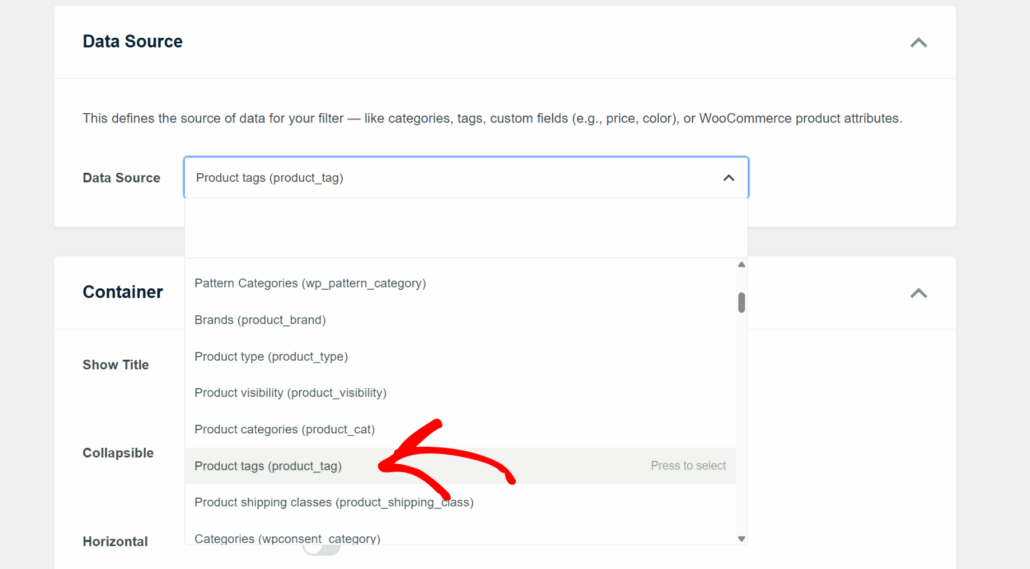
For a complete step-by-step walkthrough, see our guide on how to filter WooCommerce products by tags.
Filter WooCommerce Products by Attributes
An attribute filter lets shoppers narrow results by product-specific properties like size, material, or fit, anything stored as a WooCommerce product attribute.
From our experience, attribute filters make the biggest difference in stores that sell products with strong variation, since a shopper looking for a medium cotton hoodie doesn’t want to click into every product to check the label.
On stores with a wide range of product variations, attribute filters do more than save time. They prevent frustration.
When a shopper can select “Medium” and “Cotton” before browsing, they only see products that actually match, and they reach a buying decision faster.
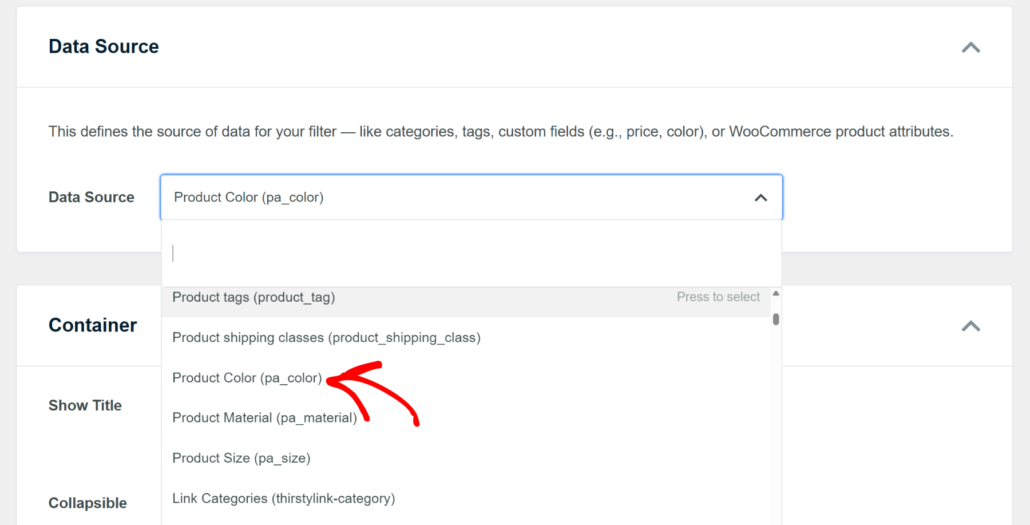
To learn more, please see our guide on how to filter WooCommerce products by attributes.
Add a Color Filter to Your WooCommerce Store
A color filter is a specialized attribute filter built around the pa_color product attribute.
It’s one of the most-used filter types on apparel, accessories, and home decor stores, and we love using it because it removes one of the most common reasons shoppers leave early, having to open each product individually just to see what colors are available.
Shoppers on apparel and home decor stores almost always have a color preference before they start browsing.
Without a color filter, they’re forced to click into each product just to check available colors, and most won’t stick around long enough to do that.
With WPFilters, you can easily create a color filter in WooCommerce and also allow users to sort products based on their desired colors.
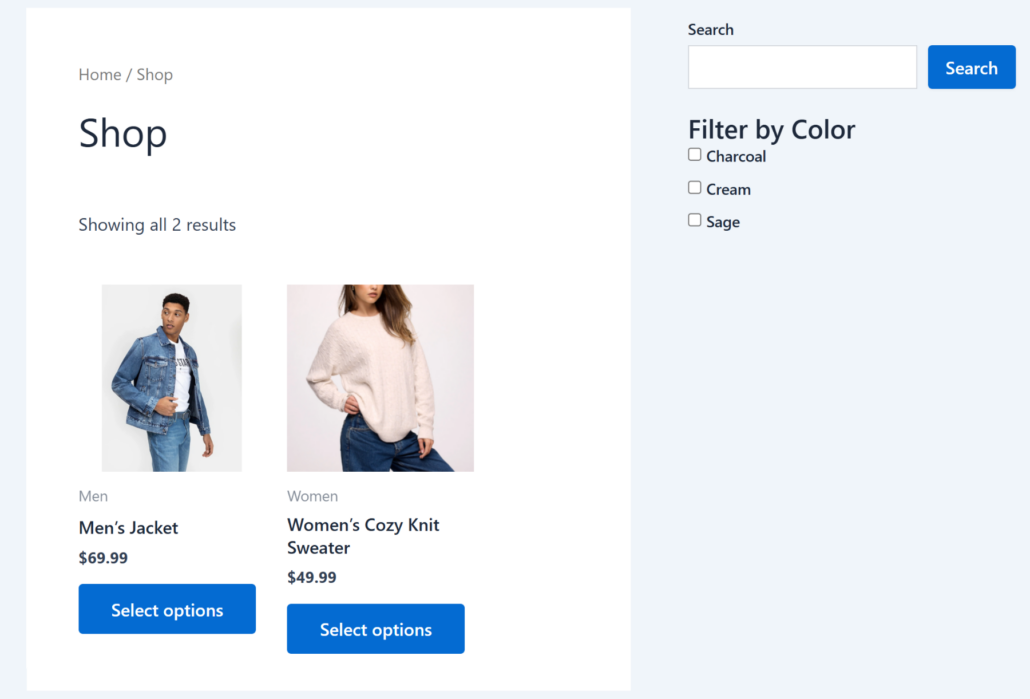
You can learn more by following our step-by-step guide on how to add a color filter in WooCommerce.
Filter WooCommerce Products by Brand
A brand filter lets shoppers narrow the catalog to products from a specific manufacturer or label.
It’s common in multi-brand stores, electronics retailers, and any shop that carries products from multiple suppliers.
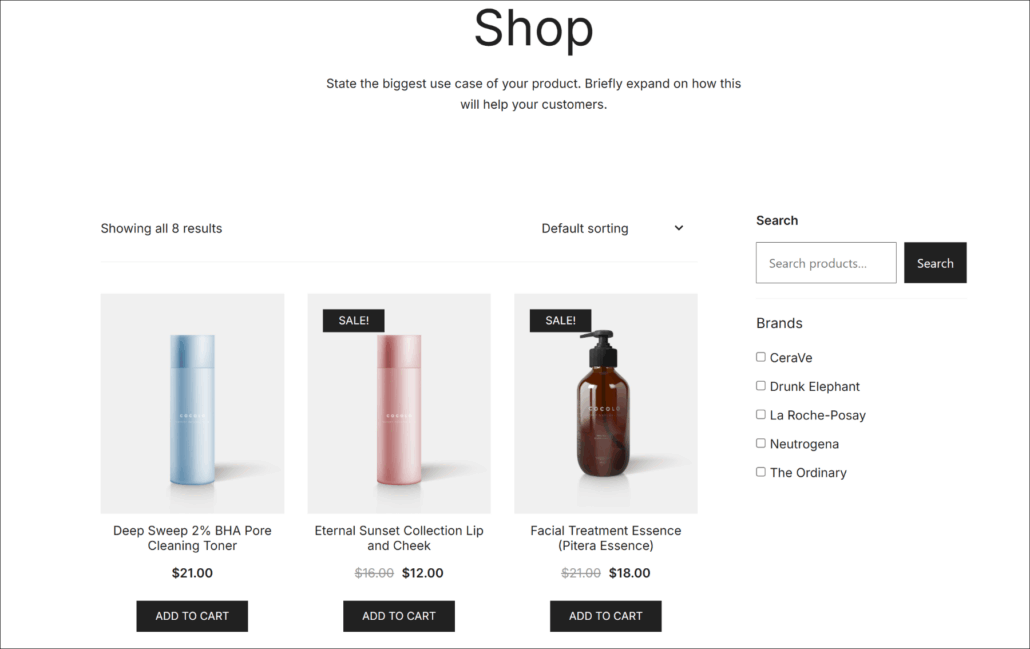
We’ve worked with many store owners who carry 10 or more brands, and without a brand filter, shoppers loyal to a specific manufacturer had no way to browse just that brand’s products.
They had to scroll the full catalog and check each product individually, and many gave up before finding what they wanted.
But with WPFilters, setting a filter for your brands is very easy. You can simply select the filter type and select brands as a source.
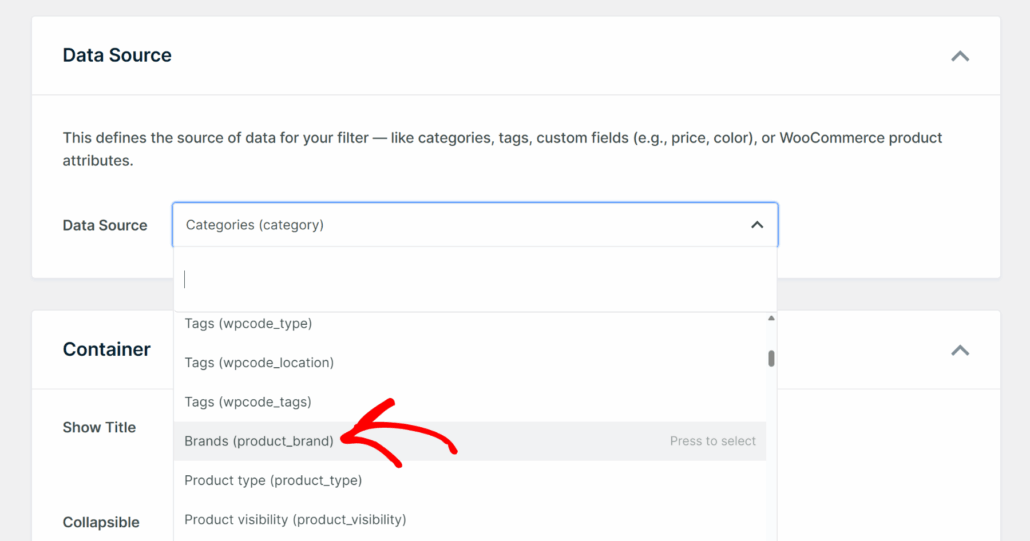
For complete information, please go through our guide on how to filter brands on your WooCommerce store.
Add a Price Range Filter to WooCommerce
A price range filter lets shoppers drag a slider between a minimum and maximum value to show only products within their budget.
It’s one of the first filters shoppers look for on any WooCommerce store, and WPFilters’ Slider element automatically reads the minimum and maximum prices from your live product catalog.
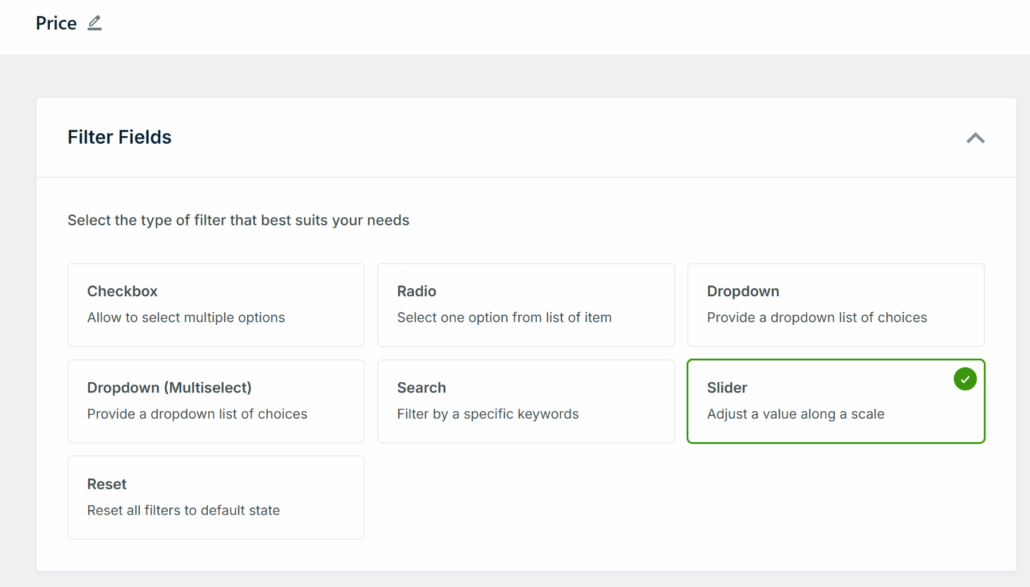
Price is one of the top purchase criteria for most shoppers, and without a slider, budget-conscious buyers have no choice but to scroll through products they can’t afford.
Adding a price filter keeps shoppers focused on products that actually fit their budget and reduces the time it takes to get from browsing to buying.
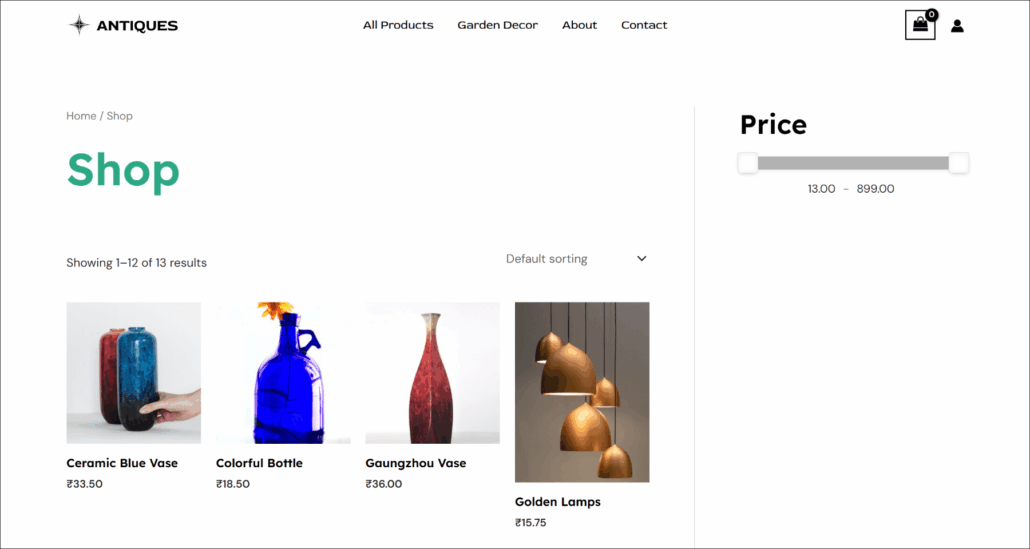
To set up a range slider, you can see our guide on how to create range filters in WordPress.
Filter WooCommerce Products by Product Type
A product type filter lets shoppers narrow the catalog by WooCommerce’s built-in product type taxonomy. The available types include simple products, variable products, grouped products, and external products.
This filter is most useful on stores that mix physical and digital products, since shoppers looking for a downloadable item shouldn’t have to scroll past physical goods to find it.
Stores that carry a mix of product formats, like bundles, standalone items, and external affiliate products, benefit most from this filter.
Without it, shoppers have no way to separate grouped bundles from individual products or skip past external items they can’t purchase directly on the site.
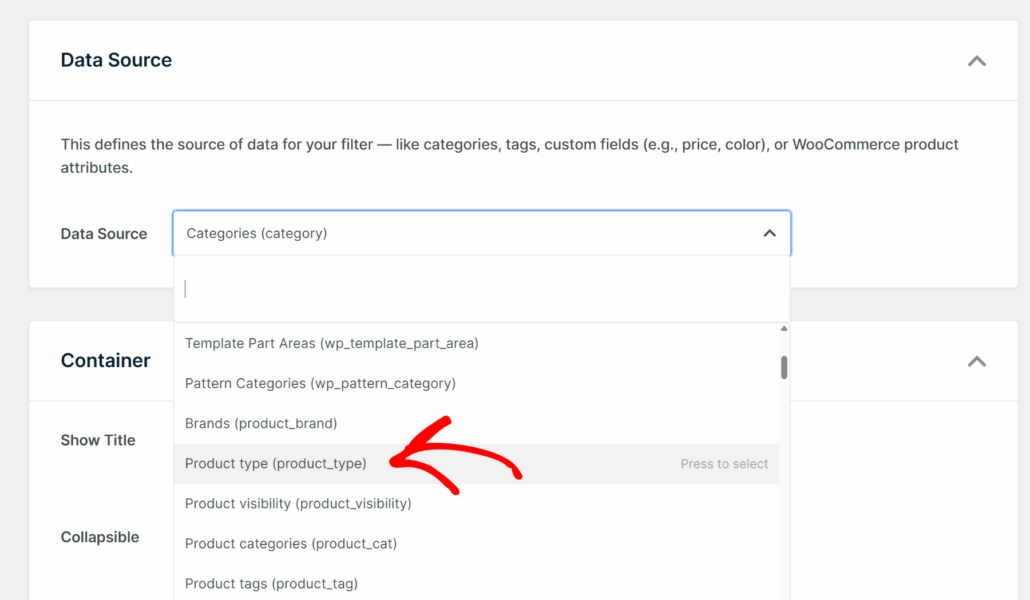
For a complete step-by-step walkthrough, see our guide on how to filter WooCommerce products by product type.
Filter WooCommerce Products by Shipping Class
A shipping class filter lets shoppers narrow results to products within a specific shipping category.
This is particularly valuable on stores where shipping costs vary significantly, like shops that carry both lightweight accessories and heavy freight items.
We’ve noticed that shoppers on stores with varied inventory often want to know shipping costs before committing to a product.
Surfacing shipping class as a filter upfront removes that friction and helps shoppers looking for free shipping or standard rate items find them without opening each product page.
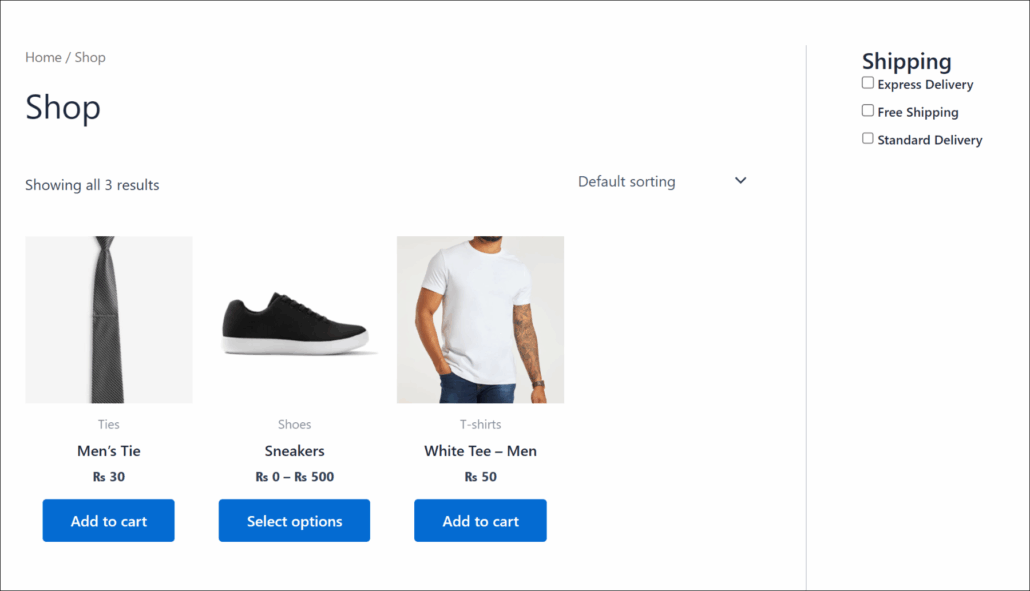
You can read our guide to all the steps in how to set up product shipping class filters in WooCommerce.
Add a Search Box Filter to WooCommerce
A search box filter adds a keyword input field that shoppers can use to narrow products by name, description, or any indexed field.
Unlike a standalone search form, it works alongside all the other WPFilters elements on the same page, so a shopper can combine a keyword search with a category filter and a price slider at the same time.
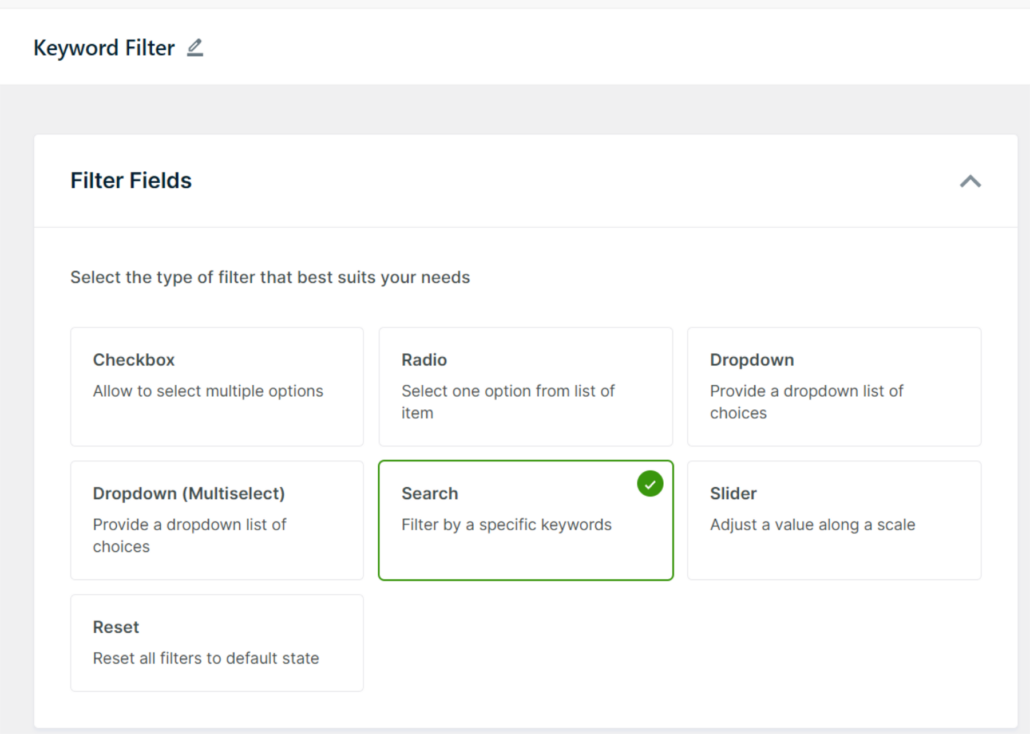
The built-in WordPress search sends visitors to a separate search results page. This breaks the shopping experience and pulls customers away from your store.
A search box filter solves this by letting customers type a keyword and have the product list narrow down in real time, right where they are. There is no page reload and no redirect.
To learn more, you can view our guide on how to add a search box filter to your WooCommerce store.
Filter WooCommerce Products by Custom Fields
A custom field filter lets shoppers narrow results using data stored in product post meta.
That might be material weight, care instructions, warranty length, or any other field added to products via Advanced Custom Fields (ACF) or another custom field plugin.
We’ve tested WPFilters on many store setups using ACF, and any custom field assigned to WooCommerce products shows up in the Data Source dropdown automatically.
That means if you’ve already spent time adding custom data to your products, you can turn any of it into a filter without building anything from scratch.
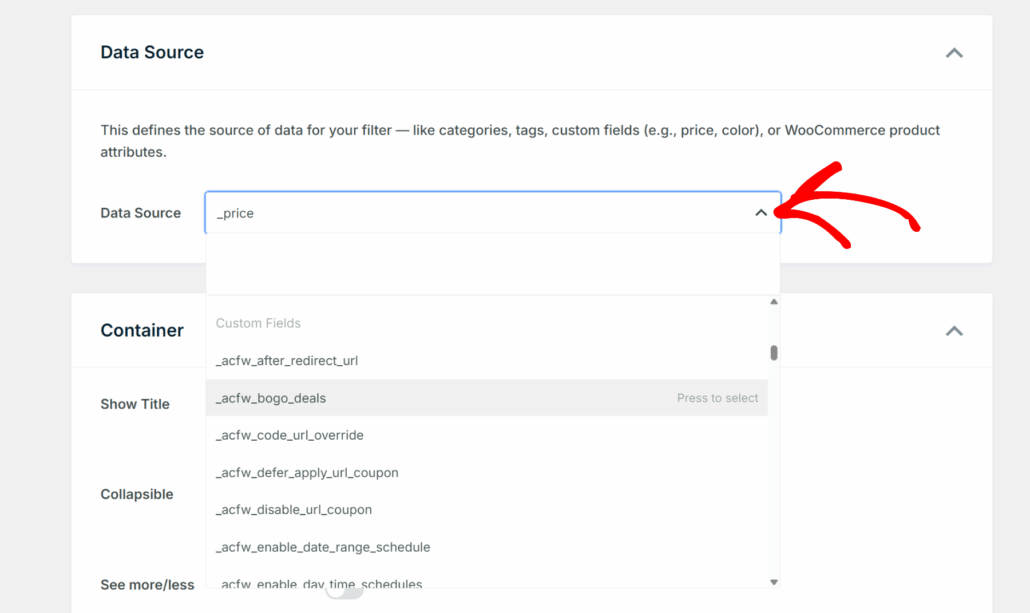
For a complete step-by-step walkthrough, see our guide on how to create custom field filters in WordPress.
Combine Multiple Filters on Your WooCommerce Store
WPFilters lets you display as many filter elements as needed on the same page or sidebar.
Each active filter works with the others. For example, when a shopper selects “Hoodies” from the category filter, drags the price slider to $20–$50, and checks “Blue” in the color filter, only blue hoodies under $50 appear.
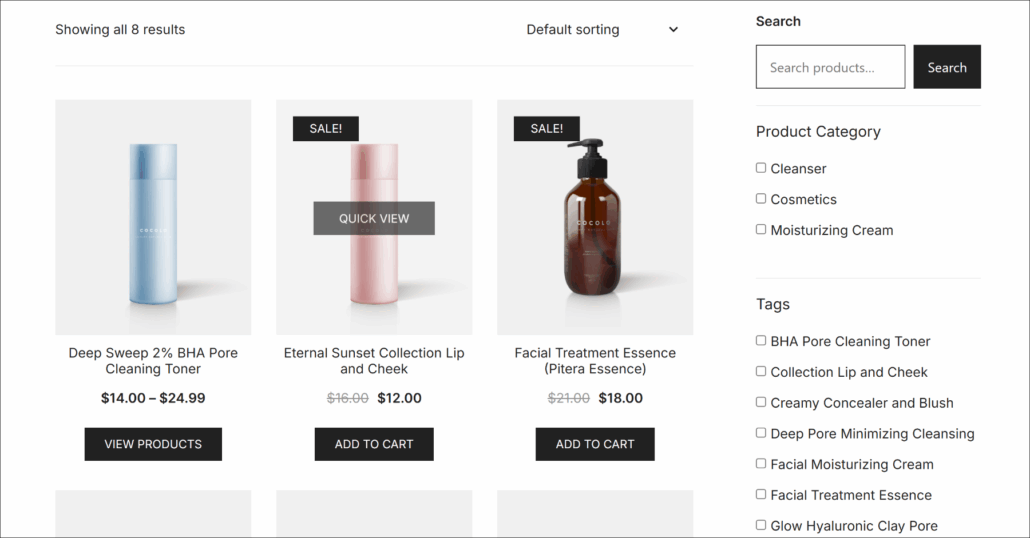
We’ve also noticed that shoppers use shareable filter URLs in ways store owners don’t always expect, bookmarking a filtered view to come back to or sending a link to a specific set of products to a friend.
Every combination of active filters in WPFilters generates a unique URL, so those links always reproduce the same results when opened.
For a complete step-by-step walkthrough of combining filters across different data types, see our guide on how to filter by multiple taxonomies in WordPress.
Add a Reset Button to WooCommerce
A reset button clears all active filters at once and returns the shopper to the full unfiltered product catalog.
It’s a small detail, but once a store has three or four active filter elements, shoppers need a fast way to start over without reloading the page.
We recommend adding a reset button to every store that has more than two filter elements on the page.
Without it, shoppers who want to start fresh have to manually deselect each filter, and many will simply reload the page or leave instead.
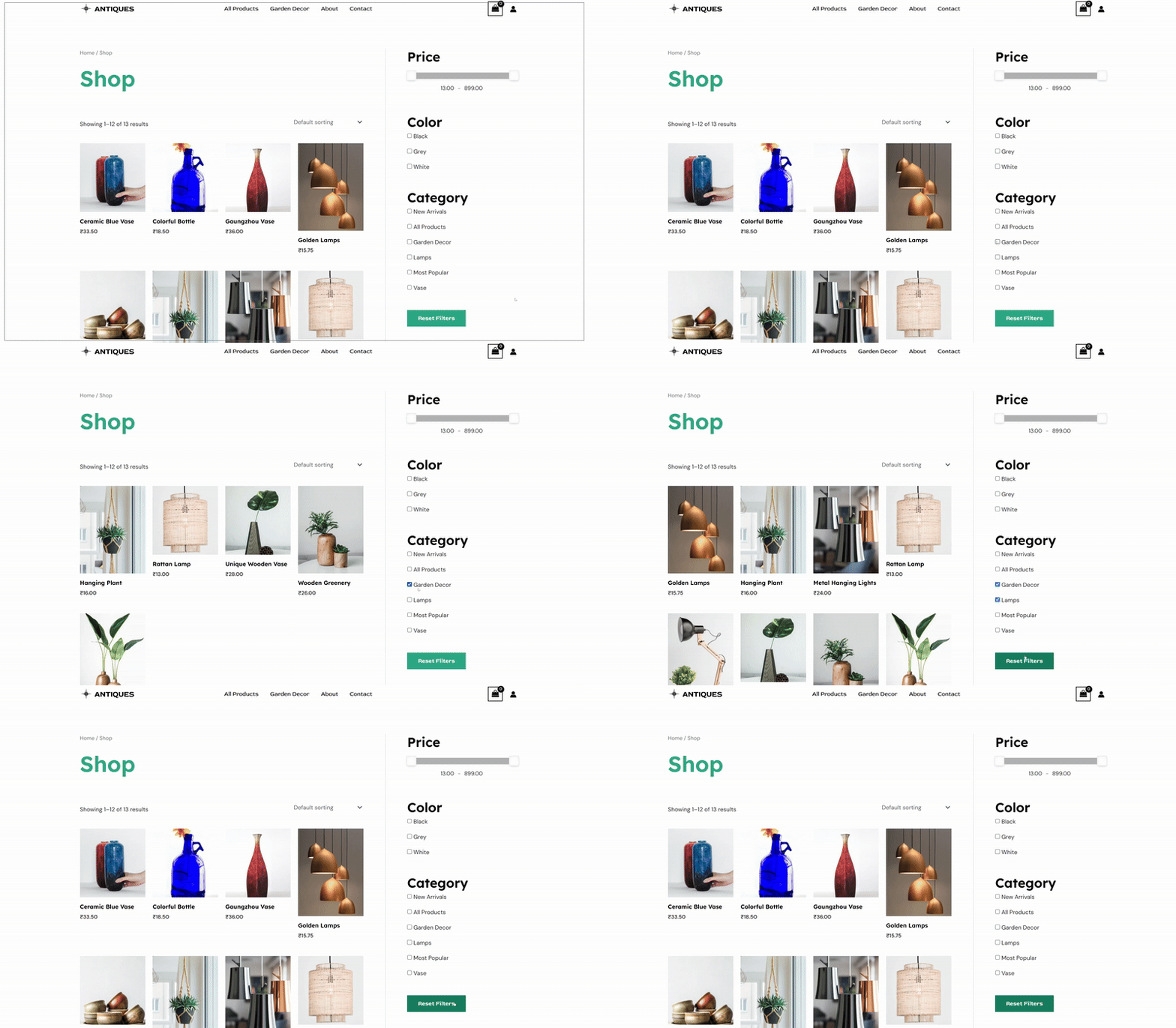
For a complete step-by-step walkthrough, see our guide on how to add a reset filter button in WordPress.
FAQs about WooCommerce Filters
1. Does WooCommerce have built-in product filters?
WooCommerce includes Layered Navigation widgets for filtering by category, attribute, and price. These widgets only work in sidebar areas, can’t be placed inside page layouts, and don’t refresh results via AJAX. For filters that work anywhere on the site and support more data types, a dedicated plugin like WPFilters is needed.
2. What is the best plugin to filter WooCommerce products?
WPFilters is the top choice for most WooCommerce stores. It supports checkboxes, dropdowns, price sliders, and keyword search out of the box, works on any page or sidebar without coding, and comes with a 14-day money-back guarantee. It’s built by the same team behind SearchWP.
3. Can I add multiple filters to my WooCommerce shop page at once?
Yes. Create a separate filter element for each data type (category, price, color, size), then add each to the sidebar widget on the shop page.
4. Can I use WPFilters without SearchWP?
Yes. WPFilters works as a standalone plugin and does not require SearchWP to be installed. When SearchWP is active on the same site, the Search filter element routes through SearchWP’s relevance engine for smarter.
5. Do WooCommerce product filters slow down the site?
WPFilters uses WordPress’s object cache and request-scoped caching to keep filter queries efficient. Results refresh via AJAX without reloading the full page, which actually reduces server load compared to a full page reload on every filter selection.
WPFilters gives any WooCommerce store the full range of product filters shoppers expect, from category and color to custom fields and price ranges, without writing a single line of code.
We hope this article helped you learn how to filter WooCommerce products in WordPress. You may also want to see our guides on how to fix WooCommerce shop page not showing products and how to restrict WooCommerce product search to title only.
Ready to make your store easy to navigate for every shopper? You can get started with WPFilters here.