


If you run a nonprofit website with over 30 different donation campaigns, then helping users find the right donation form can be a big challenge.
Last year, one of our users noticed that donors were using the search bar to find specific causes, but they kept landing on blog posts instead of donation forms.
The default WordPress search only looks at posts and pages. It completely ignores the donation forms you create using plugins like GiveWP.
This means when someone searches for “education scholarship” or “emergency relief,” they won’t find your donation forms, even if those exact words are in the form titles.
In this guide, we’ll show you how to make your GiveWP forms searchable, so your supporters can easily find and donate to the causes they care about.
Why Include GiveWP Forms in WordPress Search?
GiveWP is a WordPress donation plugin that helps nonprofits, charities, and fundraisers collect donations directly on their websites.
The plugin lets you create unlimited donation campaigns for different causes. For example, you might have one form for ‘School Supplies Drive,’ another for ‘Medical Fund,’ and a third for ‘Holiday Food Bank.’
Each form can have its own donation goals, suggested amounts, and form fields.
That said, when donors visit your website with a specific cause in mind, they expect to find it quickly. We’ve seen this happen countless times. Someone hears about your ‘youth mentorship program’ from a friend and visits your site ready to donate.
That’s a lost donation opportunity right there. The donor might click around for a bit, but most people won’t spend more than a few minutes searching. They’ll leave and possibly never come back.
WordPress’s default search simply wasn’t built for donation forms. It searches through posts and pages just fine, but it ignores GiveWP forms completely.
This creates a frustrating gap between what donors are looking for and what they can actually find.
Making your donation forms searchable solves this problem immediately. Plus, we’ve found this leads to faster donations and happier supporters who don’t have to hunt through menus and categories to find what they’re looking for.
Now, let’s look at how you can make GiveWP donation forms searchable in WordPress.
Making GiveWP Donation Forms Searchable
When it comes to adding GiveWP donation forms to WordPress search, you’ll notice there is no built-in option. You’d have to tweak a lot of code to make your donation campaigns searchable.
This is where SearchWP comes in handy. It is the best search plugin for WordPress and offers seamless integration with GiveWP.

SearchWP is trusted by over 50,000 websites owners to help users find exactly what they’re looking for.
It offers beginner-friendly interface and comes with pre-made search form templates that you can add anywhere on your site.
These templates are designed to match your WordPress theme automatically, so you won’t need to fiddle with styling or custom code.
Besides that, you can customize the search algorithm and include custom fields, categories, tags, product details, author name, excerpt, and other additional information in the search process.
One feature we particularly love is Live Ajax Search. As donors type in the search box, they see relevant donation forms appear in a dropdown instantly. This makes finding the right campaign almost effortless.
The plugin also includes built-in analytics. You can see which donation forms people are searching for most often and whether they’re finding what they need.
That said, let’s look at the steps you can follow to include GiveWP forms in the search process.
Step 1: Install and Activate SearchWP
To get started, you can go to visit the website and grab your copy of SearchWP.
Once done, you’ll need to log in to your SearchWP account and navigate to the Downloads tab.
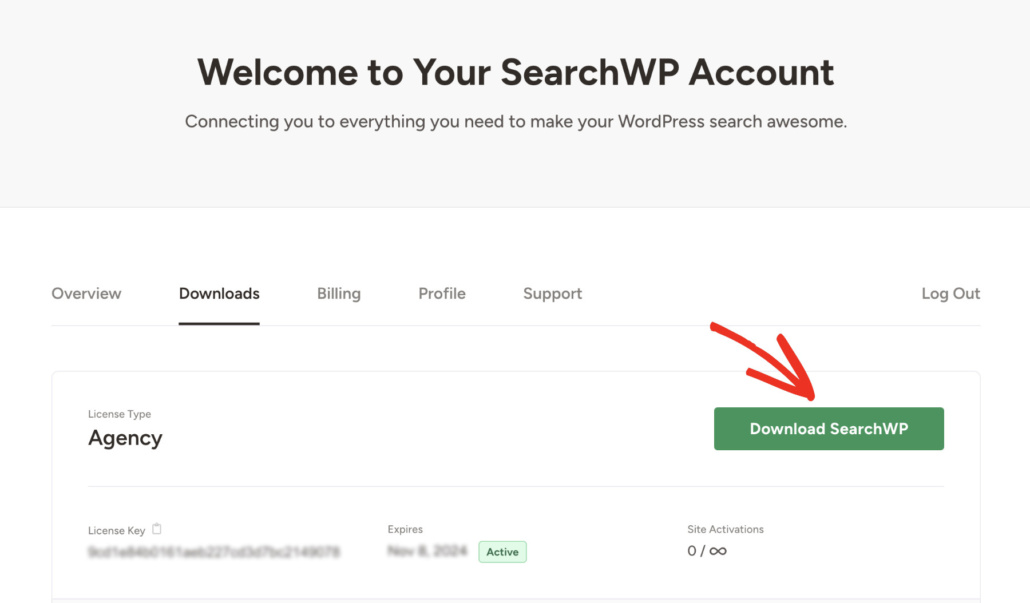
From here, you can click the Download SearchWP button to start downloading the plugin’s ZIP file to your computer.
After downloading, you should also copy the license key in the bottom left corner on the same page.
Next, you can upload the ZIP file you downloaded to your site and install SearchWP. If you need help with that, then you can check out this detailed step-by-step tutorial on how to install a WordPress plugin.
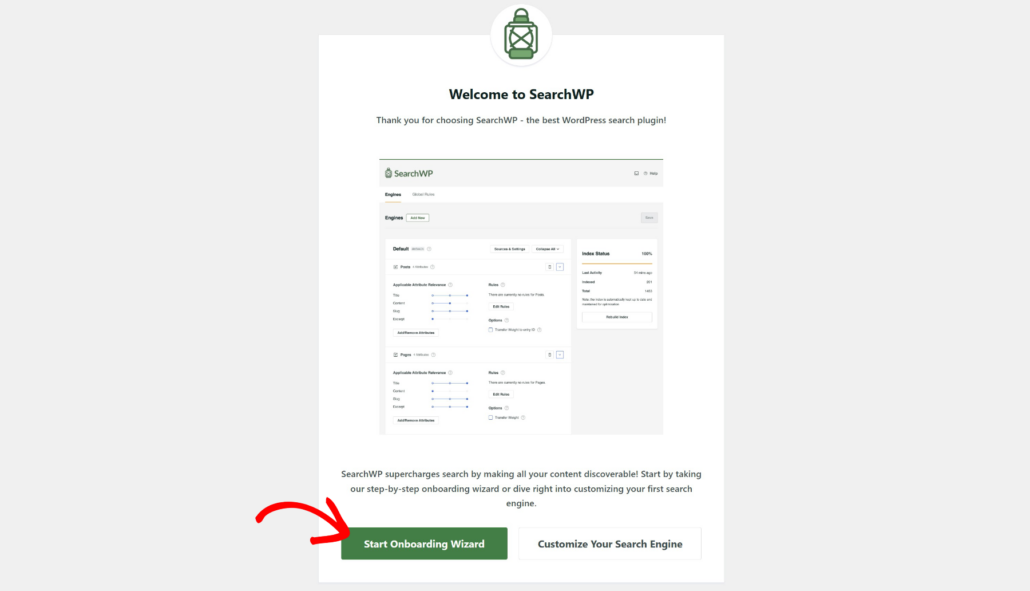
Once you install and activate SearchWP, you’ll see the setup wizard. Simply click the ‘Start Onboarding Wizard’ button and follow the onscreen instructions.
Step 2: Include Donation Forms in Search Engine
SearchWP lets you customize the search algorithm and create as many search engines as you want.
Think of search as a set of rules and conditions that SearchWP relies on when performing a search.
By customizing the search engine, you have complete control over how search works on your site.
For example, you can manage search sources, exclude specific pages or categories from search, adjust attribute relevance weights, and much more.
Right now, there is only the Default search engine, which SearchWP automatically creates after installation. You can add new engines as well, but for this tutorial, we’ll customize the default engine.
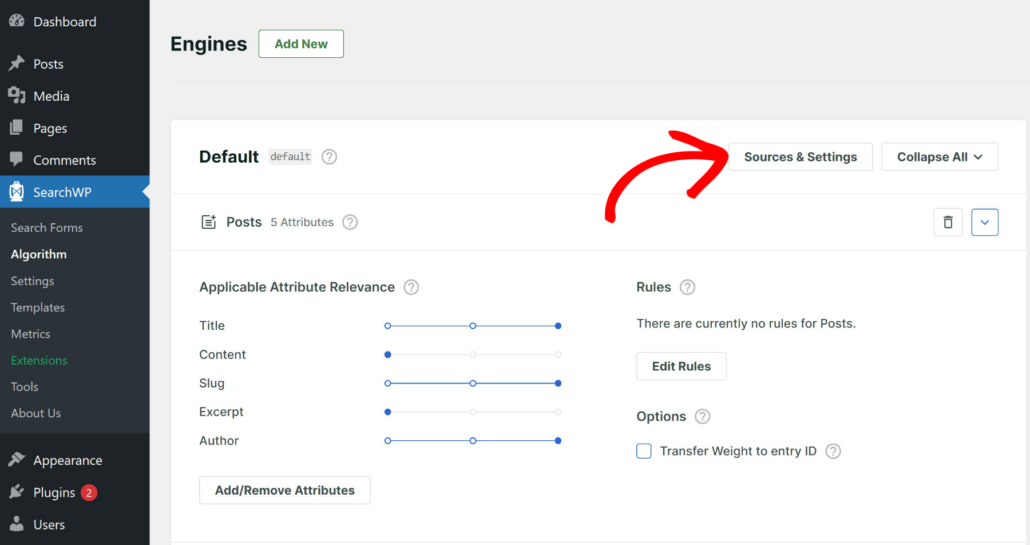
To start, simply go to SearchWP » Algorithm page from your WordPress dashboard and click the Sources & Settings button.
Next, a new window will pop up with the default sources, which includes posts, pages, and media.
Go ahead and select the Donation Forms checkbox.
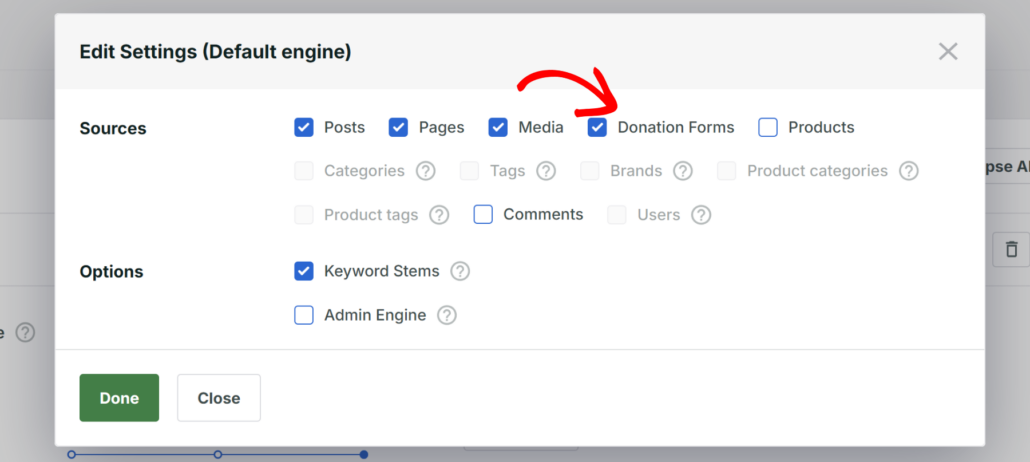
When you’re finished, click the ‘Done’ button.
Next, you can scroll down to the ‘Donation Forms’ section and click Add/Remove Attributes button.
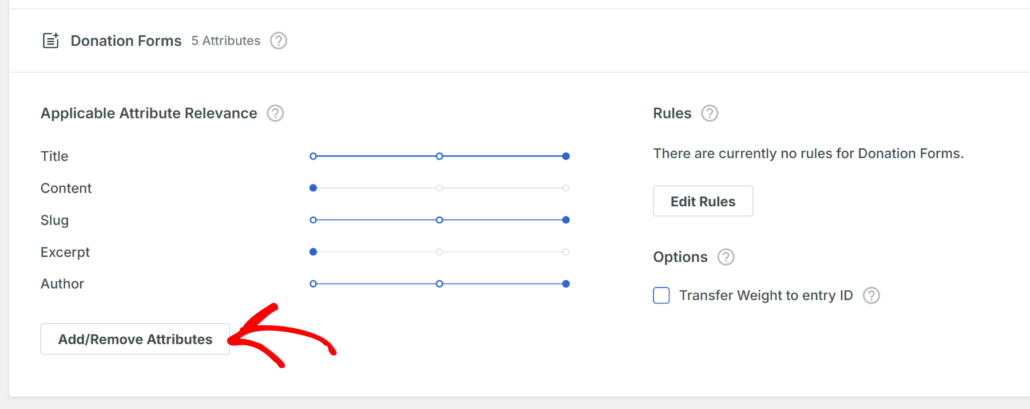
Here, you can further enhance the search experience by including additional information for your donation forms.
By default, SearchWP will include the title, content, slug, excerpt, and author for your form.
However, you can also include form categories, tags, and any custom field you have set up for your site. Simply click dropdown menu and select your preferred taxonomies or custom fields.
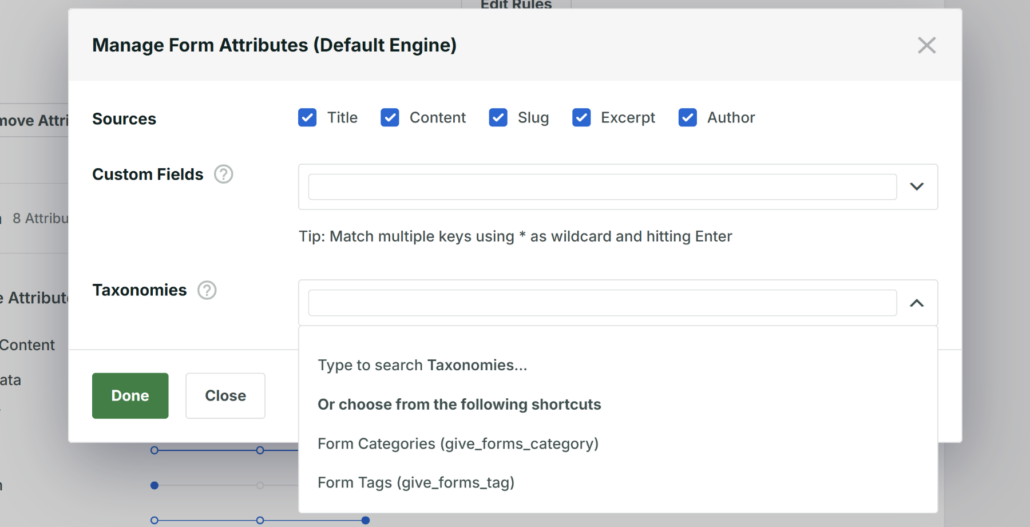
After doing that, simply click the Done button.
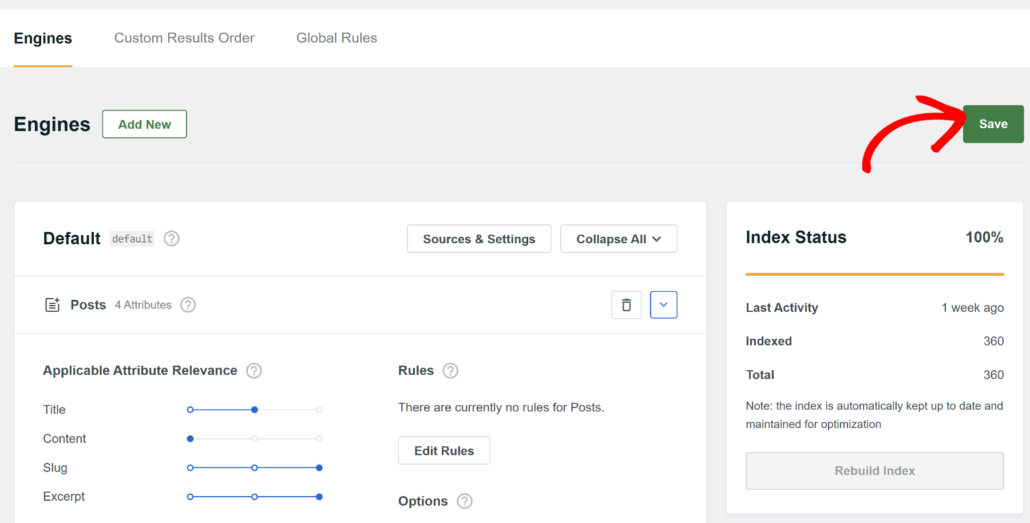
Now, you can scroll to the top and click the ‘Save’ button to store your changes.
Step 3: Test Your GiveWP Donation Form Search
Now that you’ve customized the search engine in SearchWP, the next step is to test if it’s working correctly.
With SearchWP, you can also create a custom search form and link your search engine with it. The best part is that you can place the form anywhere on your site.
To learn more, please see our guide on how to create a custom search form in WordPress.
Next, simply visit your website, head to the search form, and try searching for a donation form you created using GiveWP.
For example, on our demo site, we will search for ‘Christmas Food Drive’ donation form. As you can see, the form appears as we type in the name.
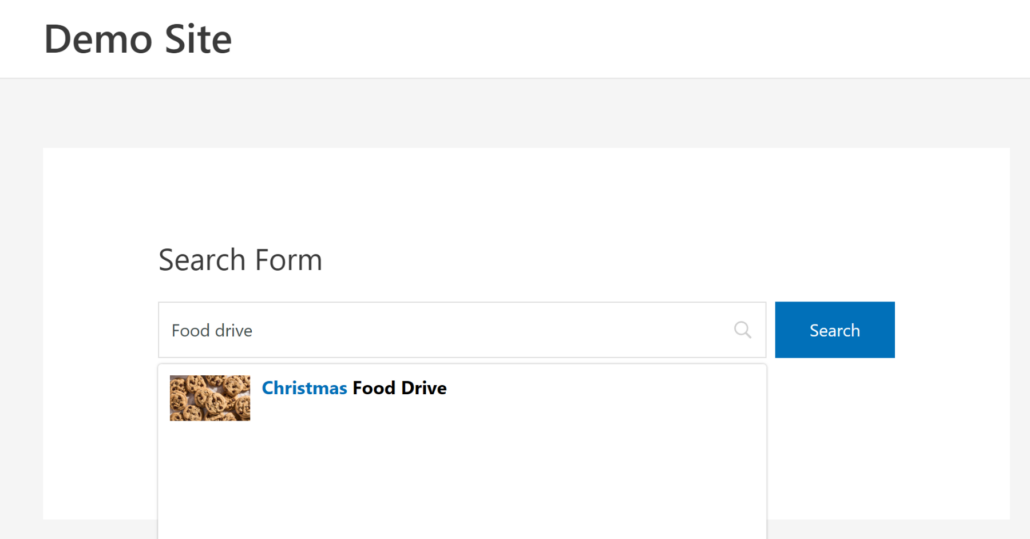
Do note that we’ve also set up Live Ajax search on our demo site, which shows the search item as you type in the search bar.
If you want to also add it to your site, then please our guide on how you can add live search to your WordPress site.
FAQs for Making GiveWP Forms Searchable
1. Can I use SearchWP with other WordPress themes or plugins?
Yes, SearchWP is designed to integrate seamlessly with most WordPress themes builders and plugins, including popular ones like GiveWP.
2. Can I track how often specific donation forms are searched for on my site?
Yes, SearchWP provides built-in analytics that allows you to see which donation forms are searched for most frequently. This can help you understand donor interests and optimize your campaigns accordingly.
3. Do I need coding skills to set up SearchWP and make my donation forms searchable?
No, you do not need any coding skills. SearchWP offers a user-friendly interface and setup wizard that guides you through the process of adding donation forms to the search engine effortlessly.
That’s it, you’ve successfully included your donation forms in the search process in WordPress.
We hope this article helped you learn how to make GiveWP donation forms searchable in WordPress. You may also want to see our guides on how to search by Co-Authors Plus Writers in WordPress and how to make comments searchable in WordPress.
Are you ready to become one of them and boost search on your site with the best WordPress search plugin? You can go and get started with SearchWP here.