

A visitor types a product name into the search bar and gets zero results. They close the tab and find a competitor, taking what could have been a sale with them.
WordPress search not working is one of the most common problems we hear from site owners, and it almost always traces back to one of four root causes.
The default engine can’t search custom fields, doesn’t offer weighted relevance control, runs slowly on large databases, and can break entirely when permalinks are misconfigured or the search box is not visible.
In this article, we’ll show you how to fix WordPress search not working by walking through each of the four most common issues and how to resolve each one.
4 Reasons Why WordPress Search is Not Working
Even though WordPress is a powerful website-building platform, its search capabilities are limited.
By default, WordPress only searches specific content types like the titles of posts, pages, or media files. This means your users won’t be able to find matches in comments, reviews, or product descriptions.
Even worse, you may be experiencing issues with WordPress search not working at all. These issues can arise from different sources, making them difficult to fix.
Search functionality is an important part of every website. If your WordPress search is not working properly, it’s almost impossible for users to find what they’re looking for. This can make them leave your site faster, leading to poor sales or lower conversions.
There’s no one-size-fits-all solution for WordPress search issues. If you want to solve a problem with WordPress search not working, you need to find the root cause of the error.
Therefore, let’s talk about some of the most common WordPress search errors below.
1. WordPress Search Box Doesn’t Appear
This is a common search issue WordPress users experience on their sites. In this case, your site visitors can’t search your website because they don’t see a search bar.
There are a number of reasons why WordPress may not be displaying the search form on your site. Here are 2 possible causes:
- By default, your theme doesn’t have a search bar. Some WordPress themes add a search form to your site header or sidebar by default. If you change to a new theme, you may find that your old search box doesn’t appear anymore.
- Compatibility issues with your theme or plugins. Even when you manually add a search form to your site, you may still experience some issues. Changes made to your theme or plugins can easily affect the search function, causing the search form to stop working properly or even disappear completely.
2. WordPress Search Doesn’t Show Relevant Results
You may have noticed that your site isn’t returning expected content when visitors search for keywords.

Here is the most common reason why this may be happening. You see, the default WordPress search isn’t powerful enough.
It doesn’t include everything on your website and isn’t always accurate. This means your site users may not always find relevant results when they search your site.
This can be solved by using a WordPress search plugin like SearchWP to improve your WordPress search.
3. WordPress Search is Slow
If you’ve been using WordPress for a while now, you may have noticed that your site search is slow. It can be even worse when you have a large website with hundreds of content such as posts, pages, and products.
The reason for this is simple: the type of database WordPress uses is not well-suited to performing search queries. Hence, your site will struggle to return results and become slow as you scale up your content.
The easiest way to fix this is to use a dedicated search engine solution such as SearchWP.
4. WordPress Search Showing 404 Error – Page Not Found
Another example of a WordPress search not working is seeing a 404 error or “Page Not Found” page.
404 errors are a common WordPress issue. When WordPress returns this error, it simply means the system cannot find the page you’re requesting.

When it comes to WordPress search, these are the two possible reasons you’re seeing the 404 error:
- Your site is experiencing a permalink redirect error. A permalink is the Uniform Resource Locator (URL) WordPress uses to find a specific post or page on your site. Every time you try to access your search results, WordPress redirects you to a new permalink. If something is wrong with your site’s rewrite rules, you get a 404 error.
- Your theme is missing the search.php file or using the wrong template. The search.php file is the template for displaying your search results page. If WordPress can’t find this file, it’ll display the 404 error.
The good news is that you can resolve the issues listed above without writing any code. All you need to do is install a powerful WordPress plugin or change a few settings in your WordPress dashboard.
Let’s show you how to go about it.
How To Fix WordPress Search Not Working
Most WordPress search issues are related to the limitations of the platform’s default search. You can easily fix these issues by using SearchWP.
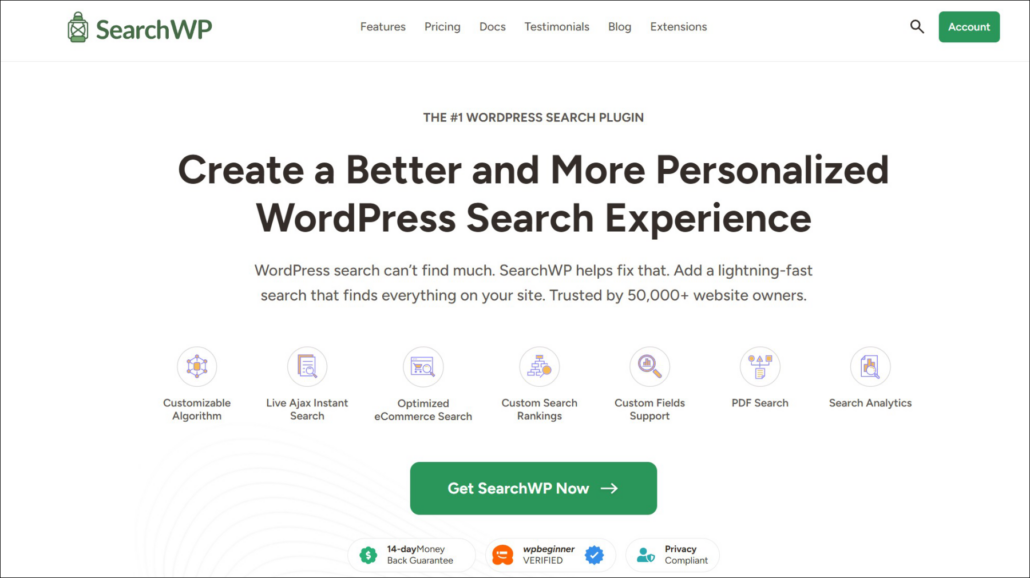
It is the most advanced WordPress search plugin available on the market. With SearchWP, you can fix the most common reasons that make WordPress search not work properly.
For example, SearchWP can speed up your site search so your users don’t have to wait several seconds to see their search results.
It can even search through taxonomies such as categories and tags, making sure your visitors do not leave empty-handed. This can increase customer satisfaction, engagement, and sales.
Here are some key SearchWP features that help fix broken search:
- Dedicated search index — SearchWP builds and maintains its own index of all content sources, so every query runs against a fast, prebuilt dataset instead of scanning the WordPress database in real time.
- Full content coverage — Posts, pages, custom post types, tags, categories, custom fields, and WooCommerce product details are all indexed and searchable, so visitors find accurate results no matter what they type.
- Custom search forms — SearchWP generates search forms that can be embedded anywhere using a Gutenberg block, shortcode, or dedicated elements for popular page builders, including Elementor, Divi, and Beaver Builder, solving the missing search bar problem without touching any theme code.
- Reliable search routing — SearchWP takes over routing from the search form to the results page, which can avoid the 404 errors caused by mismatched permalink structures.
Now, let’s show you how to use SearchWP to improve your WordPress site search.
How To Install & Set Up SearchWP
To fix WordPress search not working, you need to add SearchWP to your site. Get started by visiting the SearchWP website and signing up for a new account.
Once done, go to the Downloads tab in the SearchWP account dashboard.
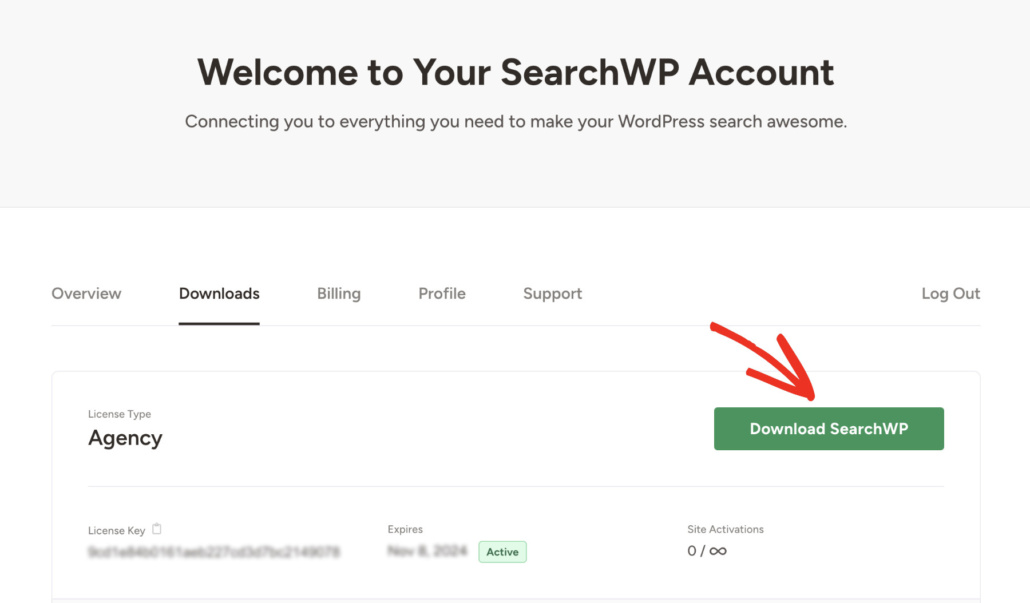
From there, you can click the Download SearchWP button and save the plugin’s ZIP file to the computer.
Go ahead and copy the license key on that same tab, as you’ll need it during setup.
The next step is to install and activate SearchWP on the WordPress site. Not sure how to do that? Check out this beginner’s guide on how to install a WordPress plugin.
Upon activation, the SearchWP welcome screen will appear along with the setup wizard. Go ahead and click Start Onboarding Wizard and follow the onscreen instructions to activate the license key and run the first index build.
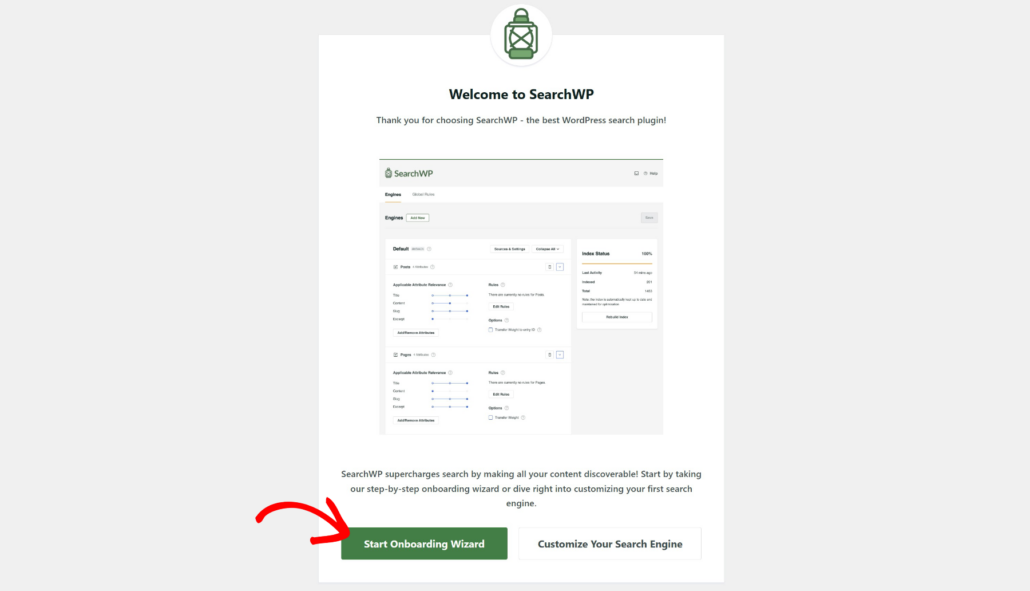
Once the wizard finishes, SearchWP has replaced the default WordPress search and built its first index. From here, each fix below takes only a few minutes to apply.
Now, let’s talk about the specific cases in which WordPress search still does not work. Here’s how you can fix the common WordPress search errors mentioned above.
Fix 1: How To Fix WordPress Search Bar Not Appearing
If the search bar isn’t showing on the site, the most likely cause is that the active theme doesn’t include a search widget area or search block in its layout.
SearchWP solves this by generating its own search forms that can be placed anywhere, regardless of theme support.
After installing SearchWP, it automatically replaces all your native WordPress search forms. It integrates well with other third-party themes and plugins.
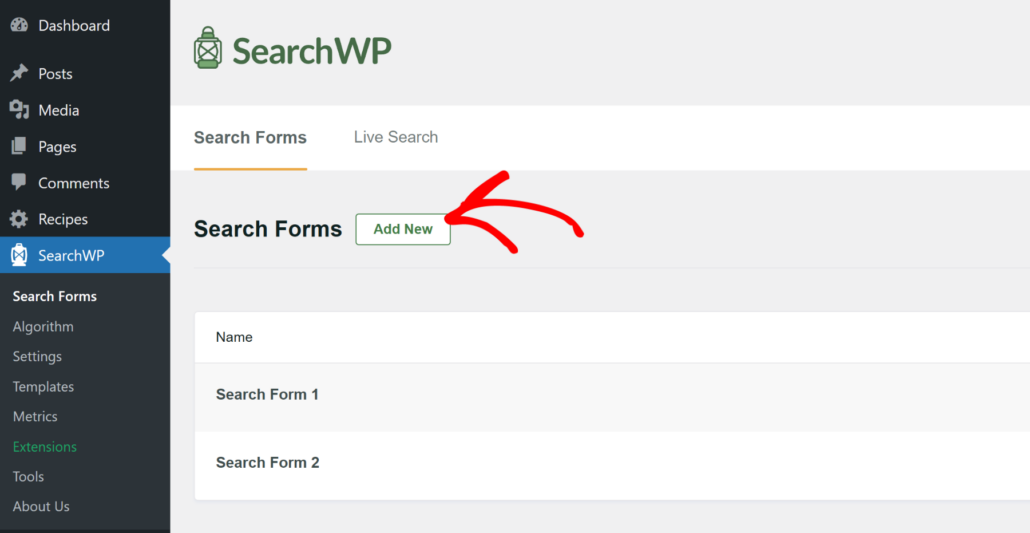
To add one, navigate to SearchWP » Search Forms from the WordPress dashboard and click Add New.
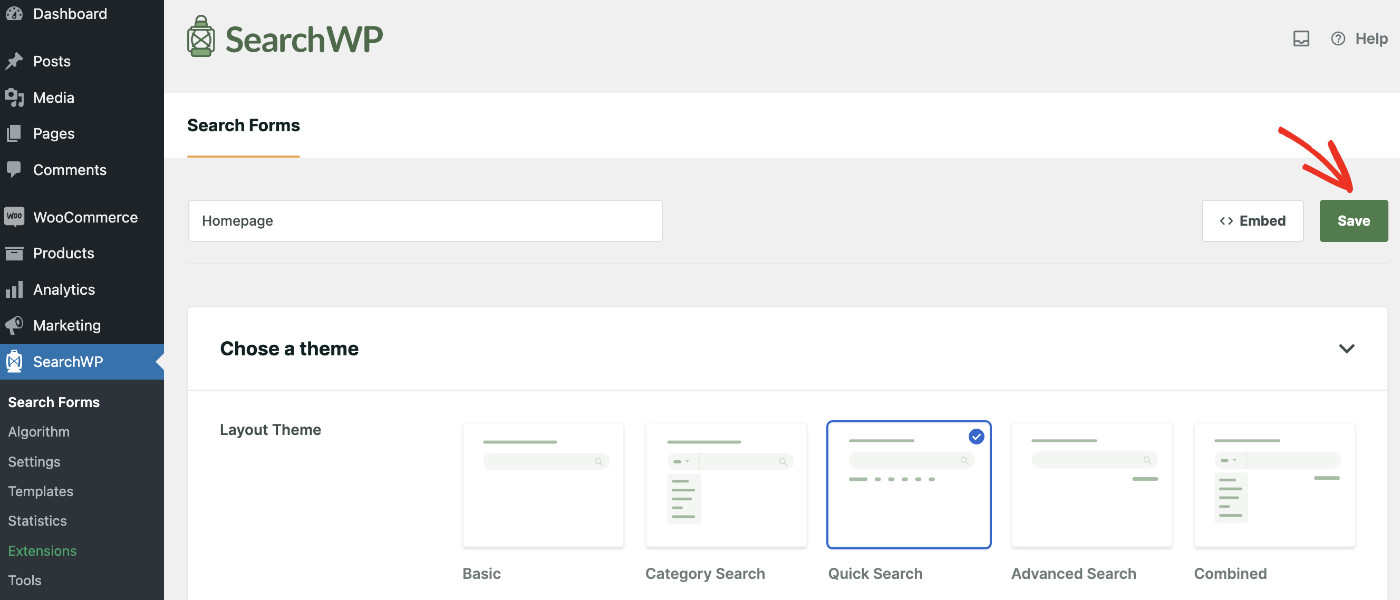
From the form editor, give the form a name and choose a theme for the search form.
When finished, click Save in the top right corner.
SearchWP gives you multiple options to place the search form anywhere on your site. You can use the Gutenberg block, shortcode, or PHP code.
For more details on placing search bars in different areas of the site, see our guide on how to add a search box to a WordPress page.
If the search box is still not showing, a plugin you recently installed may also be the cause. You can deactivate or delete some plugins to see if the error continues.
Follow this guide to learn how to properly uninstall a WordPress plugin.
Fix 2: How To Fix WordPress Search Not Showing Relevant Results
When search returns unrelated posts or no results at all, it’s almost always because WordPress doesn’t natively check taxonomies, custom fields, or attachment content. SearchWP gives full control over what gets indexed and how much weight each field carries in the results.
With SearchWP, your site checks all your site content for search results. This means your users will now see relevant results that match their search.
SearchWP also allows you to rank content based on attributes. Attributes such as title, content, slug, author, excerpt, and product variations store important information about your content. When this content is utilized in search, your visitors will find information on your website more easily.
For example, using the SearchWP Engine, you can choose to rank a post’s excerpts higher than its title. This means when users search, your site will look for matches in excerpts before checking titles.
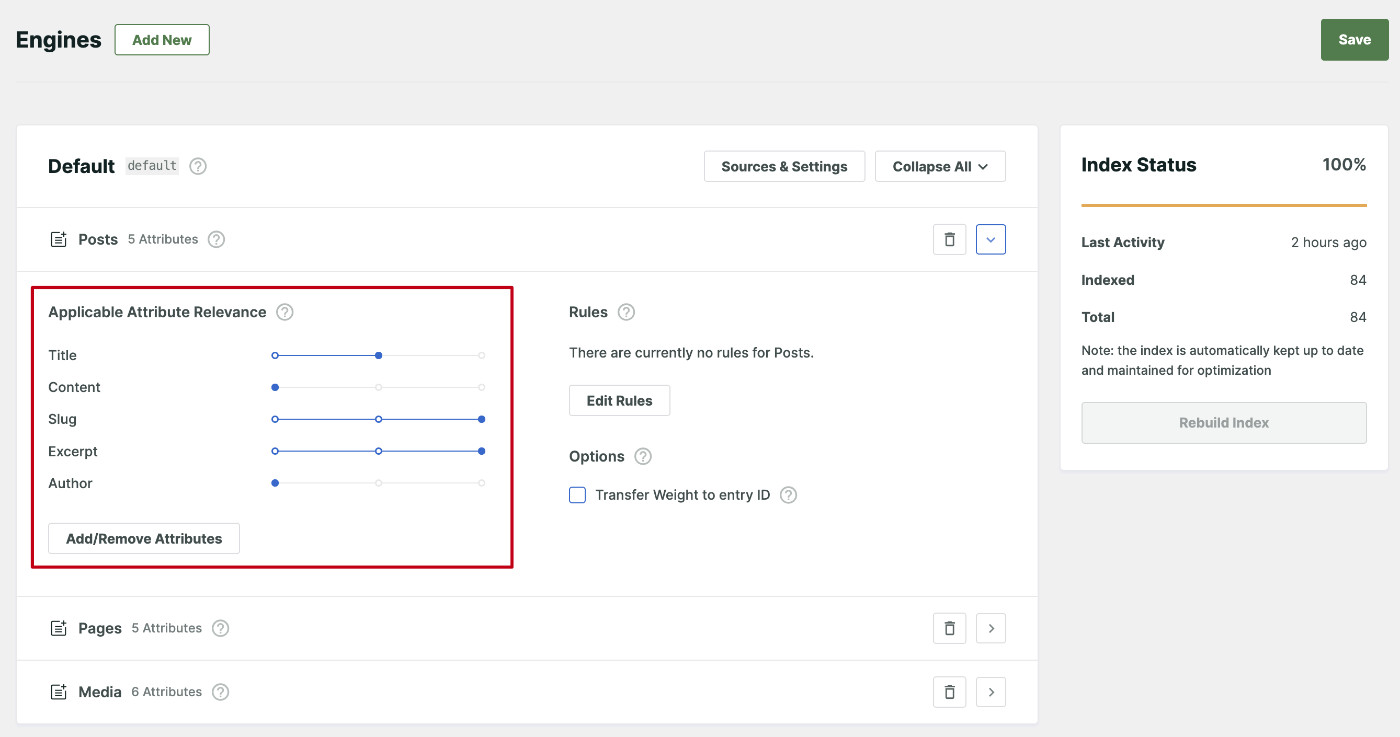
You can also choose to limit search results to specific post types.
Similarly, if you are running an online store, here’s a tip for restricting your product search to the product title only.
Fix 3: How To Fix Slow WordPress Search
Installing SearchWP automatically speeds up your WordPress site search. It builds a new search index for itself and returns search results faster than the default WordPress search.
Other ways you can make WordPress search faster include:
- Add live search to your site: The attention span of the average visitor is decreasing every day. By implementing a search that instantly shows results as users type in the search bar, you can speed up the search experience. Here’s a complete step-by-step guide on how to add live search to your website.
- Increase your hosting server resources: This may be necessary if you have a large site with lots of traffic. When your search form is getting a lot of action, it may take some time for the hosting server to handle these requests. You can buy more server RAM and bandwidth to improve this.
After following these tips, you can expect your site users to enjoy faster search.
Fix 4: How To Fix WordPress Search Showing 404 Error
A search 404 error almost always comes from an outdated permalink structure.
To troubleshoot this issue, you can start by checking if the problem is a permalink error. You can do this by updating your permalink settings.
The quickest fix is to go to Settings » Permalinks in the WordPress dashboard and click Save Changes without changing anything.
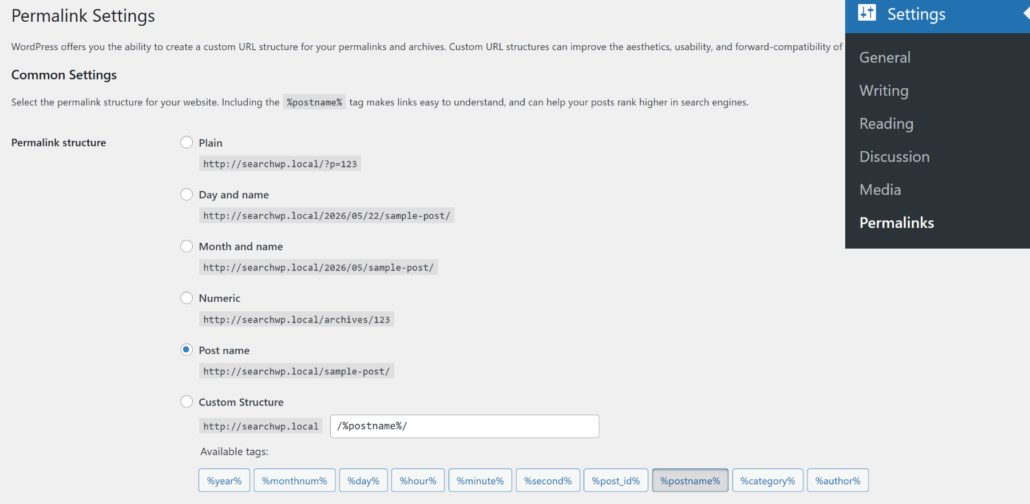
WordPress rebuilds the rewrite rules each time that screen is saved, which resolves most search-related 404 errors immediately.
For more details, check this simple guide on how to fix WordPress returning 404 errors.
If the WordPress search is still showing a 404 error, then the search form may be missing a search results page.
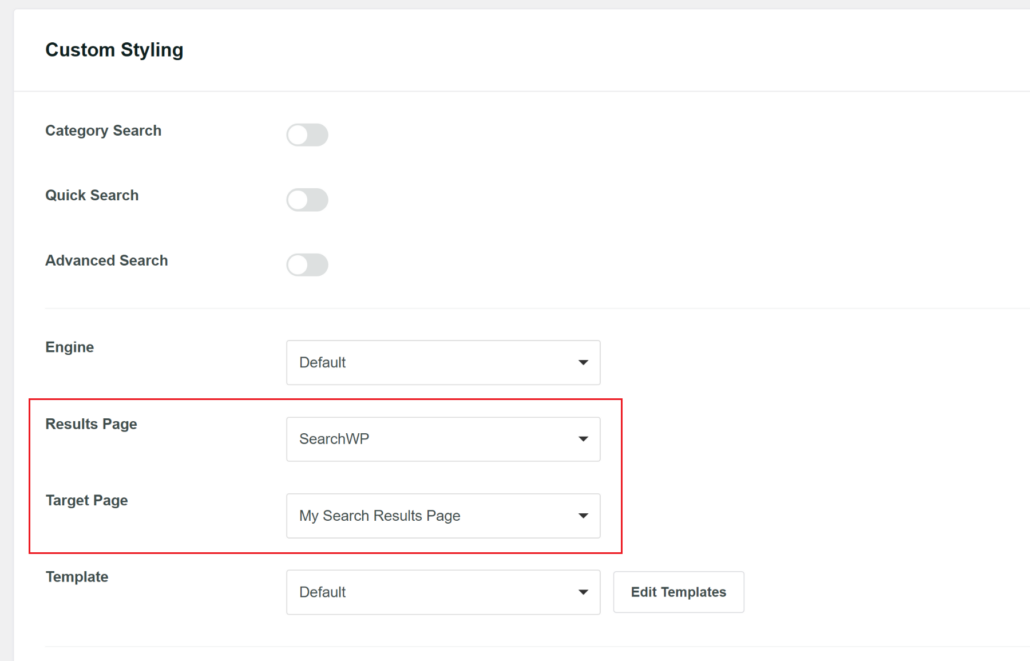
If the 404 persists after flushing permalinks, the search form on the page may be pointing to the wrong results URL. Navigate to the SearchWP Search Forms page, open the affected form, and set the Results Page dropdown to SearchWP.
A Target Page picker will appear, where you can select the page where search results should display. Save the form and test again
Bonus: If you want to take control of the look and feel of the results page, here’s a detailed tutorial on how to customize the WordPress search results page to fit your needs.
FAQs about WordPress Search Not Working
1. Why is my WordPress search not working?
WordPress search fails for a few common reasons: the search bar isn’t visible, the default engine doesn’t natively check taxonomies, custom fields, or attachment content, or a permalink mismatch sends results to a 404 page. We’ve seen all of these on sites of every size, and they’re all fixable without coding using SearchWP.
2. How do I fix WordPress search showing no results?
The most common cause is that WordPress doesn’t check tags, categories, or custom fields by default. In SearchWP, navigate to SearchWP » Algorithm, open Sources & Settings, and enable the right content sources. From there, use Add/Remove Attributes to include any missing fields, then save and click Rebuild Index.
3. Why does WordPress search return a 404 error?
A search 404 almost always means the site’s rewrite rules are out of sync. Go to Settings » Permalinks and click Save Changes to flush and rebuild the rules. If that doesn’t resolve it, check that the form under SearchWP » Search Forms and then set Results Page to SearchWP. From here, use the Target Page picker to confirm it points to the right results page.
4. Does fixing WordPress search require coding?
No. Every fix in this guide is handled through SearchWP’s admin settings. Configuring sources, adjusting relevance weights, creating search forms, and embedding them all happen through point-and-click settings in the WordPress dashboard.
5. Can SearchWP also fix WooCommerce search problems?
Yes. SearchWP’s WooCommerce integration indexes product attributes like SKUs, colors, and sizes so customers can find products by any detail they’d search for. The WooCommerce integration is available on the Pro plan. For a full walkthrough, see our guide on how to restrict WooCommerce product search to title only.
WordPress search fails predictably, and SearchWP fixes all four of the most common issues through a dedicated index, configurable relevance settings, and search forms that work with any theme.
We hope this article helped you learn how to fix WordPress search not working. You may also want to see our guides on how to optimize the WordPress search results page and how to create advanced search forms in WordPress.
Ready to fix WordPress search on your site? You can get started with SearchWP here.