Are you wondering how to exclude pages or posts from site search results in WordPress?
By default, WordPress includes all published content in search results, which might not always be ideal. You may have technical pages like login, checkout, or even documentation posts that you don’t want to see in the search results.
In this article, we’ll show you three ways to exclude pages or posts from your WordPress search results, from hiding an entire content type to keeping a single page or product out of the list.
Why Exclude Pages Or Posts from WordPress Search Results?
We’ve watched visitors bounce off a search results page cluttered with content that has nothing to do with their query, and it usually comes down to one of a few things.
See our guide on how WordPress search works for more on why this happens by default.
That said, here are some pages and posts you would want to exclude from WordPress search results:
- Stale or utility pages dilute your results. Sitemap pages, login screens, and old placeholder pages you never meant visitors to find can crowd out the content that actually answers their question.
- Checkout and thank-you pages clutter store search. These pages exist to complete a purchase, not to be discovered by someone typing a product name into your search bar.
- Gated or membership content shouldn’t appear in public search. A lesson page behind a paywall showing up in search results just frustrates the visitor who clicks it and hits a login wall instead.
- A shorter, more relevant list keeps visitors on your site. WordPress’s native search, built around
WP_Query‘s search parameter doesn’t give you any way to hold specific content back once it’s published, so the burden falls on a plugin to add that control.
Even for a regular website, you may want to hide certain pages or posts from search results to provide a more relevant search experience for your users.
Let’s look at how you can easily exclude pages or posts from site search results.
How To Exclude Pages or Posts from Search Results
The fastest and easiest way to exclude pages or posts from site search results in WordPress is by using the SearchWP plugin.
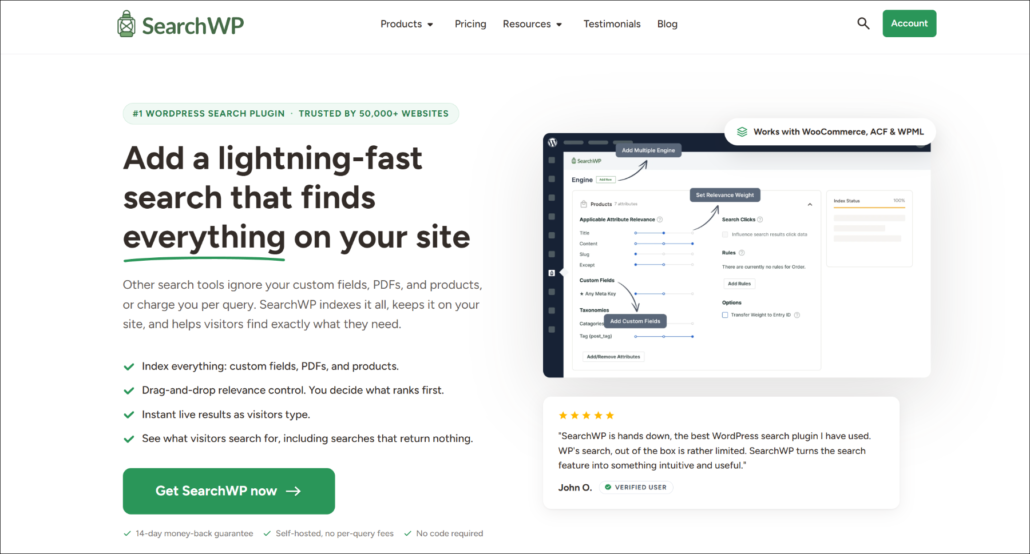
It’s the best WordPress search plugin that is currently trusted by more than 50,000 website owners.
With SearchWP, you can hide any posts, pages, or media files from the search results in a few clicks; no coding knowledge is needed. It also comes with tons of features that widely expand the WordPress search capabilities.
Here are a few noteworthy features of SearchWP:
- Live Search Results: Instantly display relevant search results as users type, enhancing user experience by providing immediate feedback and making navigation smoother.
- Search Insights & Analytics: Track and analyze search patterns on your site to gain a deep understanding of what your visitors are searching for. This data helps you tailor your content strategy and boost user engagement by aligning with their preferences.
- Customizable Search Rankings: Easily modify the ranking of search results to highlight specific posts or products, ensuring key items receive the attention they deserve.
- Seamless WooCommerce Integration: SearchWP integrates effortlessly with WooCommerce, enhancing the search functionality for product images, descriptions, and more.
- Searchable PDFs and Documents: If your site hosts PDFs or other office documents, SearchWP can make them searchable, ensuring users get more accurate and comprehensive search results.
Now, to exclude posts or pages from WordPress search results, we first need to set up SearchWP.
How to Set Up the SearchWP Plugin
You can start by selecting the SearchWP package that best suits your needs, as different packages come with different features.
Once you’ve made the purchase, navigate to the Downloads tab on your Accounts page and click the ‘Download SearchWP’ button.
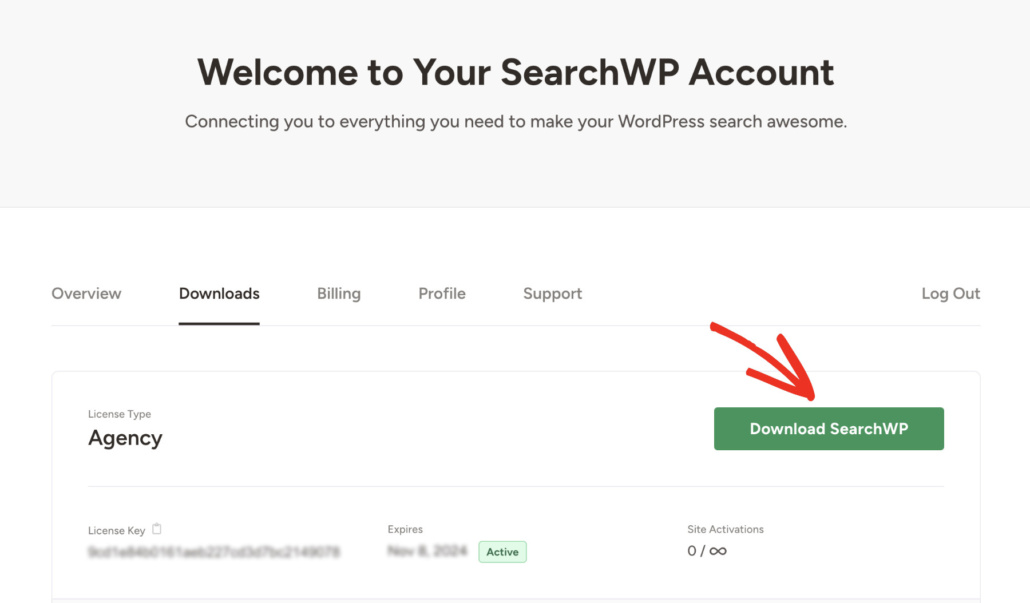
While you’re there, be sure to copy your license key from the same location. This key will be essential for activating the plugin later.
After the download is complete, you can install and activate SearchWP in the same way as any other WordPress plugin.
Once activated, you’ll be greeted by a welcome screen. Here, you’ll have the option to start the onboarding process by clicking Start Onboarding Wizard. This will guide you through the initial setup.
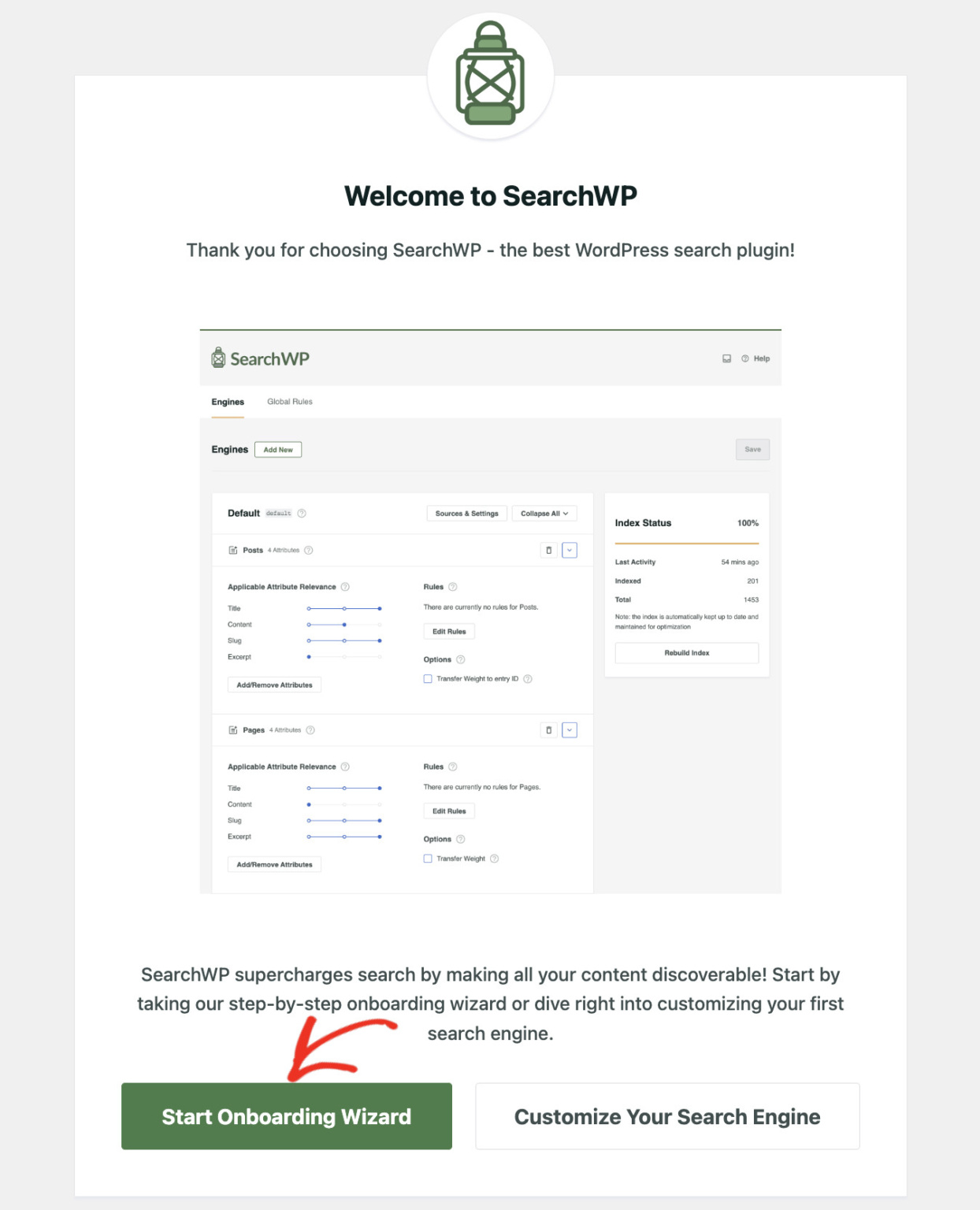
That’s it. SearchWP has been configured successfully. Now, we can proceed to the next step!
Exclude All Pages Or Posts From Site Search Results
SearchWP replaces the default WordPress search the moment it’s activated.
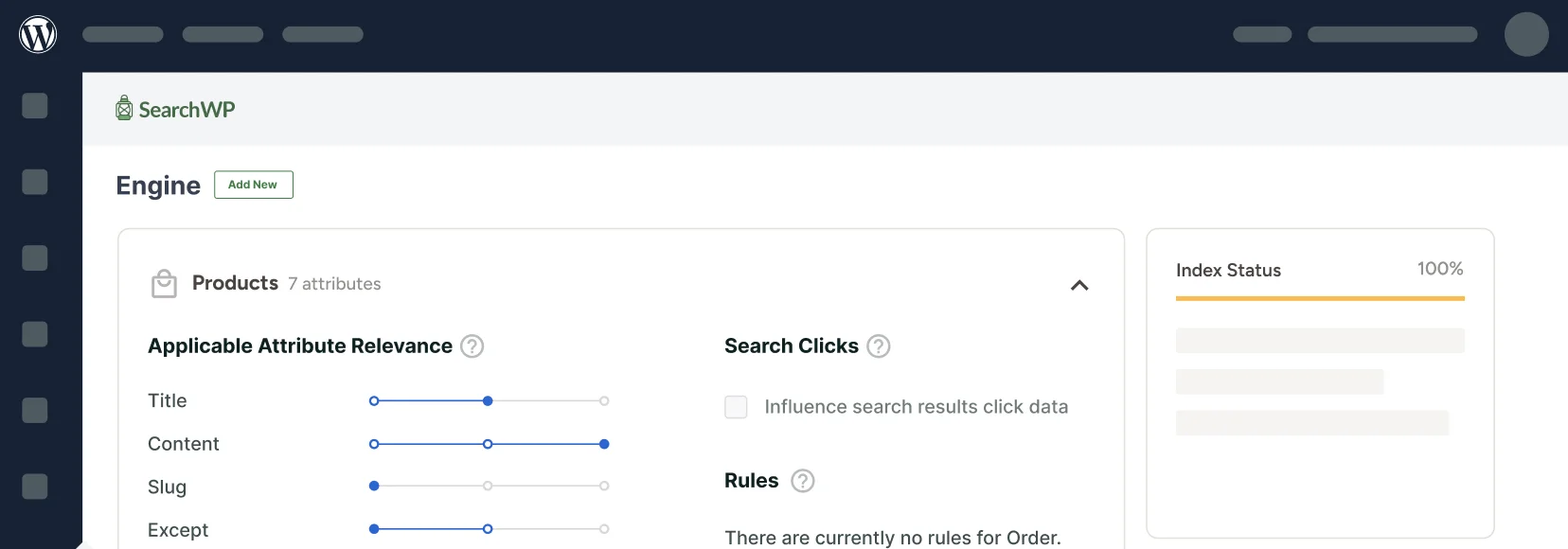
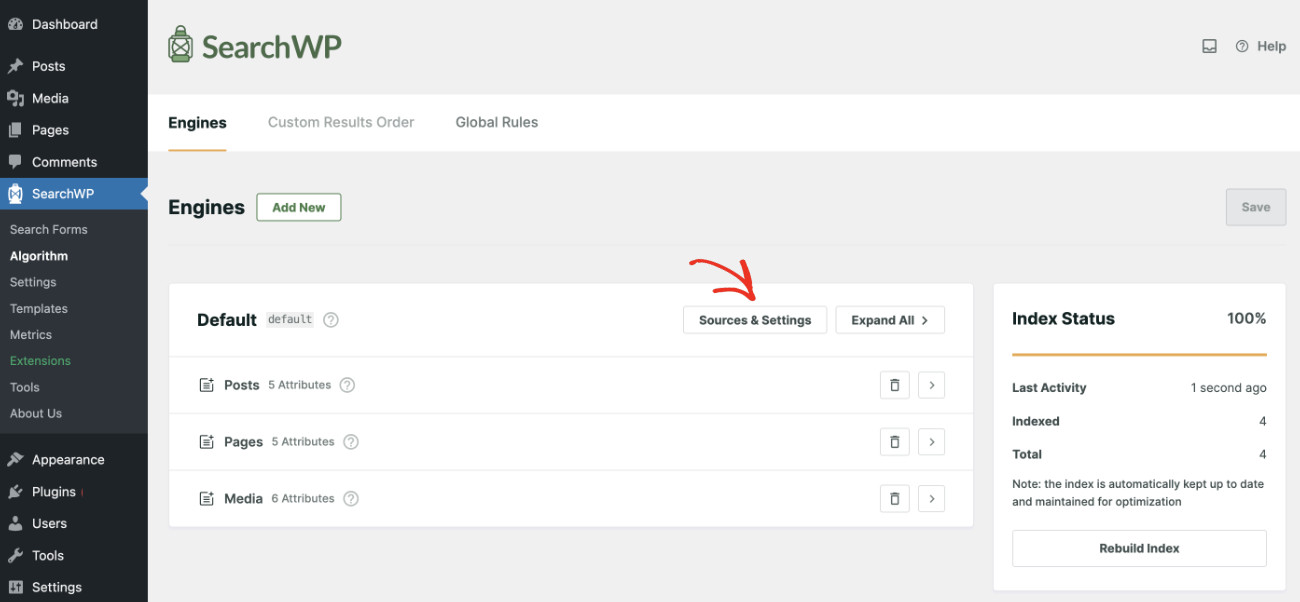
Now, you can exclude a particular type of content by removing its source from the SearchWP Search Engine. To do so, visit SearchWP » Algorithm from your WordPress dashboard.
The Default Engine has three pre-selected search sources: posts, pages, and media files.
To completely exclude either posts or pages from appearing in search results, remove the corresponding source from the Engine. To do that, press the Sources & Settings button.
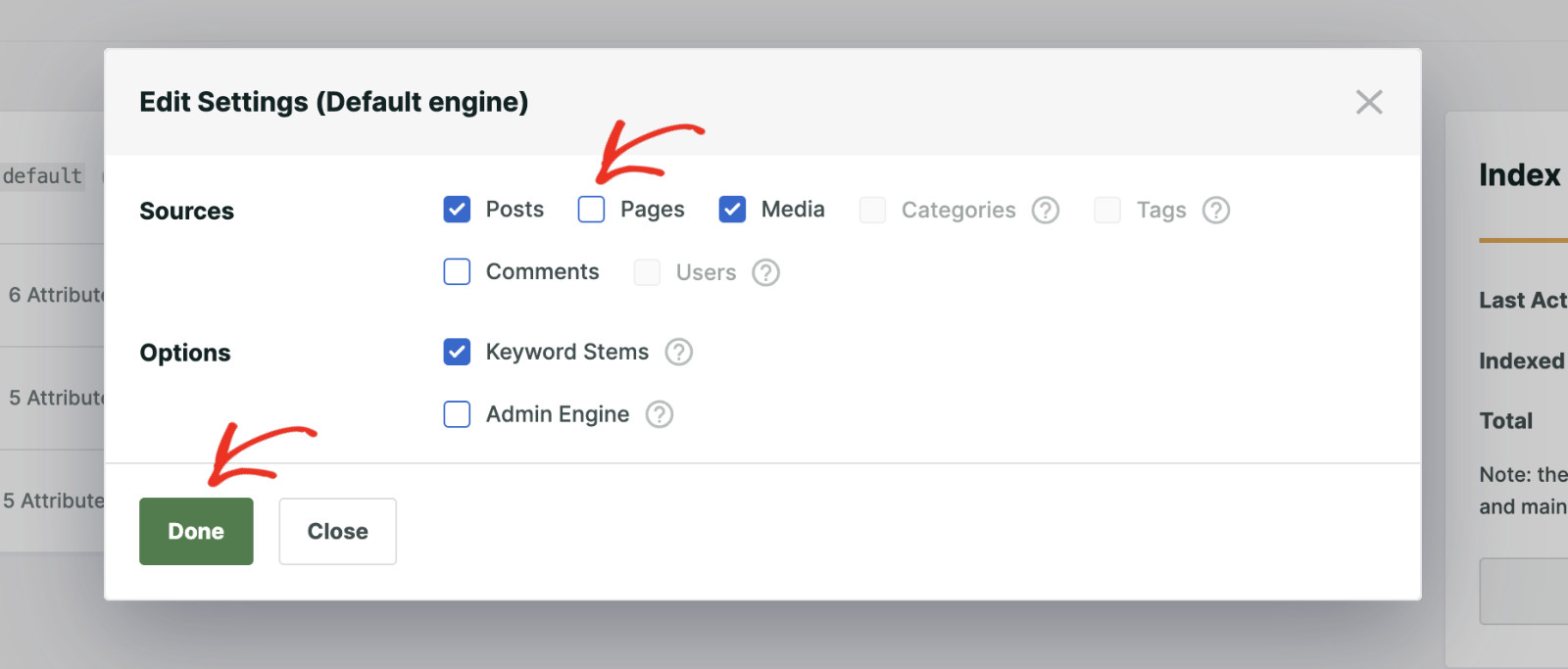
If you want to hide all pages from search results, then uncheck the “Pages” checkbox.
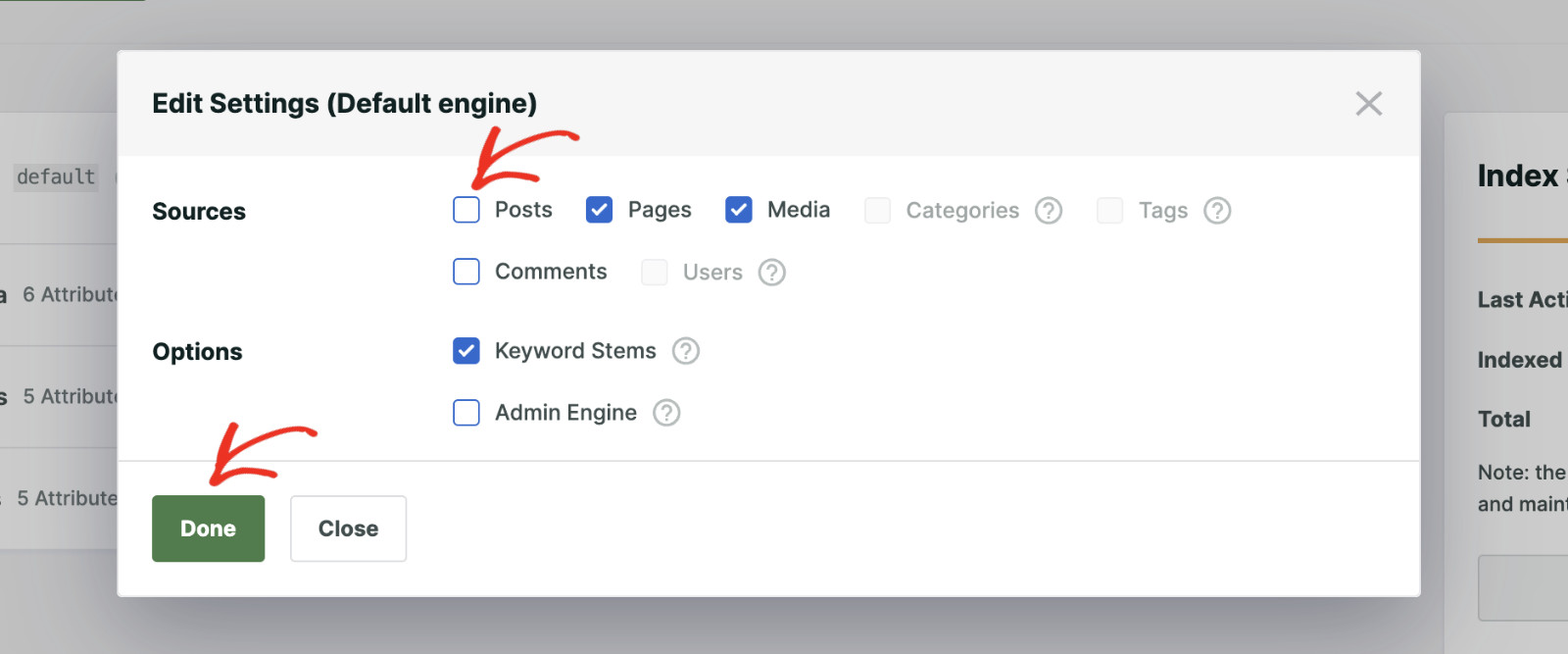
On the other hand, if you want to hide all posts from search results, then uncheck the “Posts” checkbox.
When you’re finished, click Done.
Finally, press the Save button to apply the changes.
Now, when you perform a search, only results from the selected sources will appear, and all other content will be hidden from the search results page.

Exclude Specific Pages, Posts, Or Products from Site Search Results
You can exclude a particular post, page, or product type from your WordPress site’s search results. To achieve this, you will need to install the Exclude UI extension of SearchWP.
Once the Exclude UI is activated, you can proceed to hide a specific page, post, or product from site search results in WordPress.
To install this extension, visit SearchWP » Extensions. Then, find the “Exclude UI” extension from the list and click the Install button.
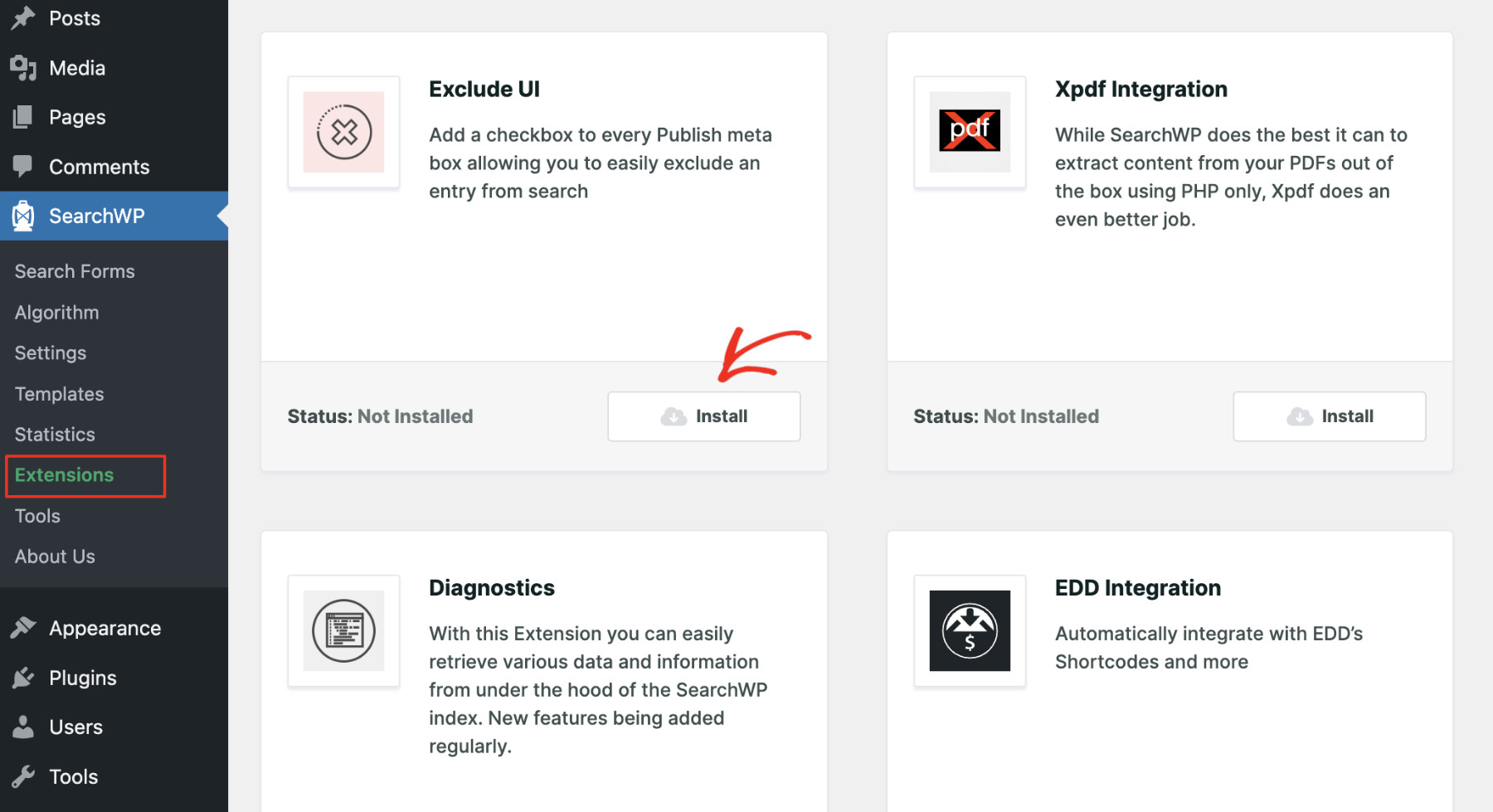
The extension will activate successfully in a few seconds. Now that the foundation is complete, let’s see how to exclude specific posts, pages, or products from WordPress sites.
How To Exclude A Specific Page From WordPress Search Results
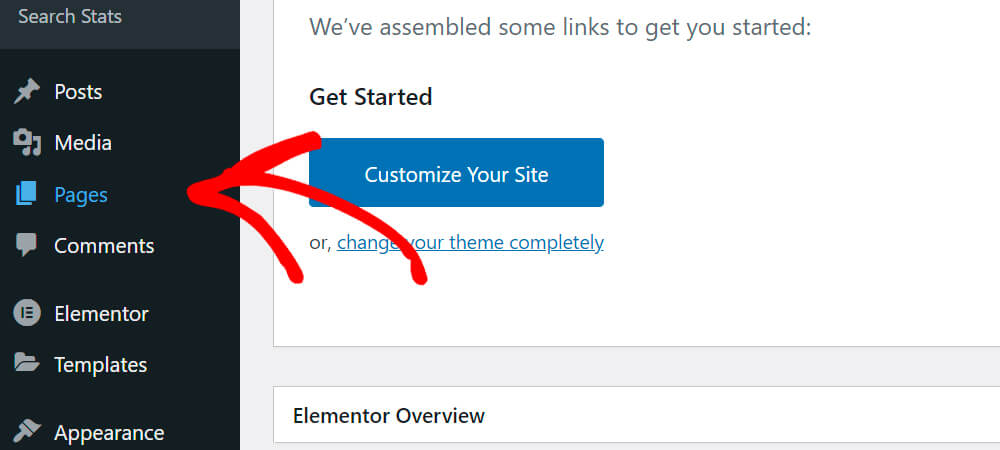
To exclude a specific page from the search results, you need to open it in Edit mode. To do that, click “Pages” in the left sidebar.
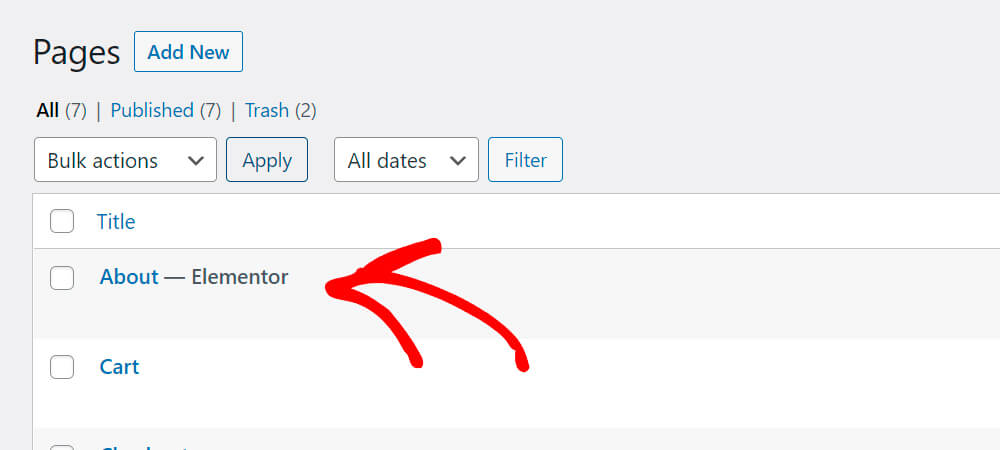
Create a new page or find the page you’d like to hide from search results and click on it.
Once you open the page, click on the Page tab on the right sidebar and check the Exclude from SearchWP checkbox.
Finally, click the Publish/Update/Save button at the top right, depending on your scenario.
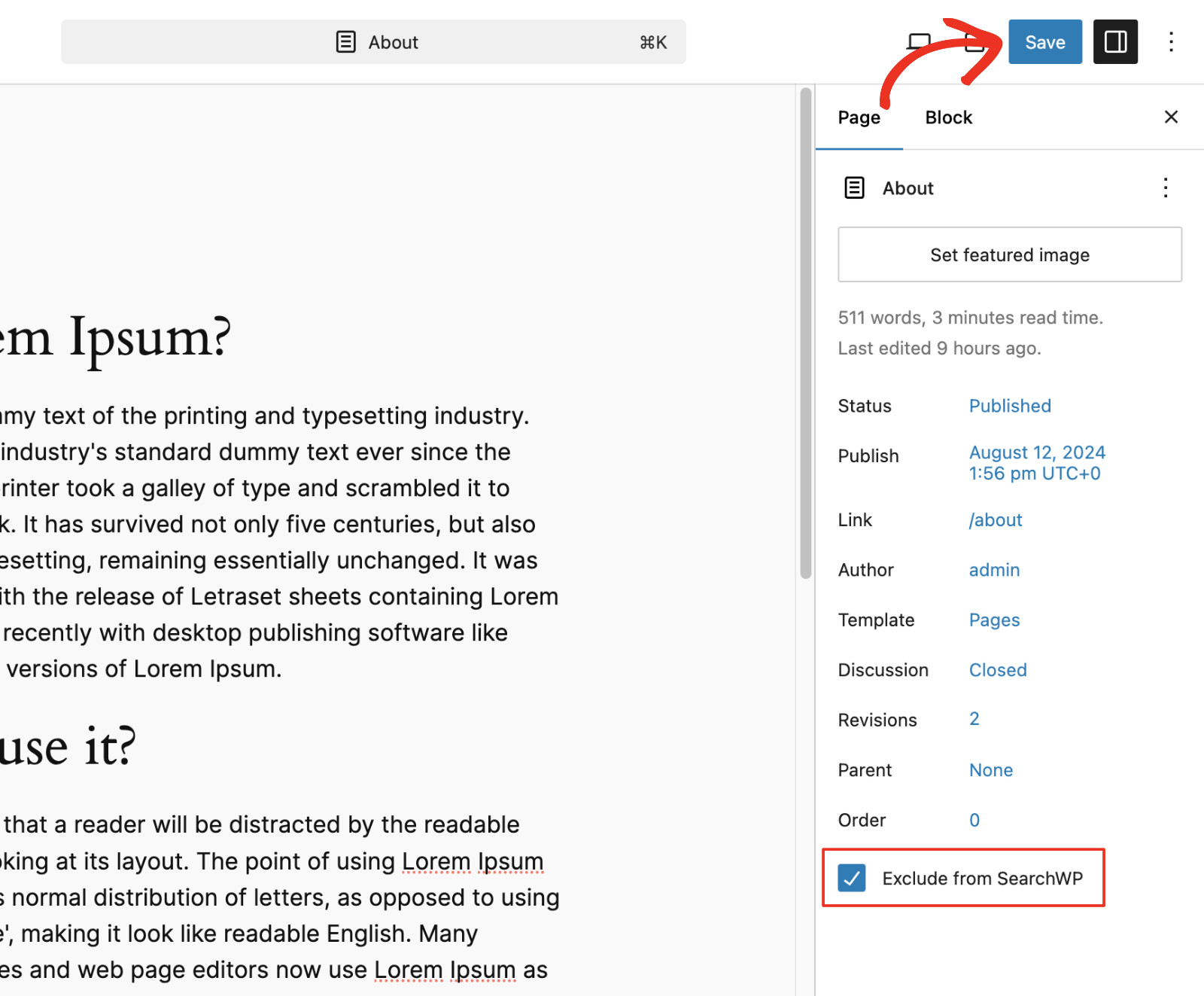
That’s it. From now on, this page won’t be displayed among your website’s search results!
How To Exclude A Specific Post From WordPress Search Results
To exclude a specific post from the search results, you need to edit it and open the content editor. To do that, click Posts from the left sidebar.
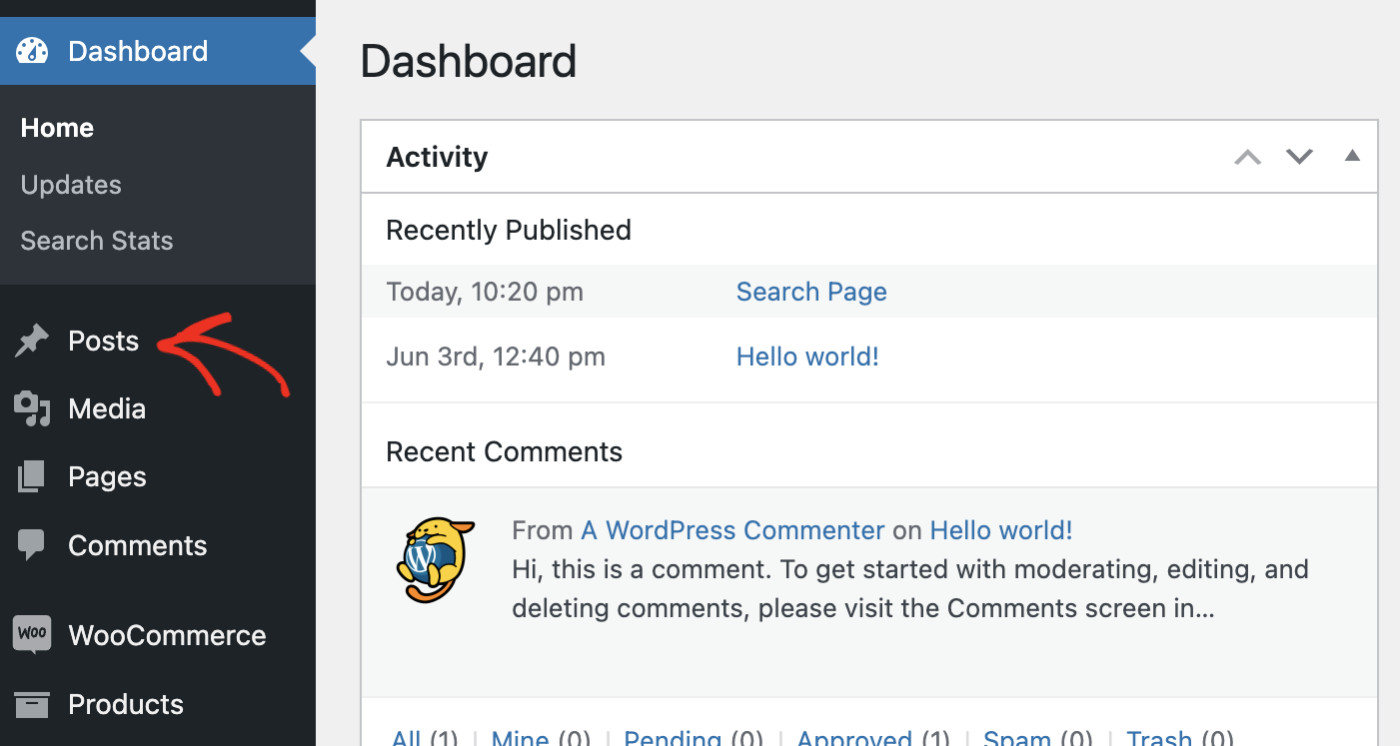
Then, create a post or find the post you’d like to hide from search results and click on it.

Once you open the post in the content editor, click on the Post tab on the right sidebar.
Now, check the Exclude from SearchWP checkbox and click the Publish/Update/Save button at the top right, depending on your scenario.
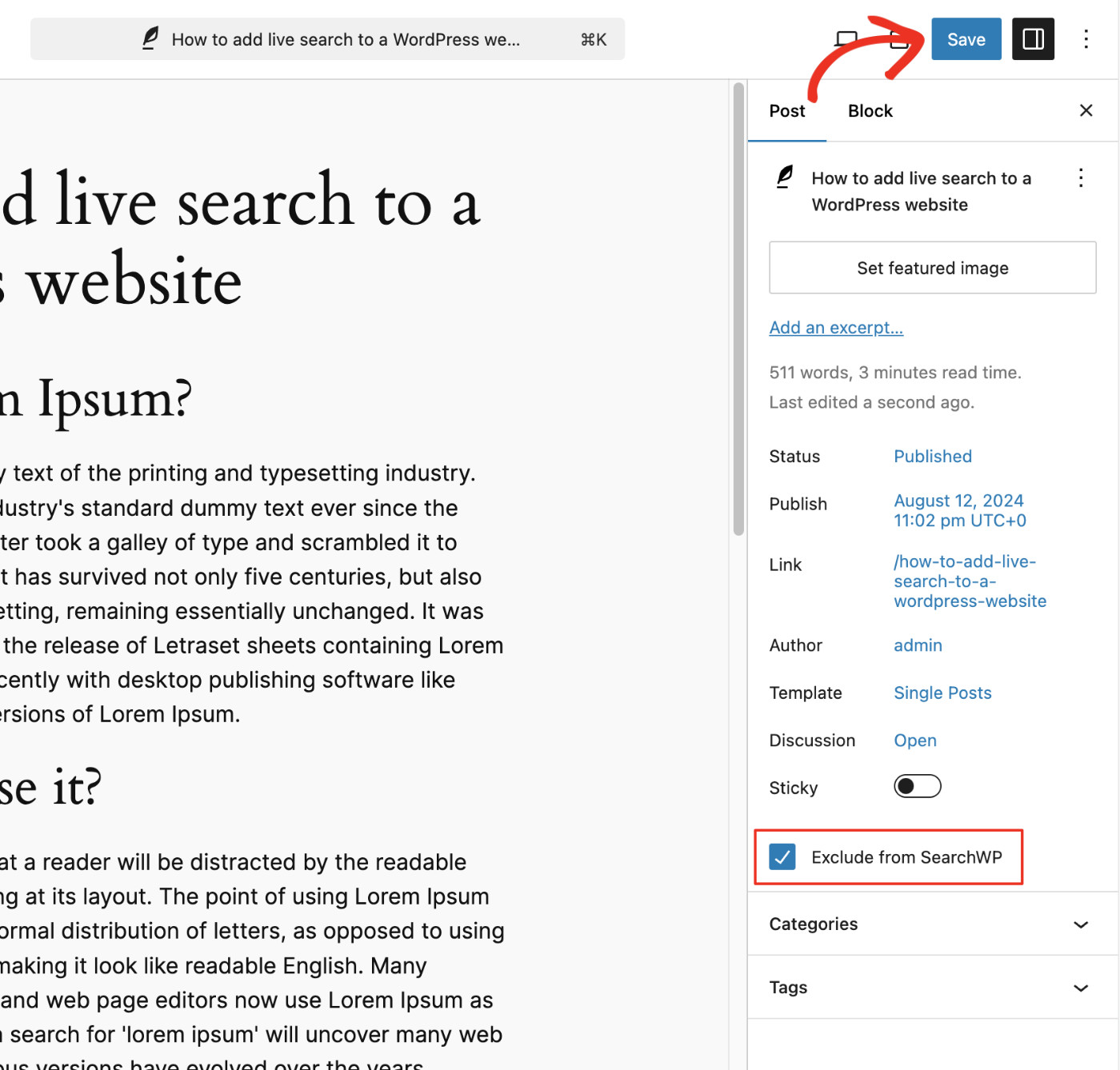
That’s it. From now on, this post won’t show up in the search results of your WordPress website.
How To Exclude Specific Products from WordPress Search Results
If your eCommerce website has been created using WooCommerce or Easy Digital Downloads, you can exclude specific products from the WordPress search results page. Let’s use WooCommerce for the purpose of this tutorial.
The Exclude from SearchWP checkbox you added with the Exclude UI extension also appears on product edit screens, so you can hide a single product the same way. To route product search through SearchWP in the first place (and auto-hide products set to Hidden or Shop only), activate the WooCommerce Integration extension (Pro and up).
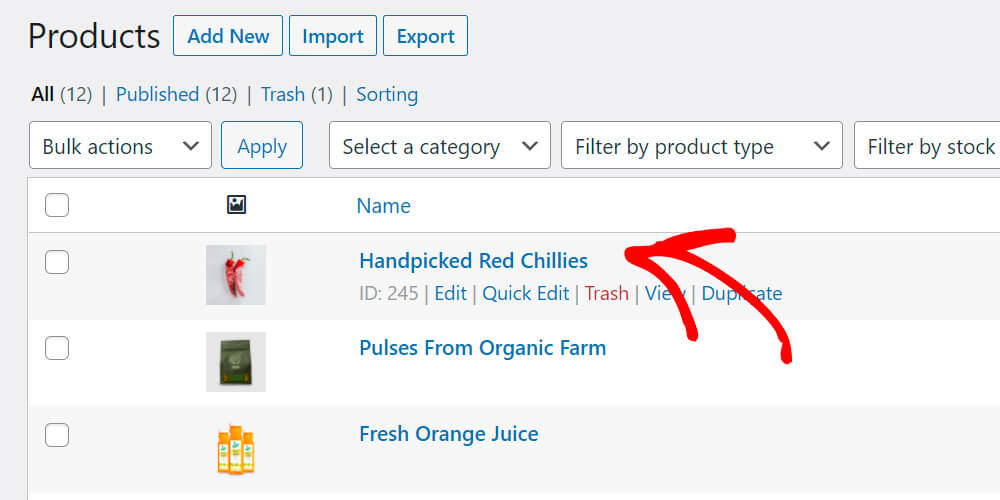
Now, to exclude specific products from WordPress search results, click the menu item “Products” from the left sidebar in your WordPress dashboard.

Then, create or find the product you want to hide from search results and click on it.
Once you open the post, check the Exclude from SearchWP box on the right.
Finally, click the Update/Publish/Save button, depending on your case.
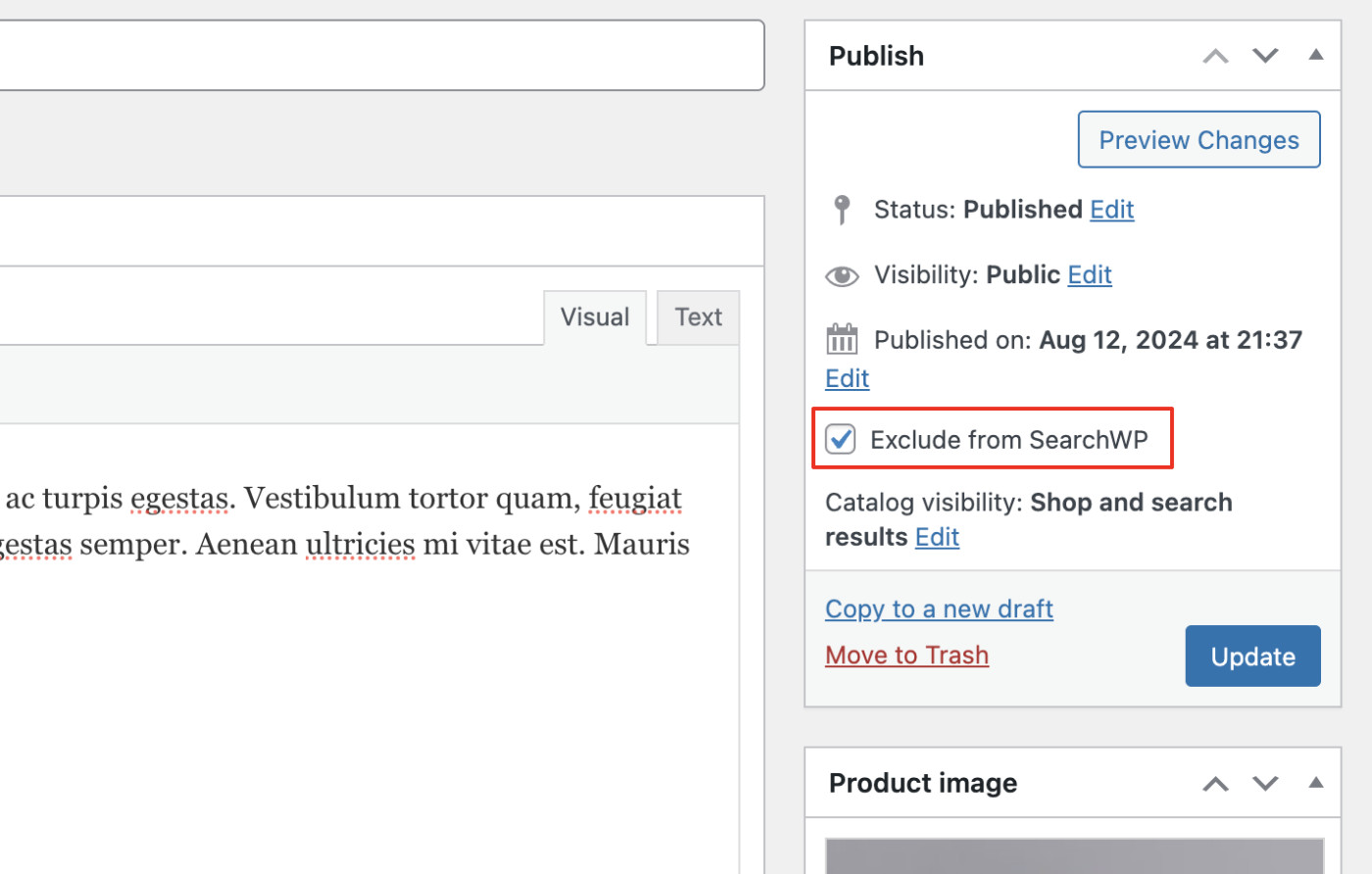
That’s it. From now on, this product won’t show up in the search results of your WordPress website.
Verify If The Excluded Content Is Showing Up
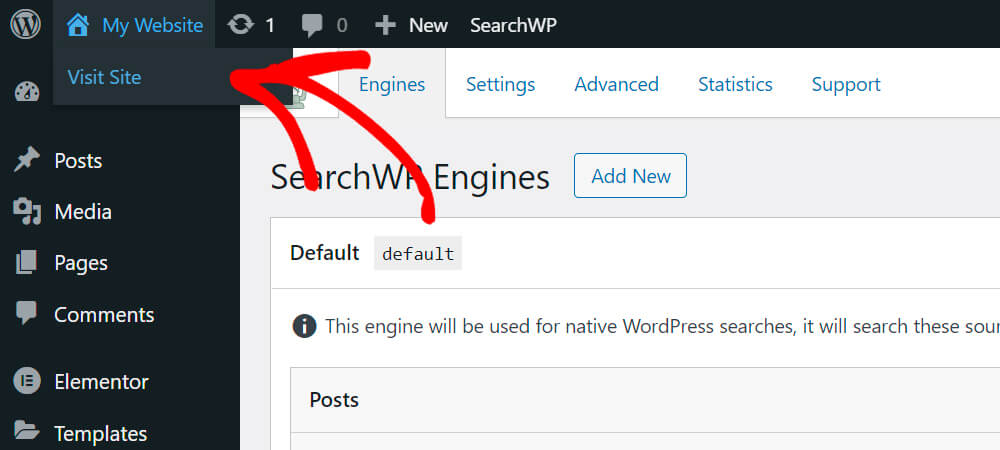
It’s time to test your new WordPress search to see if it’s excluding what you want it to exclude. Press the “Visit Site” button under your site’s name.
For the purposes of this tutorial, we created a post titled ” How to add live search to a WordPress website.”
Let’s see if the new search finds it.
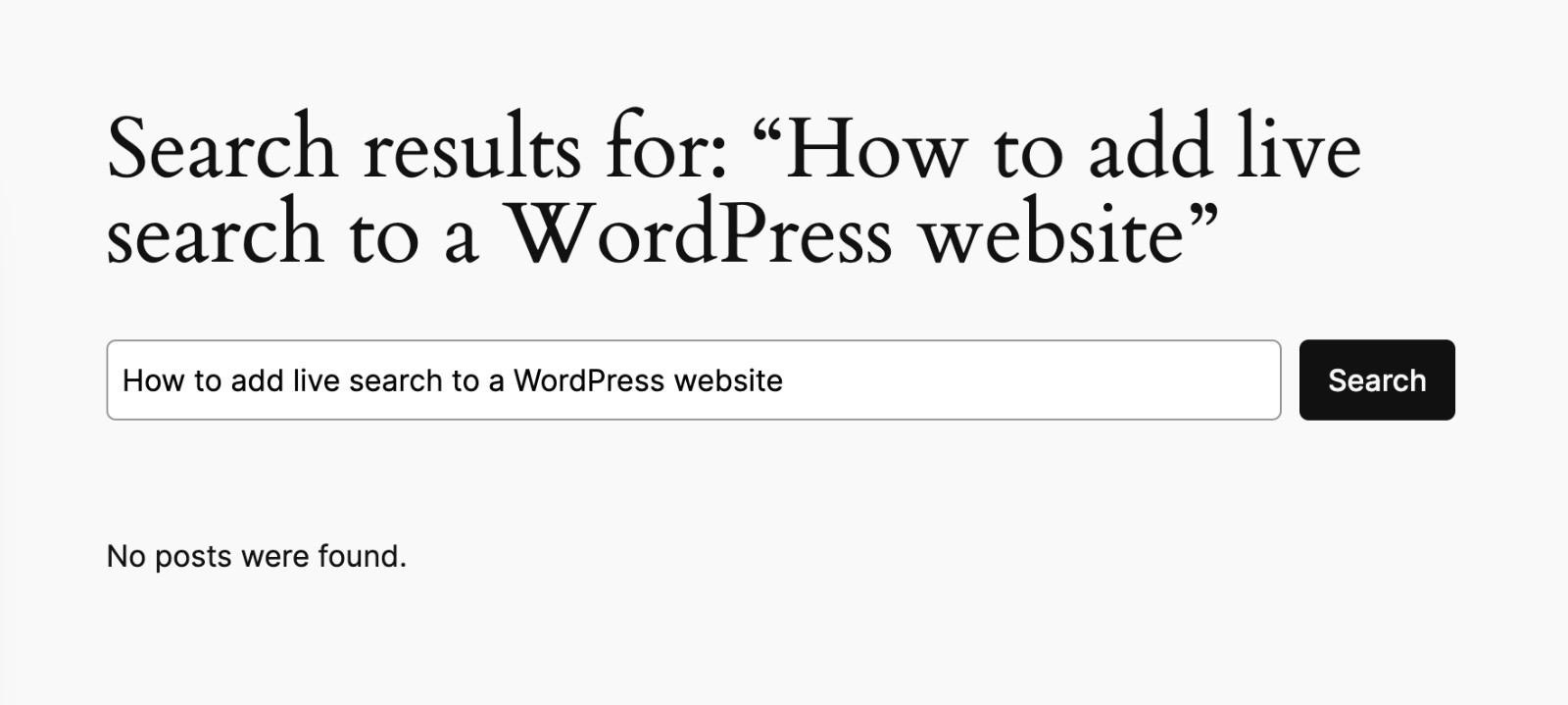
As you can see, no matches were found. This means that our changes have taken effect, and WordPress no longer includes pages or posts that match the search term in the search results.
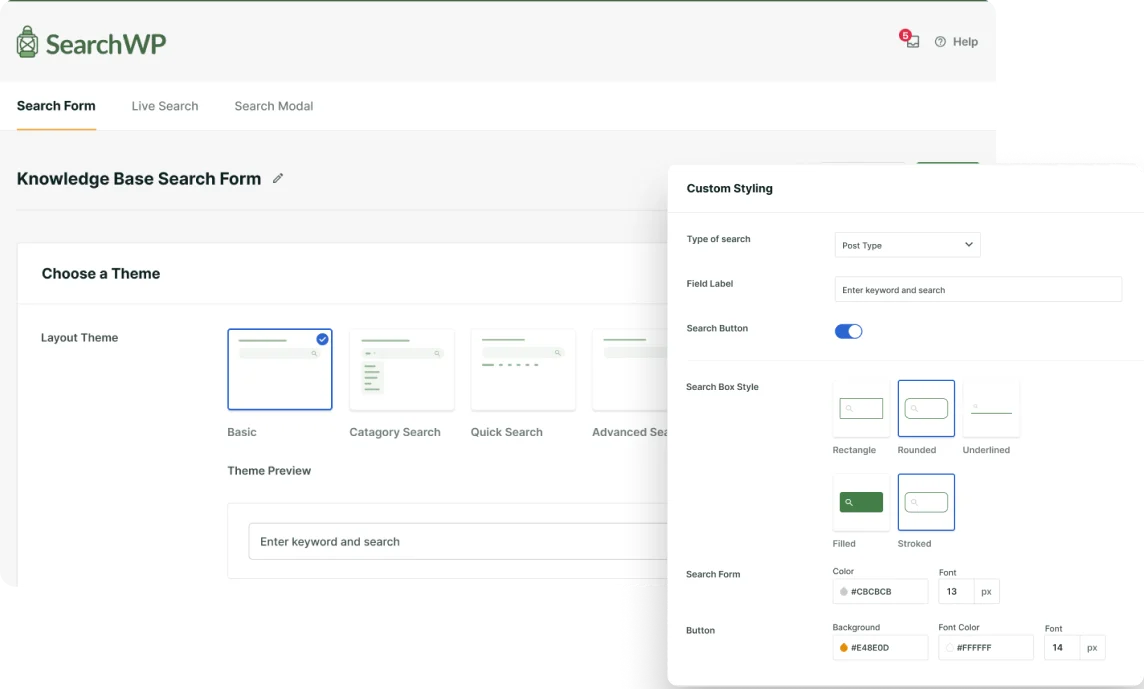
The search form shown above has also been created using SearchWP; here’s how to create a custom search form with just a few clicks.
Bonus: Exclude Content On the Fly With Boolean Search
Sometimes a visitor wants to exclude a term for just one search, without changing any settings at all.
The Boolean Search extension, also included on every SearchWP plan, makes that possible right from the search box.
Once it’s installed from SearchWP » Extensions, typing a hyphen directly before a word excludes it, so a search for “recipes -dessert” returns every recipe except dessert recipes.
Typing NOT works the same way, so “recipes NOT dessert” returns the same result.
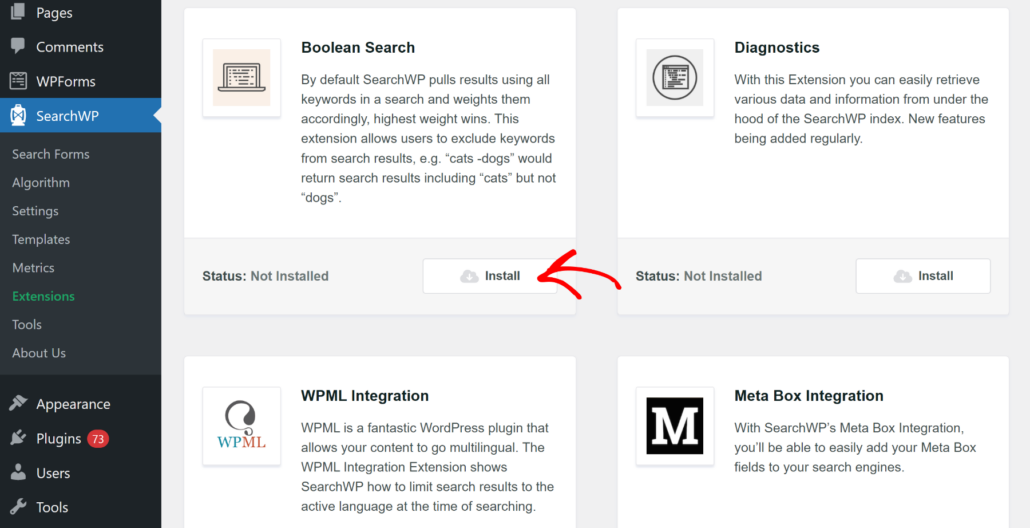
See our full guide on using Boolean search to exclude content for more ways to use it.
Frequently Asked Questions
1. Can I exclude a page from WordPress search without a plugin?
Not with WordPress alone. WordPress’s native search doesn’t include any setting for holding specific pages, posts, or products back from results, so a plugin like SearchWP is what adds that control.
2. Does excluding a page from search also remove it from my site?
No. An excluded page still works normally everywhere else, including menus, direct links, and any page that lists it, and only disappears from your site’s own search results.
3. Can I exclude WooCommerce products from search results?
Yes. The same Exclude from SearchWP checkbox that works on pages and posts also appears on product edit screens once the Exclude UI extension is active, and products set to Hidden or Shop only in WooCommerce are kept out automatically with the WooCommerce Integration extension (Pro and up).
4. Will excluding content affect my site’s SEO?
No. Excluding a page from SearchWP only affects your own site’s search box and has no bearing on whether Google or another search engine indexes that page.
Conclusion
You now have three ways to control what shows up in your WordPress search results, from hiding an entire content type down to a single page or product. Pick the one that matches how much you need to hold back, and SearchWP handles the rest.
We hope this article helped you learn how to exclude pages or posts from WordPress search. You may also want to see our guides on setting up your search settings for the best results and excluding documents from search results to take your search experience even further.
Ready to take control of what shows up in your search results? Get SearchWP now and start excluding what doesn’t belong.