


If you have a website that has a lot of content, products, downloadable files, or documents, then it’s very easy for users to find irrelevant results.
But what if you could limit your WordPress search results?
It’ll allow you to reduce the amount of clutter that visitors get when performing searches and help them find the content they want faster.
In this guide, we’ll show you a couple of ways to limit search results on your site without writing a single line of code.
Since this is a comprehensive article, here is a table of contents to help you navigate through it:
Let’s dive into it!
Why Limit Search Results on Your Site
Narrowing search results on your site can be helpful for several reasons.
Namely, it:
- Boosts your site search efficiency: The fewer the number of redundant pages in your search results, the easier it is to find the right content for your visitors.
- Improve your site’s behavioral factors: Accurate search makes visitors spend more time on your site and reduces the bounce rate, which is good for ranking on Google.
- Helps you get more pageviews and sales: If visitors can easily find what they’re looking for by using search, it encourages them to keep exploring your site.
- Allows you to build a loyal audience: There is a good chance that visitors who’ve had a positive search experience on your site will become your loyal audience.
Now that you know the benefits of limiting search on your WordPress site, we’ll jump into the different methods for doing it.
How Can You Limit Your WordPress Search Results
The easiest way to limit search on your WordPress site to specific post types, attributes, categories, or anything else, is to use SearchWP.
SearchWP is the most powerful and user-friendly plugin that allows you to get complete control over search results on your site.
The best thing is that you can do it with a few clicks, with no coding needed, and regardless of your WordPress experience.
For example, with SearchWP, you can change the order of search results, make post attributes searchable, enable search by tags, and much more.
More than 50,000 website owners worldwide already use SearchWP on their sites to ensure the best search experience for their visitors.
Here are some other SearchWP features that can help you grow your business:
- Highlight search terms in search results: Make search terms more noticeable in search results, so your visitors can quickly see if they’ve found the right content.
- Create custom search forms: Add multiple search engines and link them to individual search forms on your site to meet your business needs.
- Make a smart WooCommerce search: Seamless integration with WooCommerce allows you to improve search in your store and boost your sales.
- Prioritize specific pages in search results: Promote specific pages in search results on your site to get more pageviews and increase your content’s discoverability.
With that, let’s see how you can use SearchWP to limit search results on your site.
To get started, you’ll need to grab your copy of the SearchWP plugin here.
Next, you can sign in to your SearchWP account and go to the Downloads tab.
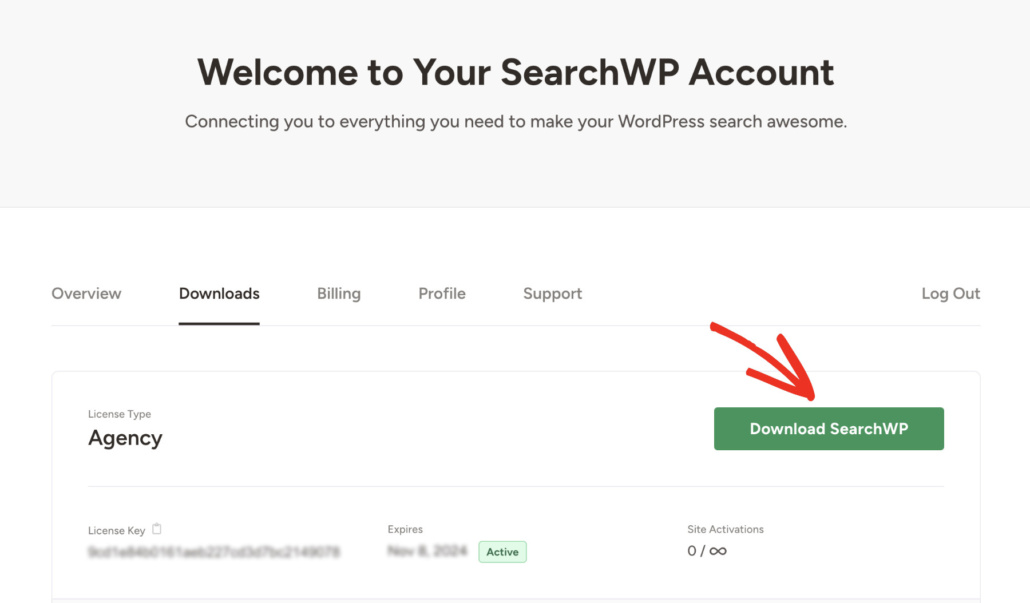
Once there, press the Download SearchWP button and save the plugin’s ZIP file to your computer. It’s also a good idea to copy your license key in the lower left corner when the download is complete.
Now, the next step is to install SearchWP on your site. To do that, upload the downloaded ZIP file to your site. If you need help with this, then follow the instructions on how to install a WordPress plugin.
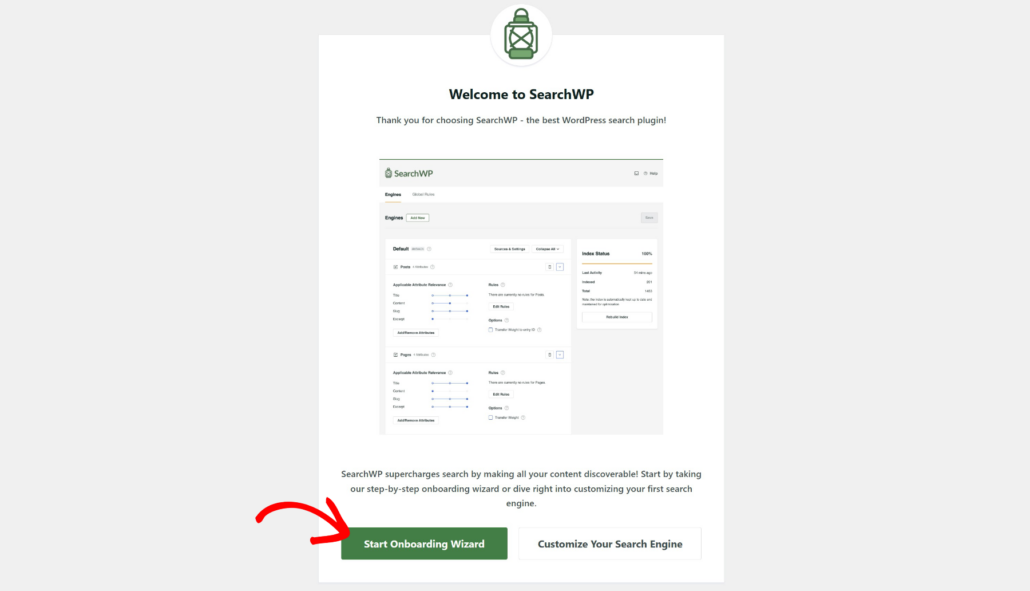
After installing and activating, you’ll see the SearchWP welcome screen and setup wizard.
Go ahead and click the ‘Start Onboarding Wizard’ button and follow the onscreen instructions.
Once you’ve configured SearchWP on your site, you’re ready to start limiting search results.
Limit Search to Only Posts in WordPress
To get started, let’s see how you can limit your search results to only posts.
Limiting search results on your site to posts will help you to clean up your search results from redundant pages and allow your visitors to quickly find the right content.
To start, you can head to SearchWP » Algorithm from the WordPress dashboard. Here, you can customize your default search engine and add new ones.
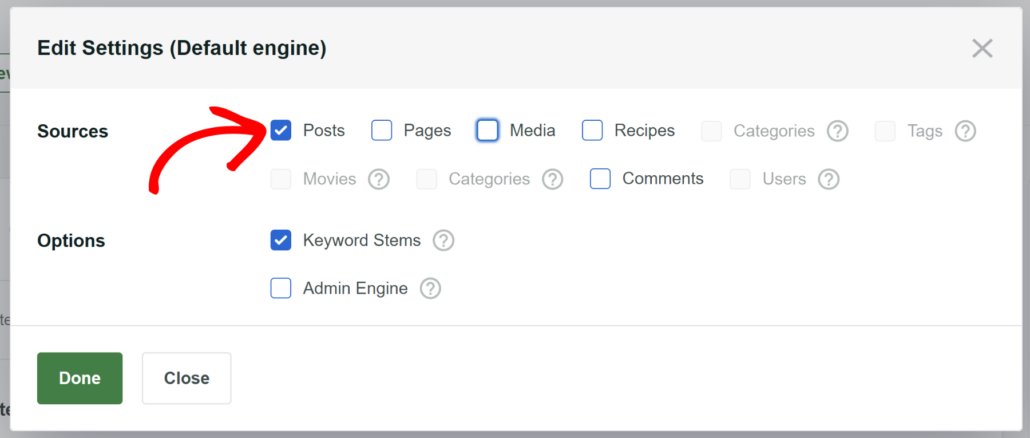
Next, you’ll need to click on the Source & Settings button.
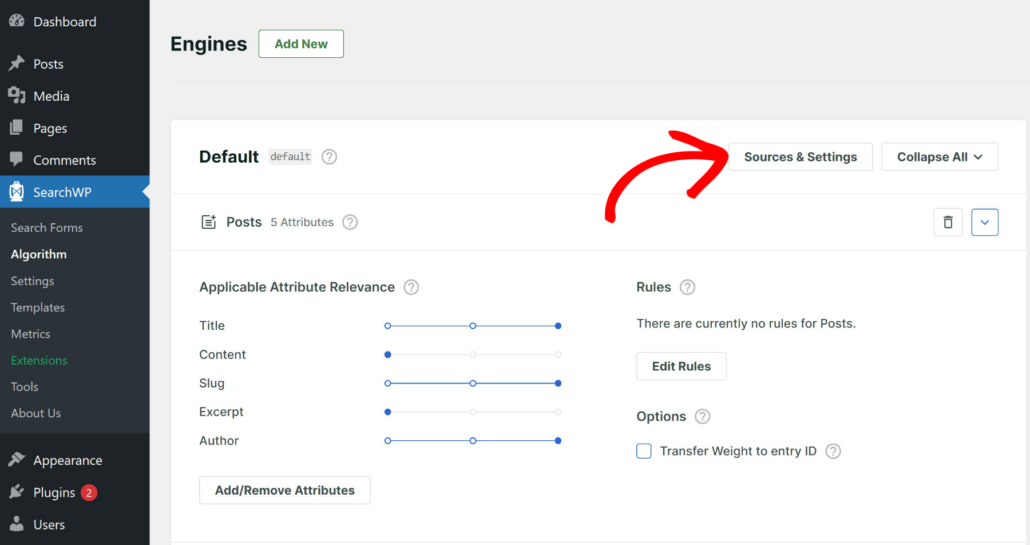
After that, you will see the default sources used by SearchWP. These include posts, pages, and media.
Go ahead and uncheck the sources you’d like to remove. In this case, let’s uncheck Pages and Media, to leave Posts as the only active source.
To learn more, please check out our how to limit search to only posts in WordPress tutorial.
Limit WordPress Search to Post Titles Only
Another way to help your visitors to find the right content faster is to limit your search to post titles.
Since titles usually contain the most valuable keywords, limiting searches to them can help your visitors avoid getting cluttered in search results.
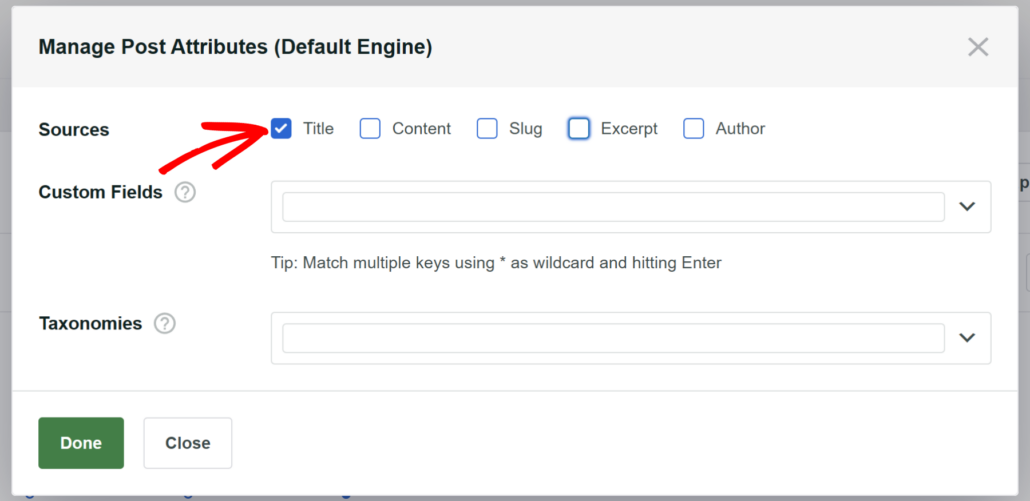
By managing post attributes in SearchWP, you can uncheck all other attributes like content, slug, excerpt, and author, and only select ‘title.’
For more details, check out our tutorial on how to limit WordPress search to post titles only.
Exclude Pages from Site Search Results in WordPress
Using SearchWP, you can easily exclude specific pages from appearing in your search results.
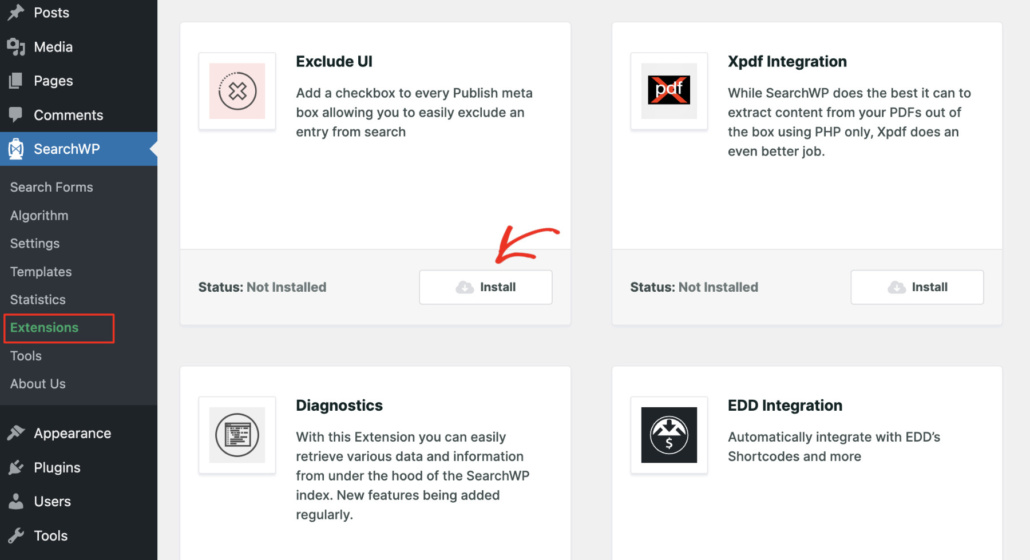
To do that, you’ll need to install and activate the SearchWP Exclude UI extension.
To get started, navigate to SearchWP » Extensions from your WordPress dashboard. Then, find the Exclude UI extension and click Install button.
After you install and activate the extension, open a post or page you want to exclude from the search.
From here, simply check the Exclude from SearchWP checkbox.
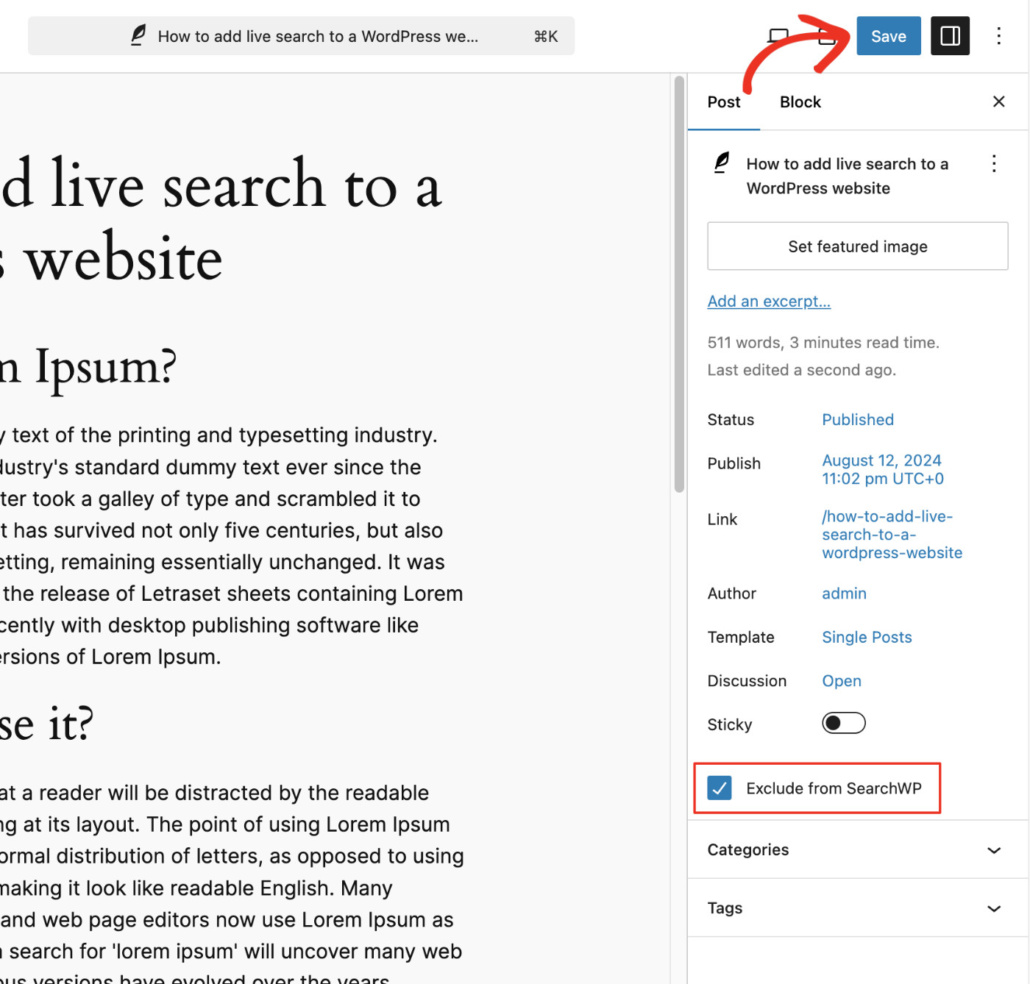
That’s it. You successfully excluded this post from the search results on your site.
For more details, check out how to exclude pages from site search results in WordPress tutorial.
Limit Search to Specific Post Types
With SearchWP, you can also limit search on your site to specific post types.
It can be useful if you publish content beyond standard WordPress posts and pages.
For example, if you run a cooking blog, you can limit the search on your site to only recipes to make it easier to browse your site.
Or if you have blog post and write how-to guides, then you can limit the search tutorials.
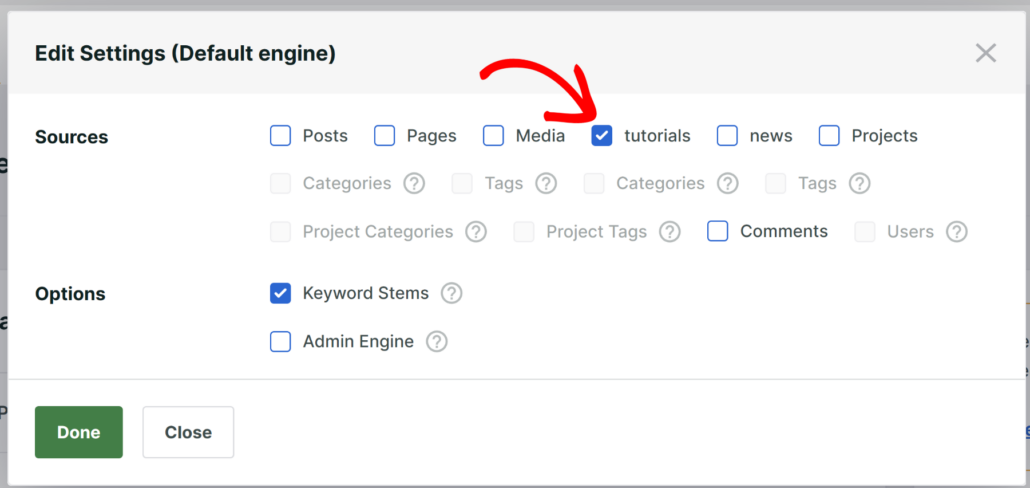
Check out this tutorial to learn how to limit search to specific post types in WordPress with no coding needed.
Exclude a Category from WordPress Search
Are there categories on your site that you’d like to keep from appearing in search results?
With SearchWP, you can exclude them from search in a couple of clicks, regardless of your technical skills.
For example, you have the news section on your blog. News blends in with regular blog posts in search results, making it harder to find the right content.
Similarly, if you’re an eCommerce WordPress site owner, then you might want to exclude non-product categories from the search so that nothing distracts your customers from shopping.
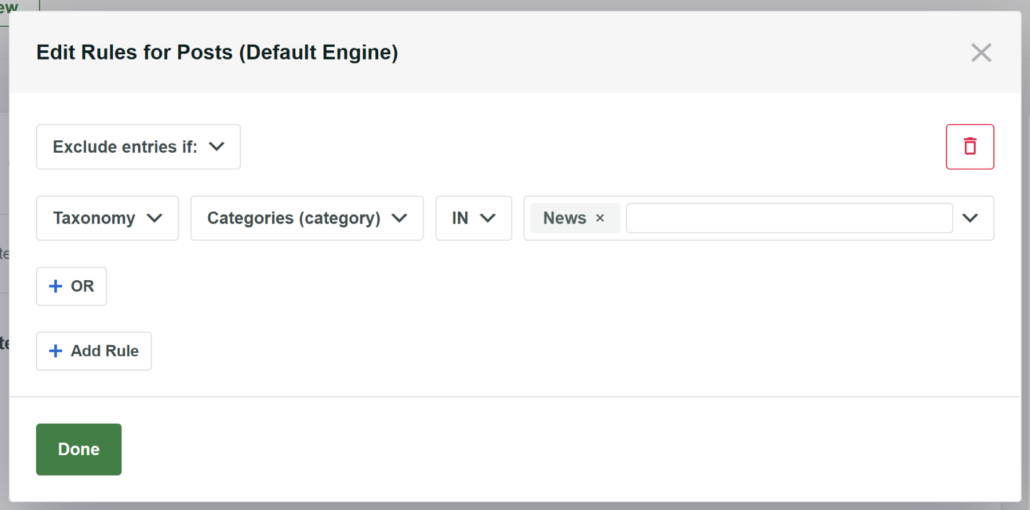
With SearchWP, you can set up powerful rules to limit or exclude certain categories from the search process.
For more details, please see this comprehensive tutorial on how to exclude a specific category from search on your WordPress site.
Search WordPress Posts by Tags Only
SearchWP also allows you to limit search on your site to post tags in a few clicks.
It can be helpful if you prefer to tag your posts rather than using the classic WordPress categories.
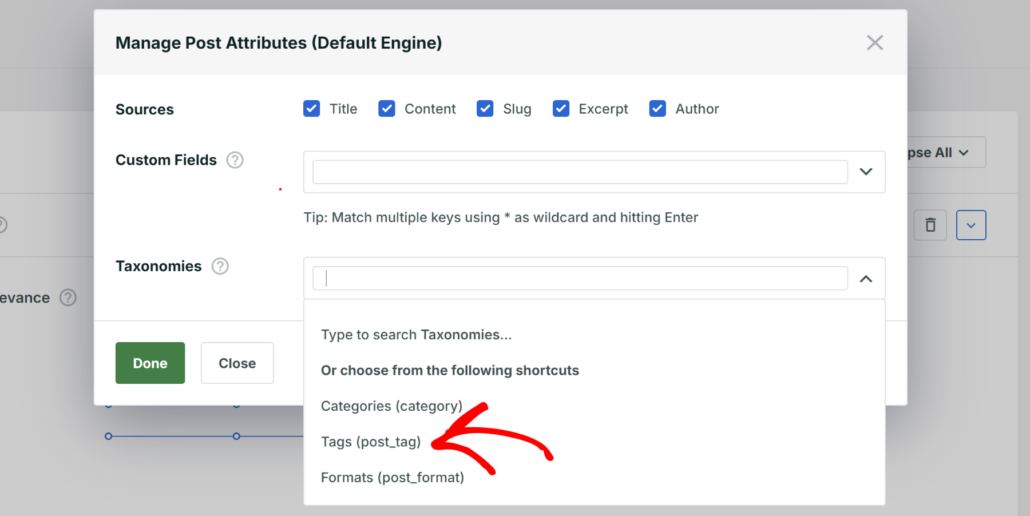
For more details, follow our step-by-step how to search WordPress posts by tags only tutorial.
By limited the search results, you help your visitors narrow down search results and deliver more relevant content, which leads to a better user experience.
We hope this article helped you learn how to limit search results on your WordPress site. You may also want to see our guides on how to create a search page in WordPress and how to track searches on your WordPress site step-by-step guide.
Ready to limit search results on your site with a few clicks? You can get started with SearchWP here.