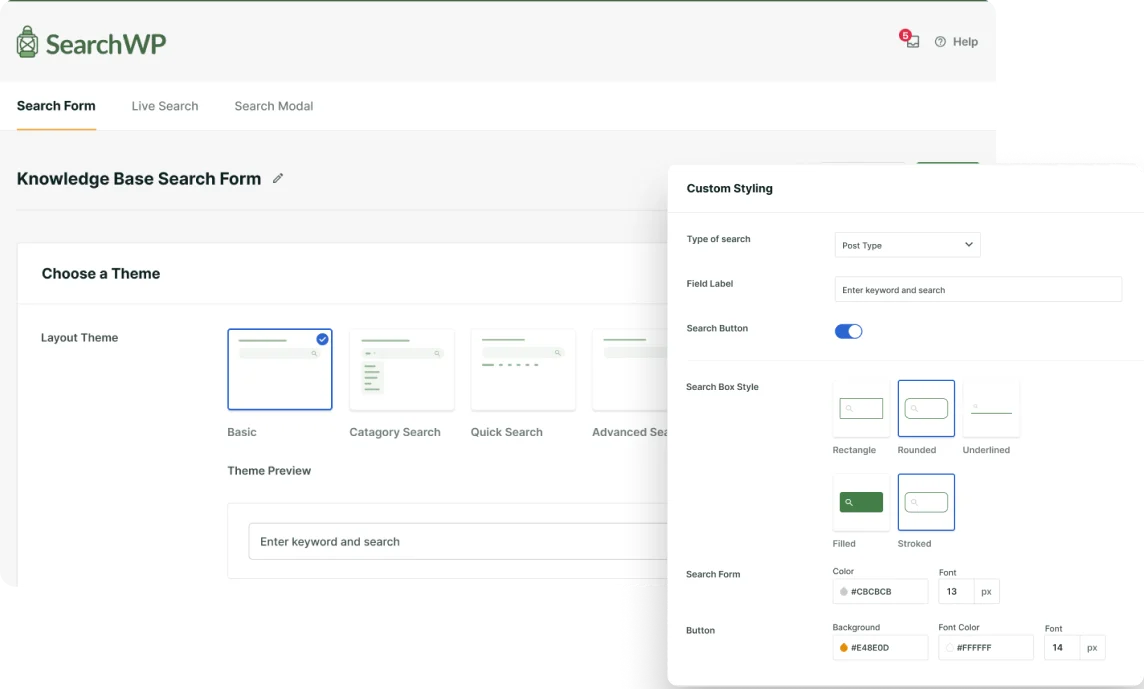
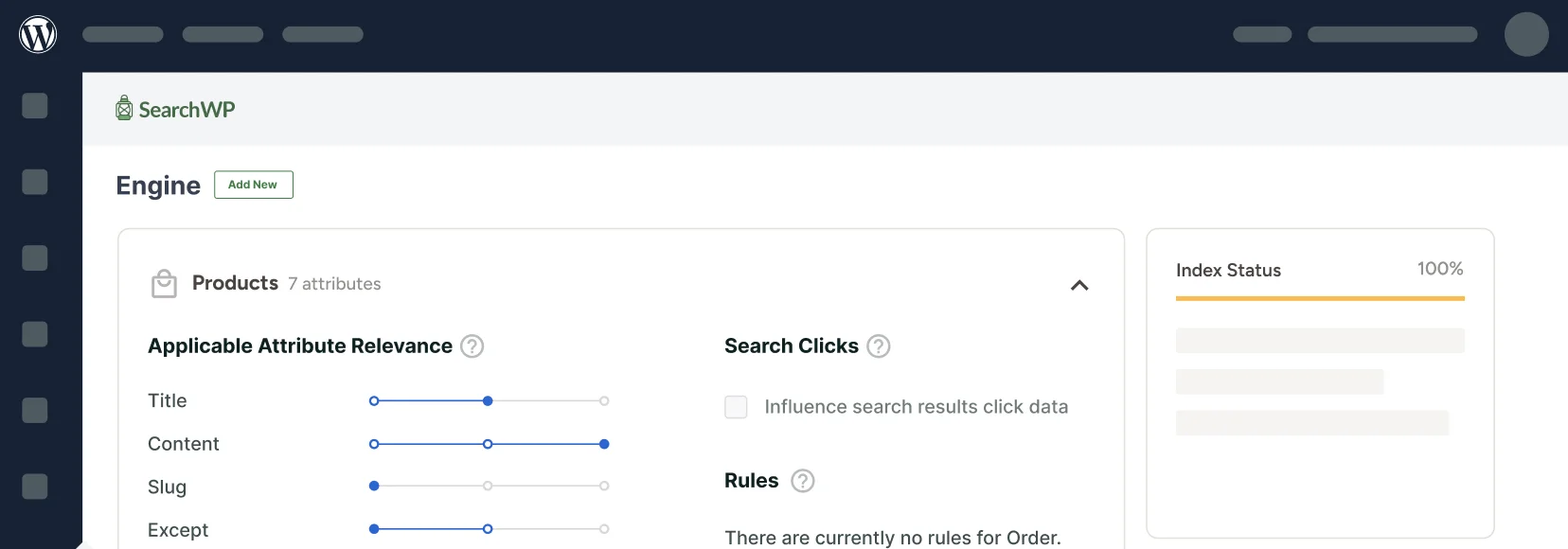



Are you wondering how to include shortcode results in WordPress search?
Shortcodes are quite popular among the WordPress community. They allow website owners to show dynamic content in any post, page, or sidebar with a few clicks.
The shortcodes often contain a lot of useful search-oriented content. Unfortunately, the default WordPress search engine doesn’t consider it.
In this tutorial, we’ll show you step-by-step instructions on how to include shortcode results in WordPress search.
What Are WordPress Shortcodes?
Shortcodes are snippets of code enclosed in square brackets that enable you to add dynamic elements to your sites. Typically, shortcodes consist of a few words and sometimes include additional parameters. For instance:
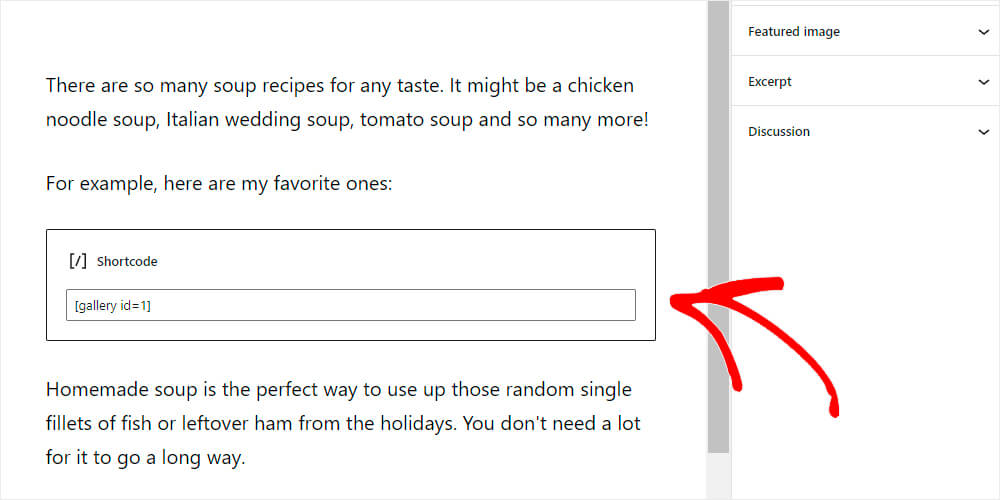
Shortcodes can be placed in posts, pages, or anywhere within the WordPress editor. Their functionality is determined by the active theme or plugins installed on your website.
Common Use Cases:
- Displaying image galleries with gallery plugins.
- Adding contact forms with form builder plugins.
- Embedding tables or other interactive elements.
These small snippets provide significant flexibility without requiring advanced technical knowledge. Once placed, WordPress processes the shortcode and renders the appropriate content.
Here’s an example of how a shortcode from a popular gallery plugin looks in the post editor:
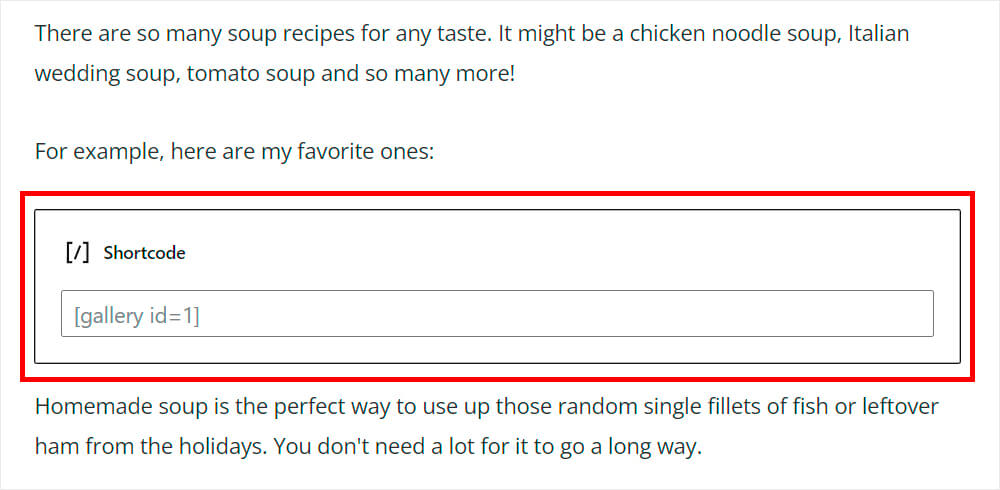
And here is what it renders on the website:

The best thing about shortcodes is that you don’t even need to be a web developer or tech-savvy person to use them, but it lets you do things that a web developer normally does.
To use them, check the list of available shortcodes supported by your theme or installed plugins. You can usually find them either on the plugin or theme description page or on their official website.
Why Add Shortcode Results To WordPress Search?
WordPress’s native search does check the raw text stored in a post, and that includes the literal shortcode tag. What it doesn’t do is render the shortcode first, so any text the shortcode pulls in from somewhere else, like an image caption from the media library or a product title from your store, never gets added to what search compares against.
We’ve watched site owners spend hours troubleshooting a “broken” search box, only to find the missing content was sitting inside a shortcode the whole time. It’s an easy mistake to make because the content is clearly visible on the page.
That gap adds up fast on a content-heavy site:
- Galleries lose their searchability. Image filenames, captions, and alt text stay invisible, so a visitor searching for something they saw in a photo caption comes up empty.
- Page builder layouts go dark. Complex sections built with shortcodes from Elementor, WPBakery, and similar builders can carry paragraphs of text that search never sees.
- Store and directory listings disappear. Product names and descriptions pulled in through a
[products]or
None of that helps visitors find what they need, and a search box that keeps coming up empty tends to send people looking for the back button instead. SearchWP fixes this with a single setting that tells the index to render shortcodes first and store what they output.
That said, let’s look at a simple way you can include shortcodes in WordPress search.
How To Include Shortcode Results In WordPress Search
To make shortcode content searchable, you’ll need a solution that extends WordPress’s default search capabilities, and SearchWP is the best tool to do that.
SearchWP is the WordPress search plugin trusted by more than 50,000 website owners, and it’s the fastest way to make shortcode content searchable without writing any code.

It automatically integrates with any WordPress theme and indexes all content instantly. Using SearchWP, you can include shortcode results in WordPress with only one click.
Here are a few other features of SearchWP that make it one of the most powerful WordPress search plugins:
- Live Search Results: Improve user experience with real-time search suggestions as users type. This feature accelerates the search process, making it easier for customers to find what they’re looking for and boosting engagement and conversions.
- PDF & Document Content Search: Make PDFs and various document types, such as Office files, fully searchable. This feature is invaluable for WooCommerce stores that offer product manuals, guides, or specifications, allowing users to find needed information without having to download and open each file.
- Customizable Search Rankings: Adjust search result rankings to highlight priority content, such as new products or special promotions. This feature ensures that the most relevant results align with your business goals.
- Customizable Search Results Page: Personalize your search results page to better serve your visitors’ needs. Enhance the layout, add filters, or display additional product details, making the search experience more user-friendly and informative.
- Search Insights and Analytics: Analyze search query patterns to understand visitor preferences. This insight helps tailor your content strategy, ensuring that your site aligns with user interests and increases overall engagement.
Let’s take a look at how you can include shortcode results in a WordPress search.
Step 1: Install & Activate SearchWP
First, you need to get your copy of SearchWP from the official website. After purchasing, log in to your account and download the plugin ZIP file from the Downloads section of your profile.

Copy your license key from the same page, as you’ll need it later to activate the plugin.
Using the plugin zip file, you can now install and activate the SearchWP plugin like any other WordPress plugin.
Once you activate the plugin, you’ll see a welcome screen to start your onboarding process. Click the “Start Onboarding Wizard” button. This will guide you through the initial setup.
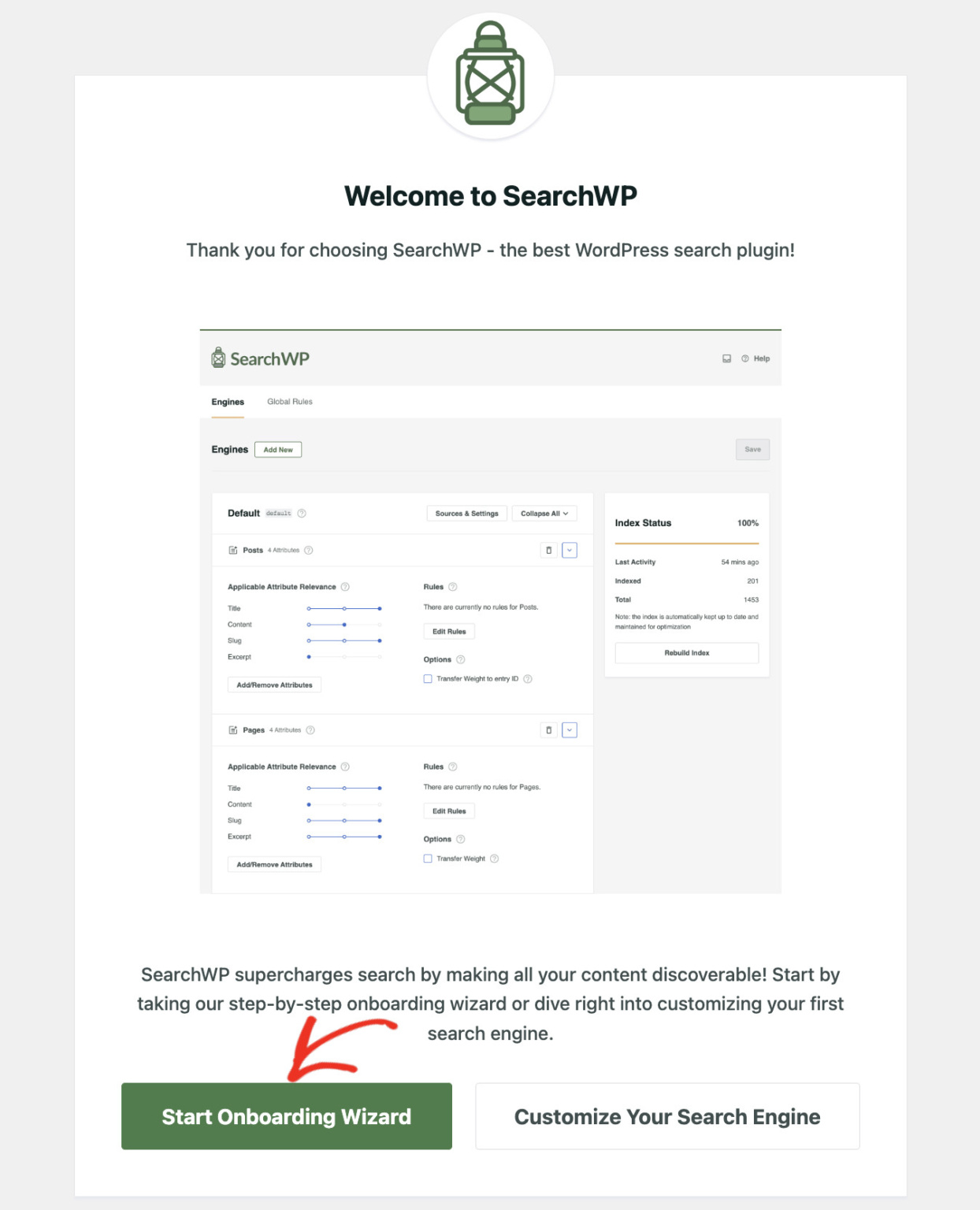
Congratulations! You have successfully installed SearchWP on your website. Now, you’re ready to include shortcode results in WordPress search.
Step 2: Include Shortcode Results In WordPress Search
From your WordPress dashboard, go to SearchWP » Settings. You’ll land on the General tab by default, which is exactly where you need to be.
Scroll down until you see the Parse Shortcodes toggle, then switch it on.
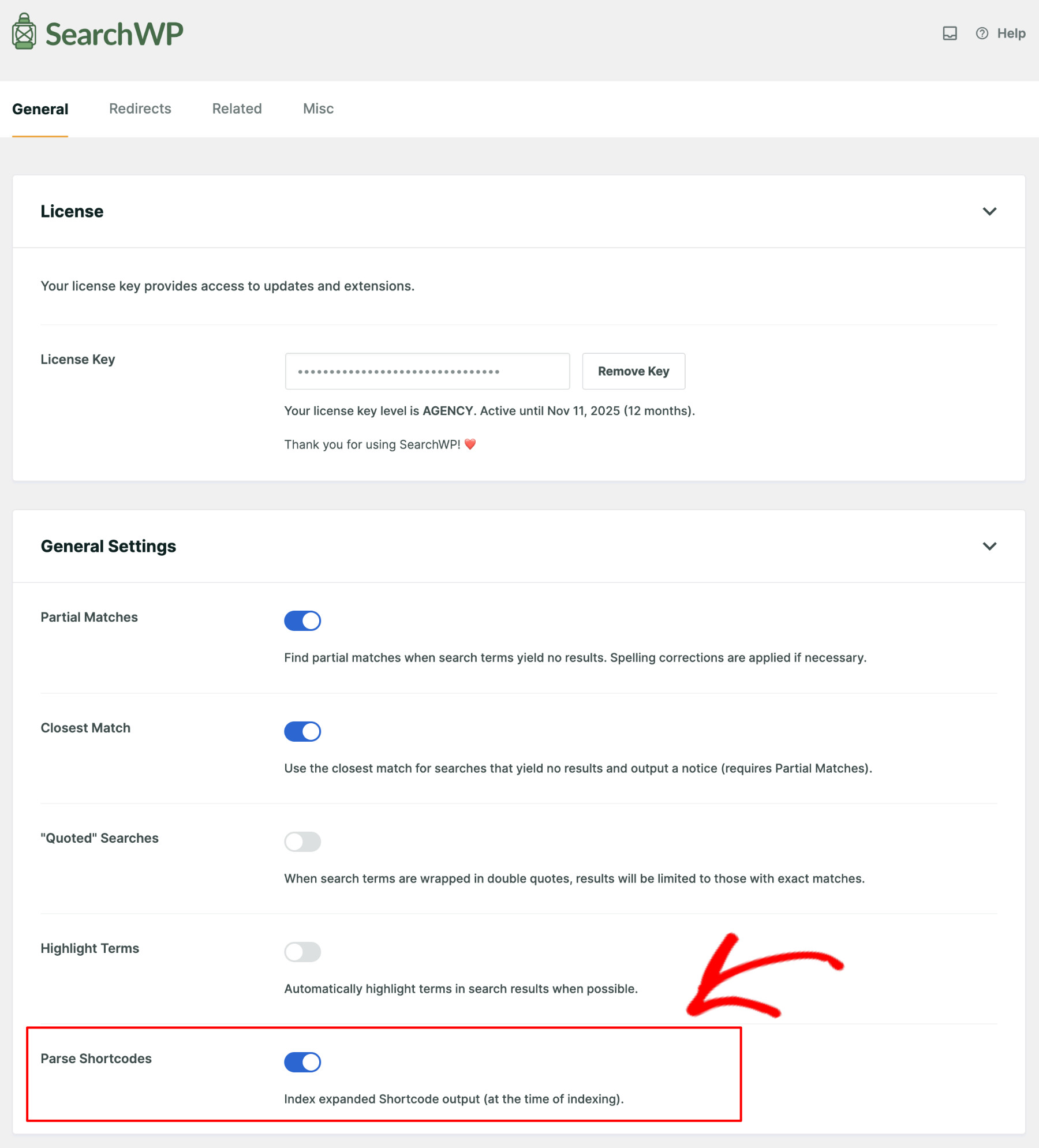
Note: Parse Shortcodes only affects classic shortcodes like the ones in this article. If your content uses the block editor’s built-in Gallery or Cover blocks instead, SearchWP already indexes that content without any extra setup.
For a full walkthrough of every option on this screen, check out our documentation on SearchWP’s settings.
That’s it. You’ve successfully added shortcode results to the WordPress search! From now on, when a user performs a search on your website, they will find relevant content, even if it’s rendered from a shortcode.
Step 3: Test Your New Search Results
To test the improved WordPress search results, you need to leave the dashboard and go to the frontend of your website. Then, type anything related to a shortcode you have used into the search bar.
For example, for this tutorial, we’ve created a gallery with soup pictures. Let’s check if WordPress search can find this gallery.
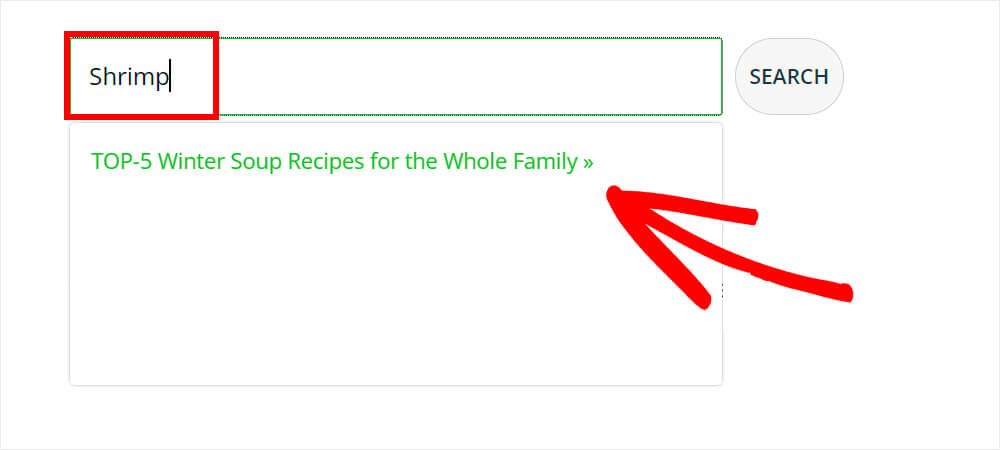
As you can see, everything works great.
WordPress found an article that contains a picture of the shrimp soup.

This is a great result, given that the word “shrimp” is not mentioned either in the title or in the article’s content.
This works because WordPress now indexes the images’ alt text, even if they’re placed inside a gallery output by a shortcode.
Frequently Asked Questions
1. Does Parse Shortcodes work with Gutenberg blocks too?
Not directly, but you don’t need it to. SearchWP already renders Gutenberg blocks like Gallery and Cover as part of its normal indexing process, so their content is searchable whether or not Parse Shortcodes is turned on. Parse Shortcodes specifically covers classic shortcodes from plugins like WPForms, Contact Form 7, and WooCommerce.
2. Do I need to rebuild my index after turning on Parse Shortcodes?
Only for content you published before enabling the setting. New posts and any post you edit and save afterward get indexed with shortcode content automatically, but older posts need a manual rebuild from SearchWP » Algorithm to pick up the change right away.
3. Will indexing shortcode output slow down my site?
Indexing happens in the background, not while a visitor is searching your site, so it won’t affect frontend search speed. A full index rebuild does use extra server resources while it runs, so we recommend doing it during low-traffic hours on a large site.
4. Can I make shortcode content rank higher in search results?
Yes. Shortcode text gets stored as part of a post’s Content attribute, and you can raise that attribute’s relevance weight from the Sources & Settings panel on the Algorithm screen to make it count for more in the ranking.
5. Does this work with WooCommerce and Easy Digital Downloads shortcodes?
It does. Product listings shown through shortcodes like [products] or
get expanded and indexed the same way a gallery or form shortcode does, once Parse Shortcodes is turned on.
Conclusion
You have learned how to include shortcode results in WordPress search from this article. It opens up a lot of possibilities and helps your website visitors find hidden content.
We hope this article helped you include shortcode results in your WordPress search, so visitors can finally find the content that was hiding behind a shortcode all along. You may also want to see our guides on 11 ways to improve WordPress search and how to add fuzzy search to WordPress.
Ready to make sure every shortcode on your site gets found? You can get started with SearchWP here, backed by a 14-day money-back guarantee.