


Highlighting search terms in WordPress makes it easier for visitors to find exactly what they’re looking for on your site. Their search words stand out in every result, so they can spot the right page at a glance.
That small change guides visitors to the content they want faster, which can lead to more page views and longer visits. It also leaves them happier with your site and more likely to come back the next time they need something.
SearchWP adds these highlights for you without any code. It even rewrites each result’s snippet around the matching words, so visitors see their search term in context instead of the post’s opening lines.
In this article, we’ll show you how to highlight search terms in WordPress without coding, plus how to make the highlight color match your site.
Why Highlight Search Terms in WordPress Search Results?
Highlighting search terms helps your visitors in a few practical ways.
- Visitors find the right result faster. Most people don’t read web pages word for word, and Nielsen Norman Group found that users read about 20% of the text on an average page. Highlights give their eyes something to land on, so they can tell right away whether a result is worth a click.
- They click with more confidence. When the search word appears in the snippet, visitors can see why a result matched before they open it. That means fewer clicks on the wrong page and fewer trips back to the search box.
- They explore more of your site. A search that clearly works encourages visitors to keep searching. Over time, that can lead to more page views and longer visits.
Before you turn highlighting on, it helps to know why highlights don’t always appear.
Why Search Highlights Sometimes Don’t Show Up
A highlight can only appear where the search term is actually visible on the results page.
That’s where WordPress’s default snippets can get in the way.
When a post doesn’t have a hand-written excerpt, WordPress builds one from the first 55 words of the content by default.
If someone searches for a word further down the post, it won’t be in that snippet, so there’s nothing to highlight.
This gets more noticeable once your search covers custom fields or attached documents, since the match may not be in the post text at all.
Your theme also decides what appears on the results page. Some themes show the full post or skip the snippet entirely, and some build post titles in a way that leaves out the highlight.
The good news is that SearchWP takes care of the snippet problem by building each one around the matching words.
How to Highlight Search Terms in WordPress With SearchWP
The easiest way to highlight search terms in WordPress without coding is with SearchWP.

It is the best WordPress search plugin, trusted by 50,000+ website owners. It powers your site’s existing search form, so you can improve your results without changing your theme.
Here are some key features offered by SearchWP that help visitors spot the right result:
- Search term highlighting. One toggle highlights the matching words in each result’s title and excerpt.
- Smarter result snippets. SearchWP builds each excerpt around the first match it finds, whether that’s in the post content, an attached document, or a custom field.
- Partial matches. Visitors still get results when they type part of a word or make a typo, and the matching word is highlighted.
- Live Ajax Search. Results appear in a dropdown as visitors type, with their search terms highlighted there too.
With that, let’s see how you can use SearchWP to highlight search terms in your search results.
Step 1: Install and Activate SearchWP
To get started, head over to the SearchWP website and pick a plan. Highlighting is part of the core plugin, so it’s included in every plan.
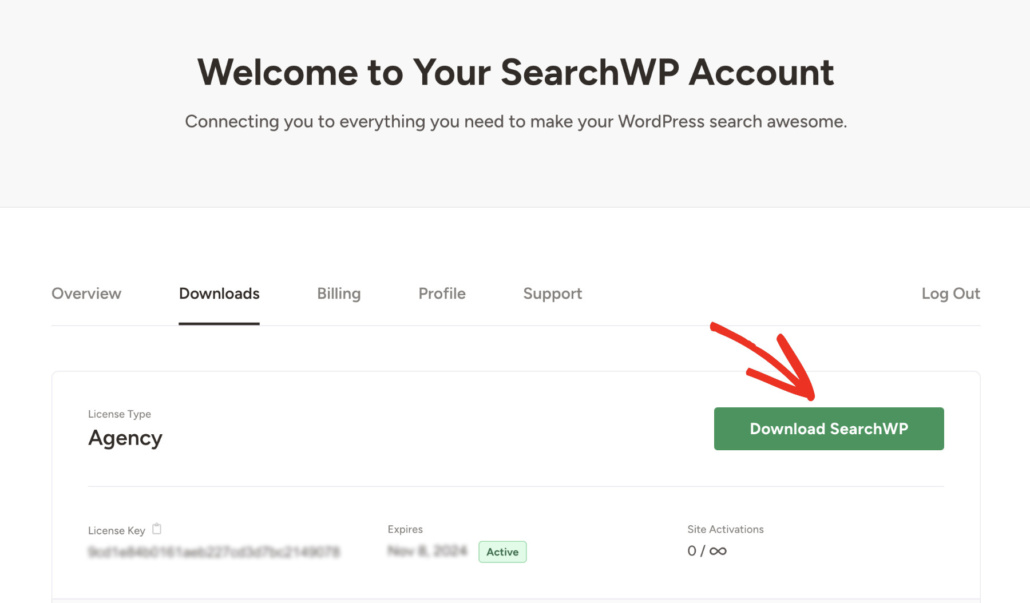
Once you’ve signed up, go to the Downloads tab in your account dashboard. From there, download the plugin ZIP file and copy your license key from the same screen.
Next, you’ll want to install and activate the plugin on your WordPress site.
After activation, click Start Onboarding Wizard and follow the on-screen instructions to set up the plugin.
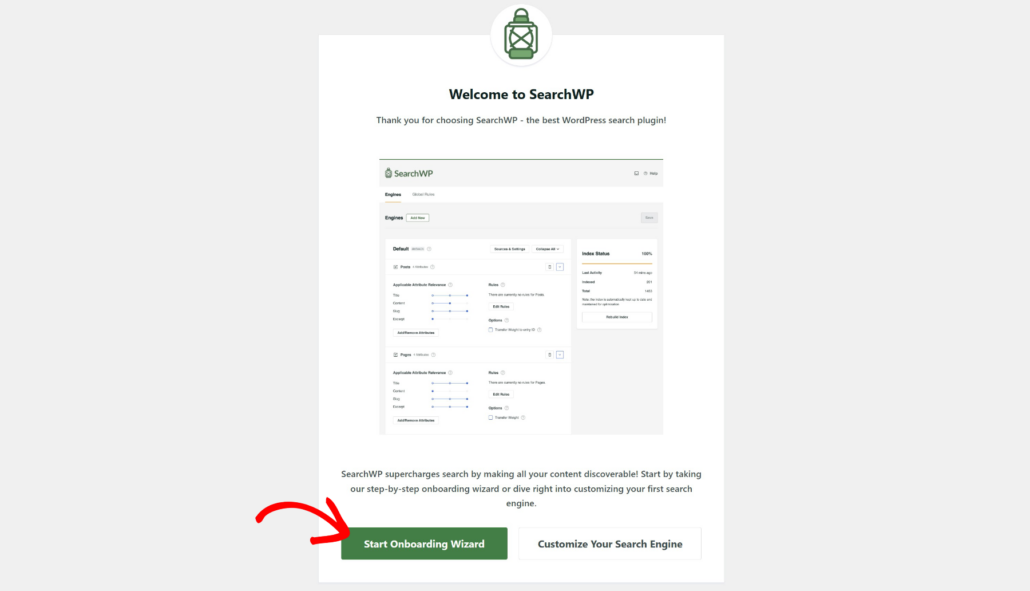
SearchWP is all set, and you’re ready to turn on highlighting.
Step 2: Enable the Highlight Terms Setting
With SearchWP active, head over to SearchWP » Settings in your WordPress dashboard.
Next, scroll down to the General Settings section on the General tab. From there, turn on the Highlight Terms toggle.
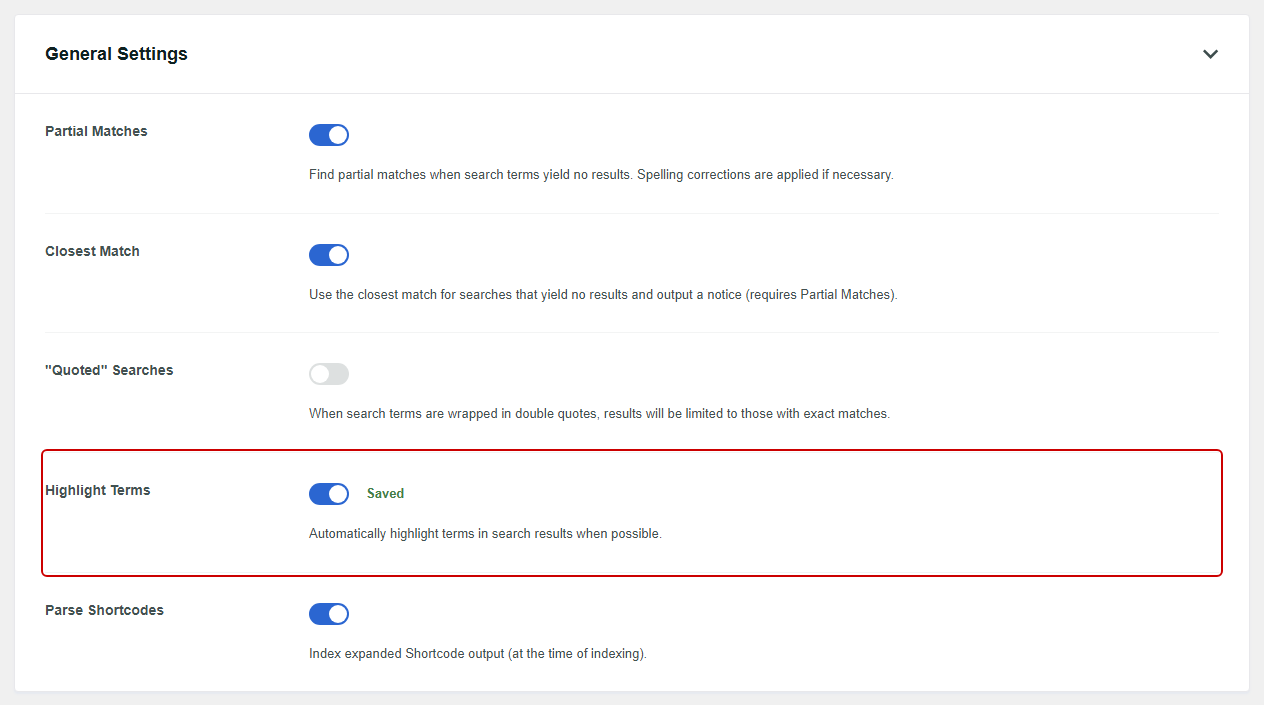
The setting saves as soon as you flip the toggle, so there’s no Save button to look for.
You also don’t need to rebuild your index, since SearchWP adds the highlights when it displays your results.
From now on, SearchWP highlights matching words in each result’s title and excerpt. It also builds each excerpt around the first match it finds in the post’s excerpt, content, attached documents, or custom fields.
Pro Tip: When someone searches for a phrase like “white bean soup,” SearchWP tries to highlight the whole phrase before it highlights each word on its own. You can pair this with exact phrase search so quoted searches only return exact matches.
Step 3: Check Partial Matches (Optional)
SearchWP turns on Partial Matches for new installs, so highlights also appear when a visitor types only part of a word.
Next, check that Partial Matches is still on in the same General Settings section, in case it was turned off on your site.
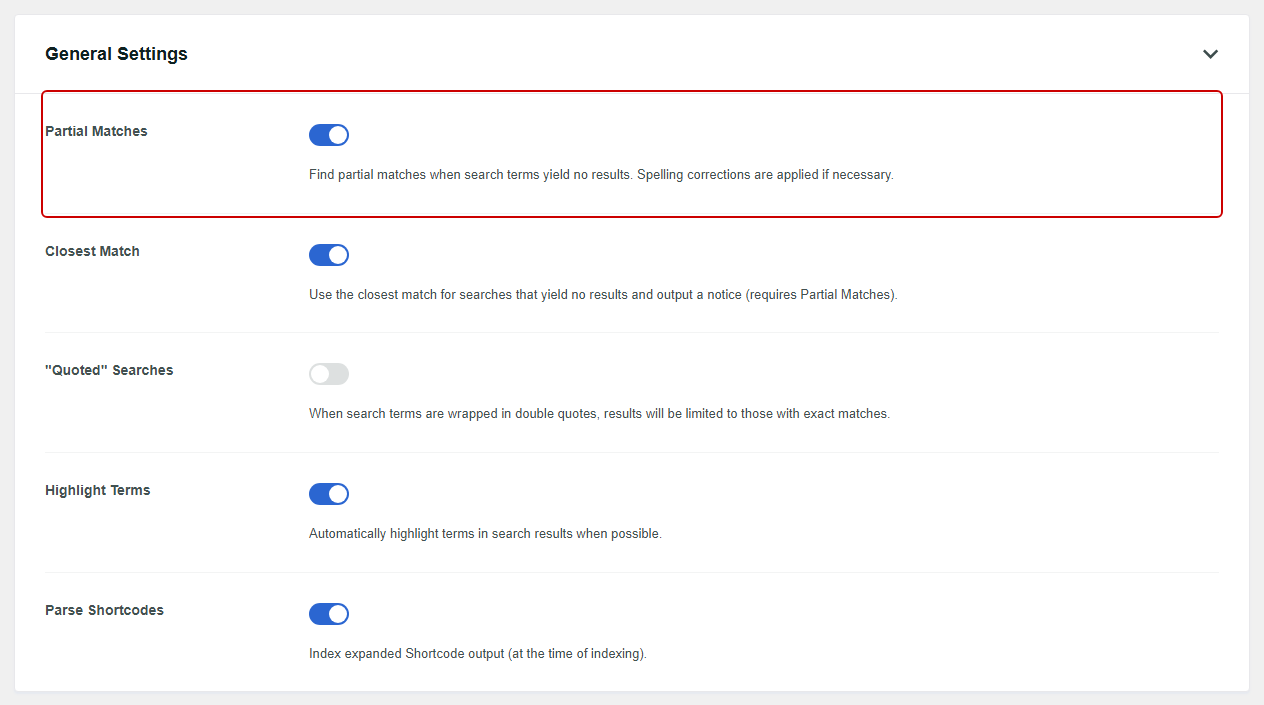
With it on, SearchWP looks for partial matches when a search doesn’t return any results, and it fixes spelling where needed.
On our recipe demo site, a search for “choc” found the Brown Butter Chocolate Chip Cookies, with the whole word “Chocolate” highlighted.
If the setting is off, a highlight only appears when a visitor types the full word.
This setting also changes which results show up, so our guide on adding fuzzy search to WordPress covers it in more detail.
Step 4: Test Your Highlighted Search Results
To see highlighting in action, visit your site and run a search through your regular search form.
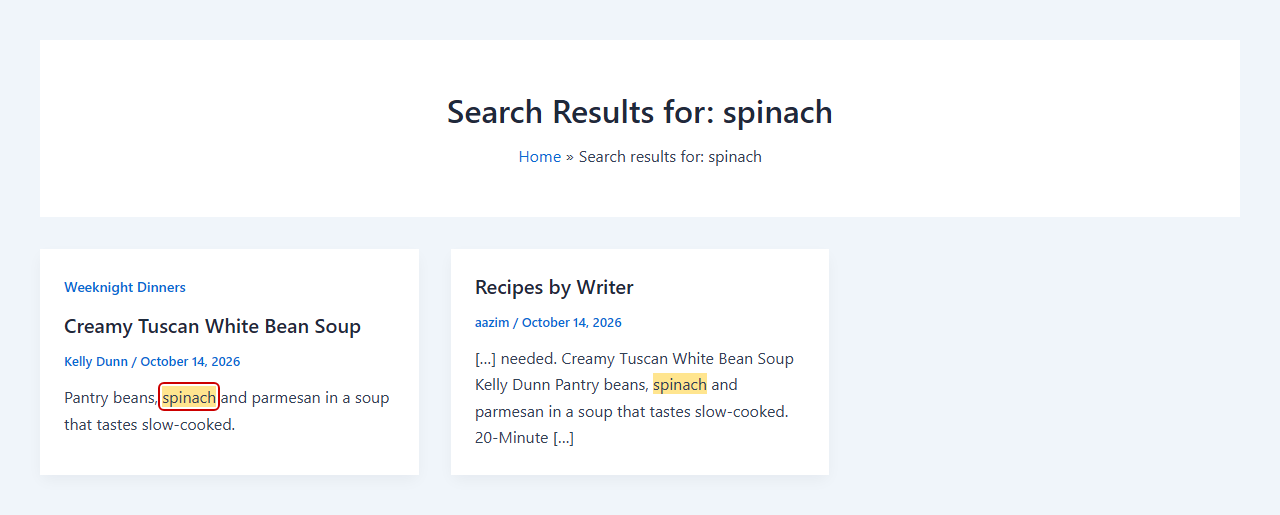
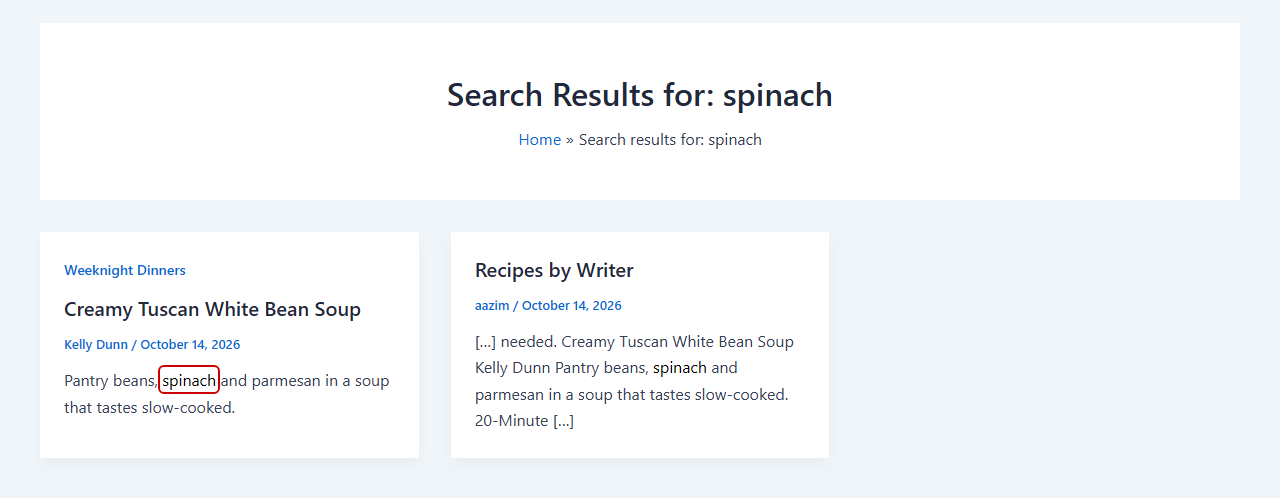
On our recipe demo site, we searched for “spinach.” SearchWP marked the word right in the Creamy Tuscan White Bean Soup snippet.
Next, try your live search dropdown if you use SearchWP Live Ajax Search.
When we typed “rice,” the Salted Caramel Rice Pudding result appeared with “Rice” highlighted in its title.
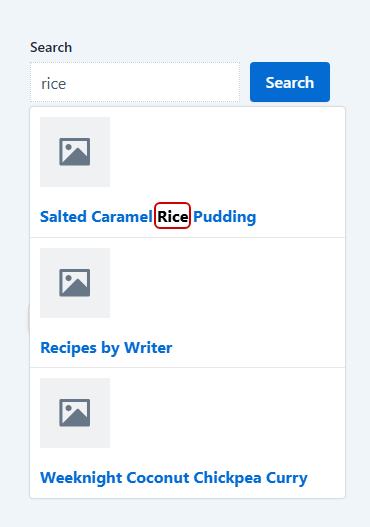
Note: Some themes, including Astra, remove the browser’s default highlight color, so the marked word can look like plain text. If that happens on your site, the bonus section below shows how to add your own color.
Astra also loads post titles on the results page in its own way, so only the snippets get highlighted there. Our guide to customizing the WordPress search results page can help if you’d like more control over that page.
Bonus: Change the Search Highlight Color
SearchWP wraps each highlighted word in an HTML mark element, which most browsers show with a yellow background. Some themes, like Astra, turn that background off, so adding your own color is the easiest way to make highlights stand out.
If you’d like the color to match your brand, you can paste in a short CSS snippet. Simply copy the following snippet and replace #ffe58f with the color code you’d like to use on your website.
mark.searchwp-highlight {
  background-color: #ffe58f;
  color: inherit;
}
Next, you can enter the snippet into your WordPress theme. To do that on a classic theme, go to Appearance » Customize » Additional CSS.
If you use a block theme, open the Site Editor and go to Styles. From there, choose Additional CSS from the options menu.
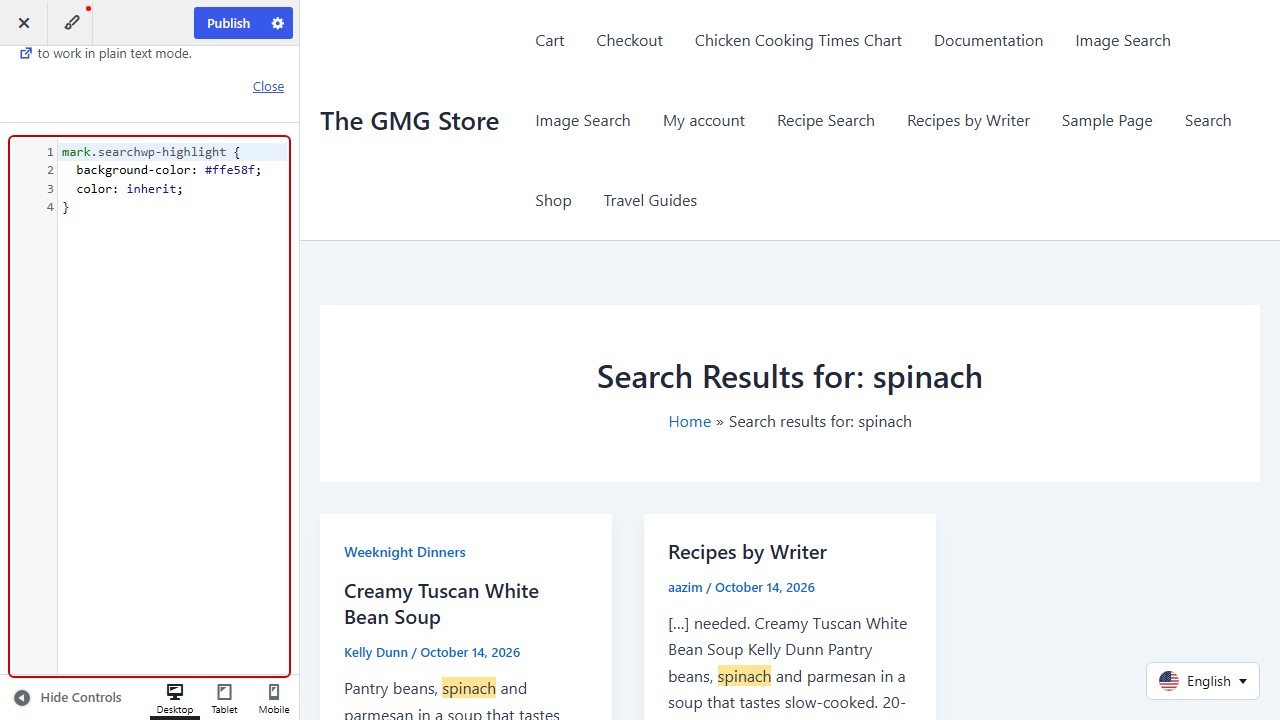
Next, paste in this snippet and change the color code to the one you want.
After that, save your changes and run another search to see the new color.
Frequently Asked Questions
1. Why are search terms not highlighted in my WordPress search results?
Search terms are only highlighted when the search runs through SearchWP and Highlight Terms is turned on under SearchWP settings. Some themes, like Astra, also remove the highlight color, which a short CSS snippet fixes.
If snippets are highlighted but titles aren’t, your theme is loading post titles in its own way. Our guide on displaying excerpts on the WordPress search results page can help if your theme doesn’t show snippets at all.
2. Does search highlighting work with custom fields?
Search highlighting works with custom fields once they’re part of your search engine. When the search term isn’t in a post’s excerpt or content, SearchWP can build the snippet from a matching custom field and highlight the term there.
3. Can I change the search highlight color in WordPress?
The highlight color can be changed with a short CSS snippet that targets mark.searchwp-highlight. You can add it under Appearance » Customize » Additional CSS on a classic theme, or in the Site Editor’s Styles panel on a block theme.
4. Do I need to rebuild the index after turning on highlighting?
Highlighting works right away, because SearchWP adds the highlights when it displays results rather than when it indexes your content. The Highlight Terms toggle also saves as soon as you flip it, so your next search picks it up.
5. Will highlighting work in live search results?
Highlighting works in the live search dropdown from SearchWP Live Ajax Search too. On our demo site, typing “rice” showed “Rice” highlighted in the matching recipe title.
Live Ajax Search is free on WordPress.org and included with every SearchWP plan. Here’s how to add live autocomplete search to WordPress.
Conclusion
Your visitors can now spot their search terms in every result and get to the right page faster.
We hope this article helped you learn how to highlight search terms in WordPress. You may also want to see our guides on how to prioritize specific search results in WordPress and how to see search metrics in WordPress.
Ready to help visitors find what they’re looking for faster? You can get started with SearchWP here.