
Quotation marks only narrow a search when the search tool knows how to read them. A shopper who types “waterproof hiking boots” into your store’s search bar wants that one product, not every boot that shares a word with it.
WordPress’s default search does keep straight-quoted words together, but it only checks post titles, excerpts, and content. Details stored in custom fields, like a product code or a spec sheet, aren’t part of that check.
You can enable exact phrase search in WordPress in a few minutes, without writing any code. On our demo store, one SearchWP setting cut a quoted search for “waterproof hiking boots” from two results down to the single product with that exact name.
In this article, we’ll show you how to enable exact phrase search in WordPress, check which fields your search engine covers, and test that quoted searches return exact matches.
What Is Exact Phrase Search in WordPress?
Exact phrase search lets visitors wrap their search terms in double quotes to find only the pages that use those words together, in that order.
Here’s how it plays out on our demo store. A search for waterproof hiking boots without quotes returned two products: Summit Waterproof Hiking Boots and Trailhead Waterproof Boots.
With exact phrase search turned on, the quoted search “waterproof hiking boots” returned only Summit Waterproof Hiking Boots. The Trailhead boots dropped out because they never use that full phrase.
It works the opposite way from fuzzy search, which loosens matching to catch typos. Exact phrase search tightens matching for visitors who already know the precise words they want.
A phrase needs at least two words. A single quoted word, like “waterproof,” is treated the same as a regular search.
Why Exact Phrase Search Matters for Your Site
Most visitors type a few words and scan the results. When the page they want is mixed in with near-misses, it’s easy to scroll right past it.
Here are the most common problems exact phrase search fixes:
- The one product gets buried. A multi-word search usually matches pages that contain those words anywhere, in any order. The product the shopper named ends up sitting next to items that only share a word or two.
- Names and model numbers break apart. Product lines, course titles, and document names often only make sense as a full phrase. When the words are matched one at a time, the exact item gets ranked alongside everything that shares one of those words.
- Custom fields and PDFs sit outside the default check. By default, WordPress’s built-in search looks at the title, excerpt, and content of each post. A phrase that only appears in a product code field or a PDF spec sheet isn’t part of that search.
- Strict matching can feel like a dead end. A visitor who gets one word out of order can end up with an empty results page. A good setup falls back to a broader search instead of showing nothing.
SearchWP handles all four with two toggles and a quick check of your search engine.
How to Enable Exact Phrase Search in WordPress With SearchWP
The easiest way to enable exact phrase search in WordPress is with SearchWP.
SearchWP is the best WordPress search plugin, trusted by 50,000+ website owners. It lets you control which content your search engine looks at and how it matches what visitors type.
Here are some key features offered by SearchWP:
- “Quoted” Searches. When visitors wrap their search terms in double quotes, SearchWP limits the results to exact matches.
- Custom field and PDF search. SearchWP can search custom fields and the text inside PDF documents, so exact phrases stored there can be found too.
- Closest Match. When a search yields no results, SearchWP uses the closest match and shows visitors a notice about what it searched for instead.
- Highlight Terms. SearchWP can highlight the matching words in your search results, so visitors can see why each result showed up.
With that, let’s see how you can use SearchWP to enable exact phrase search on your WordPress site.
Step 1: Install and Activate SearchWP
To start, you can visit the SearchWP website and sign up for an account.
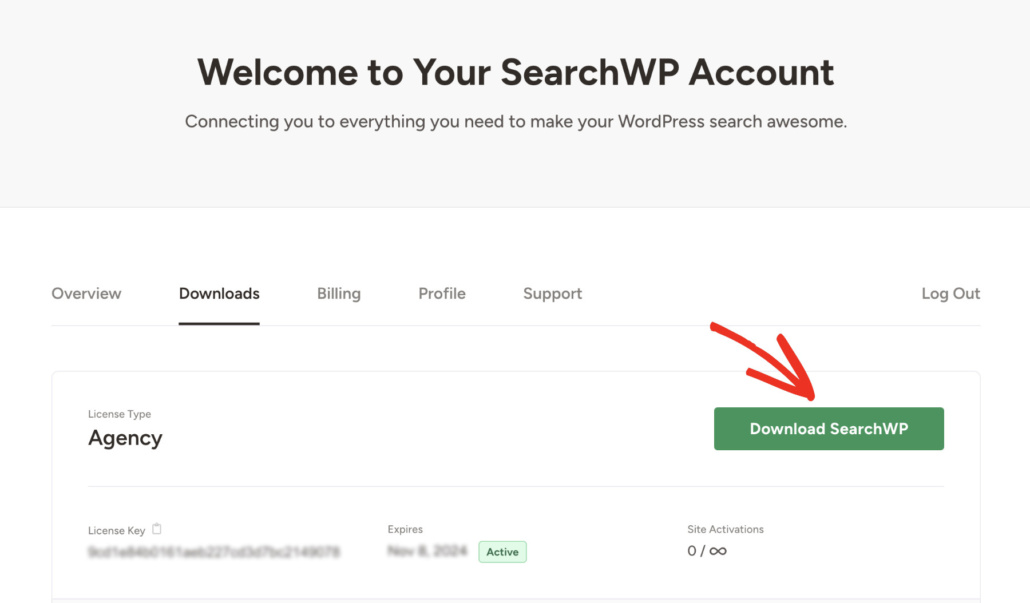
Once you’re logged in, head over to the Downloads tab in your account dashboard.
From there, click Download SearchWP to save the plugin’s ZIP file to your computer. While you’re on that page, go ahead and copy your license key, since you’ll need it in a moment.
Next, you can upload and activate the ZIP file on your WordPress site. If you need help with this, see this guide on how to install a WordPress plugin.
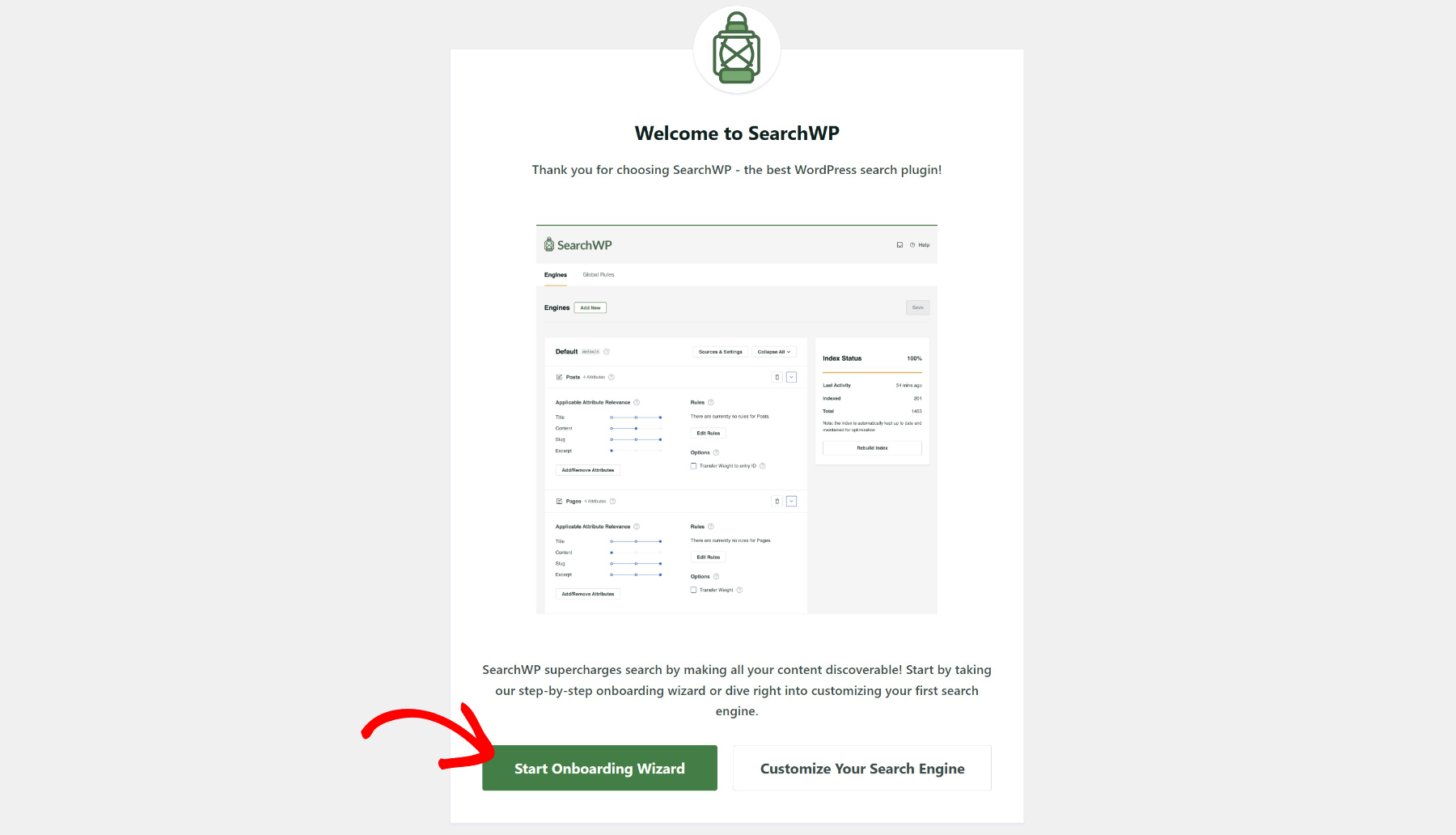
After activation, you will see the SearchWP welcome screen after activation. From there, you can click Start Onboarding Wizard and follow the on-screen instructions.
SearchWP is all set, so you’re ready to turn on exact phrase matching.
Step 2: Turn On “Quoted” Searches
To do that, head over to SearchWP » Settings from your WordPress dashboard and stay on the General tab.
Next, scroll down to the General Settings section. You’ll see a list of toggles that control how SearchWP matches what visitors type.
From there, find “Quoted” Searches and click its toggle to turn it on. SearchWP saves the change right away and shows a green Saved label, so there’s no Save button to look for.
While you’re here, make sure the Closest Match toggle is also on. If a quoted search has no exact match, SearchWP falls back to a regular search, and Closest Match is what shows visitors a notice explaining that.
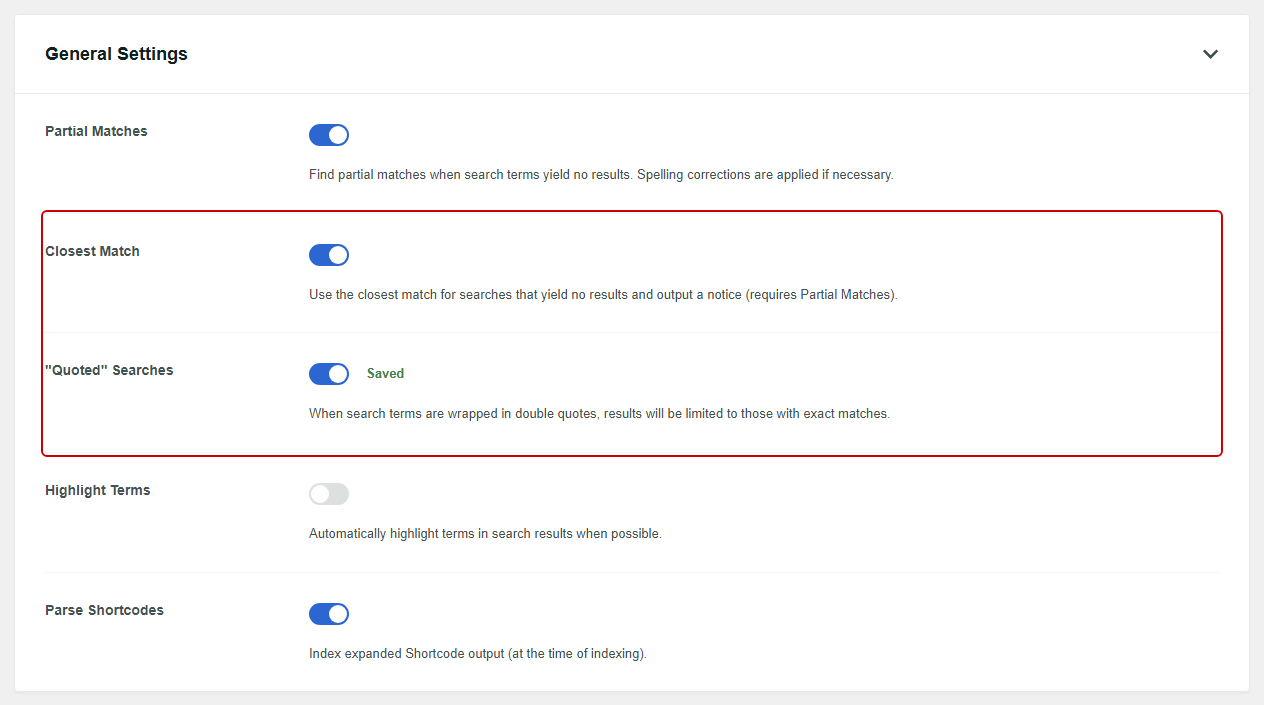
Closest Match also needs Partial Matches, which sits right above it in the same section. You can learn more about every toggle on this screen in the SearchWP settings documentation.
Step 3: Check Which Fields Your Engine Searches
SearchWP only checks for exact phrases in the fields your search engine includes. So take a minute to confirm your engine covers the places your phrases live.
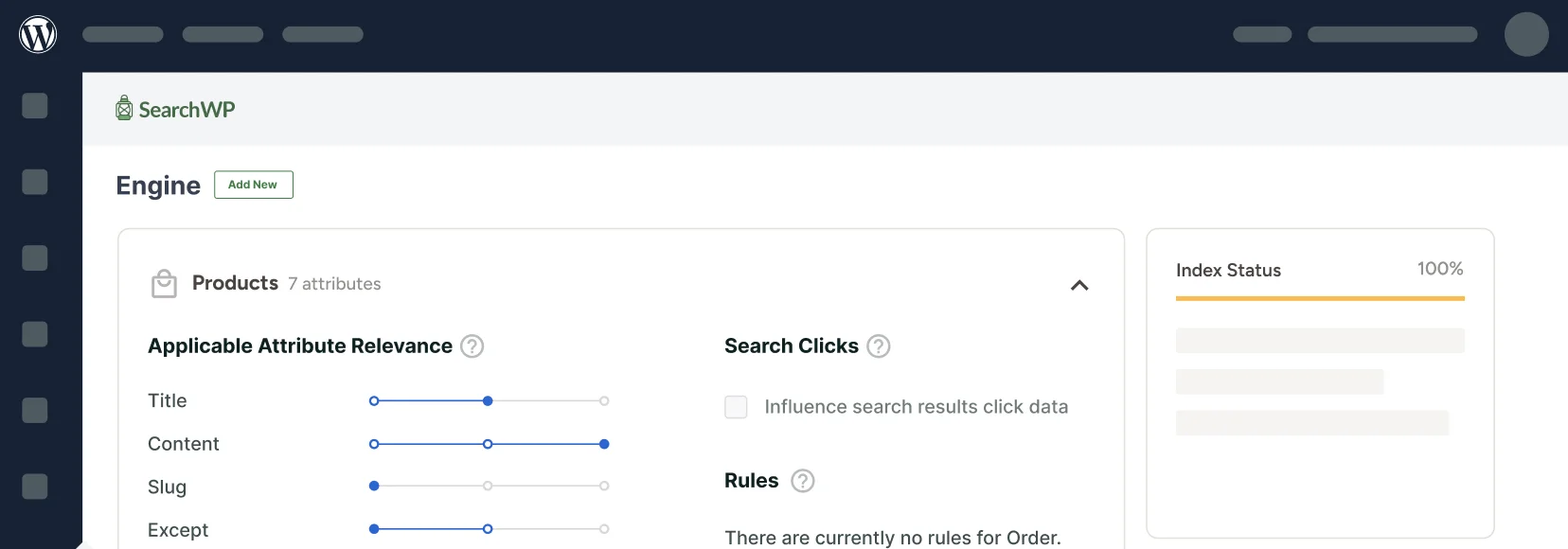
To do that, go to SearchWP » Algorithm from your WordPress dashboard. You’ll see each content type your engine searches, like Posts, Pages, or Products, along with the fields it looks at.
Next, find the content type you want to check and click Add/Remove Attributes. A popup will open with the fields you can include.
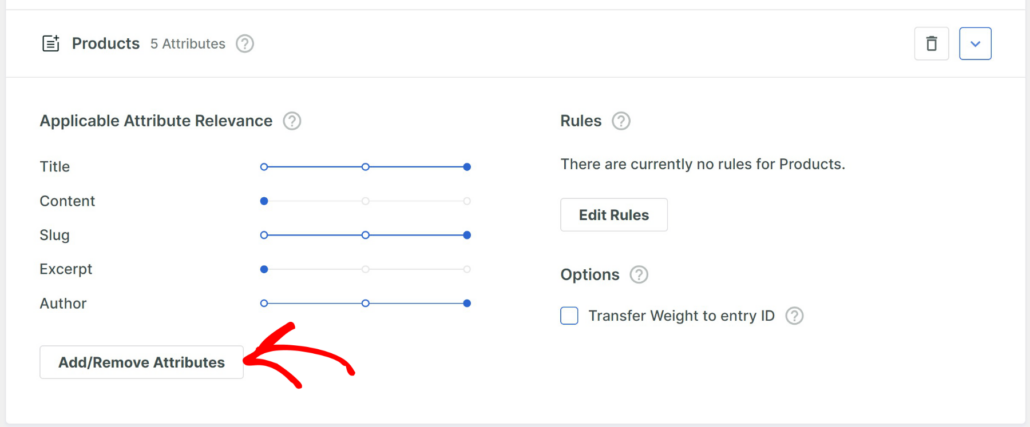
From there, make sure the fields that hold your phrases are selected.
Exact phrase matching works with Title, Content, Excerpt, and Custom Fields. For PDFs and other files, open the Media source’s attributes and select Document Content.
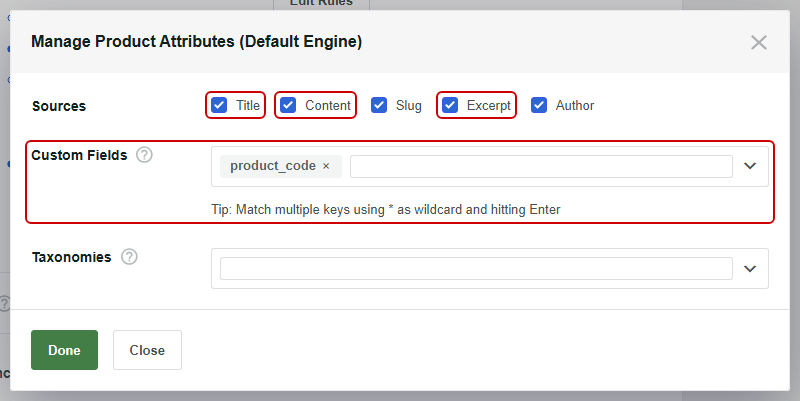
When you’re finished, click Done to close the popup. Then, click Save in the top right corner.
If you changed any fields, click Rebuild Index and confirm the prompt so SearchWP picks up the new content.
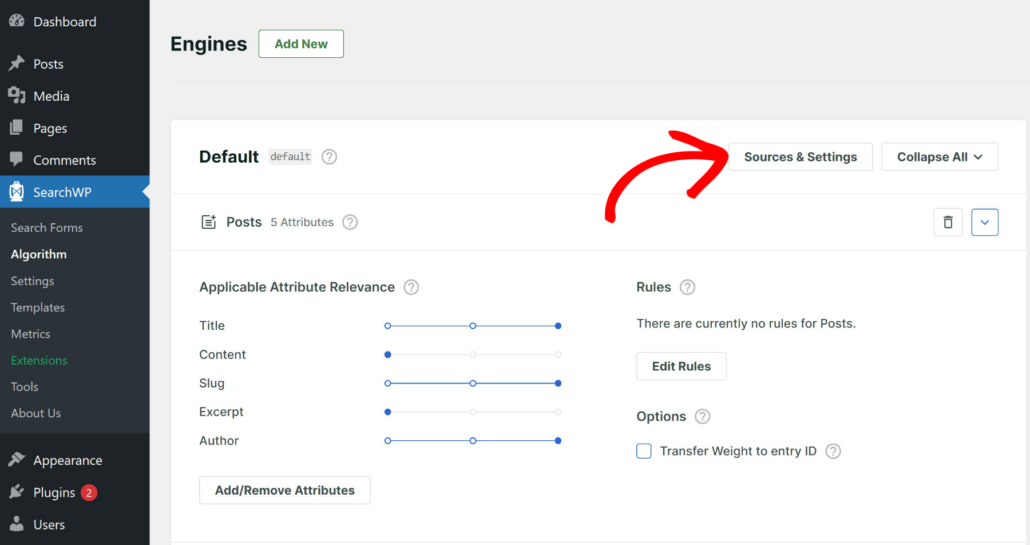
If you need to add a content type that isn’t listed yet, you can click Sources & Settings to add it, and our engine’s documentation walks through every option.
Note: The Slug, Author, and Taxonomies fields aren’t checked for exact phrases, even when they’re added to your engine.
If your phrases live in custom fields, our guide on adding custom fields search covers that setup in more detail.
Step 4: Test Your Exact Phrase Search
Now you can see exact phrase search in action. Go ahead and visit your site, then use your search bar like a visitor would.
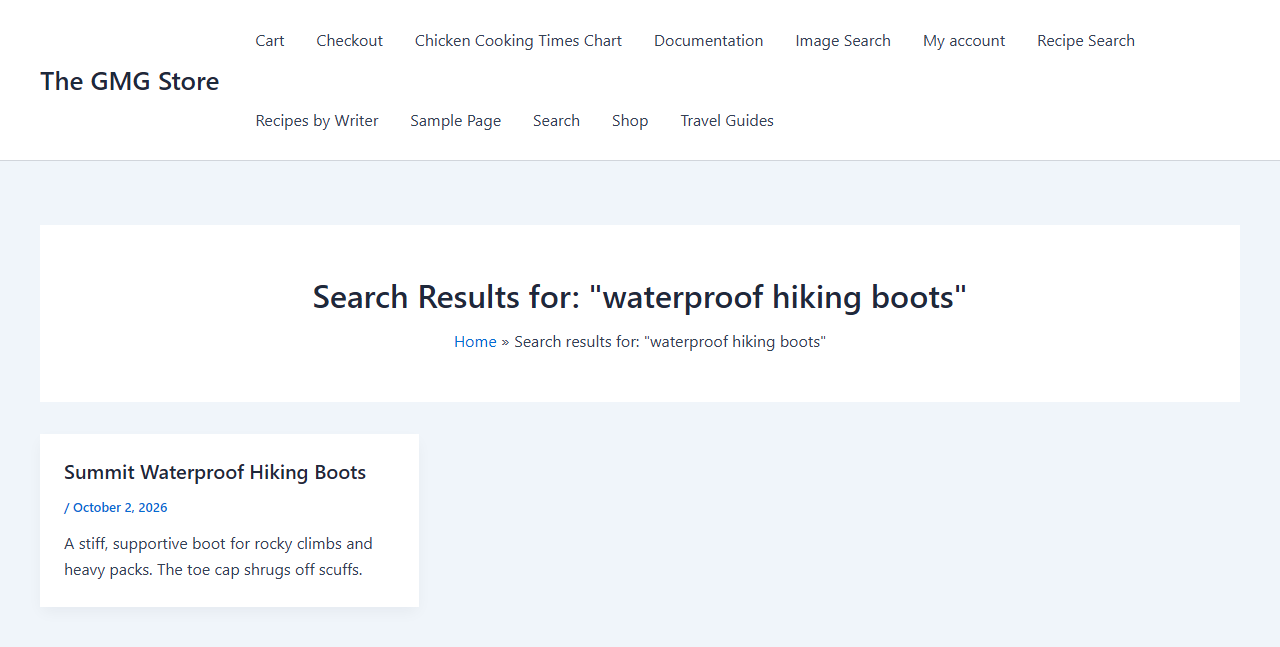
On our test site, we searched for “waterproof hiking boots” with the quotes included. SearchWP returned one result, Summit Waterproof Hiking Boots, instead of the two products the same words return without quotes.
Next, we tested what happens when there’s no exact match. We searched for “hiking boots waterproof,” which uses the same words in a different order.
Since no product uses that exact phrase, SearchWP fell back to a regular search and returned both boots.
Above the results, it showed the notice Showing results for hiking boots waterproof, so the visitor knows the search was broadened.
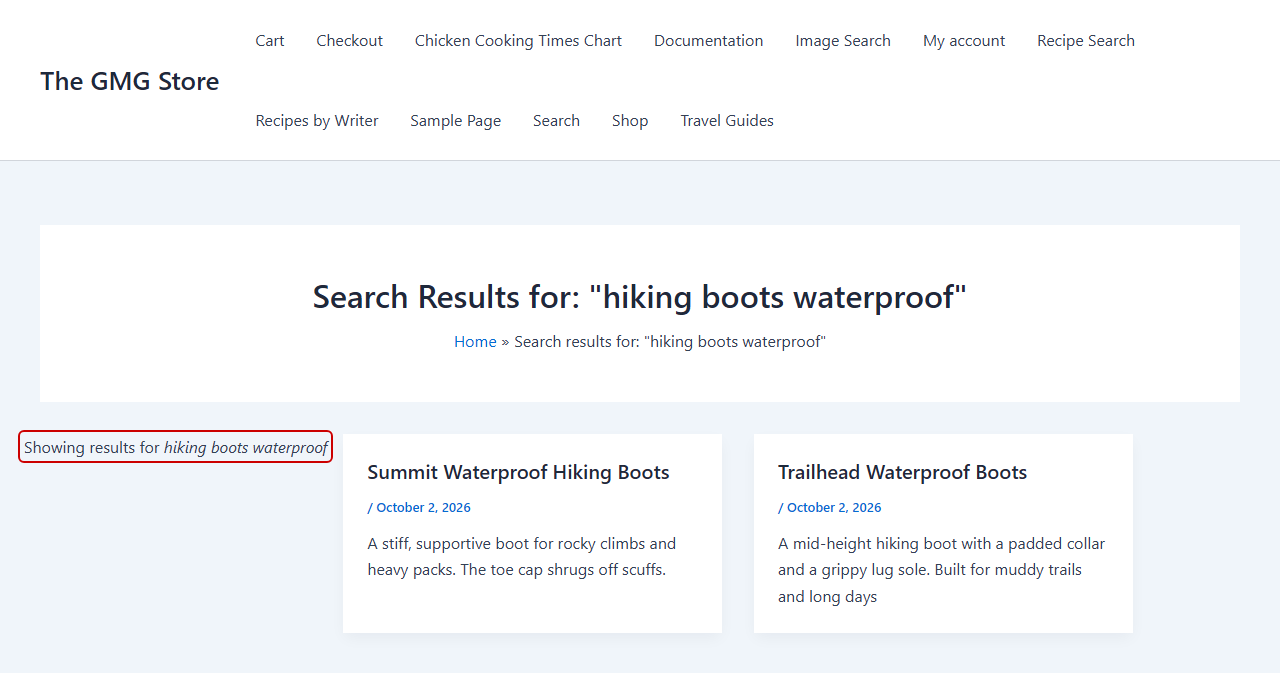
Note: On our test site, quoted searches worked the same whether we typed straight quotes or curly quotes, which some phone keyboards insert automatically.
That’s it! Your visitors can now use quotes to find exact phrases on your WordPress site.
Bonus: Highlight the Exact Phrase in Search Results
Once exact phrase search is on, you can make the matching phrase easy to spot in your results.
To do that, go back to SearchWP » Settings and find the Highlight Terms toggle in the same General Settings section. Click the toggle to turn it on.
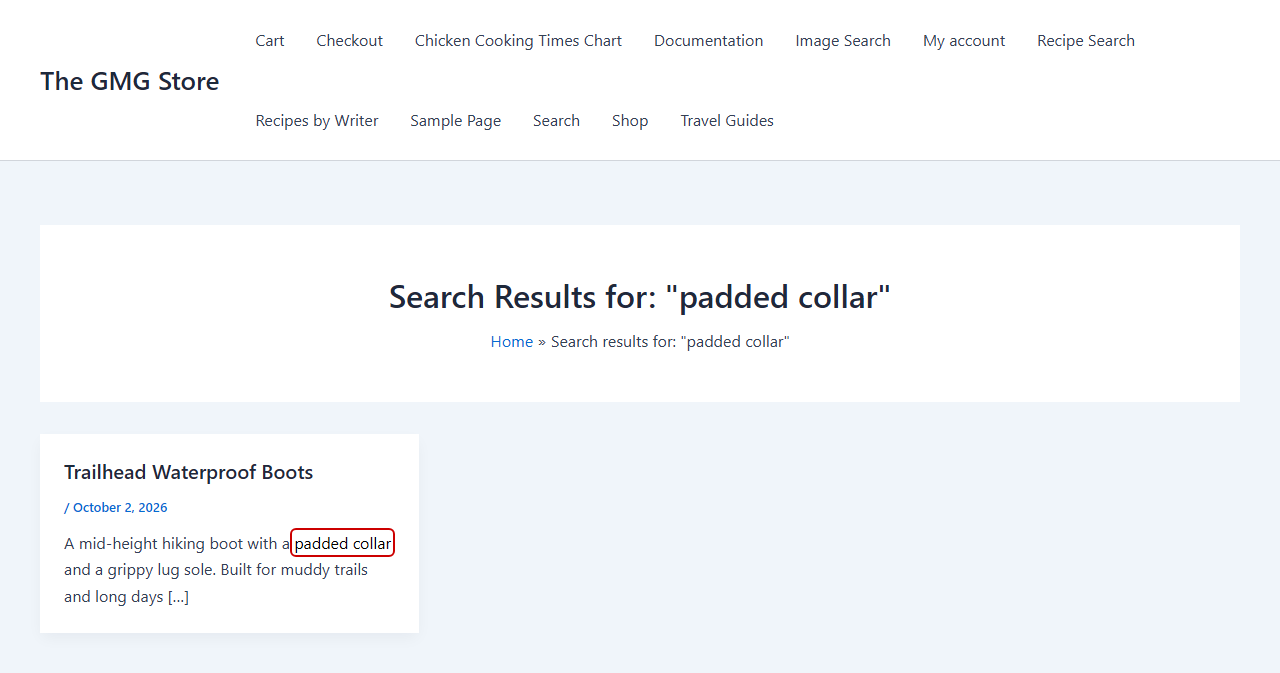
With Highlight Terms on, a quoted search highlights the full phrase in each result instead of the separate words. On our test site, a search for “padded collar” highlighted that whole phrase in the Trailhead Waterproof Boots excerpt.
You can see more styling options in our guide on how to highlight search terms in WordPress.
Frequently Asked Questions
1. How do I search for an exact phrase in WordPress?
Wrap the words in double quotes, like “waterproof hiking boots.” For quotes to limit results to exact matches, your search plugin needs to support them.
With SearchWP, you can turn this on with the “Quoted” Searches toggle under SearchWP » Settings.
2. Does word order matter in a quoted search?
Yes. A quoted search only matches pages that use the words in the same order you typed them.
On our test site, “hiking boots waterproof” found no exact match, even though “waterproof hiking boots” did. SearchWP then fell back to a regular search instead of showing an empty page.
3. Why does my quoted search still show other results?
When no page contains the exact phrase, SearchWP runs a regular search instead so visitors aren’t left with nothing. Turn on Closest Match to show a notice that explains the search was broadened.
It also helps to check that the phrase is in a field your engine searches, like the Title or Content. A phrase in a field your engine doesn’t include won’t count as a match.
4. Can I search an exact phrase inside custom fields or PDFs?
Yes, as long as those fields are part of your search engine. In SearchWP » Algorithm, click Add/Remove Attributes and select the Custom Fields you need.
For PDFs and other media files, add the Media source to your engine and include its Document Content field. Our guide on making WordPress search PDF files covers that setup.
Help Visitors Find Exactly What They Typed
Your search bar now returns exact matches for quoted phrases and falls back to a regular search when no page uses the phrase.
We hope this article helped you learn how to enable exact phrase search in WordPress. You may also want to see our guides on using Boolean search to exclude content and tracking searches on your WordPress site.
Ready to give your visitors more precise search results? You can get started with SearchWP here. Every plan comes with a 14-day money-back guarantee.