


Wondering how to search WordPress posts by tags only?
It’ll help you control how your site visitors search for content and deliver the most relevant search results to them.
In this guide, we’ll talk about how to let your site visitors search for posts by tags only, without writing a single line of code.
Let’s begin!
Why Limit Search on Your Site to Post Tags
There are several reasons why restricting post search to tags can be helpful for you and your visitors.
Let’s take a look at them:
- Tags are a good alternative to categories: They allow you to organize your posts in a more flexible manner and quickly tell your visitors what a post is about.
- It’s a great way to increase the discoverability of your content: Visitors who search for posts by a specific tag are more likely to view other posts with the same tag.
- You can assign multiple tags to each post or page: Thanks to that, you can get extra pageviews, as additional tags can also attract the attention of your visitors.
- It allows your visitors to find the right content faster: Make WordPress ignore post titles and post excerpts when performing searches to reduce the amount of clutter in your search results.
Now that you know why to limit search on your site to post tags, let’s see how you can do it.
How to Search WordPress Posts by Tags Only
The easiest way to limit search for posts on your site to tags is to use a plugin like SearchWP.

It is the most powerful and user-friendly WordPress search plugin on the market, trusted by over 50,000 website owners.
You can use it to fully customize how search work on your site, including making post tags searchable. And this is just one of many features that SearchWP comes with.
For instance, using this plugin, you can limit search to some category, exclude specific pages from search results, add live autocomplete search, and much more.
And that’s just a short list of SearchWP features!
Here’s how else it can help you enhance your search and grow your business:
- Search tracking: Get detailed reports on what visitors are searching for on your site, which results attract the most attention, and more.
- WooCommerce integration: Increase your sales and build a loyal customer base by adding smart search to your WooCommerce store.
- Customize search results order: Change the order of the search results on your site the way you want to promote specific pages and boost the number of pageviews.
- Multiple search engines: Add multiple search engines, customize them to your needs, and link them to individual search forms throughout your site.
- Fuzzy search: Make SearchWP look for partial matches when there are no exact ones, to help your customers find what they’re looking for if they make a typo.
- Site Builder Compatibility: Use SearchWP blocks to add search forms and results template to popular page builders like Elementor, Divi, Oxygen, and more.
After you’ve learned why SearchWP is the best WordPress search plugin, let’s see how you can use it to allow your visitors to search for posts only by tags.
Step 1: Install and Activate SearchWP on Your Site
First, you’ll need to visit the SearchWP website and grab your copy of SearchWP.
Next, you can log in to your SearchWP account and go to the Downloads tab within the dashboard.
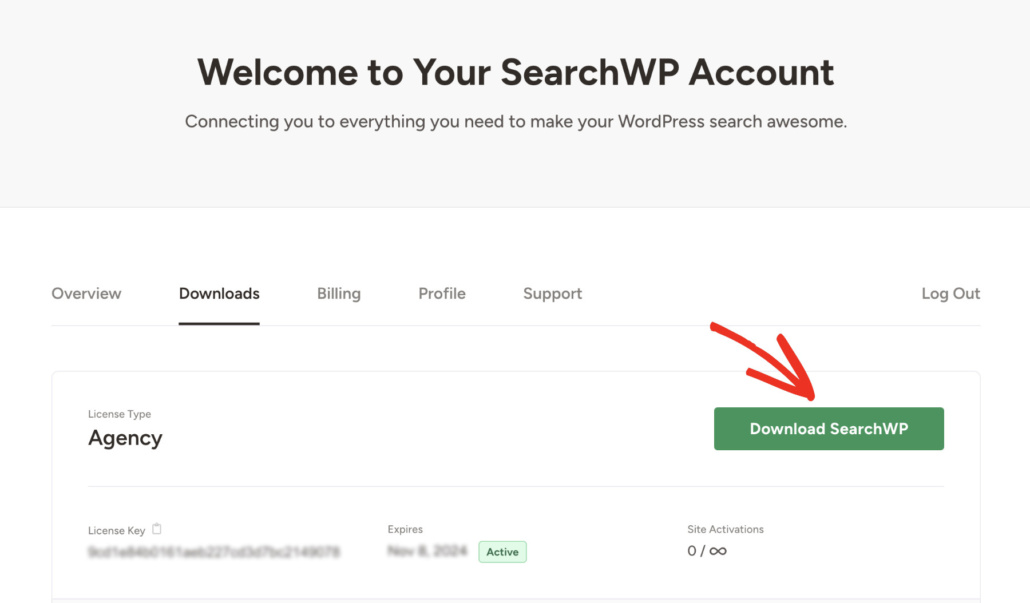
Once there, simply click Download SearchWP and save the plugin’s ZIP file to your computer.
You can also copy your plugin’s license key on the same tab when you’re done downloading. That’s because you’ll need it at one of the following steps to activate your plugin.
Next, you will need to upload the downloaded ZIP file to your site. You can check out this how to install a WordPress plugin tutorial if you need help with that.
Once the plugin is active, you’ll see the SearchWP welcome screen and setup wizard. Go ahead and click the ‘Start Onboarding Wizard’ button and follow the onscreen instructions.
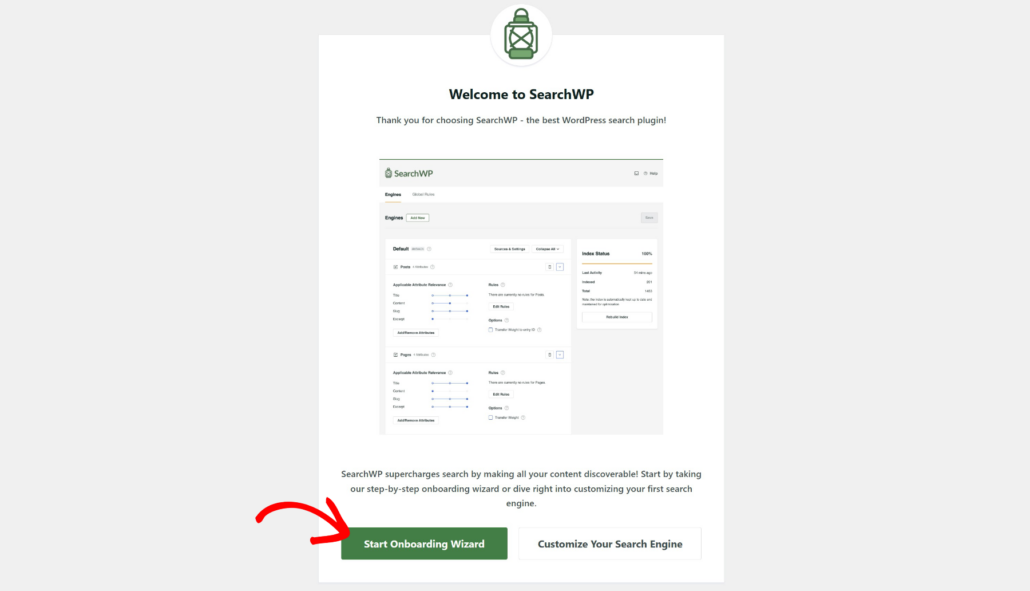
Now, you’re ready to customize your search engine to make SearchWP only consider post tags when performing a search.
Step 2: Customize the List of Post Attributes
To begin, you can head to SearchWP » Algorithm from your WordPress dashboard.
Here you can create, manage, and customize your search engines. At the moment, there is only the Default search engine that SearchWP automatically creates after the installation.
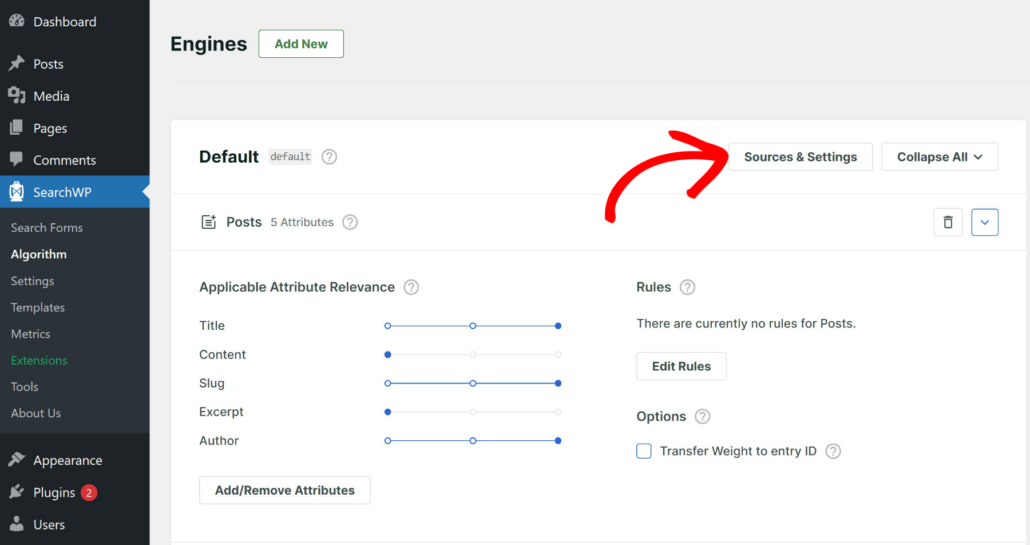
By customizing it, you can change how search works on your site. For example, you can click the Sources & Settings button to choose different sources for your engine.
By default, it will consider posts, pages, and media as sources.
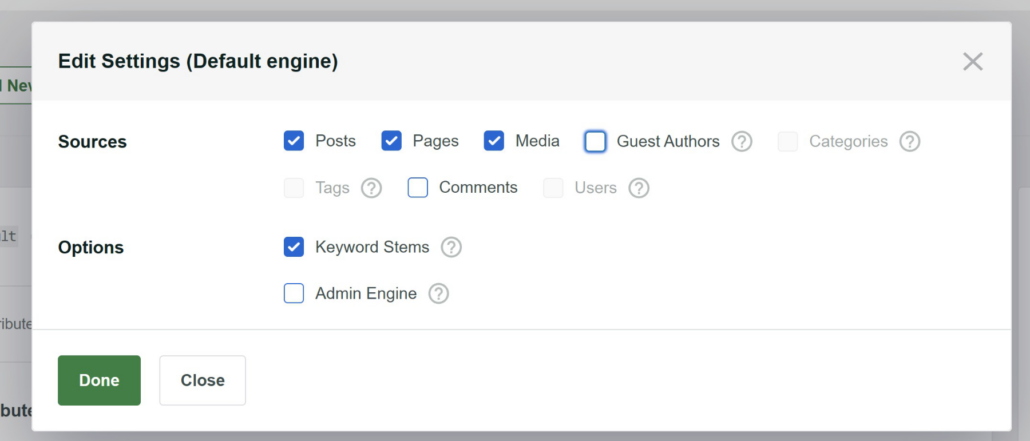
You can further customize the search engine and make post custom fields, tags, and categories searchable, prioritize specific pages in search results, enable search for partial matches, and many more.
Plus, SearchWP allows you to have multiple search engines and link them to individual search forms placed on your site. Thanks to that, you can create custom search fields with unique settings to meet your business needs.
To make WordPress search by post tags only, you’ll first need to make it consider them when performing a search.
Simply head to the Posts search source to see its settings, and then press the Add/Remove Attributes button.
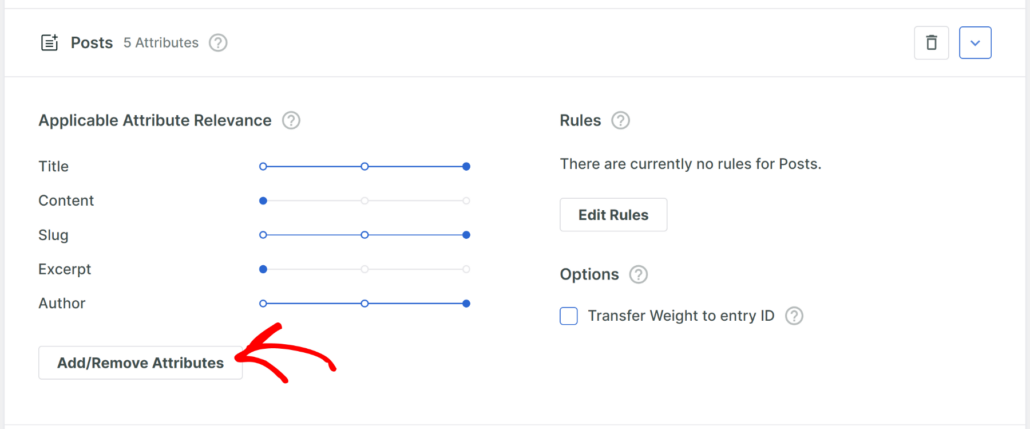
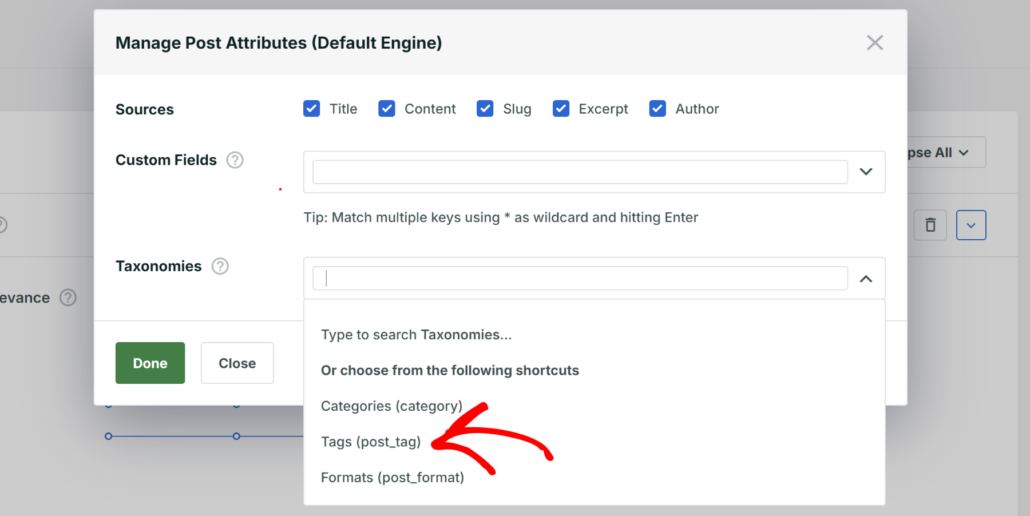
A new popup window will now open, where you can manage post attributes and taxonomies that WordPress considers when performing a search.
To make post tags searchable on your site, click on the Taxonomies fields and choose the Tags (post_tag) option from the dropdown menu.
The next step is deactivating standard post attributes, such as Title, Content, Slug, Author, and Excerpt, to make WordPress ignore them when looking for matches.
To do that, simply uncheck the boxes next to them.
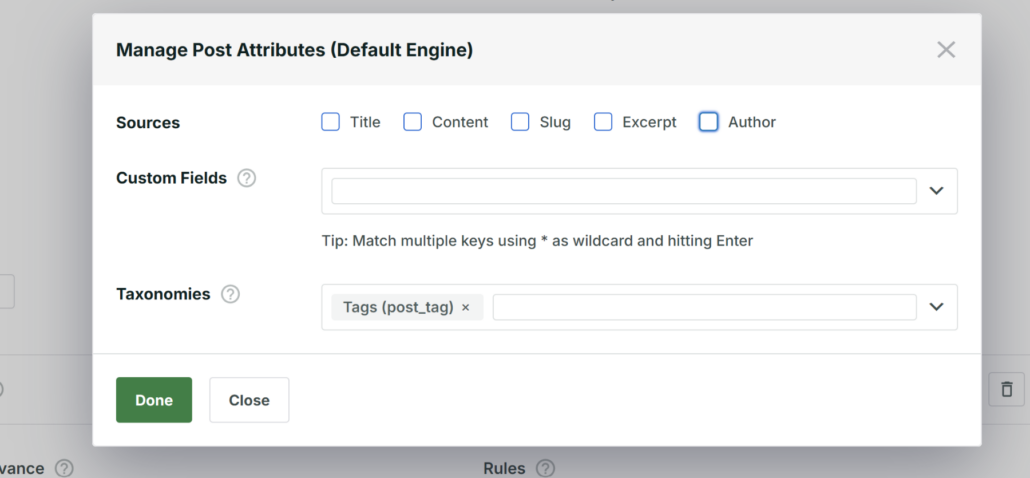
When you’re finished managing your attributes and taxonomies, press Done to save your changes.
The last step is to save your customizations to the search engine. You can do that by pressing the Save button in the top right corner.
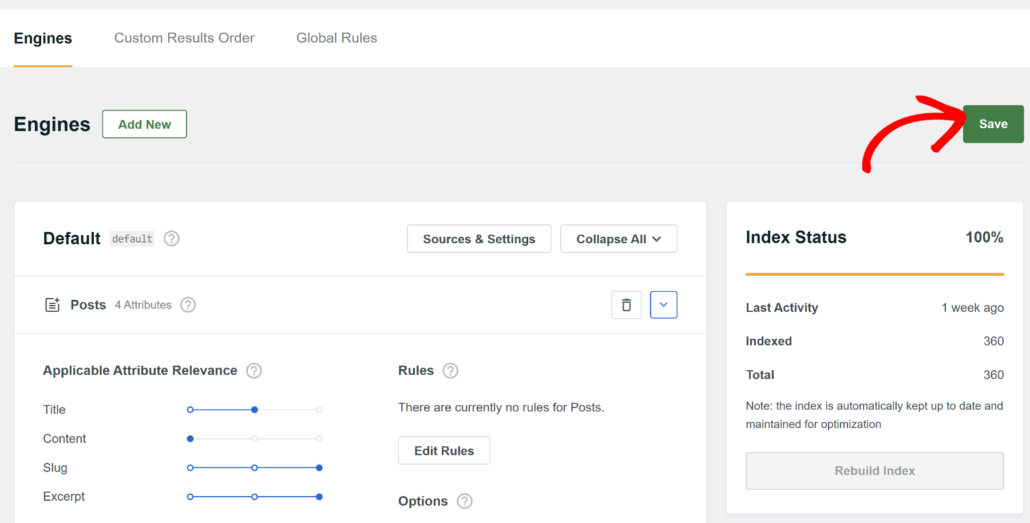
Then, you can also click the Rebuild Index button next to it. It’ll make WordPress reindex all of your content to see if there are any tags in it.
That’s it. Your visitors can search for posts only by the tags. Let’s test your new search to make sure everything works as it should.
Step 3: Test Your New Search
To get started, navigate to your site and search for some post using its tag.
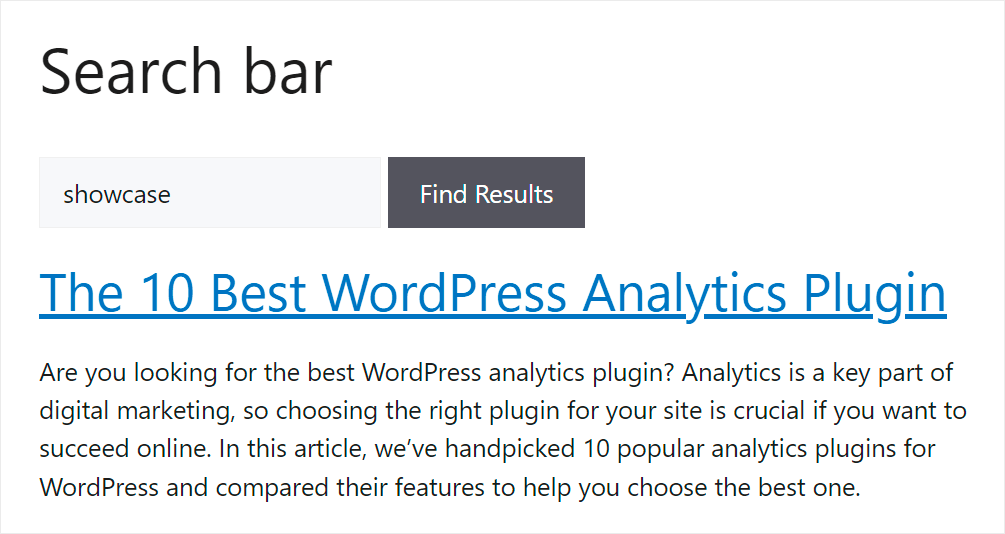
For example, on our test site, we have a post called “The 10 Best WordPress Analytics Plugin” with the showcase tag.

Let’s perform a search using this tag and see if we find our post or not.
As you can see, we found the right post by searching only by its tag.
Let’s also make sure we can’t find it by title or content.
To do that, we’ll enter the WordPress search term.

As you can see, we didn’t get any search results for the WordPress keyword.
It means that we have successfully limited the post search on our site to tags only.

By allowing users to search by tags, you help visitors find the right content faster and improve their user experience.
We hope this article helped you learn how to search WordPress posts by tags only. You may also want to see our guides on how to limit WordPress search to post titles only and how to set up filters on your WordPress site.
Ready to customize your search and grow your business? You can get started with SearchWP here.