

DirectoryPress gives you the tools to build impressive listing sites. You can add custom fields for pricing, locations, amenities, and dozens of other details that make each listing unique.
But here’s the frustrating part, we keep hearing about from directory owners. All those carefully organized custom fields don’t actually help visitors find listings because the default search can’t see them.
A visitor types “downtown coffee shop with wifi” into your search bar. Your directory has five perfect matches, but the search returns zero results or shows completely unrelated listings instead.
This happens because DirectoryPress search only looks at basic fields like titles and descriptions. It completely ignores the custom fields where you’ve stored all the important details that actually matter to searchers.
In this article, we’ll show you how to create an advanced DirectoryPress search in WordPress.
Why Create an Advanced Search for Your DirectoryPress Site
Before we jump into the tutorial, let’s talk about the real problems directory sites face without proper search functionality.
1. Visitors Can’t Find Specific Listings
Your directory might have the perfect listing for what someone needs, but if they can’t find it through search, it might as well not exist. The default search only scratches the surface of your listing data.
When someone searches for specific criteria like “waterfront property” or “24-hour gym,” they expect results that match those exact features. Basic search can’t connect those queries to your custom fields.
2. You’re Losing Potential Leads
Every visitor who leaves empty-handed is a missed opportunity. Directory sites succeed when they connect people with the right listings quickly.
We’ve watched directory owners lose leads simply because their search couldn’t handle location-based queries or price filtering. Those visitors went to competitor sites with better search
3. Poor Search Experience Damages Your Reputation
First impressions matter tremendously for directory websites. When visitors can’t find listings on their first try, they assume your directory doesn’t have what they need.
This creates a negative perception even when you actually have dozens of relevant listings. The problem isn’t your content but how people access it.
4. You’re Not Making the Most of Your Data
DirectoryPress lets you add incredible amounts of detail to each listing through custom fields. Features, amenities, pricing, contact information, and specifications all live in those fields.
But if visitors can’t search that data, you’ve wasted time collecting it. Advanced search turns all that structured information into powerful filtering options.
What You Can Do With Advanced DirectoryPress Search
The easiest way to create an advanced search for your DirectoryPress site is to use a plugin like SearchWP.

SearchWP is the best WordPress search plugin that gives you complete control over how search works on your site. It integrates seamlessly with DirectoryPress to make all your listing data searchable.
Over 50,000 WordPress site owners already use SearchWP to deliver better search results to their visitors.
Using this plugin, you can make custom fields searchable, include taxonomies in search results, and give visitors the filtering options they need to find the right listings.
Here are other things you can do with SearchWP:
- Track search activity: See exactly what visitors are searching for on your directory to understand what listings they need most.
- Display live search results: Show instant results as visitors type their queries, making it faster to find the right listings.
- Prioritize premium listings: Put featured or paid listings at the top of search results to give advertisers better visibility.
- Enable fuzzy search: Let visitors find listings even when they make typos in their search queries.
- Exclude outdated listings: Hide expired or inactive listings from search results to keep everything current.
Now, let’s see how you can use SearchWP to create an advanced DirectoryPress search on your site.
Step 1: Install and Activate SearchWP
First, you’ll need to visit the SearchWP website and sign up for a new account.
When you’re done, simply go to your SearchWP dashboard and click the Downloads tab.
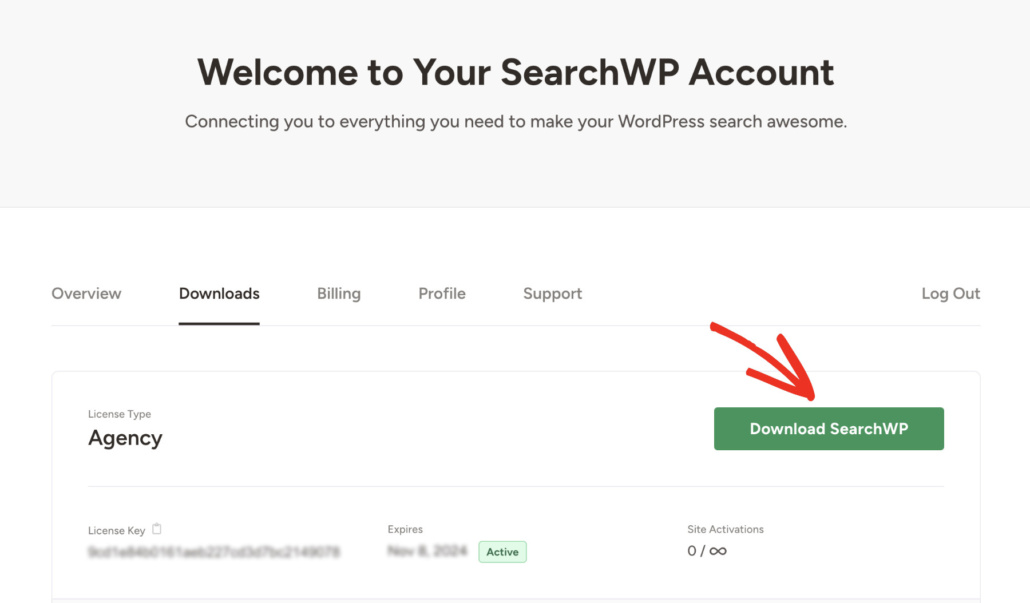
Once you get to the ‘Downloads’ tab, press the Download SearchWP button and save the plugin’s ZIP file to your computer.
We’ll also recommend that you copy your license key from the bottom-left corner after you’ve finished downloading, as you’ll need it later in the setup process.
Next, you’ll need to install and activate SearchWP on your WordPress website. Not sure how to do that? Check out this beginner’s guide on how to install a WordPress plugin.
Upon activation, the welcome screen will appear along with the setup wizard. Simply click the ‘Start Onboarding Wizard’ button and follow the onscreen instructions.
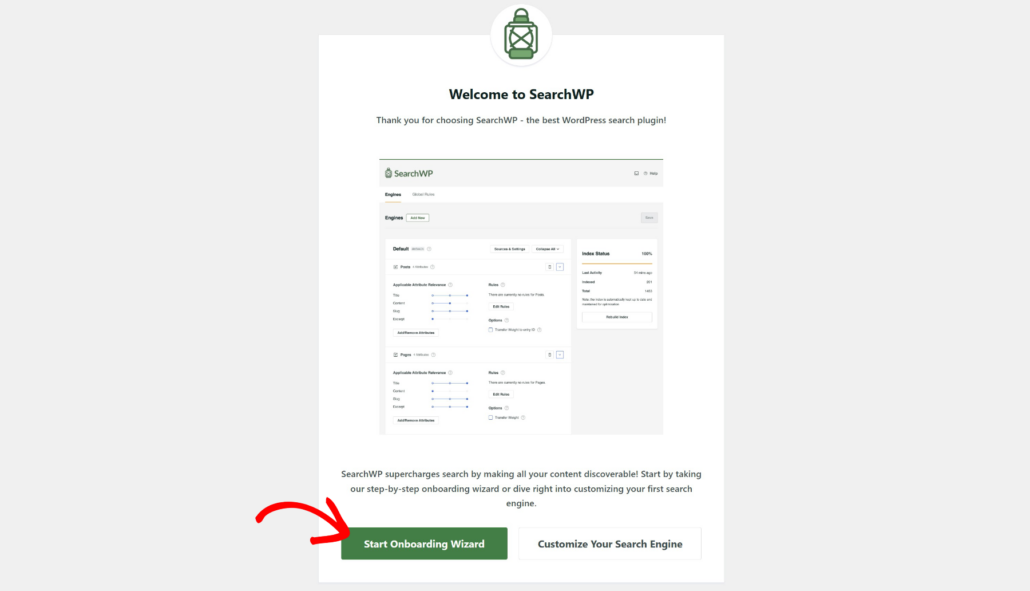
After setting up SearchWP, you’re ready to move to the next step and install the DirectoryPress Integration extension.
Step 2: Install the DirectoryPress Integration Extension
This extension ensures seamless SearchWP integration with DirectoryPress, allowing you to fully customize the way search works in your directory.
To install it, simply navigate to SearchWP » Extensions from your WordPress dashboard.
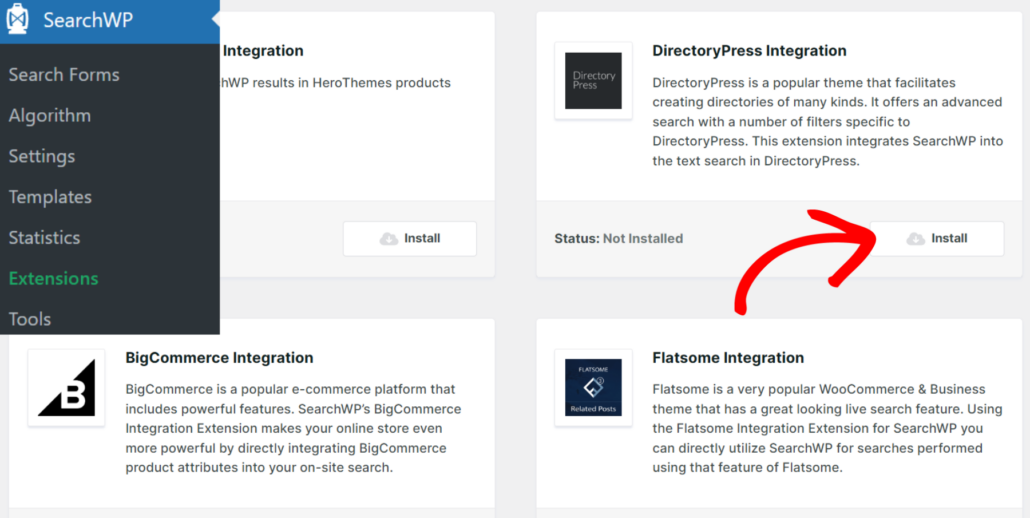
Next, you will need to find the DirectoryPress Integration extension and click Install under its section.
After that, you’re ready to start customizing your search engine to make it search through all your DirectoryPress listing data.
Step 3: Configure Your DirectoryPress Search Engine
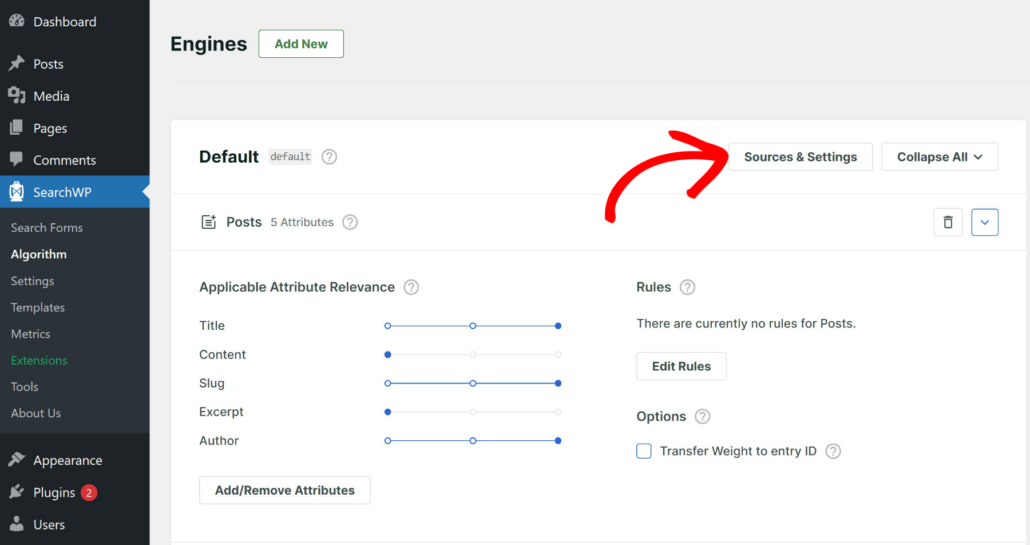
Now it’s time to point SearchWP at your directory listings. Navigate to SearchWP » Algorithm from your WordPress dashboard.
Here you’ll see the default search engine, which is already set up to search standard WordPress post types.
You need to update it to include your DirectoryPress listings and exclude content that isn’t relevant to your directory visitors.
Go ahead and click the Sources & Settings button to open the content source manager.
In the popup, you’ll see all available sources for the engine. By default, SearchWP will use posts, pages, and media as sources.
Go ahead and check the box next to Listings.
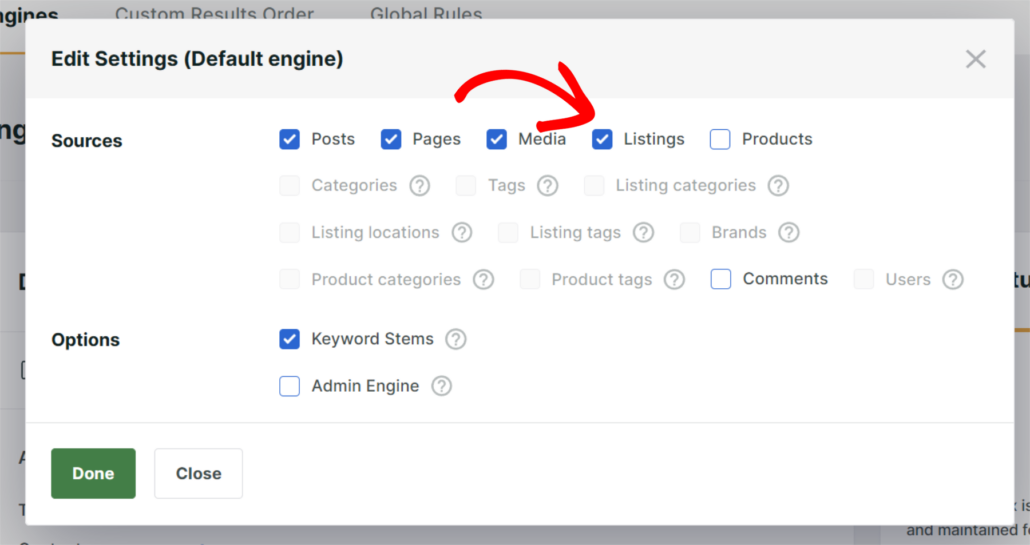
You can also uncheck Posts and Pages if you want search results to only show directory content. However, we will keep them selected for this tutorial.
When you’re finished, simply lick Done.
Step 4: Add Custom Fields and Taxonomies to the Engine
This is where SearchWP really separates itself from the default search. You can include additional information in custom fields, categories, and tags in the search process.
From the Algorithm screen, scroll down to your DirectoryPress listings section and click Add/Remove Attributes.
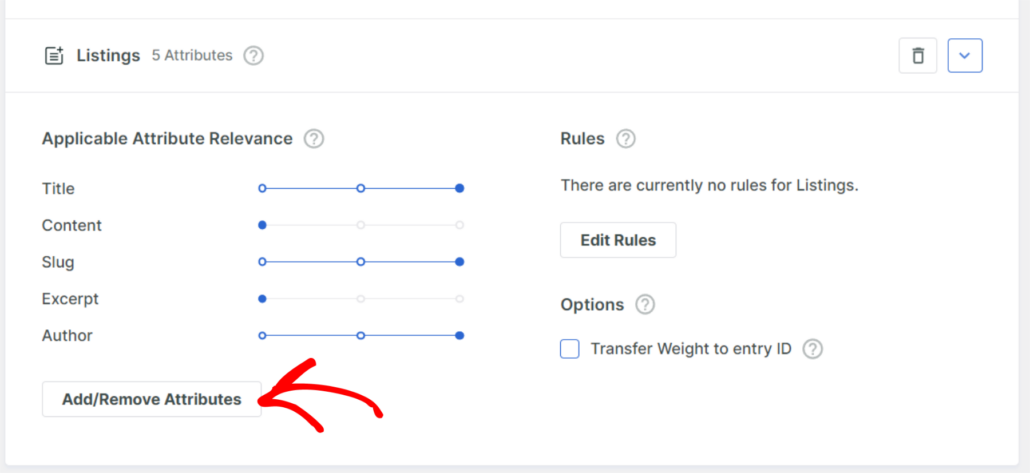
A new popup will appear where you can choose exactly what SearchWP indexes for each listing.
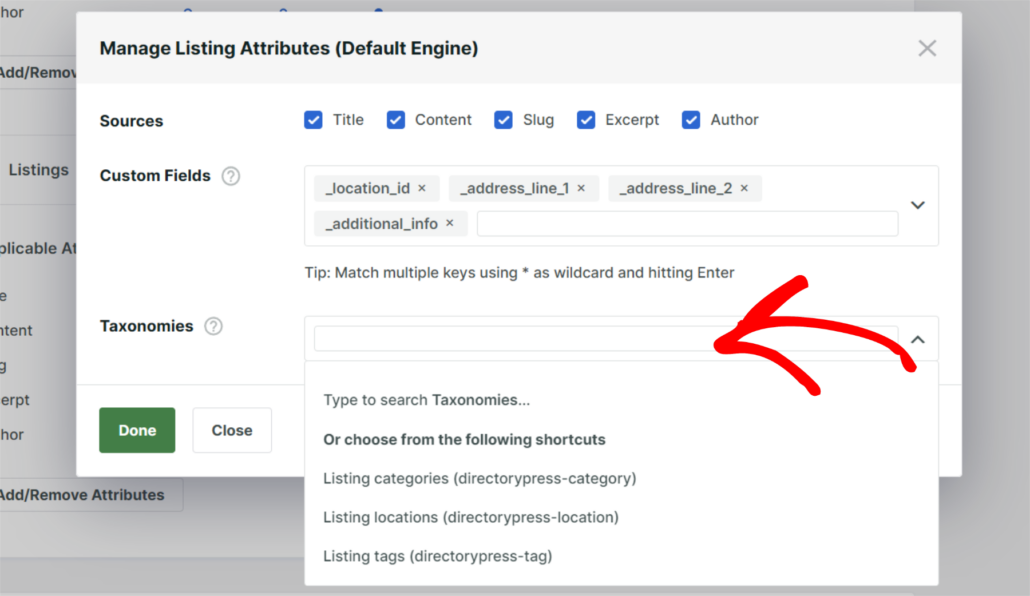
By default, the title, content, slug, excerpt, and author are already selected. To make your directory truly searchable, you’ll want to add the custom fields and taxonomies that store your listings’ key data.
To start, open the Custom Fields dropdown and select the fields you want to include in the search. Common DirectoryPress fields include business address, phone number, website URL, business hours, price range, and any specialty or service fields your directory uses.
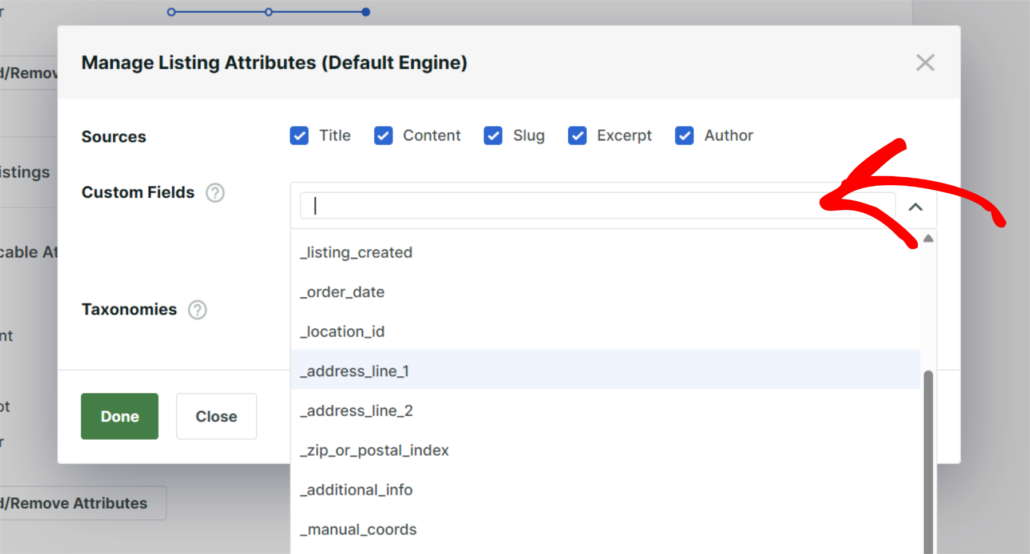
Next, you can click the Taxonomies dropdown and select your directory’s taxonomies.
For example, you can include things like category, tags, location, neighborhood, industry type, or rating tier.
You can also adjust the relevance weight sliders for each attribute. For example, you can give the listing title a higher weight, followed by category and location taxonomies, then custom fields.
This way, a listing that matches on both name and category will rank above one that only matches a custom field. When you’re happy with the setup, click Done.
Step 5: Rebuild the Search Index
Now that your sources and attributes are configured, SearchWP needs to re-index your site to process the new settings. Go ahead and click Save in the upper-right corner of the Algorithm screen.
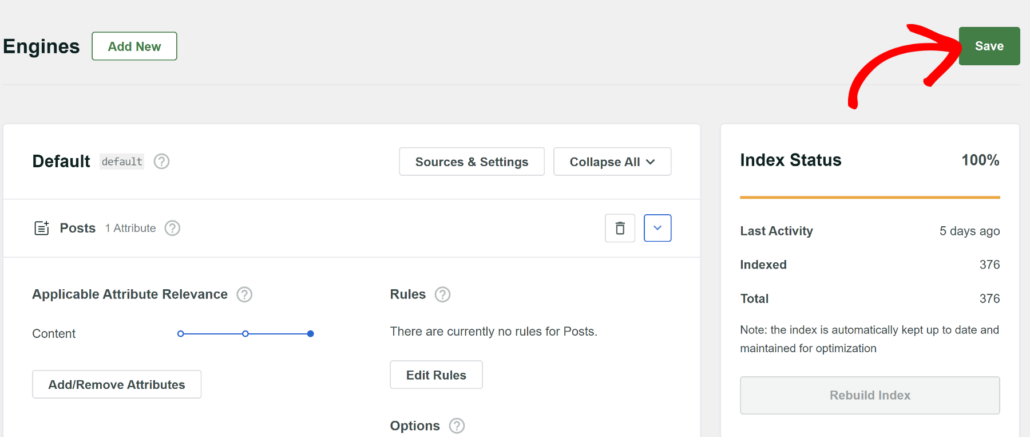
After saving, click Rebuild Index. SearchWP will crawl all your DirectoryPress listings and build a fresh index that includes all the custom fields and taxonomies you selected.
Step 6: Test Your New Directory Search
With the index rebuilt, it’s time to see the results. Head to your site and type a search query into your directory’s search field.
Try searching for something that would have failed with the default WordPress search, like a specific service type, a neighborhood name, or a business attribute stored in a custom field.
You should now see DirectoryPress listings that match based on all the attributes you configured, not just titles.
For example, if a visitor searches “dog groomer downtown,” SearchWP will find listings where “downtown” is stored as a location taxonomy and “dog grooming” is stored as a category or custom field, even if neither word appears in the listing’s title.
That’s it. Your DirectoryPress search now covers the full depth of your listing data.
Bonus: Add a Custom Search Form to Your Directory
Now that your search engine is configured, you can take things a step further by adding a dedicated search form to your directory pages.
SearchWP includes a built-in search form builder under SearchWP » Search Forms. You can create a custom form, link it to your directory search engine, and place it anywhere on your site using a shortcode or block.
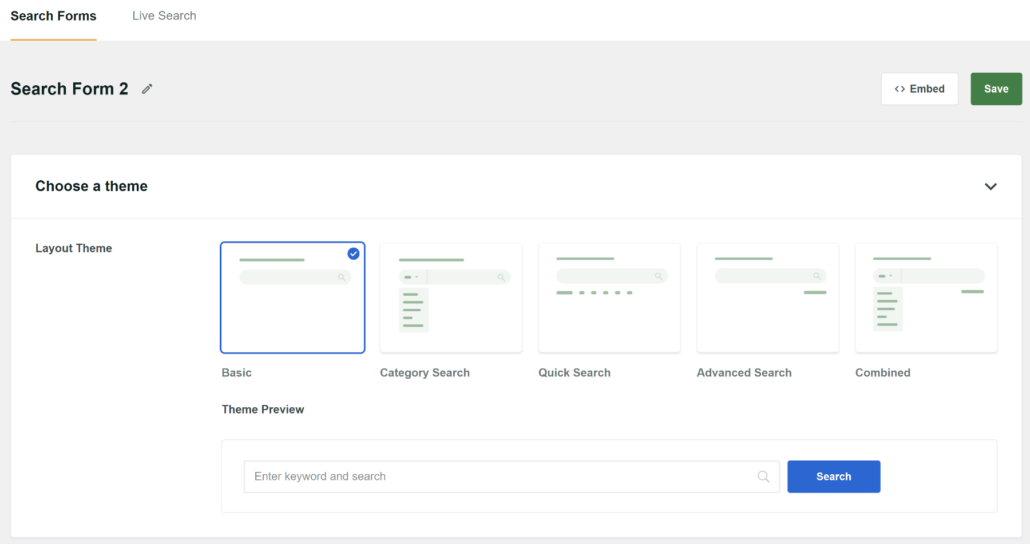
This is especially useful if you want a prominent search bar on your directory homepage that only returns listing results.
For full details, see our guide on how to add a custom search form in WordPress.
FAQs about Creating Advanced DirectoryPress Search
1. Will SearchWP replace the default WordPress search automatically?
Yes. Once activated and configured, SearchWP takes over as your site’s default search engine. You don’t need to change any template files or shortcodes.
2. What if my DirectoryPress listings use Advanced Custom Fields (ACF)?
SearchWP includes ACF fields the same way it handles any other custom fields. In the Add/Remove Attributes popup, your ACF fields will appear in the Custom Fields dropdown.
3. Can I have one search engine for my directory and another for my blog?
Absolutely. SearchWP supports multiple search engines on the same site. You can create a second engine in SearchWP and configure it to search only blog posts, then assign each engine to different search forms or page templates.
4. What happens when I add new listings to my directory?
SearchWP indexes new and updated content automatically in the background, so new listings become searchable without you needing to trigger a manual rebuild.
5. Can I track which directory listings visitors are searching for most?
Yes. SearchWP’s built-in analytics, found under SearchWP » Metrics, show you the top search terms, how many results each search returned, and which searches came up empty. That last one is especially useful for directory owners, as it tells you exactly what listings your visitors want that you don’t have yet.
Adding an advanced search to your DirectoryPress site doesn’t require custom code or a developer. With SearchWP, you can configure a search engine that covers every custom field, taxonomy, and attribute in your directory listings in just a few minutes.
We hope this article helped you learn how to create an advanced DirectoryPress search in WordPress. For more ways to get the most out of your directory site’s search, take a look at our guides on how to add custom fields search in WordPress and how to fix custom post type search not working in WordPress.
Ready to give your directory visitors a search that actually works? You can get started with SearchWP here.